.png)
Scope and Purpose
The purpose of the WIP & Invoice Management process is to provide stakeholders responsible for the realization of work product with visibility of the worked values WIP-to-Billed business cycle, the invoice decision makers with a clear mandate of what should be billed, and the invoice preparers with a platform to realize the invoice process more effectively.
Its scope extends across the production of billing requests to match the firm’s expected revenue and receipt inflows, access to dashboards and reports for timely decision making and functionality to support the relationship between invoice preparer and invoice decision maker.
Highlights
The WIP & Invoice Management process provides stakeholders, invoice decision makers and invoice preparers with workflow status of the unbilled time requested to be billed during the business cycle; in consideration of the matter being transactional, contingency, or time-based, and with the granularity expected by the type of user leveraging the information.
Combined with firm-defined billing frequencies which can be overridden in context of client or matter requirements (for example quarterly,contingent on settlement or closing, or when WIP values reach 10,000), the billing management tool systematically proposes the best billing action to users and report-recipients participating in the process, with perspective on required due-dates where used.
The filter used to generate the requests to bill and resulting dashboard can provide visibility of results from the perspective of the invoice decision maker and the member responsible for the worked to collected process if there is a possibility that they are not the same. In this case the form would be using a primary role holder and a secondary one.
In firms where invoices are signed, if the signatory is potentially different than the invoice decision maker or the responsible for the worked to collected business cycle, then a third option is offered to capture this member that signs the invoice.
The user responsible for generating the E-WIP (To Bill Tab) dashboard content, executes filter in context of the firm’s workflow and billing strategy. Once the request is triggered, the invoice decision makers and corresponding invoice preparers have access to their E-WIP (To Bill) dashboard content found within their entry filter form (building blocks). The E-WIP (To Bill) dashboard shows the matters requested to be billed with their recommended billing action for the period. Users can generate a WIP list or Aged WIP report from within.
The entry filter form (building blocks) includes a filter within the details tab. The entry date portion of the filter can be used by the invoice preparer to change the default entry content of any invoices generated from the E-WIP (to bill tab). Other filter options can be used to generate the results which includes visibility of matters on the list of others.
Whereas the E-WIP (To Bill) dashboard content includes all the mattes within the billing responsibility of the member listed on the entry filters form name, the content of the results is in context of the filter options selected. For this reason, users will have limited functionality on matters which are found on the results tab of the details filter but are on the list of others.
The Electronic WIP list
The electronic WIP List is generated every billing cycle. The person responsible for this task triggers the creation of the E-WIP (To Bill) dashboard content for every member accountable for the billing decision and execution process, a client or matter level role which will be specifically defined by the firm’s decision makers.
Access
To access the E-WIP (To Bill) dashboard of the person you work with, press on the building blocks icon found within your personalized tool bar. If the icon is not there, press on the gear (first one), find the building blocks, and drag - drop the icon onto your tool bar.

The Entry Filter form’s name shows the code and name of the member whose -WIP (To Bill) dashboard you are working with.

If you work with more than one person in your firm, press on the details tab, and change the member. Highlight the member you want to replace and enter the code of the another or press on the ellipsis button to the right of the field to make a new selection using the person search tool.

The association between members is called the “Works with” relationship. It is set and managed by the person responsible for creating and maintaining new members and users, along with user and member security profiles within Acumin.
The E-WIP (To Bill Tab) Dashboard
Filter Panel Options
Filters
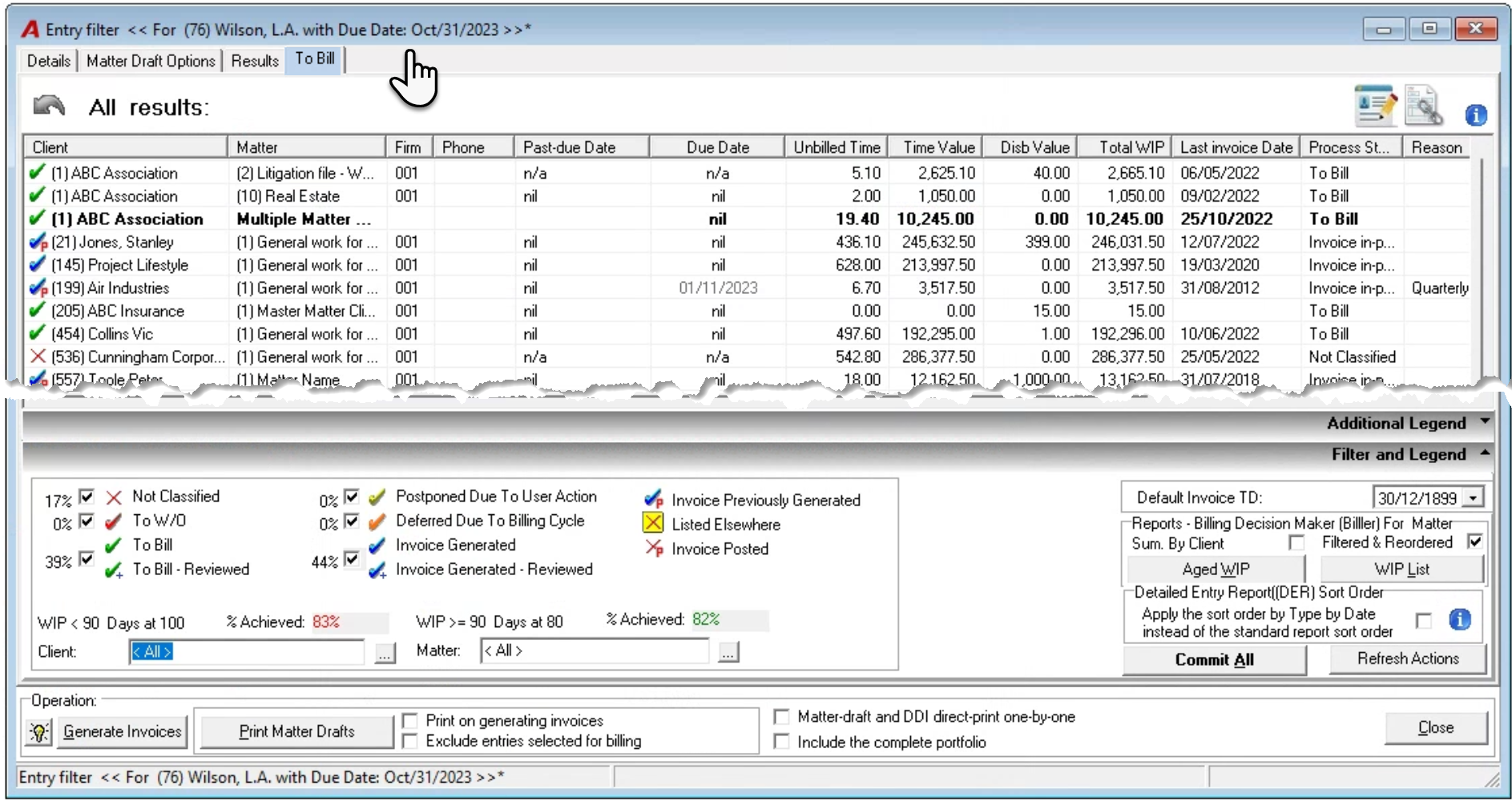
Use the checkbox filters to limit the number of results to those with the billing intention or action you need to work with. For example, filter the results for matters “to write-off inactive or close” to print a WIP list with only this content for approval by the billing decision maker, or filter for matters “to bill” to right-click and generate their invoice properties for all-in-one step.
Other Options
Default Invoice Date: Use “12/31/1899 (no date)” so when you create the invoice, the default date will equal the date on which you create it or set a default date a few dates ahead of the current date to avoid having to make date changes when in invoice properties. Many users set the invoice date a few days ahead on the expectation that it will take a few days to complete the billing process and the invoice is sent to the client.
WIP List: Press on the WIP list button to generate a report that will include the filtered results of the list-view, ordered in the same way.
If you are working with multiple matter invoices or client invoices, you will not be able to include them in the WIP list with regular matters, however by pressing on the multiple matter or client record and expanding its content, you will be able to print a WIP list exclusive for the grouping.
Aged WIP: If used, the Aged WIP report will be for the member in the title of the Entry Filter form with the same role holder perspective used for the E-WIP (To Bill Tab) Dashboard content.
The E-WIP (To-Bill Tab) Dashboard
Form Content
The list-view section shows the matters requested to-be-billed in the current billing cycle along with the matters’ invoice status.
The “Past Due Date” and “Due Date” columns show the calculated due date based on billing frequency and limits set in matter properties by the person responsible for filet intake in Acumin.
To facilitate making billing decisions, along with unbilled time, disbursements and total values, the list also includes the last time the matter was invoiced within the “Last Invoice” column, as well as the calculated billing intention in the “Action” column.
The “To Bill” action status for a matter means the matter is meant to-be-billed in the current billing cycle. Matters with billing postponements decided in prior periods, deferrals due to billing cycles as well as with an invoice in progress are also identified with their calculated billing intentions.
Organize your results by pressing on a column header. It will first list the results in descending (-) order, press again to change them to ascending (+) order. Apply the action status filters found within the bottom of the filter panel. Each checkbox you unselected filters out the matters with the corresponding action status.
Contextual Menu
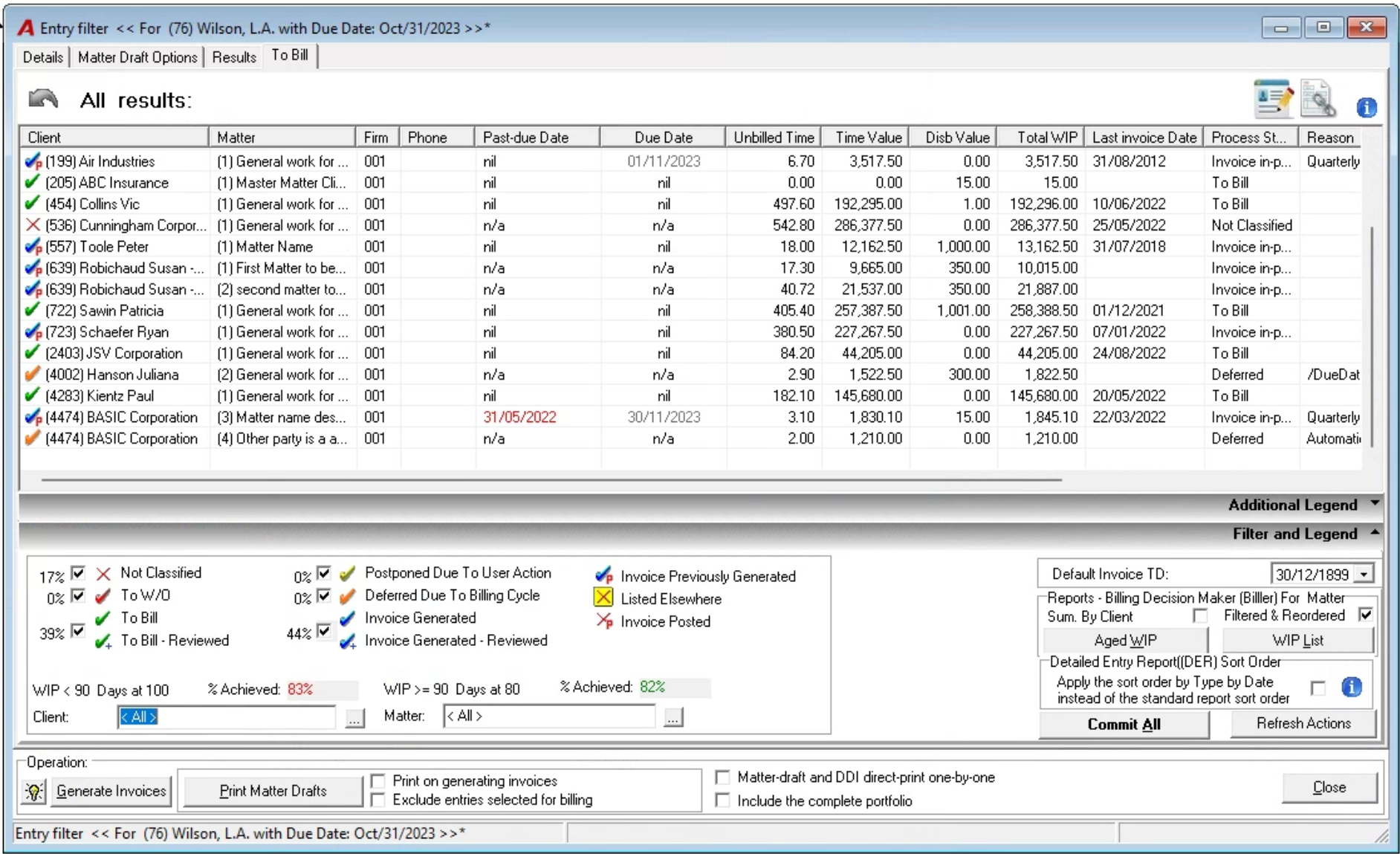
Right-click and access the “Set Action” sub-menu to set or change the matters’ billing intension. It is possible to multiple select more than one matter, if all the matters selected will bear the same billing intention change. For example, change a deferred due to contingency to “To Bill” so it is billed in the current period, or select multiple matters that have not yet been billed with low WIP values to postpone their first invoice until the next billing cycle. If you decide to postpone the billing of a matter, you will be asked to select a reason Once the change is made press commit-all.
Change matters “Not Classified” so they reflect a billing intention decision. If not, the matter is considered as not having been dealt with, within the billing cycle. The billing intention shown on the E-WIP statement, is the result of the billing frequency set-up decisions made in matter properties. As most matters would be opened with a billing frequency decision, the expectation is that matters listed on the E-WIP statement will have a calculated billing intention other than “Not Classified”. Matters listed on the E-WIP statement that had an invoice generated which was subsequently deleted or cancelled, will be updated with a billing intention of “Not-Classified” until the billing management tool is executed, or the user updates it with a new billing decision.
Multiple select matters identified as “To Bill” to complete the next step, for example print the draft detailed invoice (DDI) report which will show the WIP values (the pre-bill content) to send it to the decision maker for instructions or generate the invoice properties (the draft invoice form) to move to the invoice preparation process.
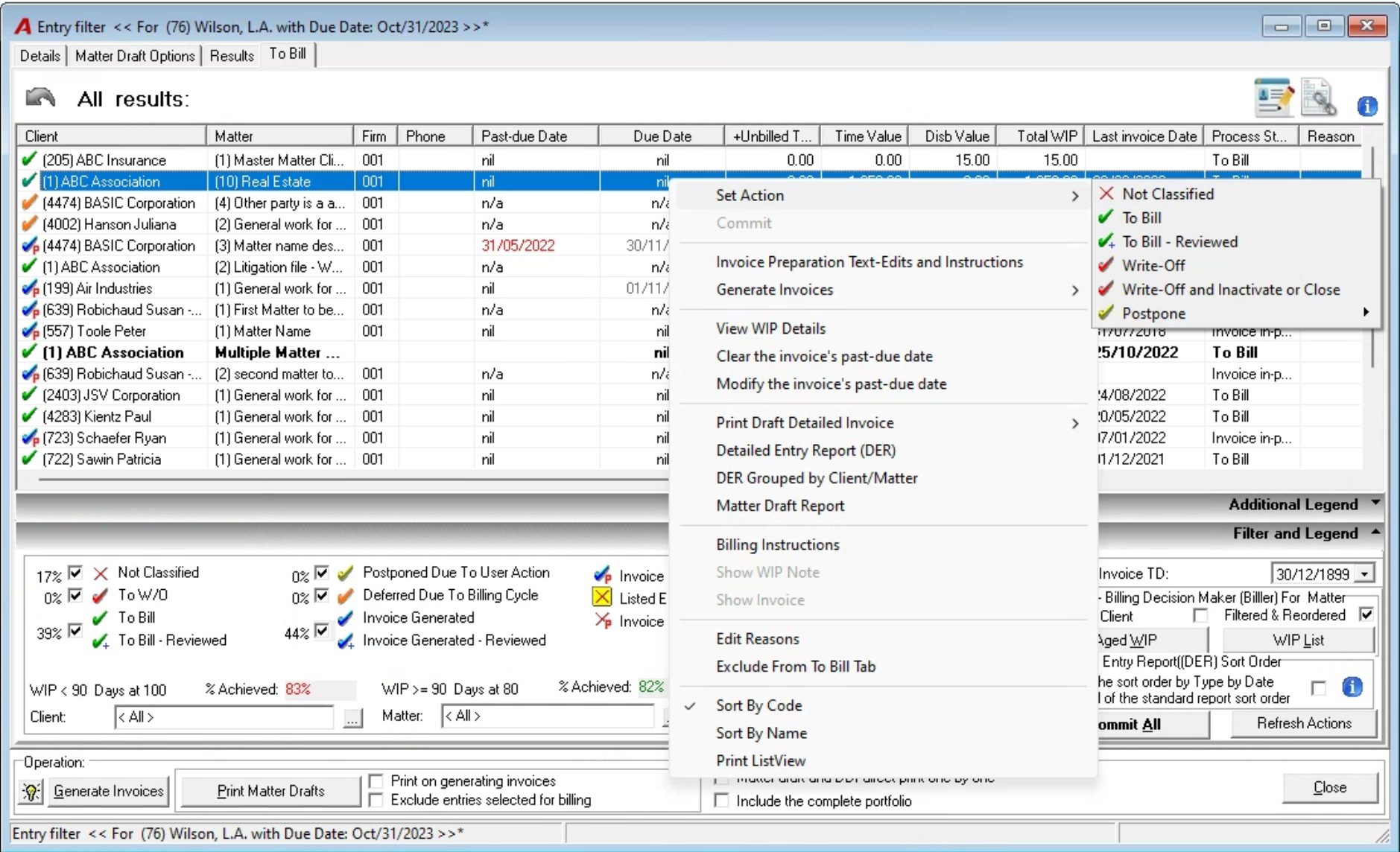
“To write-off, inactivate and close.” Right click and select “Set Action” “Write-off Inactivate or Close”. This will identify all the unbilled entries as WO requests to be processed by an authorized user. This process is commonly used to confirm the write-off of small values which can no longer be billed (the last invoice for the matter was already issued). If the matter is still in-progress and will not be inactivated, use the write-down to zero during the invoice preparation process for a more accurate and fairer efficiency measure.
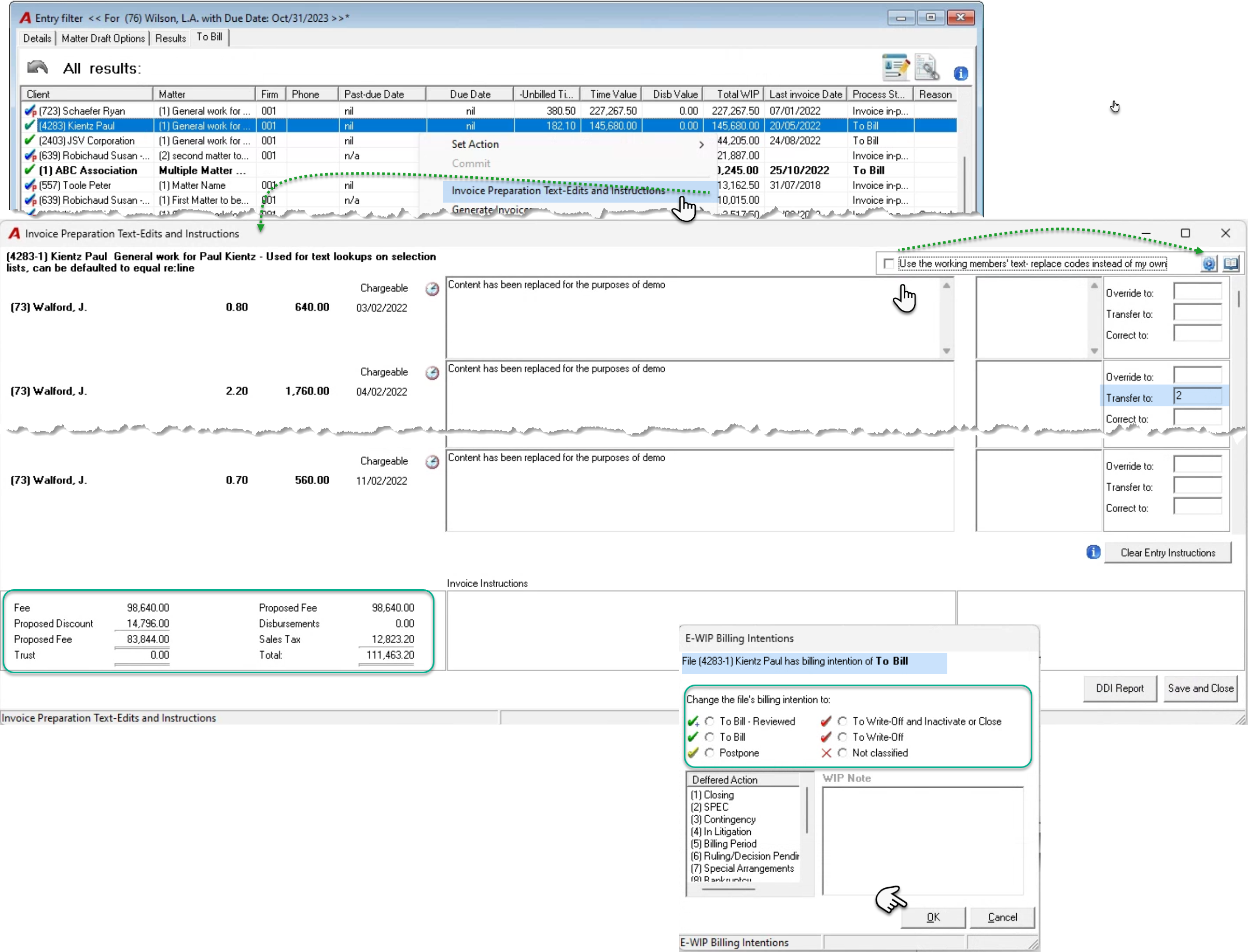
“Invoice Preparation Text Edits & Instructions.” Right click and select “Invoice Preparation Text Edits & Instructions” to launch form detailing the time entries. Use this form to complete time entry content modifications that will reflected in WIP once saved, and/or provide time-entry specific instructions, for example to transfer an entry to another matter, to correct the entry from 0.70 hours to 1.70 as the initial amount of time recorded was incorrect, or override the entry to 0.00 value (write down to 0.00) to reflect a true efficiency measure as the time spent cannot be billed.
Add “Special Invoice Instructions” on the “Invoice Instructions” field so both the time entry specific instructions and the ones that apply to the invoice are visible to the person responsible for posting. For example, when the user needs to have the “Proposed Fee” of $98,640.00, modified to be $98,000,00.
“Save and Close” Press “save and close” to exit the form, save the changes, and present them on an instruction form – drill through from the invoice instruction column. These are also visible from within invoice properties once created. As part of the process the user will be prompted to decide on a billing process action. Once a decision is made, press OK to continue.
The WIP List
Use the WIP list is used to support the firm’s workflow process.
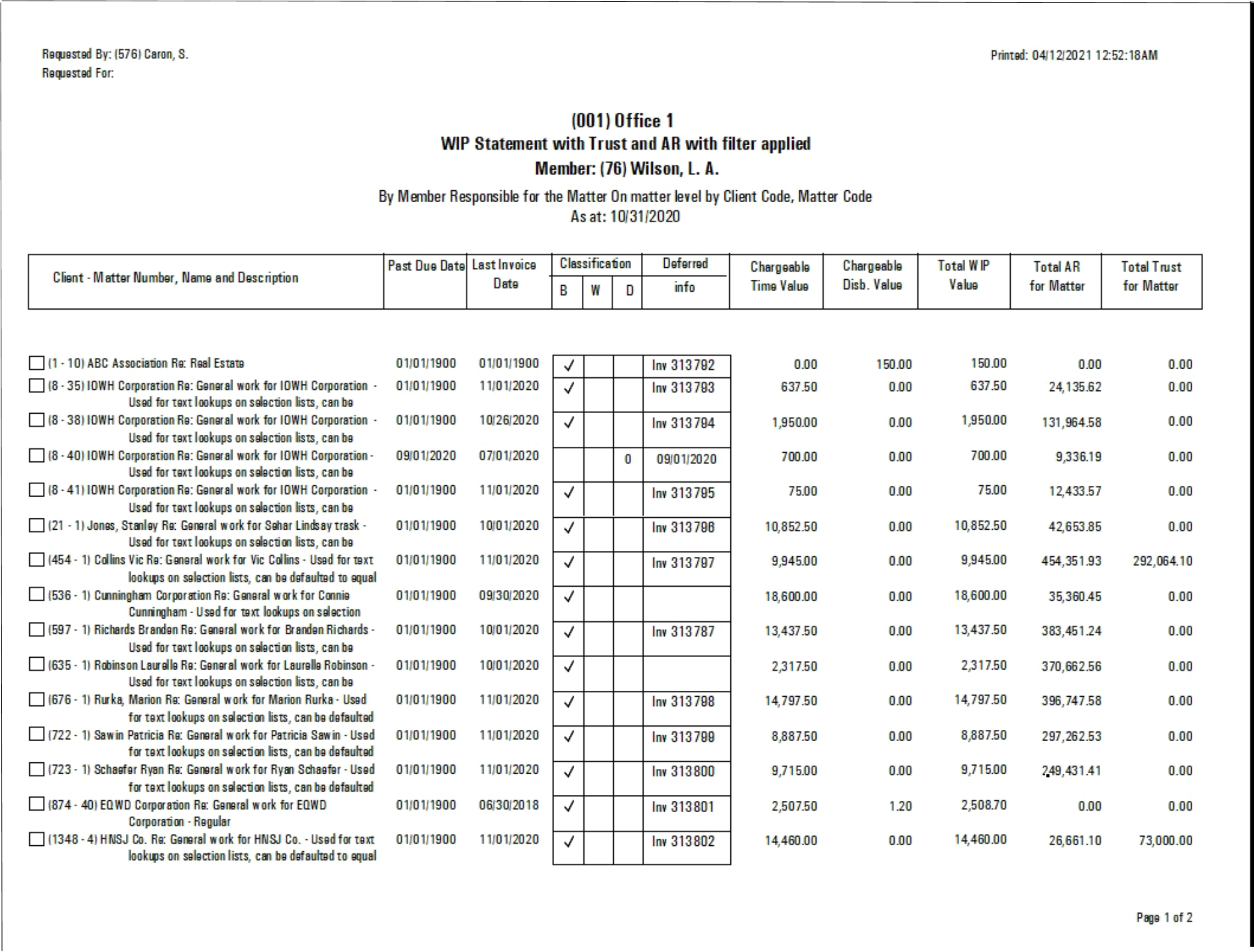
The most often use-case is as a decision report for the billing decision maker that is not actively working on the E-WIP (to bill tab) dashboard and Invoice Preparation Text Edits & Instructions form. With visibility of the status of the matter requested for billing he or she can provide changes in billing intention and/or make decisions on fee changes, and/or request the draft detailed invoice (DDI) report or equivalent to see details before confirming fee changes etc. Sometimes decisions can be made on total unbilled values (this means no DDI and less paper), or the invoice was already created by the time the E-WIP (To bill tab) dashboard was (more visibility).
The WIP list will include the invoice number for the matters that are being worked, to differentiate the matters for which need a billing intention or a draft detailed invoice (DDI) report before a final decision on billing can be made.
It is also used as a checklist for the transition between invoice preparer and invoice poster. In this case the WIP list would be filtered for matters with an invoice generated, ordered by invoice number, with the supporting documentation needed for posting to occur ordered in the same way.
Details Tab
Managing Invoice Entry Inclusions
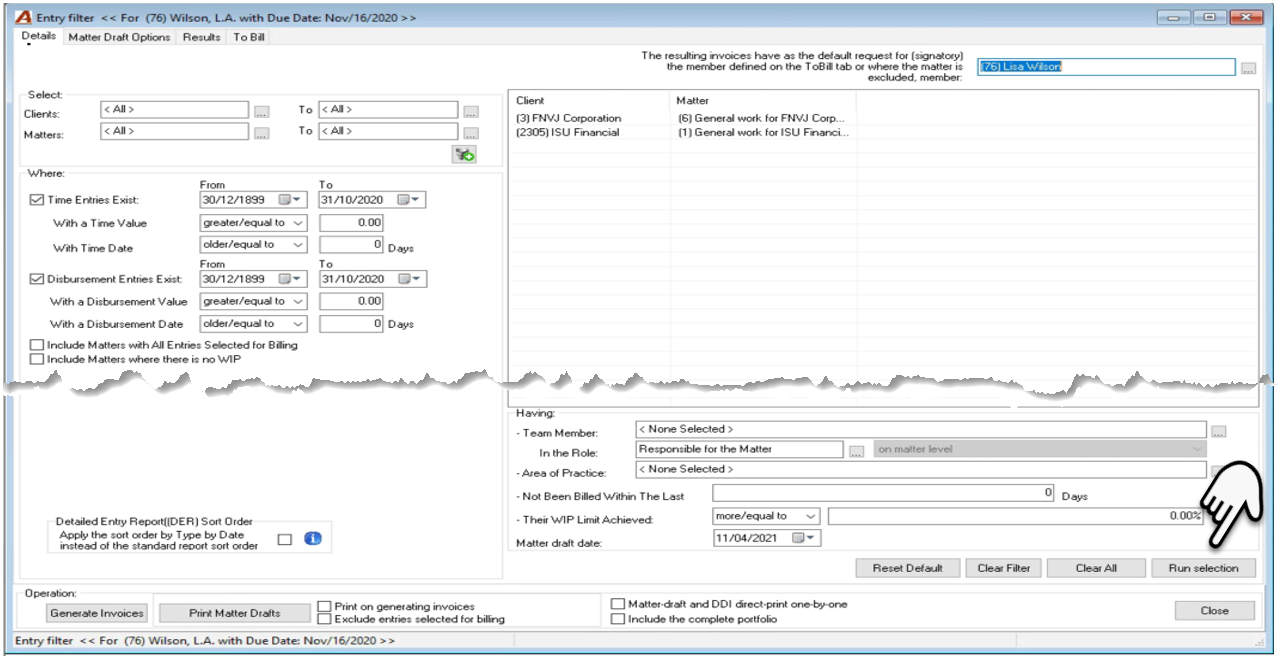
When the WIP Management and Billing process is triggered by the person responsible for this task, they will select the default entry dates used by the application to calculate which entries to include in the billing and WIP sections of the invoice properties – entries tab. These dates are reflected in the “To” date field for time and disbursements.
Change the “to-date” for time and disbursements to change the entry content in the billing section of the invoice properties once created. For example, if the to date is set to the end of the month, but for a series of matters you want to include time and disbursements to the end of the new month as a default, change the to date of these fields before creating the invoice properties. This will save you having to drag them from WIP section into the billing section once working with the invoice properties.
IMPORTANT: Impact of Entry Date Filter on Invoice Preparation:
Entries with a transaction date more in the future than the date in the “Details” tab filter will be kept in the WIP section as a default. Entries with a transaction date older or equal to the date in the in the “Details” tab filter will be included in the billing section as a default.
Filter Options
From the “Details” tab, it is possible to filter for specific clients and matters which are not on the to-bill tab to ask that these be transferred to your list or to see who is in the process of billing the affected matter (on whose list it is). Although you will be able to generate draft detailed invoice (DDI) reports for any matters, you will not be able to impact someone else’s billing workflow by generating an invoice for a matter which is on someone’s list.
If clients and matters are specifically selected, these will take precedence over other filter options therefore before generating the results for a role holder or an area of practice for example, right click on the list of clients and matters to empty the list.
To generate the results content, apply the filter options to be used and press “Run Selection” bottom right.
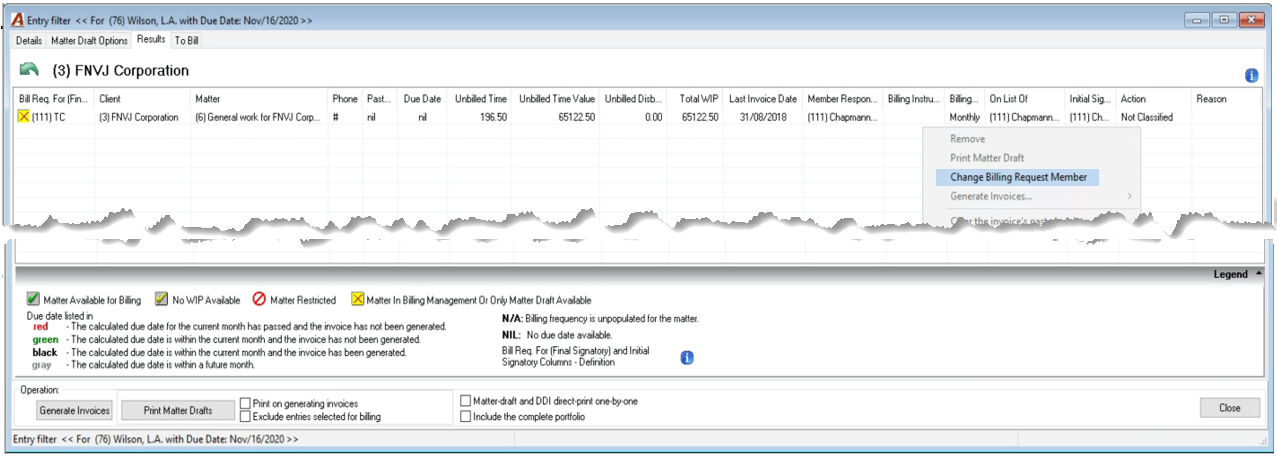
Although the results offer similar functionality to the E-WIP (To Bill Tab) dashboard, because of the accessibility to results offered by the filter, most rights that impact workflow will be limited to a centralized few.
Form WIP Management to Invoice Preparation
From the E-WIP (To Bill Tab) Dashboard, generate invoices for matters identified as to-bill.
Although you can generate invoices from the details filter results tab, as you can only generate invoices which are in your workflow (on your list), it is more effective to generate them using the filters offered in the E-WIP (To Bill Tab) Dashboard which only has the content you are responsible for. This action will also be immediately reflected on the list, with the matter record showing its invoice status and number while providing stakeholders and decision makers with summarized results.
Any missed entries because they were entered after the E-WIP (to Bill Tab) Dashboard results were generated, that meet the entry date criteria set for the billing cycle, will be automatically included in the billing section of the invoice created. Any entries outside of the date criteria will be included in the WIP section.