.png)
Transfer E-WIP (To-Bill-Tab) Content
Process
Access the to-bill tab of the member that will no longer be working on these matters.
Highlight the matters to transferred to someone else’s to-bill tab and right-click to select “Exclude from To Bill Tab”.
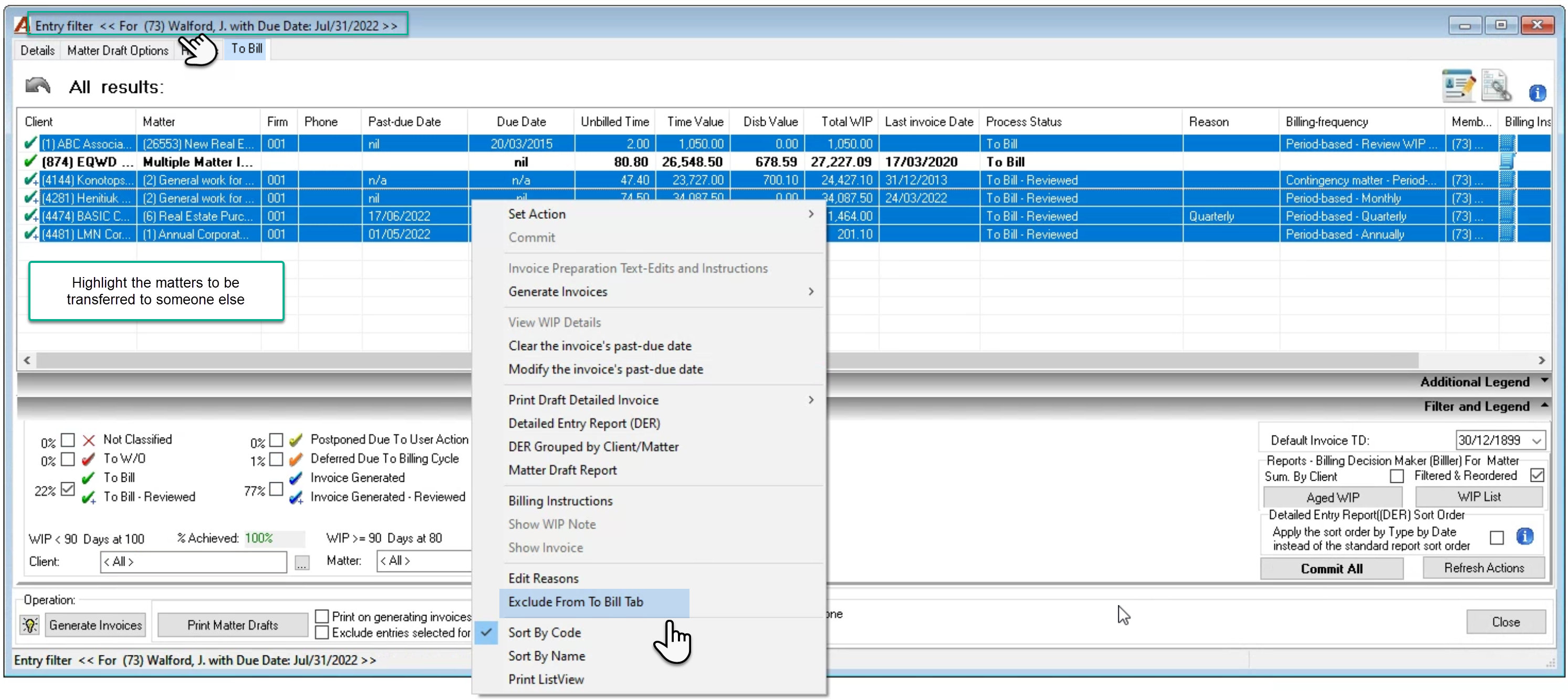
Respond to the confirmation message to continue with the exclusion process.
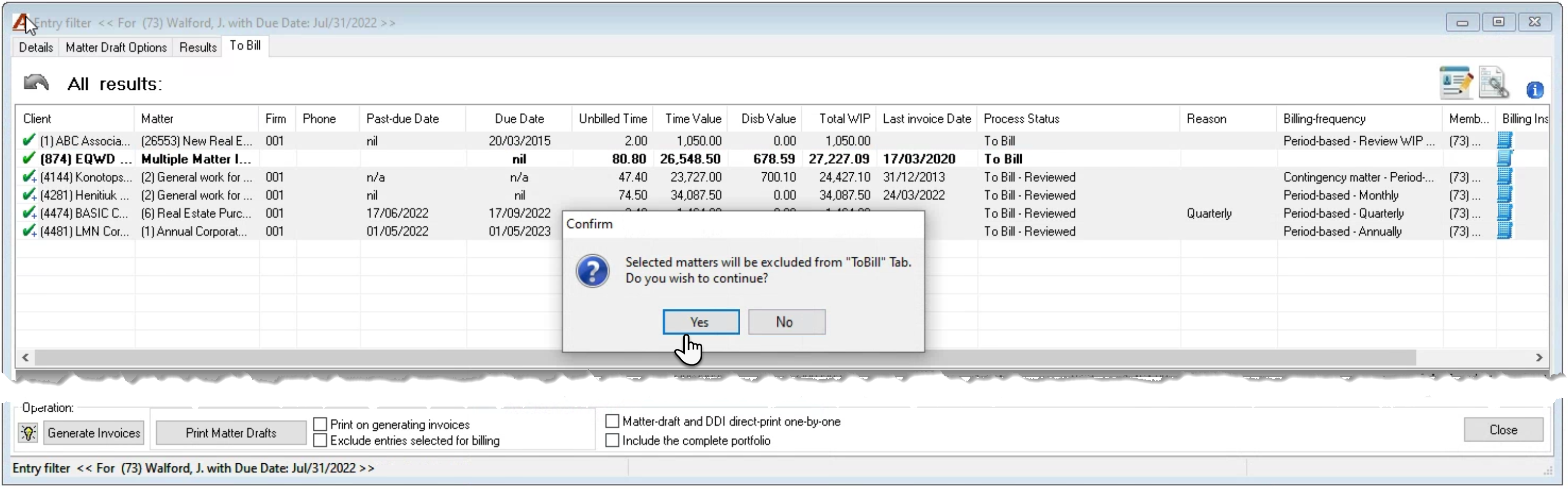
The second message refers to specific billing instructions relating to the process status, therefore status decisions made will revert to the initial position based on the billing frequency of the matter.
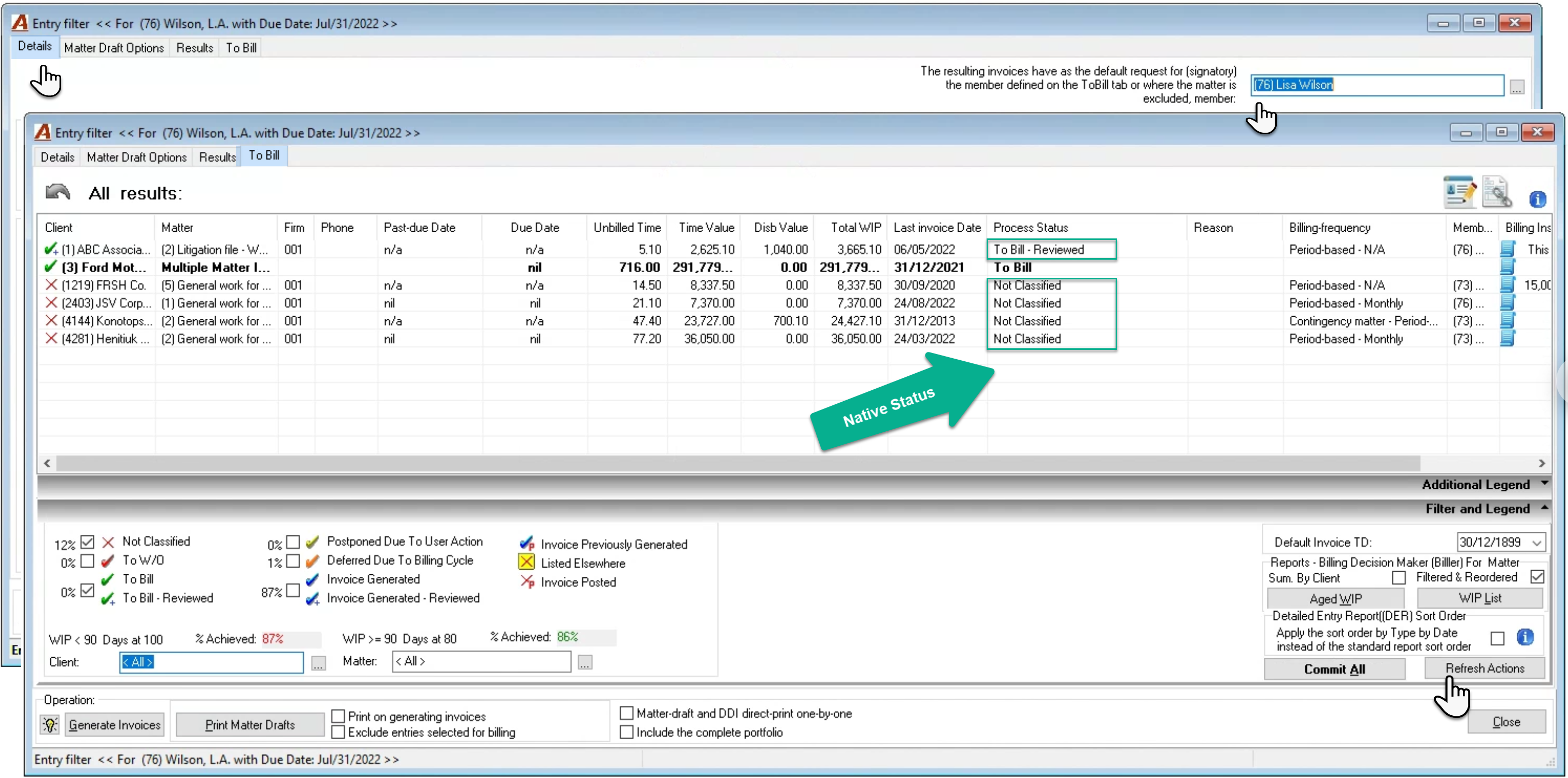
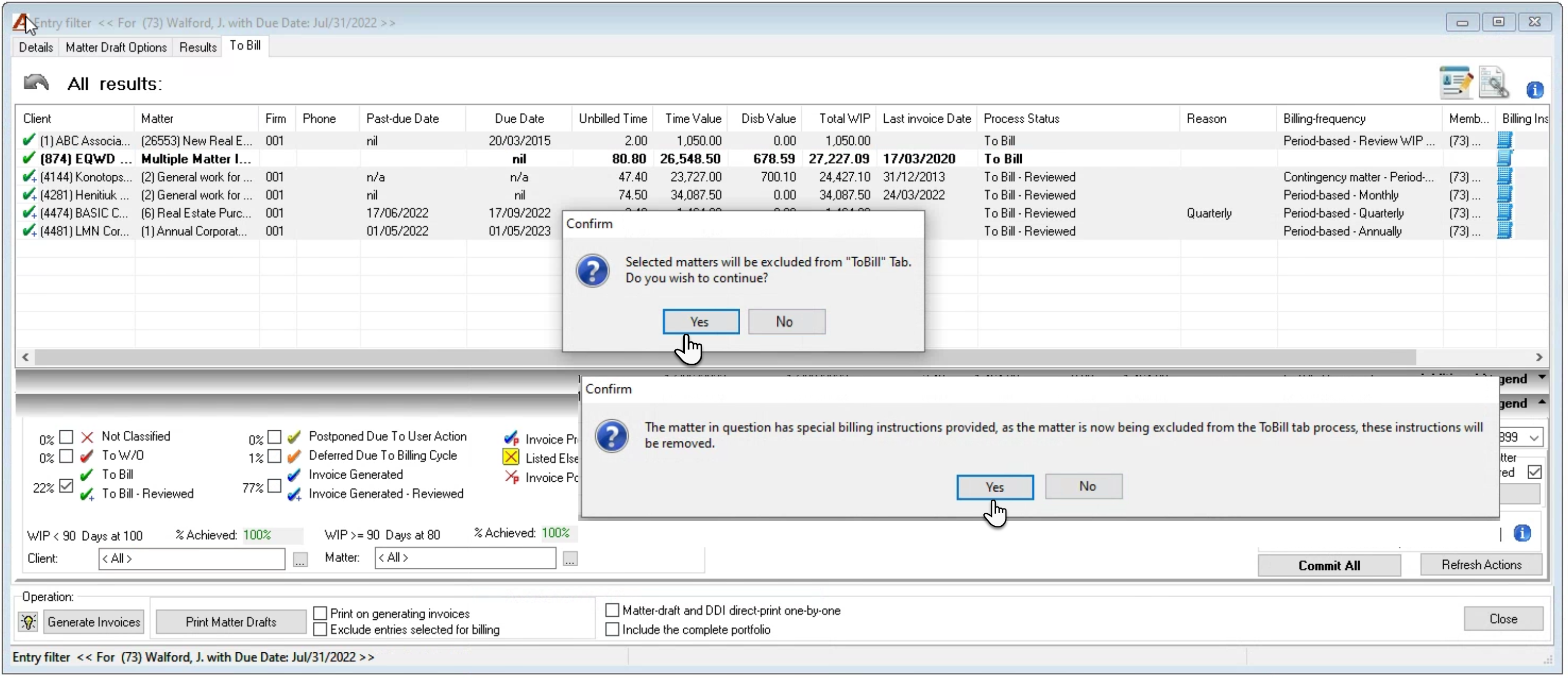
For example, if the matter is identified as “To-Bill” by the user, but in matter properties there is no billing frequency, once the matter is transferred, the matter will revert to not classified. In the screenshot that follows the last four matters will revert to “Not Classified” while the first will retain “To Bill” because it meets the calculated outcome of the billing frequency for this billing cycle.
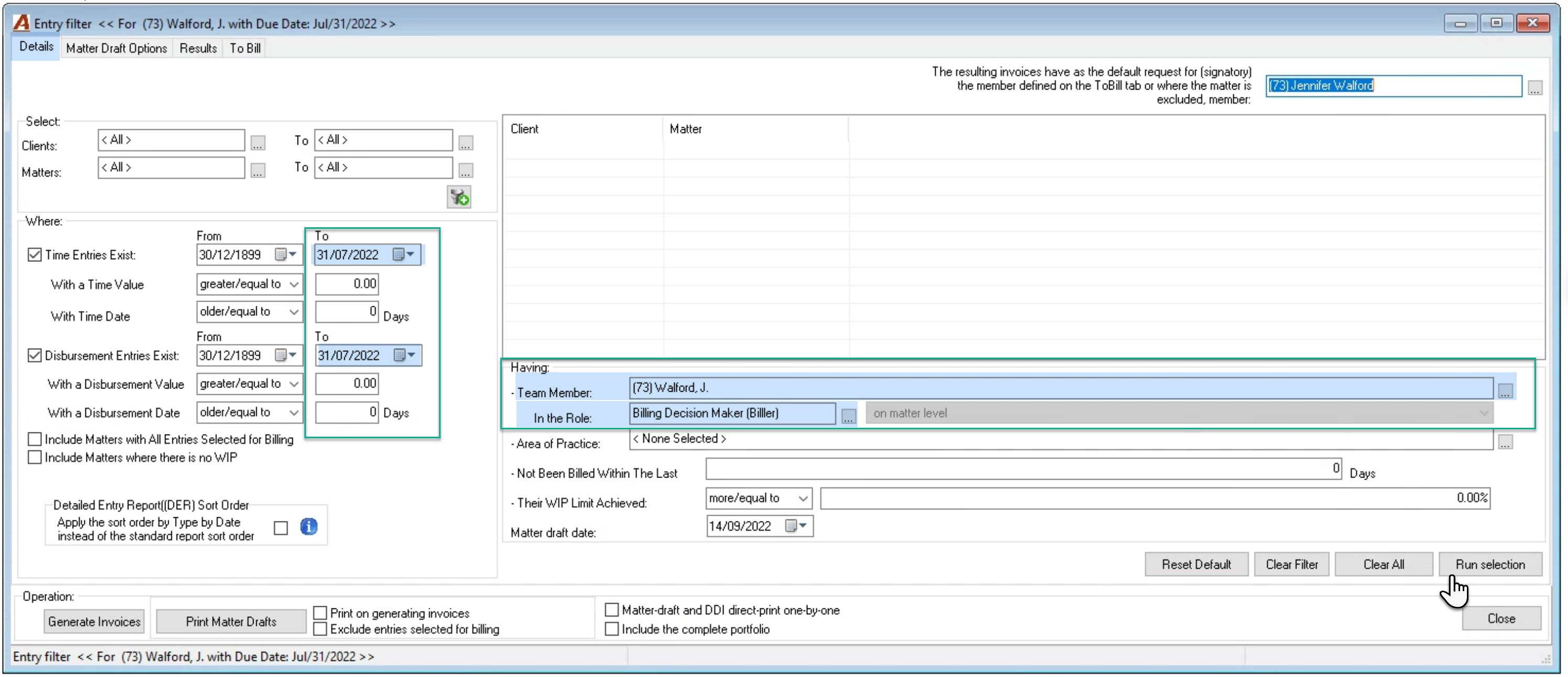
Navigate to the “Details” tab
Set the time and disbursement entry date filter to match the dates of the billing management tool’s dashboard filter form.
Enter the member that will no longer be working on these matters in the member field of the details tab filter.
Select the same role using the same role used to execute the billing management tool and generate the E-WIP statements.
Press “Run Selection” to get the filtered list of matters that meet the criteria for the member in the role selected, with updated WIP values in the Results Tab.
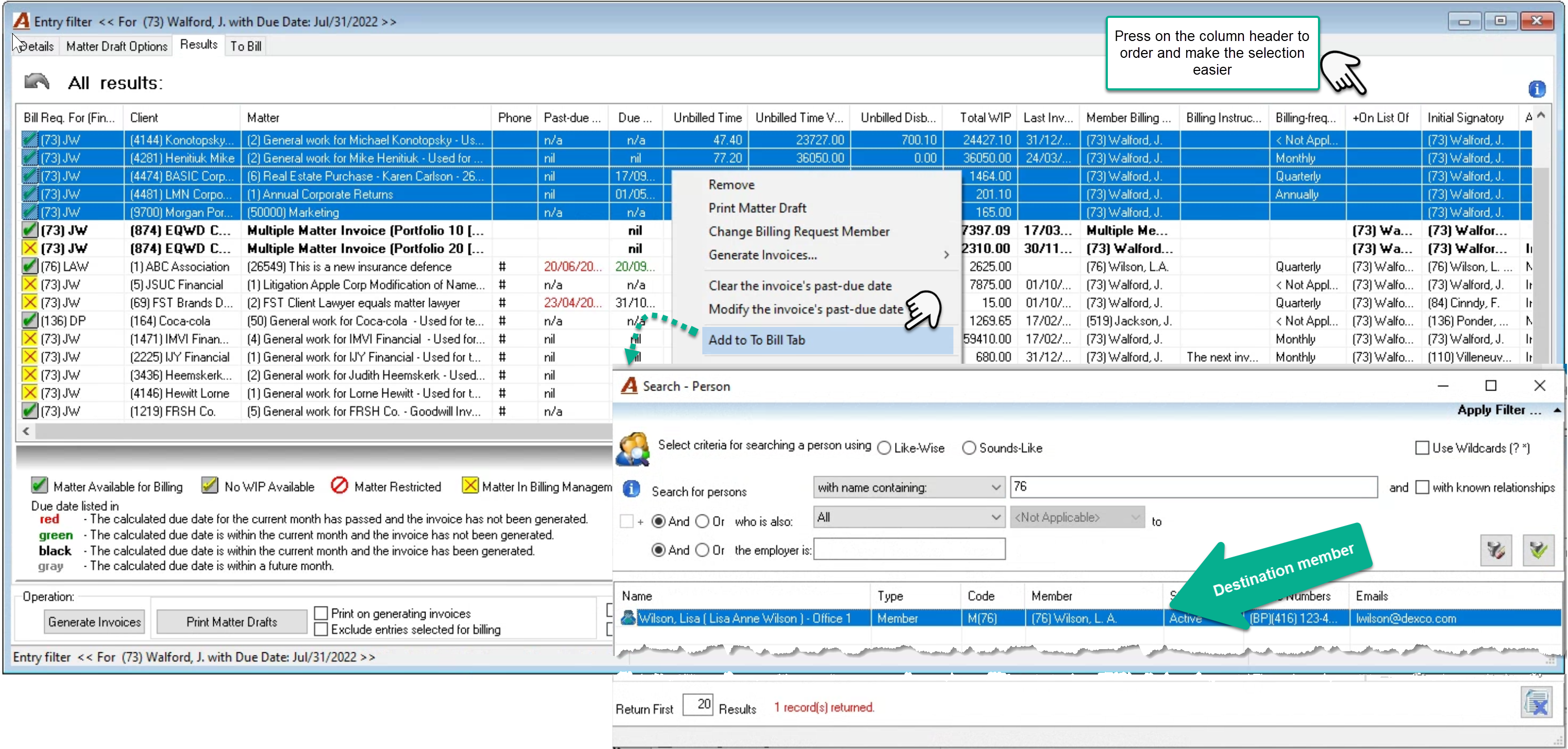
From the “Results” tab, highlight the matters to be transferred. Press on the “On the List of” column header to order the content and group the ones that need to be assigned. It makes the selection easier.
Right click to select “Add to To Bill Tab” to launch the member search form and make your selection. As non-chargeable matters, those identified with a yellow box, or those already on someone’s list, cannot be added to an E-WIP statement (To Bill Tab), if that is all that is highlighted, the option will be greyed out.
Select the destination member to complete the process.
Enter the destination member to access their “To Bill” tab field and press on refresh to update the list. The added matters will revert to their native process status for the current billing cycle.