.png)
Show Invoice Detailed Filter
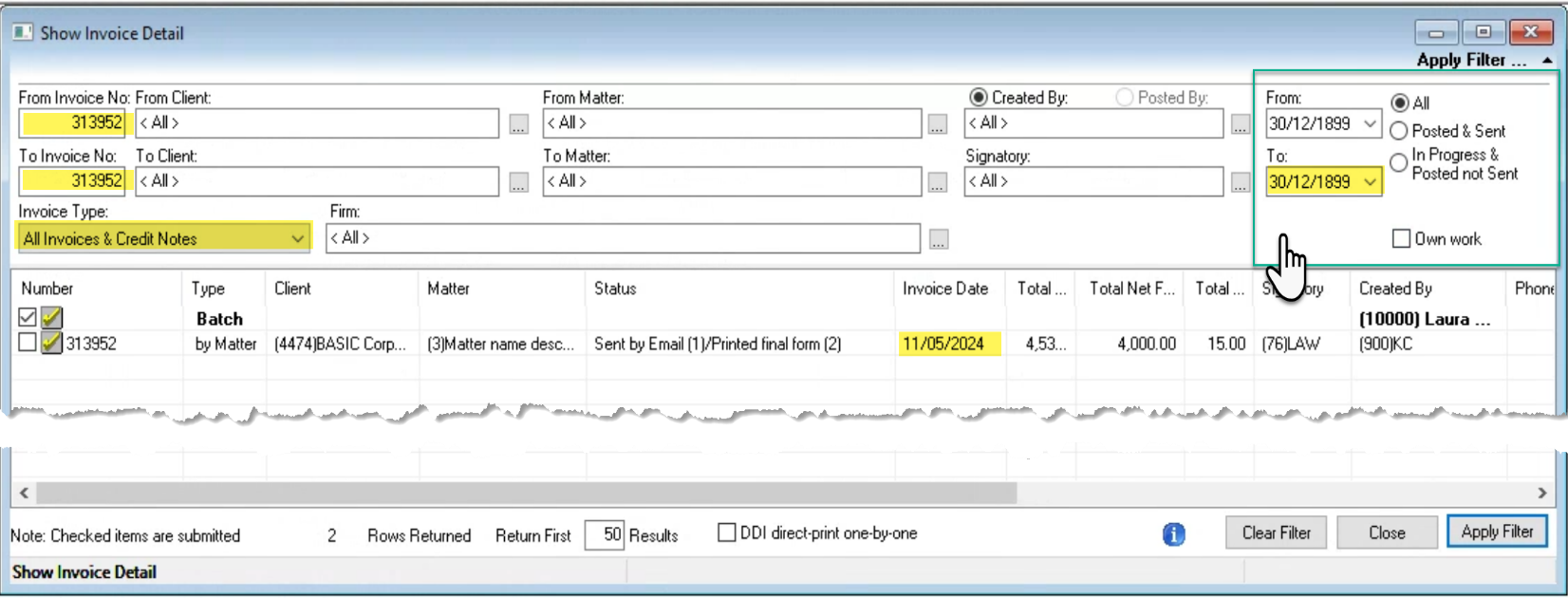
Find an invoice regardless of status – except if it is deleted or cancelled
Press on the invoice icon found in the activities section of the task bar. Enter the invoice number and ensure the filter options are fully expanded to capture everything including accidentally future dated invoices
If the invoice number is not known use other known information. Apply filter options as opened as possible in context of your security level, to exhaust the possibility of client, matter, invoice number, created by and/or invoice date error.
Find submitted invoices - not longer owned by you - which you created.
Invoice Ownership: The concept of ownership requires that there only be one object owner, therefore the submission process transfers the ownership of the object from the submitter to the submitted-to member.
The “Own” Filter: The “own” checkbox filter option limits the results to objects “owned” by the user.
Restricted Access: The restricted access security level limits can limit results or access to objects owned or created by a user.
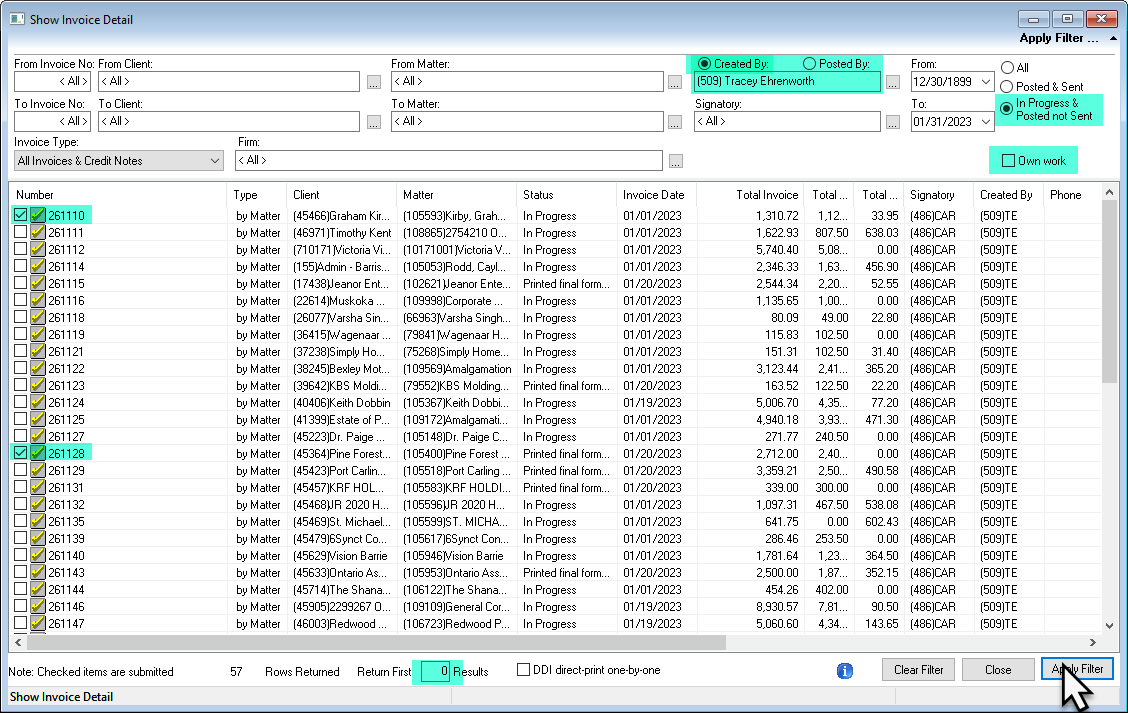
Users with restricted access can find all their submitted invoices by setting themselves as the created by and removing the checkmark from the “own” checkbox filter option. This combination will provide the restricted user with visibility of all invoices created, whether owned by someone else or not. The steps to gain access to these results can be summarized as follows:
-
Enter their own member code in the created-by field.
-
Retain the status filter as “In progress & Posted not Sent.”
-
Uncheck the “Own Work” option to include all invoices from other owners.
-
Change the “Return First” number to 0 to see all.
-
Press the “Apply Filter” button.
The list will present all unposted and posted not sent invoices created by the user regardless of the owner, therefor including the submitted ones.
Deleted Invoices Filter
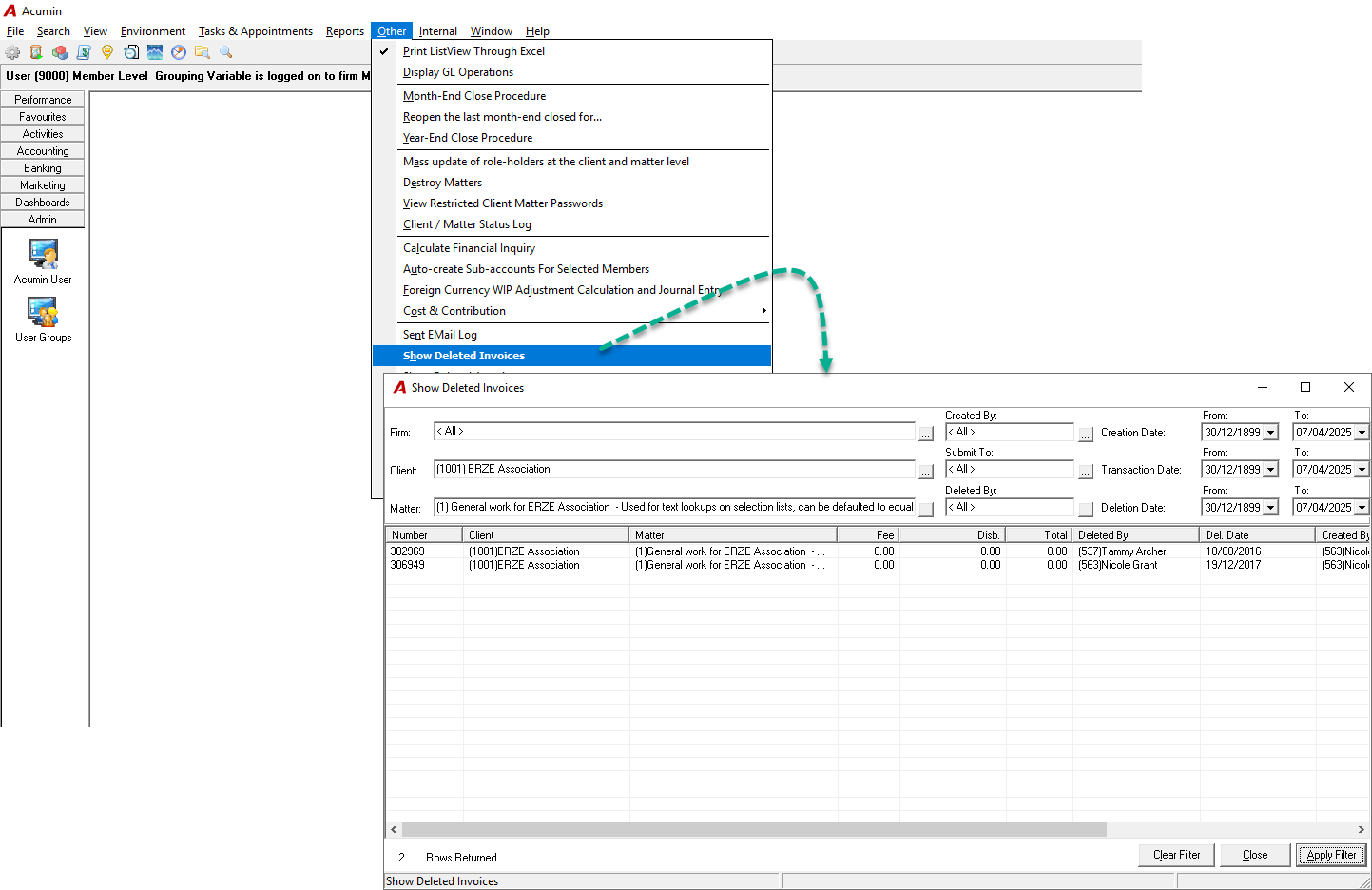
Find a deleted invoice
From the “Other” main menu option select “Show Deleted Invoices”.
Use the filter options with known information to reduce your results pool. We recommend trying a variety of options separately first (more expansive to start) in case some of the information about the invoice (invoice number, date or created by is not accurate.
Billing Register
Find a cancelled invoice:
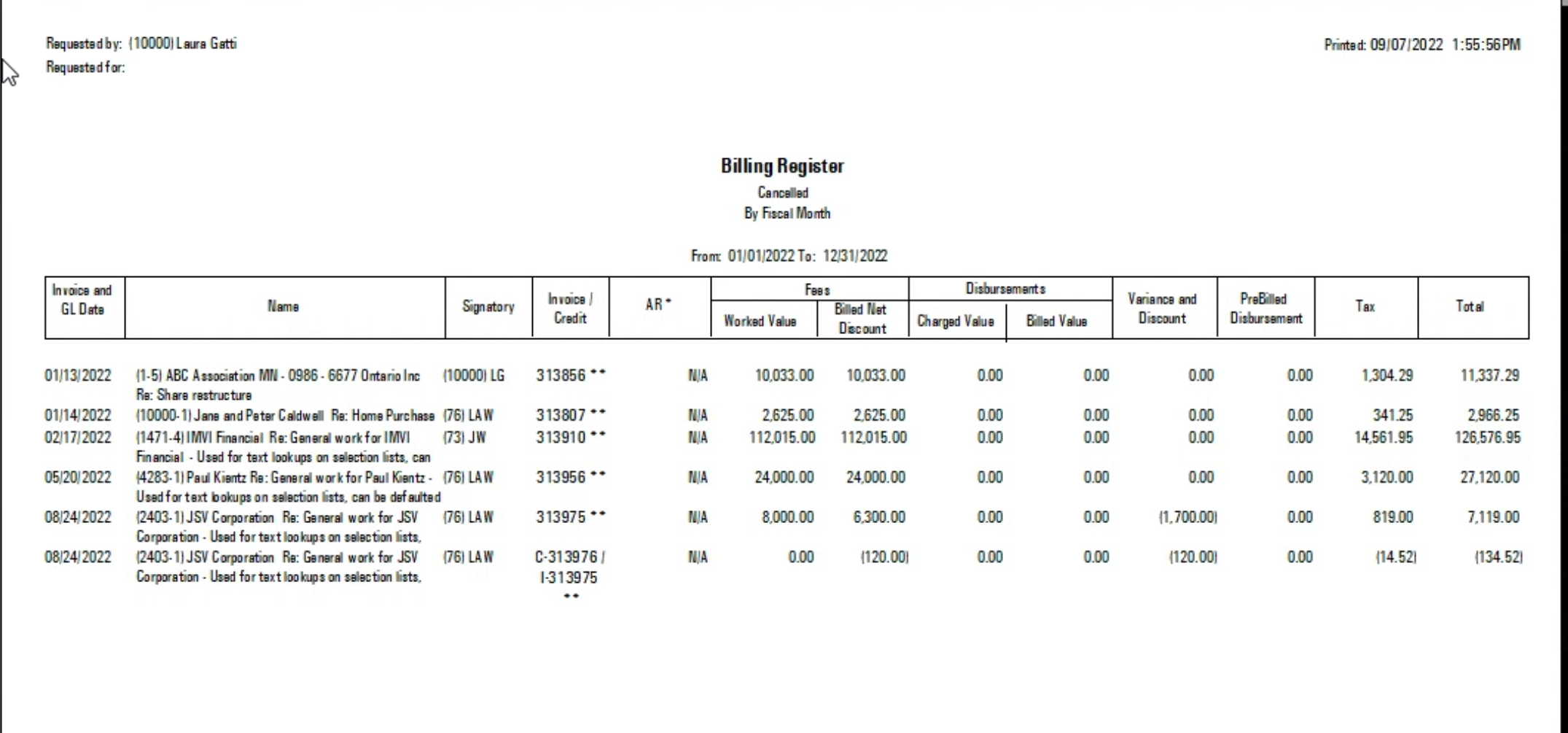
Cancelled invoices must be posted before they can be cancelled, therefore the best way to locate a cancelled invoice is through the billing register.
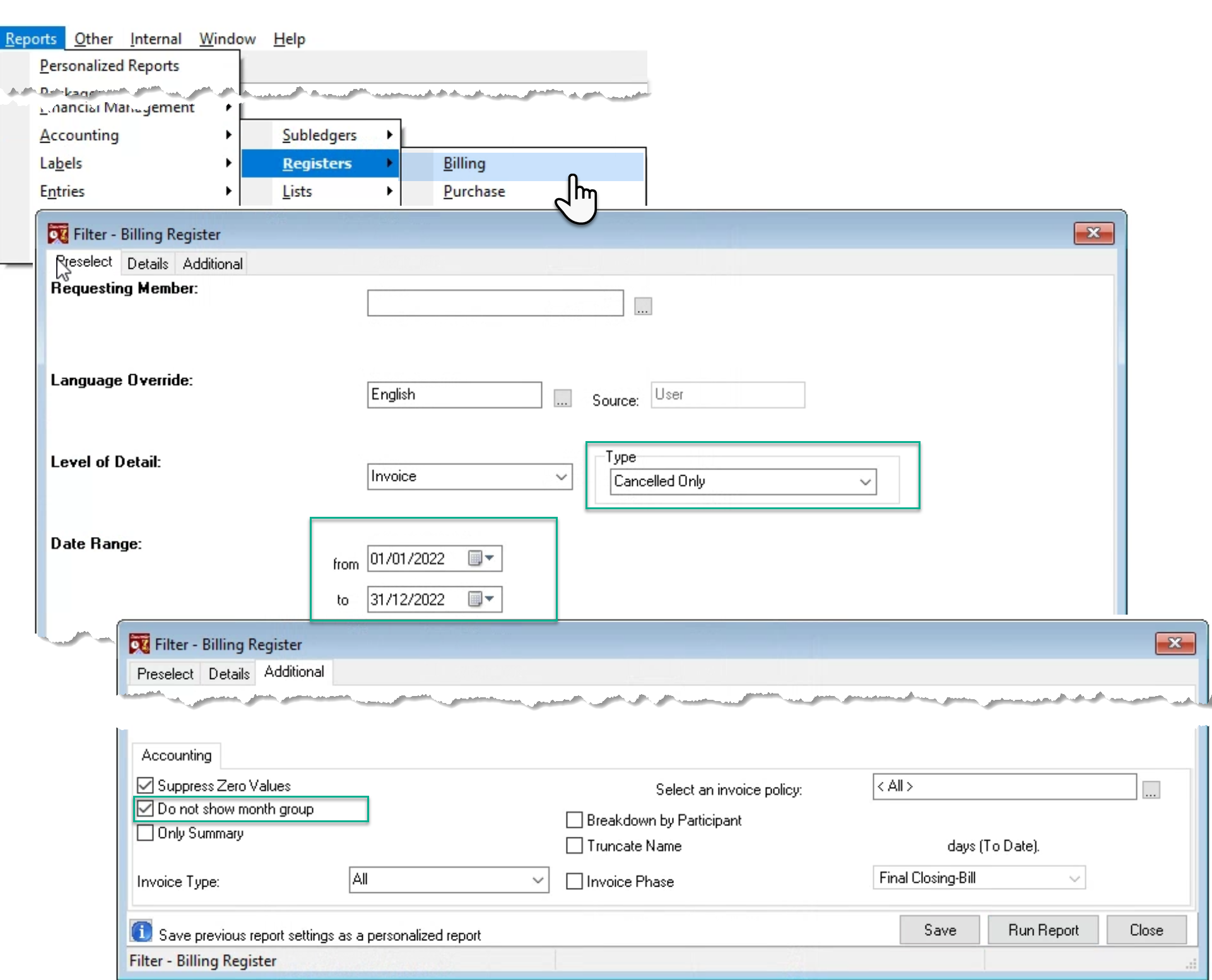
Select the status “Cancelled Only” and a reasonable date range as you will not be able to report from the beginning of time to the end of time. Remove all other options in the details tab and select to not group by month (additional tab) so only the invoices list.