.png)
Scope and Purpose
The purpose of this document is to provide the user with the steps to setup the template to be used with the email invoice functionality.
Set-Up Options
Invoice Email Template
Variables:
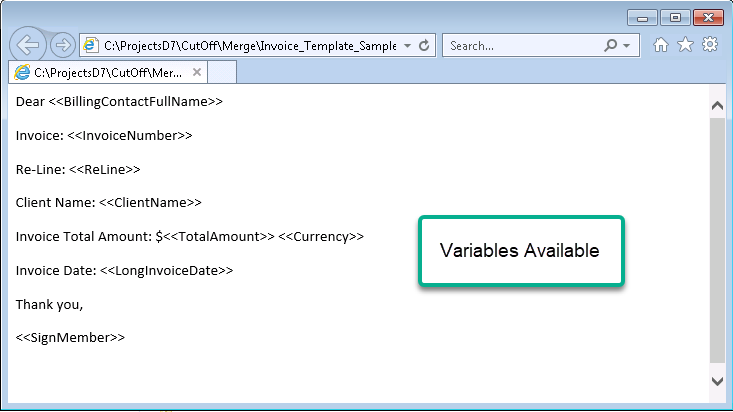
The following is a list of variables available for use when creating the template(s):
|
<<BillingContactFullName>> |
Full Name of the Billing Contact |
|
<<InvoiceNumber>> |
Invoice Number |
|
<<ReLine>> |
ReLine content |
|
<<ClientName>> |
Name of the Client |
|
<<TotalAmount>> |
Invoice Total Amount less discounts |
|
<<Currency>> |
Invoice Currency |
|
<<LongInvoiceDate>> |
Invoice Date |
|
<<SignMember>> |
The name of the signatory member of the Invoice |
Format:
The invoice email templates must be created as an HTML Document type (saved as .HTM files). Although the simple example of variable use and the file with the list of variables included in the folder structure (Executable\Merge folder) can be opened with NotePad or MSWord, using HTML.
The templates are generally created as a combination of firm defined text and use of selected variables. Most firms also include branding material (for example standard signature presentations and/or firm logos) in the email templates. Whereas the former requires minimal technical expertise, the inclusion of branding material requires programmatic knowledge of HTML requirements and should be completed by persons with expertise in this area as well as in context of other similar marketing initiatives and touchpoints which may be in use.
Narrative:
If the intention is to include a custom narrative, create a new e-mail template.
We recommend leaving the sample Invoice email template untouched in the Merge folder.
Create a new subfolder within the “Executable\OtherLetterMerges” folder structure to save the new Invoice email template that the firm will create.
The following is a sample Email Template created using the fields from the list:
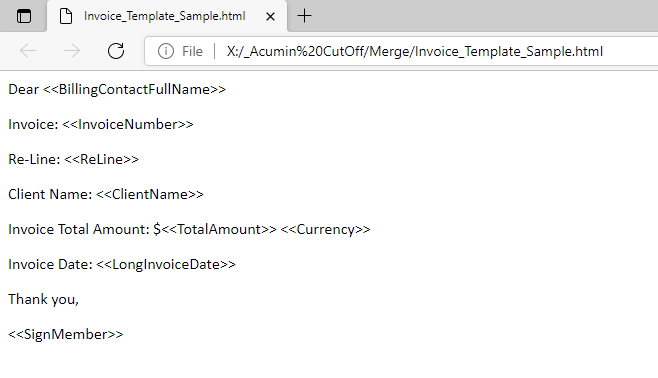
This is simply an MS Word Document which is saved in HTML format.
Using a blank page in MS Word add whatever text as well as any of the reserved <<variables>> and remember to save the result in HTML format.
Hint: Copying an existing template and making the necessary changes will save time. MS Word must be the editing tool used.
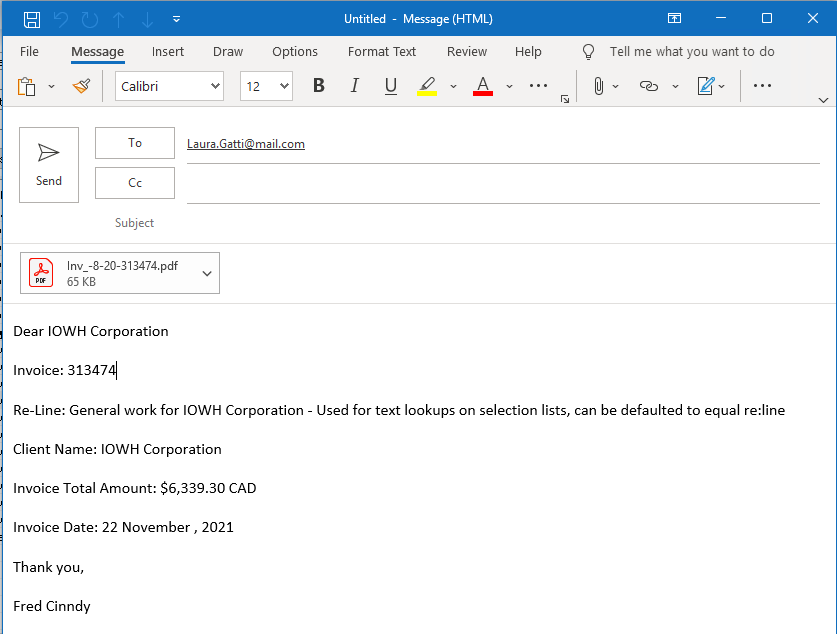
The following is a sample Email Received when using the template above:
Pathing the Invoice E-mail Template
The setup of the template is done at the System Level. Here are the steps that need to be followed:
-
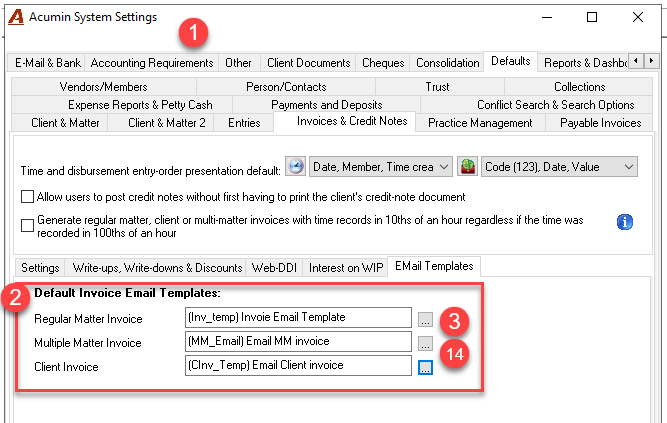
Environment – System Configuration - System Settings – Defaults – Invoice & Credit Notes – Email Templates.
-
You will find the Default Invoice Email templates for the 3 types of invoices.
-
Press the ellipsis button of the Regular Matter Invoice field.
-
Show Invoice Email Templates window.
-
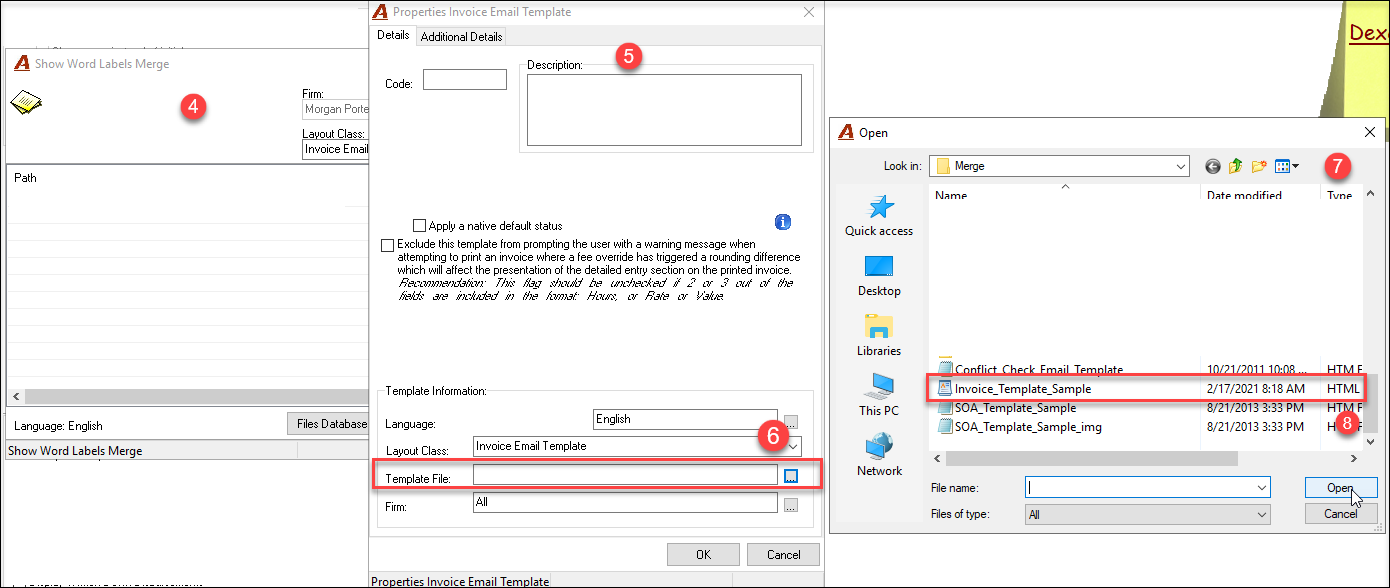
Right-hand click + New – Properties Invoice Template Email window.
-
Ellipsis button in Template File field.
-
Open window – look for the place where the template was saved.
-
Select the appropriate Template – click Open:
-
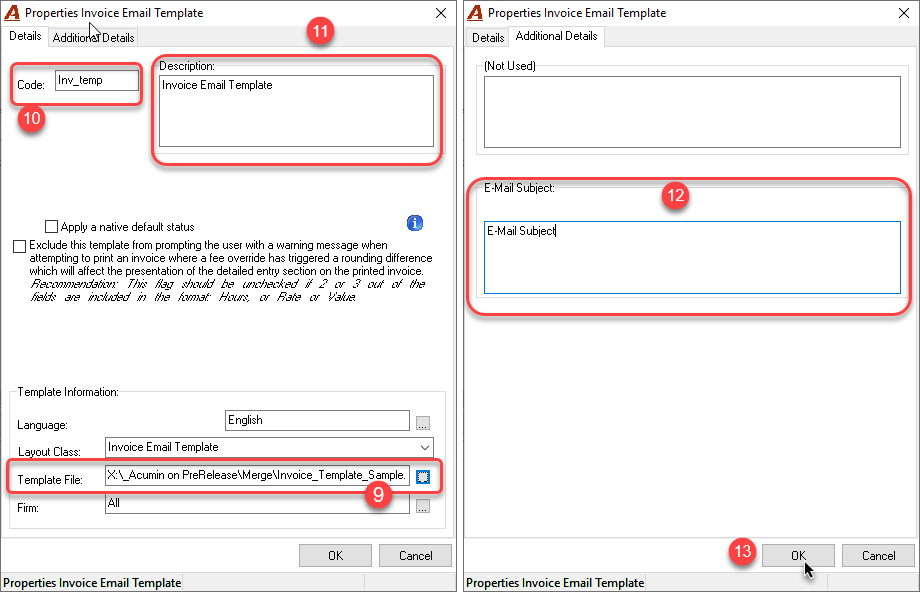
In the Invoice Email Template window, the Template File field will be populated.
-
The user should enter a Code to identify this template;
-
The user should also enter a description:
-
Inside the Additional Details tab, the user has the option to include content which will appear as the Subject of the email;
-
On Ok, the Show Invoice Email Templates window will be populated.
-
Do the same for the Client and Multi-matter invoice email templates if needed.