.png)
Scope and Purpose
The purpose of the batched invoice tool is for users to apply invoice relevant actions on many matter invoices at once.
Its scope extends across often-used administrative functions involved in the invoice preparation process until the invoice is posted and sent.
Highlights
A user can only have one batch at any one time, containing invoices which are created but not yet posted or sent, after which there is no further context for the batch and the batch is deleted, Invoices can be added or removed from the batch based on need.
From the show invoice detail form, users can filter for any invoice. If the invoice is created, not yet posted, or sent, and in some else's batch, regardless of security, the invoice will list grayed and with a lock showing that if that the properties will be launched as read-only.
The administrative functions offered for the batch content are subject to their own security. For example, to delete batched invoices with one action the user needs the right to delete invoices.
The actions taken within the batch are logged and presented inside the batch.
The Batched Invoice Process
Security
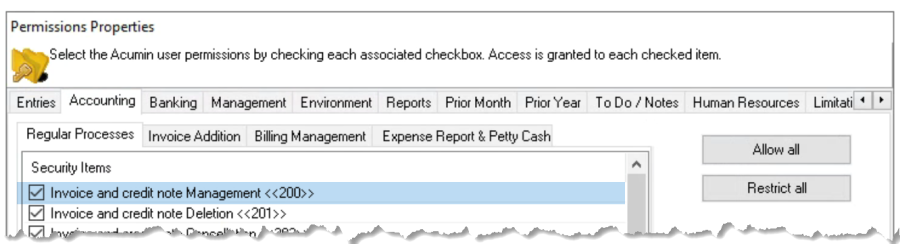
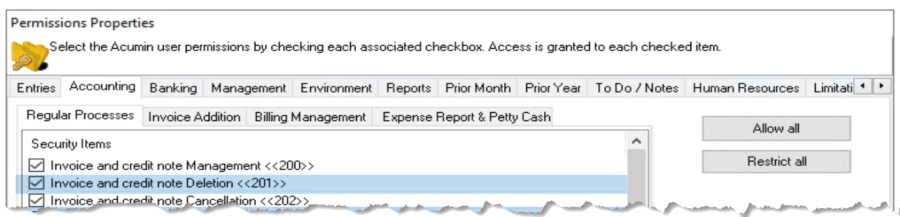
For users to be able to create and work with their personal batch they must have security for "Invoice and Credit Note Management <<200>>"
Access
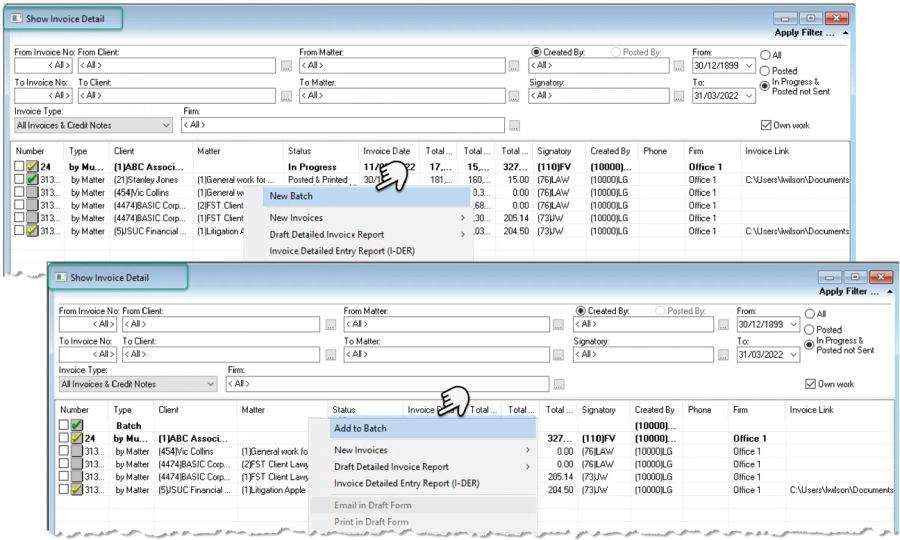
Highlight at least one regular matter invoice listed the "Show Invoice Detail" form, and right-click select "New Batch" from the contextual menu. Once the batch is already created, highlight at least one regular matter invoice listed, and right-click select "Add to Batch" from the contextual menu to bring listed invoices into the batch.
The Batch Record
-
Each user can only have one batch at any one time, which once created, lists in bold as the first record on the show invoice details form.
-
As the batch is for processing regular matter invoices only, no time invoices, interim invoices, client invoices, multi-matter invoices and credit notes, cannot be included in the batch. This means if selected within regular matters, they will be excluded.
-
Filtered invoice results included in a batch show grayed-out with a 'lock' icon left of the invoice record to indicate that access to its properties is read-only until the invoice is released from its batch. They include a hint box showing member's code and name that has it in their batch.
-
The batch can only contain invoices that are in progress – anywhere within the creation to send cycle. Once the invoice is posted and sent, it is excluded from the batch.
-
If the batch is identified as complete by the user, the invoices included in the batch are release back into the show invoice detail form. Empty batches are automatically deleted.
Batch Content
Main Form
The main form includes the tools needed to select and execute administrative functions, the log of actions taken in the current session, the batched invoice records, the opportunity to import someone else's the batch content, as well as the option to identify the batch content as complete to release all invoices from the batch.

Batched Invoice Records
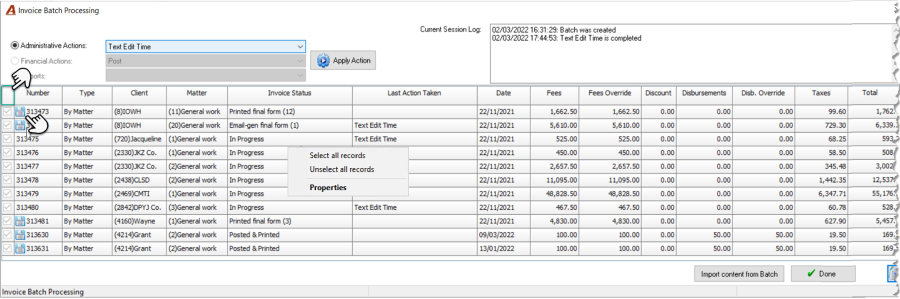
The records are presented in columnar format.
To select or unselect all the invoices at once before making individual decisions, click on the header above the checkbox or use the right-click contextual menu.
The blue document icon shows that the invoice record has a saved, linked invoice document in final form.
The last action taken results applies to actions taken within the batch.
Administrative Actions
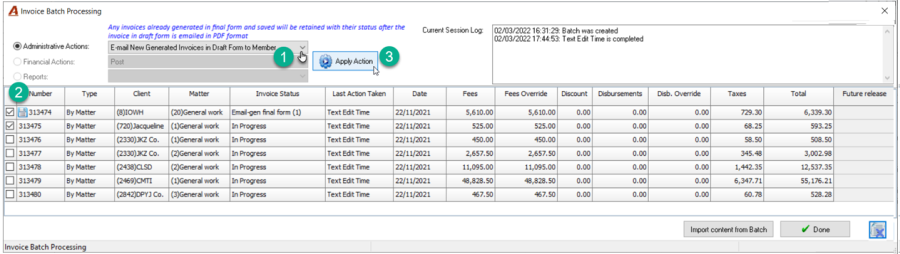
To apply any of administrative actions available, choose one of the actions listed within the drop-down box, select the invoices that will be affected, and press "Apply Action". The actions taken will accumulate within the text box – upper right.
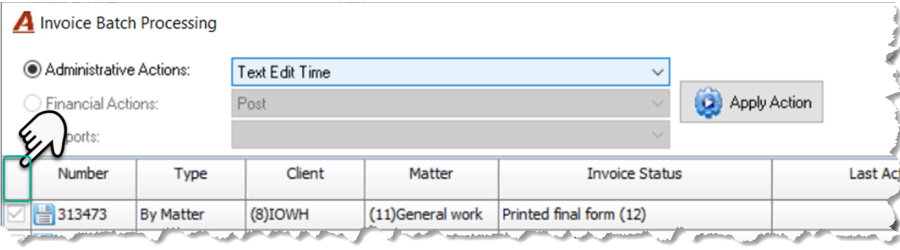
Text Edit Time
On execute this option launches the edit time entry description form pre-populated with all the time entries for the invoices in the batch (no selection required) so the user can modify the time entry descriptions, spell check or text replace.
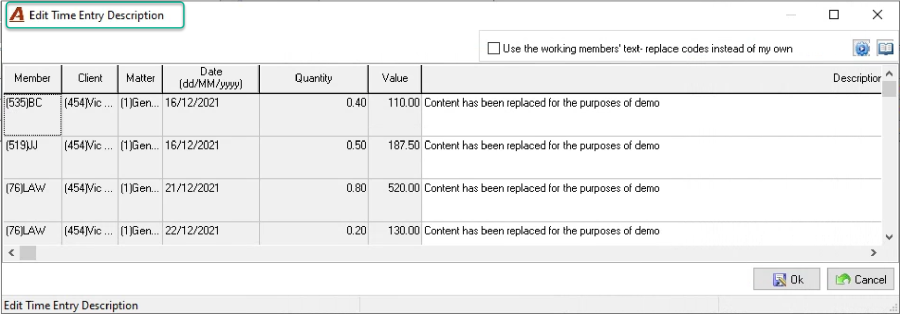
Text Edit Disbursements
On execute this option launches the edit disbursement entry description form pre-populated with all the time disbursement entries for the invoices in the batch (no selection required) so the user can modify the disbursement entry descriptions, spell check or text replace.
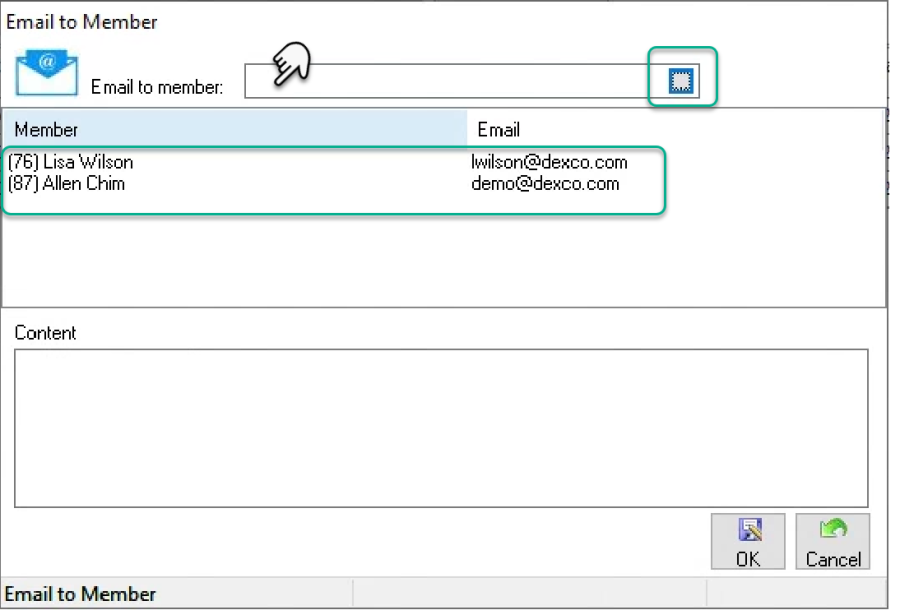
E-mail New Generated Invoices in Draft Form to Member…
This option will launch the "Email to Member" form. Enter the member code and tab or press on the ellipsis button and select a member to build your recipient list.
On OK the application will launch the email dialogue box pre-populated with the members' email addresses in the to-line, a subject line , the text in the content field added to the body of the email, and a PDF attachment comprising of the main invoice document for all the invoices selected - identified with a checkmark.
Print New Generated Invoices in Draft Form
This option will print the main invoice document for all the invoices selected identified with a checkmark.
E-mail Saved Invoices in Final Form
This option applies to all the invoices selected - identified with a checkmark, that have an invoice document generated in final form, saved, and linked to its invoice properties form. It will email the saved linked invoice document in final form to its billing contact provided there is an email address, and independent of the position of the email intent checkbox in contact properties.
Each email recipient will receive an email with the saved linked invoice in final form as a PDF attachment, as well as a pre-set firm defined subject line and email text. Both can include selected invoice relevant variable content. If the saved invoice was created using the word-merge process, the MS Word document is converted to PDF before it is attached and emailed.
Note: Although individually emailed invoices must be updated to reflect that they were sent by email, those emailed as a batched process, are automatically updated as sent by email.
Print Saved Invoices in Final Form
This option applies to all the invoices selected - identified with a checkmark, that have an invoice document generated in final form, saved, and linked to its invoice properties form. It will email the saved linked invoice document in final form.
Delete Invoices
This option is available subject to the user having security <<201>>. It will delete the invoices selected - identified with a checkmark.
Remove Invoice from Batch
This option will release (remove) all the invoices selected - identified with a checkmark - from the batch.
Submit Selected invoices to…
This option will submit the invoice properties' forms for all the invoices selected - identified with a checkmark - to the member chosen as the recipient.
As there can only be one submitted-to member, if a new selection is made before the user presses OK it will override the previously selected. However, it is possible to select a few invoices to submit to one member and then make another selection to submit to someone else.
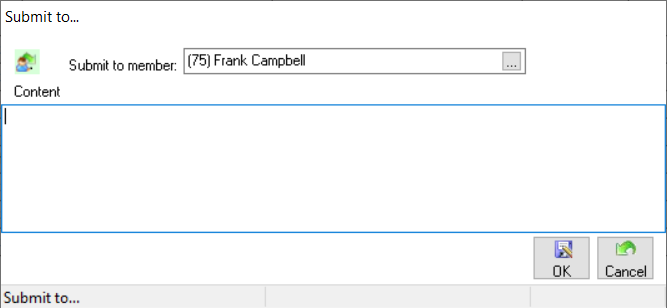
The submitted-to member will receive a notice indicating that the invoices have been submitted for the next step in the workflow.
Sent by Post
This option will update the invoice properties form for all the invoices selected - identified with a checkmark - to reflect that they were sent by post.
Sent the E-bill
This option will update the invoice properties form for all the invoices selected - identified with a checkmark - to reflect that the e-bill was sent (uploaded to the website).
Generate, save, and print the invoice in final form
This option will generate a new invoice document in final form for all the invoices selected - identified with a checkmark, to save it as a linked document and send it directly to the printer. This process will override any previously saved and linked invoice document.
Generate, save, and email the invoices in final form
This option will generate a new invoice document in final form for all the invoices selected - identified with a checkmark, to save it as a linked document and email it to the recipient as an attached PDF document using a pre-set email template. This process will override any previously saved and linked invoice document.
Import Other Batched Content
Security
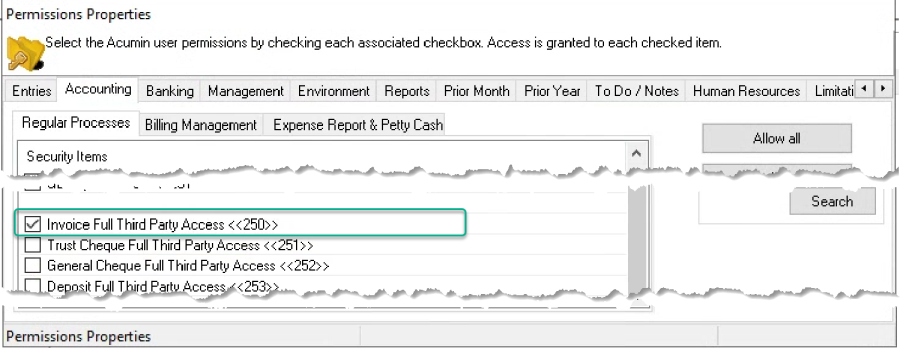
To import the content of someone else's batch the user needs security "Invoice Full Third-Party Access <<250>>" to be able to modify or delete someone else's invoices.
Import Process
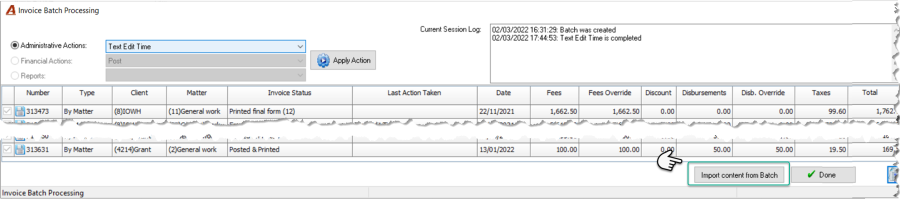
Press on the "Import Content from Batch" button to launch the "Show Invoice Batch" list.
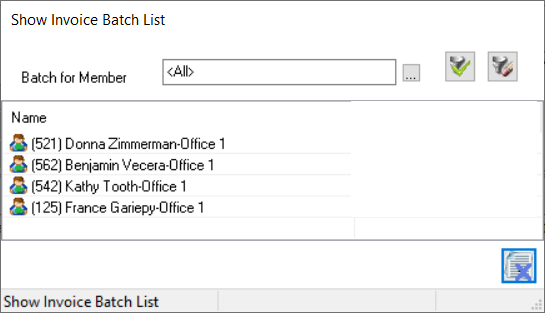
Scroll to find the batch or filter for the member that owns the batch. Once identified, right-click to select or double click.
The message provides the choice to continue with or abort the import process.

Other
Complete the Batch
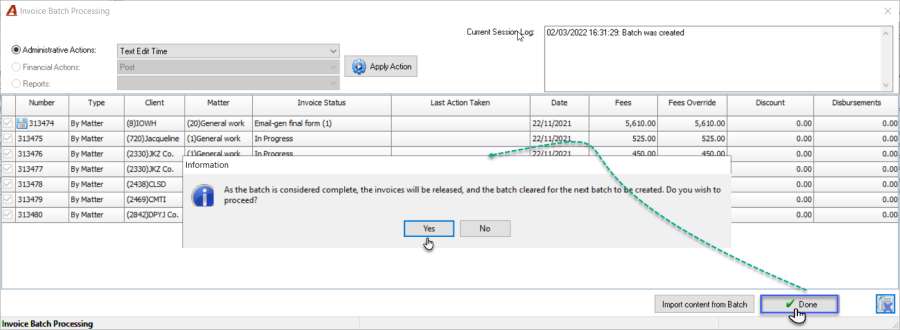
Once the batch is considered complete, press "Done" to release the invoices from the batch. This process will also clear the batch from the "Show Invoice Details" filter, until the batch is re-created with new content.
Blue Text
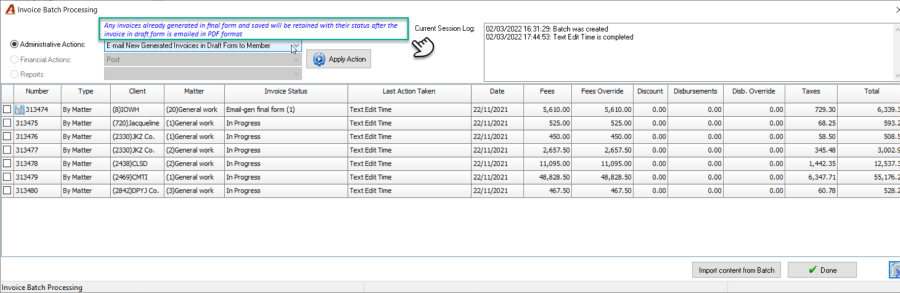
Each action selected will trigger informative text in blue.
-
E-mail New Generated Invoices in Draft Form to Member…
Any invoices already generated in final form and saved will be retained with their status after the invoice in draft form is
emailed in PDF format
-
Print New Generated Invoices in Draft Form
Any invoices already generated in final form and saved will be retained with their status after the invoice in draft form is
printed
-
E-mail Saved Invoices in Final Form (Custom)
Only invoices saved as a linked document will be emailed in PDF format.
-
Print Saved Invoices in Final Form (Custom)
Only invoices saved as a linked document will be printed.
-
Delete Invoices
All selected invoices will be deleted and as a result removed from the batch
-
Remove Invoice from Batch
All selected invoices will be removed from the batch
-
Submit selected invoices to…
The invoice properties' form for selected invoices will be submitted to member
-
Sent by Post
All selected invoices printed in final form will be updated to reflect that they were sent by post
-
Sent the E-bill
All selected invoices that are e-bills will be updated to reflect that they were sent (uploaded to the website).
-
Generate, save, and print the invoice in final form
When the invoice previously saved was generated through MS Word, a new invoice in final form will not be generated. The saved MS Word invoice will be printed instead.
-
Generate, save, and email the invoices in final form
When the invoice previously saved was generated through MS Word a new invoice in final form will not be generated. The saved MS Word invoice will be emailed in PDF format instead