.png)
Presentation Options
Defaults, Invoice-Level Changes & Copy-To
Highlights
The firm default position for the most often used layout (format), and the options for presentation of the invoice document are set and managed within Acumin System Settings, “Client Documents” tab, by authorized users.
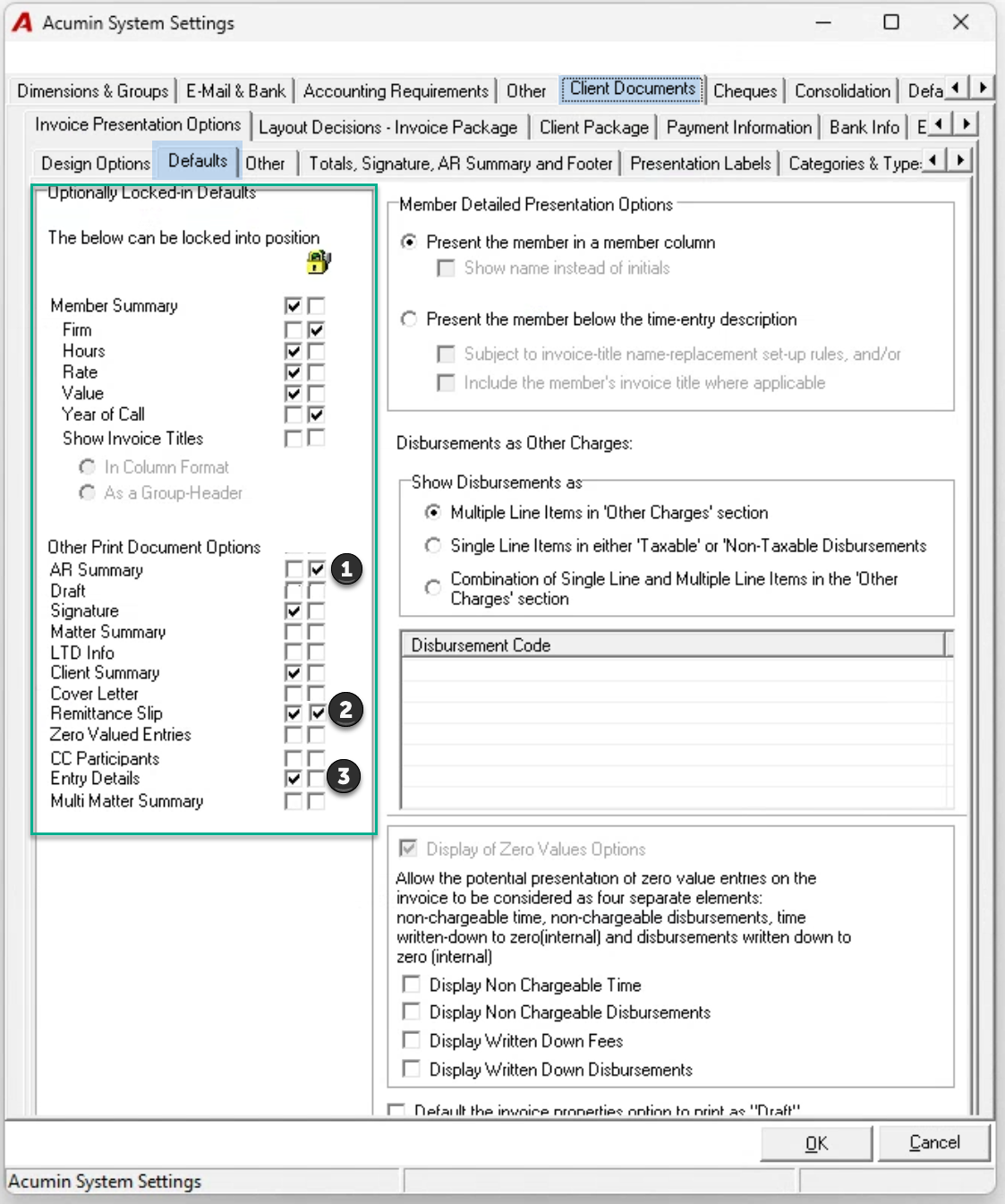
The “Client Documents” – “Defaults” sub-tab includes checkbox-options that can be locked into position (grayed out) so end users cannot change the presentation of the invoice document on a per client, matter or invoice basis. This is useful when the invoice document must include or exclude specific firm requirements. For example, the firm may choose to never include the AR summary line on the invoice.
Some presentation options in client, matter or invoice properties cannot be modified – they are grayed out - because they are not relevant. For example task code options may not be available, as these are only applicable for clients and matters subject to task set use.
When a client is created it inherits the firm’s invoice layout and presentation options defaults set in Acumin System Settings. Non-locked options can be modified to reflect specific client requirements for all or for some of their matters.
Some presentation options in client, matter or invoice properties cannot be modified – they are grayed out. This could be because the firm has locked in a position – for example the AR summary line must always be included; or the option is not applicable to client or matter - for example task code options are only applicable for clients and matters subject to task set use.
The copy function allows users to copy the selected presentation options of a client, matter or invoice to a recipient client, matter, or invoice.
When a matter is created it inherits the client’s invoice layout and presentation options defaults set in within its properties form. These can be modified to reflect what the specific matter requires.
When an invoice is created it inherits the matter’s invoice layout and presentation options defaults set in within its properties form. These can be modified to reflect what the specific invoice requires (if different).
It is more effective to set the right default than to complete the settings each time a new invoice is created for the same matter.
System Level Defaults
The client documents tab includes many tabs where defaults and presentation decisions are made, so they can be inherited by the client. The “Defaults” tab includes a list of checkbox options which can be made available to end users or locked into position to support a firm requirement. For example, the AR summary has been locked not to be used, the remittance slip has been locked to always be generated and all other options have a default position which can be modified at the client, matter or invoice level, by the end user.
Client Level Defaults
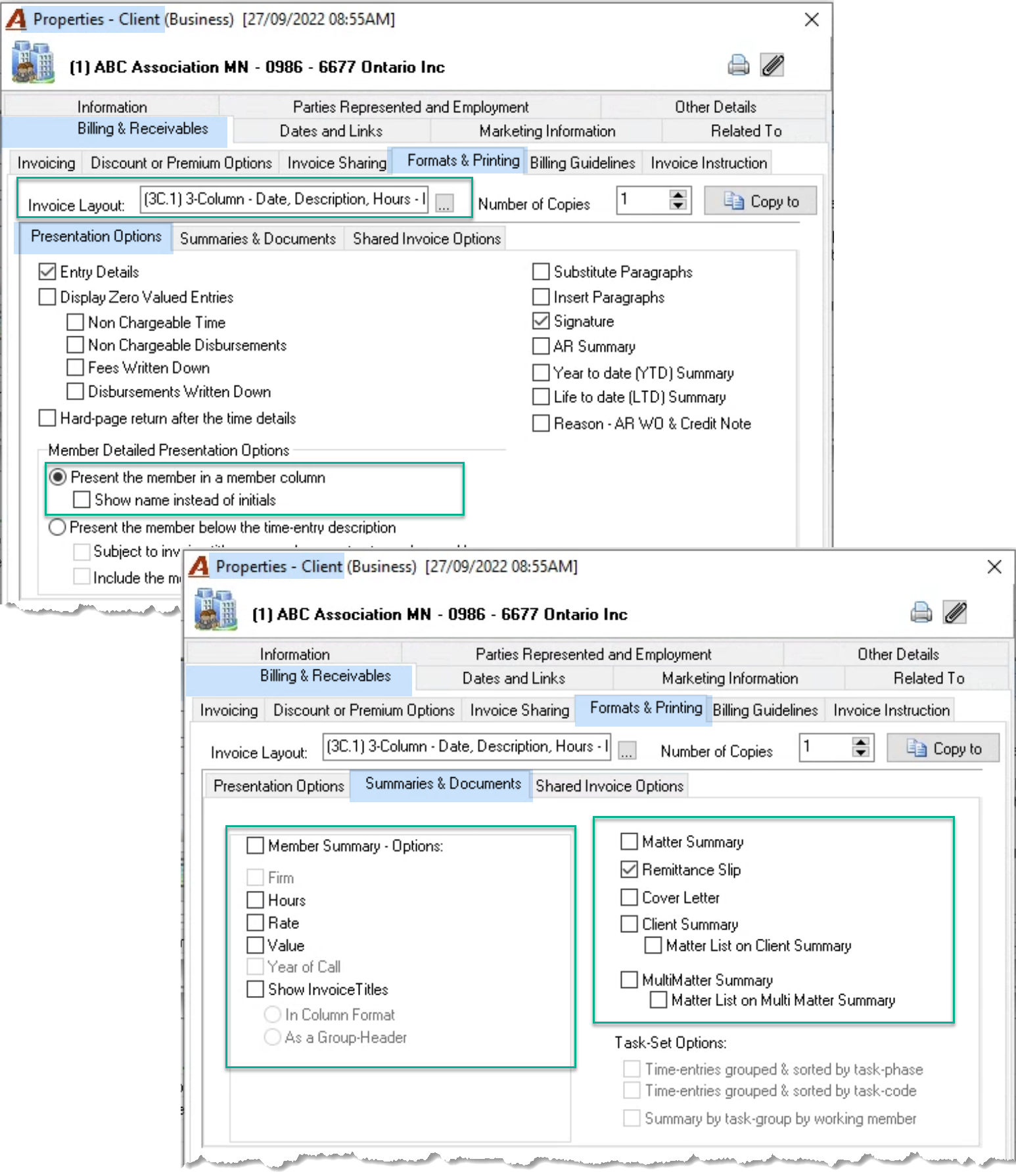
If the presentation options required for a client apply to most of its matters, it is more effective to set them up at the client level and as new matters are created, by default they will have the options the client expects already set-up.
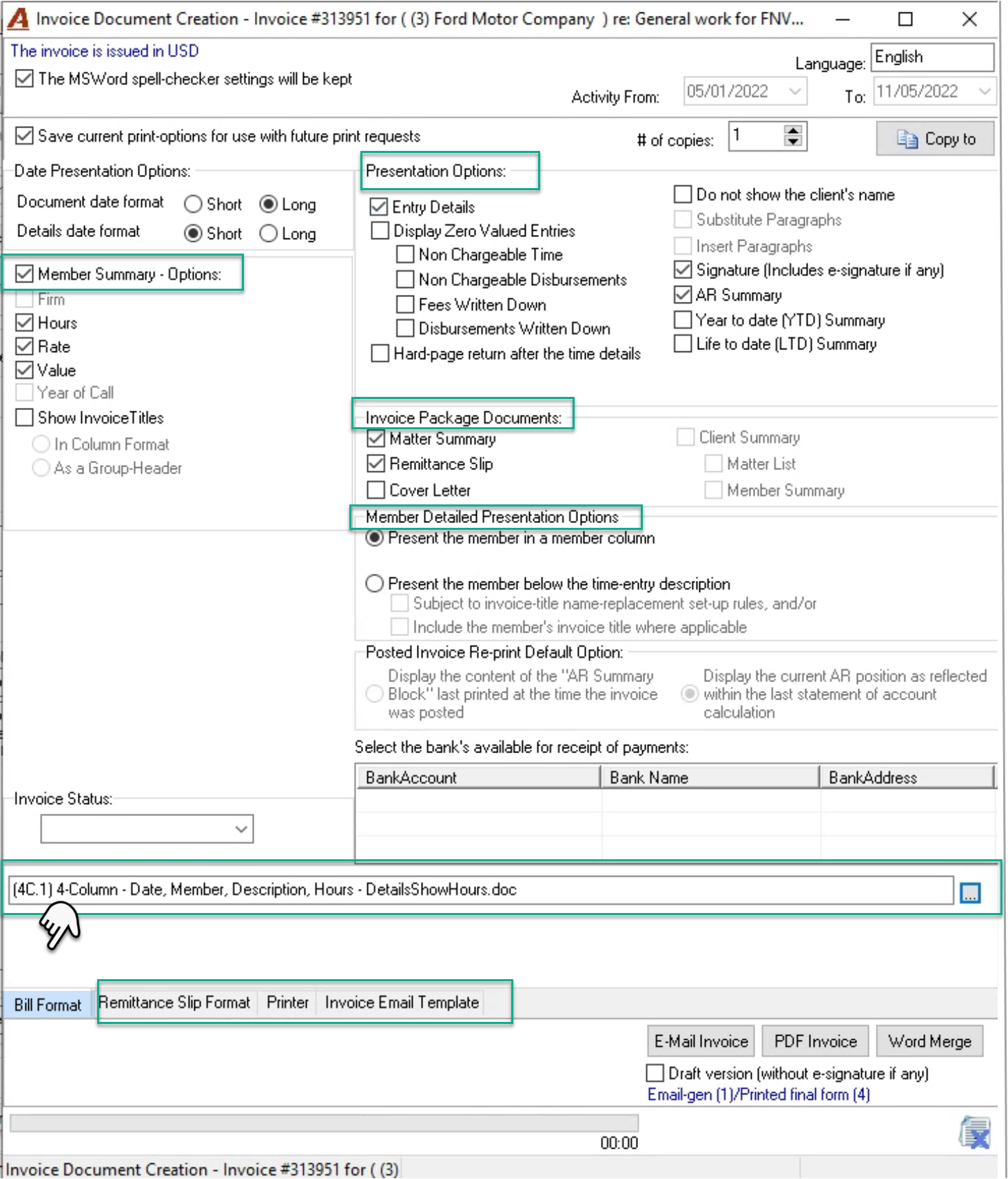
Some of the options presented are sub-sets of a more general option. For example, if you enable the “Display Zero Valued Entries” option, a more detailed selection of which types you need present is possible.
The option to present the member below the entry description instead of a column requires the set-up of invoice titles within the affected members properties forms.
Substitute paragraph and insert paragraphs are only relevant if paragraphs are present within the paragraphs tab invoice properties. The AR Summary options will only show if the matter has an outstanding balance in addition to the invoice being prepared.
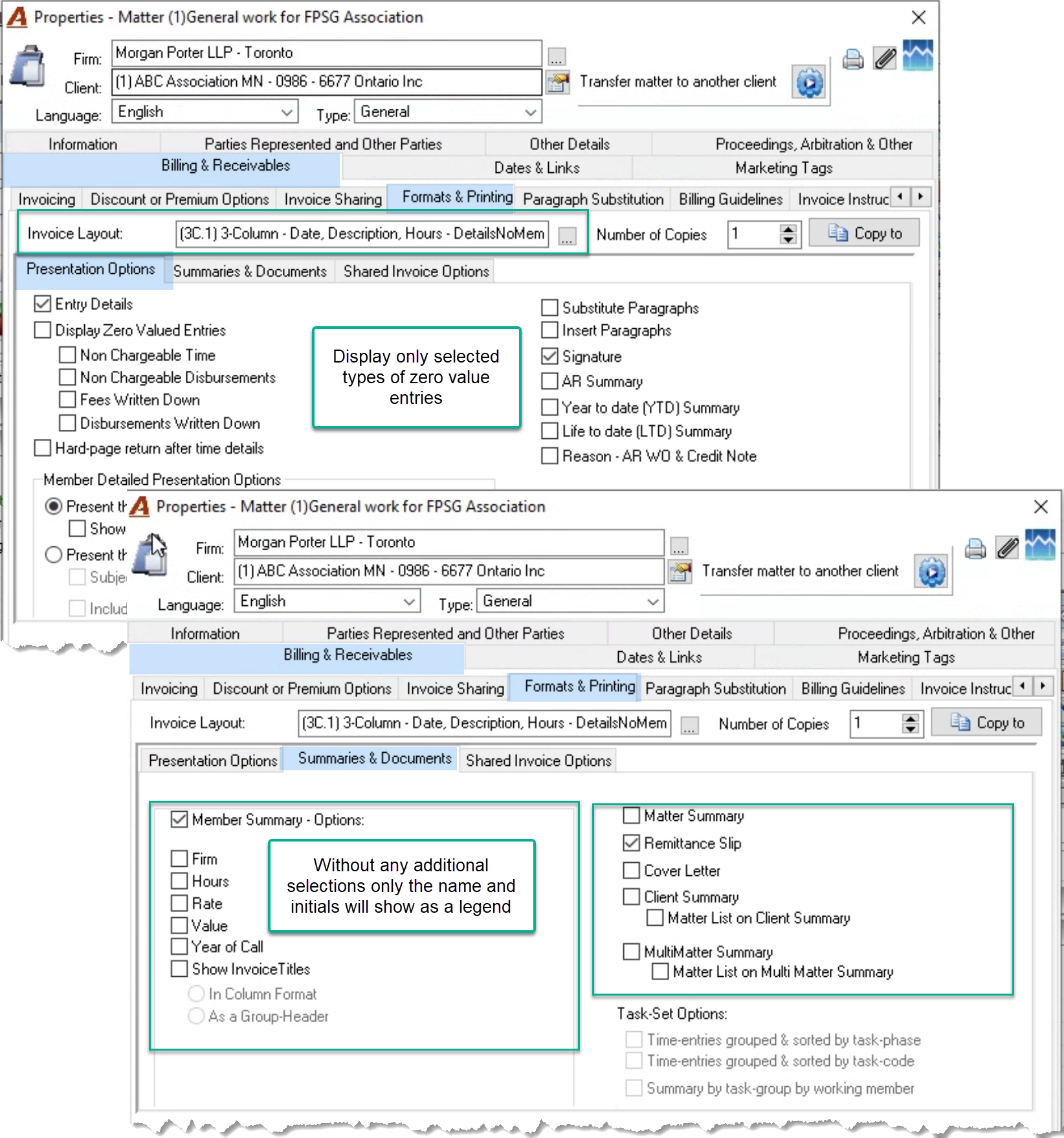
Depending on selections made, the member summary on the invoice document will only show as a name to initials legend, or also include hours, rate, and value.
Client and Multi-Matter summary options are only relevant if the corresponding client or multi-matter invoice is created. Task set options require that the client and matter be subject to task set
Matter Level Defaults
These are the same as client level defaults. Once inherited they can be modified to be different best defaults at the right level, eliminates redundant activity and reduces presentation errors.
Invoice Document Creation Form
These are inherited from the matter they can be modified to be different best defaults at the right level, eliminates redundant activity and reduces presentation errors.
Copy-To Function
Start from the source - the client, matter or invoice that has the settings to be copied. Press on the “Copy-To” button to launch the filter and results form. Use the filter to initiate the selection. It is possible to select a range of clients will all their matters. or a specific matter. The filter is cumulative and once on the list, the removal of the checkmark will identify the matters to be excluded. Once the list is complete and with all exclusions, press on the proceed button (bottom left)
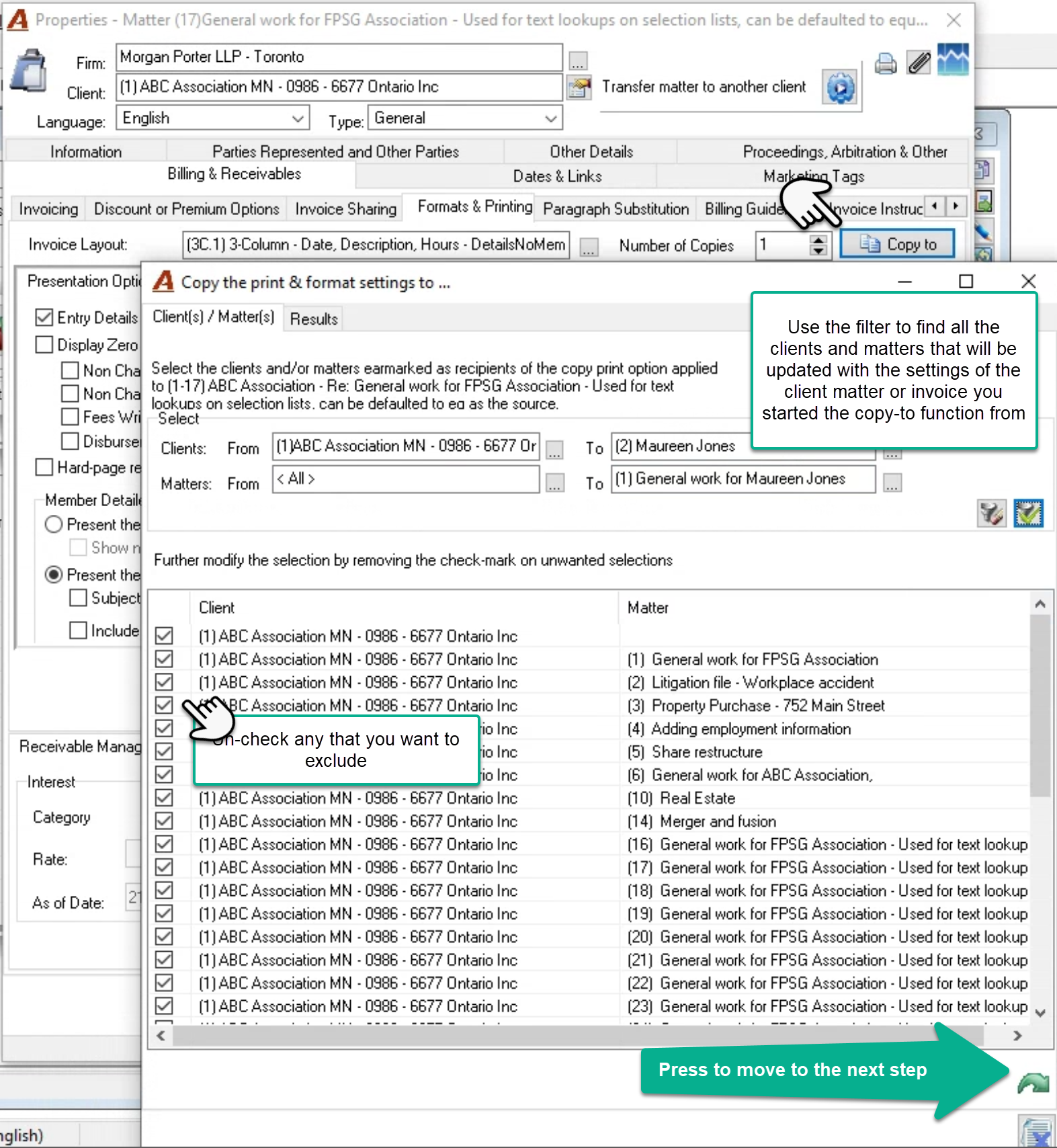
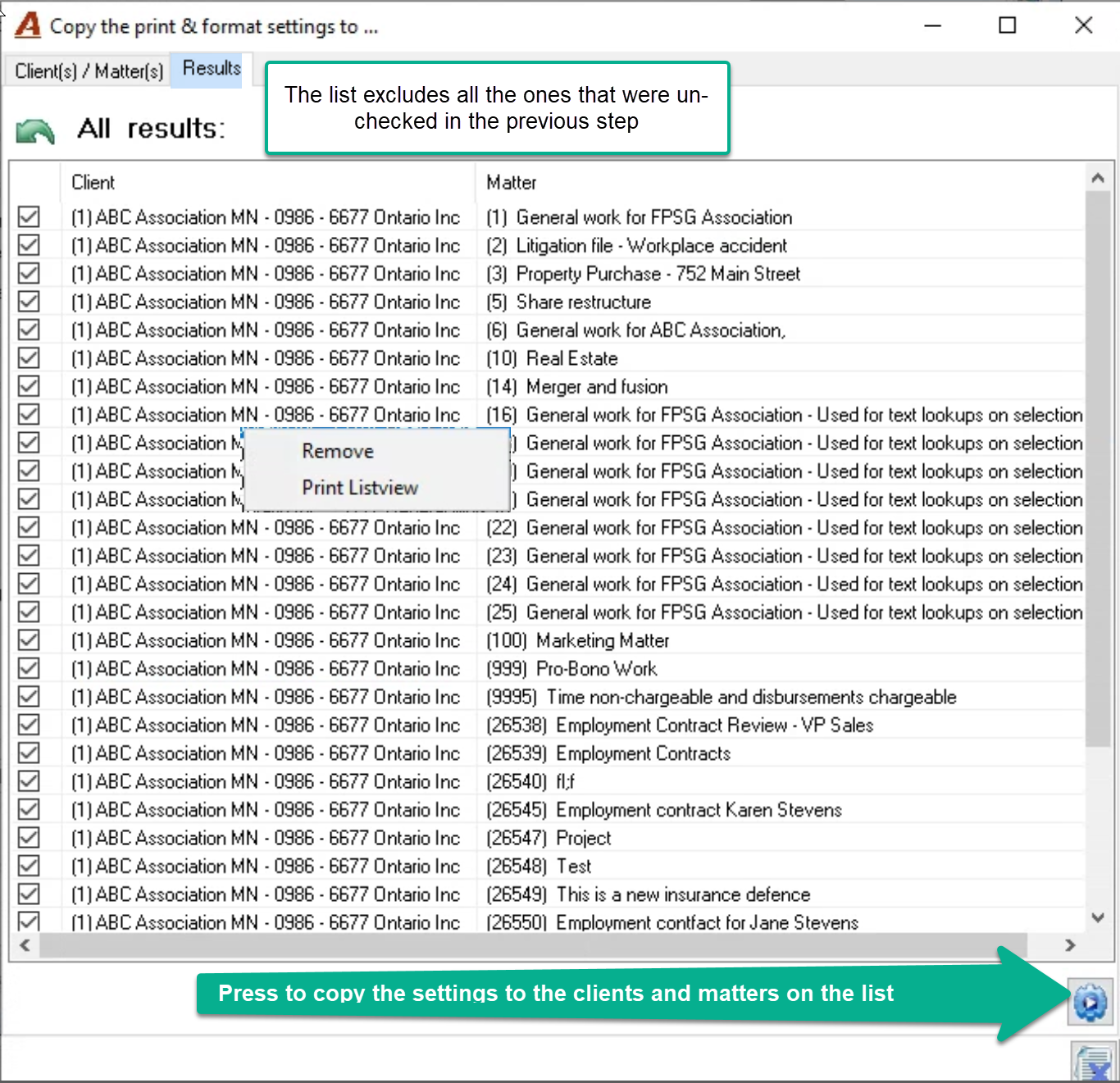
Once on the results tab, remove or uncheck any last-minute exclusions and press on the execute button to copy the settings of the source to the client and matters on the list.