.png)
Presentation Rule & Fee Override Options
Use Case
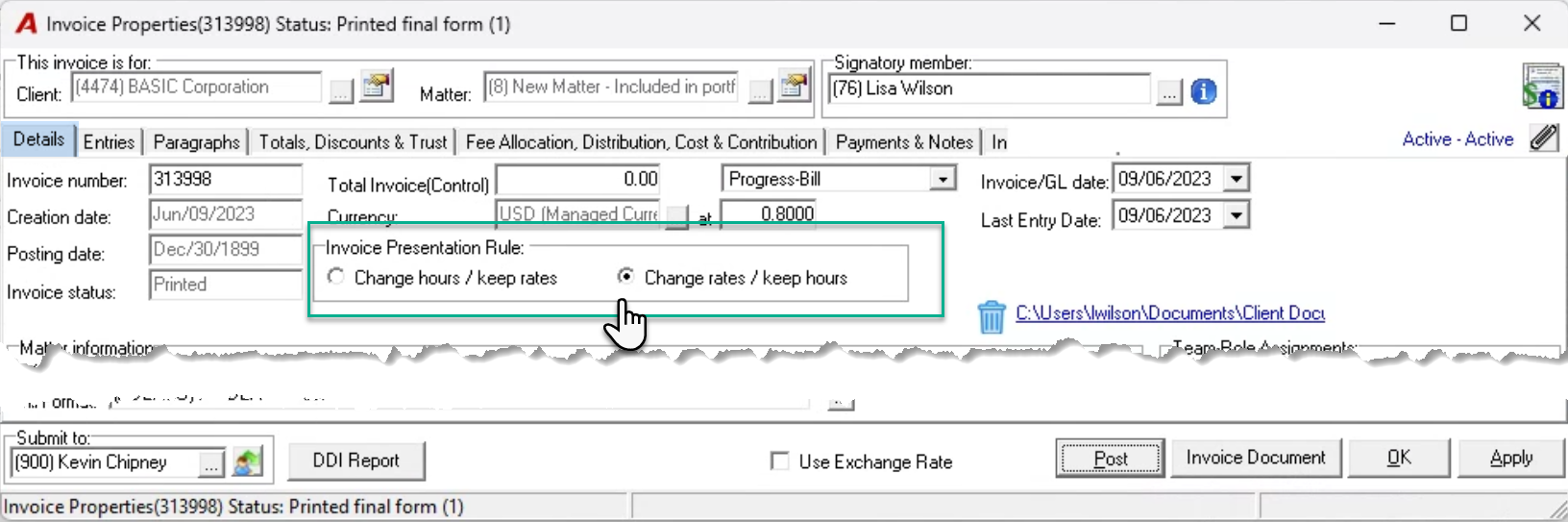
Use the change rates keep hours radio button option, when the fee override completed during the invoice preparation process at the entry level, working member level or total fee level is made in context of known fee adjustments and if the detailed invoice is used, the impact of the fee override will be presented as change in rate – effective rate instead of working rate.
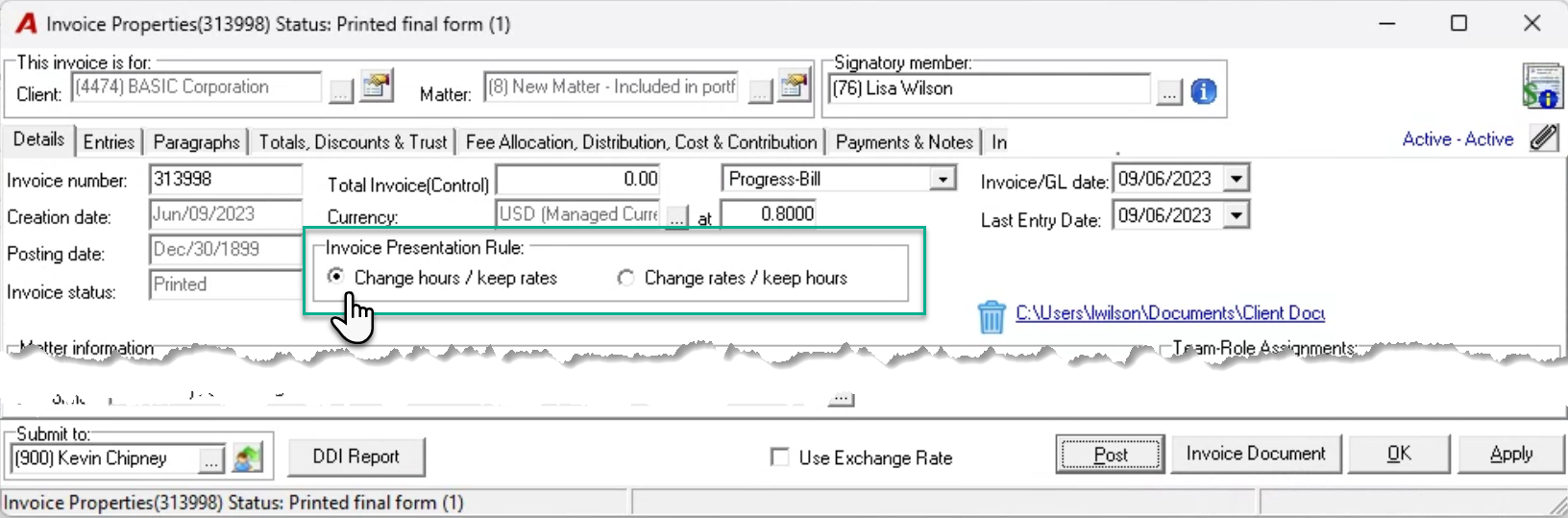
Use the change hours keep rates radio button option, when the fee override completed during the invoice preparation process at the entry level, is made in context of time- adjustments and if the detailed invoice is used, the impact of the fee override will be presented as a change in hours rounded up or down based on permitted billing presentation time increments.
Business Logic
To better control the calculated results for fee overrides in context of new presentation options in billing increments that may potentially differ from time-keeping ones for some clients, we are providing visibility of the entry that will have the remainder when the fee override does not result in exact values that meet the billing guidelines set for the presentation of hours and rates in a detailed invoice.
We are also limiting the use of the hours field and the entry value field soit matches the intent of the presentation rule to avoid a circular reference.
Entry Level Fee Overrides
Change Rates Keep Hours
If the change rates keep hours presentation rule is applied to invoice properties, the entry level fee overrides will only be possible by applying a new value on the “Fee Override” field.
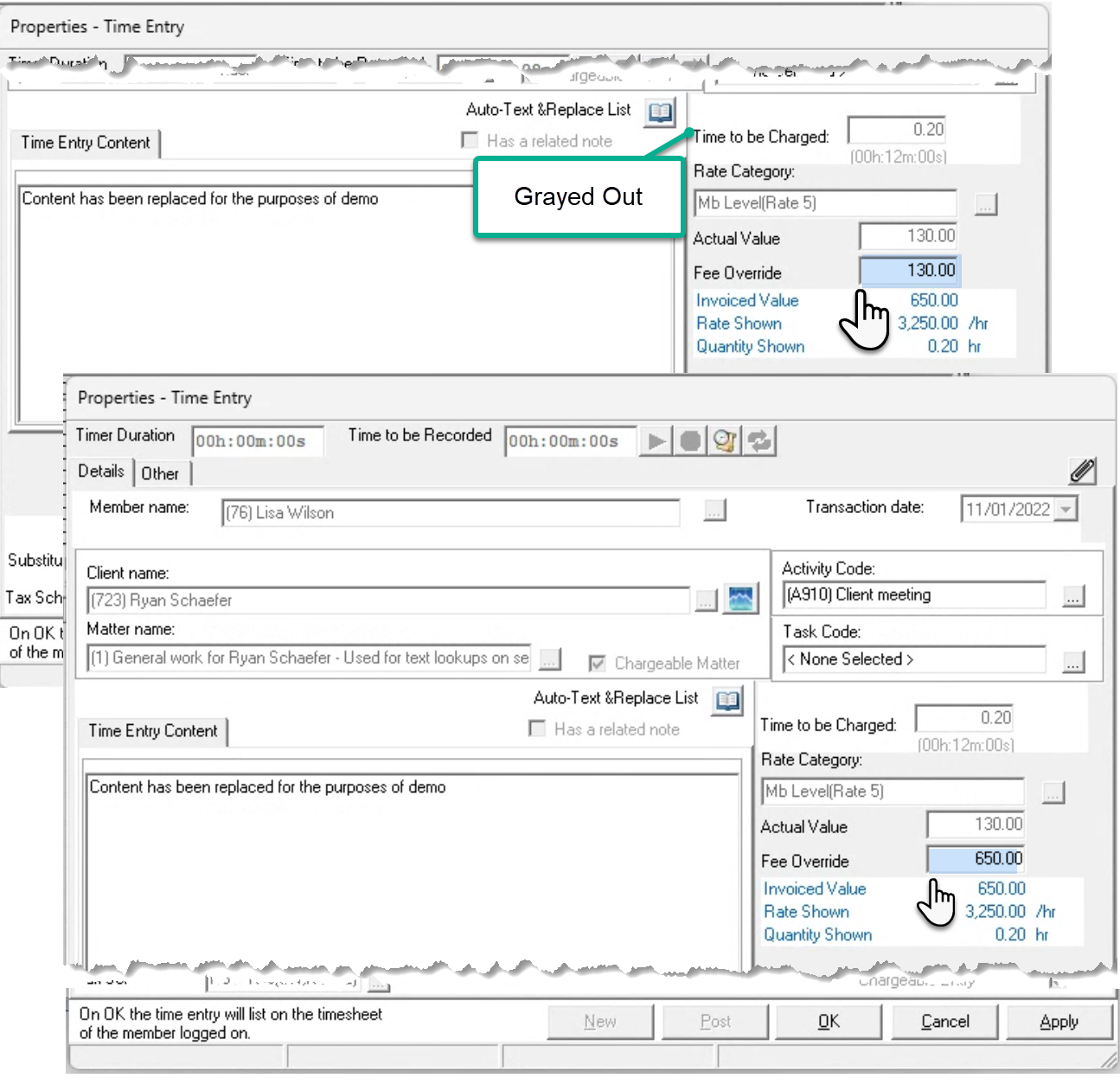
Once the entry level fee override is applied it is reflected as a change in rate and will be presented as such on the detailed invoice.
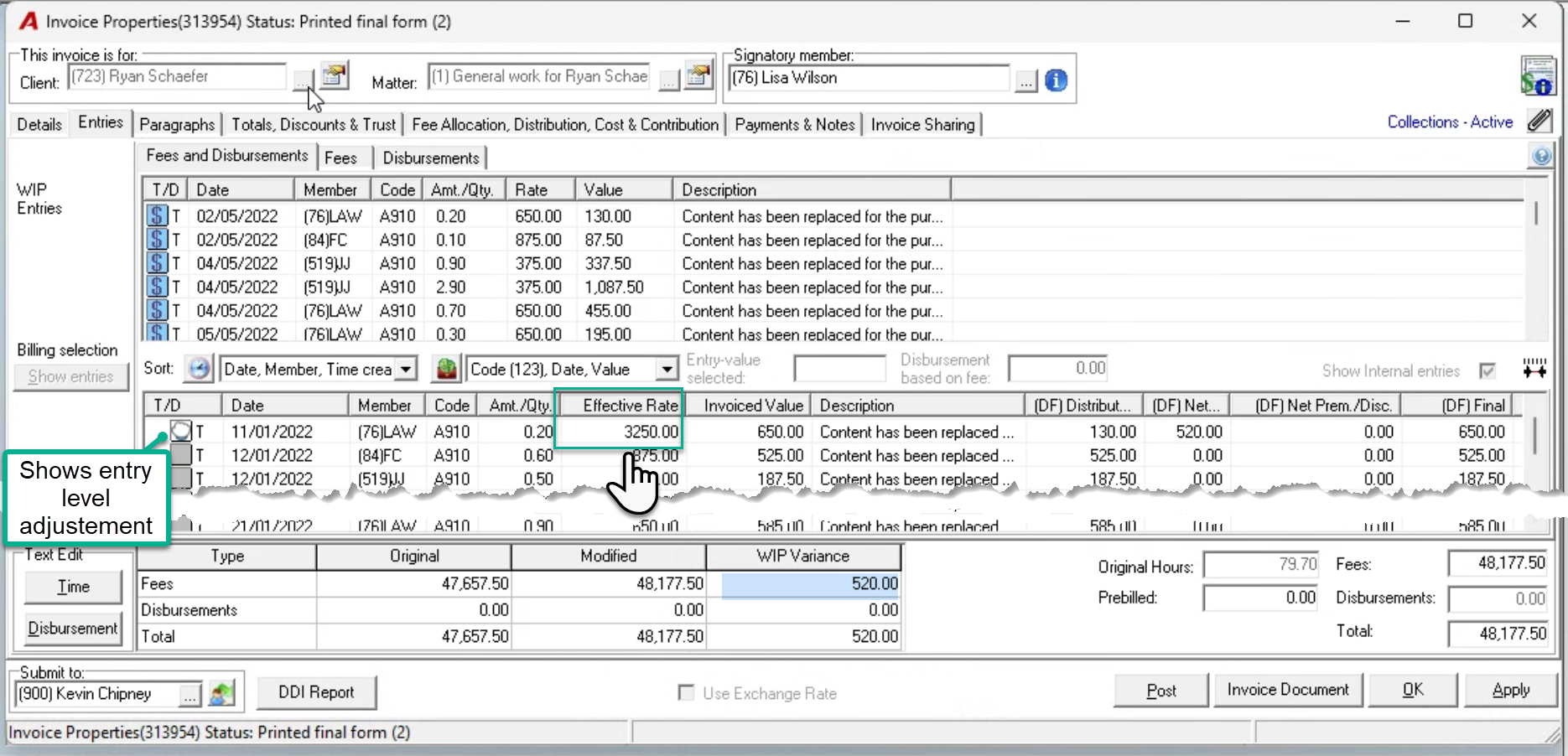
Change Rates Keep Hours
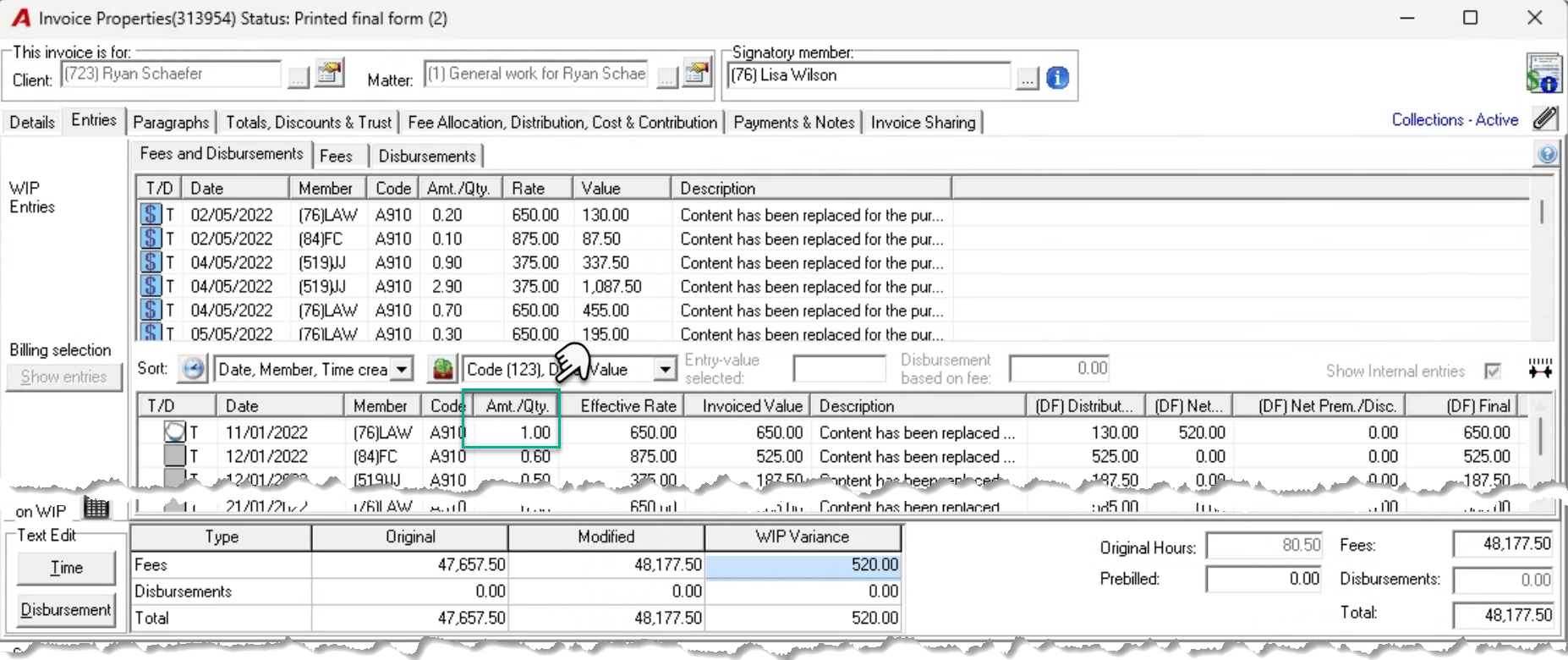
If the change rates keep hours presentation rule is applied to invoice properties, the entry level fee overrides can be completed by modifying the hours or the by overriding the time field.
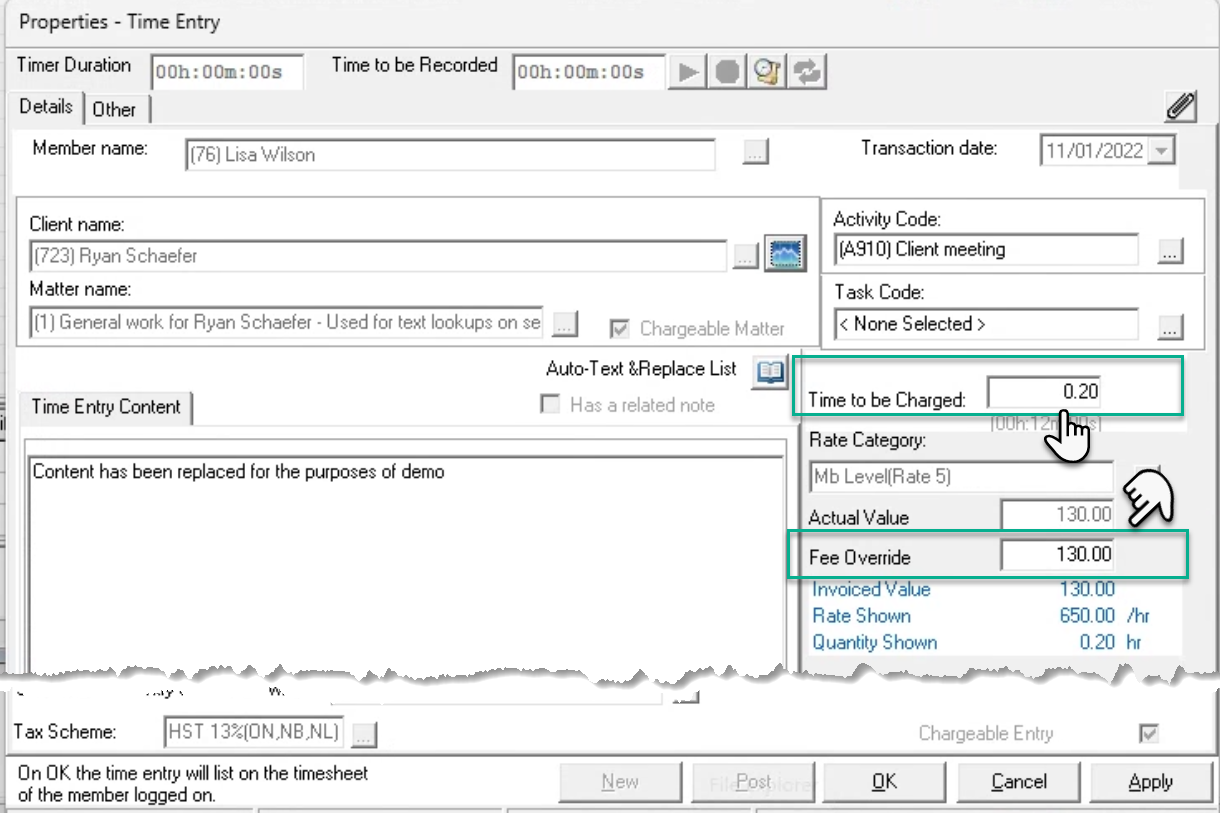
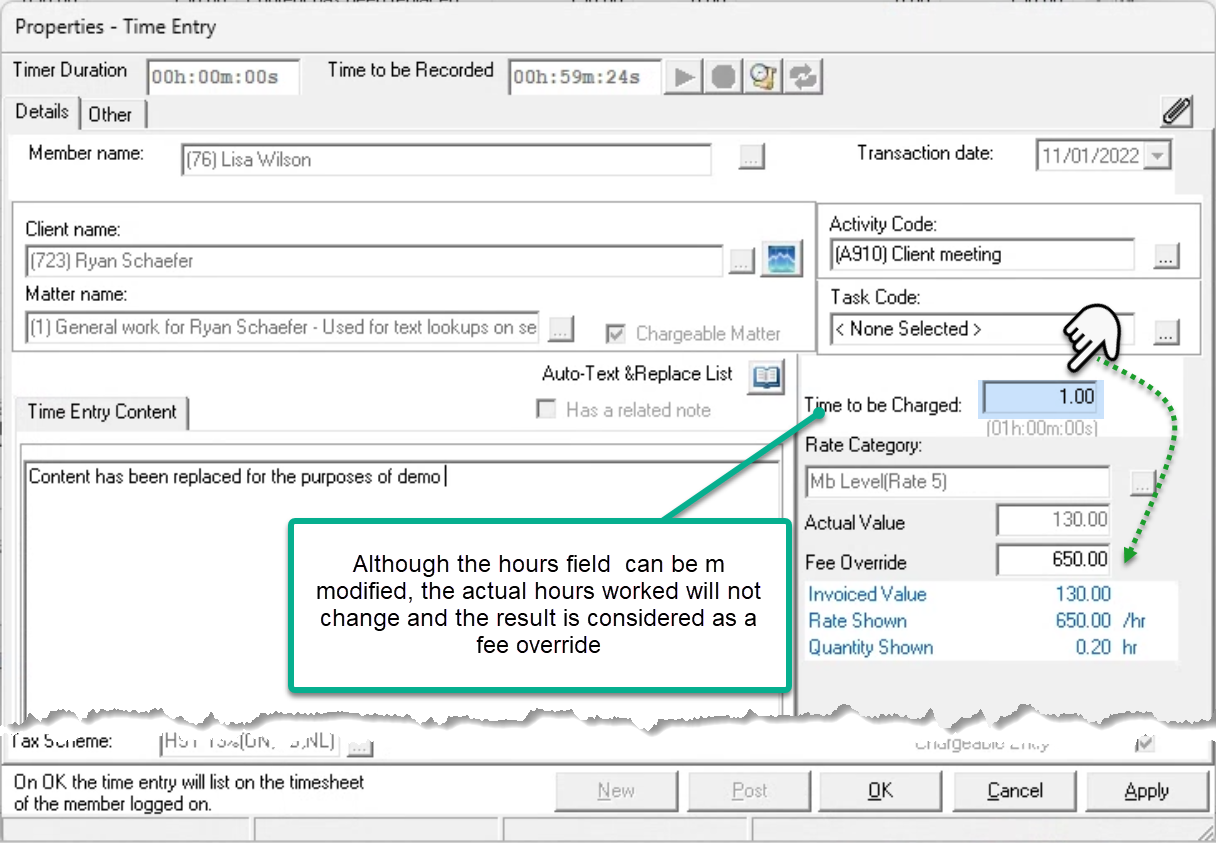
Whether the user completes the modification using the time to be charged field or the fee override field, both options result in a fee override internally and a change in hours when the invoice includes details.
Member or Total Fee Overrides
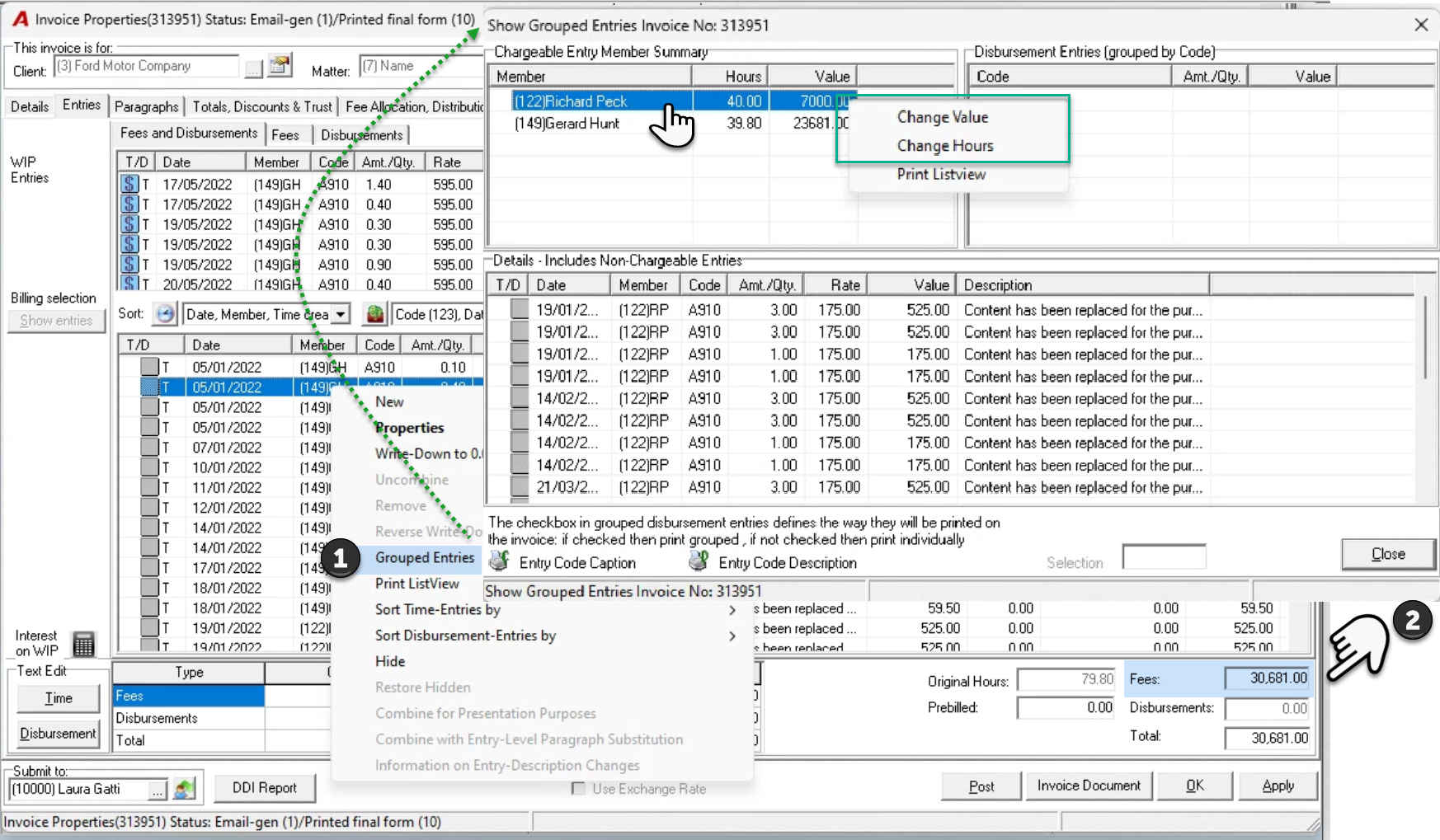
It is possible to override the fee for a member (right-click menu Grouped entries option) as well as total fees.
If the fee override is for a member, like fee overrides per entry, the user will be able to use “Change Value” to override the fee value, or use “Change Hours” to override the total hours, depending on the presentation rule used.
If the fee override is applied to total fees, the user must override the value shown in the “Fees” field to the value they want.
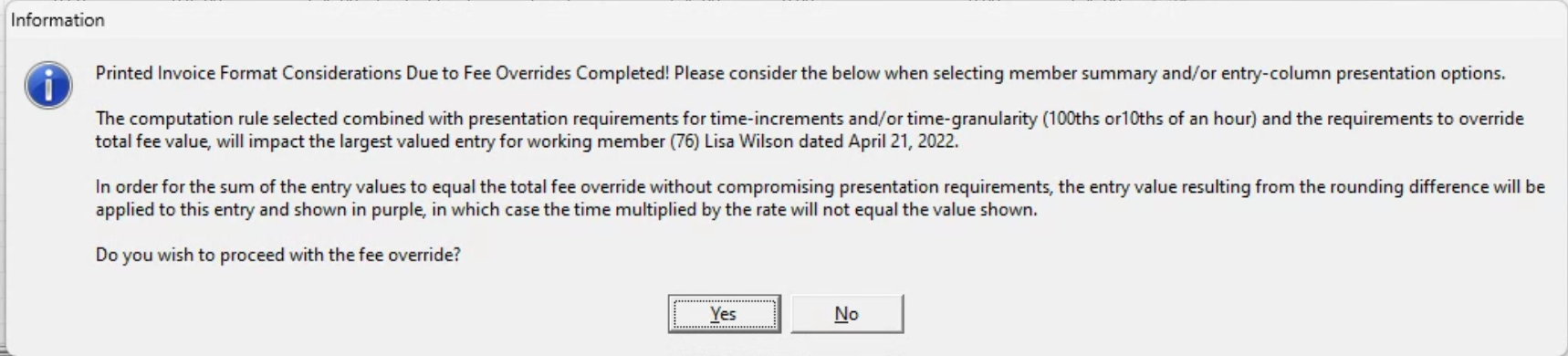
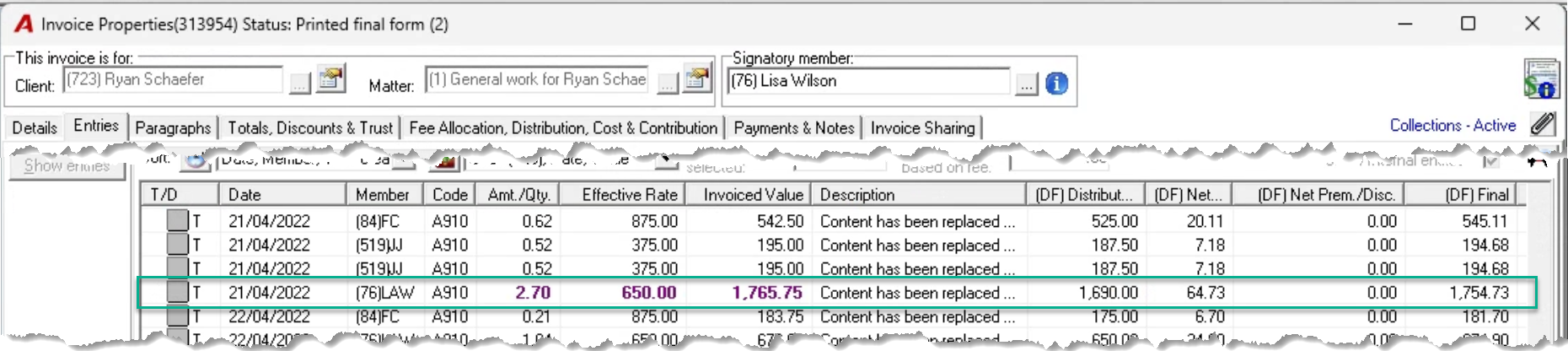
Depending on the result of the fee override value in context of the billing increment requirement (new client properties option) and the presentation rule used – “Keep Hours Change Rates” or “Keep Rates Change Hours” – the billing section will show an entry in purple font.
The purple entry does not work mathematically – hours * rate = value – however the value is the one needed for the sum of values to add up to total fee, and for the hours or rates to show in context of the presentation rule and the billing increment requirements.
In the past this inconsistency was not identified, however with many more end clients receiving e-bills which are programmatically controlled by their legal spend management companies, this new presentation provides visibility to the invoice preparer to ensure end client requirements are met. With this inconsistency highlighted, the invoice preparer can consider the use of the right format so the entry details are not completely visible in context of the invoice presentation rule selected, or alternatively avoid fee override values that trigger this inconsistency where they do not have control of the form (i.e. e-bills).
The message the user will receive, and a screenshot of the purple line follows: