.png)
Scope and Purpose
The WIP & Invoice Management process provides a clear and efficient workflow for managing the firm’s billing cycle. It gives users visibility into work‑in‑progress, helps invoice decision makers determine what should be billed, and supports invoice preparers in producing accurate invoices.
This process covers everything from generating billing requests to reviewing WIP, using dashboards and reports to guide decisions, and coordinating between those who approve invoices and those who prepare them. Its purpose is to ensure consistency, accuracy, and timely billing across the firm.
Highlights
The WIP & Invoice Management process provides stakeholders, invoice decision makers and invoice preparers with workflow status of the unbilled time requested to be billed during the business cycle; in consideration of the matter being transactional, contingency, or time-based, and with the granularity expected by the type of user leveraging the information.
Combined with firm-defined billing frequencies which can be overridden in context of client or matter requirements (for example quarterly,contingent on settlement or closing, or when WIP values reach 10,000), the billing management tool systematically proposes the best billing action to users and report-recipients participating in the process, with perspective on required due-dates where used.
The filter used to generate the requests to bill and resulting dashboard can provide visibility of results from the perspective of the invoice decision maker and the member responsible for the worked to collected process if there is a possibility that they are not the same. In this case there is a primary role holder and a secondary one.
In firms where invoices are signed, if the signatory is potentially different than the invoice decision maker or the responsible for the worked to collected business cycle, then a third option is offered to capture this member as well.
The user responsible to trigger and manage the "WIP-to-Billed" business cycle for worked values has access to multiple date filters and options to generate the billing request to match the firm's workflow. For example, use of the last day of the month, to invoice unbilled time and disbursements with invoices dated on the last day of the same month, or early in the month, to invoice unbilled time and disbursements to the end of the previous month with an invoice date at early in the new month. The latter is the favoured "WIP-to-Billed" business cycle as it results in improved net cash inflows and receivable management outcomes.
Once the billing request is triggered, the invoice decision makers and corresponding invoice preparers have access to their E-WIP (To Bill) dashboard and WIP list showing the matters requested to be billed with their recommended billing action for the period.
The WIP & Invoice Management Process
Access
Dashboard Task Bar Section
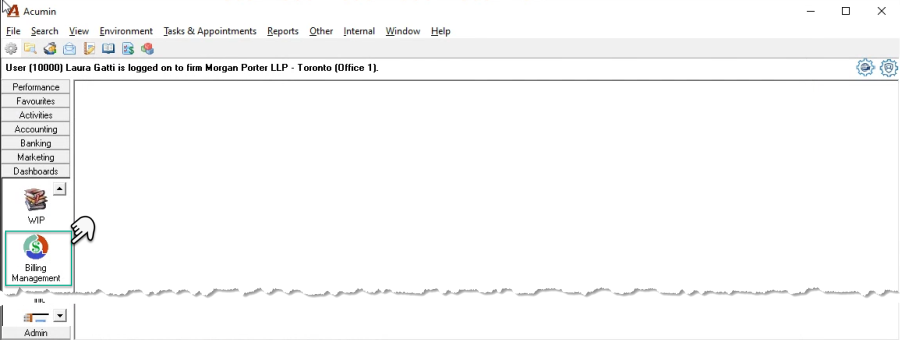
Press on the "Billing Management" icon located within the dashboard section of the task bar to get started.
Personalized Tool Bar
Press on the tool bar's addition-wheel, select the billing management icon and drag it to your personalized tool bar

The Billing Management Form
The Billing Management form will launch defaulted to the WIP Management tab, showing the results of the last time the WIP & Invoice management process was triggered. If this is the first time this process is used, access the filter to generate the dashboard's content.

The Filter
The filter is used to generate the E-WIP (To Bill Tab) dashboard and reports for the invoice decision makers and invoice preparers. These results are rolled up into the Billing Management dashboard's summary presentation by invoice decision maker and used by stakeholders responsible for the realization of work product into revenue.
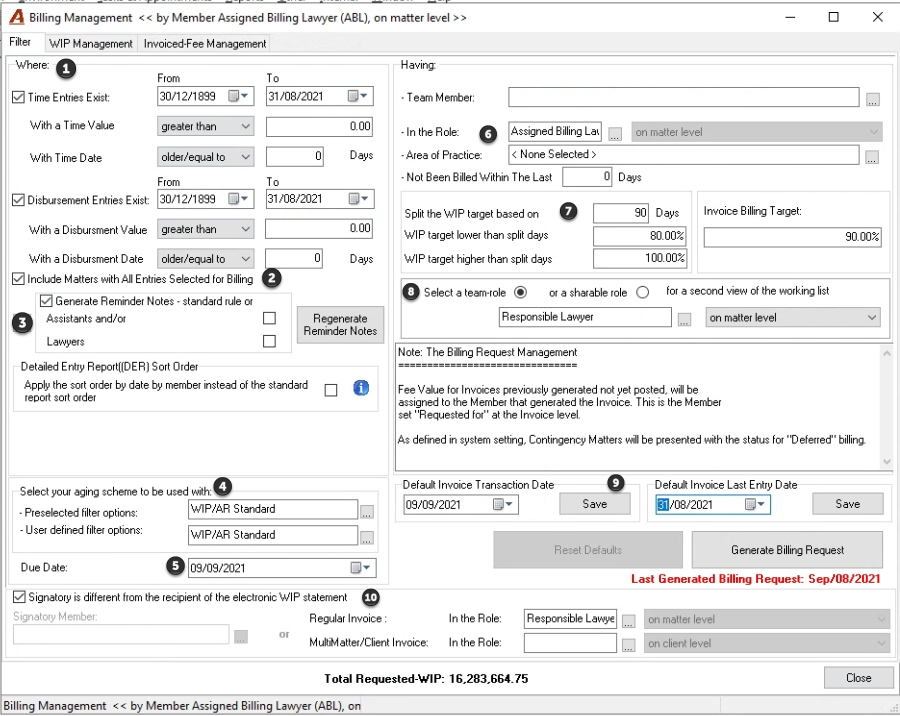
Press on the "Reset Defaults" button – bottom right, to enable the " Generate Billing Request" button. This cautionary step mitigates the potential for error causes when the billing request is re-generated for the same business cycle. Once enabled, complete the filter options.
-
Complete the time and disbursement entry filter. Leave the default from-date as 10/12/1899 (implies not date). Set the to-date to the last day of the month being billed, to capture all the unbilled entries to that date. These dates will also serve as a default filter setting for invoice preparers. Generate the billing request, to include all matters with an unbilled value greater than 0.00 for regular maintenance of matter content and an effective last-invoice to matter-closing process.
-
Include matters with all entries selected for billing to provide stakeholders and invoice decision makers with visibility of where matters that are already being billed are within the WIP-to-Billed process.
-
Generate reminder notes so when the member set to as the invoice decision maker and his/her assistant log in, they will receive a reminder to review their E-WIP statement (to Bill Tab Content).
-
Set the aging scheme for the Aged WIP report to be used when the report is generated using the filter options selected within this filter in the first field, and the aging scheme to be used when it is generated by the end user with different selections in the second field.
-
Set the date for when the invoice decision maker must complete their billing intentions for matters where a billing frequency was not determined.
-
Select the role responsible for making invoice decisions. The billing request once triggered will generate the E-WIP statement (to Bill Tab) for each invoice decision maker to initiate the invoice content review and modification process.
-
Set WIP to Invoice targets. For example, you may ask that 100% of WIP available for billing - excludes deferrals due to billing frequency or contingency – which is older than 90- days be billed within the business cycle but set a different percentage for WIP less than 90 days.
-
Select a second role to provide an alternate view. For example, a partner is matter responsible (responsible for the worked to collected life cycle) for over 100 matters but only is only billing lawyer asked to review and modify invoice content for 30 of them.
-
Pre-set the invoice and/or last entry default date:
Set and save the default invoice transaction date where a default date is consistent with your cycle. Select the last day of the month to invoice entries dated up to the end of the month with an invoice date equal to the last day of the same month. Select a default invoice date within the first 10 days of the month, to invoice entries dated up to the end of the previous month, at the beginning of the new month. Leave as no default date (31/12/1899).
Leave the last entry date with no date (31/12/1899) if you would like to have the invoice opening statement to read for "… for professional services…" up to the date of the last entry included in the invoice or select the same date as the entry filter if that is the date you prefer is shown on the invoice document.
-
Use the signatory section to capture the member that should be signing the invoice if different than the member set to manage the WIP to Invoice process (make billing decisions). For example, if the filter is executed for the billing lawyer but the invoice will be signed by the responsible one.
Press Generate Billing Request to build the E-WIP (To Bill Tab) dashboards and reports. The confirmation message mitigates the potential for error, because if the billing request is re-generated for the same business cycle, it may compromise billing intentions in progress on the already generated E-WIP (To Bill tab) dashboards of the invoice decision makers. The filter options selected, and results are saved until a new Billing Request is generated for the following business cycle.
Impact of Changes to Filter Decisions
The WIP & Invoice Management process is triggered with the billing management tool, at the start of each billing period, with filter decisions made in context of the firm's invoice preparation workflow. As a result, changes to the filter impact the results of the E-WIP (to-bill tab) dashboard and directly affect invoice preparation workflows for all involved in the process.
For example, if the billing workflow uses the role of matter billing decision maker to define the person accountable for billing time and disbursement entries to the end of the month, within invoices prepared and dated in the first 10 business days of the new month; the billing management filter would have been generated:
-
On the first day of the new month,
-
By Billing Decision Maker - Matter Level,
-
For time and disbursement entries to be included set to the end of the month and
-
A due date and possibly default invoice date for 10th of the new month.
If the filter is executed on the last day of the month by the lawyer responsible for the client for time and disbursements to the 15th of the month, the context and content of the E-WIP (to-bill tab) dashboard used by invoice preparers would not match the firm's workflow. For this reason, before making changes to filter decisions, consider the impact on current workflow and the communication strategy so the users working with the results, can continue to execute their steps. In other words, changes to the workflow should be completed and communicated first and then reflected as changes to the filter and not the other way around.
Entry Filter Use-Case
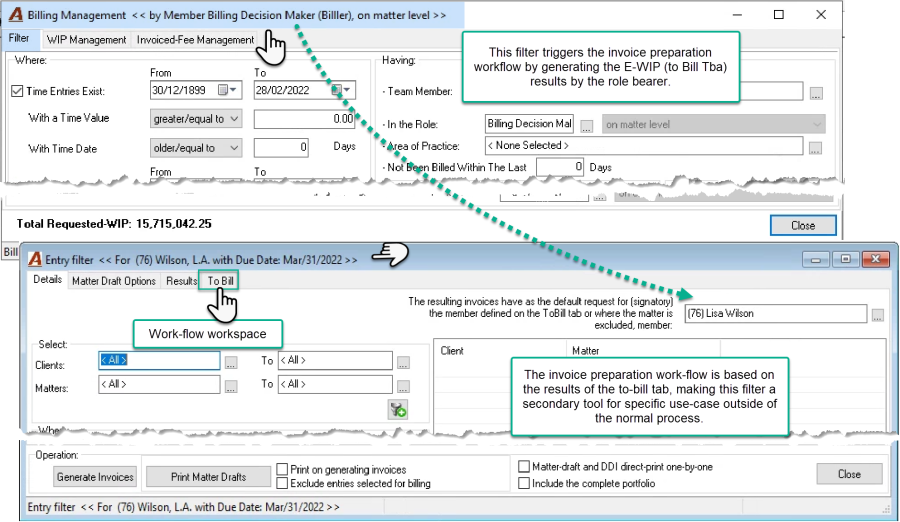
The billing management filter is used by the person responsible for initiating the WIP & Invoice Management process for the firm, to build the E-WIP (to bill tab) content by role holder selected.
The role holder and his or her assistant(s) have access to their E-WIP (to bill tab) found within their entry filter form. Although their E-WIP (to bill tab) contains the list of matters and WIP values they are accountable to process within the billing cycle, the details tab offers secondary filter options to change the default content of any invoices generated from the E-WIP (to bill tab) as well as look for matters on the list of others.
WIP Management
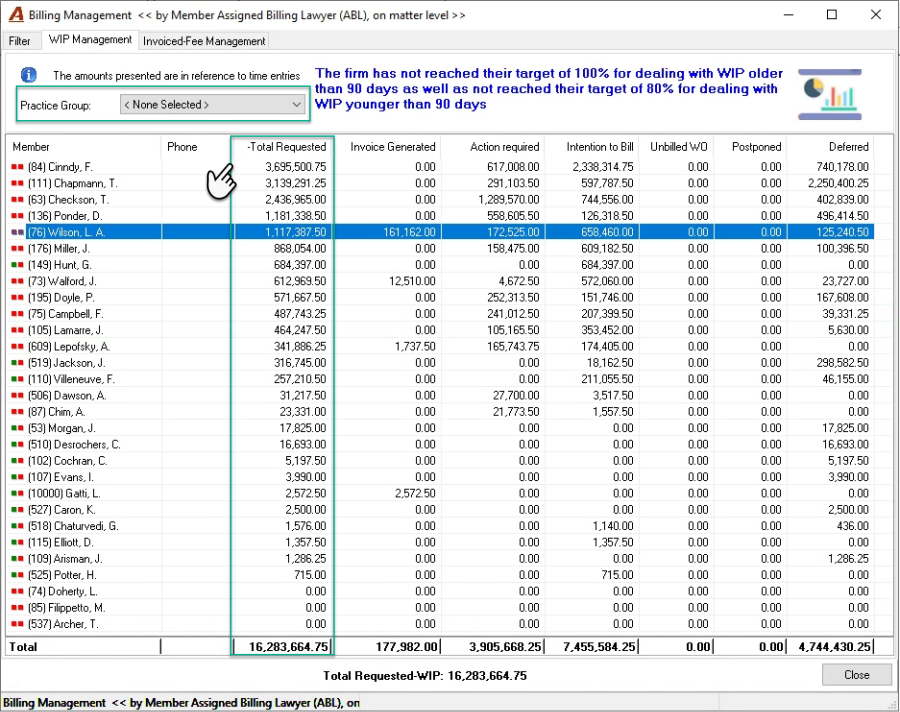
The WIP Management tab lists all the invoice decision makers with unbilled time measures in that met the filter criteria context of their billing intention.
Press on a column header to reorganize the results by column content in ascending order. Press again to change to descending order. A plus or minus sign to the left of the column header shows the direction. You can also focus the results by filtering for members of a practice group.
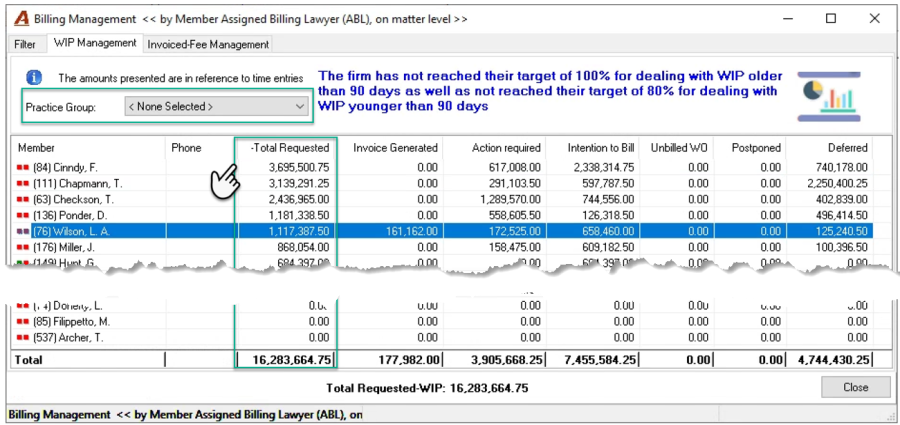
Unbilled Time (UBT) Worked Values Billing Intentions:
-
Total Requested: UBT worked value requested to be billed in the cycle
-
Invoice Generated: UBT worked value linked to a not-yet-posted invoice property form
-
Action Required: UBT worked value not classified with a billing intention
-
Intention to Bill: UBT worked value identified to be billed in this cycle
-
Unbilled WO: UBT worked value identified to be written-off – cleans-up the matter
-
Postponed: UBT worked value classified by the user to be billed in a future cycle
-
Deferred: UBT worked value classified by the system to be billed in a future cycle because of its billing frequency or contingency status.
Right-Click Menu
-
View Details: Drills through to the E-WIP statement (To Bill Tab) of the member
-
Print List view: Can be generated to excel (see user defaults)
-
Print Report: Generates the report
-
Sort by Code: The list orders by member code as a default
-
Sort by Name: Change the member column to order by name
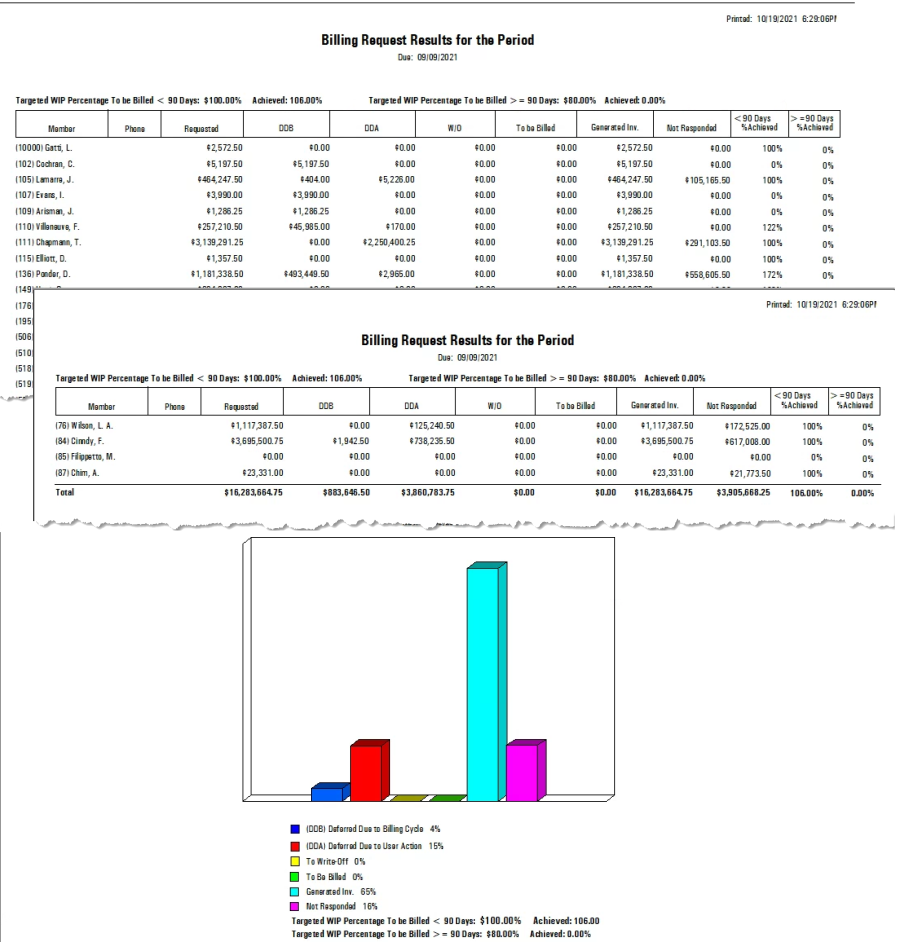
WIP Management Report
Invoiced Fee Management
The Invoiced Fee Management tab lists all the members that met the filter criteria along with invoiced fee measures in context of the invoice workflow and its status.
Press on a column header to reorganize the results by the column content in ascending order. Press again to change to descending order. A plus or minus sign to the left of the column header shows the direction. You can also focus the results by filtering for members of a practice group.
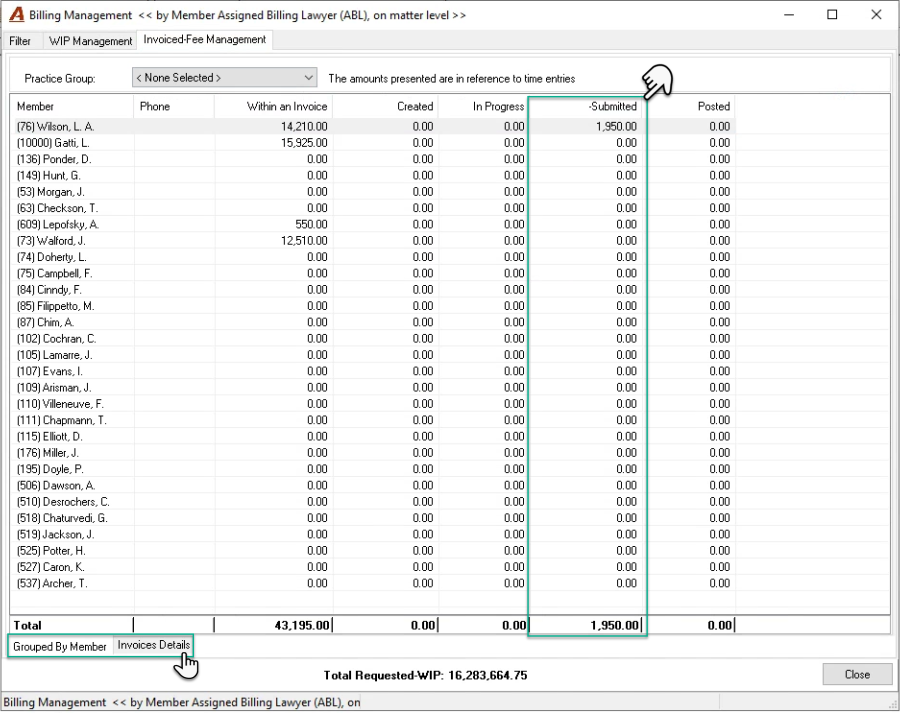
Fee Values Within an Invoice and Workflow/Status Position:
-
Within and Invoice: Fee value included in the invoice properties. It may differ from UBT worked values because of variances and time left behind - not billed.
-
Created: The fee values associated to an invoice property created but not yet looked at
-
In Progress: The fee values associated to an invoice property in progress but not yet submitted for posting
-
Submitted: The fee values associated to an invoice submitted for posting
-
Posted: The fee values associated to an invoice that is posted
Right-Click Menu
-
View Details: Drills through to the list of invoices generated for matters included in the process. Highlight a member and press on the invoice details sub-tab (bottom left) to have the same outcome
-
Print List view: Can be generated to excel (see user defaults)
-
Print Report: Generates the same in report format. However, the print list view option from the "Show Invoice Detail" form provides more relevant invoices in progress information.
-
Sort by Code: The list orders by member code as a default
-
Sort by Name: Change the member column to order by name
The Results
E-WIP statement (to Bill Tab) for The Invoice Decision Maker
The billing request once triggered will generate the E-WIP statement (to Bill Tab) for each invoice decision maker , therefore the member holding the role responsible for making invoice decisions will have access to his or her list of billing requests to initiate the invoice content review and modification process. The information presented is designed to assist in the billing decision making process.
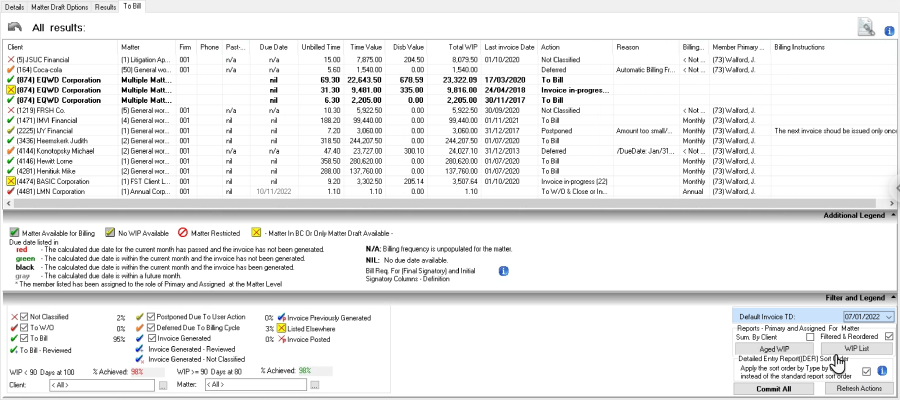
The WIP List
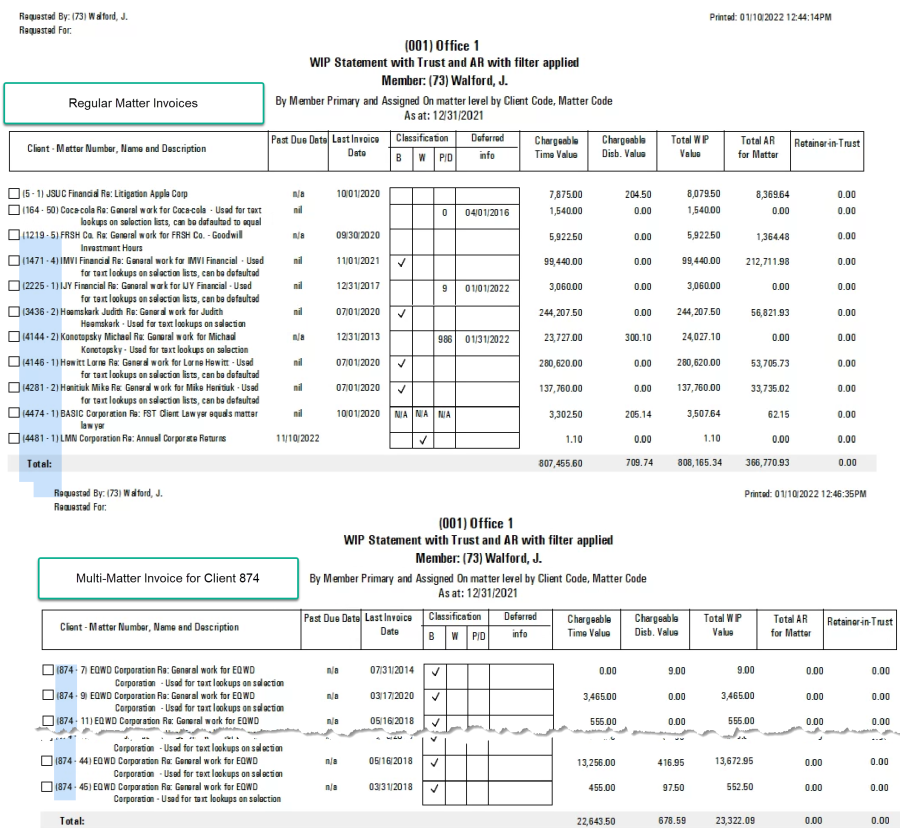
The WIP list report reflects the filtered results of the E-WIP statement. It is used as a checklist for the billing decision makers and those responsible for posting the invoice to work from. The WIP list excludes multi-matter invoices, so the multi-matter invoice content can be consolidated on a per multi-matter invoice basis.
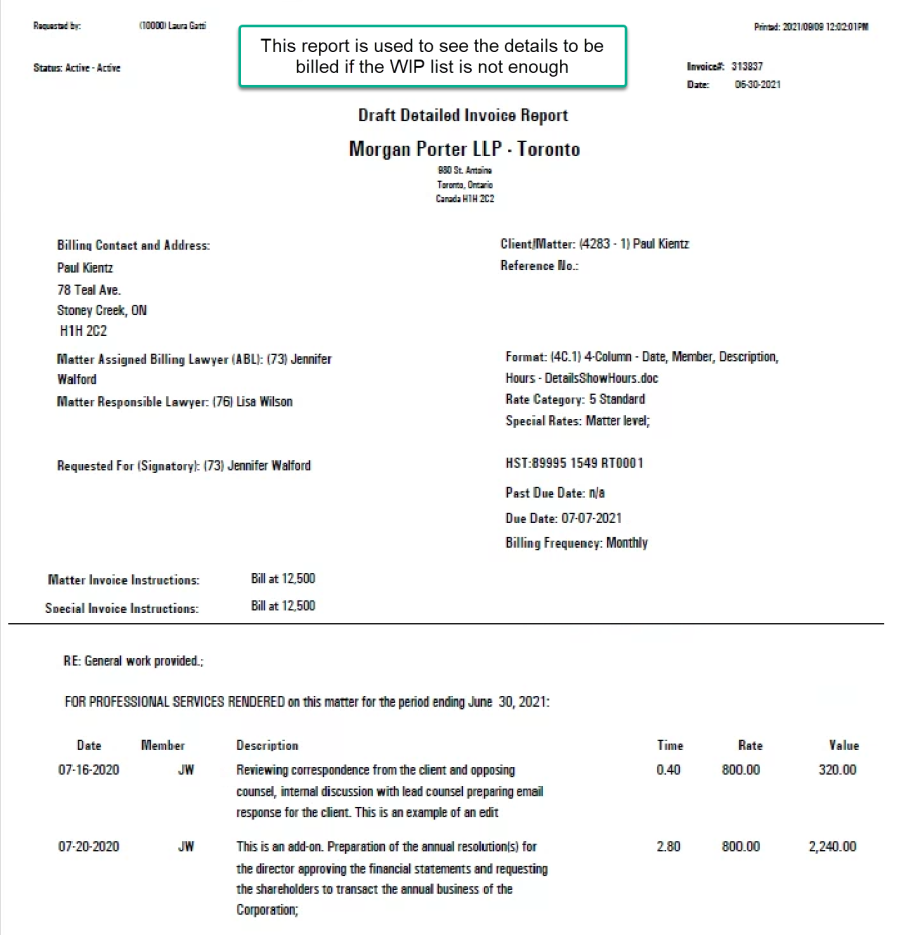
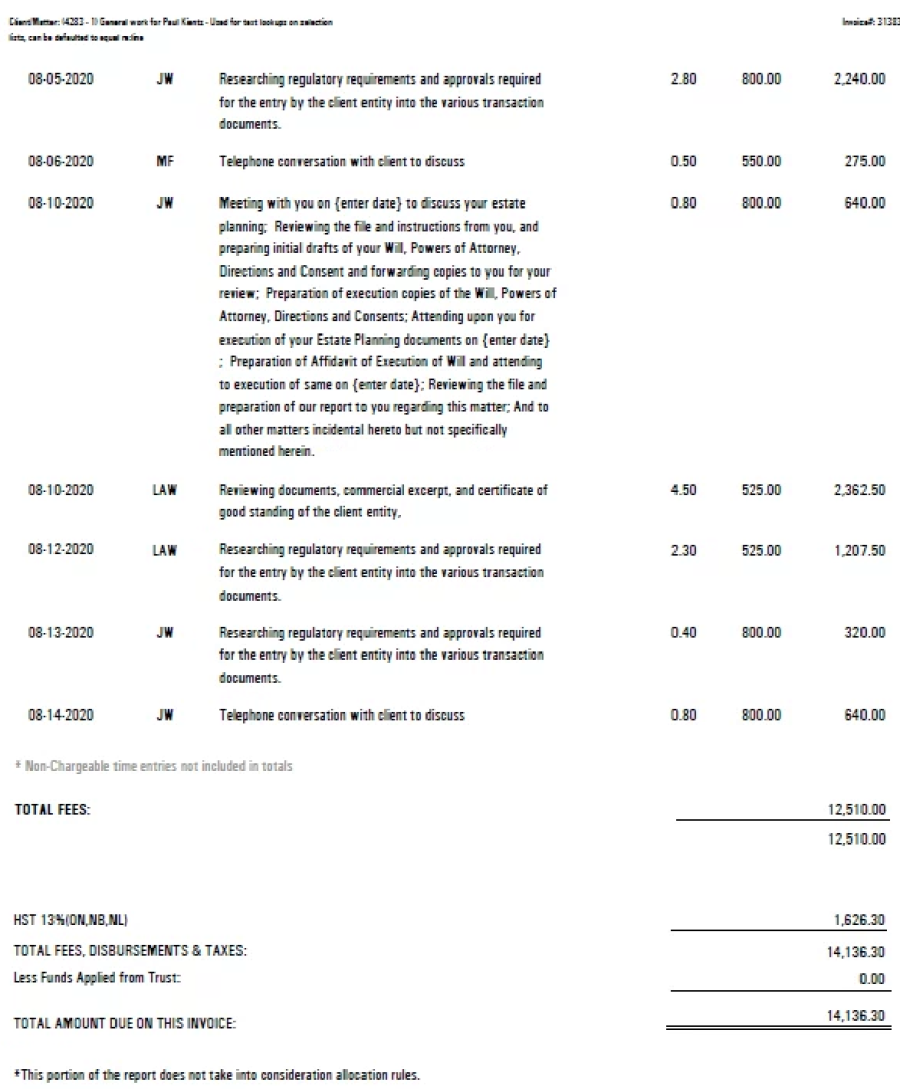
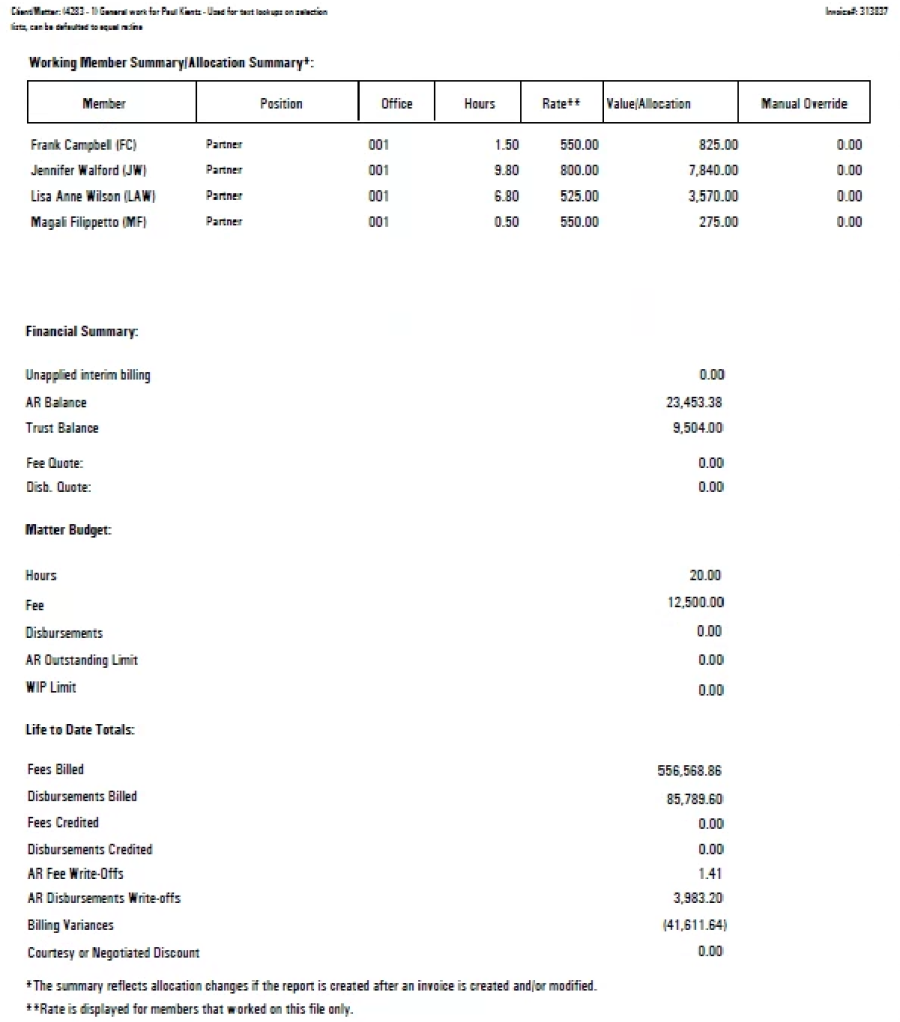
The Draft Detailed Invoice Report
The draft detailed invoice report reflects the details of the entries to be billed as well as the status of the matter form a financial perspective, to assist in billing decision making.