.png)
Concept Overview
When managing posted invoices, it is essential to understand how fee allocation and cash allocation are handled. These processes provide the foundation for accurately allocating payments, managing write-offs, and ensuring proper financial record-keeping.
Highlights
-
Fee Allocation at Posting:
-
When an invoice is posted, the fee allocation at that time is stored.
-
This allocation serves as the basis for distributing related receipts or AR Fee Write-offs.
-
-
Modification of Allocations:
-
Authorized users can modify:
-
The fee allocation on posted invoices.
-
The cash allocation on applied receipts or AR Fee Write-offs.
-
-
-
Independent Processes:
-
Changes to fee allocation do not automatically impact related cash allocations for payments already made. These are treated as independent decisions to ensure flexibility.
-
Security Requirements
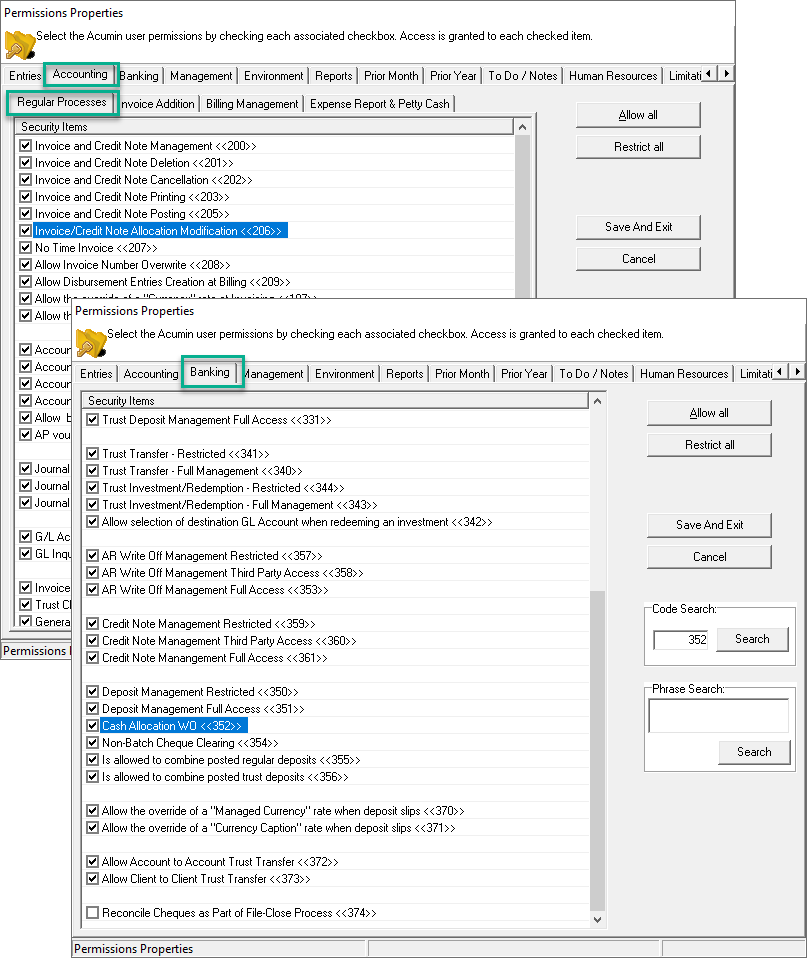
To modify fee or cash allocations, users must have the appropriate security settings enabled:
-
Fee Allocation Modification (Posted Invoices):
-
Users must have Security 206 set to ON to allow modifications.
-
-
Cash Allocation & AR Fee Write-off Modification:
-
Users must have Security 352 set to ON to enable adjustments to cash receipts or AR Fee Write-offs.
-
Step-by-Step Instructions
1. Fee Allocation Modification (Posted Invoices)
Authorized users can modify the fee allocation on posted invoices as follows:
-
In the Show Invoice Details form, select the posted invoice requiring modification.
-
Select the Invoice Allocation Modification option in the contextual menu.
-
In the Invoice Allocation Properties form, press on the Manual Override button.
-
Complete the form with the required modifications to the fee allocation.
-
Press OK to save and exit.
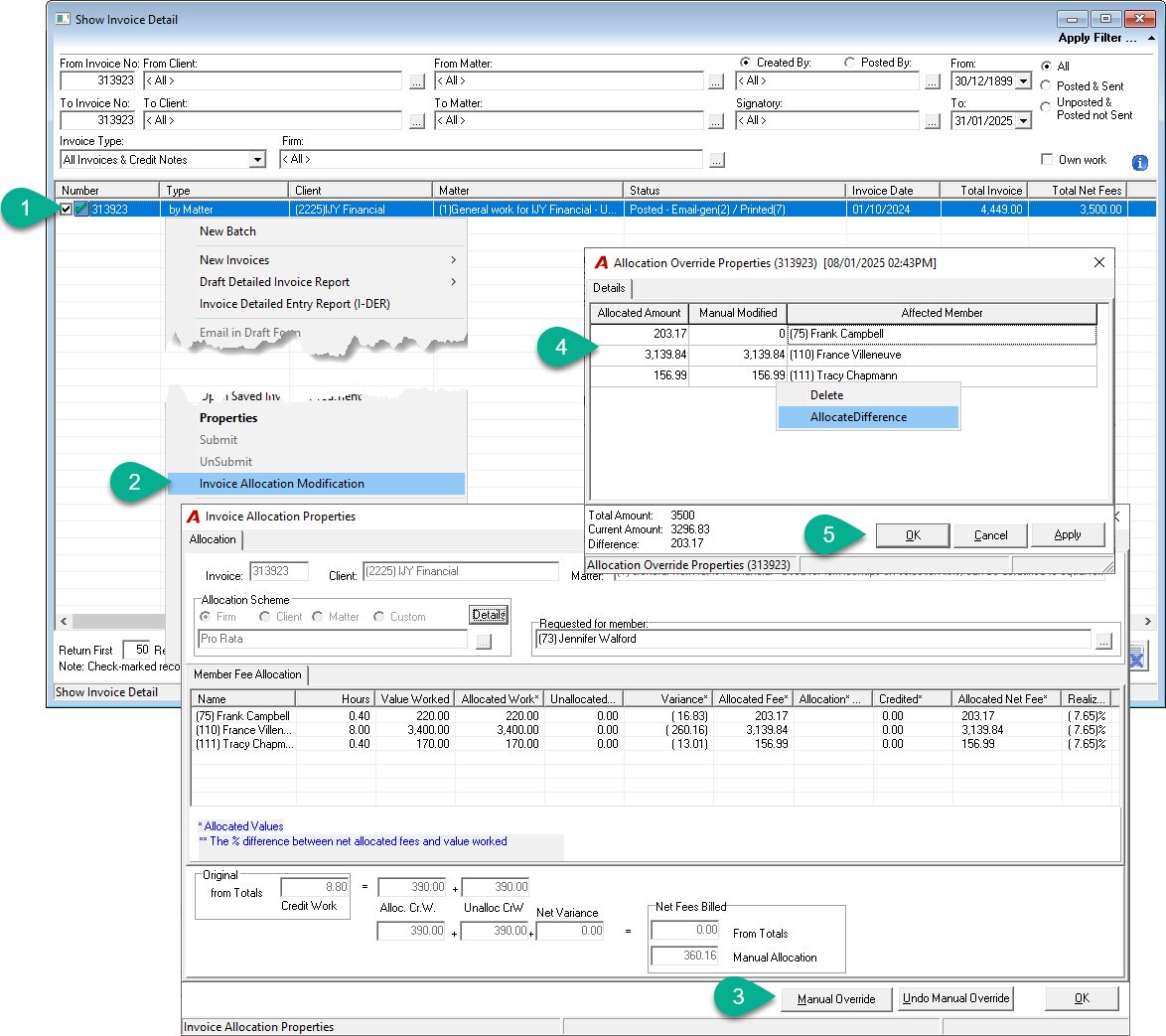
On posted multiple matter and client invoices, the Invoice Allocation Modification option is available within the invoice envelop by selecting each matter/invoice.
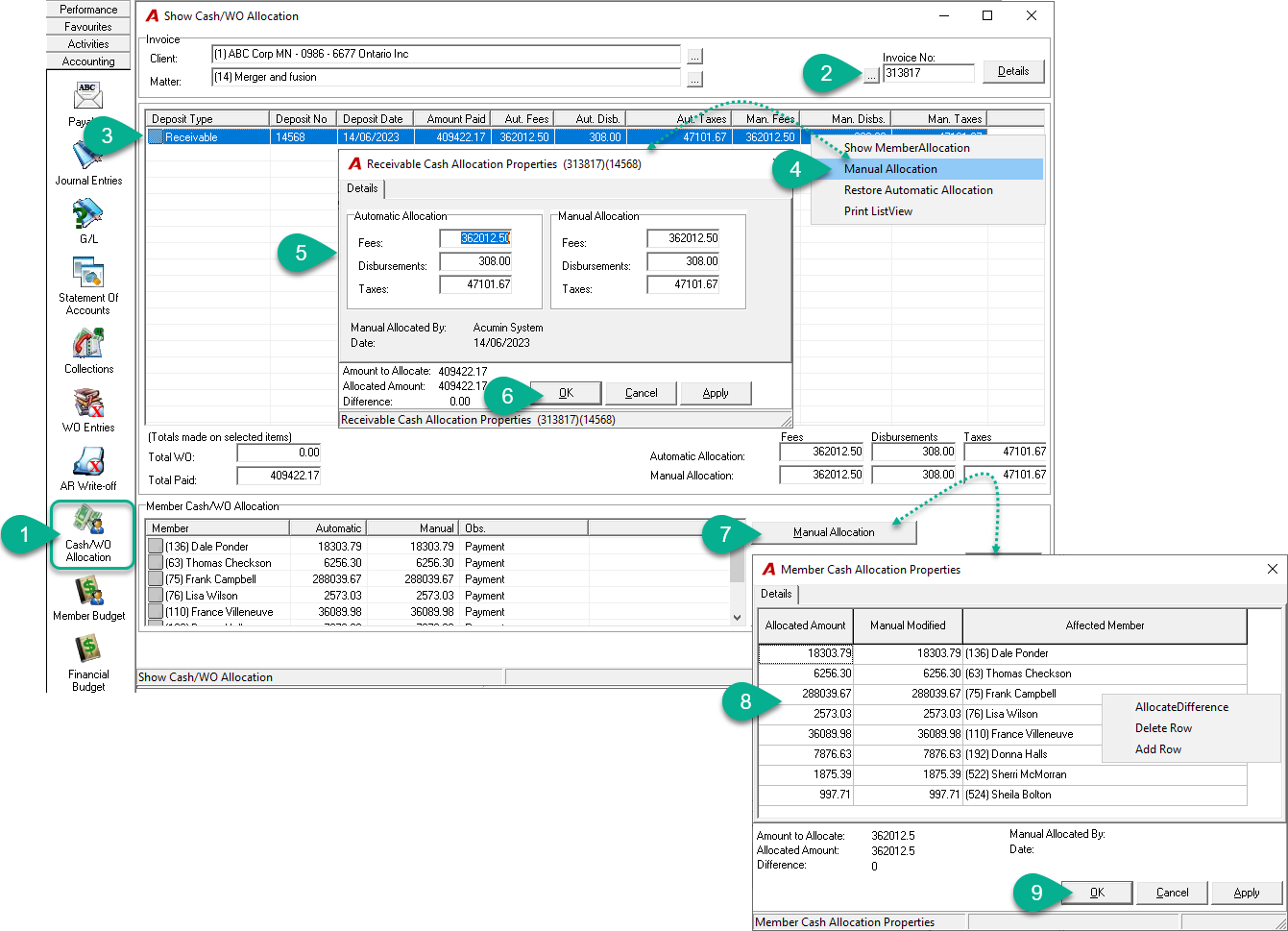
2. Cash Allocation Modification
Authorized users can modify the cash allocation on applied receipts or AR Fee Write-offs as follow:
-
Under the Accounting side bar, press on the Cash/WO Allocation icon.
-
Enter or search for the invoice requiring a receipt or write-off modification.
-
Highlight the receipt or write-off entry to re-allocate.
-
Select the Manual Allocation option from the contextual menu.
-
Adjust the allocation details as needed.
-
Click OK to save and finalize the changes.
-
Press the Manual Allocation button to modify the Member Cash/WO Allocation.
-
Adjust the allocation details as needed.
-
Click OK to save and finalize the changes.