.png)
General and/or Trust Deposit Workflow
Highlights
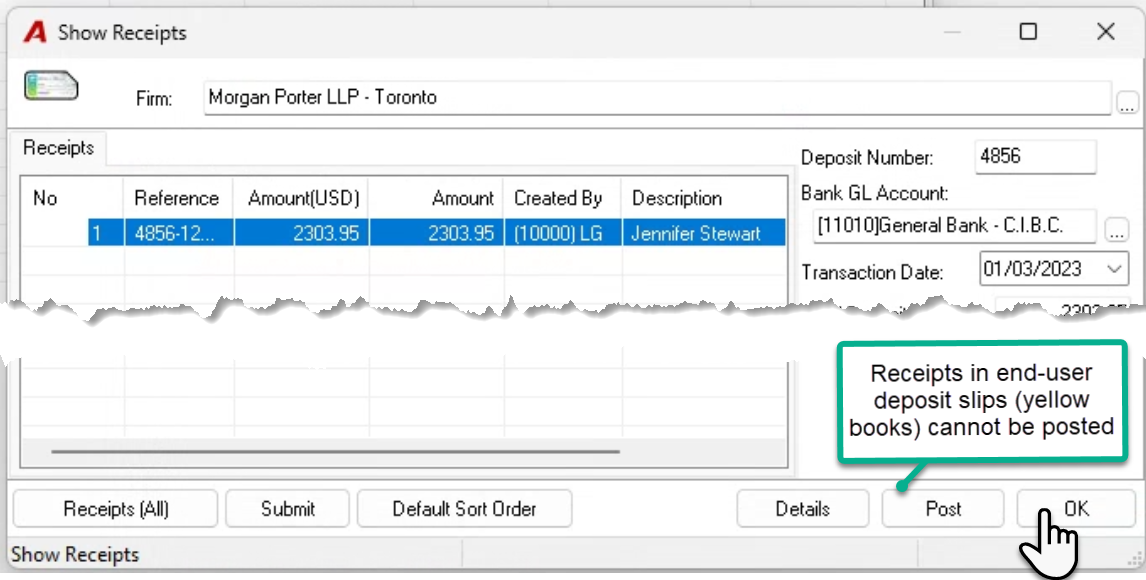
End-user created deposit slips (yellow books) are completed by non-accounting personnel to record general and/or trust receipts before they are submitted to accounting for quality assurance steps, banking requirements and posting. End-user deposit slips (yellow books) cannot be posted until they are transformed by an authorized user to a bank deposit slip (green book).
User Deposit Slips – Yellow Books
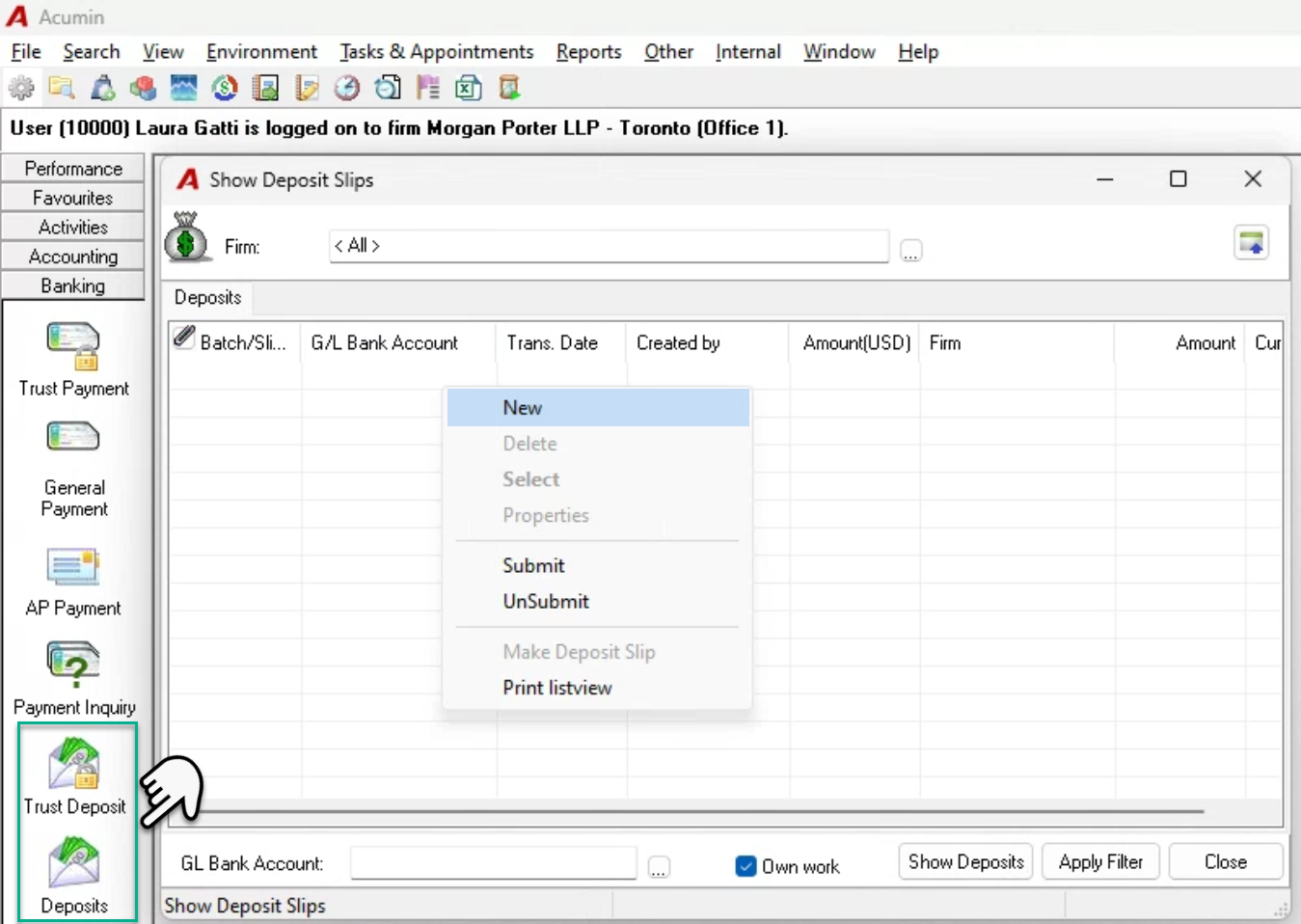
Press on the trust deposit or general deposit button found within the banking section of the task bar. These options are avaialble for inclusion in the customizable functional ribbon below the main menu bar and above the login information.
Right click and select New to launch the “Show Receipts” form.
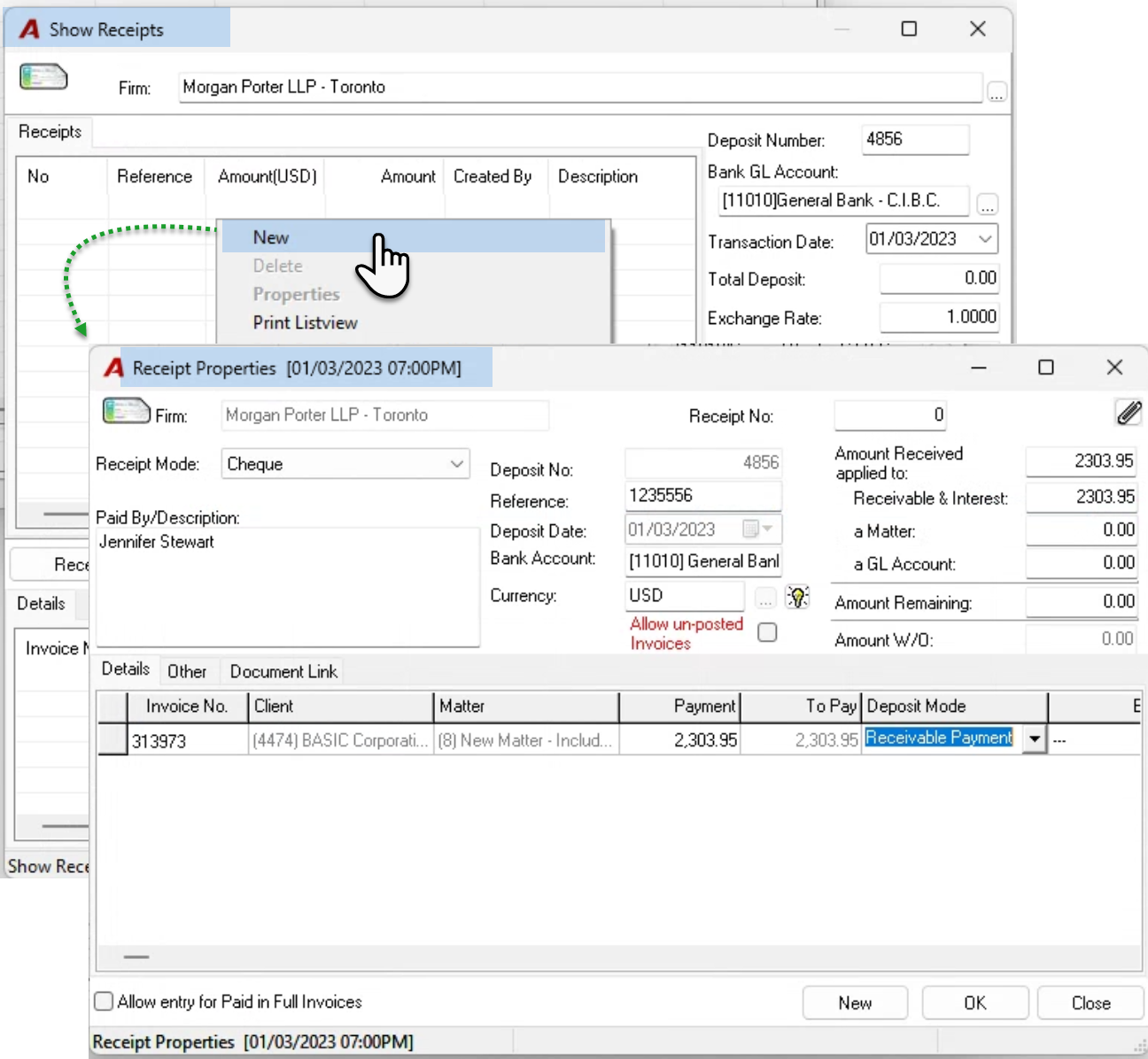
Right click and select New to launch the “Receipts Properties” form. Complete the content. It is not required to enter the amount received on the “Amount Received applied to:” unless you ar entering many invoices for one receipt and want to draw down the balance.
If the invoice number is known, enter it, else enter or select the client to filter for any invoices outstanding or right click on the ellipsis button to the right of the invoice field to access the filter and its many multiple options. Once the invoice is entered or selected keep the default amount in the ”payment” column or override it to reflect the amount received. Tab through and down to create new rows if you are paying multiple invoices.
Press OK to accept and return to the “Show Receipts” form or press New to launch a second receipt properties form. If you are entering multiple receipts in the same end-user deposit slip (Yellow book), press OK to return to the “Show Receipts” form on your last one.
Once back on the the “Show Receipts” form, all of the receipt properties form completed will list. Press OK to exit and return to the “Show Deposit Slips” list view. If you are not authorized to continue with the banking process – right click and submit these so they can be processed by Accounting. This stp0e may involve sending the physical deposit (the cheque) and/or a printed copy of the slip.
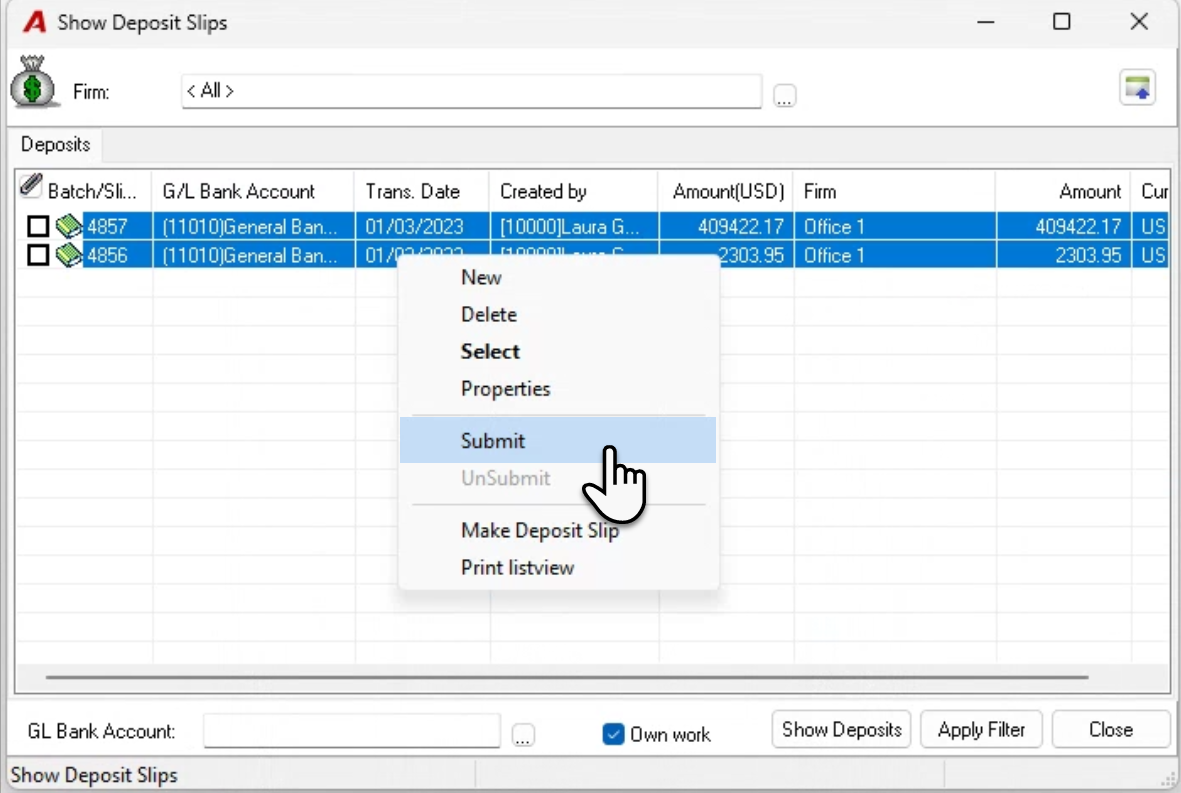
Bank Deposit Slips – Green Books
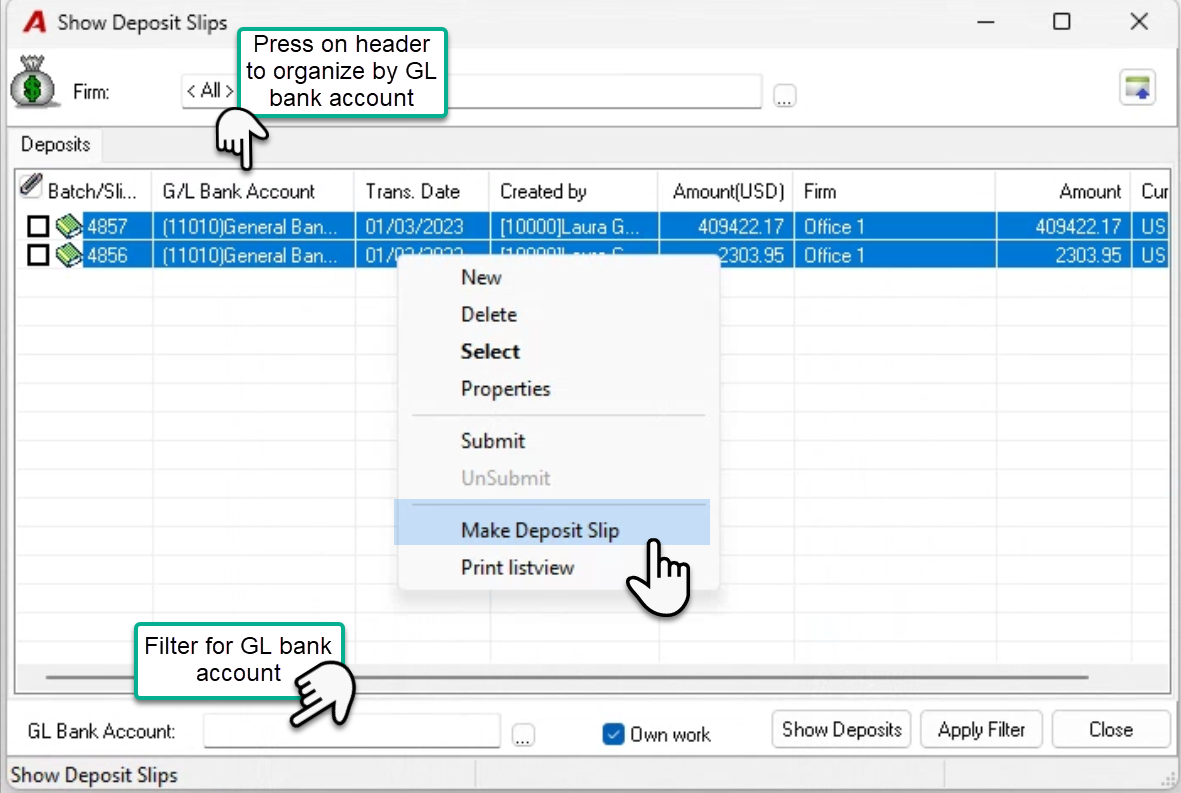
End-user deposit slips received during a time period –for example by noon or end of day – are bacthed into a Bank deposit slip (green books). As users can only batch “end-user deposit slips” for the same GL Bank account, filter for one GL bank accout or press on the GL Bank Account column header to oraganize the list by GL bank account.
Multiple select and select “Make Deposit Slip”. It is also possible to include already created bank deposit slips (green books) into a new Bank deposit slip before posting it.
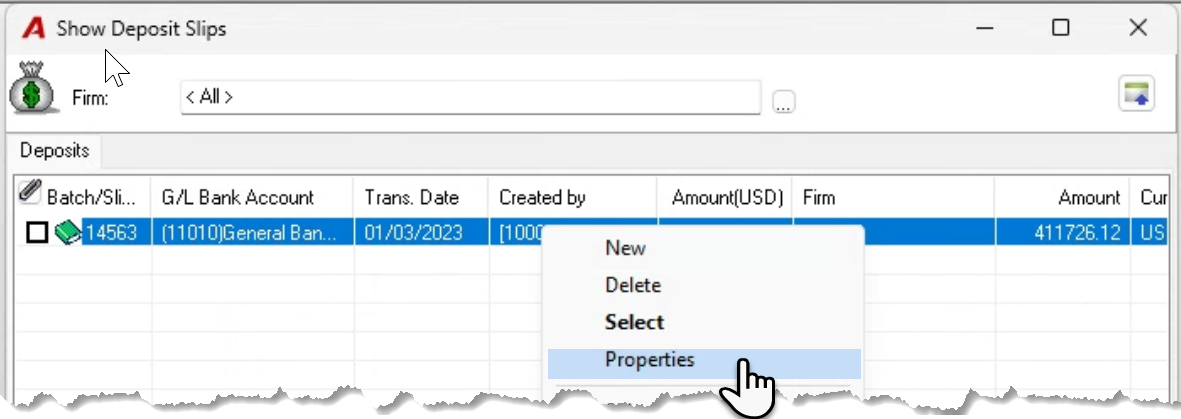
To post a bank deposit slip batch, access its properties and press post. Make sure you confirm the date to equal the date the deposit will be made at the bank.
Batching Posted Bank Deposit Sips (Green Books)
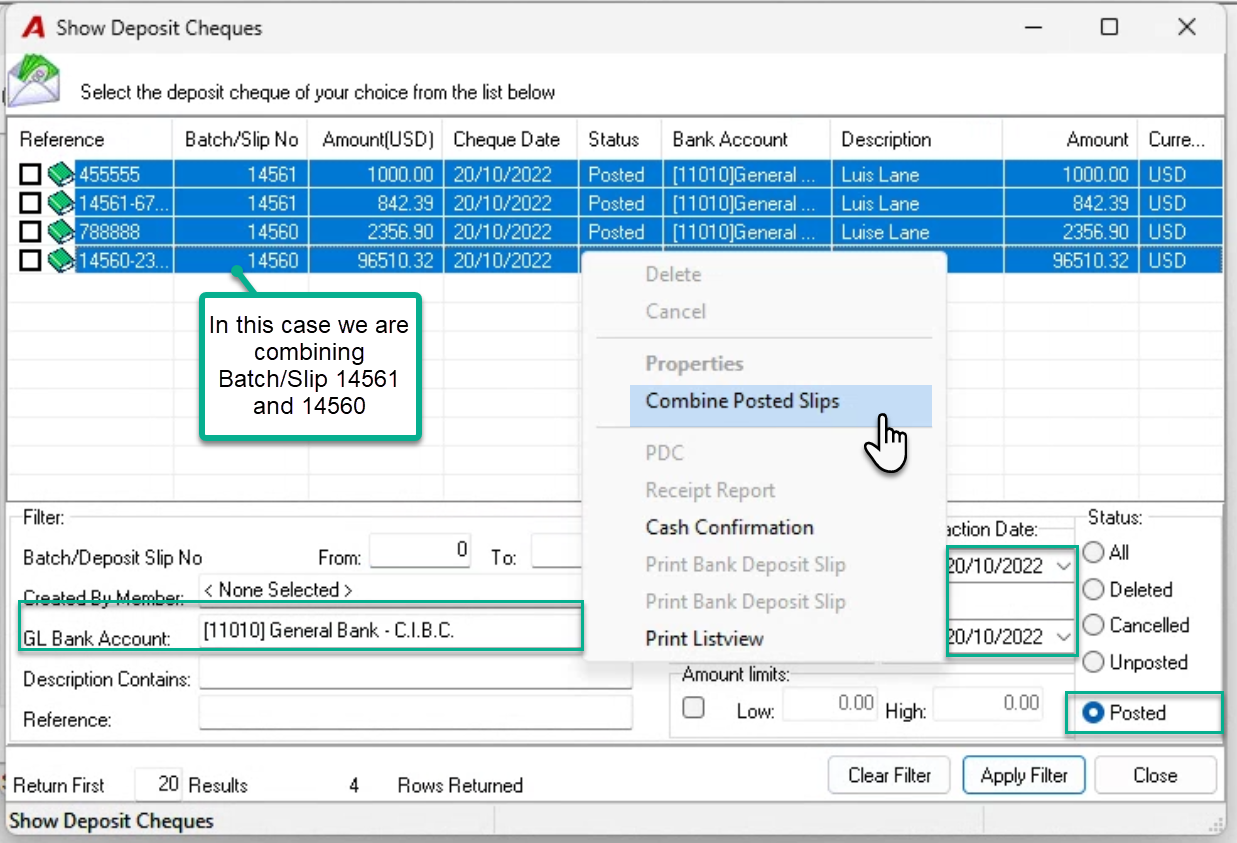
Some firms post several Bank Deposit Sips (Green Books) during the day but only make one physical deposit at the bank. To combine these into one batch, press on the “Show Deposits” button on the “Show Deposit Sips” form to launch the deposit filter form.
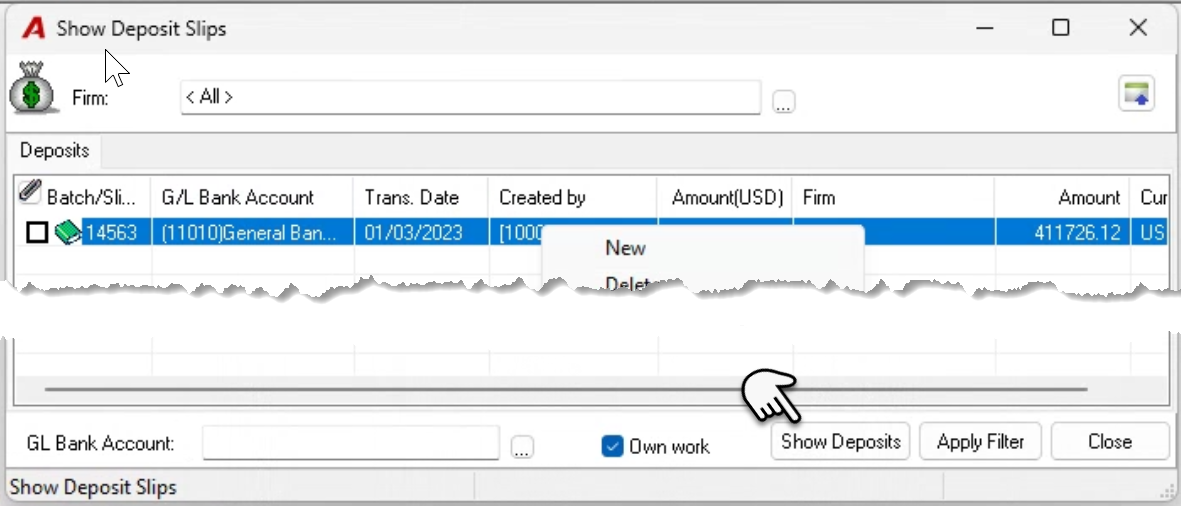
Filter for the posted bank deposit slips to combine – for example by bank account and date – multiple select and right-click to “Combine Posted Slips”