.png)
Use this process when a firm wants client payments to be applied to interest first and the remaining amount to principal as an alternative payment method. This approach improves visibility of interest collected, helps preserve receivable tracking, and supports better follow-up when interest is not collected.
This method is especially effective for firms using the Unique Matter numbering concept, because entering the matter code opens the invoice selection view where the current interest amount is visible.
For firms using the Unique per Client & Matter numbering concept, entering the client code will yield more results in the invoice selection view, since multiple matters may share the same client. The same interest-first payment method still applies — simply locate the correct invoice from the list and proceed as described in the steps below.
When to Use This Method
Choose this process when the firm wants to:
-
Show interest paid as part of the client’s payment activity
-
Reduce missed interest collection during posting
-
Keep unpaid interest collectible as accounts receivable
-
Track cases where interest is not collected and must later be written off
If unpaid interest remains on the invoice, the balance can continue to appear on statements and continue to accrue interest according to the firm’s setup.
Why This Alternative Method Works
In many environments, the default behavior is to apply payment to the invoice balance first and interest afterward. This alternative method reverses that order by manually entering the interest payment on the first line, then allowing the system to create the remaining payment line for the balance.
Result: the interest is paid first, and the rest of the receipt is automatically applied to the invoice balance.
Step-by-Step Instructions
-
In the Receipt Properties form, enter the usual receipt details in the first section.
-
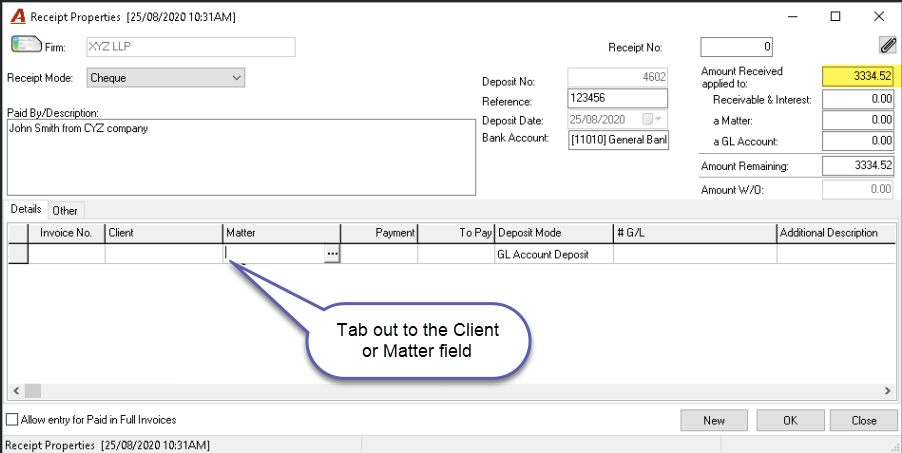
Enter the total payment in the Amount Received field, then press TAB until you reach
-
the Client field if your environment is set with the Unique Client &Matter numbering concept
-
the Matter field if your environment is set with the Unique Matter numbering concept.
-
-
Enter the Client or Matter code and press TAB.
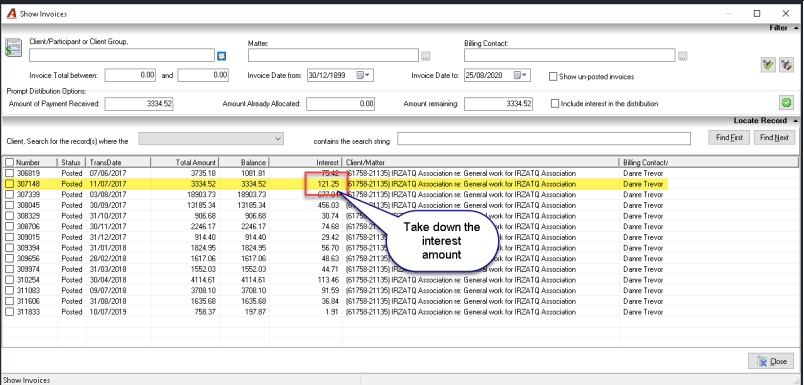
This is important because entering the client or the matter code, rather than the invoice number first, opens the Show Invoice form where the invoice interest amount is visible. -
In the Show Invoice form, locate the invoice being paid and note the interest amount.
-
Double-click the invoice to select it.
-
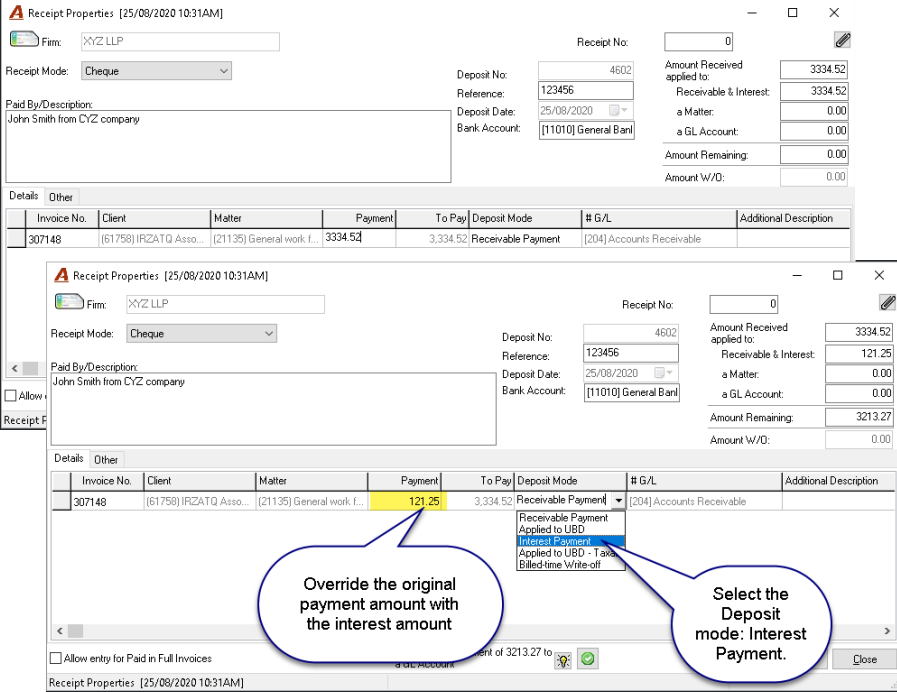
On the payment line, replace the original payment amount with the interest amount only, and choose the appropriate deposit mode for Interest Payment.
-
Press TAB to create a second line.
-
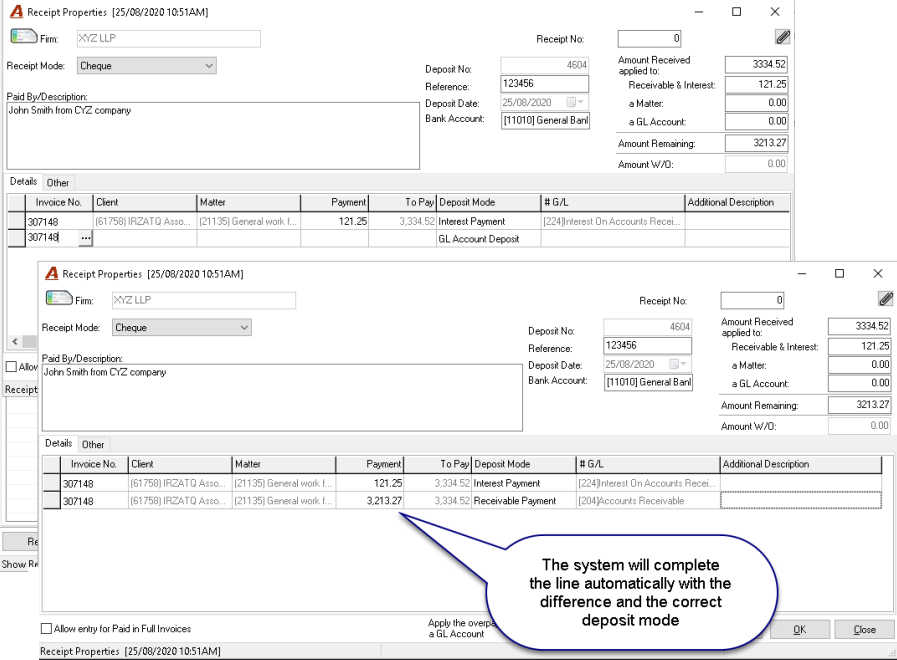
In the second line, enter the Invoice No. and press TAB.
-
The system automatically creates the second line using the remaining amount, which is then applied to the invoice balance using the correct deposit mode.
-
Review the receipt, then complete the deposit.
What Happens After Posting
-
The interest portion is recorded first
-
The remaining payment is applied to the invoice balance
-
If interest is still unpaid, the invoice retains that receivable amount
-
The matter can continue to appear on statements for collection follow-up
-
Collection staff can more easily identify outstanding interest
This process gives the firm clearer control over collected versus uncollected interest without removing future collection options.
Recommended Operational Practice
If the client does not pay the remaining interest and the firm decides not to pursue collection, classify the write-off using a dedicated AR write-off reason such as Due to uncollected receivable interest. This creates a clearer audit trail and helps identify whether interest is being consistently collected.
Quick Reference
|
Action |
Why it matters |
Expected result |
|---|---|---|
|
Enter the matter code |
Opens the invoice view with visible interest |
You can identify the exact interest amount to collect first |
|
Replace payment with the interest amount |
Forces the first applied amount to interest |
Interest is paid before principal |
|
Enter the invoice number on the second line |
Lets the system apply the remainder automatically |
Balance payment is created correctly |