.png)
Purpose
This page explains how to create and manage Trust Transfers in Acumin, including:
-
Matter to Matter transfers
-
Account to Account transfers
-
Client to Client transfers
It is intended for users who have permision to proceed with trust transfer.
Prerequisites
-
The user must have permission to access the Trust Transfer section and process transfers.
-
Trust Transfer - Restricted <<341>> : Allows users to create and print Trust Transfers but not post them.
-
Trust Transfer - Full Management <<340>>: Allows users to create, print and post Trust Transfers.
-
Accessing the Trust Transfers Screen
-
Navigate to: Banking - Trust Transfer
-
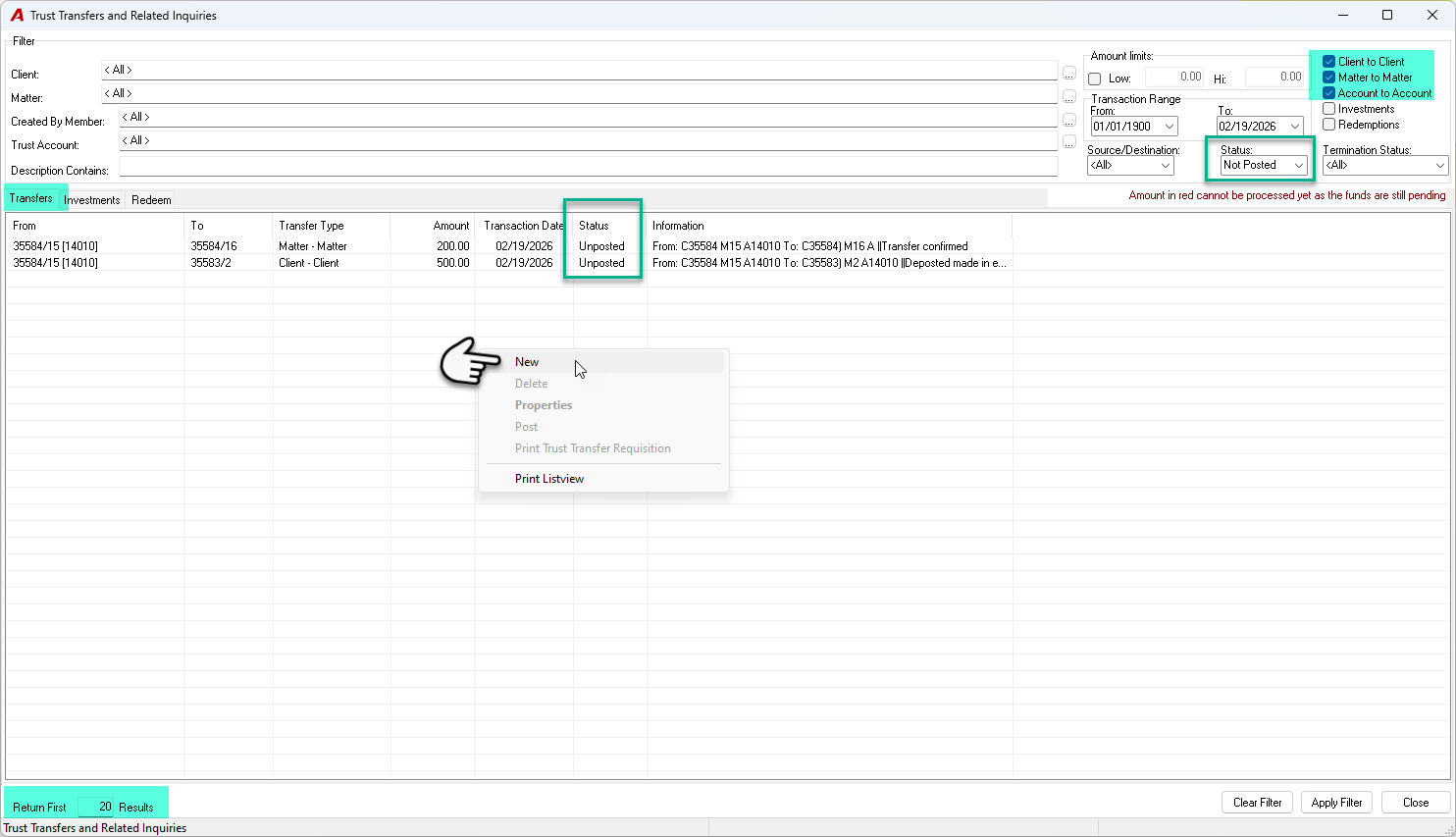
On the Trust Transfers and Related Inquiries screen:
-
Make sure you are in the Transfer tab.
-
The screen displays by default items that are not posted.
-
Use the filter options to search for already created transfer requests.
-
Amounts shown in red are still pending (ex: a trust deposit still on hold)
-
The list will show by default the first 20 results. This can be changed if needed.
-
-
To create a new Trust Transfer:
-
Right‑click in the list area to open the contextual menu.
-
Select New.
-
Trust Transfer Types (Overview)
Acumin supports three types of Trust Transfers:
-
Matter to Matter
-
Account to Account
-
Client to Client
General rules:
-
The Transaction Date always defaults to the current date (can be changed if needed).
-
You must populate all required fields before posting.
1) Matter to Matter Trust Transfer
1.1 When to Use
-
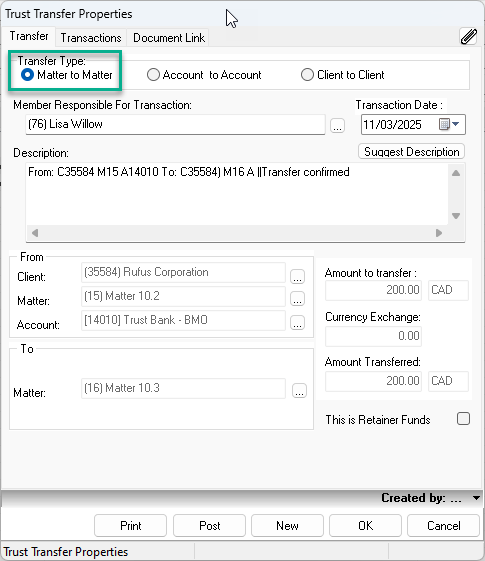
Use Matter to Matter when you are moving trust funds between two matters for the same client.
1.2 Steps
-
From Trust Transfers and Related Inquiries, create a New transfer.
-
In the Transfer Type, select Matter to Matter.
-
Confirm or adjust the Transaction Date (defaults to today).
-
Populate the required fields:
-
Member – the person responsible for requesting the Trust Transfer.
-
Source Client and Matter (From).
-
Destination Matter (To) for the same client.
-
-
To select an Account:
-
Click the Account field.
-
The Show Matter Trust Amounts form opens and displays all accounts that currently have monies in Trust for the same client and matter selected in the source (From) field.
-
Select the appropriate trust account.
-
-
Fill in all required fields except the Description field.
-
When all other fields are completed, click on the Suggest Description button:
-
Acumin automatically generates a description.
-
Depending on the environment settings, you may need to add, edit, or complete this description if required.
-
-
Review the information and [Print / Save / Post] according to your firm’s process.
2) Account to Account Trust Transfer
2.1 When to Use
-
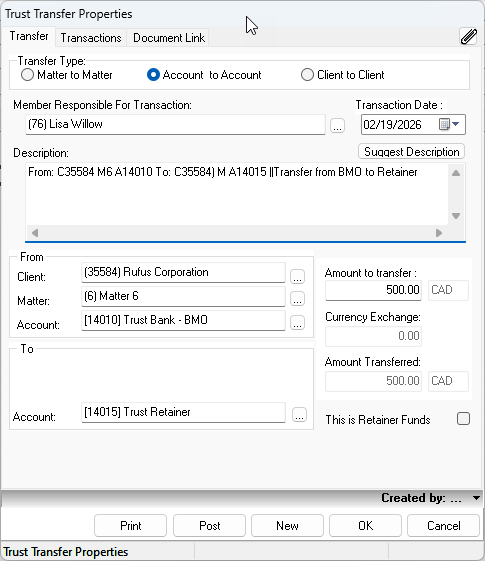
Use Account to Account when moving trust funds between two trust accounts for the same client/matter.
The environment has to be specifically set to allow transfers across banking institutions. If this is not permitted, please proceed to execute the transaction by issuing a trust cheque and making the corresponding trust deposit.
2.2 Steps
-
From Trust Transfers and Related Inquiries, create a New transfer.
-
Select Account to Account as the Transfer Type.
-
Confirm or adjust the Transaction Date.
-
Select:
-
The Source Client and Matter (From).
-
The Source Account from which the funds will be taken.
-
The Destination Account to which the trust funds will be transferred.
-
-
Enter the Amount.
-
Fill in all required fields except the Description field.
-
When all other fields are completed, click on the Suggest Description button:
-
Acumin automatically generates a description.
-
Depending on the environment settings, you may need to add, edit, or complete this description if required.
-
-
Review the information and [Print / Save / Post] according to your firm’s process.
3. Client to Client Trust Transfer
3.1 When to Use
-
Use Client to Client when moving trust funds from one client to a different client.
3.2 Steps
-
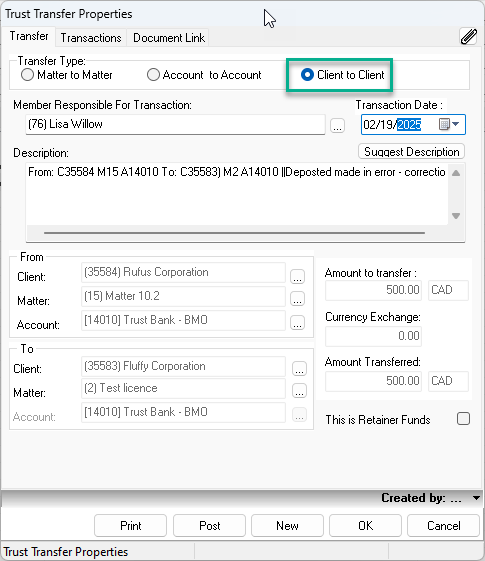
From Trust Transfers and Related Inquiries, create a New transfer.
-
Select Client to Client as the Transfer Type.
-
Confirm or adjust the Transaction Date.
-
Select:
-
Source Client, Matter, and Account from which the funds will be taken.
-
Destination Client and Matter to which the funds will be transferred.
-
-
Enter the Amount.
-
Fill in all required fields except the Description field.
-
When all other fields are completed, click on the Suggest Description button:
-
Acumin automatically generates a description.
-
Depending on the environment settings, you may need to add, edit, or complete this description if required.
-
-
Review the information and [Print / Save / Post] according to your firm’s process.
Viewing Trust Transfer History (Trust Transfer Properties)
-
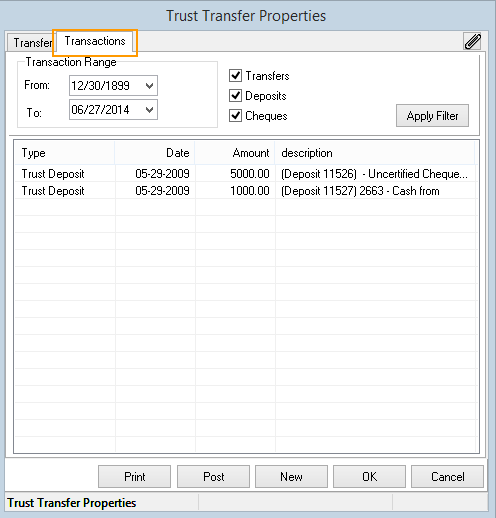
Open the relevant Trust Transfer Properties window.
-
Go to the Transactions tab.
-
Click Apply Filter to display the transaction history based on the selected criteria when the trust transfer is still not posted.
You can use this Transactions tab to confirm if deposits or cheques have been posted and to confirm the amount to be transferred.
Cancelling Trust Transfers
To cancel a trust transfer, the user needs to transfer back the amount from the destination back from the destination back to the source by making another trust transfer. There is no specific cancellation option for Trust Transfers
Printing the Trust Transfer Requisition
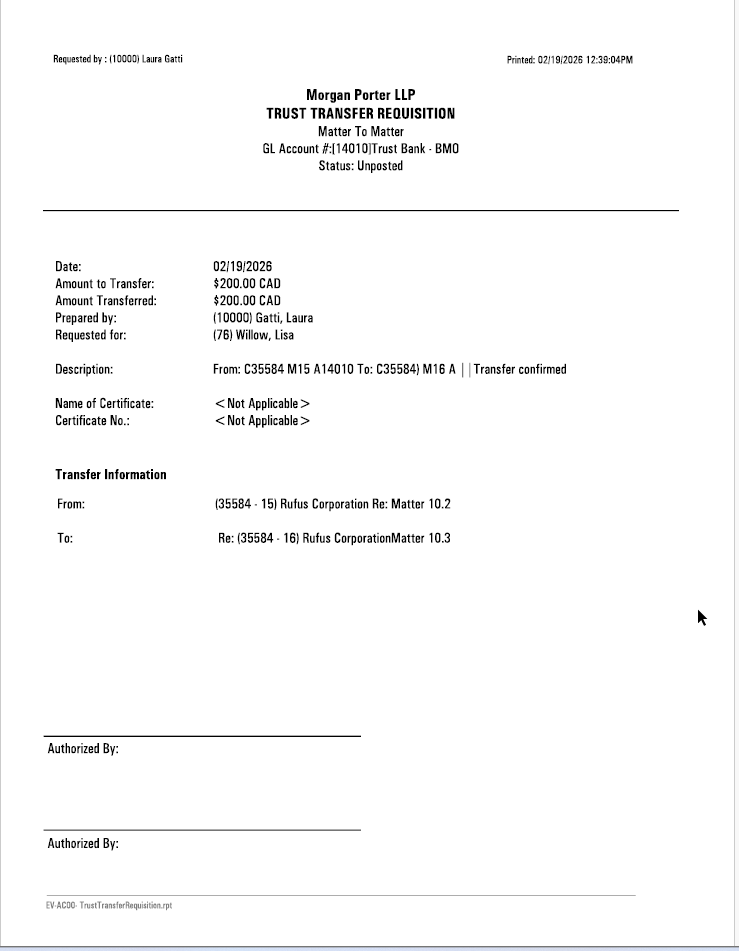
The Trust Transfer Requisition report can be printed from within the Trust Transfer window by pressing the Print button or by selecting the Print Trust Transfer Requisition option in the contextual menu in the Trust Transfers and Related Inquiries window.
It is not mandatory to print the report in order to post the trust transfer.