.png)
Purpose
The purpose of this document is to provide a pathway for modifying the general ledger's chart of accounts.
Its scope extends across the modification of GL account numbers, the creation of new GL accounts and sub-accounts as well as the use of sub-account logic equal to member, functional department, or a combination of both for licensed environments.
Highlights
Sub-accounts' GL operations roll-up into their parent-GL-accounts for financial statement or schedule presentation, however sub-accounts equal to member and/or functional department can also pivot so financial schedules generate by member and/or functional department.
A new lowest level financial statement grouping line for new GL Accounts is not required, however it will provide additional reporting granularity for the affected statement or schedule.
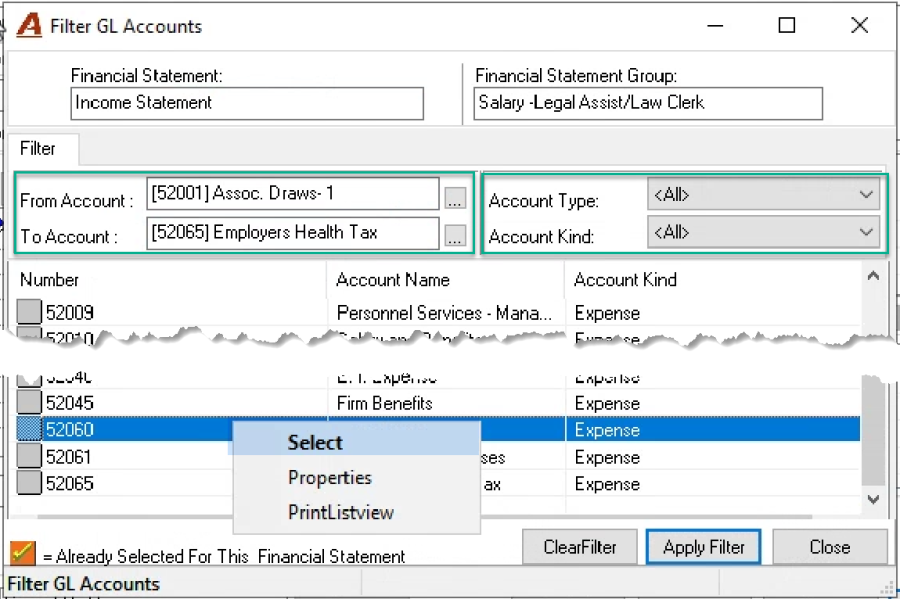
GL accounts already selected are identified in the filter results with a yellow check-mark over an orange background icon, whereas unselected GL accounts are displayed with a plain, square and gray icon;
Make the required changes to all financial statements and schedules affected. Non-standard schedules (other than income statements or balance sheet) do not provide a warning if there are any unassigned GL Accounts to be considered.
Firms licensed with managed foreign currency functionality will need to contact the support desk to implement a new managed foreign currency.
Chart of Accounts
The chart of accounts can be tailored to best suit the firm's needs. This includes modifications to GL account numbers, names, and firm availability as well as the addition of new titles and/or the discontinuing of others.
Regions, Offices and/or Profit Centers
Regional, office or other profit center accounting can be accomplished with the creation of one firm per region, office and/or profit center within the same system. Although non-master GL accounts can be firm-specific or shared amongst selected firms, when shared, the combination of the firm or profit center and the GL account selected creates a unique identifier for the affected financial transaction to facilitate consolidated or segregated reporting.
GL Sub-Accounts Logic
A parent GL account cannot be posted to directly so it will never contain any GL Operations. GL operations are therefore accounted for at the lowest sub-account level to roll-up as part of the financial reporting process.
The sub-account logic "Not defined" offers no additional logic for pivot reporting or data entry control.
The enhanced sub-account logic license opens additional reporting attributes to align management and financial reporting. Coupled with "On data entry, subaccount to equal working member", sub-account logic equal to functional department or member can limit the subaccount selection so it is consistent with the content of the transaction's member field content.
Accounts with sub-account logic are controlled. Creation is restricted to valid members and/or functional departments, data entry validated minimizing user errors, and reporting functionality enhanced to include pivot perspective.
Once assigned to a specified logic, all sub-accounts created at the same level for the same parent will be subject to the same sub-account logic.
Parent accounts must be made available to all the firms' in-use with its children; however, children subaccounts can only be assigned to the firm corresponding to the member or functional department's member-composition. For example, if a member's default firm is Toronto, the sub-account's firm availability for the sub-account equal to member, or the sub-account equal to member's functional department, can only be Toronto.
The use of sub-account logic with "On data entry, subaccount to equal working member", facilitates data entry for non-accounting users. It limits data entry into:
-
Functional-department GL sub-accounts that correspond to the transaction's member field content. For example, if a Toronto-based member is associated to functional department litigation, when his number is used as the member for the transaction, the GL operation will be for the sub-account litigation.
-
Member GL sub-accounts for where the member used for the transaction is the member of the sub-account selected. For example, if the Toronto-based member's number is used as the member for the transaction, the GL operation will be for the sub-account equal to the same member with option to override.
GL Account Types
Master Accounts
System generated GL operations are associated to GL accounts classified as "Master Accounts". These control accounts maintain a permanent link between the accounting object and corresponding system generated GL operations and show their unique id as part of the tree-view presentation. Users cannot create new master accounts. Any additions and relevant functionality would be the result of new released enhancements or the implementation of a new license.
GL Bank Accounts
GL Bank-accounts include additional property sets to associate them to bank-institutions and physical bank-accounts. They can be set-up to issue cheques and/or debit memos as well as to support the method of payment equal to credit card or EFT (the latter is subject to licensing and to be released summer 2022).
Trust GL Accounts (and corresponding Trust Liabilities)
Trust GL Accounts are a form of banking; therefore, they have the same property-set as Bank GL Accounts. On of a new Trust GL Account, the application will automatically generate the properties form for the corresponding Trust Liability GL Account, creating a permanent link between the trust asset and liability.
Trust Investment GL Accounts
Subject to licensing, Trust Investment GL Accounts have the same property set and asset-liability association as regular Trust GL Accounts. This GL account type provides added data-entry opportunities to support functionality specific to the trust investment process.
Other GL Accounts
This type is used for all other GL accounts which do not qualify as any of the previous ones.
GL- Account Kind
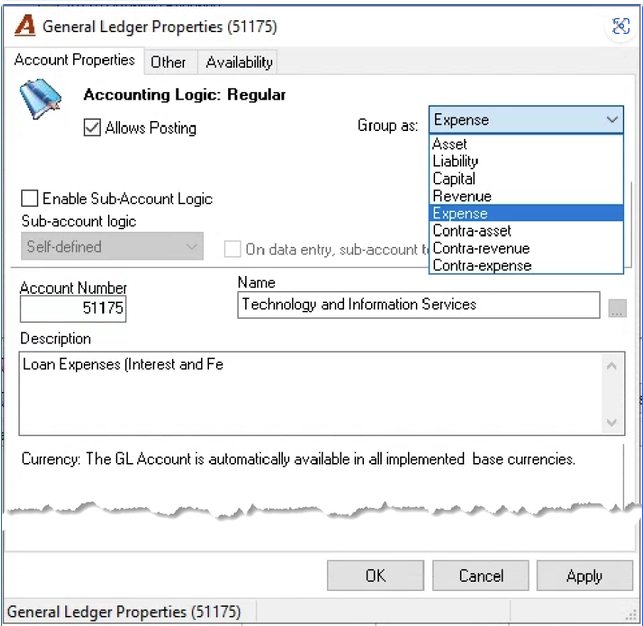
This classification groups GL accounts within a common financial accounting class to provide user-functionality when generating standard financial statements such as the "Balance Sheet" or the "Income Statement". By accurately classifying GL accounts, the user will know if there are any report-relevant GL-accounts not-yet assigned to the financial statement template in use.
GL Account Properties
GL Account Access
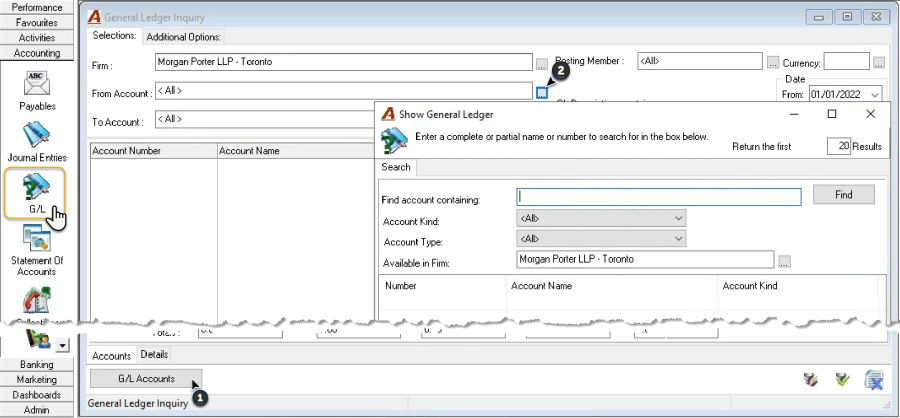
From the Accounting task-bar section, select the GL icon to access the General Ledger Dashboard filter form.
-
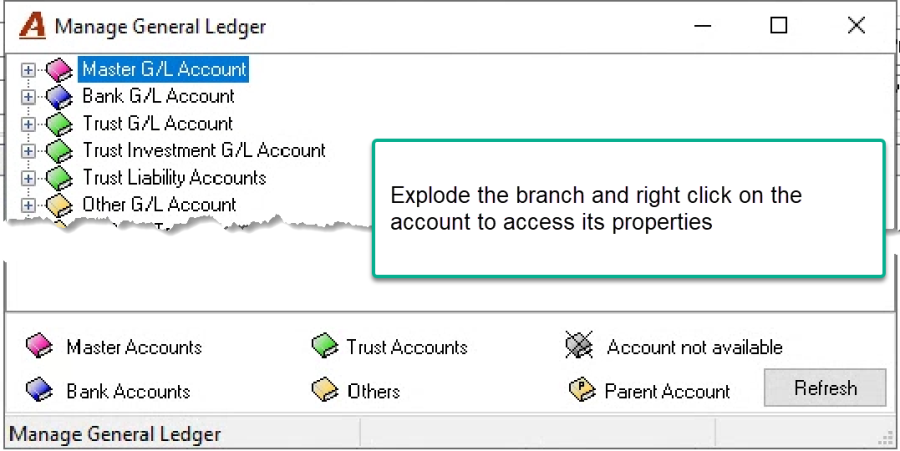
Press on the G/L Accounts button (bottom left) to access the Manage General Ledger form - Tree View presentation (1). This format is useful when working on multiple GL account properties within the same range or type and where filtering is not relevant.
-
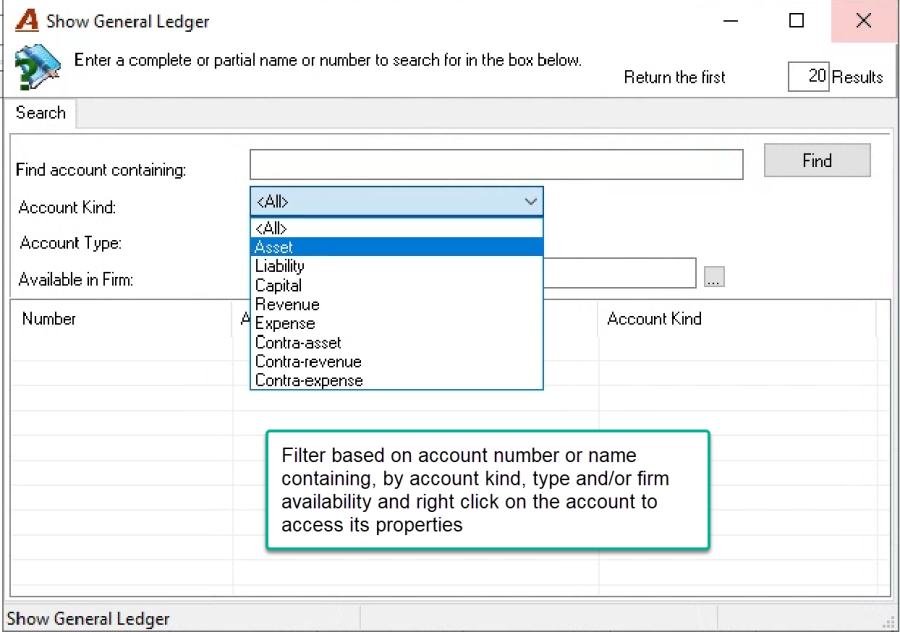
Press on the ellipsis button - right of the from account field to access the filter form (2). This format is useful when filtering is more effective to finding the GL account.
Tree View
Filter Form
GL Account Number and/or Caption Modifications
GL account numbers and captions can be modified without compromising GL history. Neither the GL account number or the caption is used as a programmatic key, or as a vehicle for the segmentation of GL operations.
GL Account numbers are firm defined. They can be up-to 10 digits in length. Users can create up to three sub-account levels for each parent account also up-to 10 digits in length. To create new GL accounts, use a unique number regardless of firm availability and adhere to the requirements of the GL account properties of its type (bank, trust, other.).
As GL account numbers must always remain unique, consider adding a digit – for example 9 – at the start of the current number when making modifications to the number structure. This will liberate the use of original numbers during the modification process. Once the process is complete you can remove the temporary digit from any remaining GL accounts.
New GL Account
GL Account Access
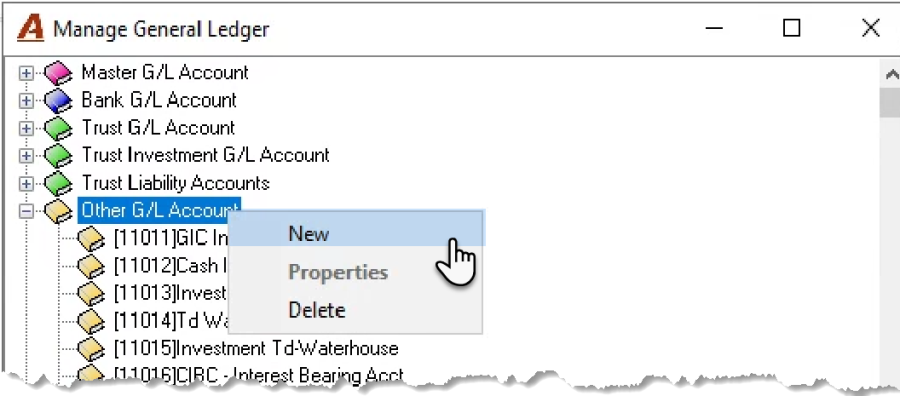
From the GL Account tree-view, highlight the account type branch – for example "Other G/L Accounts," and right click to select "New" from the contextual menu.
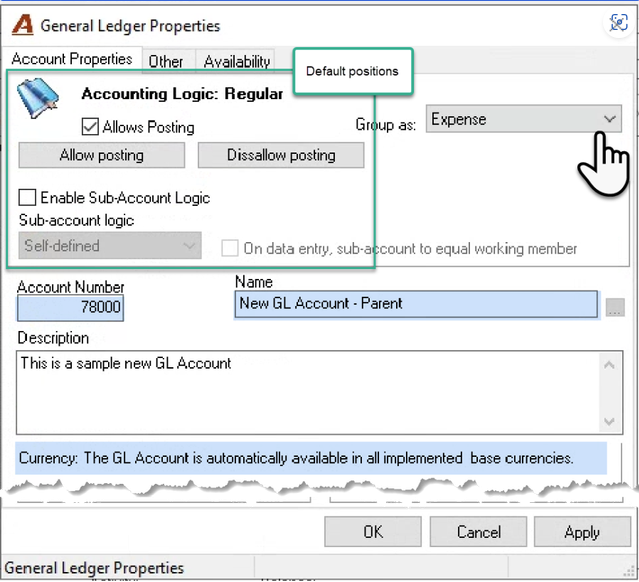
If this is NOT a parent account the default positions for the "allow posting" and "enable sub-account logic" checkboxes do not need to be changed.
Modify the account kind if the new account is not an "Asset". The account kind controls if there are missing GL accounts when generating the income statement or balance sheet.
Enter the GL account number, name, and description before pressing "Availability".
If the licensed organization has implemented inter-firm logic with respect to recovery and expense accounts associated to disbursement code, then you may be required to set-up inter-firm accounts.
Parent CL Account Limitations:
Sub-accounts can only be created for parents that do not have any transactions, therefore, if a GL account already has transactions in it, the user cannot create subaccounts for it, however the account can be disabled for a new one to take its place.
Disable the Existing GL Account:
Re-number the existing GL account to another number outside of your current range. For example, add an extra digit 9 at the start.
In the name insert the word REPLACED in front of the current name and in the description add "Replaced with a Parent-Child account sequence number followed by the actual number. For example: #71400 (where 71400 would be the original number for the affected GL-account).
Uncheck the "allow posting" flag and disable this account from all firms – remove the firm availability. Press OK to accept.
Create a new parent:
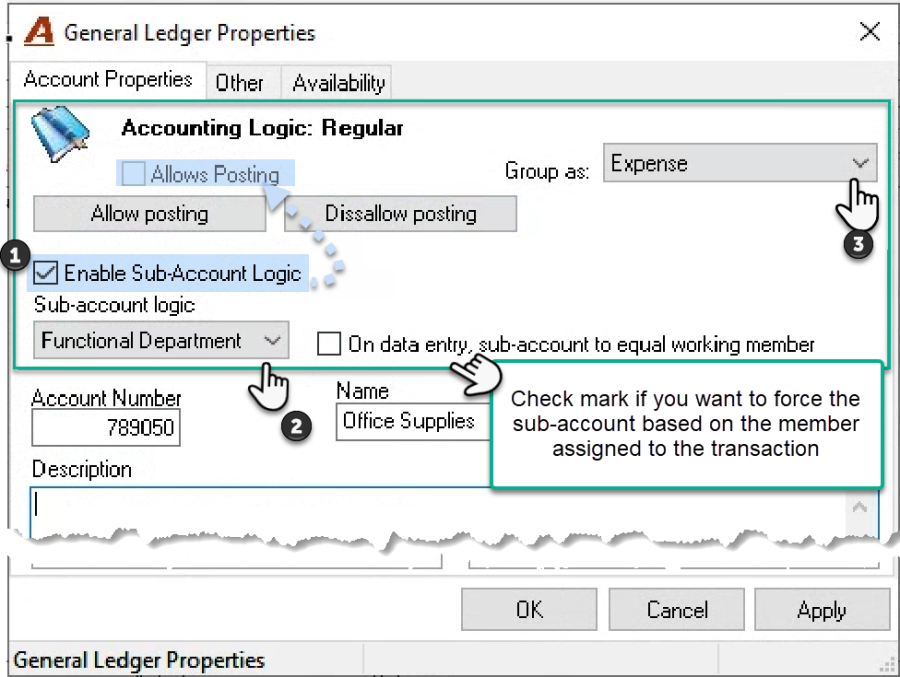
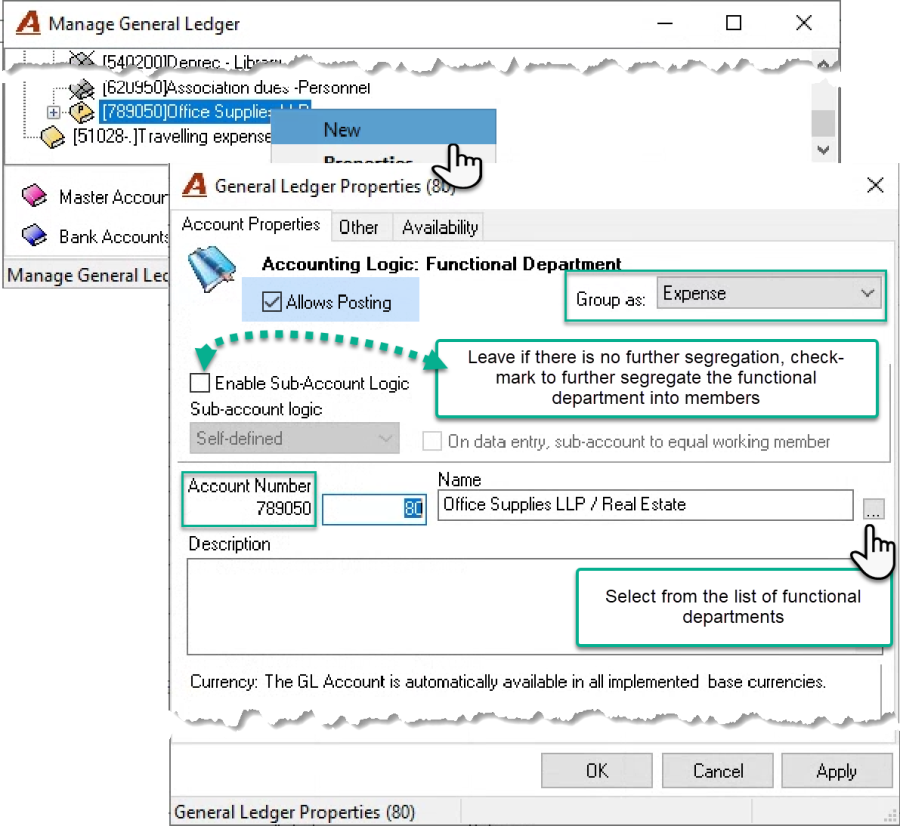
Checkmark the checkbox option "enable sub-account logic". This will disable the allow posting checkbox, however the children will be automatically created to allow posting as a default. Ignore the allow and disallow posting buttons, as they are not relevant until the account structure is in use and you need to make changes.
Select the subaccount logic if different than the default of "Not-Defined". If subaccount logic is equal to member or functional department, decide the position of the "On data entry, subaccount to equal working member" checkbox option.
Give the new parent account the same number as the original one – i.e., 71400. Name the new GL account as the original one i.e., "Promotional Items". Include a description equal to the original description.
Modify the account kind if the new account is not an "Asset". The account kind controls if there are missing GL accounts when generating the income statement or balance sheet. Enter the GL account number, name, and description before pressing "Availability".
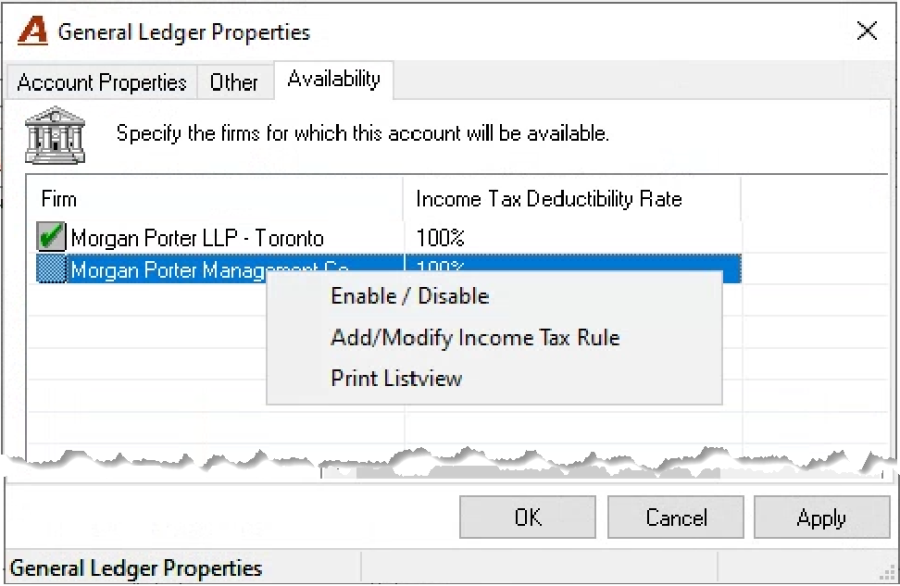
Once on the "Availability" tab, right-click to access the contextual menu and select "Enable/Disable" to modify the GL account's position considering that parent accounts must be made available to all the firms' in-use with its children.
In other words, if the GL Account is to follow subaccount logic equal to functional department or member, the parent must have all the firms for which the related members have as the default firm within the availability tab. Press OK to exit.
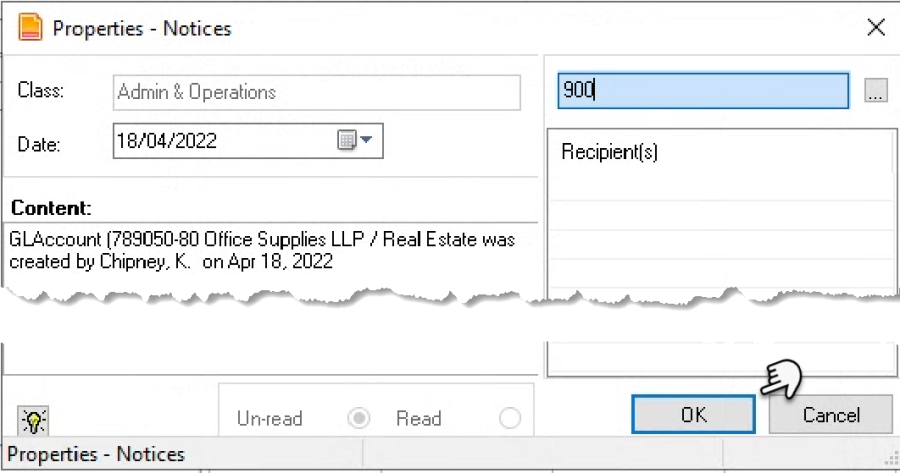
On OK the new GL account will be created, and a notice-form launched. Enter or select the recipient of the notice – the person responsible for adding the new GL account to affected financial statements and schedules - and press OK to continue.
Create the Children:
Find the parent on the tree view and right click to select New. The account kind will be set to equal that of the parent account. Complete the set-up. If the sub-account logic equal to member or functional department is selected, each child will be assigned its sub-account number based on the selection made – ellipsis button to the right of the name field.
Create a New Sub-Account Level:
To further segregate the functional department sub-account level, checkmark the enable subaccount logic checkbox and choose member. Even though you can further segregate the member sub-account level into a third level of not-defined groups, the reverse is not possible.
Update the availability and press OK to accept. Children subaccounts can only be assigned to the firm corresponding to the member or functional department's member-composition. For example, if a member's default firm is Toronto, the sub-account's firm availability for the sub-account equal to member, or the sub-account equal to member's functional department, can only be Toronto.
Note to reader:
Add the G/L account to the necessary financial statements and or schedules otherwise the GL operations attributed to the new GL account will be excluded from relevant reports.
Trust and Trust Investment New GL Accounts:
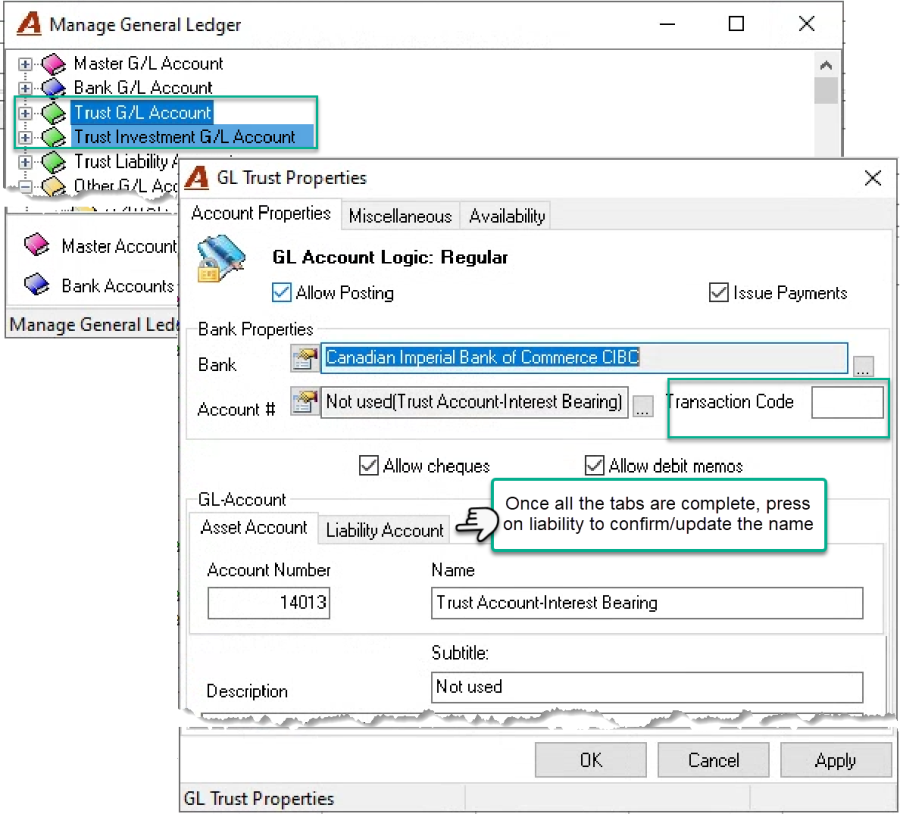
Right-click on the Trust G/L Account or Trust Investment G/L Account Branch to select New.
Complete all the tabs and then press "Liability" to confirm and update the trust liability name. Press OK to accept and both the trust asset and liability GL accounts will be created.
Best Practice Recommendation:
Include the new parent account in the same financial group as the original one for best comparative information at the reporting level.
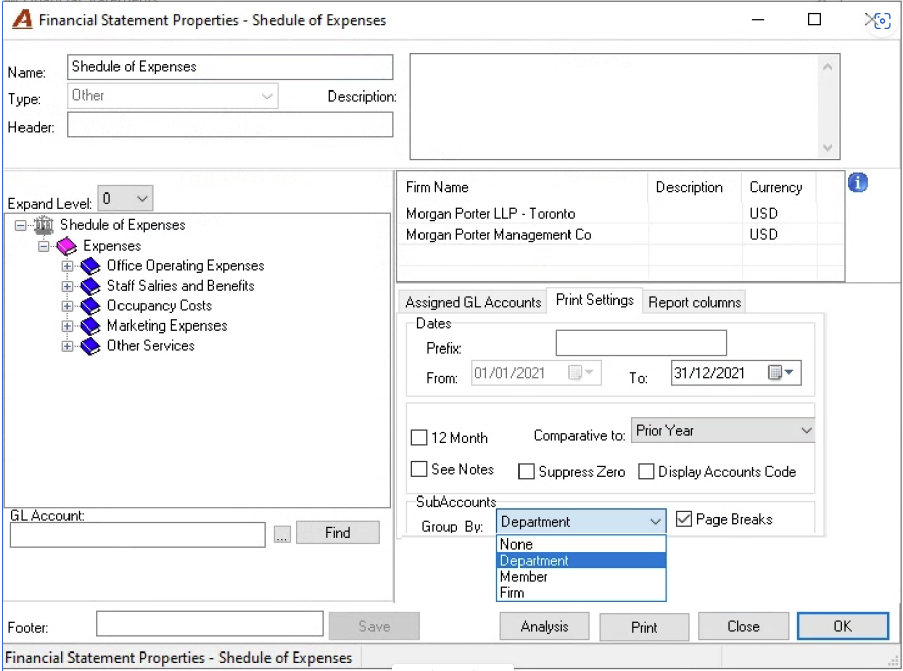
To present the results for each sub-account separately, create a statement or schedule and execute it grouped by sub-account logic – member or functional department.
Adding to a Financial Template
Changes to a GL account's firm availability and / or new additions to the firm's chart of accounts can result in modifications to applicable financial statements and /or special schedules for the GL operations attributed to the affected GL Accounts to be appropriately reported on affected reports.
Access
From the main menu select "Reports – Financial Management – Financial Statements". Right click select the financial template to gain access to the properties form to be modified.
Financial Statements Properties Form
Context
The addition of a GL account to the chart of accounts or, change in firm availability will trigger a requirement to map the GL account affected to the relevant financial templates.
Getting Started
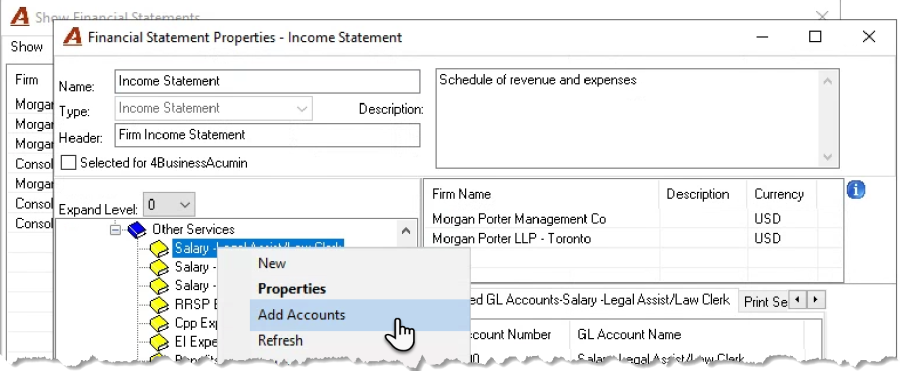
Expand the tree view for the affected financial template to gain visibility of all the nodes. Select the appropriate lowest level group on which to assign the affected GL account. Right-click and select Add Account from the contextual menu to launch the GL Account filter.
Once on the "Filter GL Accounts" form, press on the ellipsis button to the right of the from account to filter for the GL Account, by GL account number (parent) or name, or enter a range of accounts or filter by account type or kind. Double click on the otherwise unselected parent GL account or right-click to select from the contextual menu.
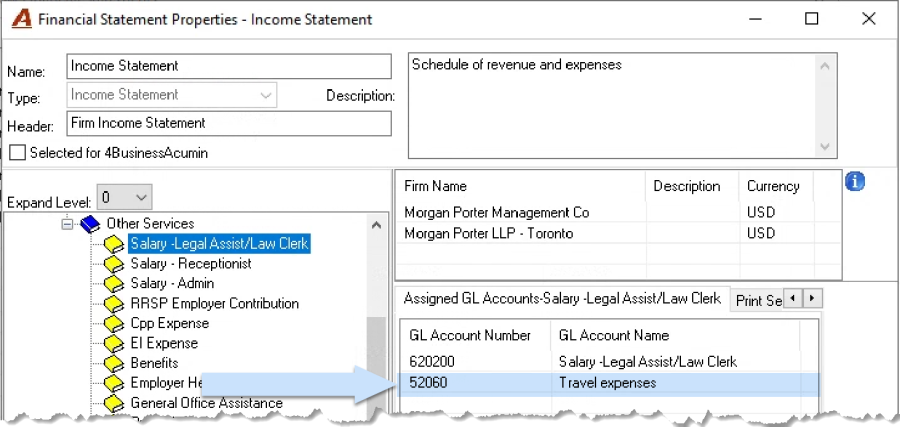
The GL Account lists as the last item on the assigned GL accounts tab for the node
Balance Sheet Option
Whereas the financial statement type "Income statement" and "Other" only allows a single assignment of a main GL Account per financial statement format, the financial statement type "Balance Sheet" allows the inclusion of a GL account to a maximum of two financial statement groupings (nodes). In this case, the inclusion of the same GL account within two different nodes within the statement is limited so that the latter is only included once in the asset section and once in the liability-equity section. The intended use case is to show certain GL balances as an asset or liability-equity, depending on if they are carrying a debit balance (shown in the asset section) or a credit balance (shown in liability-equity section) without any user intervention.
Re-assign Selected GL Accounts
It may be more efficient to assign GL-account to a scarcely populated financial statement grouping and then re-assign the insertions to their appropriate statement or schedule groups using drag and drop functionality.
Mapping of GL Accounts to Financial Templates Review
Users can evaluate existing mapping decisions using the "Analysis" report – bottom of the filter form. This trial balance like report groups GL accounts into the financial template's groupings. It includes current month information as well as year to date.
Financial Statements and Schedules - Use - Quick Start
Creating Sub GL accounts to the existing GL with transactions