.png)
Overview
The Trust Investment and Redemption module provides law firms with a structured method for managing trust investment activity on a per-matter, per-investment-vehicle basis. This module is available to organizations licensed with the Trust Investment and Redemption feature.
Using the dedicated Trust Investment and Redemption GL Account Structure, all investment activity — including new investments, additions, interest earned, and redemptions — is tracked within the corresponding investment vehicle. This approach ensures precise record-keeping by matter, GL account, and investment vehicle.
Key benefit: Rather than tracking trust investments at a general level, this module allows firms to monitor each investment vehicle individually, providing a detailed and audit-ready view of all trust investment activity.
Key Concepts
GL Accounts
The trust investment GL account branch is available exclusively to organizations with the Trust Investment and Redemption license. These specialized GL accounts track transactions related to trust investment vehicles in three categories:
-
Transfers In — New investment vehicles or additions to existing vehicles, funded from a general trust bank account.
-
Interest Deposits — Interest earned on specific investment vehicles.
-
Transfers Out — Redemptions of existing investment vehicles back to a general trust bank account.
Important: Trust investment accounts do not support regular deposits or withdrawals. You cannot select trust investment accounts when processing standard trust deposits, trust cheques, or debit memos.
Trust Investment Properties
When creating a new trust investment, the authorized user must complete a Trust Investment Properties form for each investment vehicle. This form captures all required details for the investment and is linked to the corresponding trust investment GL account.
Initial Setup
Step 1: Configure Firm Properties
-
From the main menu bar, go to View > Firms to open the Show Firms list view.
-
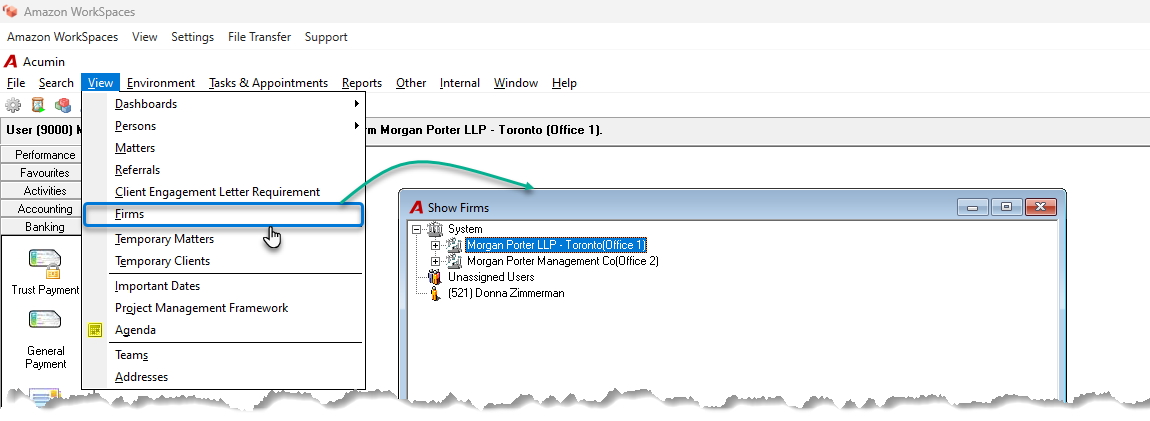
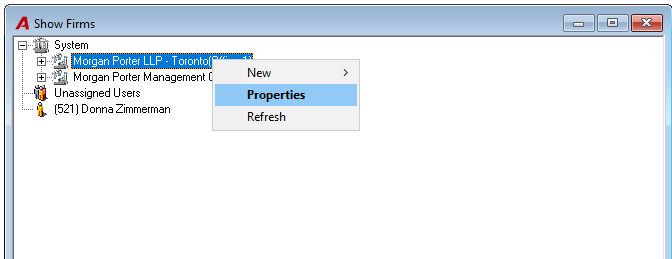
In the Show Firms list, highlight your firm, right-click, and select Properties from the contextual menu. Repeat for each firm as needed.
-
In the firm properties window, navigate to the Options tab.
-
Click Firm Defaults to open the Cheques/Deposits — Cheques tab.
-
Specify whether the system should generate a trust cheque or a trust debit memo when creating a trust investment.
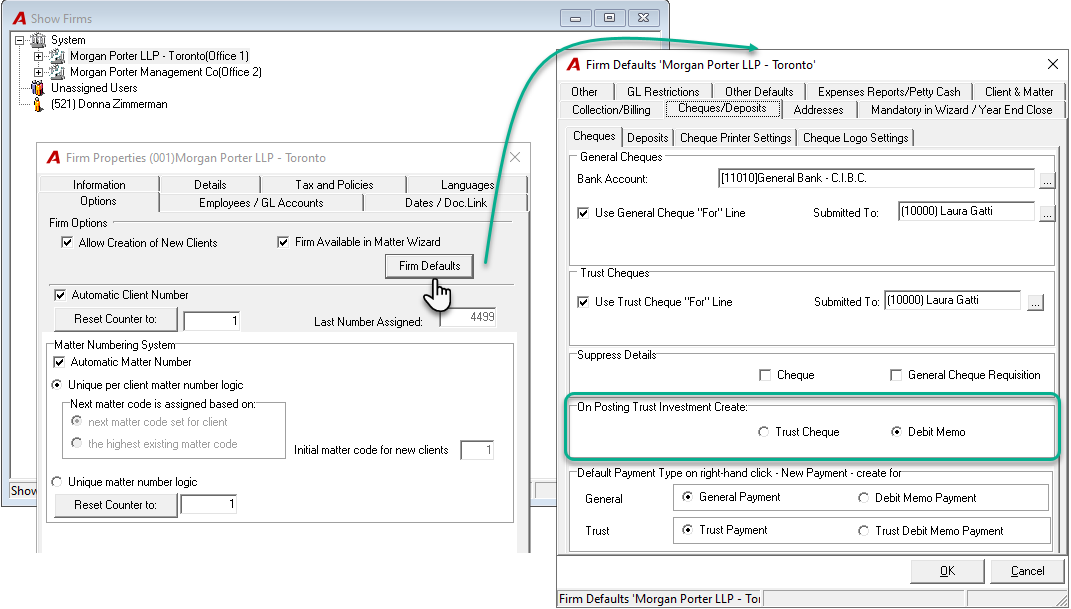
Tip: If your jurisdiction accepts an investment request letter (rather than a physical cheque) to authorize the transfer of funds, selecting the debit memo option is the most efficient choice, as it minimizes unnecessary use of cheque stock.
Step 2: Set Up Trust Investment GL Accounts
Accessing the General Ledger
-
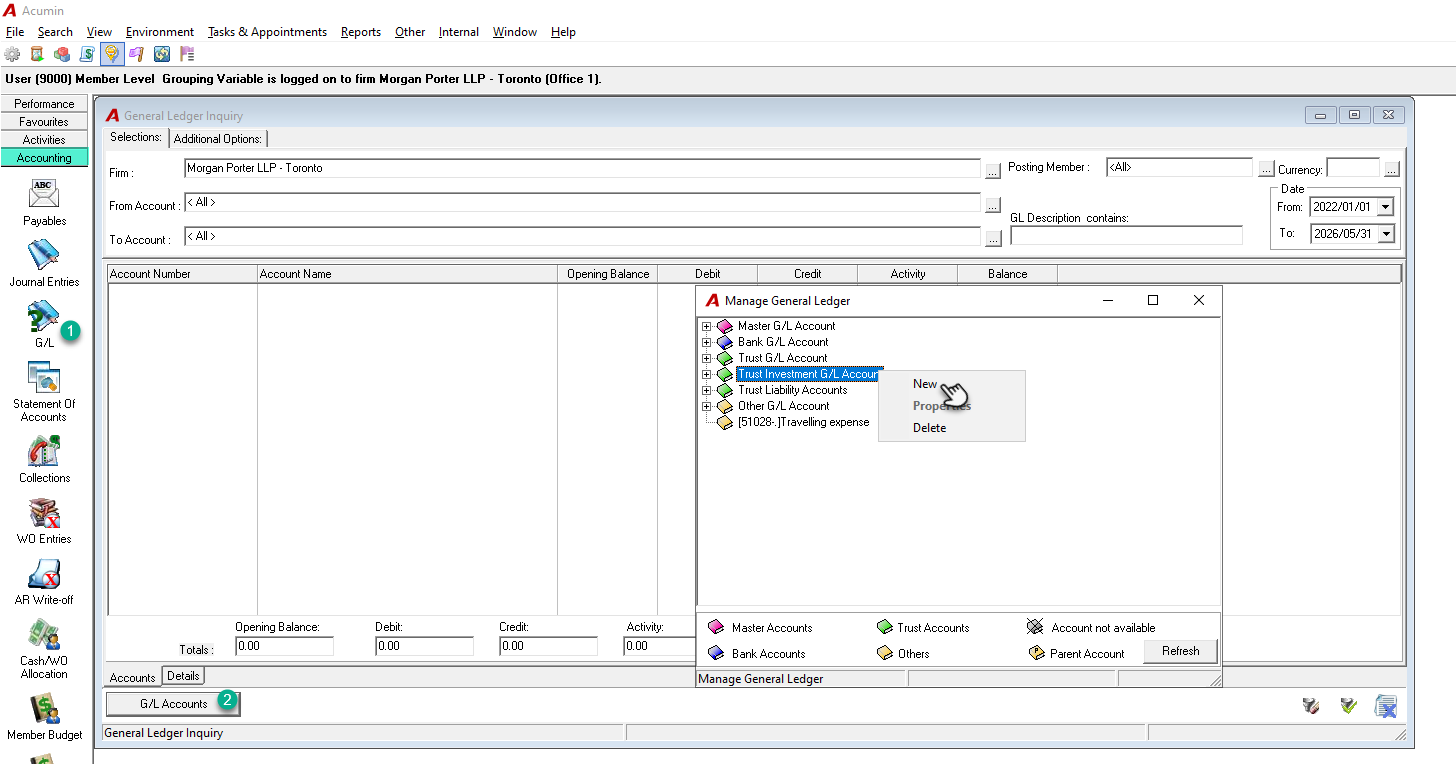
From the task bar, go to the Accounting section and click the G/L icon to open the General Ledger Inquiry form.
-
Click the G/L Accounts button to open the Manage General Ledger tree view.
-
Highlight the Trust Investment G/L Account branch, right-click, and select New.
Completing GL Account Properties
Complete the following fields for each new trust investment GL account:
|
Field |
Description |
|---|---|
|
Allow Posting |
Check this box to enable posting. |
|
Name |
Select the associated bank branch. |
|
Sub-title |
Enter a descriptive subtitle as needed. |
|
Account Number |
Enter the corresponding physical bank account number. |
|
Asset Account — Account Number |
Enter the desired GL account number for the asset side. |
|
Asset Account — Name |
Enter a descriptive name for the asset GL account. |
|
Liability Account — Account Number |
Enter the desired GL account number for the liability side. By default, this mirrors the asset account number with the first digit changed from "1" to "2." |
|
Liability Account — Name |
Enter a descriptive name for the liability GL account. |
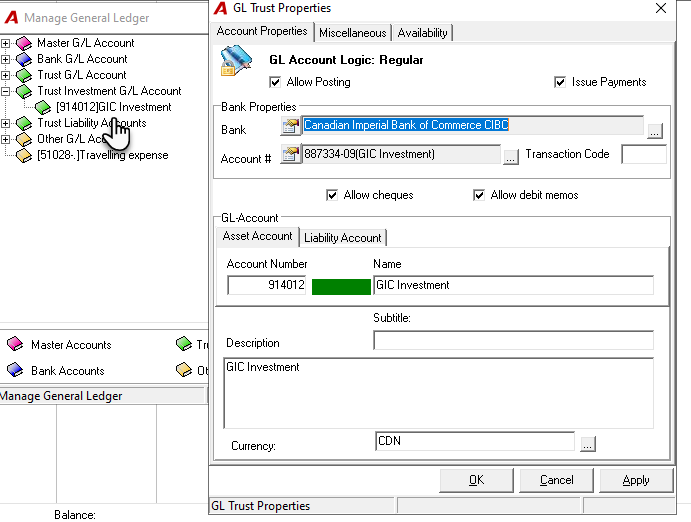
Note: The trust liability account number defaults to the asset account number with the leading digit changed from 1 to 2.
Example:
|
Account Type |
Account Number |
Description |
|---|---|---|
|
Asset |
19010 |
Trust Investments — RBC |
|
Asset |
19020 |
Trust Investments — BMO |
|
Liability |
29010 |
Trust Investments Liability — RBC |
|
Liability |
29020 |
Trust Investments Liability — BMO |
Step 3: Set Up Purchase and Redemption Bank Instruction Letters (optional)
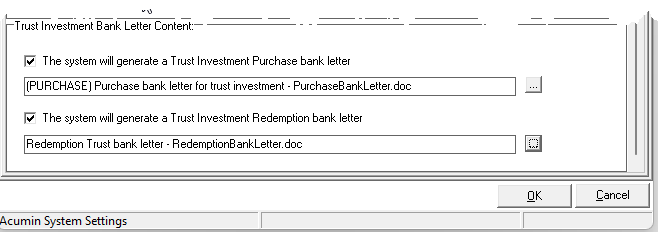
The system can automatically generate pre-populated bank instruction letters when processing investments and redemptions. To use this feature, you must activate the related options and configure letter templates.
Enabling the Feature
-
From the main menu bar, go to Environment > System Configuration > System Settings to open the Acumin System Settings window.
-
Navigate to the Defaults tab, then select the Trust sub-tab.
-
Enable the options for Purchase Bank Letter and/or Redemption Bank Letter.
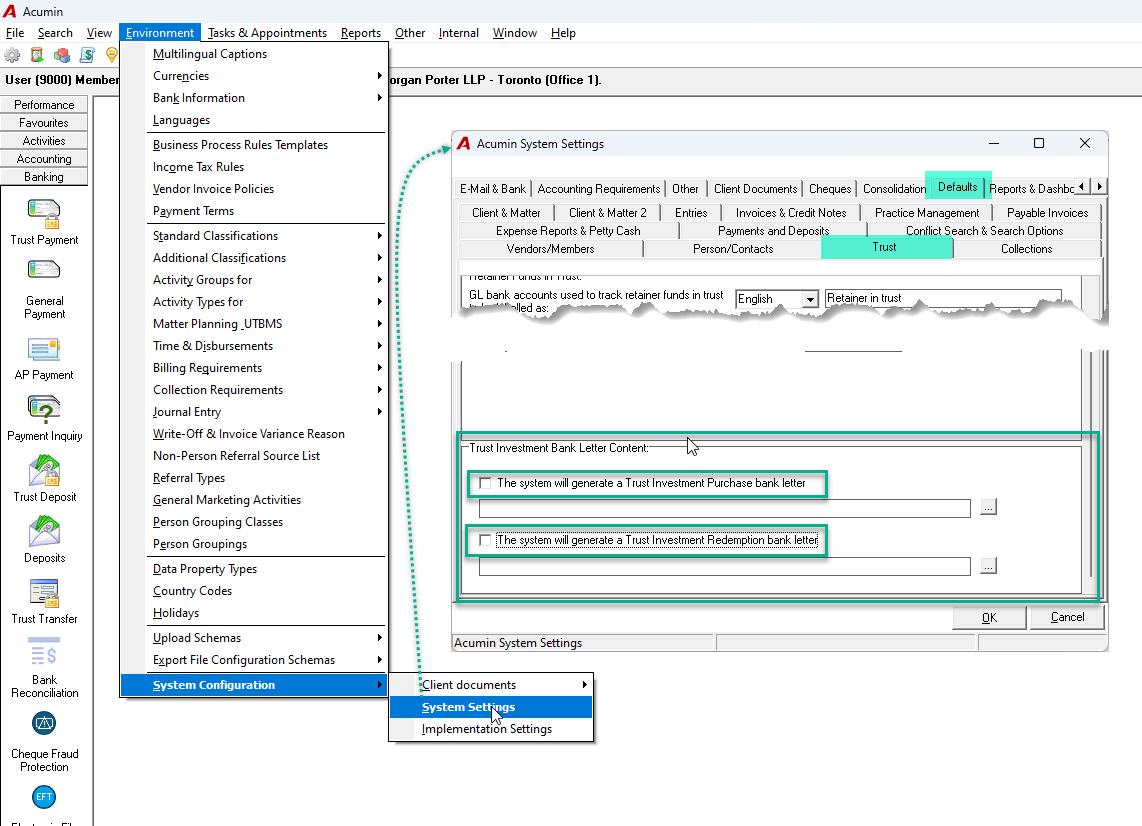
Once enabled, the following changes take effect:
-
A Purchase Bank Letter tab appears in the Trust Investment Properties window.
-
A Redemption Bank Letter tab appears in the Trust Redemption Properties window.
-
A new Print option appears in the contextual menu when right-clicking a posted investment or redemption entry.
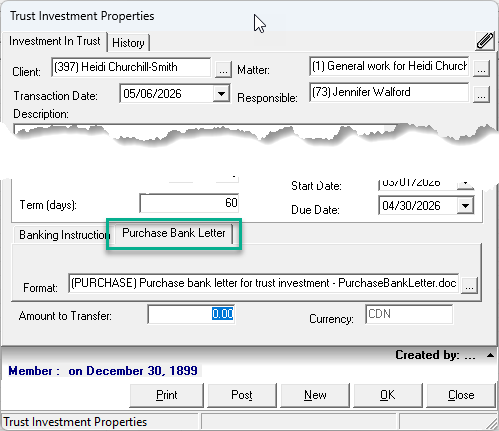
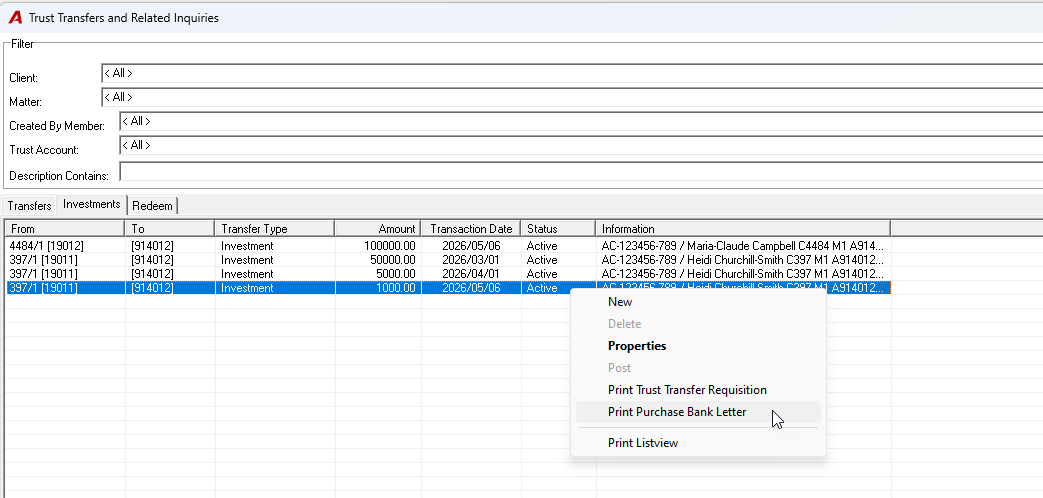
To learn how to create and configure letter templates, refer to the Personalized Letter Templates - Setting up Cover Letter, Purchase and Redemption Bank Letters and Engagement Letter Templates guide.
Setting a Default Bank Instruction Letter
You can assign a default bank instruction letter template that will auto-populate the Format field whenever a new investment or redemption is created:
-
In the Trust tab of System Settings, click the ellipsis button (...) beside the format field.
-
The Show Purchase (or Redemption) Trust Bank Letter Formats list view opens.
-
Double-click to select the desired default format.
Step 4: Configure Security Permissions
By default, redemptions can only be deposited back into the original general trust bank account from which the investment was funded. To allow authorized users to select a different trust bank account during redemption, grant the following security permission:
-
Security Option #342 — Located in the Banking tab of the user or user group security settings.
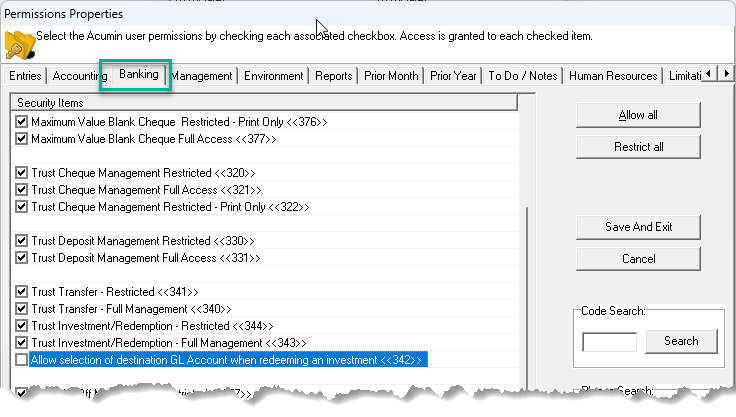
Note: Consider your firm's bank transfer rules before enabling this option. Without it, the redemption destination is locked to the original trust GL account used when the investment was created.
Working with Trust Investments
Creating a New Investment
Step 1: Access the Investment Form
-
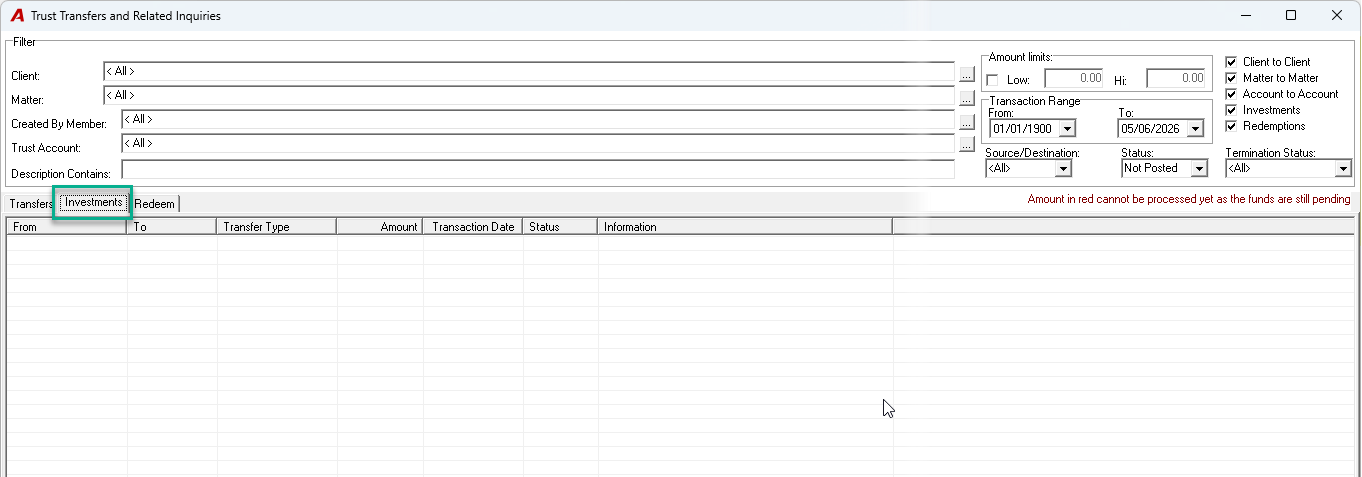
From the task bar, go to Banking > Trust Transfer and click the Investments tab.
-
Right-click to open the contextual menu and select New.
-
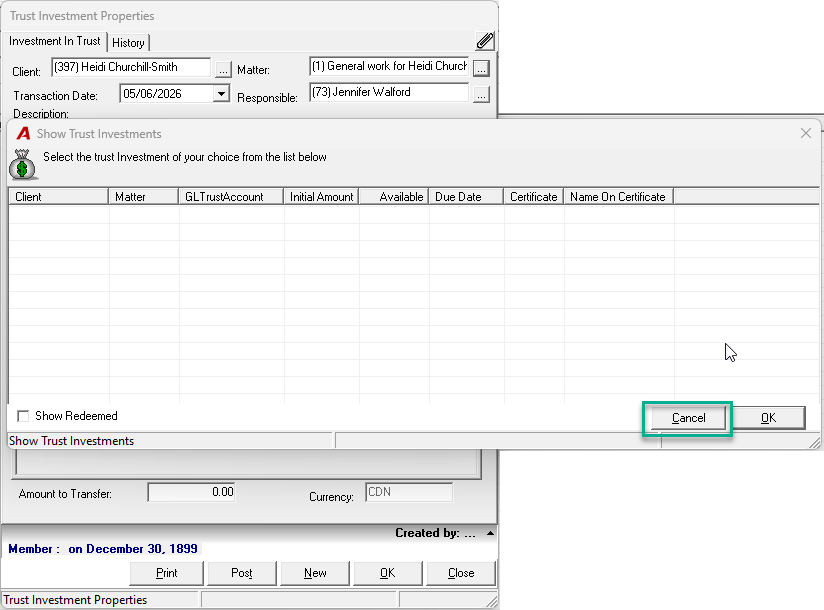
Enter the client and matter to open the Show Trust Investment form.
Important: To create a new investment, do not select any existing investment from the list. Simply press Cancel to close the list view and proceed to the Trust Investment Properties form.
Step 2: Complete the Trust Investment Properties
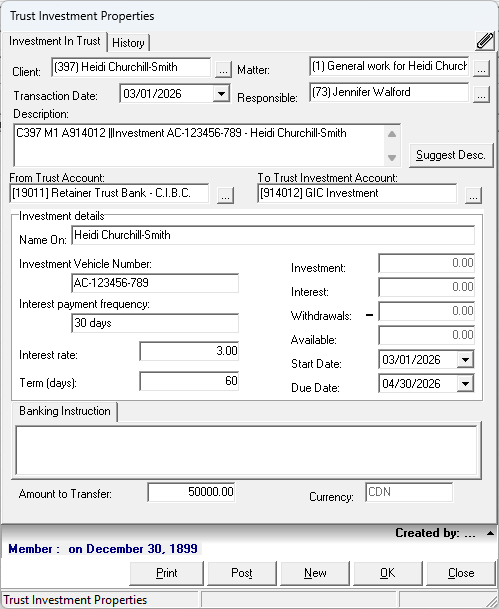
-
Fill in all required fields on the Trust Investment Properties form.
Tips: Wait at the end to click on the Suggest Desc. button to populate the Description field with the correct information.
-
Click OK or Post to initiate the posting process.
Step 3: Complete the Posting Cycle
Upon posting, the system automatically generates either a trust debit memo or a trust cheque requisition (based on your firm property setting):
-
A pre-set Show Trust Payment list view appears.
-
Highlight the listed item, right-click, and select Properties to open the debit memo or cheque properties form.
-
Uncheck the Requisition checkbox to convert the item into an accounting object, then click OK.
-
Back on the Show Trust Payment list view, right-click and select Print.
-
After printing, select Post to finalize the trust investment.
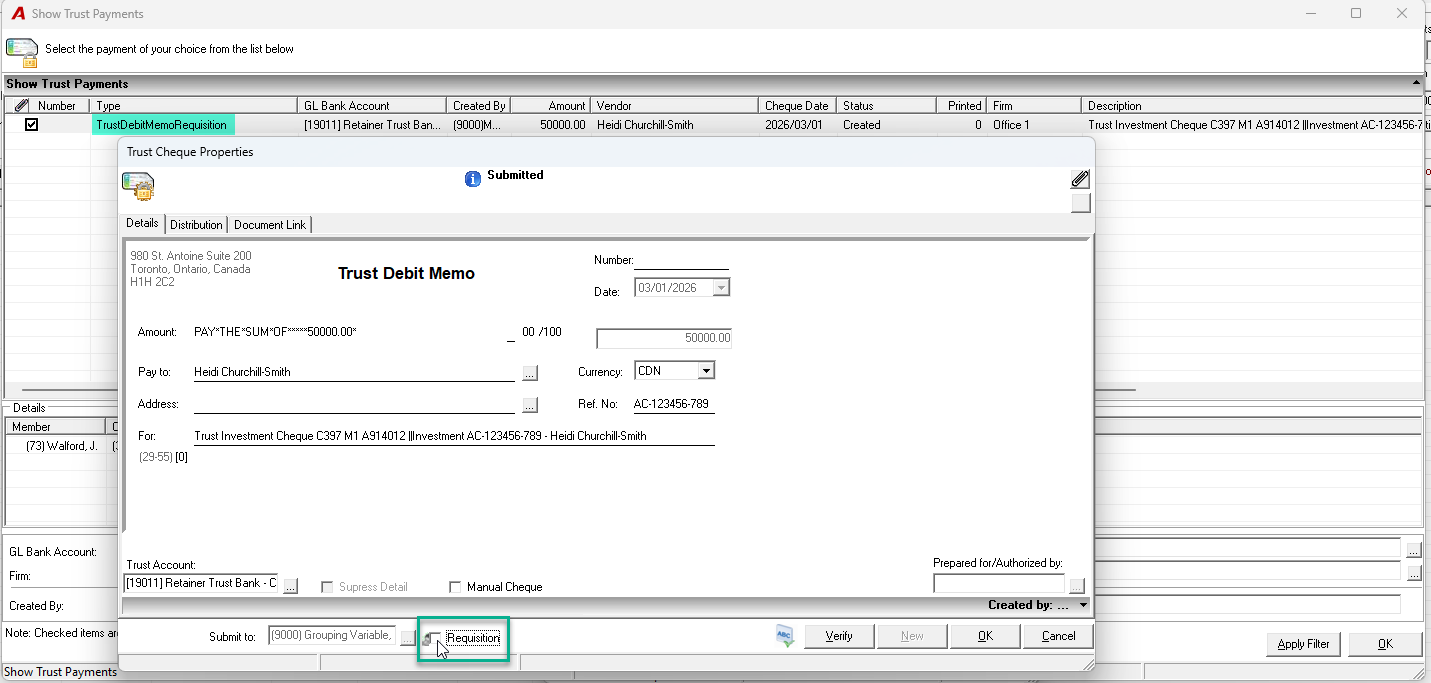
Important — Audit Trail: The trust payment is pre-populated with the investment name in the Pay To line. The For line and Reference field also contain relevant investment details. Do not modify these fields to maintain a clear audit trail.
Important — Incomplete Posting: If the debit memo or cheque posting cycle is not completed, the investment retains a Created (In Progress) status and will not appear as a posted investment in the database.
Adding to an Existing Investment
Step 1: Access and Select the Investment
-
From the task bar, go to Banking > Trust Transfer and click the Investments tab.
-
Right-click and select New.
-
Enter the client and matter to open the Show Trust Investment form.
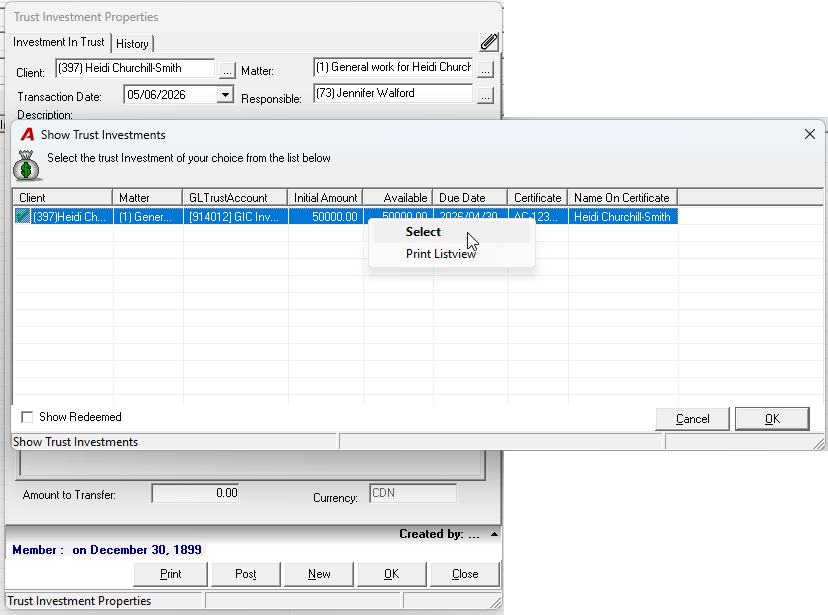
Important: To add funds to an existing investment, you must select an investment from the list.
-
Highlight the desired investment, right-click, and select Select to proceed.
Step 2: Enter the Additional Amount
-
The Trust Investment Properties form opens, pre-populated with the existing investment details.
-
The cursor is positioned on the Amount field — enter the additional amount to add to the investment.
-
Update the Description field with a meaningful note describing the transaction.
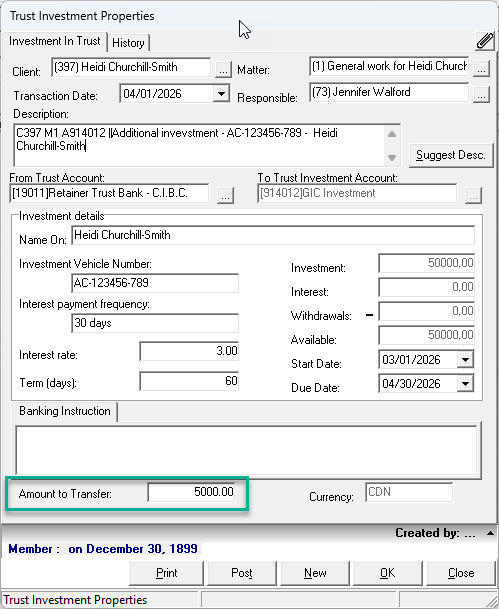
Note: Both the Amount and Description fields are transactional. Each addition is recorded as a separate transaction without overwriting previous entries.
Additional Considerations
-
A single matter may have multiple unredeemed investments listed in the Show Trust Investment form.
-
The Investments tab displays transactions based on the active filter selections.
-
Right-click on the Investments tab to access the contextual menu for additional options.
-
To cancel a posted investment, reverse it by redeeming the investment back to the trust account. If the firm issues investment trust cheques, reconcile the corresponding cheque and add a note in the For line. Use the paperclip feature to attach supporting documentation for a complete audit trail.
Depositing Interest on Trust Investments
-
Go to Banking > Trust Deposit to open the Show Trust Deposit Slips form.
-
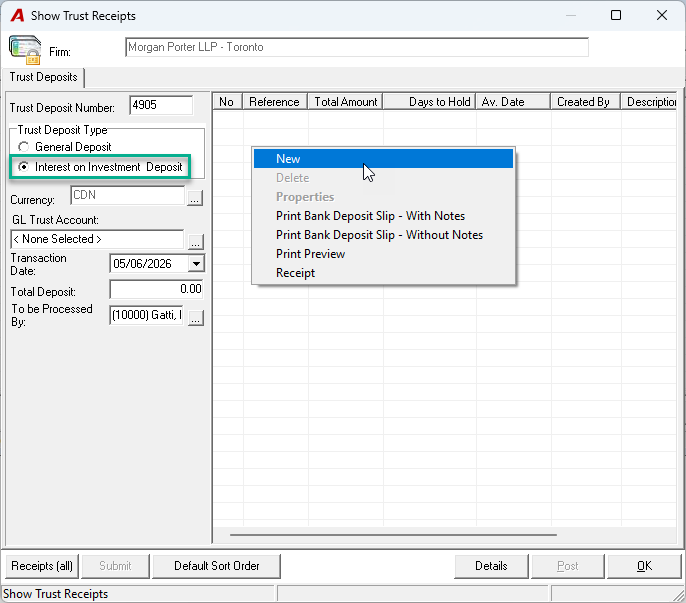
Right-click and select New to open the Show Trust Receipts form.
-
Select Interest on Investment Deposit as the deposit type to enable selection of a trust investment bank account.
-
Right-click and select New to open the Trust Receipt Properties form.
-
Complete the form following the standard trust deposit process. The key difference is that when depositing interest earned against a matter, you will be prompted to apply it to a specific investment vehicle.
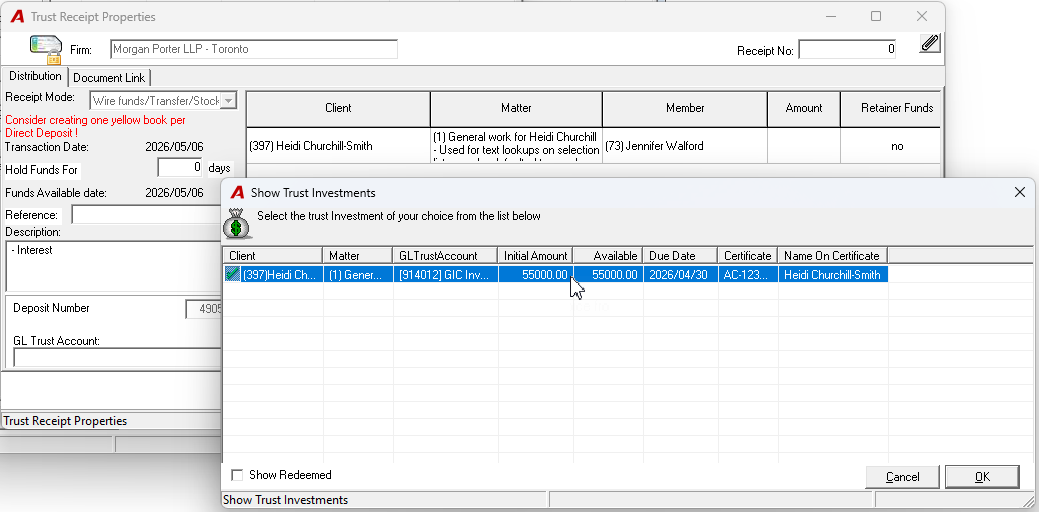
Important:
-
Interest can only be applied to open investments (investments that have not been fully redeemed).
-
Create one yellow book (deposit slip) per trust investment GL account affected.
Viewing Investment History
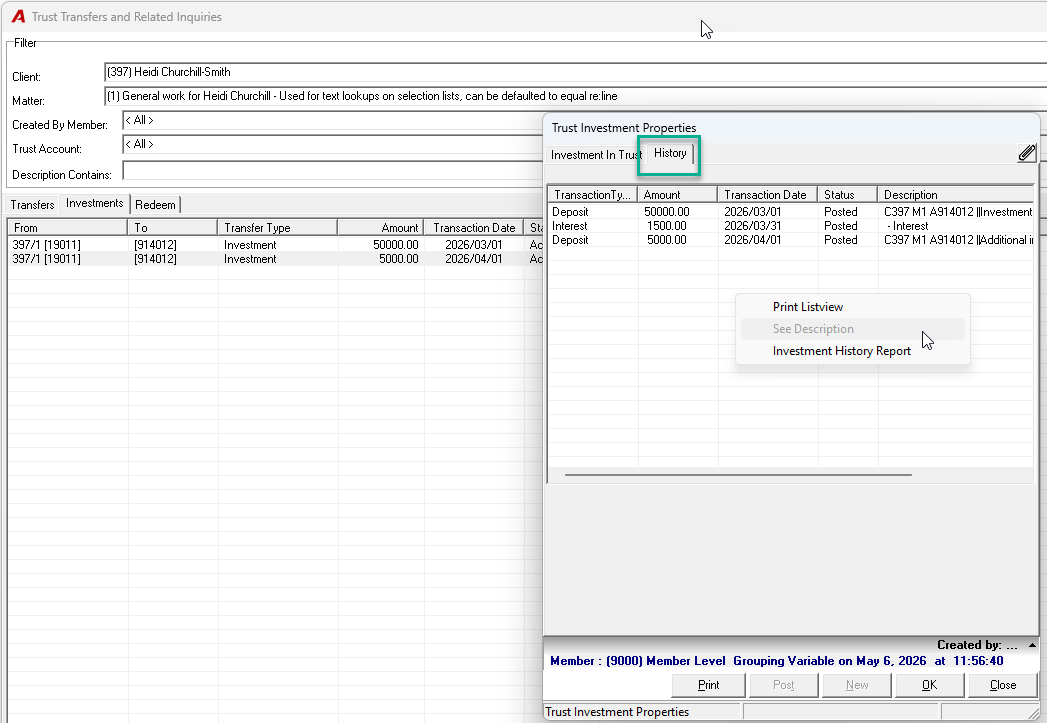
Each investment vehicle maintains a complete transaction history. To view it, open the investment and navigate to the History tab.
Redeeming a Trust Investment
The redemption process transfers funds from the trust investment back into a general trust bank account, from which they can be further disbursed.
Step 1: Access the Redemption Form
-
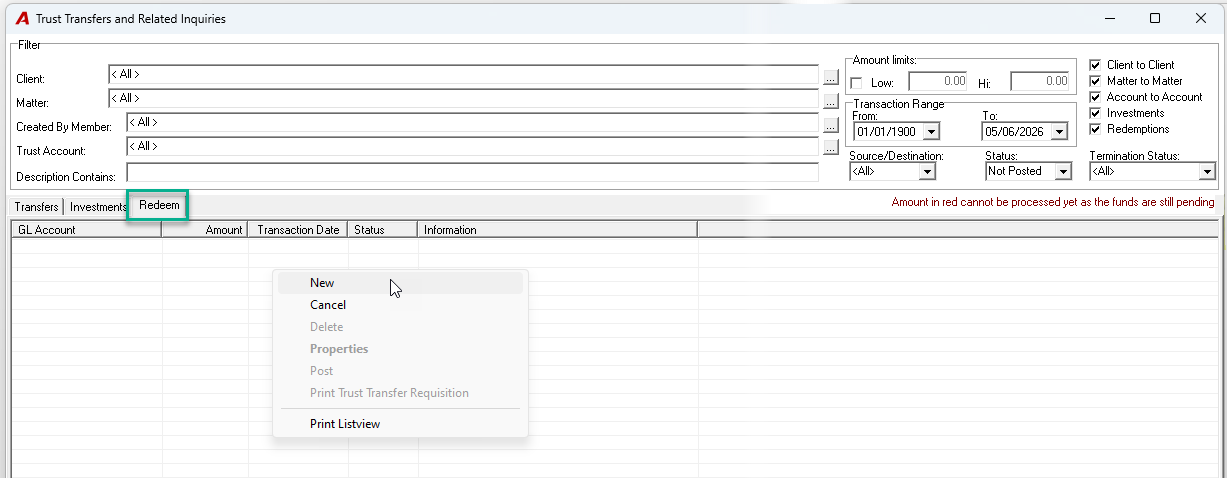
From the task bar, go to Banking > Trust Transfer and click the Redeem tab.
-
Right-click and select New to begin the redemption process.
-
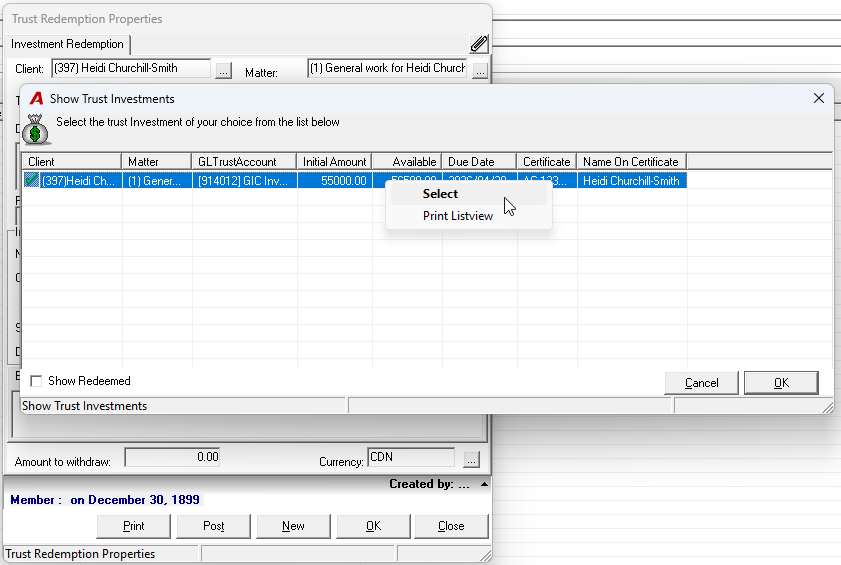
Enter the client and matter to open the Show Trust Investment form.
-
Select the trust investment to be redeemed and click OK.
Step 2: Complete the Redemption
-
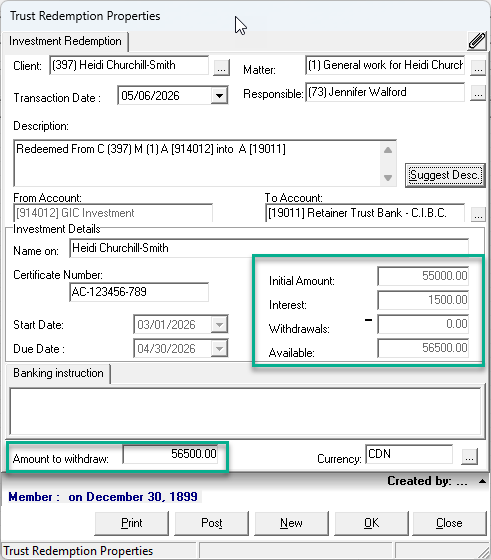
Review the Trust Investment Properties form, which displays the current investment details.
-
Choose the redemption type:
-
Full Redemption: Click OK to accept the full amount.
-
Partial Redemption: Enter a lower amount in the Amount to Withdraw field, then click OK.
-
Additional Considerations:
-
Use the cancellation option for investment redemption to ease the cancellation process of trust interest deposit when the investment is partially or completely redeemed.
-
By default, funds can only be redeemed into the original general trust bank account from which the investment was created. To redeem into a different trust bank account, the user must have Security Option #342 enabled (see Step 4 in the Initial Setup section).
Important — Deposit Interest First: If there is outstanding interest to be applied to the investment, deposit the interest first and ensure it is posted before proceeding with the redemption.