.png)
Overview:
Acumin supports the automatization of journal entries through a variety of options. The trigger to launch the application engine that creates automatic journal entries on specified dates is the daily instance of any Acumin user logging into Acumin any time after midnight (00:00 hrs). With the various options available, the objective is to find the best option for the accounting (recording) requirement.
Automatic Journal Entry Options
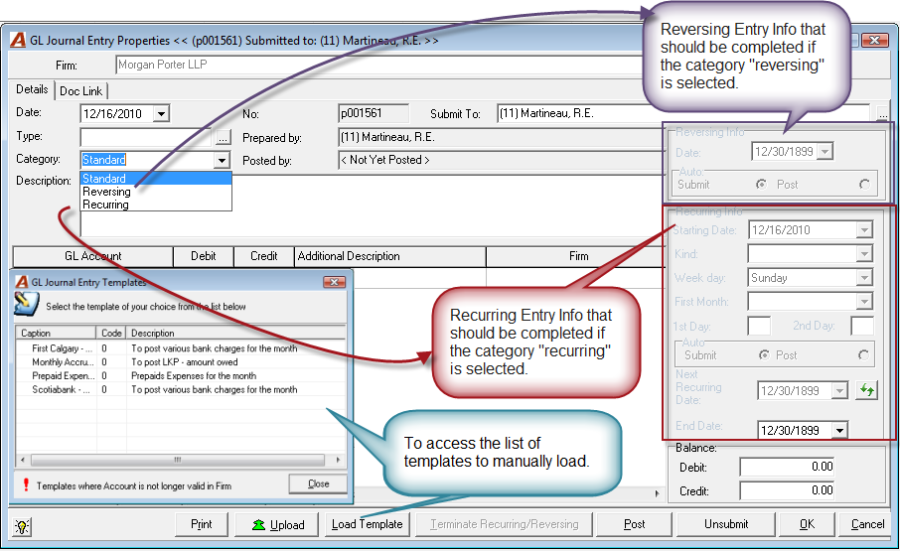
Reversing Journal Entry
A reversing journal entry is an entry accounted for on a specific date (journal entry date), that triggers the automatic creation of a second journal entry - on a user-assigned date. This second entry reverses the accounting impact of the original journal entry posted.
Best-use case: Accruals.
When a reversing journal entry category is selected the reversing info section allows the user to select the date on which date the reversing entry should be created. The reversing entry is automatically created by the application on the date due.
-
Auto Submit means that the system will submit the entry to the submittee for posting, whereas;
-
Post means that the journal entry will be automatically posted.
Recurring Journal Entry
A recurring journal entry is an entry accounted for on a specific date (journal entry date), that triggers the automatic creation of the same journal entry multiple times based on a pre-set schedule completed within the original journal entry.
Best use-case: When the accounting requirement repeats exactly the same on a pre-set basis, for example depreciation expense.
When a recurring journal entry category is selected, the recurring info section allows the user to select the frequency on which the recurring entry should be created.
-
Auto Submit means that the system will submit the entry to the submittee for posting, whereas
-
Post means that the journal entry will be automatically posted;
To stop the creation of a recurring journal entry, see How to Stop the Creation of General Payments, AP Vouchers, or Journal Entries from a Recurring Template
Load Template
A journal entry template is akin to a skeleton with potentially incomplete information such as unknown amounts.
Best use-case: When the GL accounts affected are always the same, but the amounts and/or their debit-credit requirement is unknown; for example clearing inter-firm due to/from. Although payroll and partner draw distribution seem like a logical best-use-case, these are best handled through recurring quick payments (debit memos and/or cheques).
Allows the user to select an existing template; whereby its structure is automatically loaded on the journal entry form. Templates are usually created for journal entries that affect the same GL accounts but are not set as recurring, as the values are always different.
Journal Entries from GL Inquiry Results
Acumin automatically creates a proposed journal entry from GL inquiry results.
Best use-case: When an incorrect posting needs to be journalized elsewhere.
Allows the user to select an existing GL Inquiry results; whereby the perceived correction structure is automatically loaded on the journal entry form for the user to simply enter the destination account and a description.
Note: The original recurring and reversing journal entries can be filtered for an accessed in order to terminate future recurrences or the reversal entry itself; however future recurrences and the future dated reversal cannot not be filtered for and selected until the day they are due. This is because until then, the journal entry does not exist.
Templates are accessible for modification. To re-access a template the user can press on the load template button on a new journal entry. From the list, the user should highlight the desired selection select its properties from the right hand menu.
Creating a Journal Entry Template
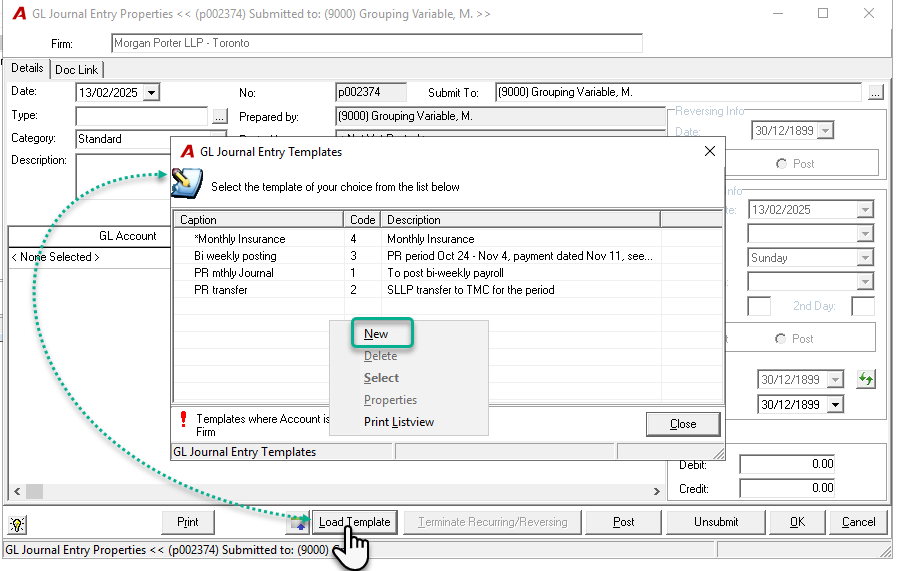
To create a new journal entry template, press on the Load Template button and instead of selecting an existing template, right-hand click and select New:
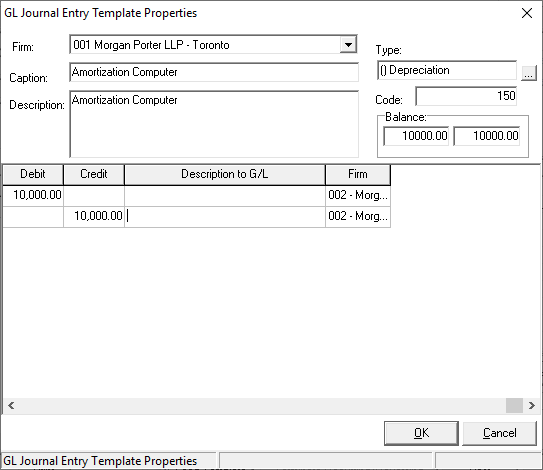
Fill in the form that opens and press OK when finished.
Making Journal Entries from GL Inquiries
Click on the GL icon in the Accounting section of the task bar. Apply the GL Inquiry filter and drill down to the details. Select the object to be journalized to another GL Account and right-hand click to select Journalize to….
After selecting a credit account, users will be prompted with a partially completed journal entry:
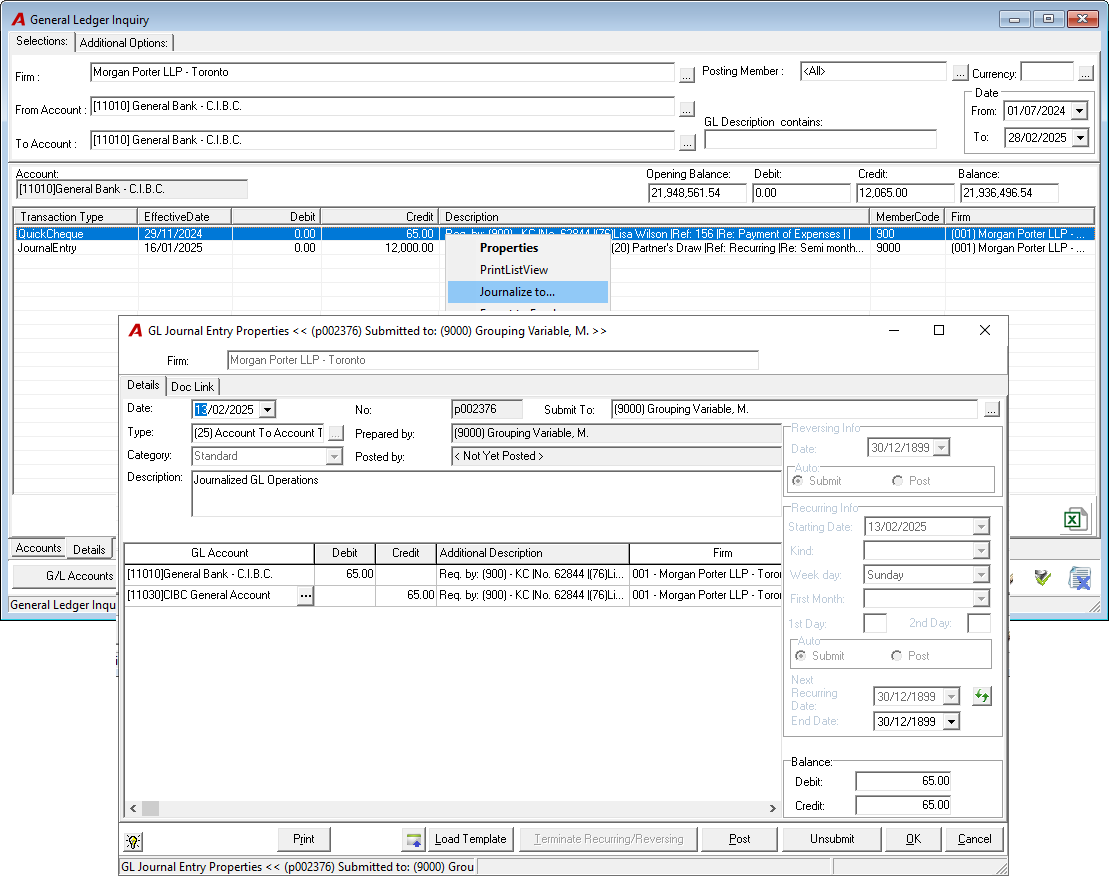
Users can add description, make changes and press Post to complete.
RELATED DOCUMENT: