.png)
Financial Budget – Set-Up & Reports
Scope and Purpose
The purpose of the GL budget planner is to facilitate the creation process of the firm’s financial budget.
Its scope extends to the use of the last three fiscal years of results to provide a starting point from which to work with, presentation and filter tools in context of financial statement groupings for additional context and calculation options to assist users in concluding the financial budget.
Set-Up
Fiscal Years
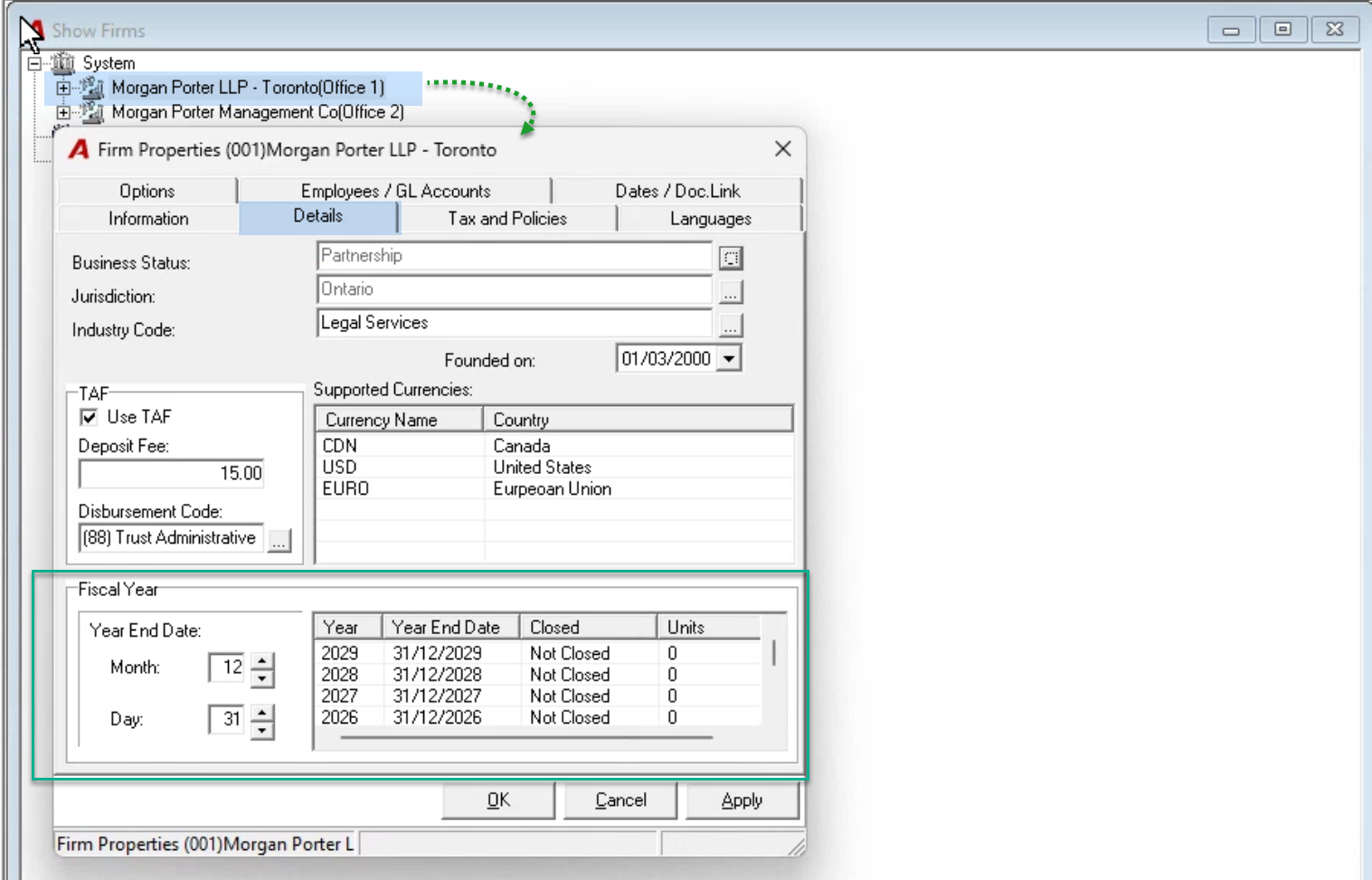
The financial budget is based on fiscal years. During the initial on boarding process, the database would have been prepared with a minimum of the next five fiscal periods so with each year-end closing process, the application will create the next fiscal year for each firm. These future fiscal years can be confirmed within the firm properties’ form for each of the firms in your environment.
Budget Status
Non-Committed Budget
It is possible to create multiple "Not committed" budgets with different version numbers for a fiscal year. These can be modified and/or deleted.
Committed Budget
To show budget measures on financial reports (i.e., income statement) the financial budget for the fiscal year must be committed.
Only one budget can be committed per fiscal year, and as a committed budget cannot be modified, users can un-committed a committed budget.
Process
Access
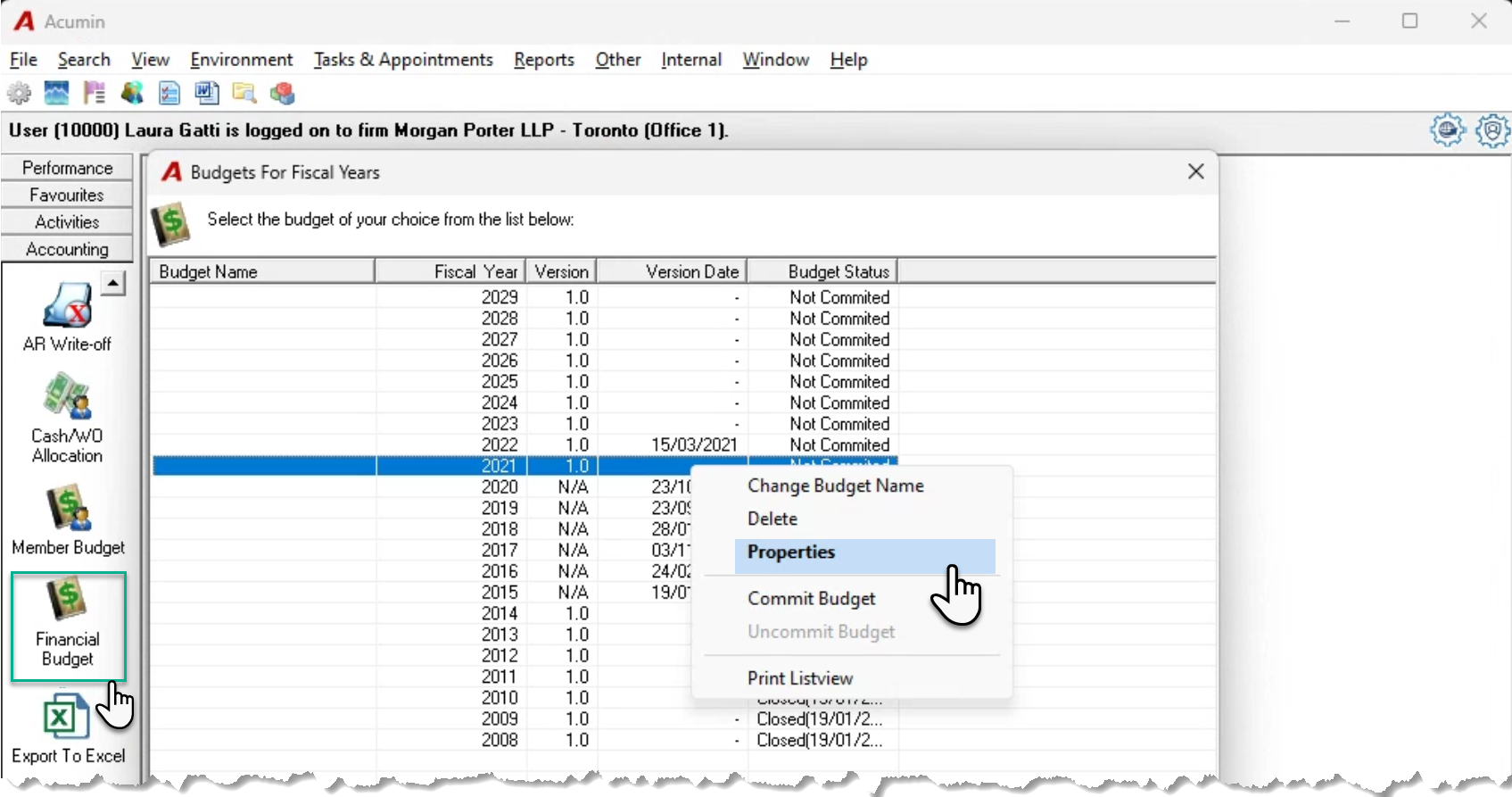
Press on the Financial Budget icon found within the "Accounting" section of the task bar.
Right-click to access the contextual menu; select properties or double-click on the affected fiscal year to launch the GL Budget Planner form.
Firm Tab
Filter Options
The fiscal year for the financial budget shows on the upper-left side of the form.
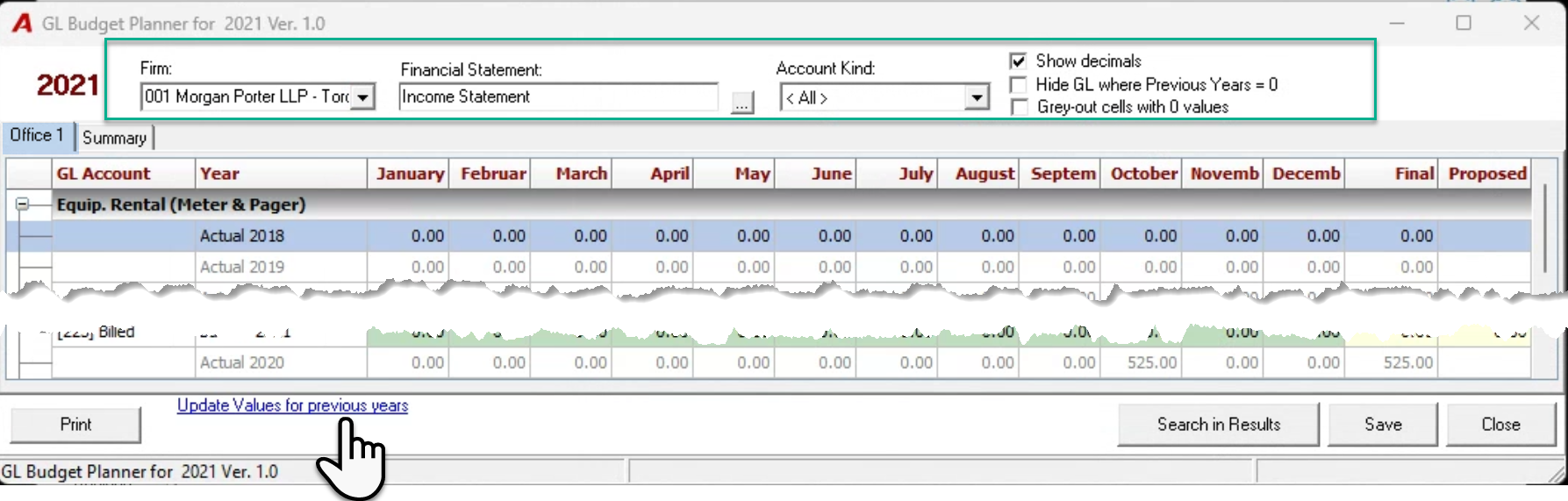
Firm: Click on the drop-down selection box to select the firm – profit-center – affected.
Financial Statement: Press on the ellipsis button to select an existing Financial Statement Report format (framework), to provide context to the budget preparation process. This selection drives how the GL accounts’ display, so they list within the financial statement groupings of the Financial Statement framework selected.
Account Kind:
Use the account kind filter to reduce the number of GL accounts listed. For example, it made be easier to start the budget by working on expense accounts and then revenue ones, instead on all the GL accounts for the income statement.
Although prior year values are automatically updated as part of the overnight process. Press on the “Update Values for Previous Years” hyperlink to update prior year values without waiting for the overnight process.
Checkbox Options
Show Decimals: If check marked ON the amounts will include 2 decimals, else all amounts will show without decimals.
Hide GL where previous Years = 0:
If check marked ON, GL accounts with 0.00 actual values in the preceding three years will not display, else all GL accounts regardless of 0.00 value for the last three years will display.
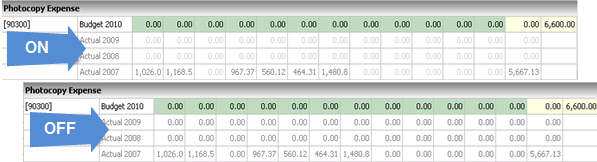
Grey-out cells with 0 values: If check marked ON, 0.00 value cells presents in light gray.
Content
Columns and Rows

GL Account: Displays the GL account number.
Year: Lists the budget year and the prior three fiscal years.
January to December: Shows the budget (1st row) and actuals (next three rows) per month.
Final: Available for edit for the budget year, this the annual budget measure can be manually populated or automatically calculated using one of the calculation options listed in the right-click contextual menu. The final annual budget measure can be manually or automatically distributed across the months of the year.
Proposed: The proposed annual budget can be manually completed or automatically calculated using one of the calculation options listed in the right-click contextual menu.

Contextual Menu
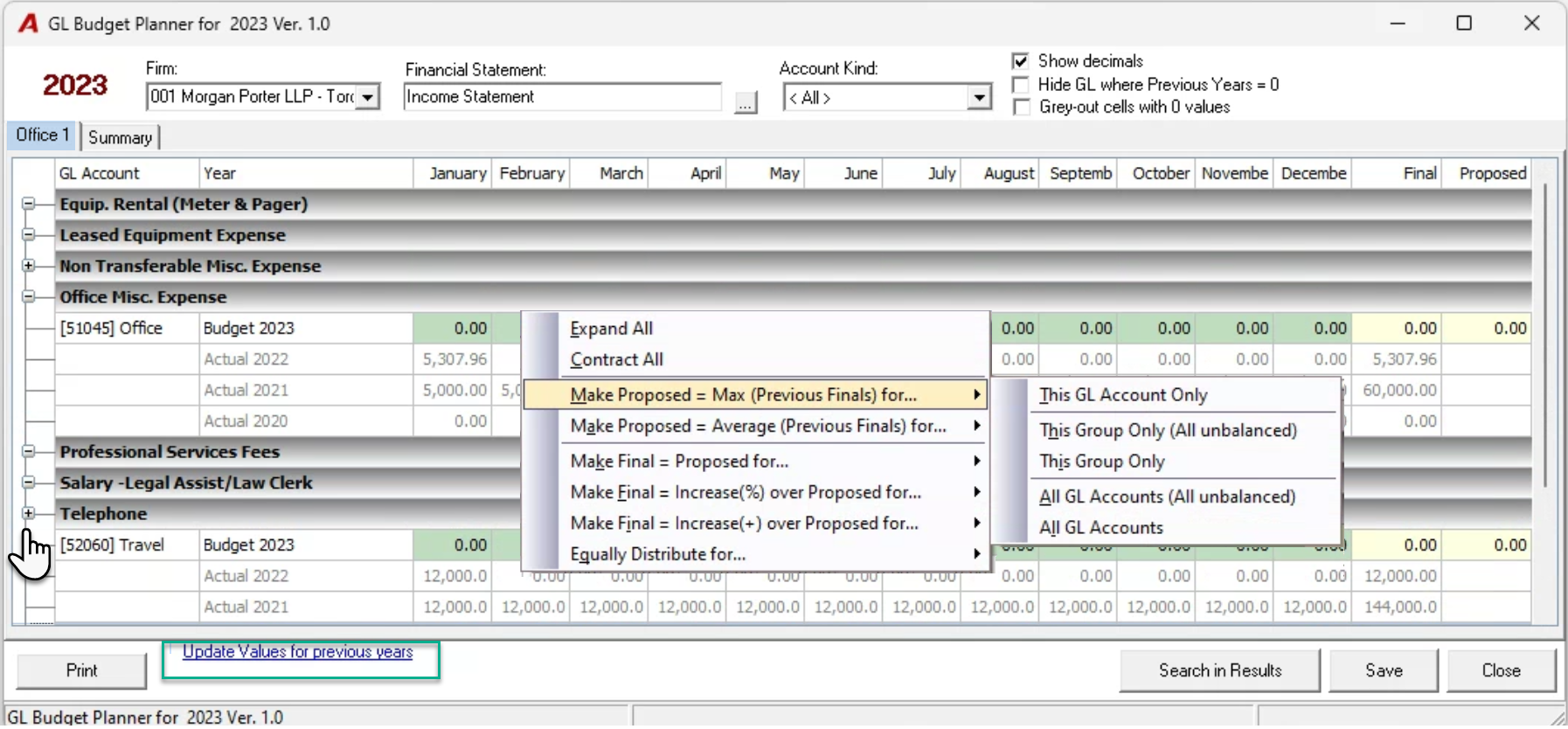
Expand or Contract All: Expand displays groupings showing GL account content, contract closes the panel so GL accounts for the group are not visible. Press on the minus sign to the left of the panel bar to expand the group and the plus sign to collapse it.
Make Proposed = Max (previous finals) for… calculates the "Proposed" budget measure based on the maximum amount of the previous years' "final" column amounts. The calculation is applied based on the selection of the sub menu.
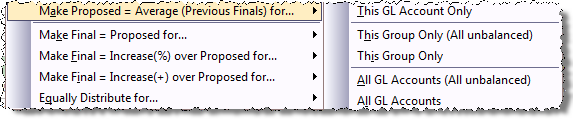
Make Proposed = Average (previous finals) for… calculates the "Proposed" budget measure based on the average amount of the previous years' "final" column amounts. The calculation is applied based on the selection of the sub menu.
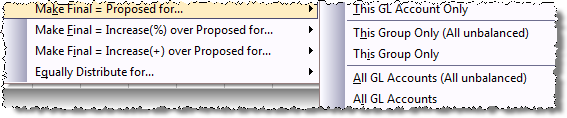
Make Final = Proposed for… calculates the "Final" budget measure based on the proposed one. The calculation is applied based on the selection of the sub menu.
Make Final = Increase (%) over Proposed for… calculates the "Final" " budget measure based on a user-defined percentage increase of the proposed one. The calculation is applied based on the selection of the sub menu.
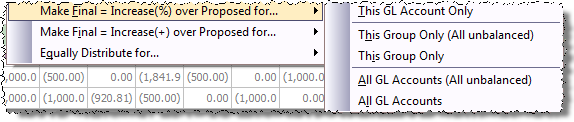
Make Final = Increase (+) over Proposed for… calculates the "Final" budget measure based on a user-defined amount increase of the proposed one. The calculation is applied based on the selection of the sub menu.
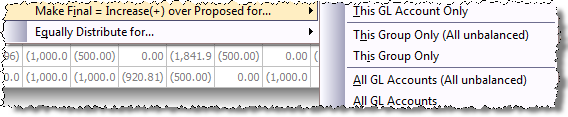
Equally Distribute for… Automatically distributes the annual budget in the final column evenly across the twelve months. The calculation is applied based on the selection of the sub menu.

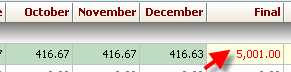
Undistributed annual budget measures display in red. To commit the budget, it must have all final annual budget measures distributed amongst the twelve months.
Other Options
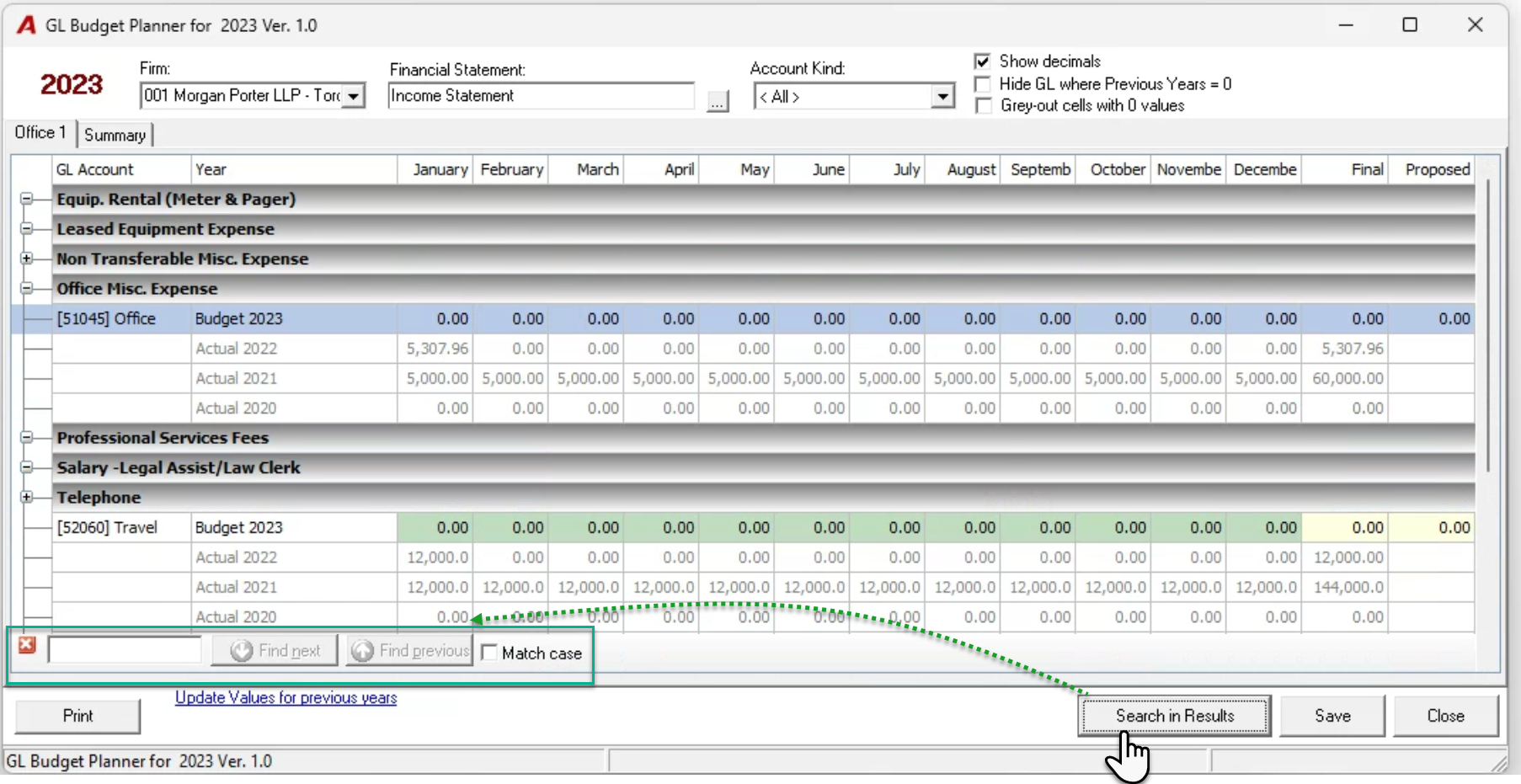
Search in Results: will launch the search tool. Enter a GL Account or an amount into the empty field to enable the "Find next", "Find previous" options.
Save: Saves the work completed.
Print: Prints the information displayed on the GL budget planner form.
Close: Closes the budget with the option to save if the grid was modified.
Summary Tab
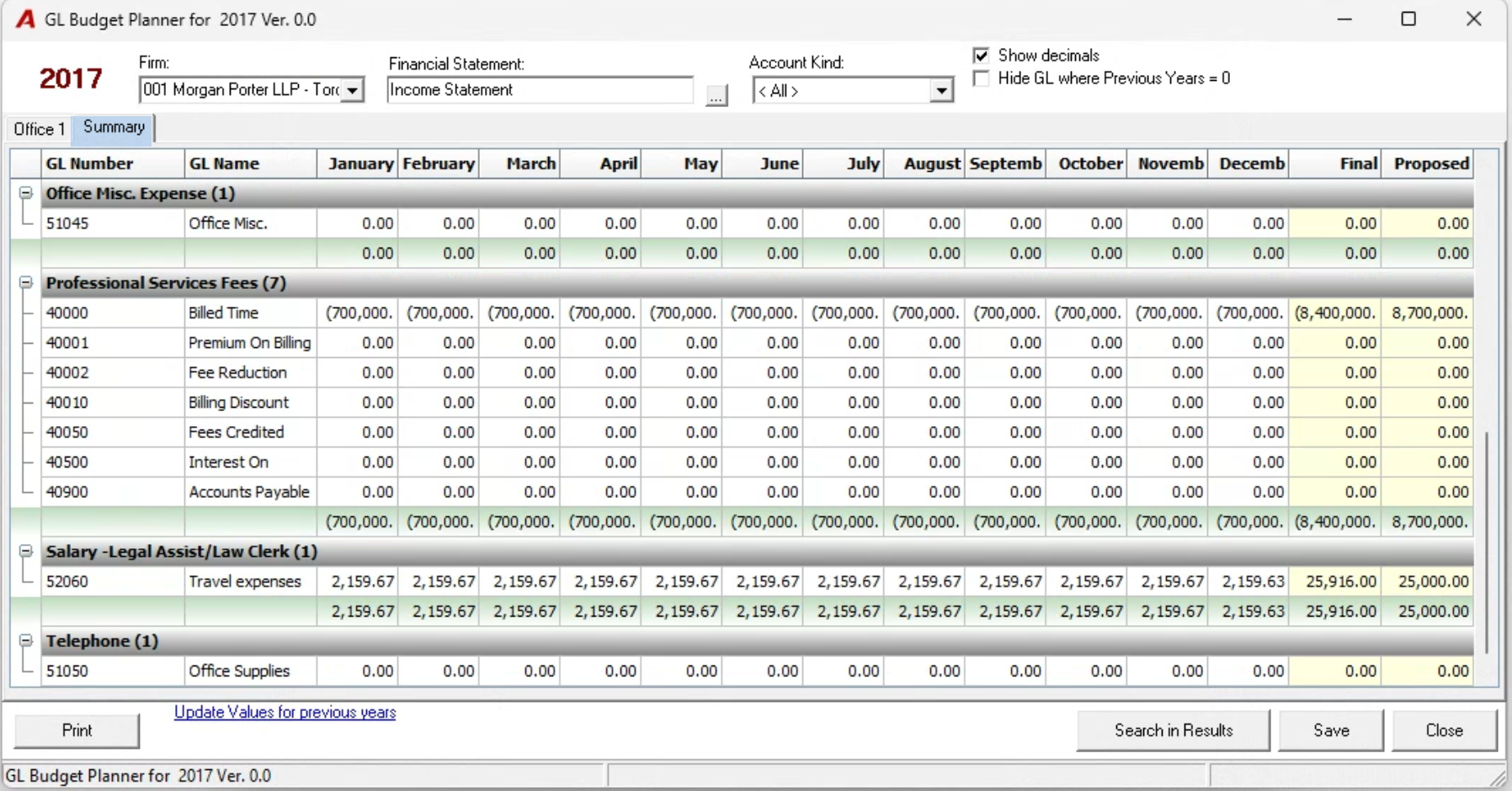
Once the budget is entered the summary tab will list it collapsed by financial statement group or expanded by GL account within the group. This tab does not include prior year actual amounts.
Report
Financial Statements:
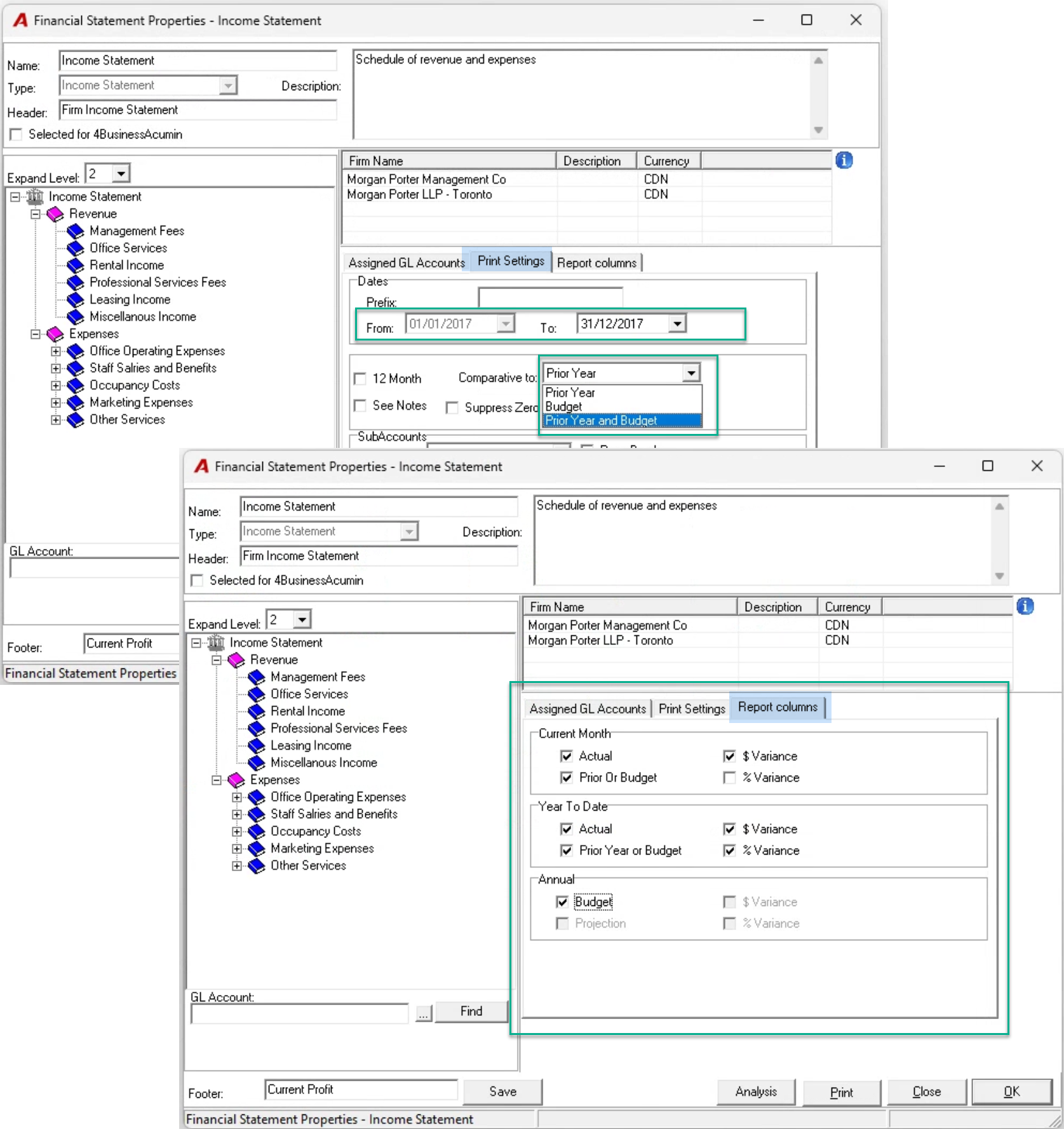
The income statement and balance sheet financial statement formats have the option to show budget comparatives. If used, to show a value other than 0.00 the financial budget for the year must be committed.
Select the option to include the budget as a comparative value in the “Print Settings” tab and navigate to the report columns tab to decide which columns referring to budget measures to include.