.png)
Overview
Using the Acumin standard template library, authorized users are able to create customized cover letters, engagement letters, investment bank letters and redemption bank letters. As the supporting templates are technically outside of the invoice template engine and thus not dynamically generated, the expectation is that these will be modified by firm personnel to include hard-coded text as the body of the letter.
The standard templates provides authorized users with a jumping off point by including pre-defined addressee headers and signatory footers as well as a list of defined field names from which the user can build to body of the personalized letter.
Access to the Standard Templates
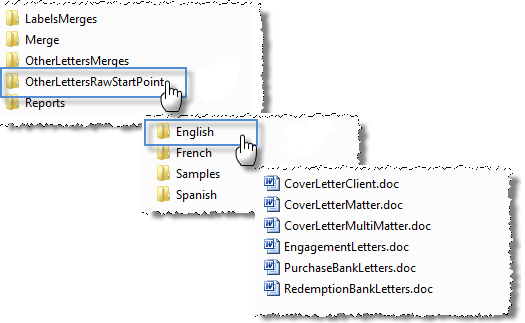
Acumin's installation package includes the library of standard letter templates available for use by the law-firm personnel. These standard templates are stored within the Acumin folder structure specifically in the "OtherLettersRawStartPoint" folder:
-
Access Acumin's folder structure to open the "OtherLettersRawStartPoint" folder;
-
Open the "English", "French" or "Spanish" folder depending on the personnalized letter to be worked on;
Personnalized Letter Template Types
Cover Letter
The standard invoice engine dynamically generates the multiple invoice package templates based on firm-defined configuration model decisions found within Acumin System Settings - Client Documents Tabs.
Although the Cover Letter is considered part of the invoice package, the supporting template is technically outside of the invoice template engine (the cover letter template is not dynamically generated as are the other templates) with the expectation that it will be modified by firm personnel to include hard-coded text as the body of the letter.
Important Notes: Applicable ONLY to organizations using a cover letter as part of the invoice package generated in WORD.
The Cover Letter functionality is not available for Invoice Package generated in Crystal/PDF.
Start-up
-
Locate the Required Start-up Template:
-
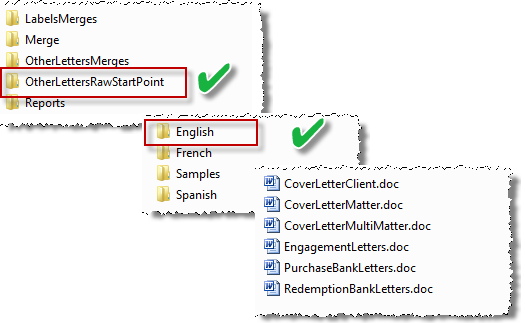
Access Acumin's Folder Structure to open the "OtherLettersRawStartPoint" folder;
-
Open the "English", "French" or "Spanish" folder – depending on the cover letter to be worked on;
-
Select the required template;
-
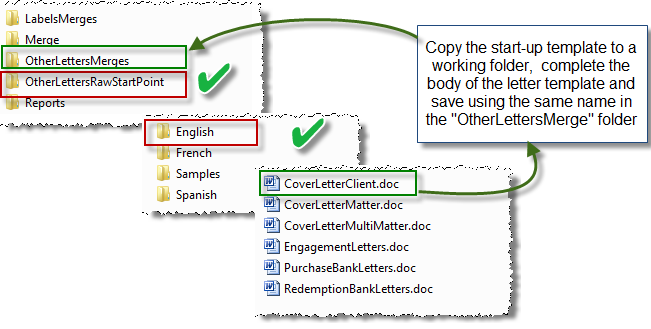
Copy and save letter in a working folder and when ready, save it in the OtherLettersMerges folder.
Client Cover Letter
-
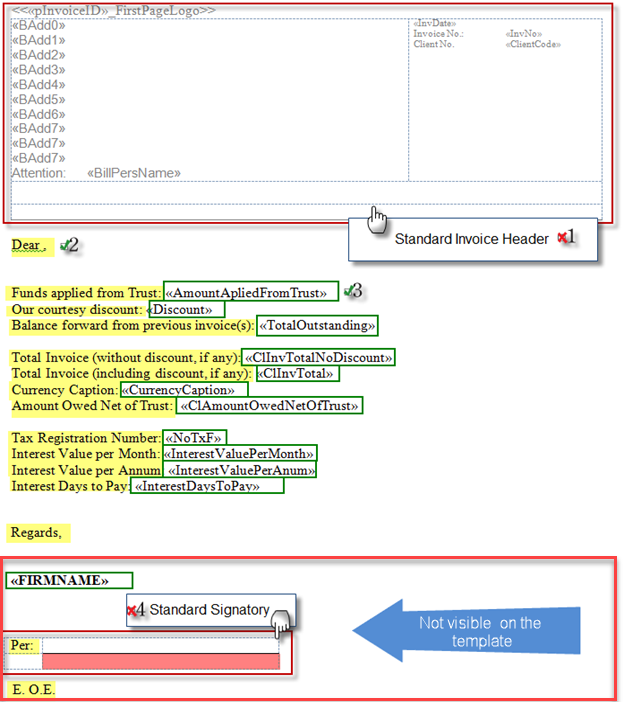
The invoice header – boxed in red - should not be modified, as it is designed to match the presentation of the header of the remaining documents in the invoice package – which will be created subject to the dynamically generated templates.
-
The text highlighted in yellow is hard-coded and can therefore be modified or removed from the working copy of the raw-template without issue. Most of the hard-coded text presented within the template is there to define the accompanying variable which is boxed in green, with the intention that these hard-coded words be removed or modified within context of the firm-defined body of the letter.
-
The text and symbols which are boxed in green are Acumin variables included as word-merge fields using MS Word Syntax. The variables or word merge fields which are not to be included in the firm-defined cover letter for the client invoice, should be completely deleted from the copy of the raw template. If they are retained and used, the latter cannot be modified in any way but they can be moved and inserted as needed for a logical final output.
-
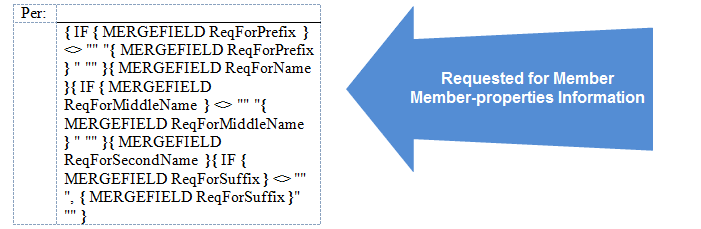
As with the invoice header the standard signatory table should not be modified. More specifically, the whole area contains the equivalent of MS Word code which on execution will output the content of a series of member variables in order to produce a valid signatory section.
The Signatory or Requested For Member
The invoice properties requires a "requested for member" which is the member to be presented on the signature line of the invoice package, if the signature is included by the person responsible for preparing the invoice. If presented the signature line includes the following attributes – provided that the corresponding field was completed in member properties.
-
Prefix: The prefix value entered in member properties, else a null value
-
Name: The content of the first name field in member properties, else a null value
-
Middle Name: The content of the middle name field in member properties, else a null value
-
Second Name: The content of the last name field in member properties, else a null value
-
Suffix: The suffix value entered in member properties, else a null value
Matter Cover Letter
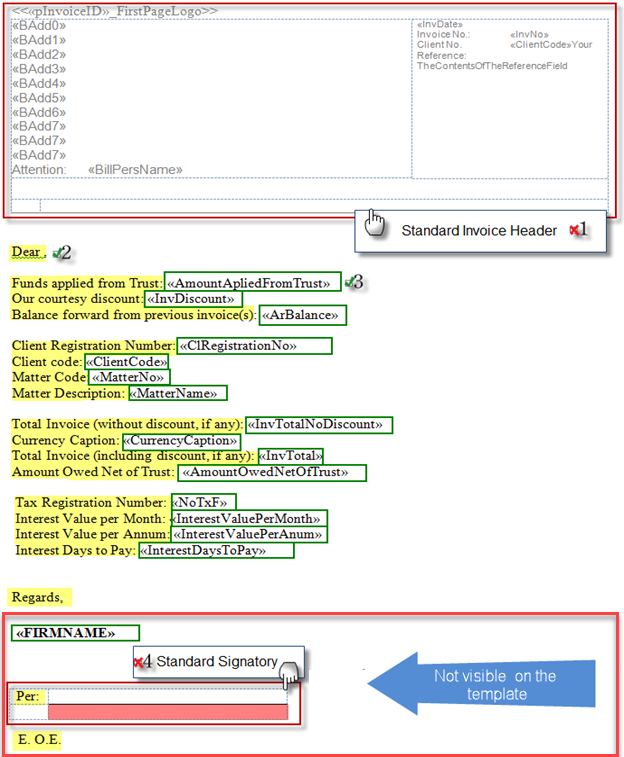
-
The invoice header – boxed in red - should not be modified, as it is designed to match the presentation of the header of the remaining documents in the invoice package – which will be created subject to the dynamically generated templates.
-
The text highlighted in yellow is hard-coded and can therefore be modified or removed from the working copy of the raw-template without issue. Most of the hard-coded text presented within the template is there to define the accompanying variable which is boxed in green, with the intention that these hard-coded words be removed or modified within context of the firm-defined body of the letter.
-
The text and symbols which are boxed in green are Acumin variables included as word-merge fields using MS Word Syntax. The variables or word merge fields which are not to be included in the firm-defined cover letter for the matter invoice, should be completely deleted from the copy of the raw template. If they are retained and used, the latter cannot be modified in any way but they can be moved and inserted as needed for a logical final output.
-
As with the invoice header the standard signatory table should not be modified. More specifically, the whole area contains the equivalent of MS Word code which on execution will output the content of a series of member variables in order to produce a valid signatory section.
The Signatory or Requested For Member
The invoice properties requires a "requested for member" which is the member to be presented on the signature line of the invoice package, if the signature is included by the person responsible for preparing the invoice. If presented the signature line includes the following attributes – provided that the corresponding field was completed in member properties.
-
Prefix: The prefix value entered in member properties, else a null value
-
Name: The content of the first name field in member properties, else a null value
-
Middle Name: The content of the middle name field in member properties, else a null value
-
Second Name: The content of the last name field in member properties, else a null value
-
Suffix: The suffix value entered in member properties, else a null value
Multi-Matter Cover Letter
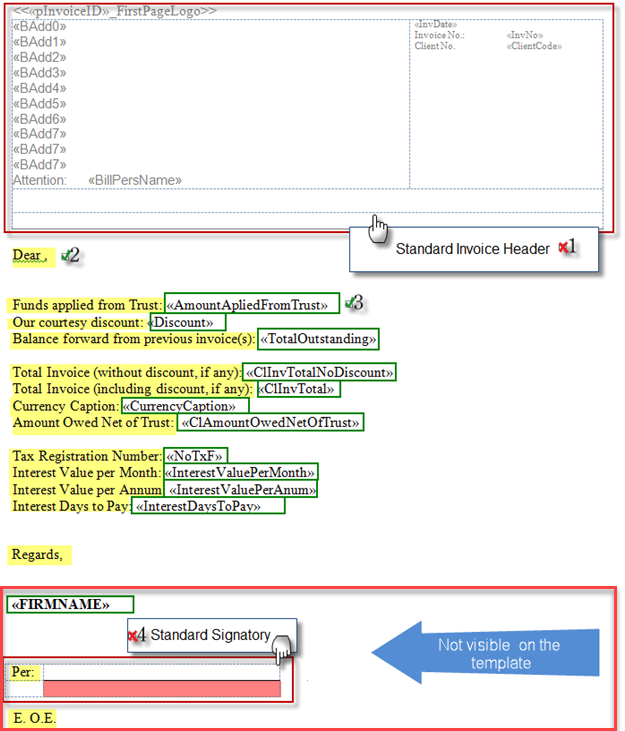
-
The invoice header – boxed in red - should not be modified, as it is designed to match the presentation of the header of the remaining documents in the invoice package – which will be created subject to the dynamically generated templates.
-
The text highlighted in yellow is hard-coded and can therefore be modified or removed from the working copy of the raw-template without issue. Most of the hard-coded text presented within the template is there to define the accompanying variable which is boxed in green, with the intention that these hard-coded words be removed or modified within context of the firm-defined body of the letter.
-
The text and symbols which are boxed in green are Acumin variables included as word-merge fields using MS Word Syntax. The variables or word merge fields which are not to be included in the firm-defined cover letter for the multi-matter invoice, should be completely deleted from the copy of the raw template. If they are retained and used, the latter cannot be modified in any way but they can be moved and inserted as needed for a logical final output.
-
As with the invoice header the standard signatory table should not be modified. More specifically, the whole area contains the equivalent of MS Word code which on execution will output the content of a series of member variables in order to produce a valid signatory section.
The Signatory or Requested For Member
The invoice properties requires a "requested for member" which is the member to be presented on the signature line of the invoice package, if the signature is included by the person responsible for preparing the invoice. If presented the signature line includes the following attributes – provided that the corresponding field was completed in member properties.
-
Prefix: The prefix value entered in member properties, else a null value
-
Name: The content of the first name field in member properties, else a null value
-
Middle Name: The content of the middle name field in member properties, else a null value
-
Second Name: The content of the last name field in member properties, else a null value
-
Suffix: The suffix value entered in member properties, else a null value
Cover Letter Variables
|
Variable name in template |
Database field in Acumin |
|
«AmountApliedFromTrust» |
1- Invoice properties - Trust amount |
|
«Discount» |
|
|
«InvDiscount» |
2- Invoice properties - Amount of discount applied |
|
«TotalOutstanding» |
|
|
«ArBalance» |
3- AR position |
|
|
|
|
«ClRegistrationNo» |
4- Client Properties – Registration No |
|
«ClientCode» |
5- Client Properties – Client Code |
|
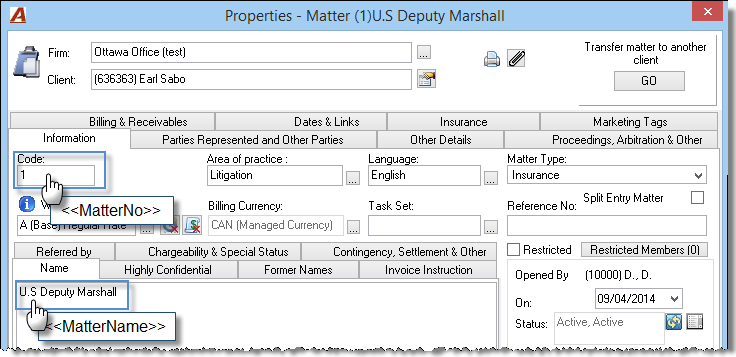
«MatterNo» |
6- Matter properties – Matter Code |
|
«MatterName» |
7- Matter properties – Matter name |
|
«ClInvTotalNoDiscount» |
|
|
«InvTotalNoDiscount» |
8- Invoice Properties – Invoice amount calculated without discount |
|
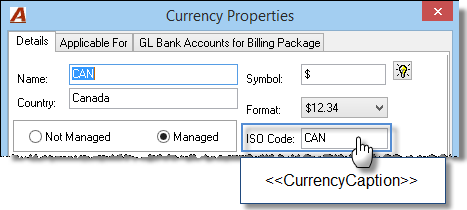
«CurrencyCaption» |
9- Currency Properties - Name |
|
«ClInvTotal» |
|
|
«InvTotal» |
10- Invoice Properties – Invoice amount with discount |
|
«ClAmountOwedNetOfTrust» |
|
|
«AmountOwedNetOfTrust» |
11- Invoice Properties - Balance |
|
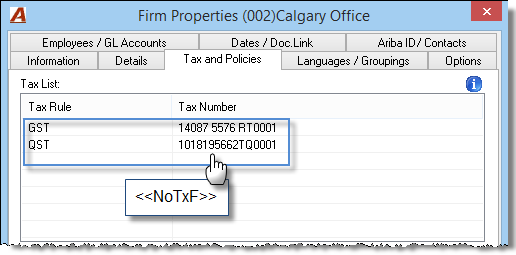
«NoTxF» |
12- Firm Properties – Tax information |
|
«InterestValuePerMonth» |
13- Interest category Properties – calculated per month |
|
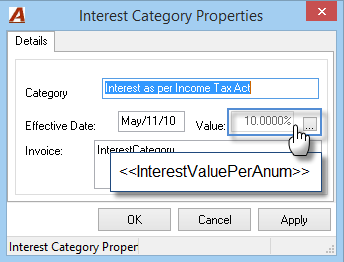
«InterestValuePerAnum» |
14- Interest category Properties - Value |
|
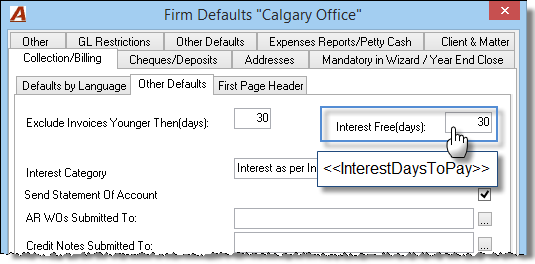
«InterestDaysToPay» |
15- Firm Properties – Interest free days |
|
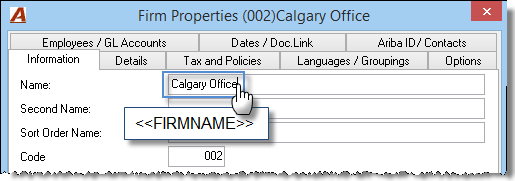
«FIRMNAME» |
16- Firm Properties – Firm name |
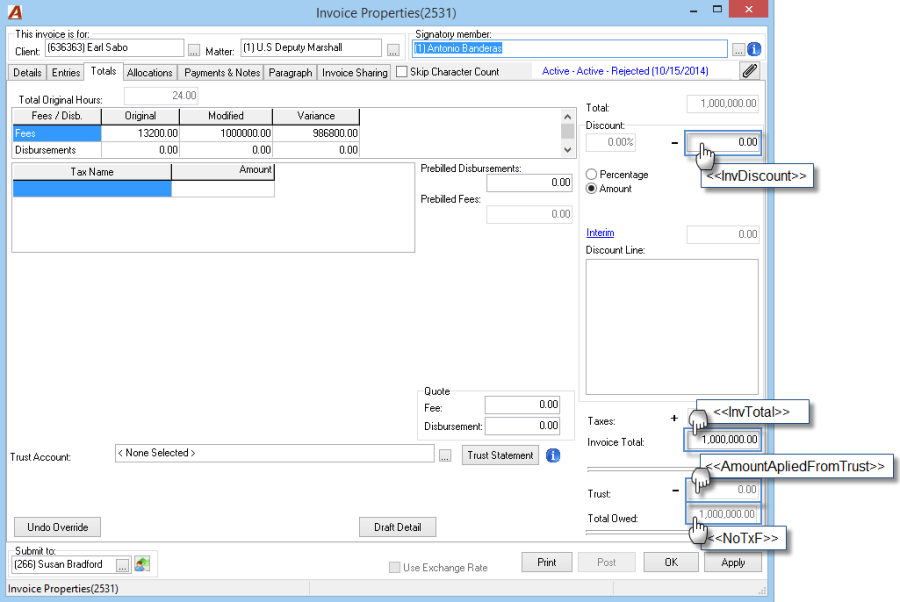
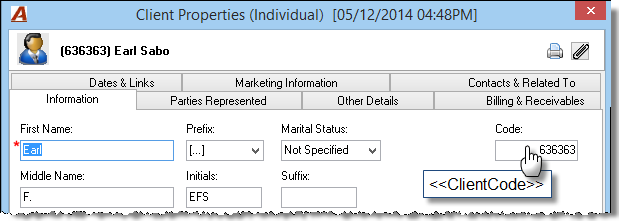
Points to Consider
-
Once the working cover letter template is complete, it should be saved within the "OtherLettersMerges" folder (Please refer to Section IV for detailed instructions);
-
Repeat the process for required cover letters in the languages needed;
-
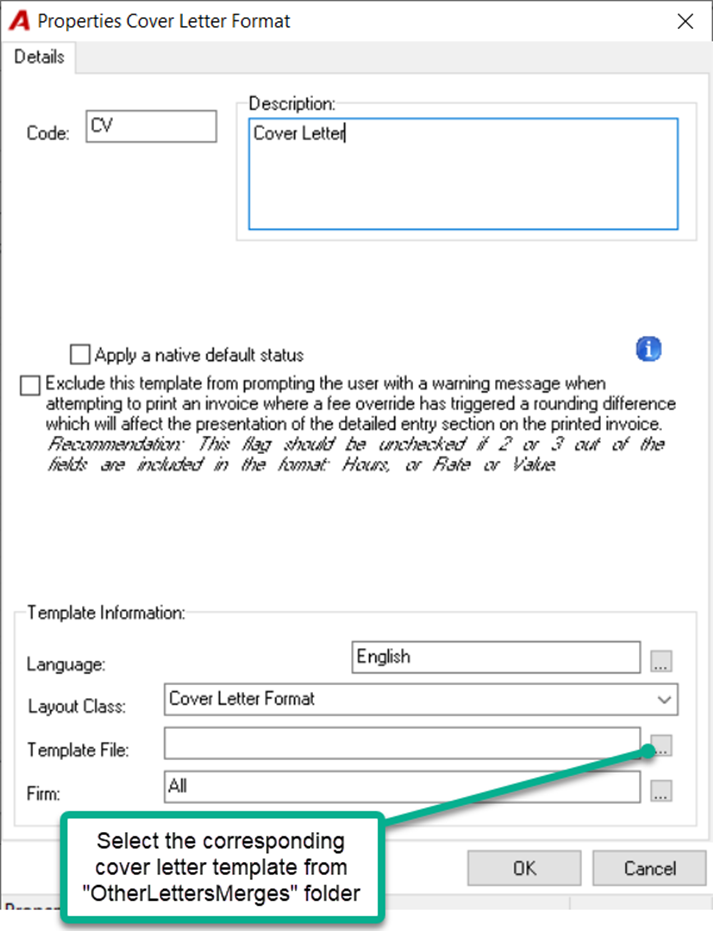
Complete the properties of the cover letter format (Please refer to Section V for detailed instructions);
-
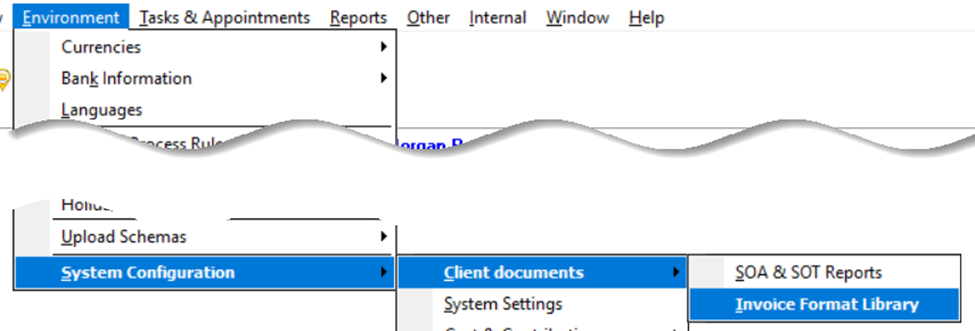
From the "Environment" main menu option, select system configuration – client documents options – invoice format library to launch the "Show Client Invoice Formats";
-
Filter for the layout class equal to cover letter format;

-
Open the right-click contextual menu and select new to create a new properties form or properties to amend an existing format;
-
Amend or complete as needed, taking into consideration language, firm availability and ensure that the layout class is set to "Cover Letter Format". Select OK to accept.
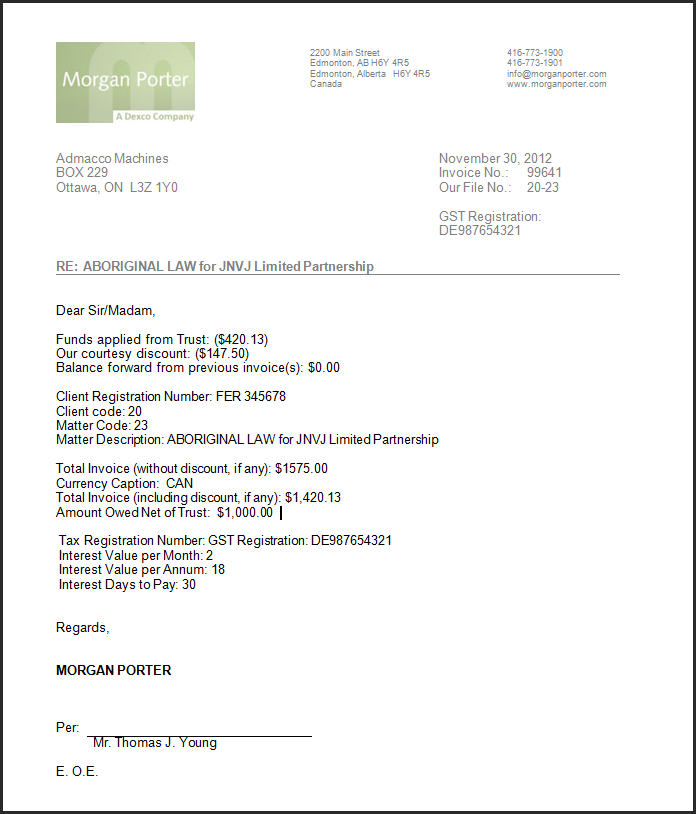
Cover Letter Sample
Purchase Bank Letter
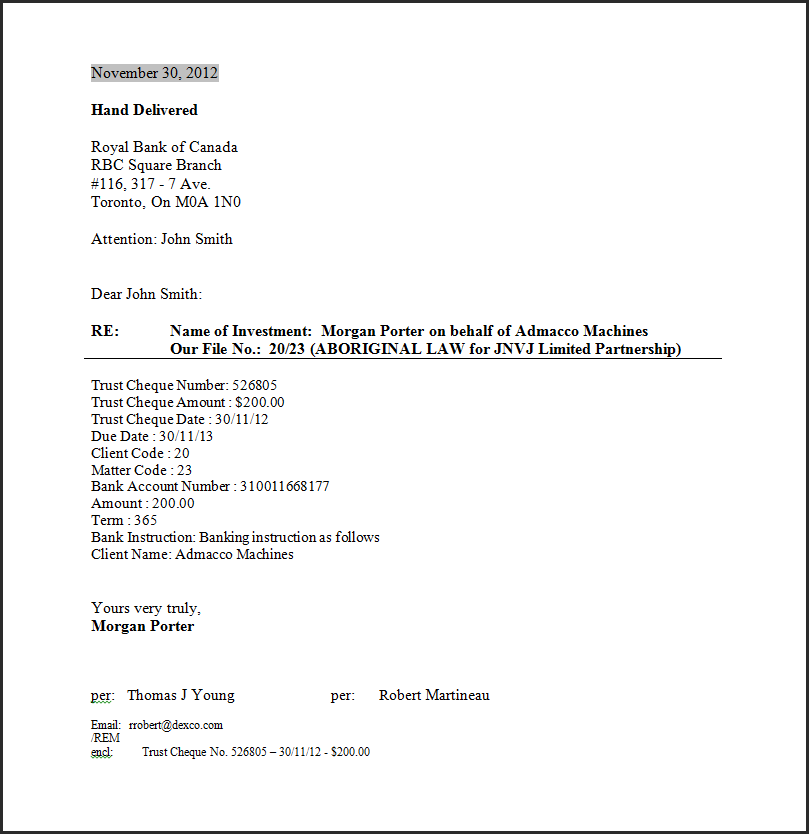
The client case use the standard Purchase (Investment) Bank Letter template to create as many personalized Purchase Bank Letters as needed.
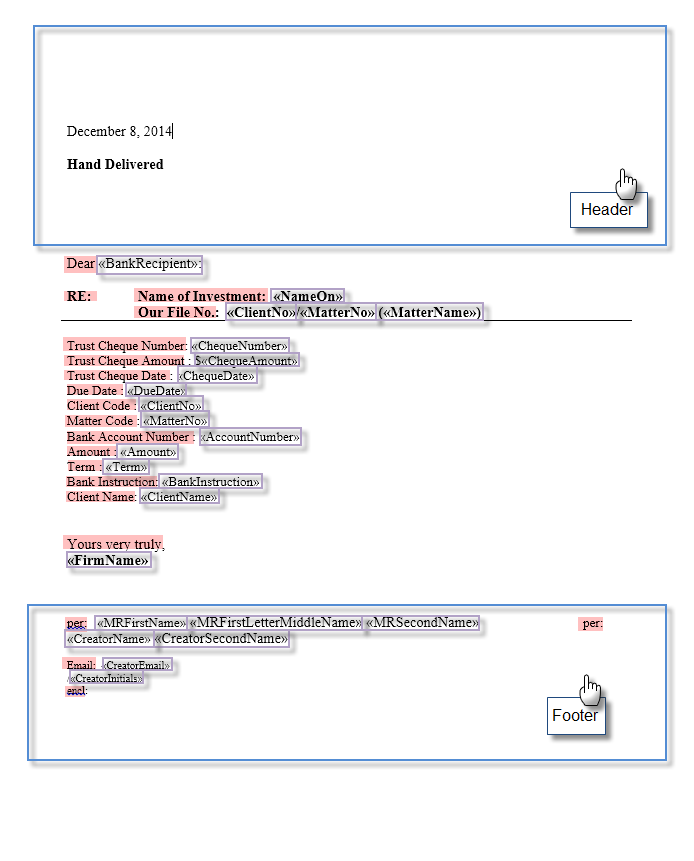
The standard purchase bank letter template is as follows:
-
Header: The header content is prepopulated with pre-defined contents such as the bank name and address as well as the bank addressee information (contact name). End users should not be modifying the header content, as it will lead to merge errors and corruption of the addressee or the bank information.
-
Footer: The footer of the purchase bank letter includes information of the member responsible of the trust investment transaction.
-
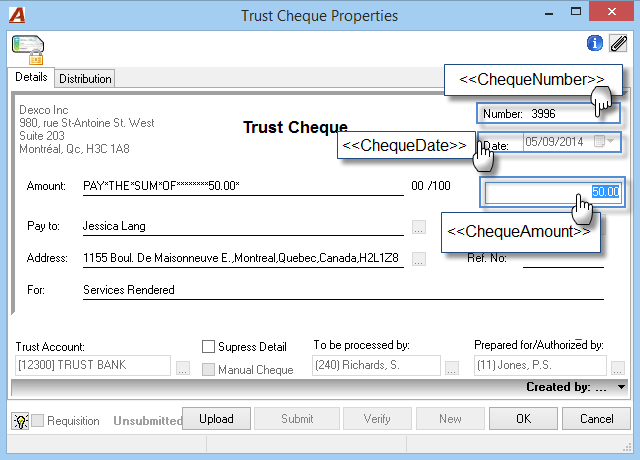
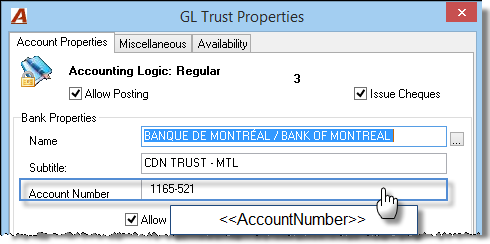
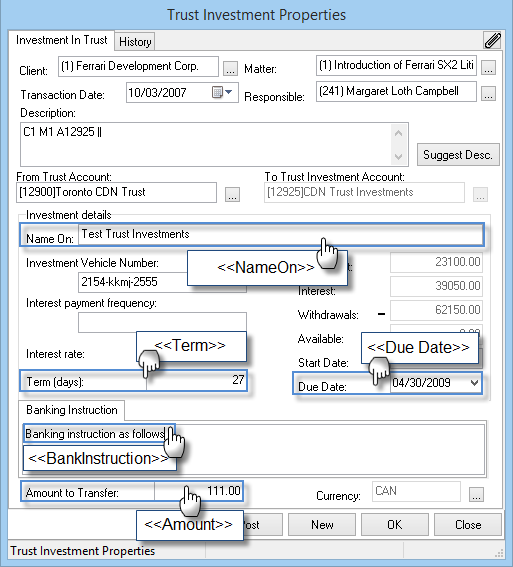
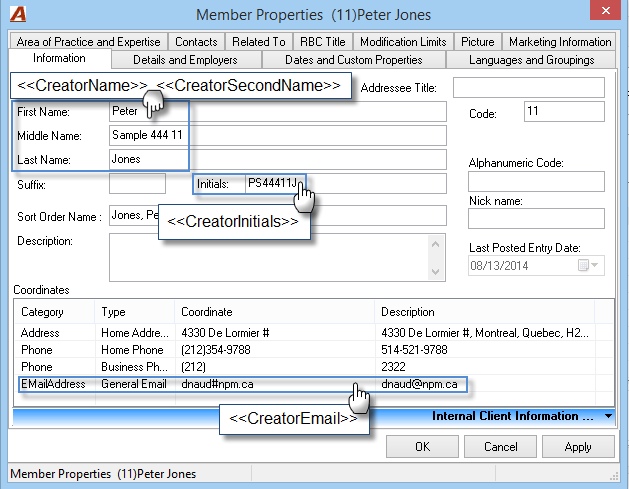
Variable: Variables are pre-defined database fields displayed in the standard templates with brackets <<>>. The variables shown between brackets are taken from different places in the database during the merge procedure to populate each field. End users should not be modifying the content inside the brackets.
-
Label: Labels are standard text used to identify a variable. End user could modify this text to achieve the final desired output.
Purchase Bank Letter Variables
|
Variable name in template |
Database field in Acumin |
|
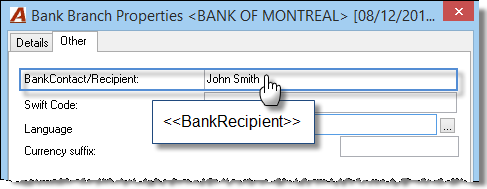
«BankRecipient» |
1- Bank branch properties – Bank Contact/Recipient |
|
«NameOn» |
2- Trust Investment Properties – Name On |
|
«ClientNo» |
3- Client Properties – Client code |
|
«MatterNo» |
4- Matter Properties – Matter code |
|
«MatterName» |
5- Matter Properties – Matter name |
|
«ChequeNumber» |
6- Cheque Properties - Number |
|
«ChequeAmount» |
7- Cheque Properties - Amount |
|
«ChequeDate» |
8- Cheque Properties - Date |
|
«DueDate» |
9- Trust Investment – Due Date |
|
«AccountNumber» |
10- Trust GL Properties – Account number |
|
«Amount» |
11- Trust investment Properties – Amount to transfer |
|
«Term» |
12- Trust investment Properties - Term |
|
«BankInstruction» |
13- Trust Investment Properties – Bank Instruction |
|
«ClientName» |
14- Client Properties – Client name |
|
«MRFirstName» «MRFirstLetterMiddleName» «MRSecondName» |
15- Member properties of member responsible of transaction – First, last and middle name |
|
«CreatorName» «CreatorSecondName» |
16- Member properties of member responsible at the client level – first and last name |
|
«CreatorEmail» |
17- Member properties of member responsible at the client level – email |
|
«CreatorInitials» |
18- Member properties of member responsible at the client level – initials |
Purchase Bank Letter Sample
Redemption Bank Letter
The law-firm client can use the standard redemption bank letter template to create as many personalized redemption bank letters as needed.
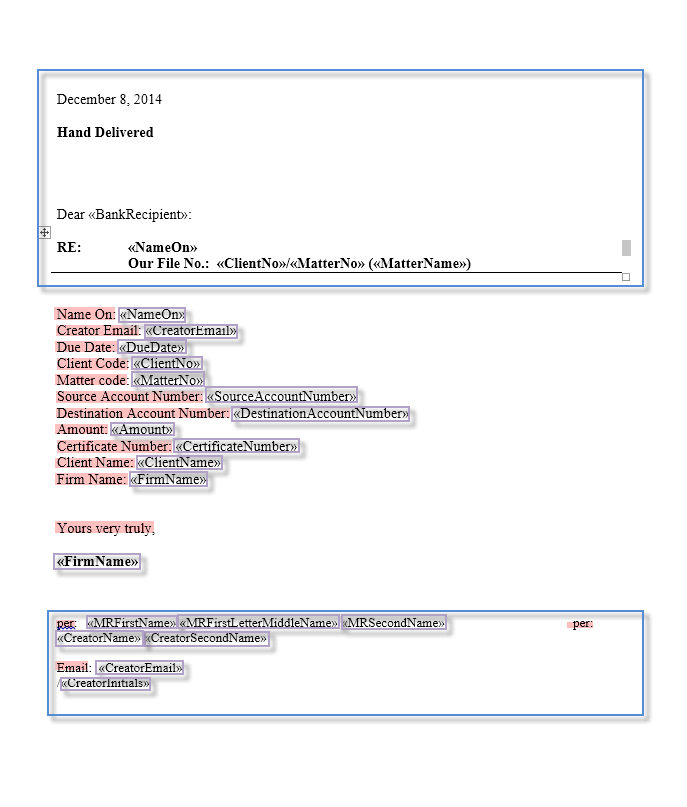
The standard redemption bank letter template is as follows:
-
Header: The header content is prepopulated with pre-defined contents such as the bank name and address as well as the bank addressee information (contact name). End users should not be modifying the header content, as it will lead to merge errors and corruption of the addressee or the bank information.
-
Footer: The footer of the redemption bank letter includes information of the member responsible of the trust investment transaction.
-
Variable: Variables are pre-defined database fields displayed in the standard templates with brackets <<>>. The variables shown between brackets are taken from different places in the database during the merge procedure to populate each field. End users should not be modifying the content inside the brackets.
-
Label: Labels are standard text used to identify a variable. End user could modify this text to achieve the final desired output.
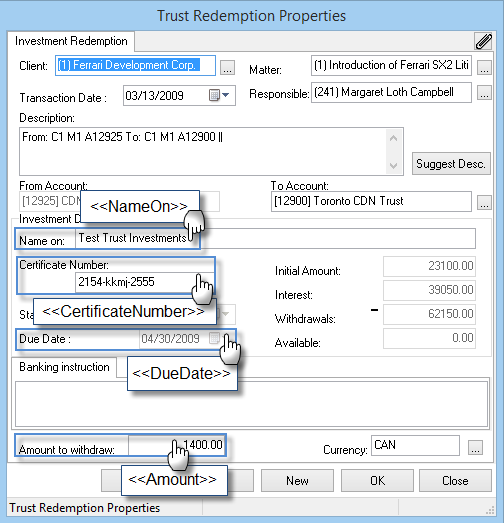
Redemption Bank Letter Variables
|
Variable name in template |
Database field in Acumin |
|
«BankRecipient» |
1- Bank branch properties – Bank Contact/Recipient |
|
«NameOn» |
2- Trust Investment Properties – Name On |
|
«ClientNo» |
3- Client Properties – Client code |
|
«MatterNo» |
4- Matter Properties – Matter code |
|
«MatterName» |
5- Matter Properties – Matter name |
|
«CreatorEmail» |
6- Member properties of member responsible at the client level - email |
|
«DueDate» |
7- Trust Redemption Properties – Due Date |
|
«SourceAccountNumber» |
8- GL properties of trust investment account – Account number |
|
«DestinationAccountNumber» |
9- GL properties of trust account – Account number |
|
«Amount» |
10- Trust Redemption Properties – Amount to withdraw |
|
«CertificateNumber» |
11- Trust Redemption Properties – Certificate number |
|
«FirmName» |
12- Firm Properties – Firm name |
|
«MRFirstName» «MRFirstLetterMiddleName» «MRSecondName» |
13- Member properties of member responsible of transaction – First, last and middle name |
|
«CreatorName» «CreatorSecondName» |
14- Member properties of member responsible at the client level – first and last name |
|
«CreatorInitials» |
15- Member properties of member responsible at the client level – initials |
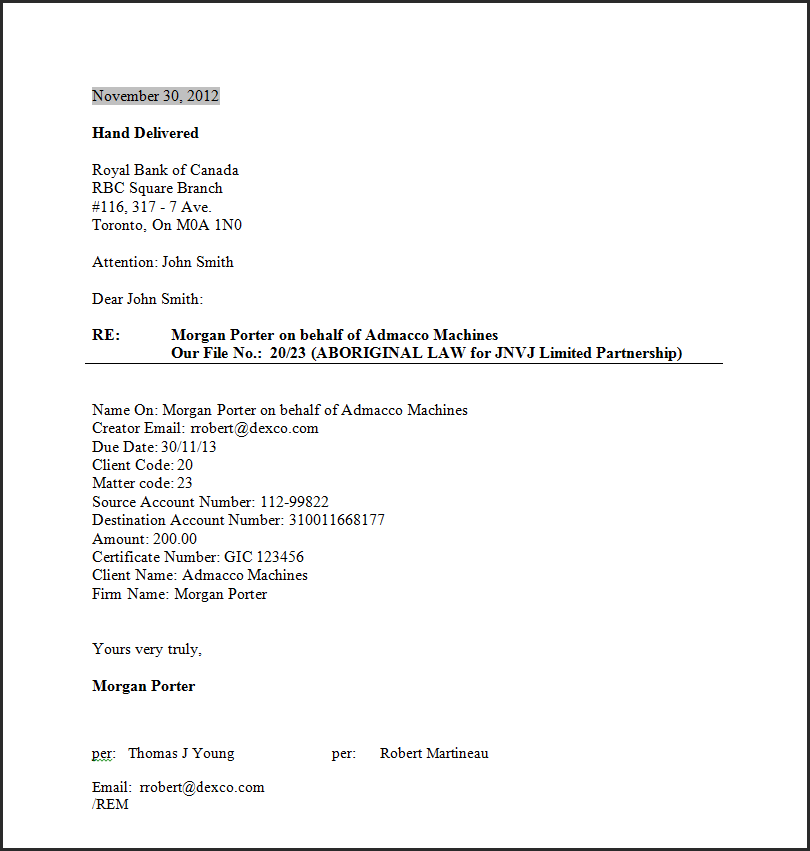
Redemption Bank Letter Sample
Engagement Letter Template
The law-firm client can use the standard engagement letter template to create as many personalized engagement letters as needed.
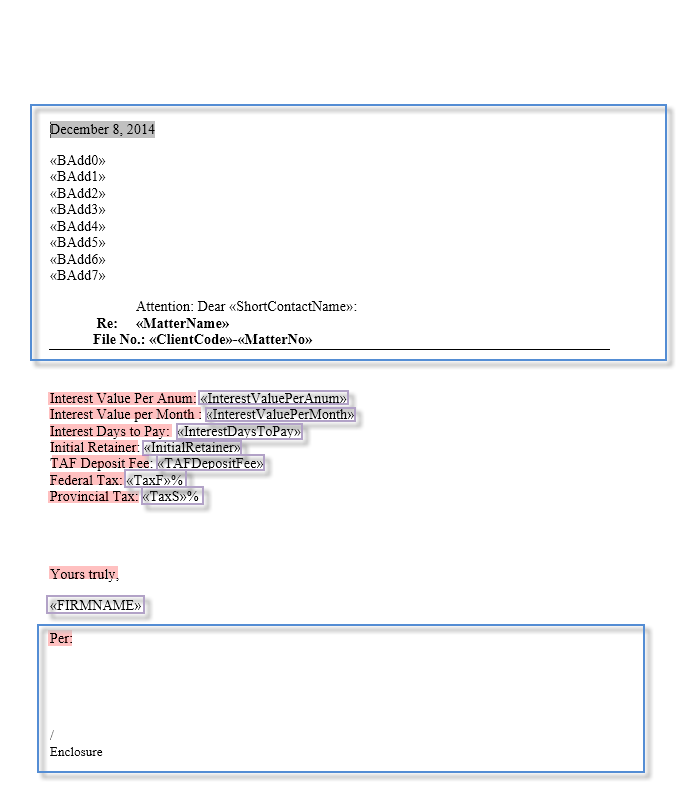
The engagement letter template is as follows:
-
Header: The header content is prepopulated with pre-defined contents such as the law-firm logo, address and coordinates as well as the addressee information (primary contact name and address). End users should not be modifying the header content, as it will lead to merge errors and corruption of the addressee or the law-firm information.
-
If the addressee presentation contains only five lines, the remaining lines; <<BAdd5>>, <<BAdd6>> and <<BAdd7>> will be removed automatically and the template will adjust itself accordingly. However, if the addressee content exceeds the amount of reserved lines, the addressee presentation will not display the full content and the merge engine will truncate the information exceeding the eight lines automatically.
-
Footer: The footer of the engagement letter template includes a signatory line.
-
Variable: Variables are pre-defined database fields displayed in the standard templates with brackets <<>>. The variables shown between brackets are taken from different places in the database during the merge procedure to populate each field. End users should not be modifying the content inside the brackets.
-
Label: Labels are standard text used to identify a variable. End user could modify this text to achieve the final desired output.
Engagement Letter Template Variables
|
Variable name in template |
Database field in Acumin |
|
«ShortContactName» |
1- Client or matter primary contact |
|
«ClientCode» |
2- Client Properties – Client Code |
|
«MatterNo» |
3- Matter properties – Matter Code |
|
«MatterName» |
4- Matter properties – Matter name |
|
«InterestValuePerMonth» |
5- Interest category Properties – calculated per month |
|
«InterestValuePerAnum» |
6- Interest category Properties - Value |
|
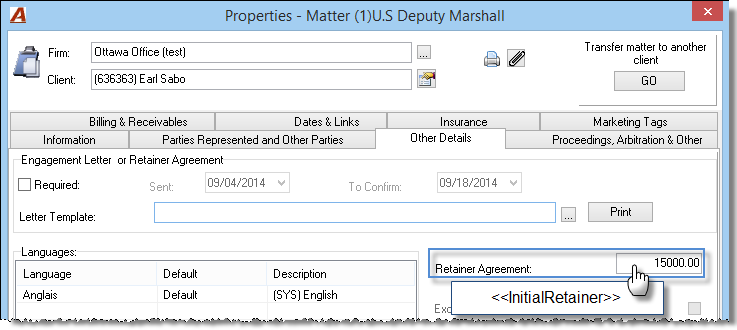
«InitialRetainer» |
7- Matter Properties – Retainer Agreement |
|
«TAFDepositFee» |
8- Firm Properties – TAF Deposit |
|
«TaxF» |
9- Client or matter properties – Tax policy federal |
|
«TaxS» |
9- Client or matter properties – Tax policy provincial |
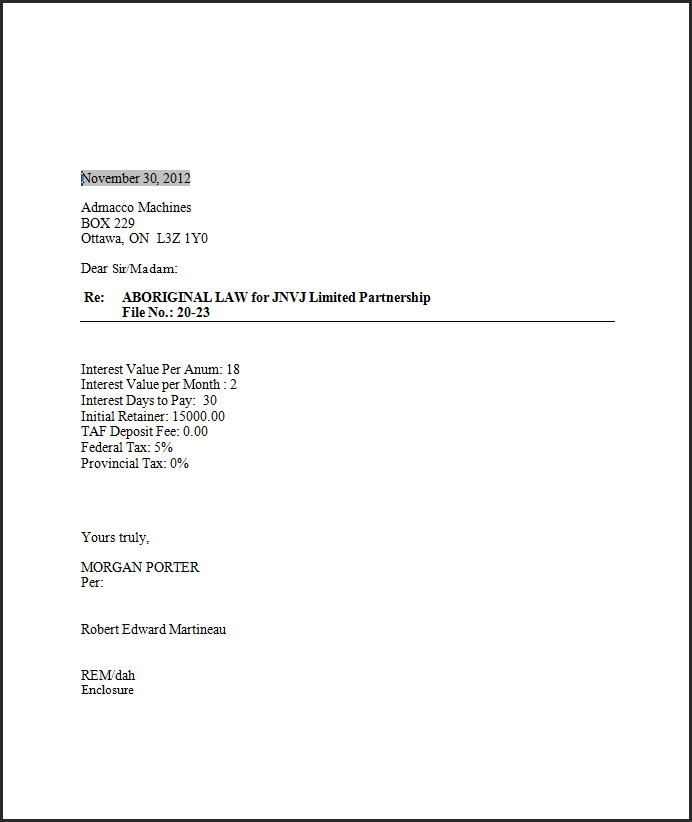
Engagement Letter Sample
Getting Started
To create custom letter templates, the following steps will need to be taken by the end-user:
-
Make a copy of the relevant standard template from the "OtherLettersRawStartPoint" Folder;
-
Place the working copy of the standard letter template in a temporary working directory to which the user has read and write access;
-
Personalize the letter template;
-
Save the completed letter template into the "OtherLettersMerges" folder, and;
-
Map the new template in Acumin by completing the "Properties Bill Format" form in order to make it a viable and selectable option. Please refer to section V for detailed instructions.
It is critical that the standard template delivered into the Standard Letter Templates Folder "OtherLettersRawStartPoint" remain intact and un-modified.
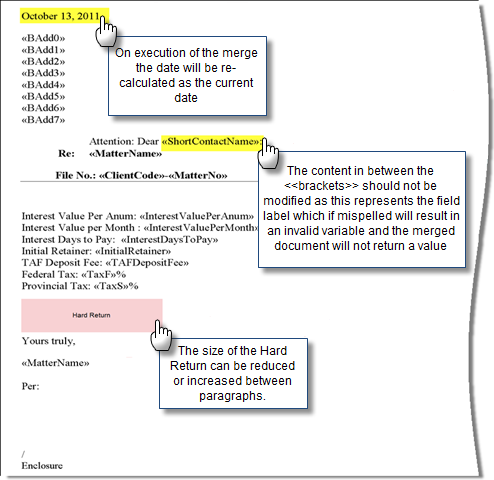
The content in between the <<brackets>> should NOT be modified, as this will change the variable resulting in an empty value when the Merge is executed. The field labels are the words that are not between brackets and are available for editing.
Points to Consider
-
The standard letter templates have been developed as MS Word documents. They include database fields identified with labels in between <<brackets>>;
-
The content in between the <<brackets>> should not be modified as this will change the label of the variable resulting in an empty value when the Merge is executed;
-
The date will re-calculate to equal the date of the execution of the MS Word merge using the affected template;
-
Do not update the header information such as date, addressee, contact name, reline etc. as is. In other words, all the fields above the line follows best practice recommendations for presentation of addressee information, and it matches the manner in which we present this type of information within other outputs in Acumin;
-
Keep the fields you want to work with and remove the others;
-
For kept fields, remove their labels. Incorporate the new variables without removing the brackets into the draft letter content (text);
-
Consider making as many paragraphs as needed;
-
Size the hard return to be larger or smaller based on requirements, and;
-
Keep the signatory information (if any) as is for ease of use.
The person responsible for the creation of the custom letter templates can copy, modify and save as many iterations of the same template as needed. Each completed product piece should be saved under a new name within the "OtherLettersMerges" folder. All of the templates in the "OtherLettersMerges" folder will need to be mapped to template codes within Acumin.
Example of a custom Cover Letter Template
After copying the standard cover letter template in a different location, user opens the Word document;
Original cover letter template: 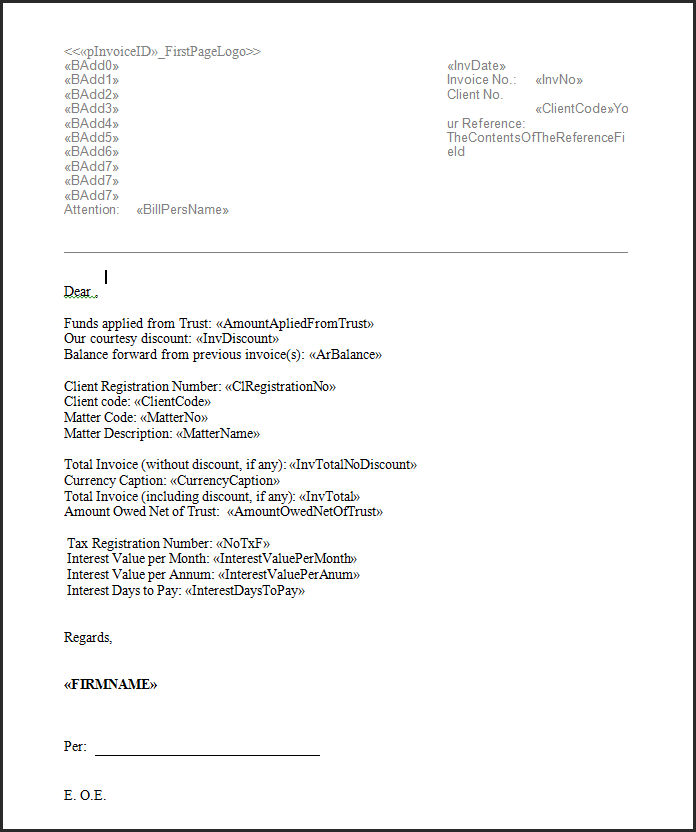
The end-user can make the following example modifications on the template;
Modified cover letter template: 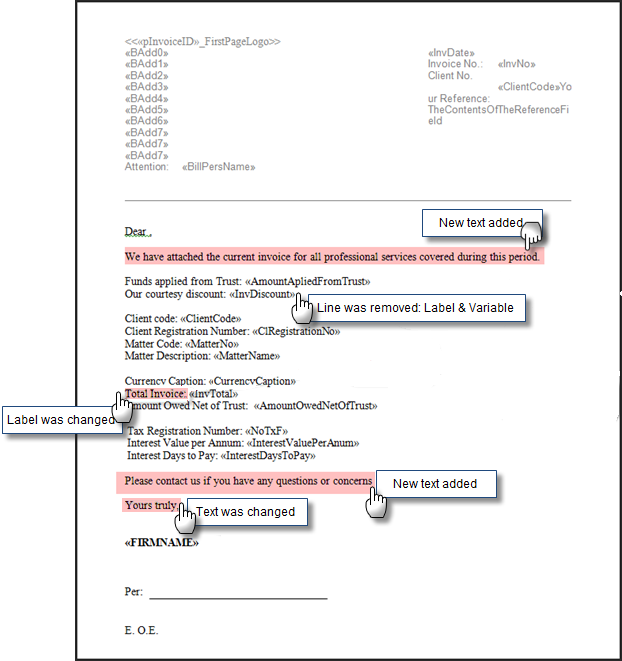
After saving the custom template as Cover Letter 1 in the "OtherLettersMerges" folder, the user has to map this new template in Acumin (please refer to section V for detailed instructions).
It is possible to have multiple versions of the same type of template. Example: Cover Letter #1 for Corporate, Cover Letter #2 for Real Estate and Cover Letter #3 for Patent and Trademark.
Sample cover letter printed with the custom template:
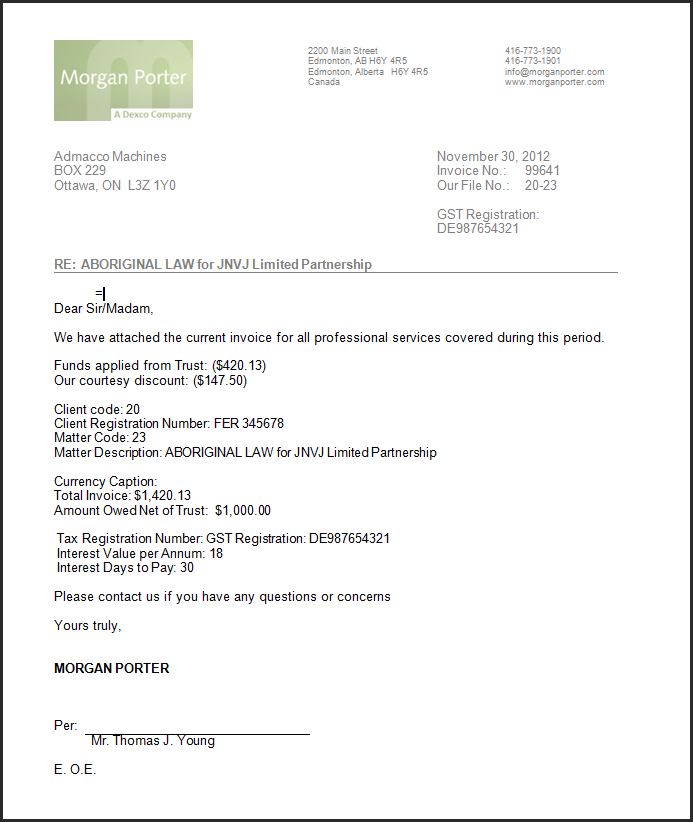
If a merge error or invalid content is displaying when using a custom letter template, the end user must ensure to generate the same letter with the original template in order to make sure that the error is not within the standard template but due to a manipulation.
Set-up of the Properties of the Bill Format
Accessing the Properties of the Bill Format
Menu Selection
From the main menu, select environment – system configuration – client document options – invoice format library to access the show bill formats list view:
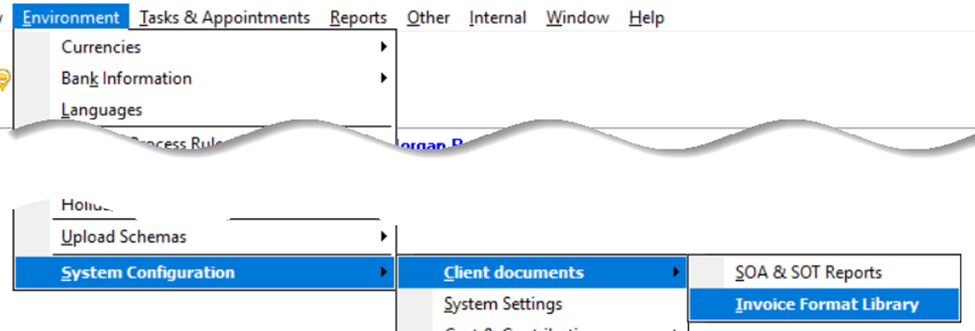
Show Bill Format List-View
The "Show Bill Formats" list view defaults to the layout class "Bill Format" therefore it lists the bill formats available for selection for the firm of the matter being billed in the matter's language.
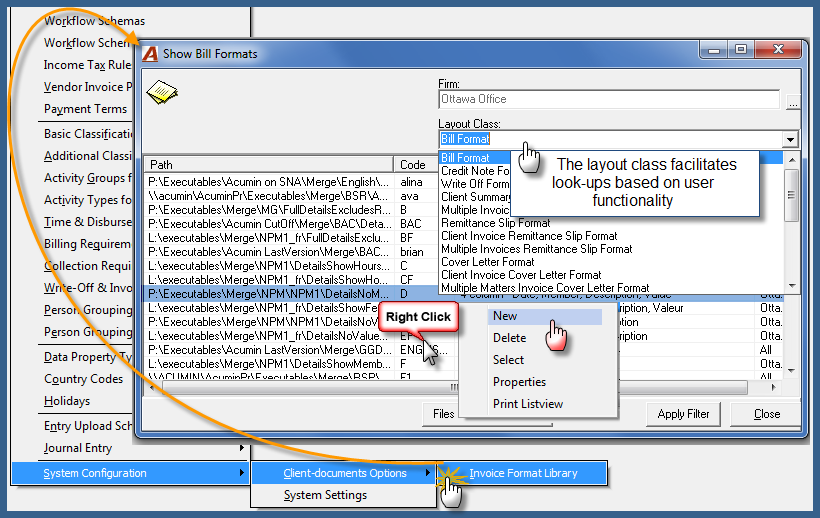
Open the right-click contextual menu and select:
-
New: To access a new blank properties of the bill format form;
-
Delete: To delete unused invoice selection codes. If a code was used to create a link between an invoice properties and a template the template should be first re-assigned to a new code before the properties of the bill format is deleted;
-
Select: To make a bill format selection different from the default for the applied option. Please note that this option is used when the user accesses the "Show Bill Formats" list view as part of multiple functional processes;
-
Properties: To access the properties of an existing bill format properties form in order to make changes.
The Properties of the Bill Format
Details Tab
When developing the code structure, consider that the code is the default sort order for the "Show Bill Formats" list view.
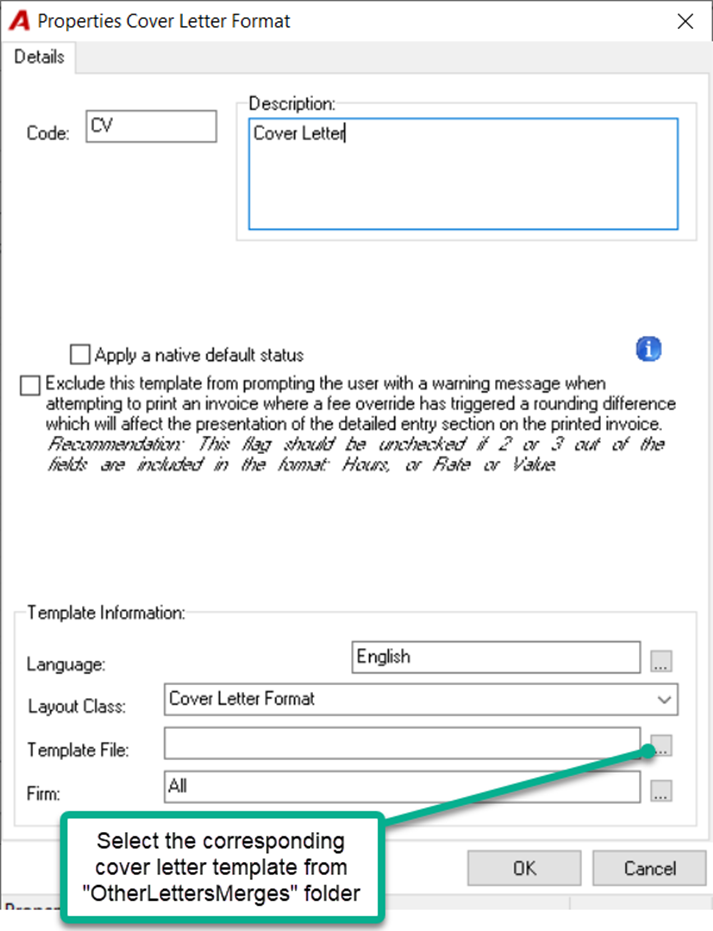
-
Code: The code can be alphanumeric;
-
Description: Relate the description to what the user would see on print, plus the name of the template file. For example: 4-Column: Date, Member, Entry Text, Hours. DetailsShowHours.doc
-
Language: Templates are created for every language licensed to the organization, therefore when completing the properties the user must assign its language;
-
Layout Class: Will default to Bill Format. Select the proper layout class depending if this is an engagement or cover letter, purchase or redemption bank letter, etc.
-
Template File: Click on the ellipsis button to associate the template file to the invoice format properties form being created;
-
Firm: The properties for the Bill Format will be defaulted to apply to all firms. To restrict a bill format to one specific firm, the user must change the default "All" to the required firm.
Selection of the Template File
The ellipsis button at the end of the template file field will launch the browser allowing the user to navigate to the correct language folder form which to select the appropriate template for the bill format properties being completed. The invoice instruction document includes a presentation of the template output along with its name in order to facilitate this process.
Good to Know
-
Repeat the same exercise for all New Templates.
-
DO NOT modify the Original Standard Template Documents
-
Copy and Save all the templates under a different name and folder
-
DO NOT change any of the field components content displayed within the brackets as this will result in broken links and merge errors.
-
You can copy, paste and place the database fields in different positions from the standard templates
-
You can select and remove any of the field components from the templates depending on what is desired to be displayed in the Letter document
-
You can add and customize paragraphs and/or text between the field components
-
Manually map all new templates under the right Layout Class.
Once the cover letter template(s) are completed and saved on the "Other Letters Merges" folder, the end user will be able to select another cover letter template if different from the default.
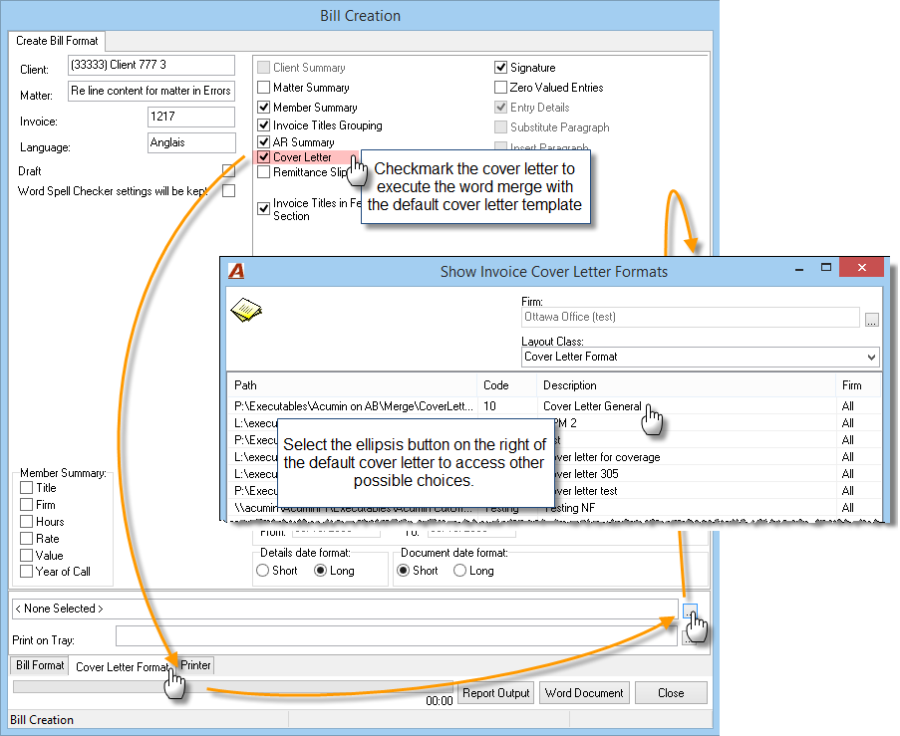
Additional Information:
Each template must be associated to its own properties form in order for the product piece to list on the "Show Invoice Cover Letter Formats" list-view. It is from this list view that the end user will make the new selection.
Once the original standard cover letter templates have been copied onto a working folder, the user can then start customizing the letter template, making sure that the variables are left intact in terms of content including the brackets.