.png)
Conversion rule applied
The Matter Name was brought into Acumin with the same content as found in the Matter Name field in Lighthouse (LH). Acumin has a limit of 255 characters which was applied but should not have had an impact as LH’s is less.
The Re: Line was brought into Acumin with the same content as found in the Matter Name field in LH. Acumin has a limit of 500 characters for this field.
We applied the upper/lower case conversion, standard as part of the final steps and Q&A process.
Programmatic Solution:
To adjust programmatically, we can restore the Matter Name as well as the Re Line from LH by reapplying the conversion programs, stopping short of the the upper/lower case and Q&A process. A reconversion of matter name and re: line will override any changes made since by users as well as any other changes made through database updates we may have completed on your behalf in this area. In other words, we would be bringing you back to the initial converted position based on standard rules minus the upper/lower case conversion and Q&A review.
User-Based Solution
The process to manually adjust permanently the matter and re: line to help you decide, as it gives greater control on the results. In this case we recommend using the invoice preparation process by assistants with rights to matter properties as the take off point, when the re: line displayed on the details tab of invoice properties does not reflect the proper case for the client names.
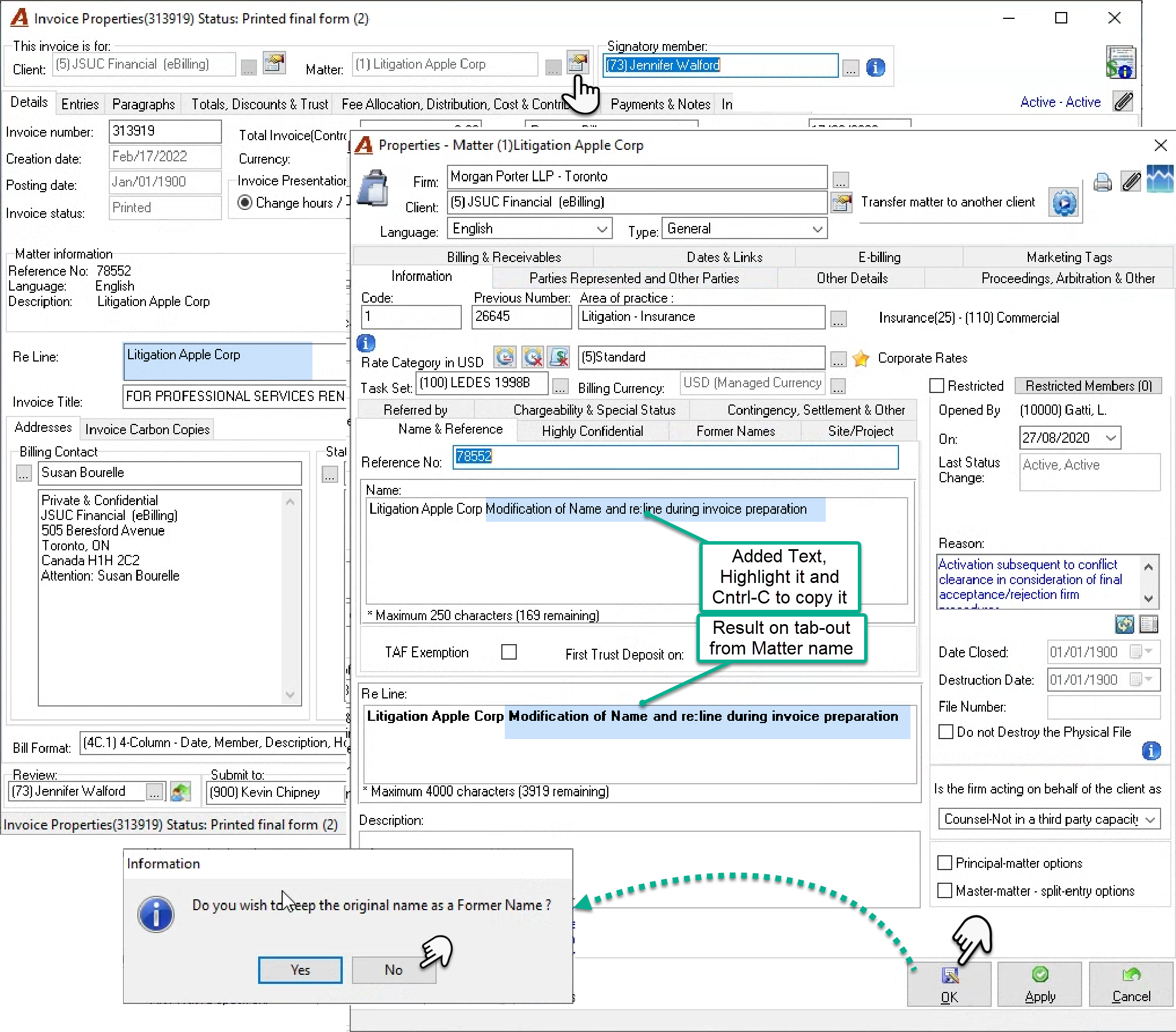
How to Manually Make a Permanent Change to Matter Name and Re: line:
From within the invoice properties, press on matter properties. Change the matter name and press “Crtl-C” to copy it. On tab-out the re: line will be updated with the new matter name automatically but the one in the invoice properties will need to be updated. Press OK to exit and on receipt of the message press “no” as you would not want to keep the old name as a former name. Once back in invoice properties press “Crtl-V” to paste the copied content. Continue with the invoice process. A similar process can be applied the first time that SOA are generated. We would recommend that the SOAs are printed and looked at to see if any matter names and re: lines need to be updated.