.png)
Overview
The Client Reporting attribute is a customizable, organization-defined reporting dimension applied at the client level. It can be used for both individual clients and non-individual entities (e.g., businesses or departments). This attribute enables an alternative method of client segmentation using labels defined by your organization.
When this attribute is in use, all new clients must be assigned to one of the predefined segments associated with it.
Please note: Access to the Client Reporting attribute requires the Enhanced Reporting Options license. To enable this feature or to learn more, please contact Dexco.
Set-Up
Step 1: Create the Person Grouping Class
To define the grouping structure:
-
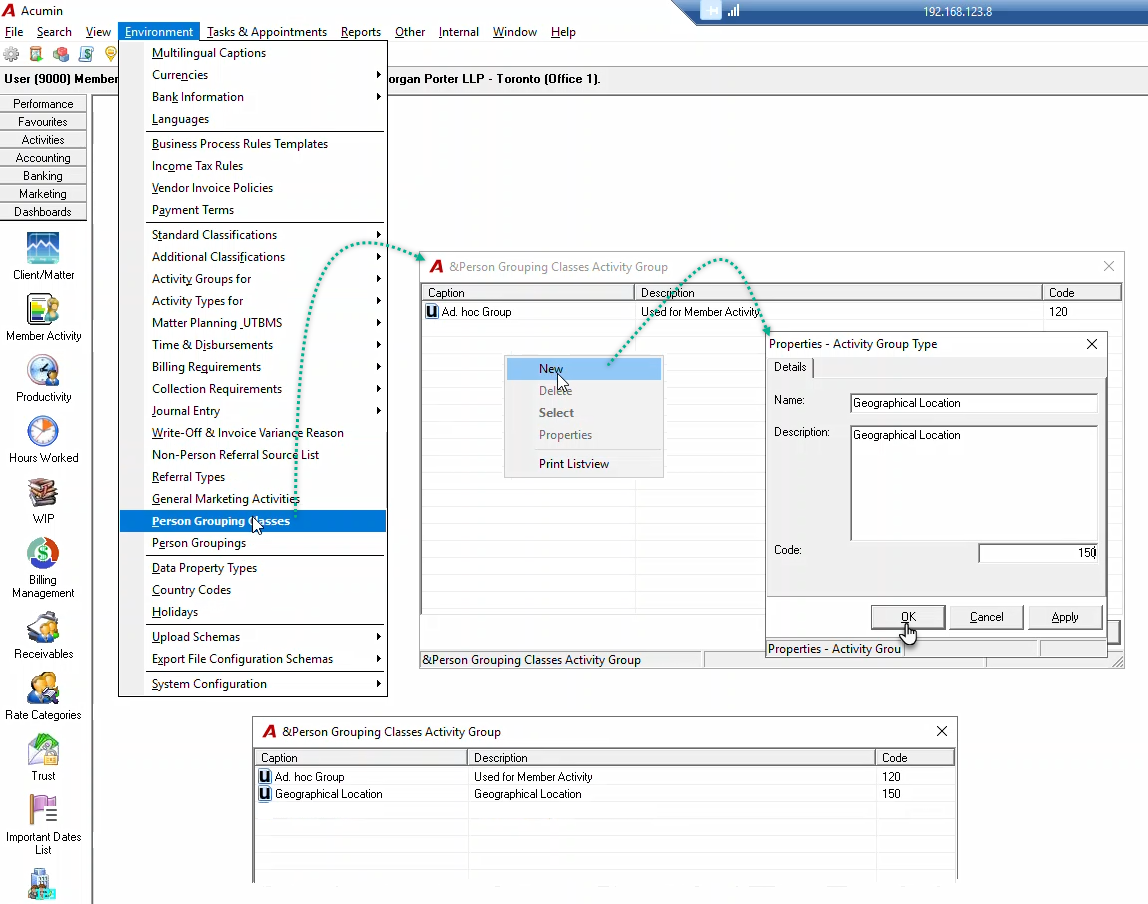
Navigate to Environment > Person Grouping Class.
-
In the Person Grouping Classes Activity Group form, right-click and select New.
-
Complete the required fields in the properties form.
The name assigned to this grouping class (e.g., "Geographic Location" or "Market Sector (Who)") will appear as a sub-menu within the Standard Classifications menu.
Step 2: Activate as a Client Reporting Dimension
To activate the Person Grouping Class as a client-specific reporting dimension:
-
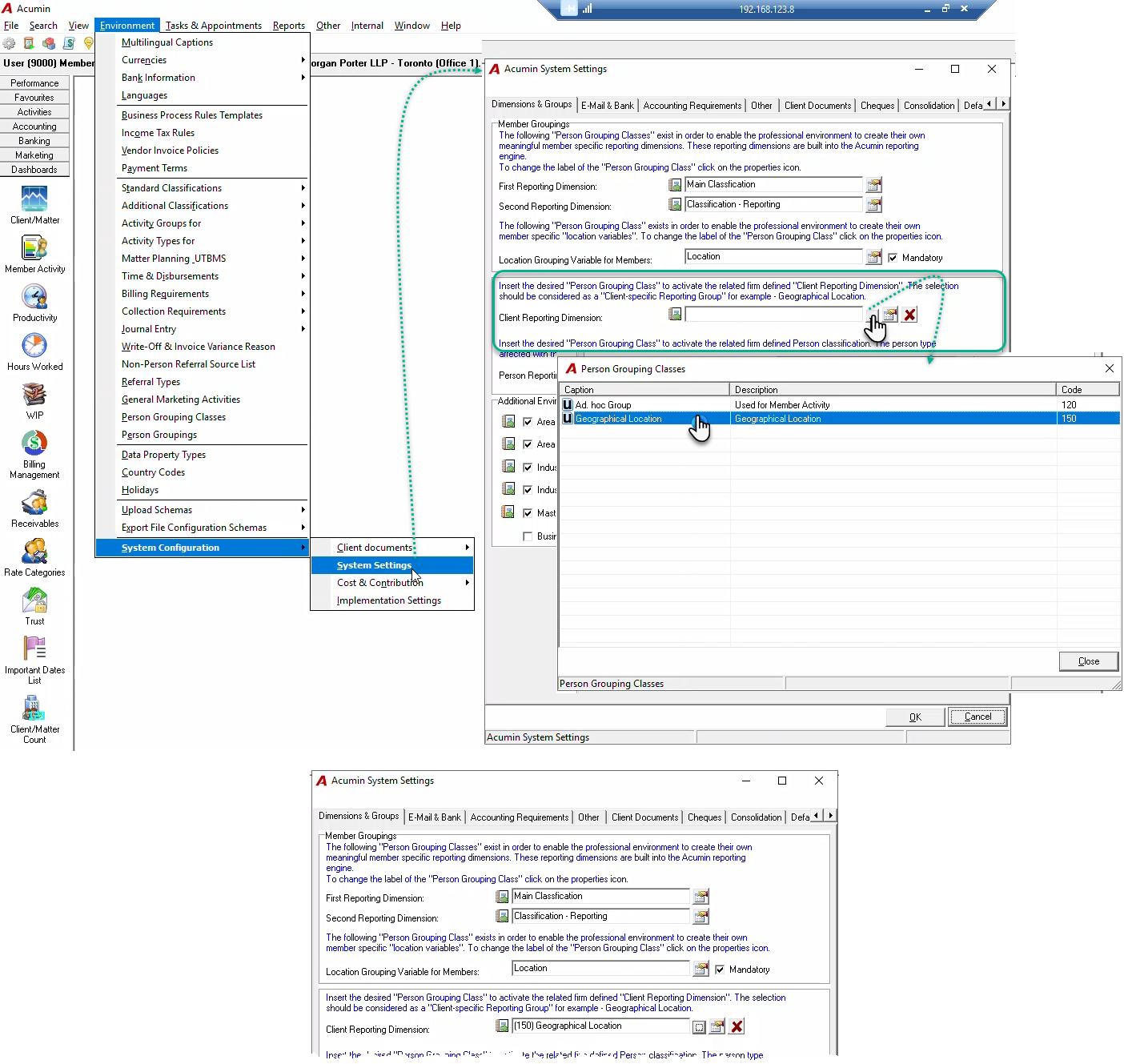
Go to System Configuration > System Settings > Dimensions & Groups tab.
-
Click the ellipsis (...) next to the Client Reporting Dimension field.
-
Select the desired Person Grouping Class.
Once activated:
-
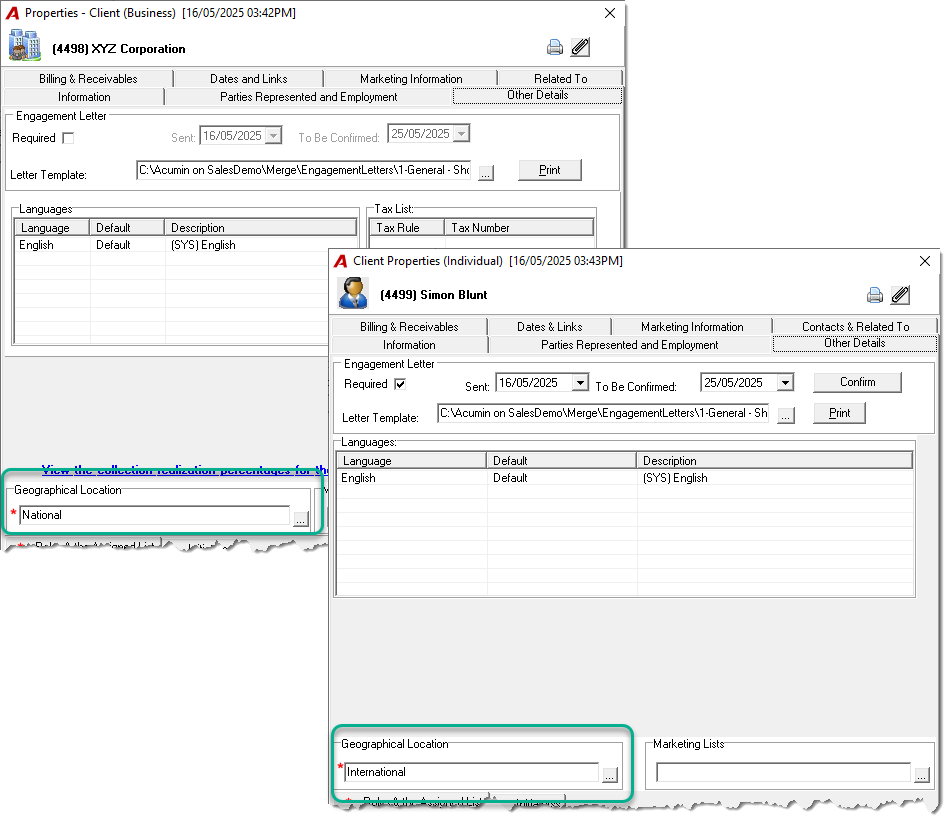
A new field labeled with the attribute name will appear in both the Client Wizard and Client Properties forms.
-
A new Client Group filter will be available in report filter properties.
Step 3: Populate List Content
To define the available group titles:
-
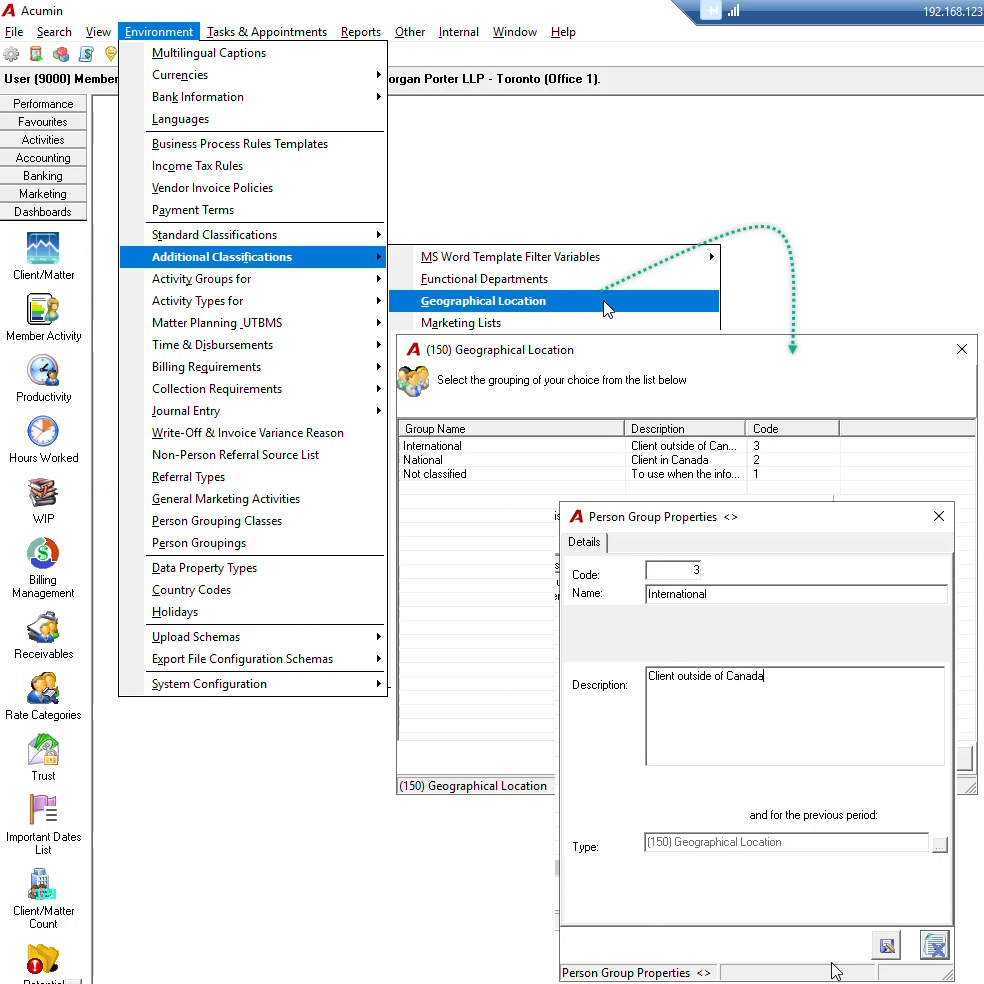
Navigate to Environment > Additional Classification.
-
Select the label corresponding to your activated Person Grouping Class.
-
Use the right-click context menu to:
-
Create new titles
-
Edit existing entries (update labels, codes, descriptions)
-
Best Practice:
Include "Not Available" and "Not Classified" options in your list:
-
If a classification is missing when a client is created, use "Not Classified."
-
At month-end, data stewards can run a report to follow up on these clients.
-
Clients that can't be classified even after follow-up can be set to "Not Available."
Note: If a title is already assigned to one or more clients, it cannot be deleted until all associated clients are reclassified.
Step 4: Using the Client Grouping Attribute
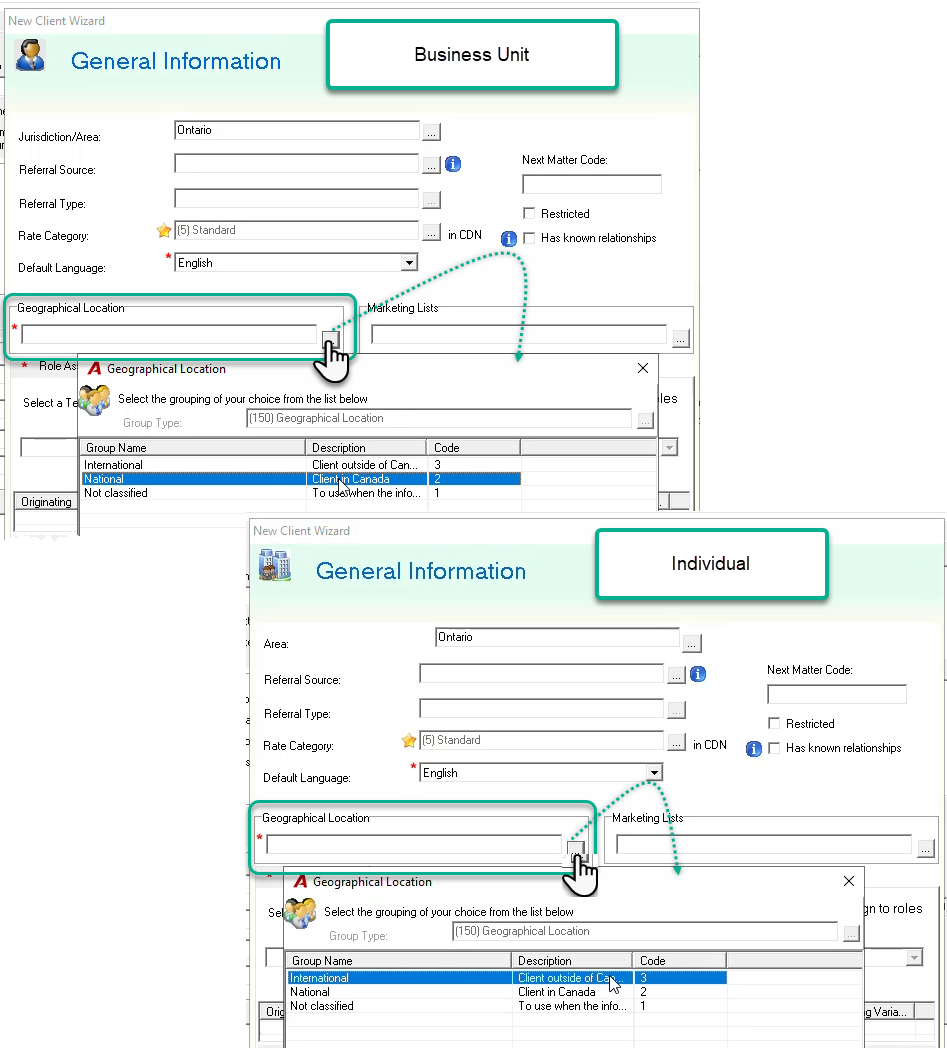
Once activated, users can assign a grouping title either:
-
During client creation via the Client Wizard, or
-
Later through Client Properties.
To populate this field:
-
Enter the known code, or
-
Click the ellipsis (...) and select from the available options.
Running Reports with Client Grouping
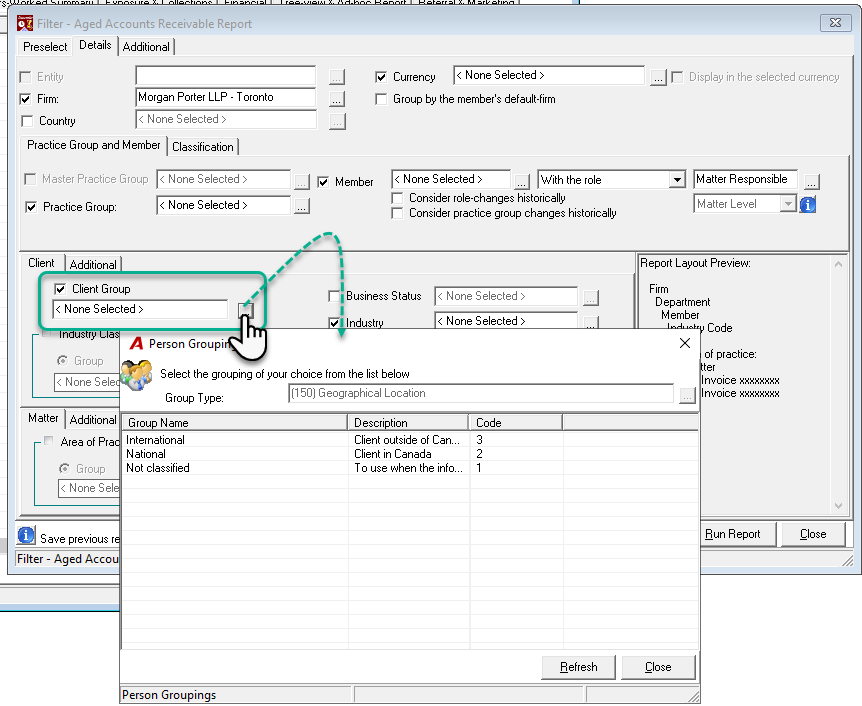
When generating reports that use this special Client Reporting Dimension:
-
Ensure the Client Group checkbox is selected; otherwise, the report will ignore this metric.
-
To report on a specific client group title:
-
Click the ellipsis button next to Client Group, then select the desired title.
-
-
To group results by all titles:
-
Leave the Client Group field empty but ensure it is check-marked.
-
Reporting Opportunities
When the Person Grouping Class is enabled as a Client Reporting Dimension, the following reports become available or enhanced with additional filtering/grouping options:
|
Report |
Report Access |
Client Reporting Dimension - Who |
|
Client and Matter List Report |
Reports - Client & Matter |
Executed by role and shared role as well as by other attributes used by the client |
|
Matter Life Cycle Analysis |
Reports - Client & Matter |
Executed by role and shared role as well as by other attributes used by the client |
|
Aged Accounts Receivable |
Reports – Accounts Receivable |
Executed by role, shared role, invoice creator and signatory as well as by other attributes used by the client |
|
AR Multiple Positions |
Reports – Accounts Receivable |
Executed by role and shared role as well as by other attributes used by the client |
|
Hours Worked Chargeability Analysis |
Reports - Productivity - Hours Worked |
Executed by role and timekeeper as well as by other attributes used by the client |
|
Annual Hours Worked Multiple Periods |
Reports - Productivity - Hours Worked |
Executed by role and timekeeper as well as by other attributes used by the client |
|
Fees Billed Collected and WO |
Reports – Management – Allocated & Shared Fees Billed, Credited, Collected Written-Off |
Executed by role, shared role and timekeeper as well as by other attributes used by the client |
|
Billing History |
Reports – Management – Billing Report |
Executed by role, shared role, invoice creator and signatory as well as by other attributes used by the client |
|
Fees Analysis Report |
Reports - Management - Fee and Revenue Analysis |
Executed by role, shared role and timekeeper as well as by other attributes used by the client |
|
Revenue Analysis for One Period |
Reports - Management - Fee and Revenue Analysis |
Executed by role, shared role and timekeeper as well as by other attributes used by the client |
|
Revenue Analysis for Multiple Periods |
Reports - Management - Fee and Revenue Analysis |
Executed by role and timekeeper as well as by other attributes used by the client |
|
Billing Variance Breadkdown |
Reports - Management - Variance Reports |
Executed by role, shared role and timekeeper as well as by other attributes used by the client |
|
Billing Variance and Write-off Report |
Reports - Management - Variance Reports |
Executed by role, shared role and timekeeper as well as by other attributes used by the client |
|
Realization Report |
Reports - Management |
Executed by role, shared role and timekeeper as well as by other attributes used by the client |