.png)
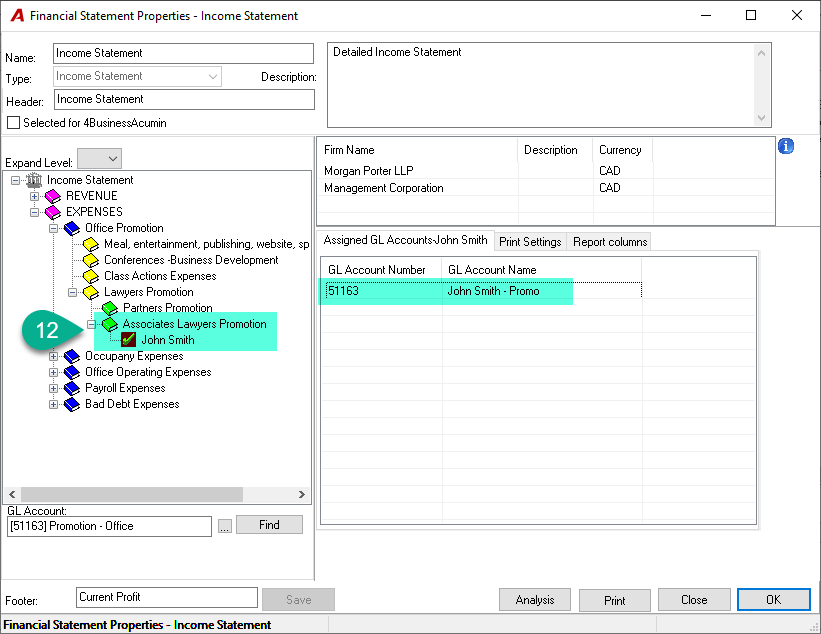
To "move" a group with mapped GL accounts to another group, the user must first delete the mapped GL accounts. This will allow deletion of the original group. Afterward, recreate the group under the desired parent group and remap the GL accounts accordingly.
To proceed, please follow the same steps as in the example below where we want to move the group John Smith under the parent group Associates Lawyers Promotion:
-
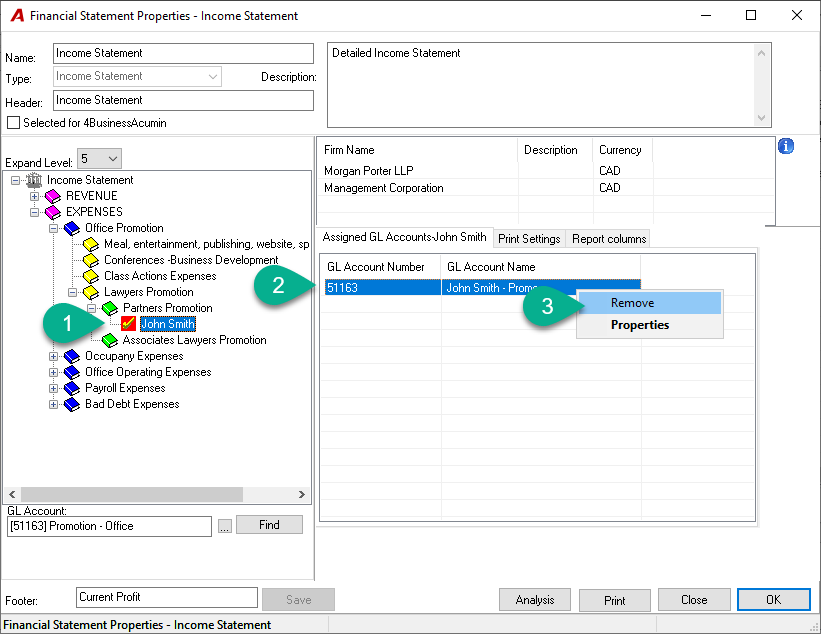
In the Treeview on the left, locate and expand the "Associate Lawyers Promotion" group, then select “John Smith.”
-
In the Assigned GL Account subtab on the right, right-click each listed GL account
-
Choose Remove from the contextual menu. Repeat for all relevant accounts.
-
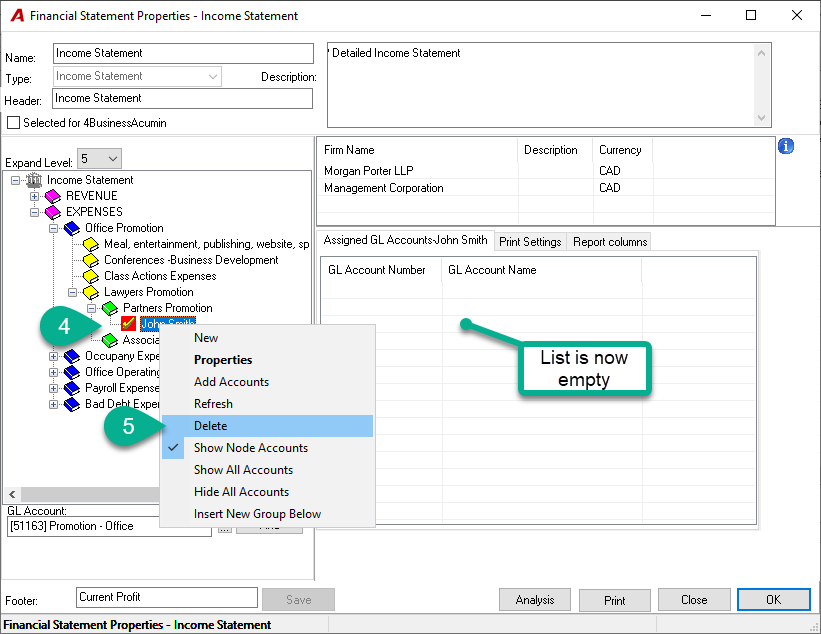
In the Treeview on the left, select the same group “John Smith” and right click;
-
In the contextual menu, select the “Delete” option;
-
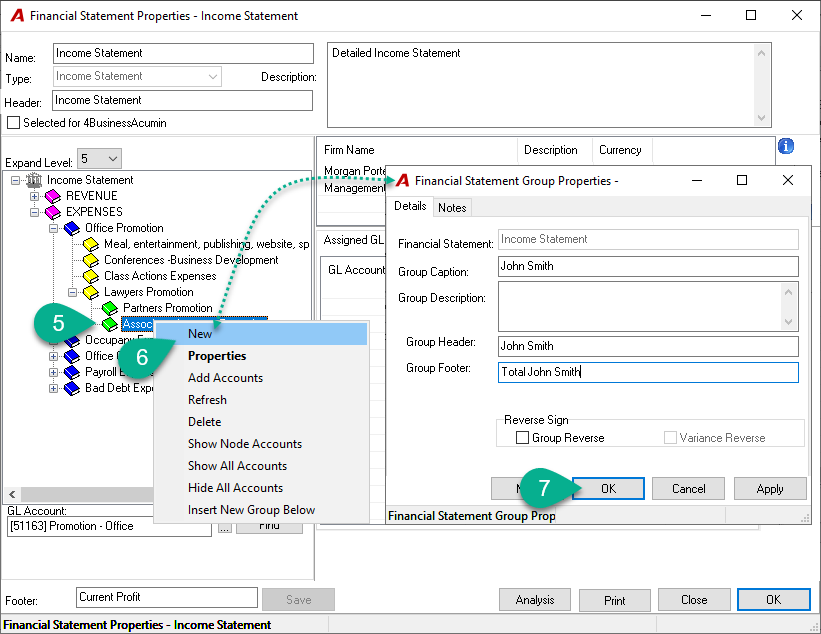
Select the group “Associated Lawyers Promotion” under which you want to insert the group “John Smith” and right-click;
-
In the contextual menu, select the “New” option;
-
Complete the information in the Financial Statement Group Properties form and then press on OK;
-
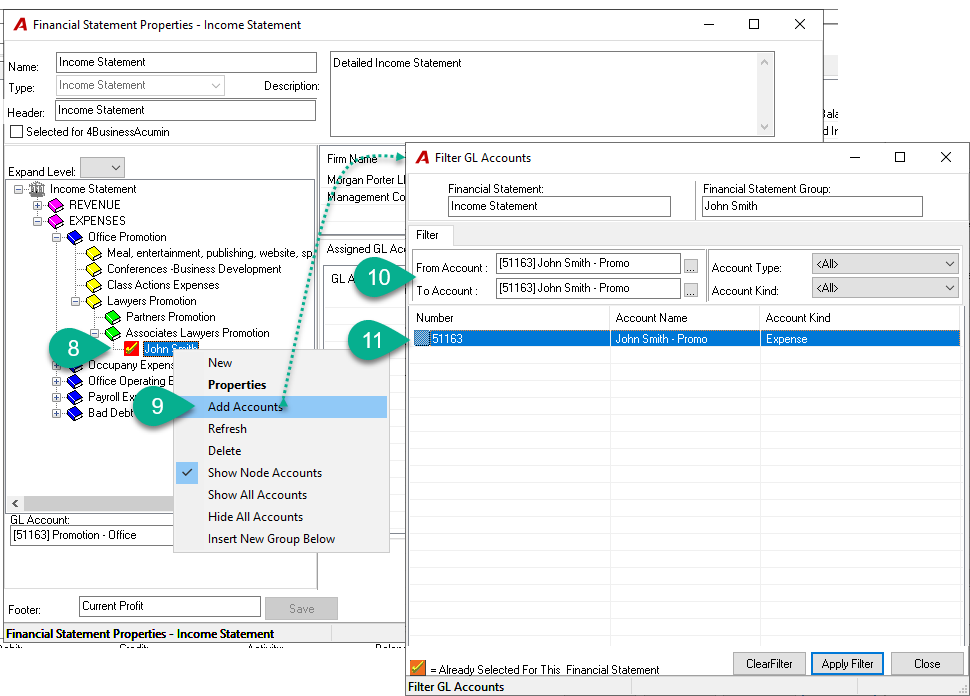
Select the new group “John Smith” just created and right click;
-
In the contextual menu, select the “Add Accounts” option;
-
In the Filter GL Account form, apply the necessary filters to find the desired GL account(s).
-
From the list, double-click each GL account you want to map to the “John Smith” group.
-
Once done, the GL accounts should be mapped to the new "John Smith " group under "Partners Promotion."