.png)
Re
Overview
The Weighted Fee Allocation and Ownership Net Fees Billed & Profit module provides law firm decision-makers with a detailed view of how fees, costs, and profits are distributed across members (lawyers/partners) based on two dimensions:
-
Working Member — the member who performed the work (time entries and fee allocation).
-
Owner — the member assigned an ownership percentage at the client or matter level.
The module produces two companion reports that work together:
|
Report |
Purpose |
Lowest Level of Detail |
|---|---|---|
|
Supporting Measures Report |
Shows the detailed breakdown of fees, costs, and profits per invoice, per member. |
Individual invoice |
|
Share of Net Income Report |
Calculates each member's weighted percentage share of the firm's net income. |
Member grouping |
Both reports require Member as a mandatory grouping dimension.
Understanding This Report
What Problem Does It Solve?
In a law firm, a single matter may involve multiple members in different capacities — one member performs the legal work, while another member "owns" the client relationship. This report answers the question: "How should the firm's net income be shared among members, considering both the work they performed and the client relationships they own?"
How Does It Work?
The report combines three member-based measures and applies firm-defined weights to each:
-
Fee Allocation (Working Member) — How much of the billed fees are attributed to the member who did the work, based on the firm's allocation schema.
-
Net Fees Billed (Owner) — How much of the billed fees belong to the member who owns the client or matter, based on their ownership percentage.
-
Profit (Owner) — How much profit (fees minus costs) belongs to the owning member.
Each measure is multiplied by its assigned weight, and the weighted totals are summed to produce a calculated percentage for each member. That percentage is then applied to the firm's net income (from a designated income statement) to determine each member's share.
How Do the Two Reports Relate?
-
The Supporting Measures Report provides the granular, invoice-level data that feeds into the calculations.
-
The Share of Net Income Report summarizes those calculations at the member level and produces the final percentage share and dollar amount.
Think of the Supporting Measures Report as the "show your work" detail, and the Share of Net Income Report as the "bottom line" summary.
Prerequisites
Licensing Requirements
To access these reports, your organization must be licensed for all three of the following:
-
Classic Cost Rate Model
-
Ownership Role
-
Weighted Fee Allocation, Ownership Net Fees Billed & Ownership Profit
Important: The Ownership Role license is mandatory because ownership percentage assignments are a core input to the report calculations.
Setup Requirements
Before running the reports, the following four components must be configured:
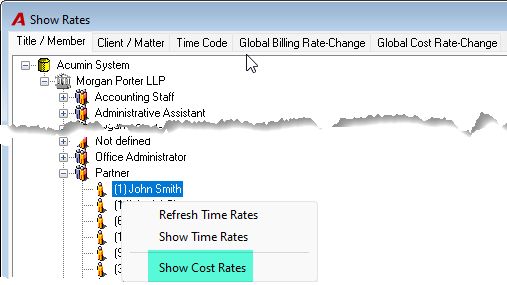
1. Member Cost Rates
What this is: A cost rate is the internal hourly cost the firm assigns to each member (lawyer/timekeeper). It represents what it "costs" the firm for that member to work one hour.
Why it's needed: Cost rates are used to calculate the profit metric. Profit = Fees Billed − (Hours Billed × Cost Rate). Without cost rates, the report cannot determine profitability.
How to set it up: Licensed organizations have access to member cost-rate management to create and maintain cost rates for all members.
2. Ownership Role Assignments
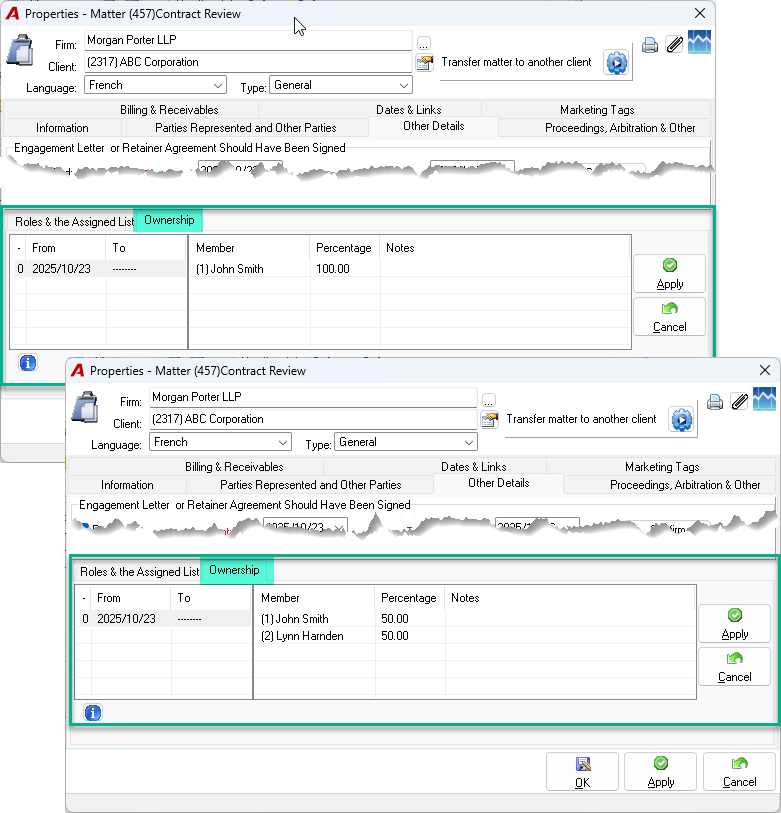
What this is: The ownership role defines which member "owns" a client or matter and what percentage of ownership they hold. For example, Partner A may own 60% of a client relationship while Partner B owns 40%.
Why it's needed: Ownership percentages drive the Owner Fees, Owner Cost, and Owner Profit measures. Without ownership assignments, these columns will show 0.0
How to set it up:
-
Assign ownership roles at the client level, the matter level, or both — depending on the level selected in the Weighted Profit Distribution Variables form.
-
Ownership is assigned during client/matter creation and can be updated as relationships change.
-
To streamline data entry, you can set a default role as the 100% owner for new clients and/or matters.
3. Allocation Schema
What this is: The allocation schema is the firm's rule set that determines how billed fees are distributed (allocated) among the working members who contributed time to an invoice.
Why it's needed: The allocation schema drives the Working Member – Allocated Fees measure. Different schemas produce different allocation results, so the choice of schema directly affects each member's fee allocation figure.
4. Weighted Profit Distribution Variables
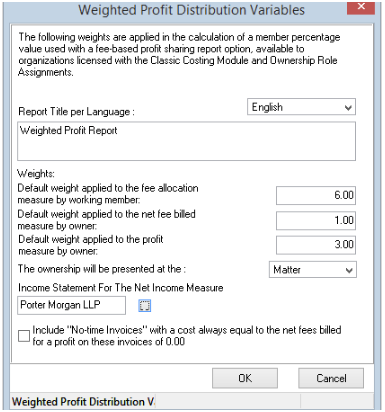
What this is: This is the central configuration form that controls how the report calculates each member's share of net income. It defines the weights, the ownership level, and the income source.
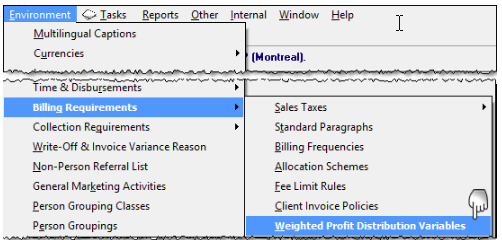
How to access it: From the main menu bar, go to Environment > Billing Requirements > Weighted Profit Distribution Variables.
Complete the following fields:
|
Field |
Description |
|---|---|
|
Report Name |
Enter the report title. If your organization uses multiple languages, complete the title for each licensed language. |
|
Weights |
Set the default weight (as a percentage or ratio) for each of the three measures: Fee Allocation by Working Member, Net Fees Billed by Owner, and Profit by Owner. These weights determine how heavily each measure contributes to the final calculated percentage. |
|
Ownership Level |
Select whether ownership is evaluated at the Client level or the Matter level. Only levels configured on the Implementation tab are available. |
|
Income Statement |
Select one of the firm's defined Income Statement formats. The net income figure from this statement is used as the base amount to which each member's calculated percentage is applied. |
|
No-Time Invoice Option |
When checked, invoices with no associated time entries will have their profit set to $0.00 instead of defaulting to profit = fees billed. |
Best Practice: Before configuring these variables, ensure that stakeholders have a clear understanding of the desired reporting outcome. Different weight configurations and ownership levels produce significantly different results — each combination is designed to support different analytical and decision-making scenarios.
Running the Reports
Accessing the Reports
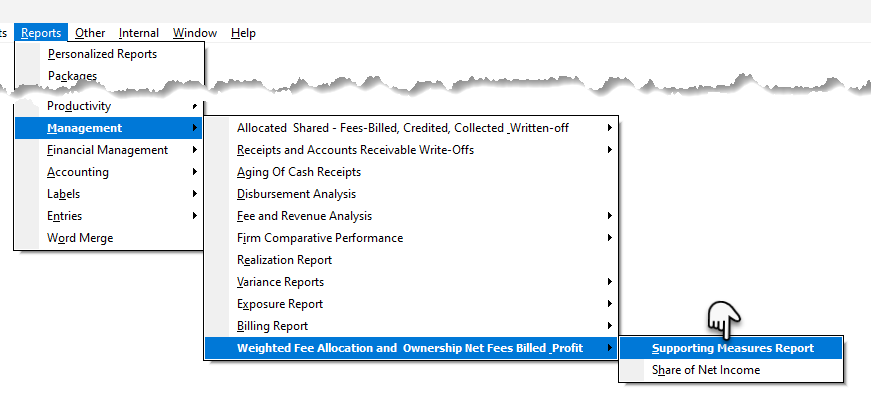
From the main menu bar, go to Reports > Management > Weighted Fee Allocation and Ownership Net Fees Billed & Profit, then select either:
-
Supporting Measures Report, or
-
Share of Net Income Report
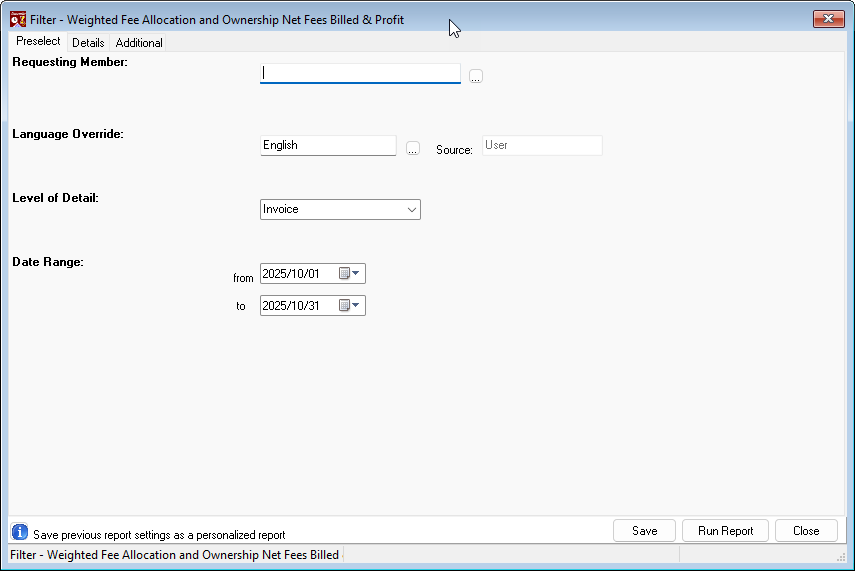
The Preselect Tab
Applies to: Supporting Measures Report and Share of Net Income Report
Use this tab to define the reporting period and optional parameters:
-
Date Range — Select the start and end dates for the reporting period.
-
Requesting Member (optional) — If generating the report on behalf of another member, select their name here.
-
Language (optional) — Change the report output language if applicable.
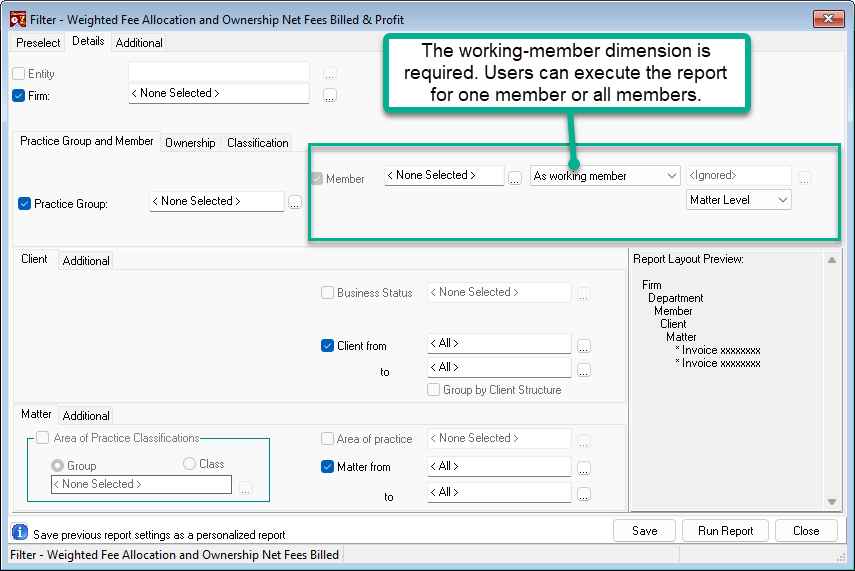
The Details Tab
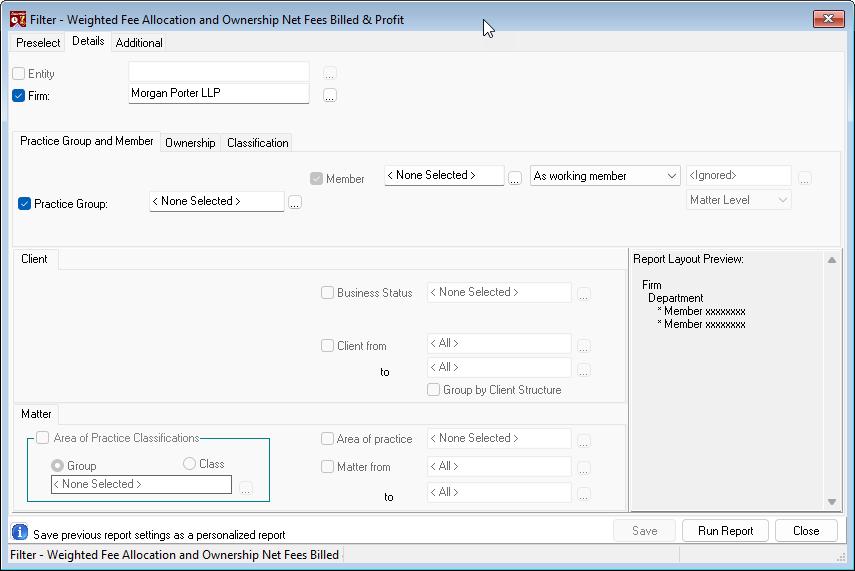
Supporting Measures Report
The Details tab controls the level of granularity in the report output. By default, all available grouping dimensions are selected. You can deselect any dimension to produce a more summarized view.
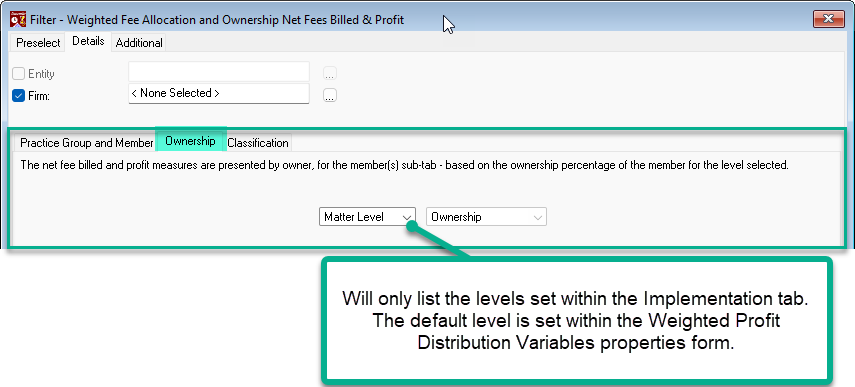
Ownership Sub-Tab:
Within the Details tab, the Ownership sub-tab allows you to select the ownership level (client or matter) from the options configured on the Implementation tab. The default level is the one set in the Weighted Profit Distribution Variables form.
Share of Net Income Report
This report has Member as its lowest (and mandatory) level of detail. All grouping dimensions other than Firm, Entity, Practice Group, and Classification are disabled.
Classification Tab
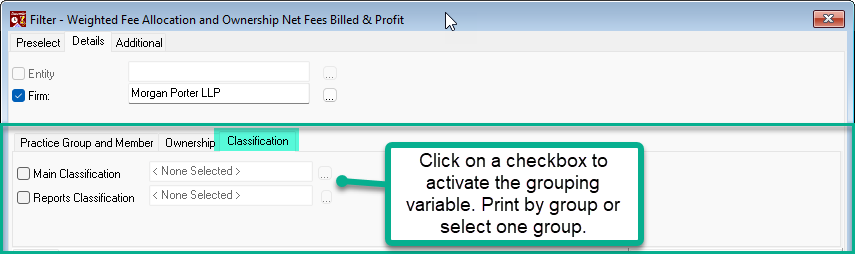
Applies to: Both reports
The Classification tab allows you to group members by Main Classification and/or Reporting Classification, or filter results to a specific classification to limit the report to one reporting dimension.
The Additional Tab
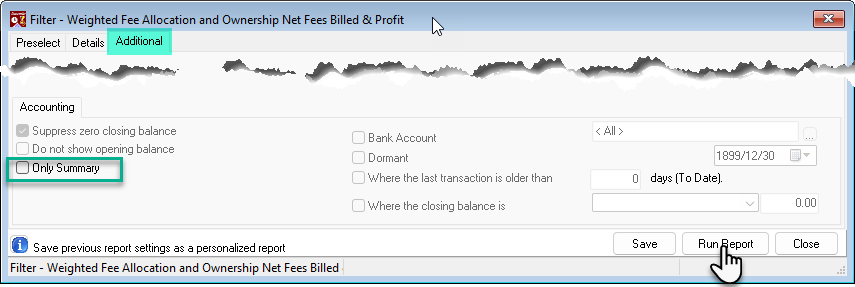
Supporting Measures Report
The Additional tab offers the option to summarize results to the lowest reporting dimension selected on the Details tab. No other additional options are available.
Share of Net Income Report
The Additional tab for this report does not offer any additional options.
Page Breaks & Sort Order
Applies to: Both reports
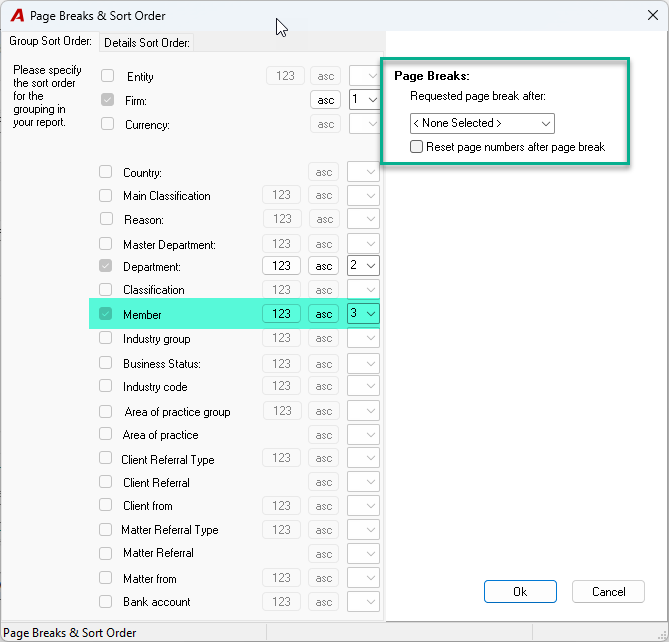
When you click Run Report, the Page Breaks & Sort Order dialog appears. Use it to:
-
Add page breaks on appropriate grouping dimensions for print formatting.
-
Change sort order from numeric (by code) to alphabetic (by name).
-
Change sort direction from ascending to descending (or vice versa).
Note: The grouping order for these reports is fixed and cannot be changed.
Click OK to generate the report.
Reading the Report Output
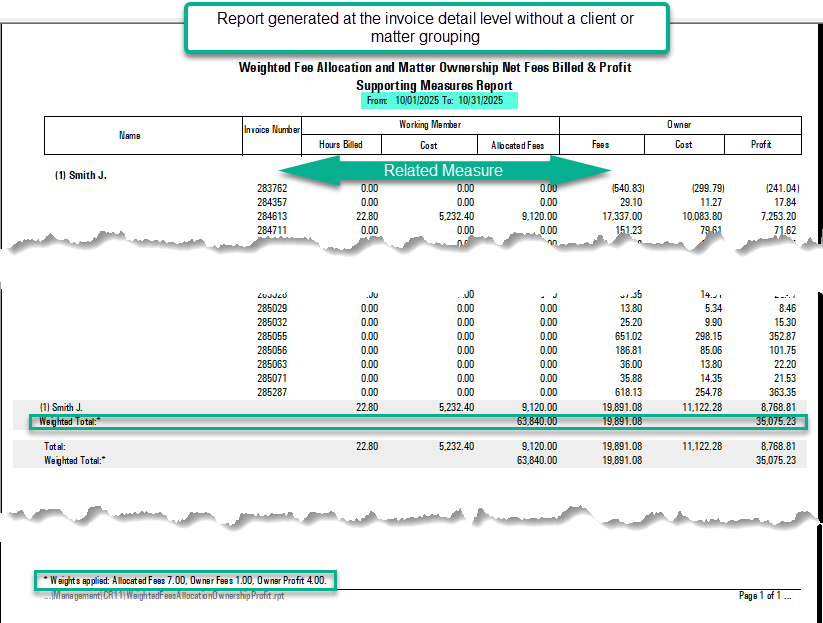
Supporting Measures Report — Columns Explained
|
Column |
What It Shows |
|---|---|
|
Name |
The names of the selected grouping dimensions, displayed per Acumin's standard name-presentation rules. |
|
Invoice Number |
The invoice number when the report is run at the invoice level of detail. Displays "n/a" when only summary groupings are selected. Credit notes appear as negative values with "CN" prefixed to the invoice number. |
|
Working Member – Hours Billed |
Total hours billed by the working member on the affected invoice. May be 0.00 if the member has fee allocation or ownership but recorded no time. |
|
Working Member – Cost |
Hours billed × the working member's cost rate in effect on the invoice date. May be 0.00 if no hours were billed. |
|
Working Member – Allocated Fees |
The final fee allocation amount for the working member on the affected invoice, as determined by the allocation schema. May be 0.00 if the member has hours or ownership but no fee allocation. |
|
Owner – Fees |
Net fees billed on the invoice (net of discounts, premiums, or losses) × the member's ownership percentage in effect on the invoice date. May be 0.00 if the member has no ownership. |
|
Owner – Cost |
Total cost on the invoice (sum of all working members' hours × their respective cost rates) × the member's ownership percentage in effect on the invoice date. May be 0.00 if the member has no ownership. |
|
Owner – Profit |
(Net fees billed − total cost) × the member's ownership percentage in effect on the invoice date. May be 0.00 if the member has no ownership. |
Member totals at the bottom of each member's section include the weights for Allocated Fees, Owner Fees, and Owner Profit, and show each measure multiplied by its respective weight.
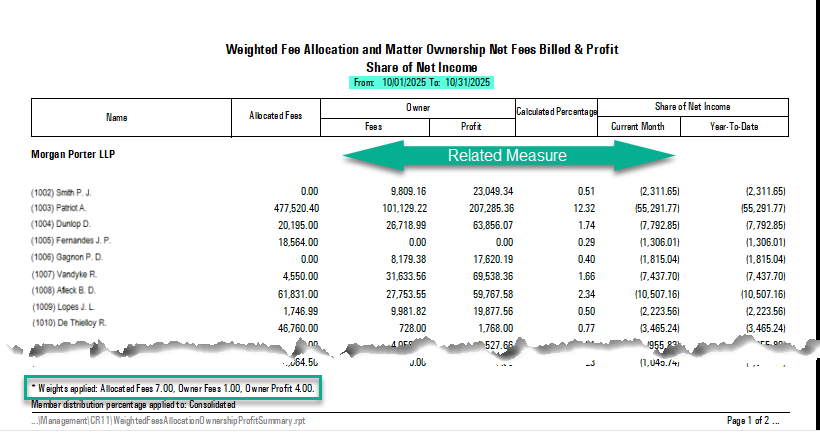
Share of Net Income Report — Columns Explained
|
Column |
What It Shows |
|---|---|
|
Name |
Member name and code, displayed per standard reporting conventions. |
|
Allocated Fees |
The member's total fee allocation across all invoices in the period, multiplied by the Allocated Fees weight (shown in the report footer). Should match the sum of the corresponding Working Member – Allocated Fees from the Supporting Measures Report, multiplied by the weight. |
|
Owner Fees |
The member's total ownership-based net fees billed (net of discounts, premiums, losses, credit notes, and cancellations), multiplied by the Owner Fees weight (shown in the report footer). Should match the sum of the corresponding Owner – Fees from the Supporting Measures Report, multiplied by the weight. |
|
Owner Profit |
The member's total ownership-based profit (net fees billed − total cost) × ownership percentage, multiplied by the Owner Profit weight (shown in the report footer). Should match the sum of the corresponding Owner – Profit from the Supporting Measures Report, multiplied by the weight. |
|
Calculated Percentage |
(Member's weighted Allocated Fees + Owner Fees + Owner Profit) ÷ (All members' weighted Allocated Fees + Owner Fees + Owner Profit) for the firm(s) selected. This percentage is calculated against all members in the selected firm(s), even if the report is filtered to show only a subset (e.g., one practice group). |
|
Share of Net Income – Current Month |
Calculated Percentage × net income for the last fiscal month in the selected date range. Net income is derived from the GL accounts in the income statement format specified in the Weighted Profit Distribution Variables form, for the selected firm(s). |
|
Share of Net Income – Year-to-Date |
Calculated Percentage × net income for the full date range selected. Net income is derived from the GL accounts in the income statement format specified in the Weighted Profit Distribution Variables form, for the selected firm(s). |
Important Notes
|
Topic |
Detail |
|---|---|
|
Credit notes |
Credit notes appear as negative values with "CN" prefixed to the invoice number in the Supporting Measures Report. |
|
Mandatory grouping |
The Supporting Measures Report always includes Member as a mandatory grouping — it cannot be removed. |
|
Cross-referencing |
Member totals in the Supporting Measures Report are cross-referenced to the weights for Allocated Fees, Owner Fees, and Owner Profit. Use this to verify the Share of Net Income calculations. |
|
Single-firm selection |
If you generate the Supporting Measures Report for one firm only, results include only members and matters belonging to that firm. |
|
Filtered classifications |
If you filter the Share of Net Income Report by one practice group, main classification, or reporting classification, only members in that group are listed. Because the calculated percentages will not sum to 100%, the report displays the group's percentage and shows the firm-wide totals used as the denominator in the final row. |
|
Fixed grouping order |
The grouping order for both reports is fixed and cannot be changed by the user. |
|
Invoice cancellations |
Both reports include invoice cancellations where the cancellation date falls within the selected reporting period. |
|
Supporting detail |
The Share of Net Income Report summarizes at the member level. For invoice-level detail behind any figure, run the Supporting Measures Report with matching parameters. |
rite and review the text. This is a user guide for a function in an accounting software dedicated to law firm. In addition add placeholder for screenshot with the description of the screenshot.