.png)
Reports to Excel
Highlights
Strategically speaking - out-of-the-box reports are primarily designed for use in report format – print or PDF. The ability to export to excel is a secondary function provided by the run time version of Crystal Reports – the main report writer for Acumin’s out-of-the-box reports.
The reports are designed on the expectation that they will be generated using the rpt file on print or PDF format, therefore they offer use of available reporting dimensions and options to group and/or summarize the reported information.
Acumin’s reporting engine leverages profit-center, member, client, and matter attributes as reporting dimensions, so that the same report can be generated with varying context and multiple perspectives when the default reporting dimension order is changed.
The runtime version of this report writer included in Acumin is available from the print preview format. It offers end users the option to export the report and/or data in the rpt file to excel as well as other options.
The more reporting dimensions selected and/or details included, the more complex the results, therefore from an export to excel perspective, it is best to export to excel without format considerations and groups. The rawer the data the better.
The export to excel functionality offered by Crystal Reports, includes a variety of options for users to leverage, and arrive to best outcomes for their process, however, the “Data Only” option is favoured to avoid groupings and formats which may be unnecessary for the data analysis required.
Process
Generate the report using the reporting dimensions needed. In this case, as this will not go to print or PDF, less is more.
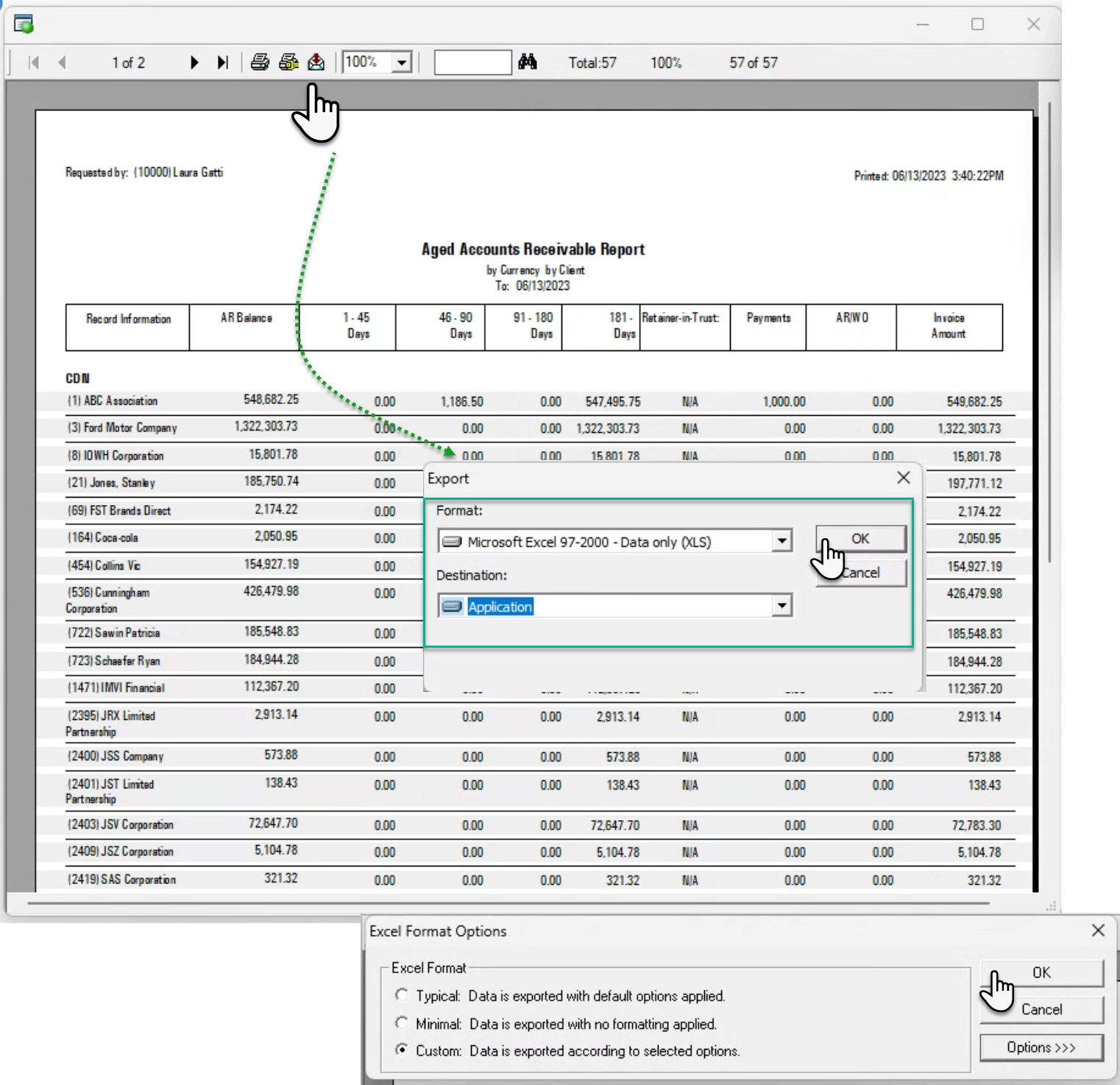
For this how-to-guide we chose the Aged AR Report by Client – summary only – for a 4-period aging so we could also display payments, ARWO and Retainer in Trust in column format.
Once on the report is launched in print view format, press in the export button found int the upper crystal report’s bar.

Select Excel and Application. Press OK to continue.
We selected data only for a cleaner start point, however you can work with the options that provide the best outcome for your requirements.
Press OK again to complete the process.
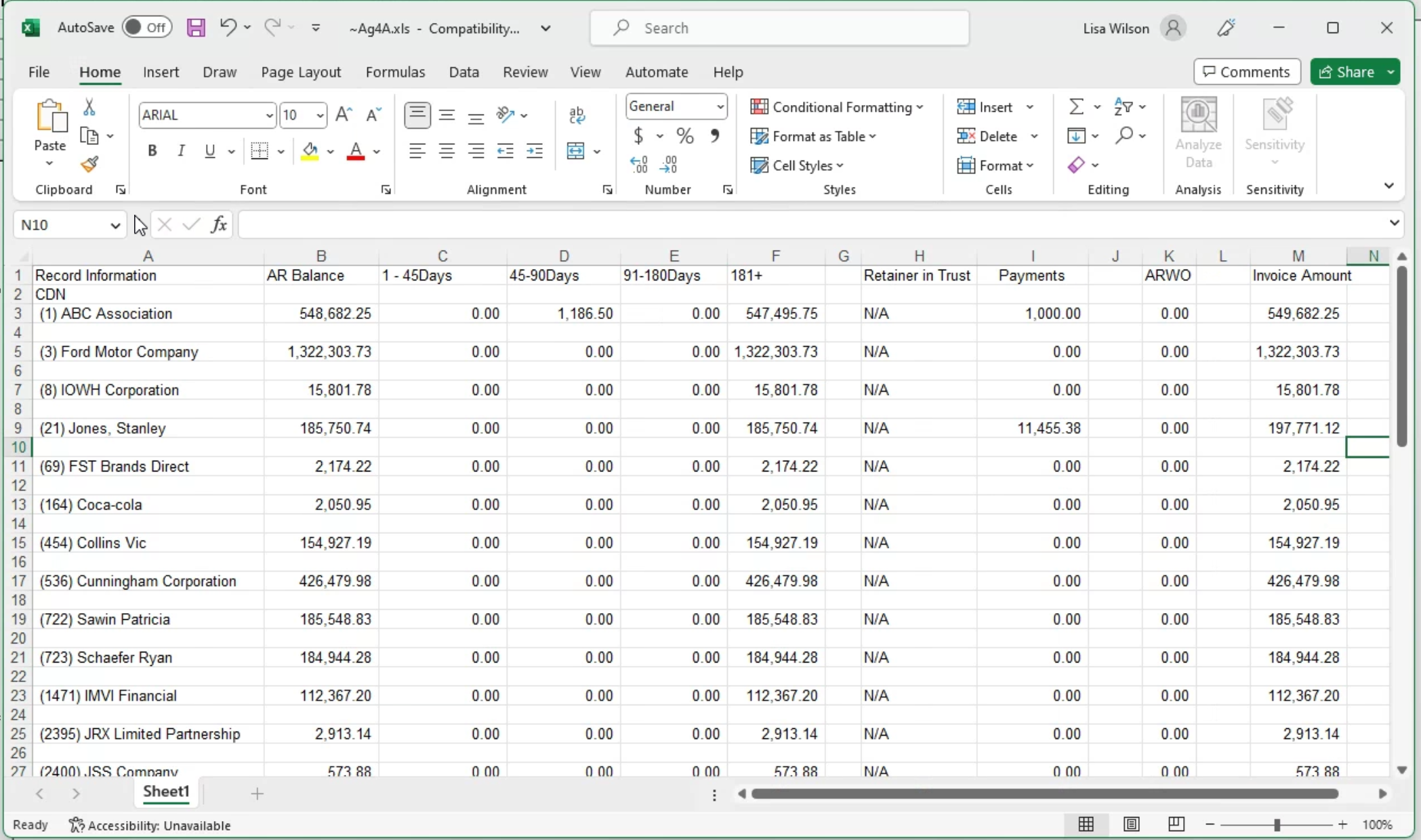
Example
Column sizing applied.
Final Comments
The export to excel is a third-party tool provided by Crystal Report. If the requirements for data so it can be worked on with other report writers, excel or power BI, is greater than this offering, please use Acumin.Nexus – the reporting database.