.png)
Hours Worked Dashboards & Reports
Scope and Purpose
The purpose of the hours worked dashboards and reports is to provide the timekeeper with visibility of what they need to do, to meet daily time entry objectives, annual targets, and personalized stretch goals.
In terms of scope, it focuses on contextual productivity measures and reports designed to incentivize the timekeeper to record time.
Highlights
The productivity measures and reports presented within these dashboards include monthly and annual hours worked results, graphical presentations of time spent on different types of matters, for example time and billing, pro-bono, contingency etc., different types of activities, for example goodwill investments on chargeable matters, and time spent on matters by area of practice.
Pace measures aimed at providing a roadmap to achieving firm targets and personal stretch goals in context of full-time equivalency factors and available working days in the period.
Chargeable equivalent thresholds considered during performance assessments and evaluations.
Single click year and month views with drill through capability to client, matter, and entry details
My Hours Dashboards and Reports
Status Dashboard
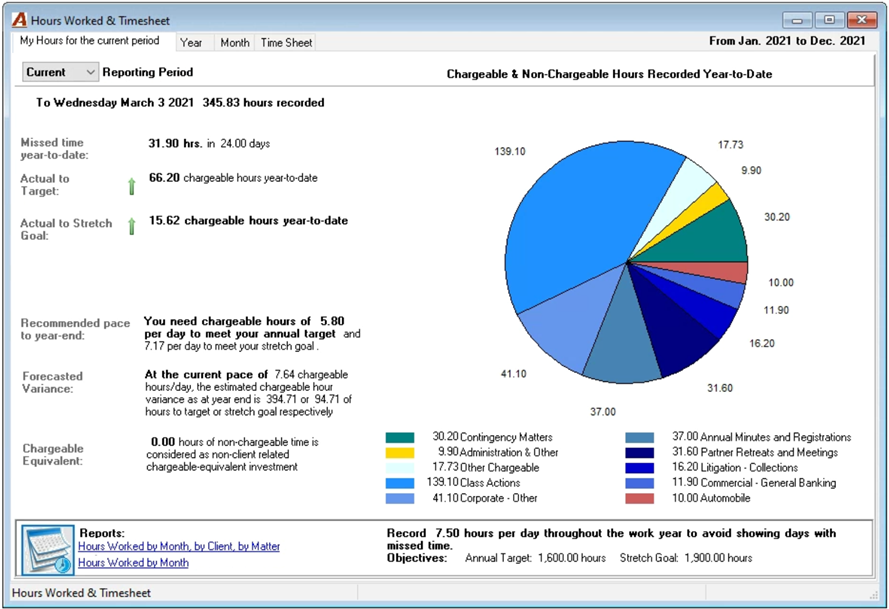
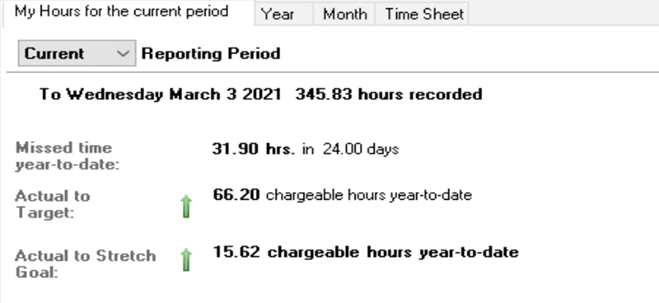
The “My Hours” dashboard defaults to the member logged-in for the current calendar year. It shows hours-worked measures and metrics including the pace needed to meet timekeeping chargeable hours worked targets and personal stretch goals.
The missed time concept uses daily objectives to measure the shortfall from time recorded. It helps timekeepers involved with non-chargeable productive-time tasks have visibility of low time or no time days.
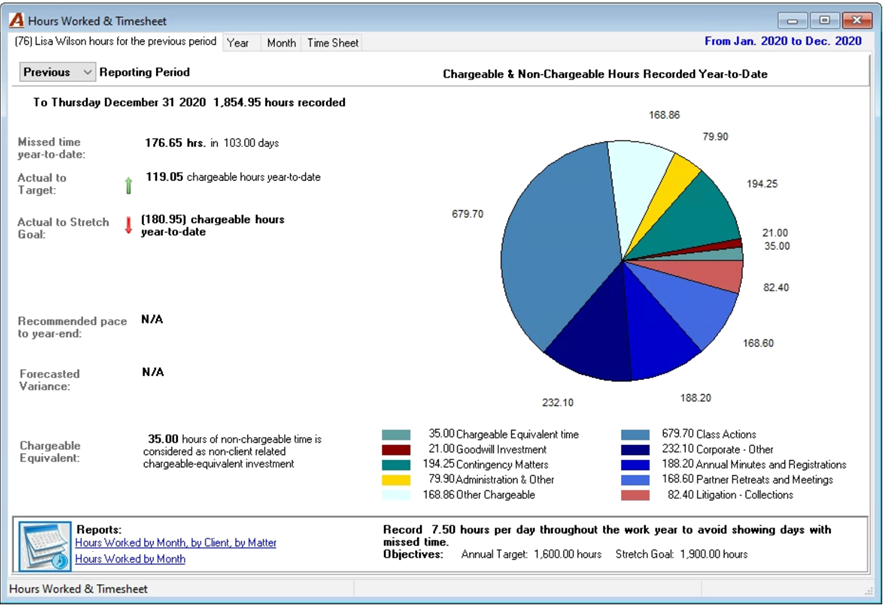
The dashboard includes the “Current” YTD position as well as access to the “Previous” year’s final position. The pace measures are not relevant in an expired period.
Non-timekeepers in a works-with relationship with a timekeeper, will launch the “My Hours Dashboard” pre-set to the related timekeeper shown on the tab’s label. This timekeeper can be changed within the “Month” tab filter (bottom left of the form).
Hour-Based Measures
Hours Recorded
The hours recorded is the total of posted, unposted and unreleased chargeable and non-chargeable time year-to-date. It provides the basis for missed time comparatives.
Missed time year to date
The missed time measure is the shortfall between the total hours recorded each day and daily objective, presented year-to-date along with the number of days affected by the shortfall. Although most first set the daily objective at 7.50 hours, some firms set the daily objective to 0.10 hours, in which case missed time is expressed as the number of days with missed time recorded.
Actual to Target and/or Stretch Goal
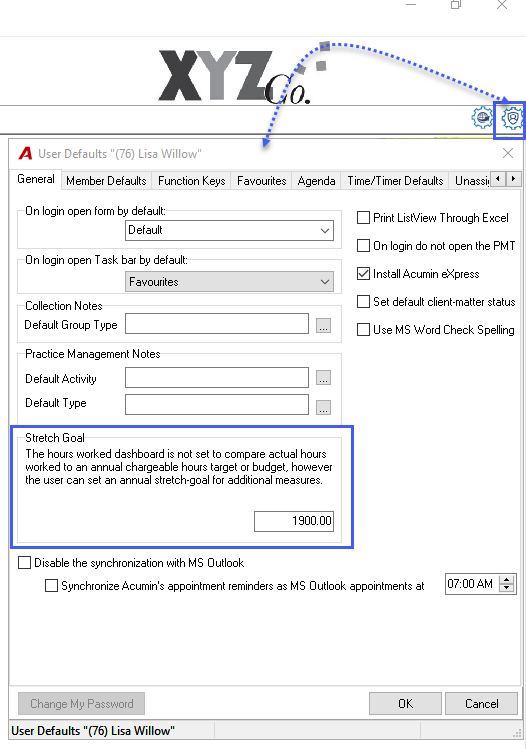
Annual chargeable hour targets are a realizable chargeable time objective for the timekeeper to be able to reach. Annual stretch goals are a personal option for those timekeepers that want to work towards exceeding their targets. The former is typically set in context of firm goals, the latter is a personal choice set by the timekeeper - user-preference, general tab.
The actual-to-target and actual-to-stretch-goal measures show the year-to-date chargeable-time variance from the timekeeper’s annual target and/or stretch goal.
Recommended pace to year-end
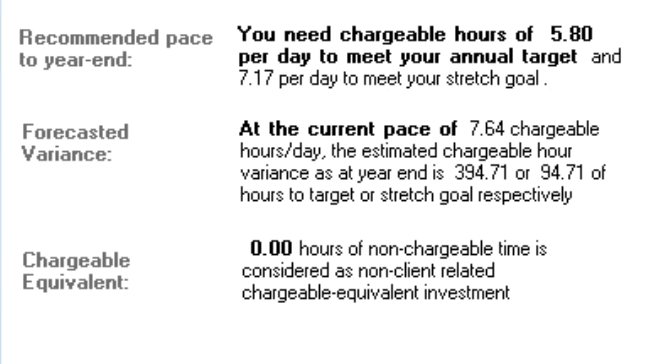
The recommended pace to year-end measure shows the number of hours that need to be recorded per remaining working days to reach the annual chargeable hour target or stretch-goal.
Forecasted Variance
The forecasted variance uses the timekeeper’s current pace to forecast the chargeable hours as at year-end to compare them to the annual chargeable hour target or the stretch goal.
Current Pace
The current pace is the timekeeper’s average chargeable hours worked per day.
Chargeable Equivalent
The chargeable equivalent shows the total number of non-chargeable hours worked year-to-date on matters defined as having a chargeable equivalent value – an attribute in matter properties. For example, firms where non-chargeable time spent on committee’s is tracked and valued up to a certain amount as chargeable equivalent.
Chargeable & Non-Chargeable Hours Recorded
Chargeable Time Matters
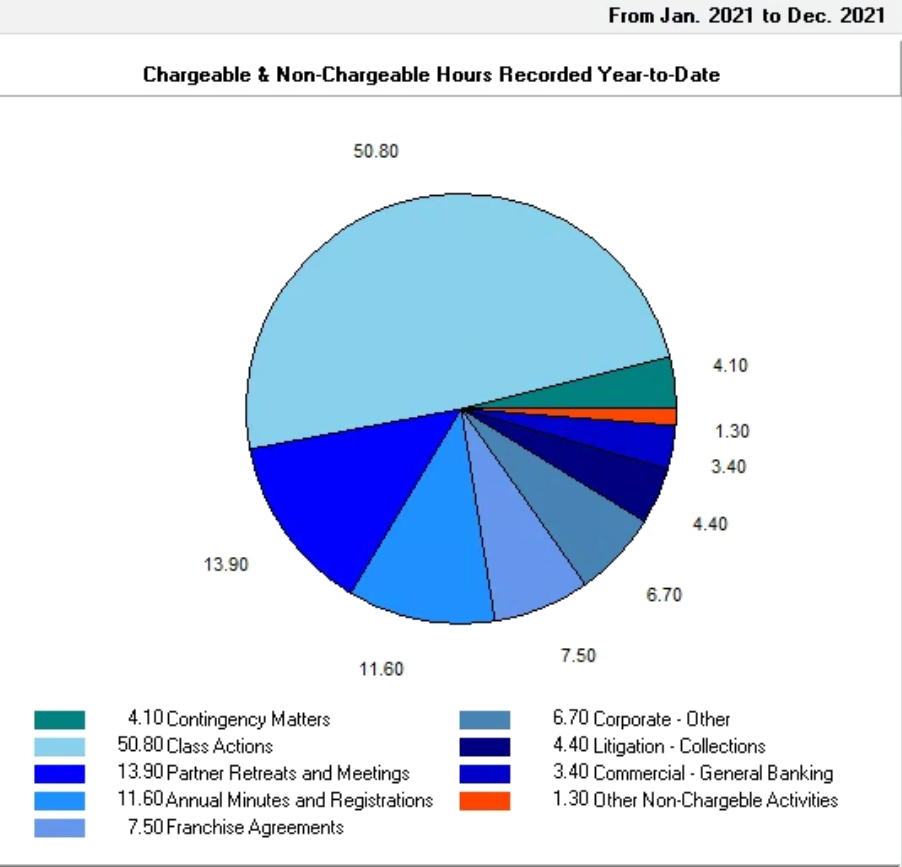
The chargeable time recorded year-to-date on chargeable time matters is presented by area of practice or area of practice group.
Productive non-chargeable time invested on chargeable matters is presented as “goodwill investment” or equivalent firm-defined label. Depending on firm-set up, chargeable time matters identified as contingency or special may be graphed separately.
Non-Chargeable Time Matters
The time recorded year-to-date on non-chargeable time matters is presented by area of practice or area of practice group. Depending on firm-set up, non-chargeable time invested on non-chargeable time matters flagged as “Pro-Bono” and/or identified as chargeable-equivalent may be graphed separately.
Daily Presentation of Hours Worked
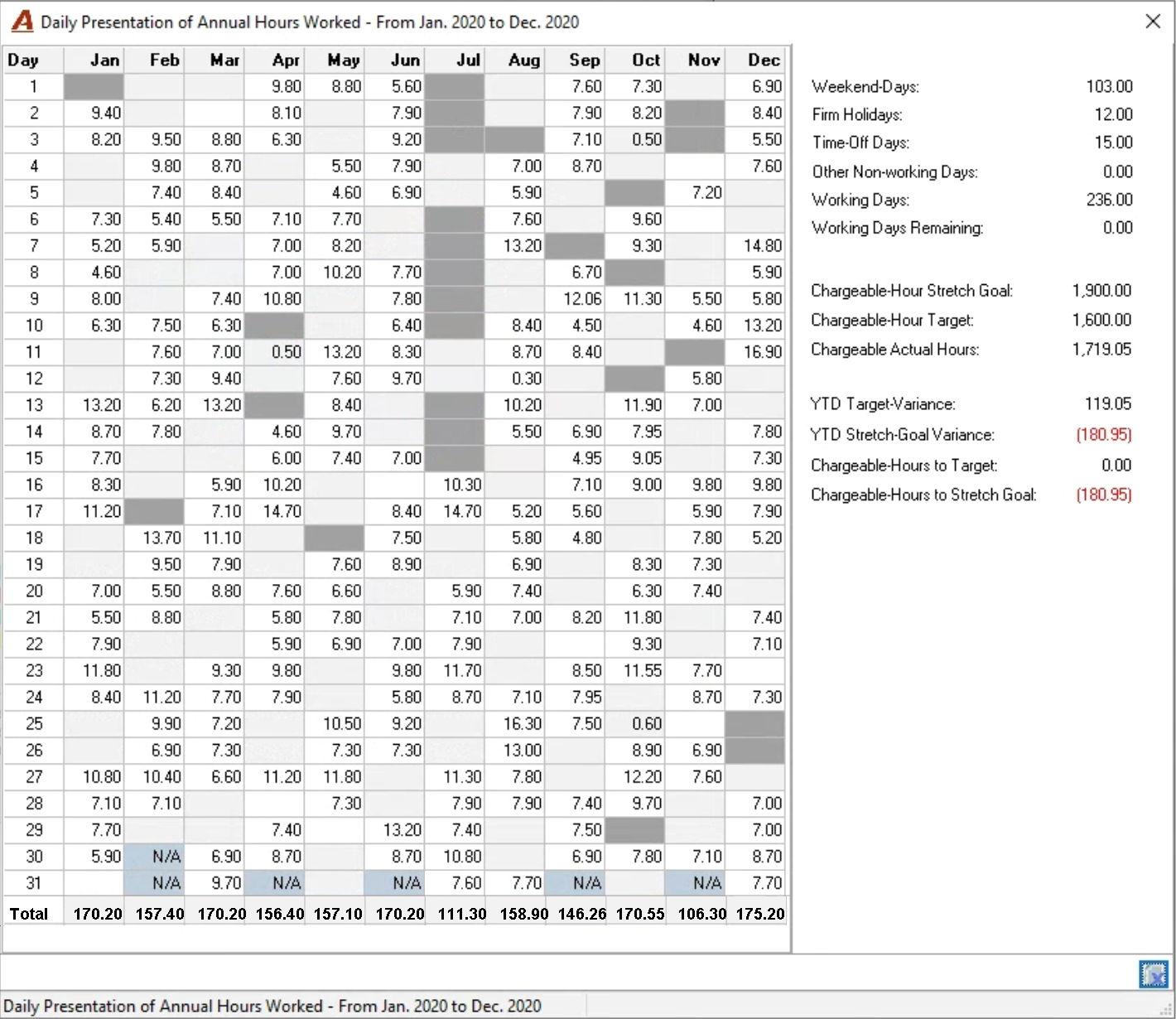
Drill though on the annual calendar icon to access the daily presentation of hours worked.

Number of Days in The Calendar Year
Weekend Days: The number of weekend-days in the calendar year.
Firm Holidays: The number of days defined as firm holidays for the calendar year.
Time-off Days: The number of days with the day recorded as time-off.
Working Days: The number of days considered as working days.
Working Days Remaining: The number of working days left in the calendar year.
Other Measures
The annual “Chargeable Hour Stretch Goal” inserted in user preferences.
The annual “Chargeable Hour Target” calculated for the affected timekeeper.
The year-to-date “Chargeable Actual Hours” for the affected timekeeper.
The “YTD Target-Variance” between actual YTD hours worked and the YTD target.
The “YTD Stretch-Goal Variance” between actual YTD hours worked and the YTD stretch goal.
The “Current Pace” of chargeable hours worked per day.
The “Catch-up Pace to Target” is the chargeable time needed per day to reach target by year-end.
The “Catch-up Pace to Stretch Goal” is the chargeable time needed per day to reach stretch goal by year-end.

Full Time Equivalent (FTE) Considerations:
The pace values are calculated in consideration of full-time equivalency (FTE) factors, set within member properties.
Although most timekeepers have an FTE factor of 1.0 reflecting that they work full time, timekeepers that work part time should reflect an FTE factor representative of their part-time schedule. For example, a timekeeper that works ½ time should have a factor of 0.50, and a timekeeper that works once a week should have an FTE factor of 0.20.
With an FTE factor less than 1.0, the timekeeper will have a more realistic pace measure calculated across all available working days which would be less than those available for a full-time member.
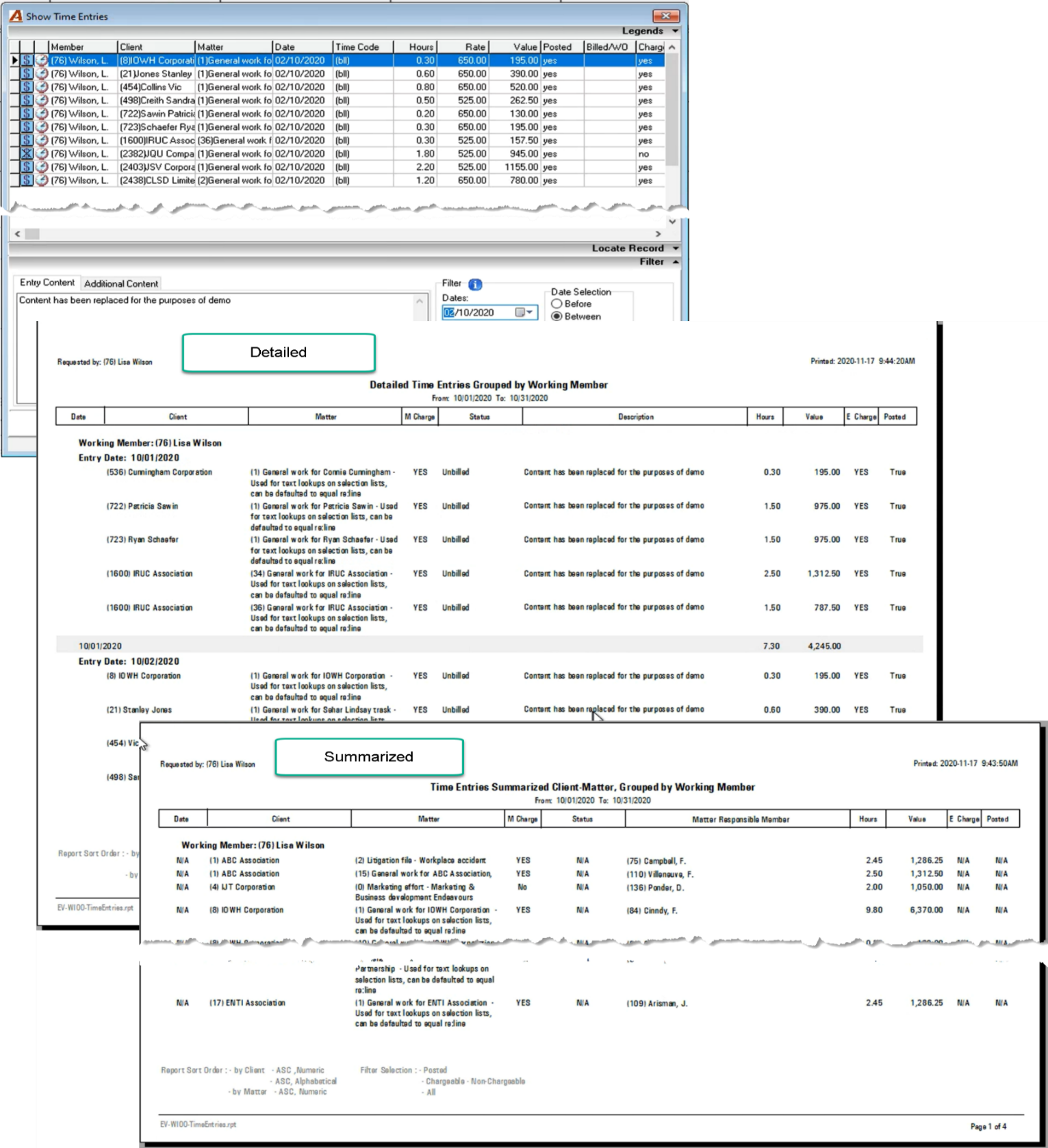
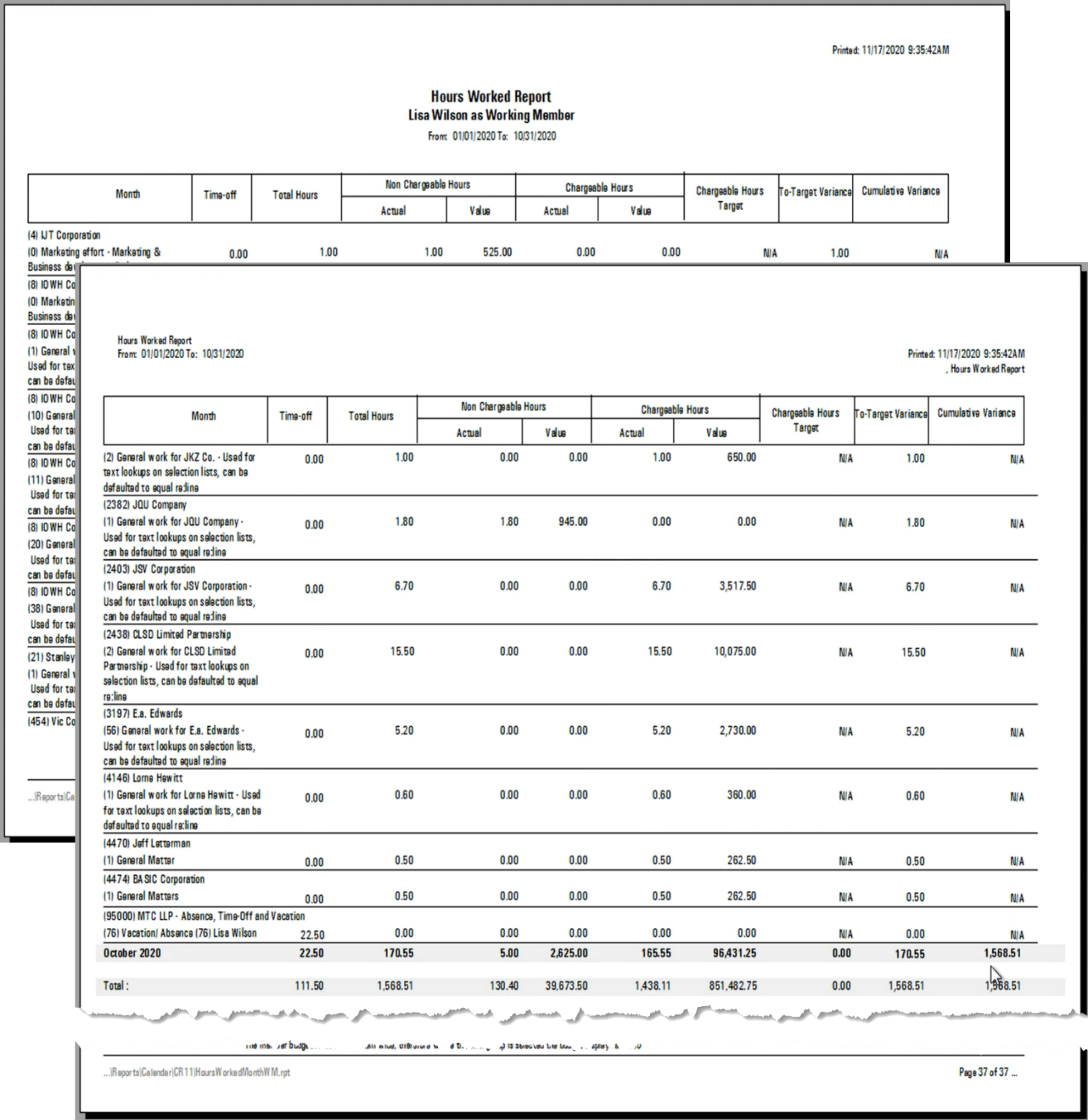
Drill-Through to Report on “Hours Worked by Month by Matter”
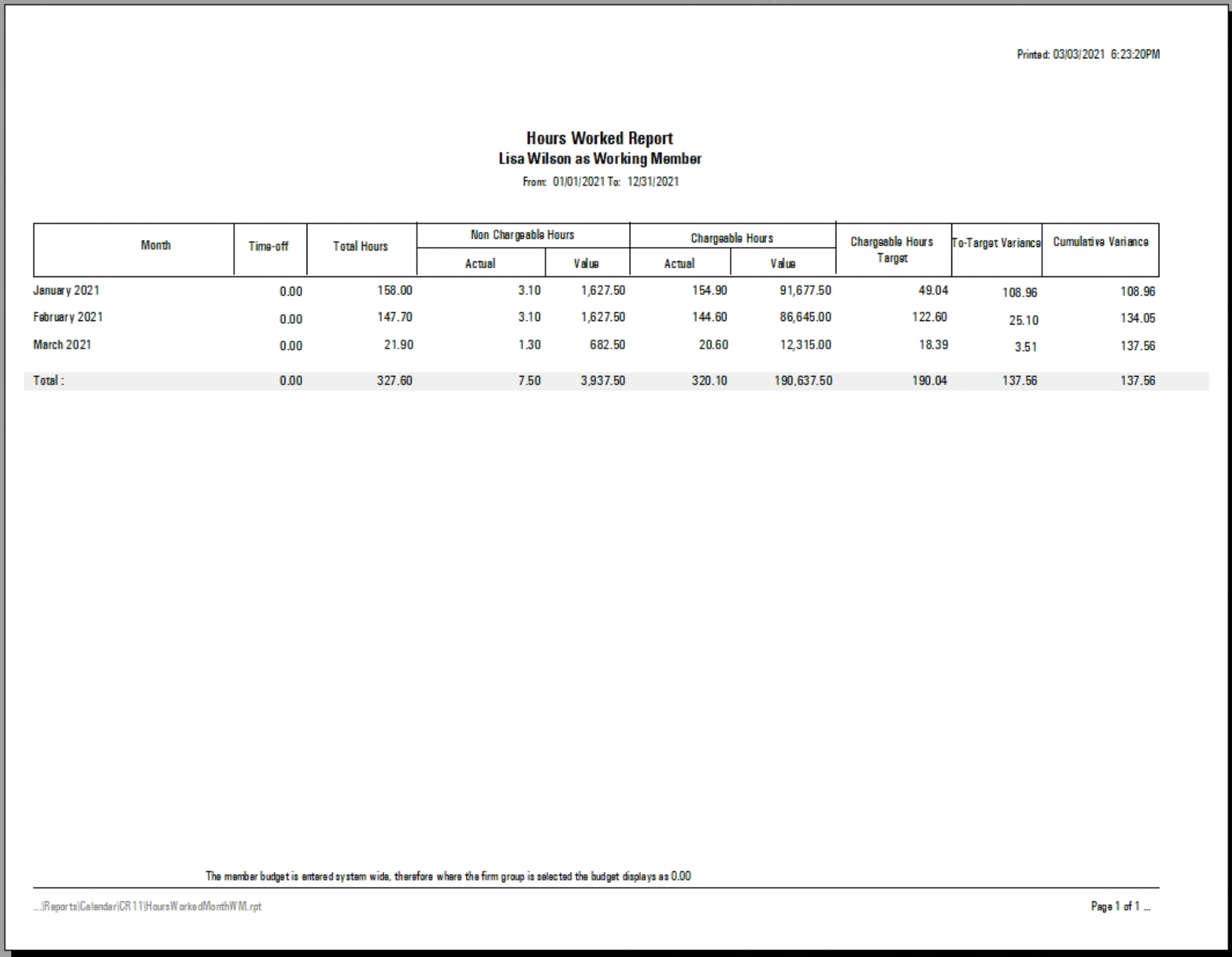
Drill-Through to Report on “Hours Worked by Month”
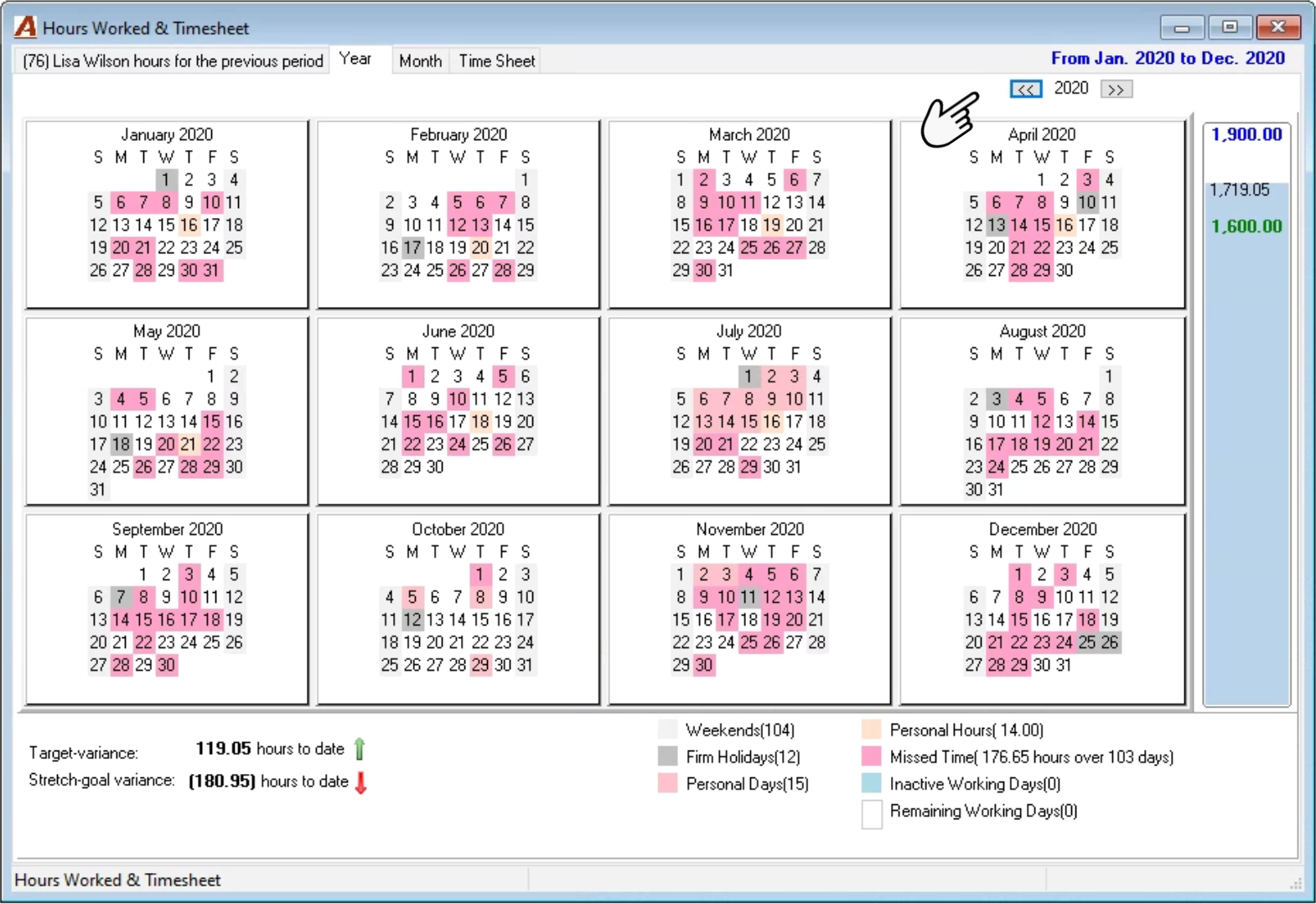
My Year
Annual Calendar View
The annual calendar view highlights weekends, firm-defined holidays, days-off, days with some personal time off, days with missed time, inactive working days and remaining working days; for the period selected - current or previous - on the “My Hours” tab. The legend shows the number of days for each situation.
Below the calendar view the dashboard shows the target and stretch-goal variance-measures (bottom-left) and to its right it includes a progress bar showing actual YTD hours worked compared to the annual target and/or stretch-goal.
The navigation buttons bring you to past and future years from the reporting period selected – current or previous – to drill through to see a specific day’s entries. This use-case does not include any measures.
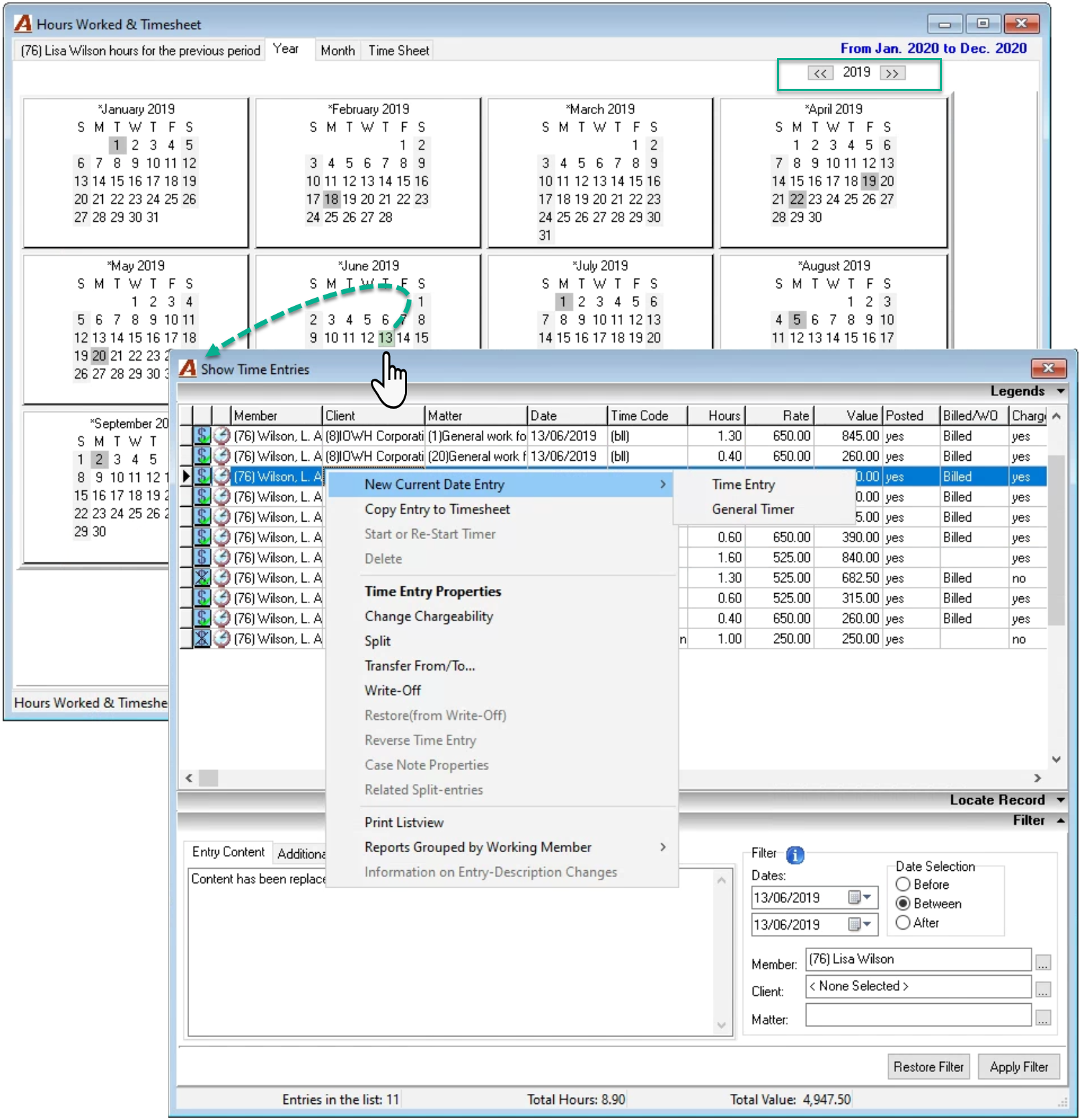
Note: It is possible to drill through to the properties of the timecard to see the entries full history. For example, the entry could have a status was billed, but prior to it being billed it was transferred from one matter to the other. One in the properties of the timecard press on the “Other” tab.
My Month
Monthly Calendar View
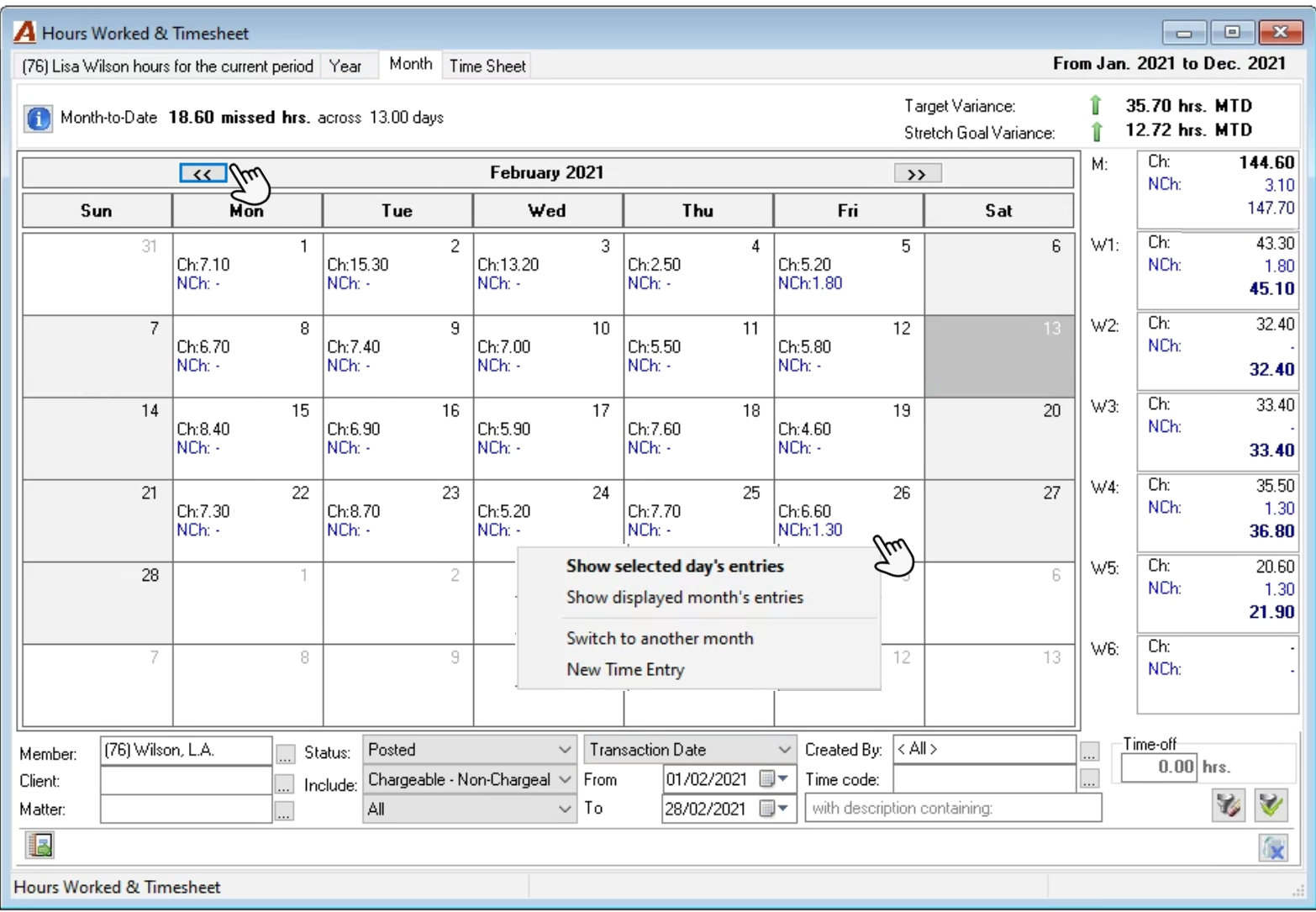
The monthly calendar view highlights missed time as well as target and stretch-goal variance-measures month-to-date.
Based on filter options – below the calendar view - the hours worked per day will display along with weekly summaries which may include time from days in the previous or next month for the same week.
Time-off for the month is shown at the bottom right of the form.
The report button (bottom left) provides access to the “Hours Worked” report filter to change the reporting period and launch the “Hours Worked by Month” or the “Hours Worked by Month, by Matter” reports.
The right click contextual menu first option (or double click) launches the list of entries for the day. Other options include the ability to see the list of entries for the month, navigate to another month instead of navigating through each month with the arrows, as well as create a new time entry for the day selected.
Other Drill Throughs and Reports:
Other reports and drill through options are available from the contextual right click menu on the show time entries list.