.png)
Scope and Purpose
The purpose of these reports is to provide more detailed visibility of the firm’s WIP and receivable write-off measures completed in each period.
At a detailed level, the scope of the AR write-off reports extends to how the they were applied to which invoice. The filter options allow for the selection of multiple reporting dimensions for both measures.
Accounts Receivable Write-Off Report
Access
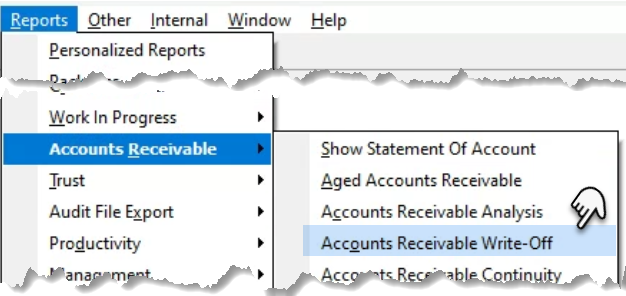
Select the Accounts Receivable Write-Off option from the “Reports – Accounts Receivable Write-Off” sub menu.
Preselect Tab
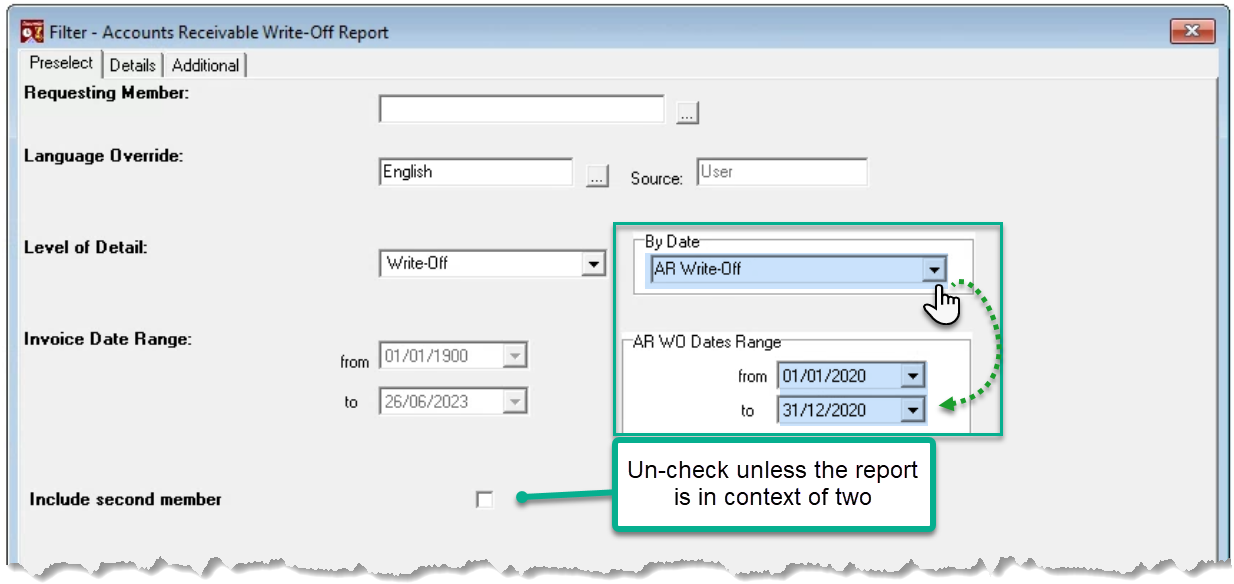
The AR Write-off measures can be reported in context of the invoice date for the invoice with the AR Write-off, the AR Write-off date or both, therefore depending on the date type selected, the invoice date range or the AR WO date range may be grayed out.
Details Tab
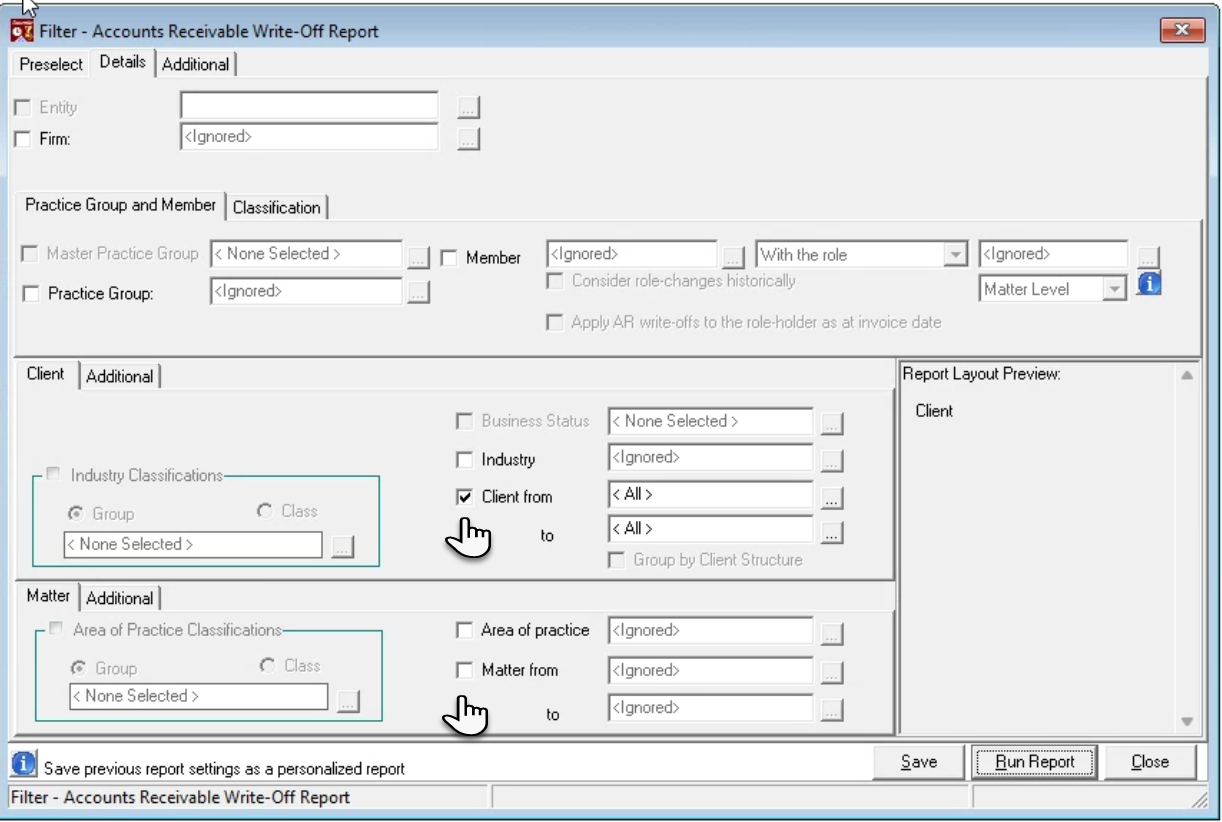
Consider the reporting attributes relevant to the intended use case of the results and uncheck all other options.
If the report is executed by member, version 2.0 forward includes the ability to report based on when a member was assigned to the role.
When reports are executed by matter without the client, the client and matter codes are both presented on the results but the client group with sub-totals by client eliminated.
The additional subtabs for the client and matter reporting attributes include additional filter options based on date opened and status.
Additional Tab
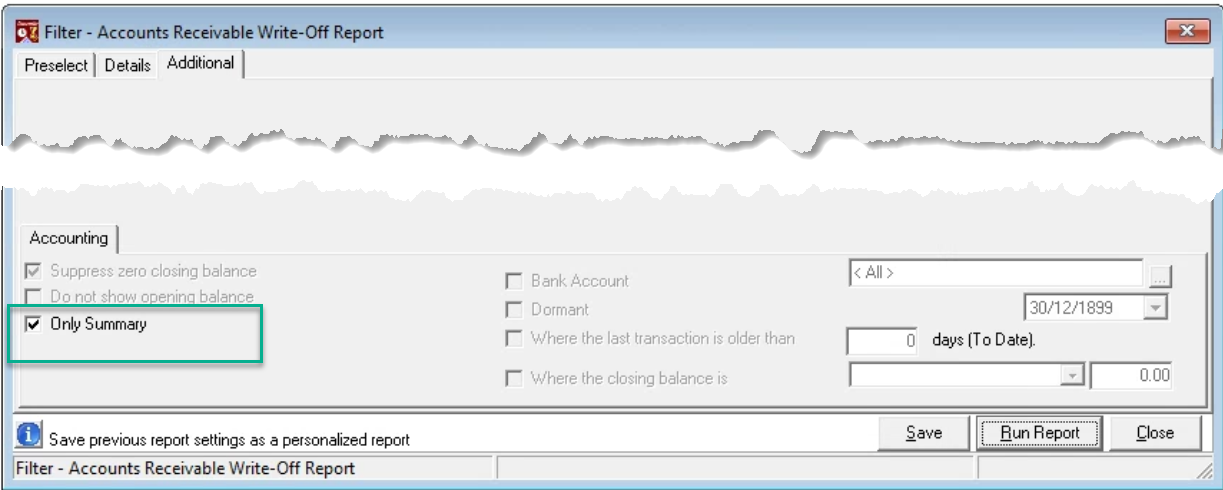
Select the “Only Summary” option to summarize the AR Write-off details to the lowest reporting dimension selected.
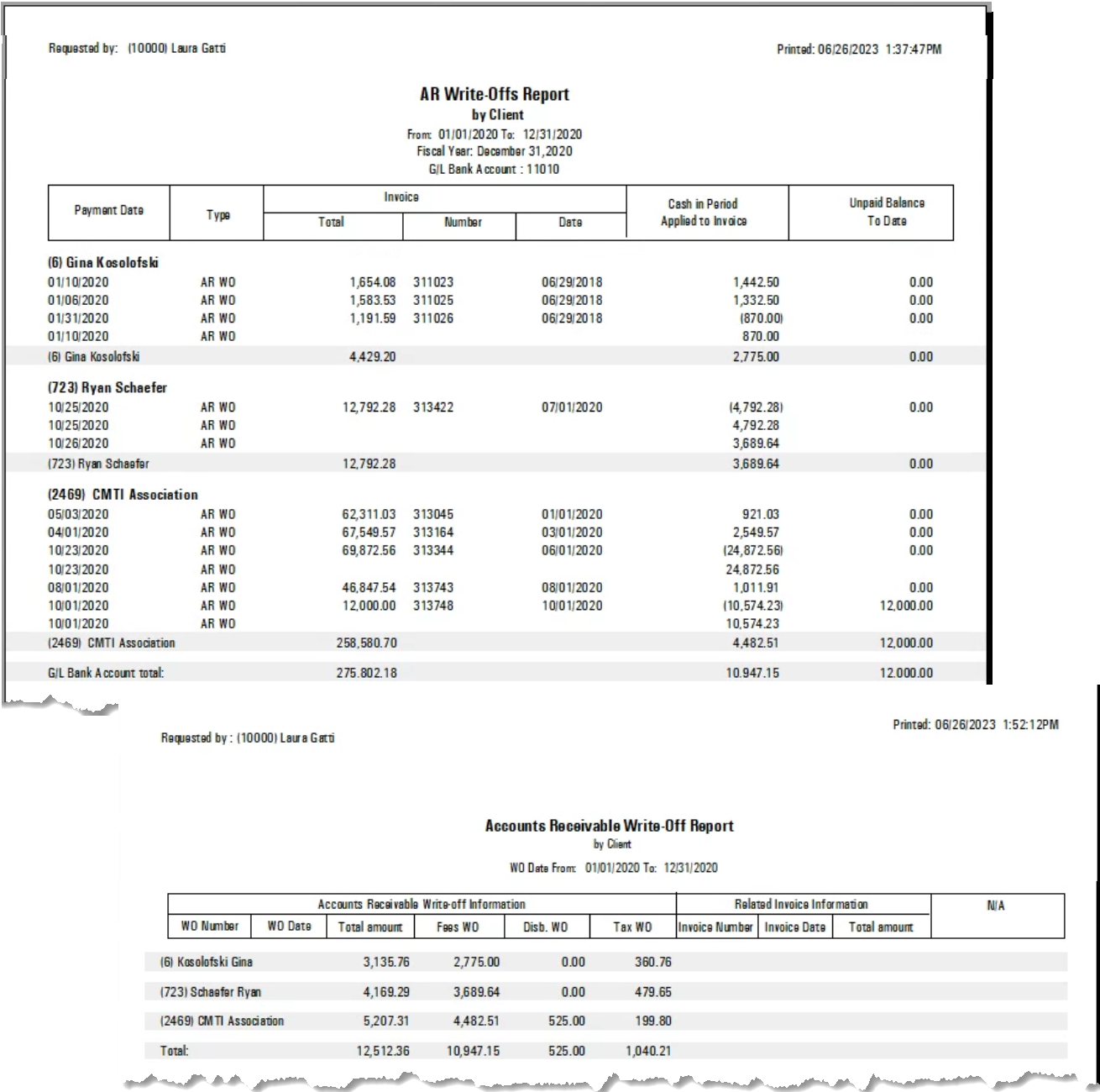
By client – detail and Summary
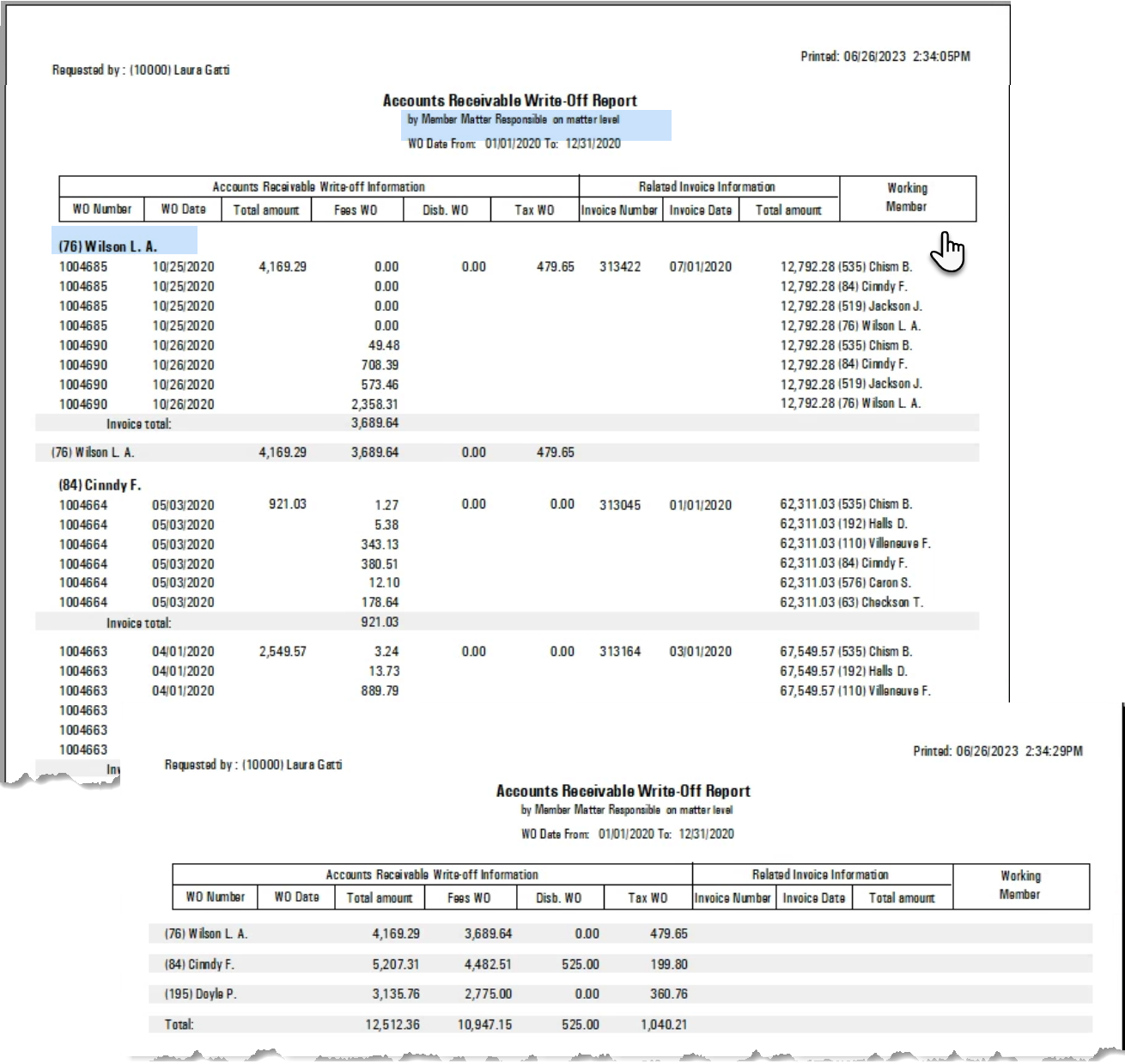
By Member with second member
If the report is generated by team role-holder, shareable role-holder or signatory with the second role checkbox option in the pre-select tab check marked, the delegate tab in the member section of the details tab will be pre-set to the allocated-to working member as the second role-holder. Alternatively, if the member section of the details tab is by Allocated-to working member, the delegate tab will need to be populated by team role-holder, shareable role-holder or signatory. Below is a detailed and summary by matter responsible member, with second role-holder equal to allocated-to working member.
Accounts Receivable Write-Off Report
Access
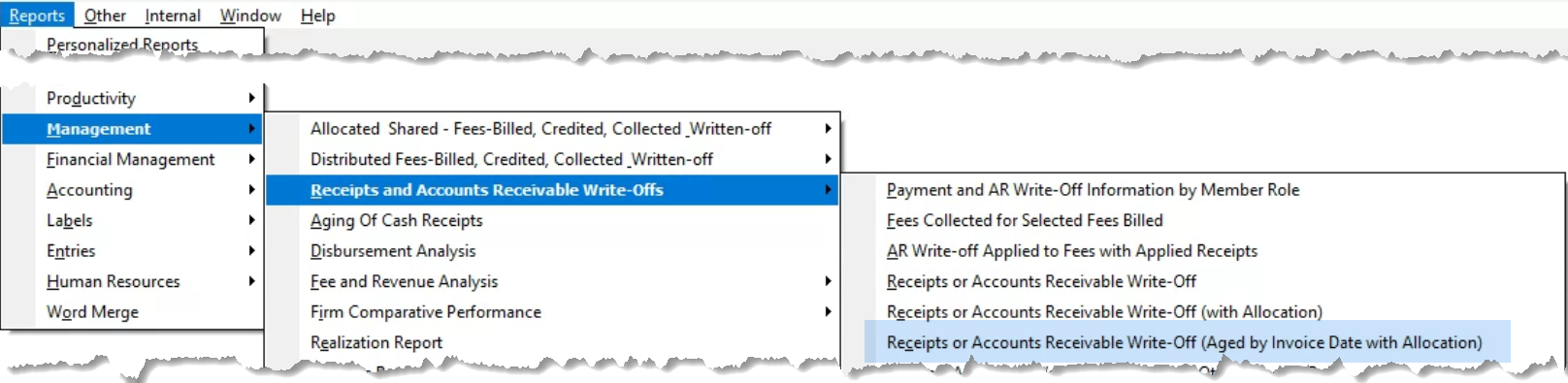
Select the Receipts or Accounts Receivable Write-Off Aged by Invoice Date with Allocation option from the “Reports – Management – Receipts and Accounts Receivable Write Offs” sub menu.
Preselect Tab
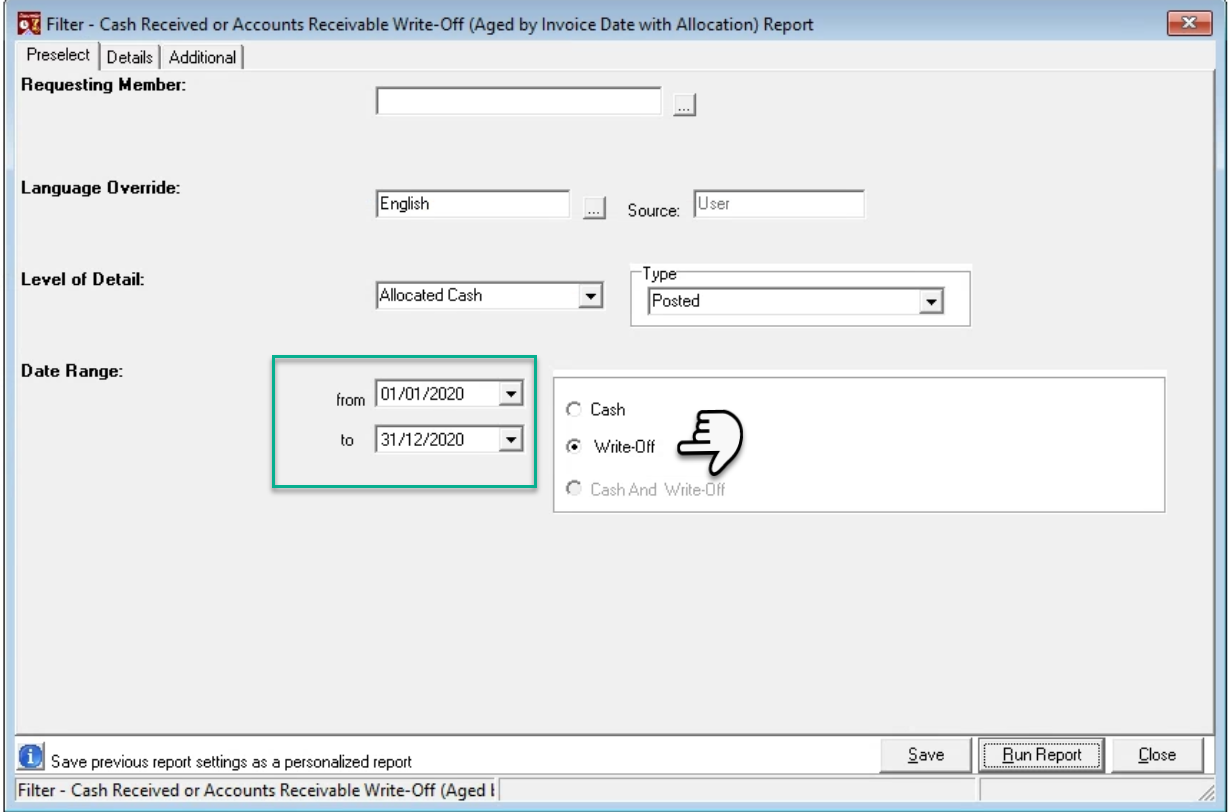
The lowest level of detail for this report is the allocated-to cash receipt when the cash (or collection option is selected, however when the “Write-off” option is chosen the results are in context of the Accounts Receivable written-off measures, therefor the date range is for the date of the receivable write-off.
Details Tab
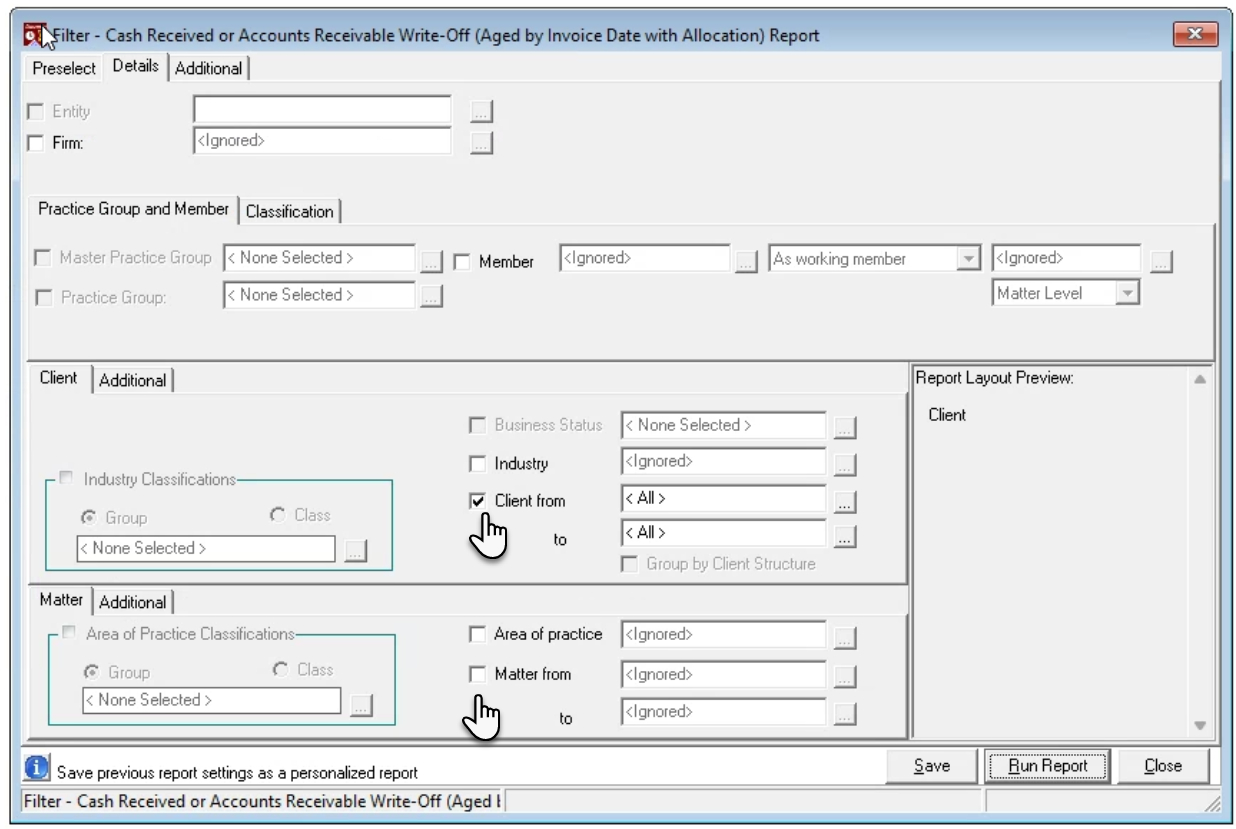
Consider the reporting attributes relevant to the intended use case of the results and uncheck all other options.
When reports are executed by matter without the client, the client and matter codes are both presented on the results but the client group with sub-totals by client eliminated.
The additional subtabs for the client and matter reporting attributes include additional filter options based on date opened and status.
Additional Tab
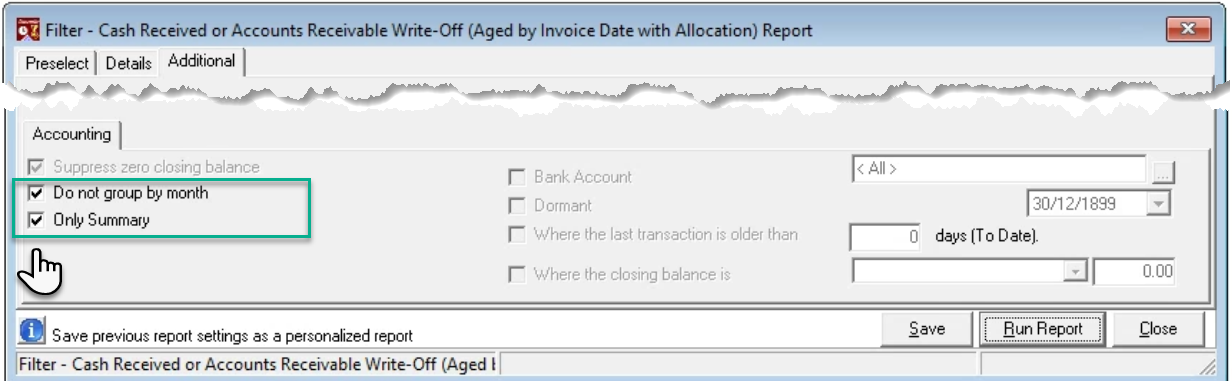
Select “Do not Group by Month” to not have a month-by-month group during the period and select the “Only Summary” option to summarize the AR Write-off details to the lowest reporting dimension selected.
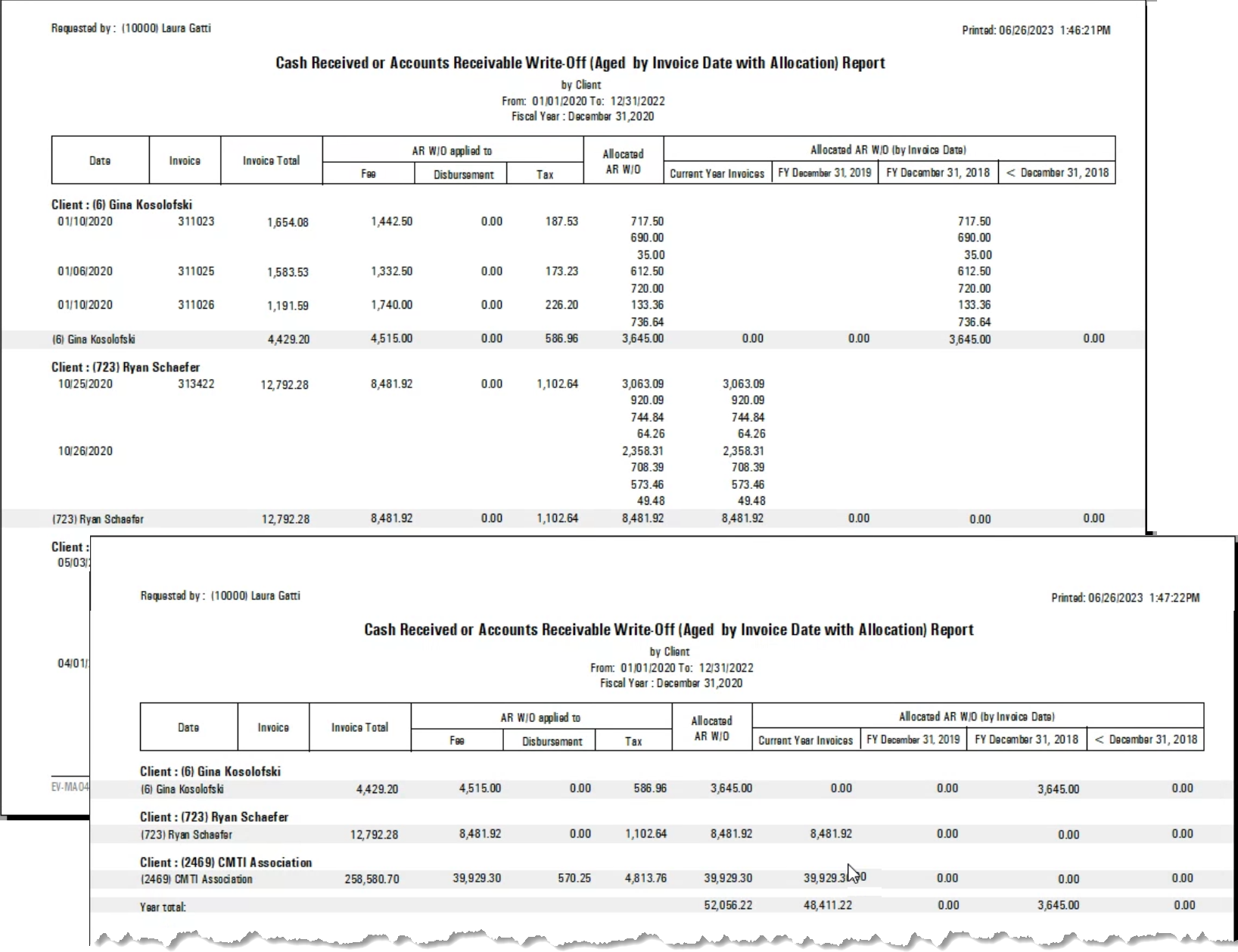
By client – detail and Summary
Receipts or Accounts Receivable Write-Off Report
Access
Select the Receipts or Accounts Receivable Write-Off option from the “Reports – Management – Receipts and Accounts Receivable Write Offs” sub menu.

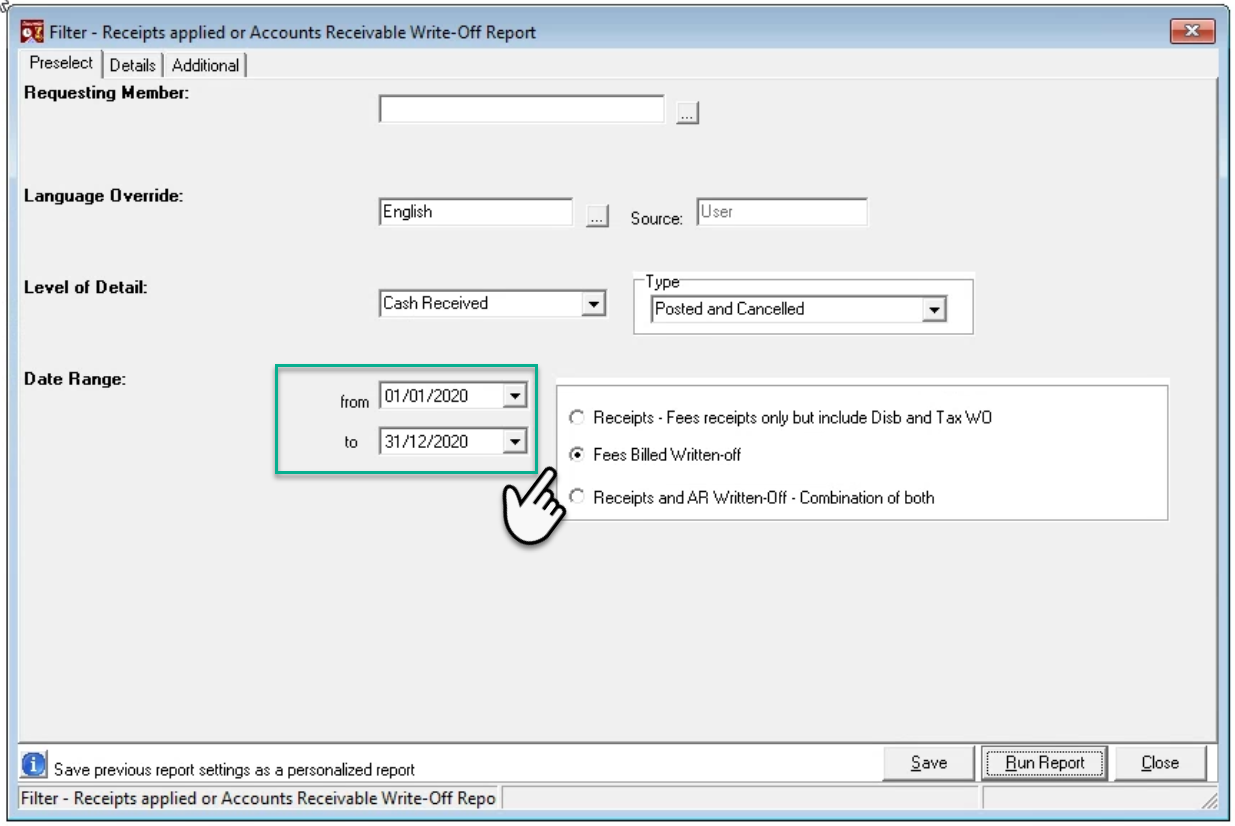
Preselect Tab
The lowest level of detail for this report is the cash receipt when the receipt option is selected, however when the “Fees Billed Written-off” option is chosen the results are in context of the Accounts Receivable written-off measures, therefor the date range is for the date of the receivable write-off.
Details Tab
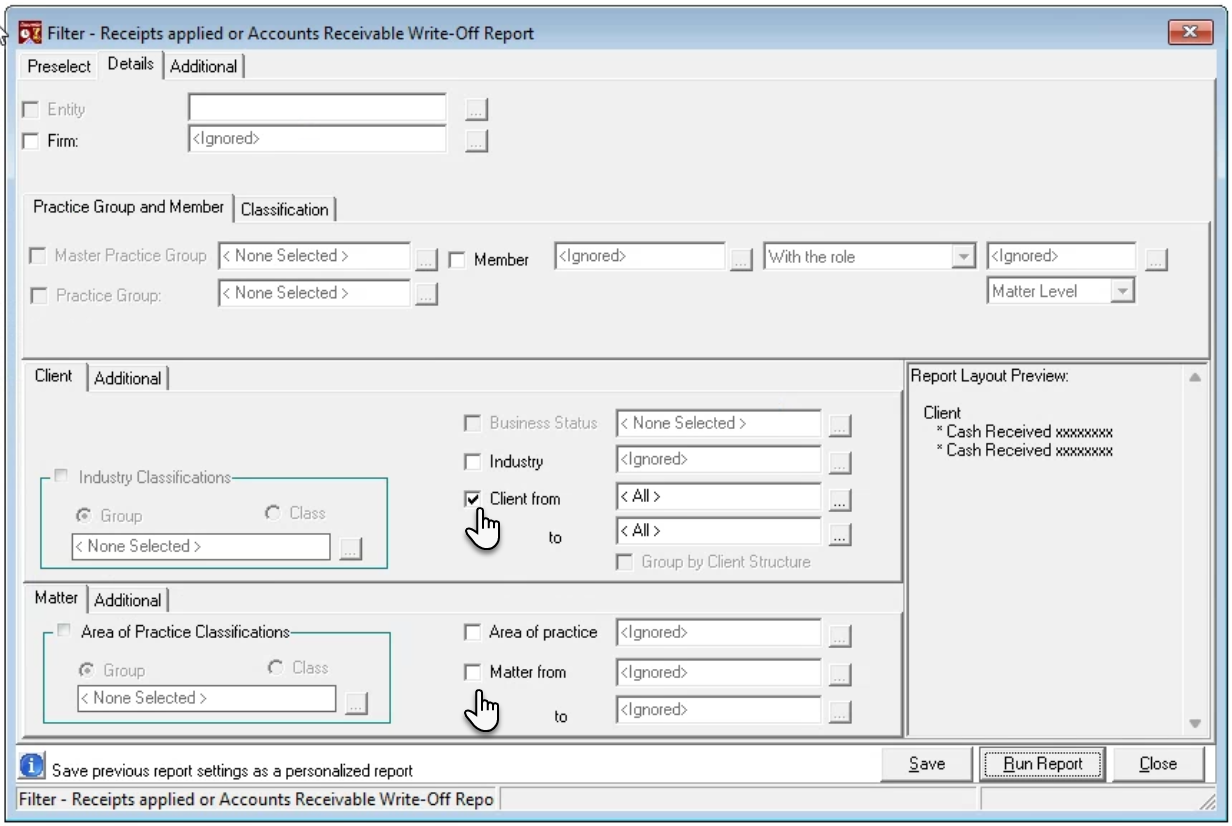
Consider the reporting attributes relevant to the intended use case of the results and uncheck all other options.
When reports are executed by matter without the client, the client and matter codes are both presented on the results but the client group with sub-totals by client eliminated.
The additional subtabs for the client and matter reporting attributes include additional filter options based on date opened and status.
Additional Tab
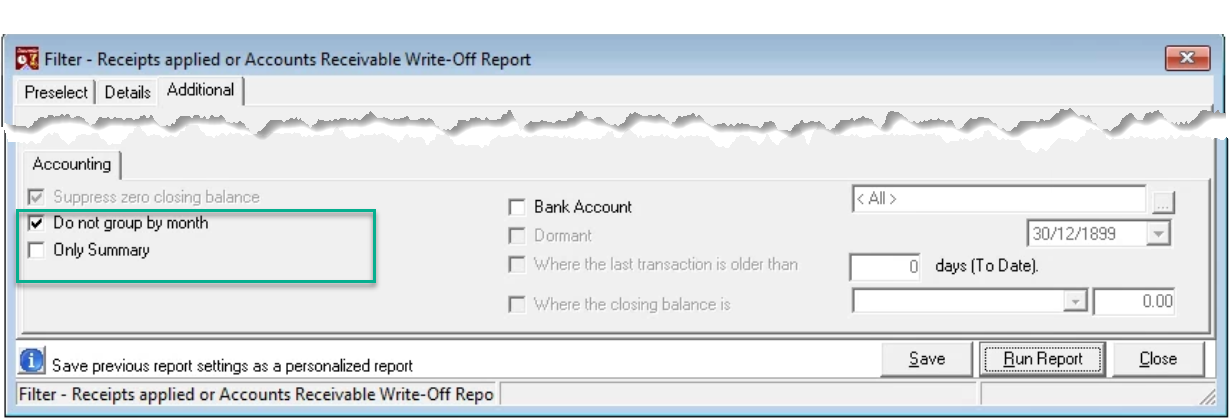
Select “Do not Group by Month” to not have a month-by-month group during the period and select the “Only Summary” option to summarize the AR Write-off details to the lowest reporting dimension selected.
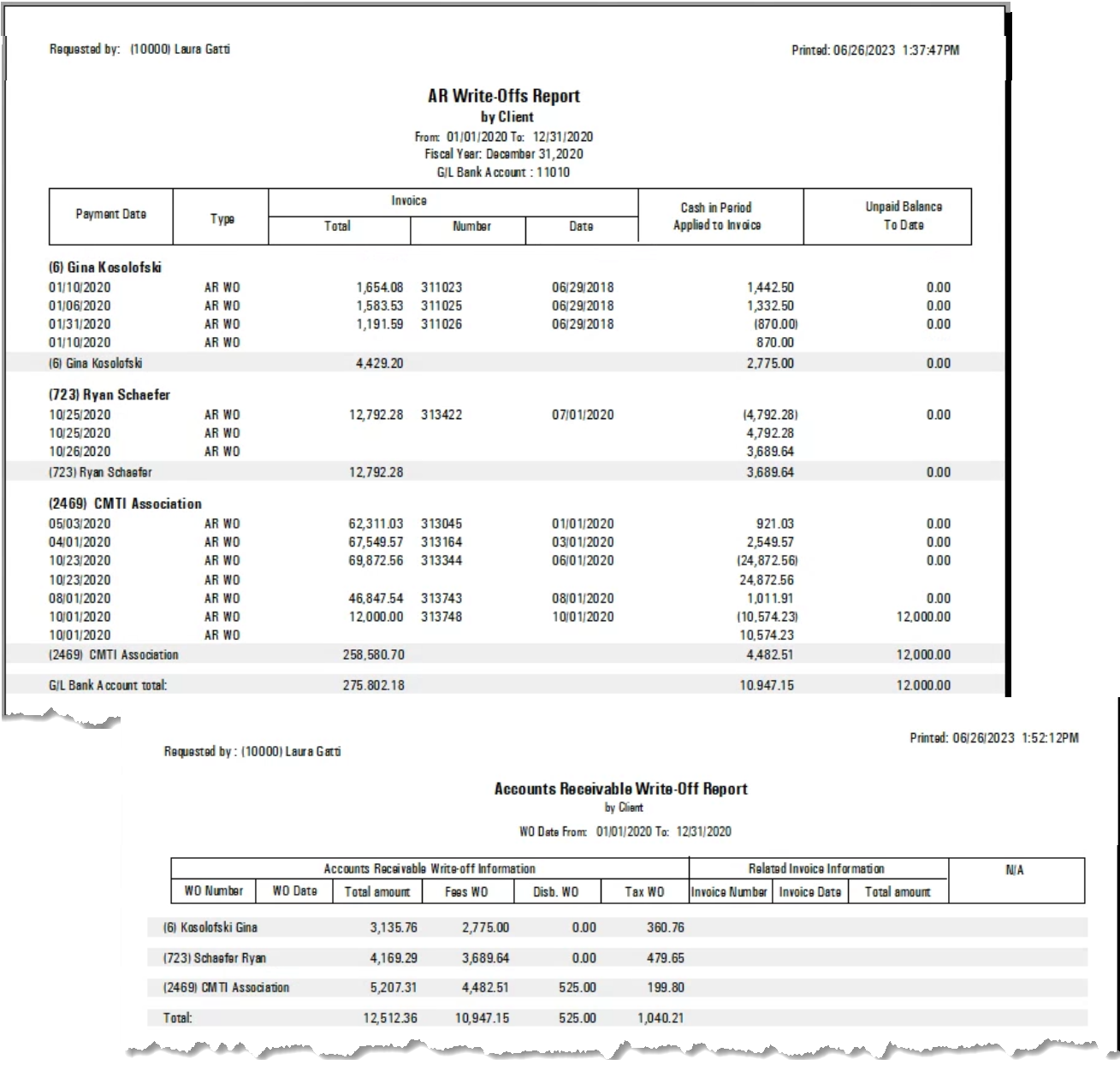
By client – detail and Summary
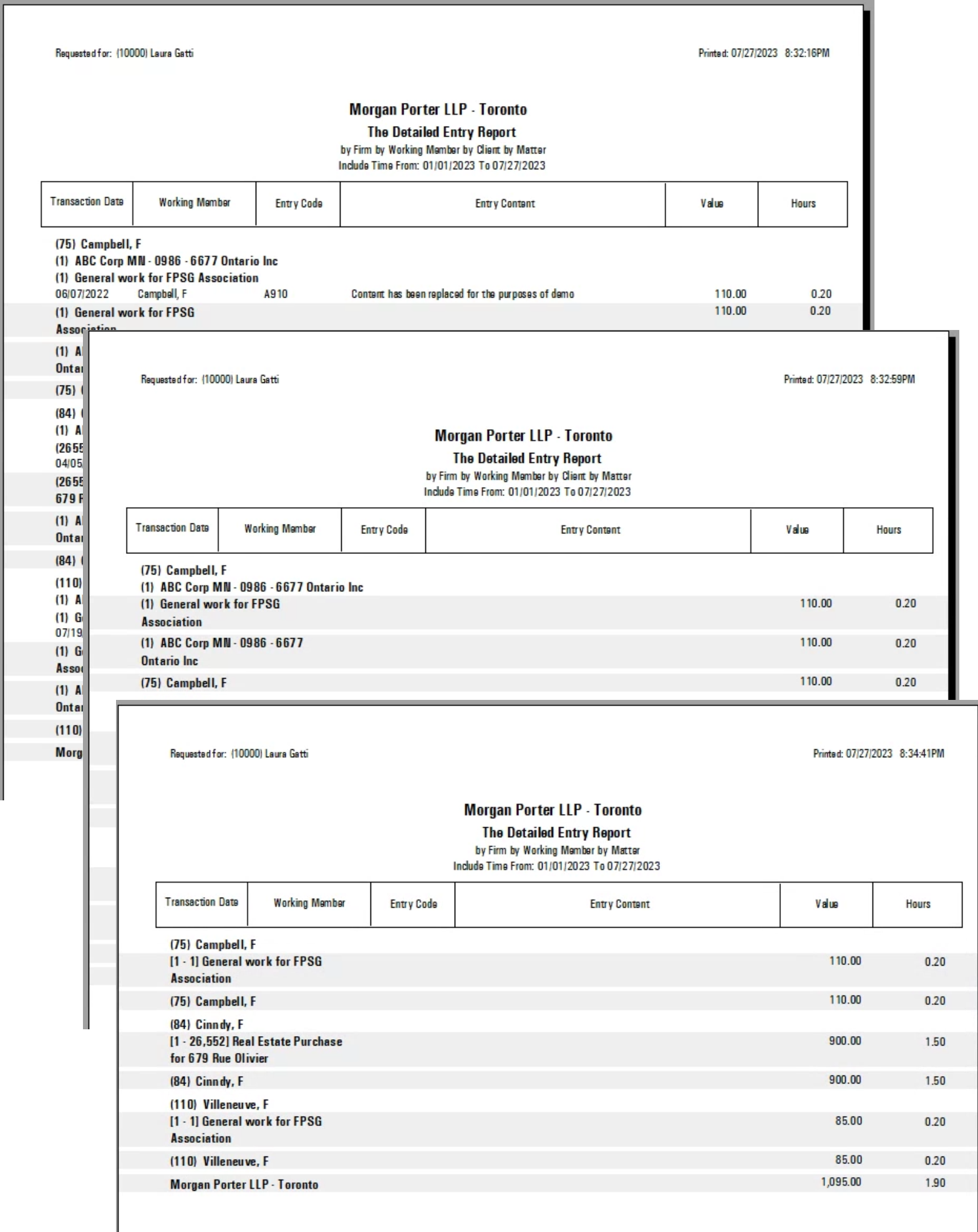
The Detailed Entry Report – Unbilled Entry Write-Offs
Business Use-Case
The Detailed Entry report is intended to provide users with a filter rich tool to identify or narrow down on specific entries based on a common attribute in response to a specific question, finding or analysis effort.
Access
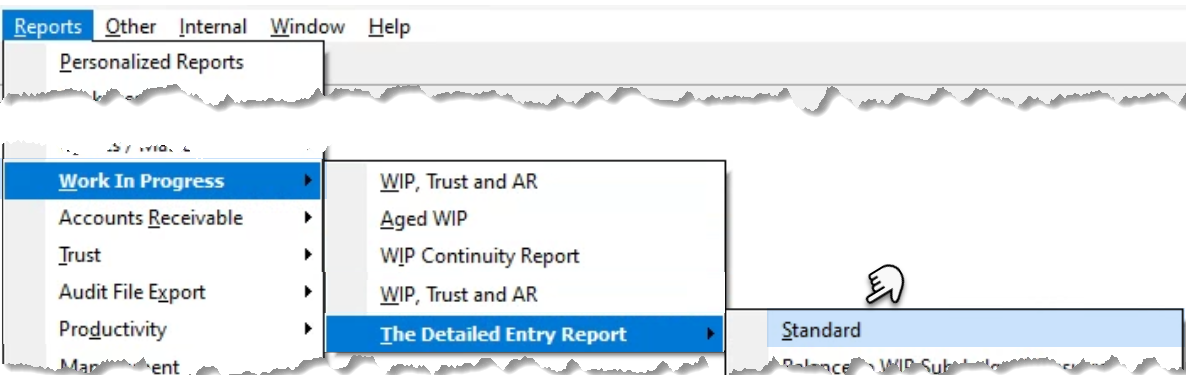
Select the “Standard” option from the “Reports – Work in Progress – The Detailed Entry Report” sub menu.
Details Tab
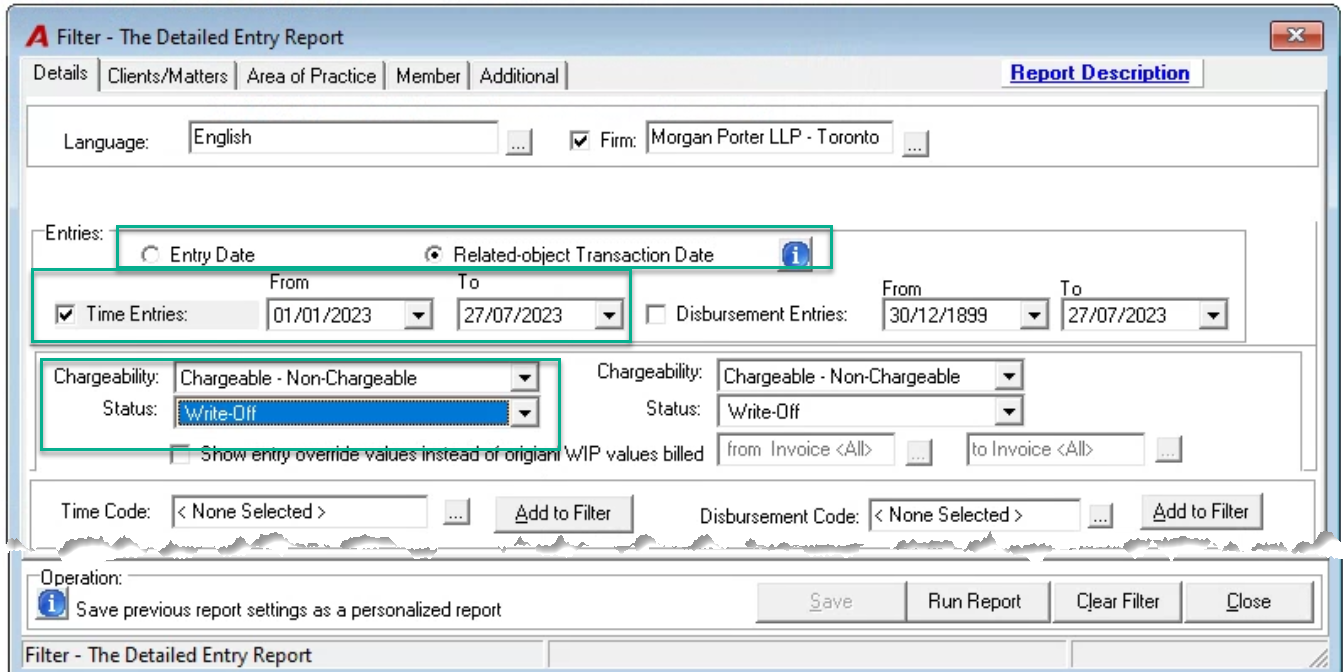
Use the checkbox options to include time and/or disbursement entries and use the radio button to select the entries based on their entry transaction date or related object transaction date. The related-object transaction date option is available for entries with status billed or written-off therefore all other status options will not list when this date option is selected.
Select the chargeability status – Chargeable. Non-Chargeable or both, as well as the entry status – in this case written-off.
Client/Matters and Area of Practice Tabs
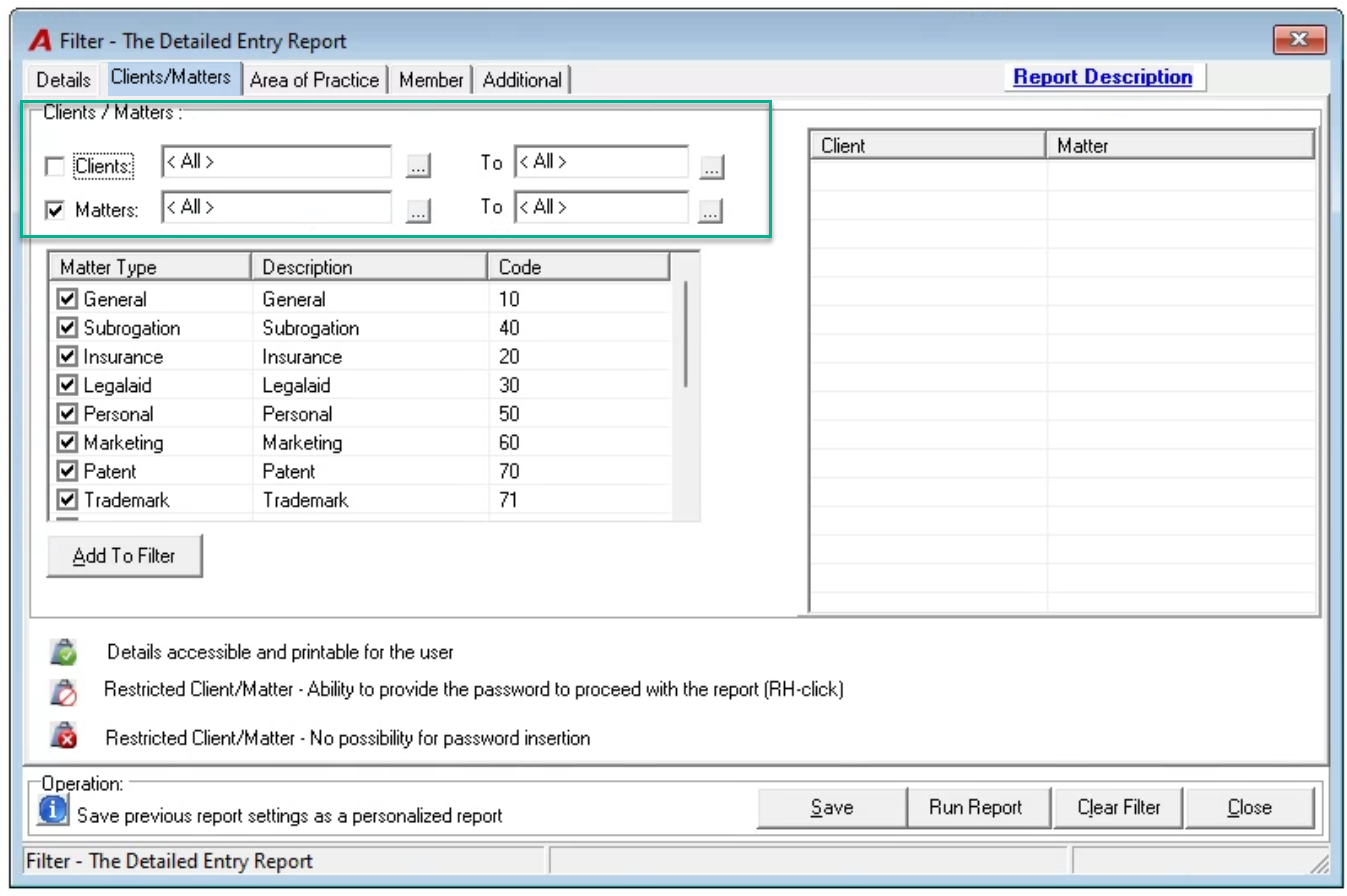
Use respective tab content filters to filter results for specific selections of clients, matters and/or Areas of Practice.
Uncheck the client and/or the matter to not group by this reporting dimension. For example if you select matter the report will list the write-offs grouped by matter in which case the client code is also shown with the matter code and name.
Members Tab
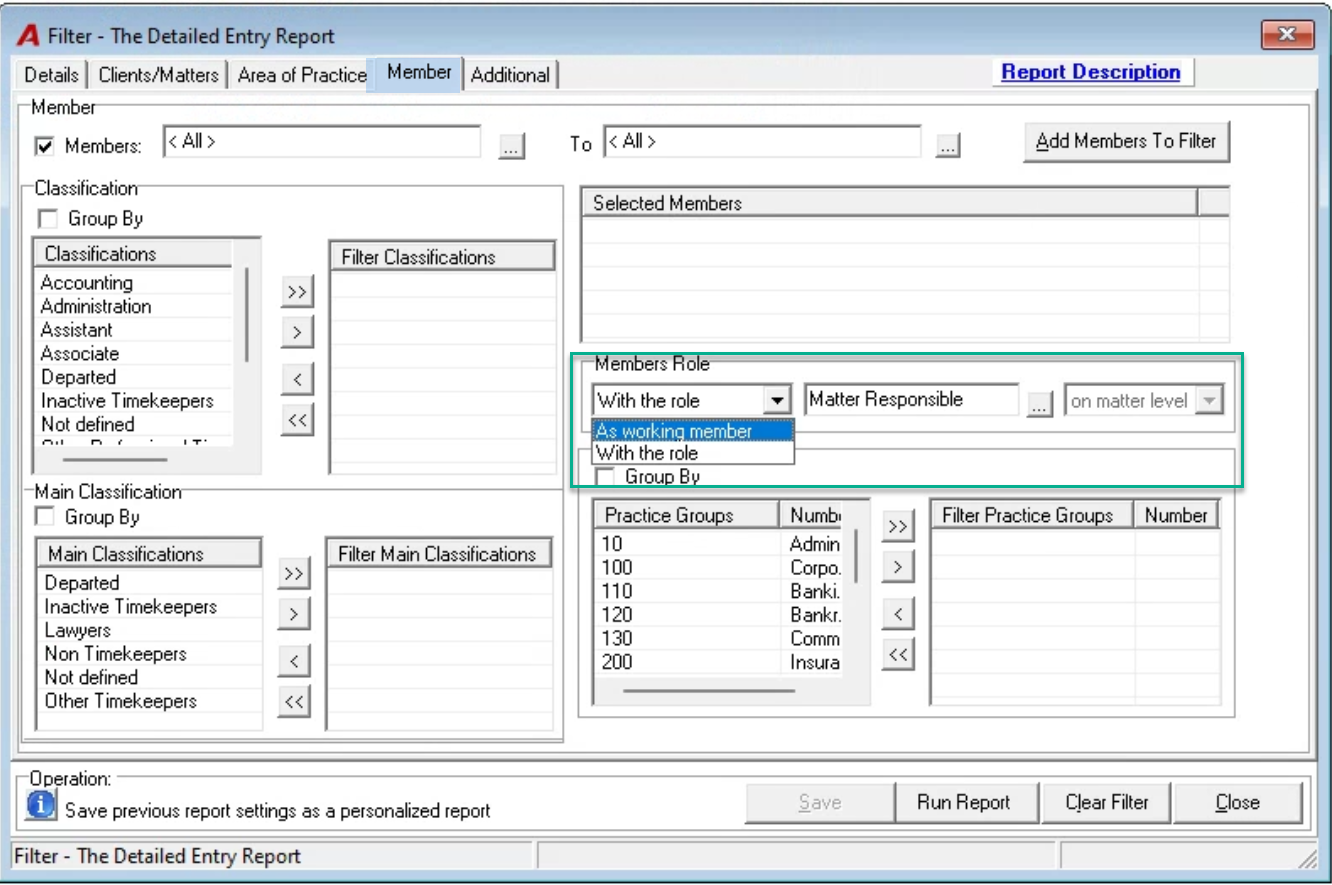
Use the member filter to cumulative build the list of members instead of <all> or filter members by main or reporting classifications or practice group membership.
Decide on perspective – select the results by working member or based on role holder by selecting with a client or matter level role.
Additional tab
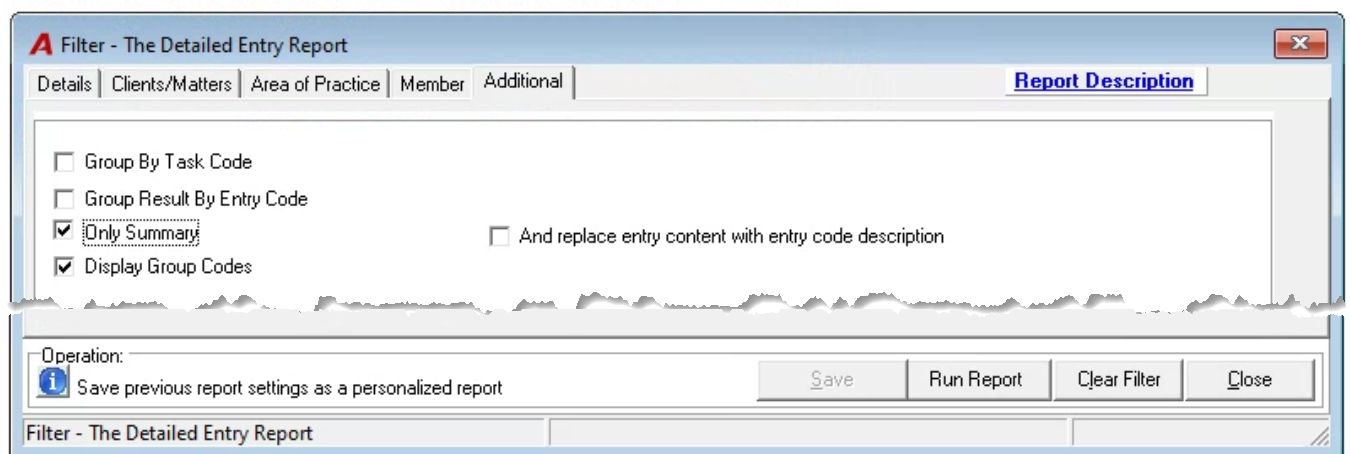
Use the summary option to summarize based on the lowest group selected and other additional tab options used.
Report