.png)
Financial Statement Templates
Scope and Purpose
The purpose of this document is to provide the user with an understanding of GL based templates.
The scope of this document extends across the options available to create the templates and generate the reports.
Highlights
Authorized users can create organization-specific templates for balance sheets, income statements and supporting schedules that contain firm-defined financial groupings relevant to the firms. Each of these financial groupings can contain one or more GL accounts.
The financial statement groupings can be created with multiple levels for users to have greater flexibility with presentation options. The multiple grouping-levels allow the user to present the statement or schedule fully or partially summarized by contracting or expanding the branches.
GL accounts are assigned to the lowest level node of the branch. To expedite the process, users often filter GL accounts of the same kind, for example revenue, to multiple select them all an adding them to the lowest level node of the first branch. From the assigned GL account sub-tab users can select and drag and drop the GL accounts to their corresponding lowest level notes on the tree.
Expand the statement using the "Expand level" option. 0 means fully contracted and 4 means fully expanded. Users can also expand branches to desired levels by clicking on the plus sign.
To find which grouping a GL account was assigned to, enter the GL account in the GL account field bottom left of the template form and press find.
Although users can use the footer field to capture the label for the group's subtotals, it is cleaner to not use a label at this level.
The properties of a group include the options to reverse the sign of the presentation. Although this is an effective tool to present liabilities, capital and revenue, the reverse option should be applied to the parent of the affected branch after the template is confirmed as accurate.
The analysis report found – bottom of the template form - generates a trial balance type report that shows the GL account code and name grouped within the financial statement node for the report. It will report for all measures for all firms assigned to the format itself.
The financial statement type "Balance Sheet" allows the inclusion of a GL account to a maximum of two financial statement groupings (nodes) – once in the asset section and once in the liability-equity section – to show GL balances as an asset or liability-equity, depending on if they are carrying a debit balance or a credit balance.
New Templates
Access
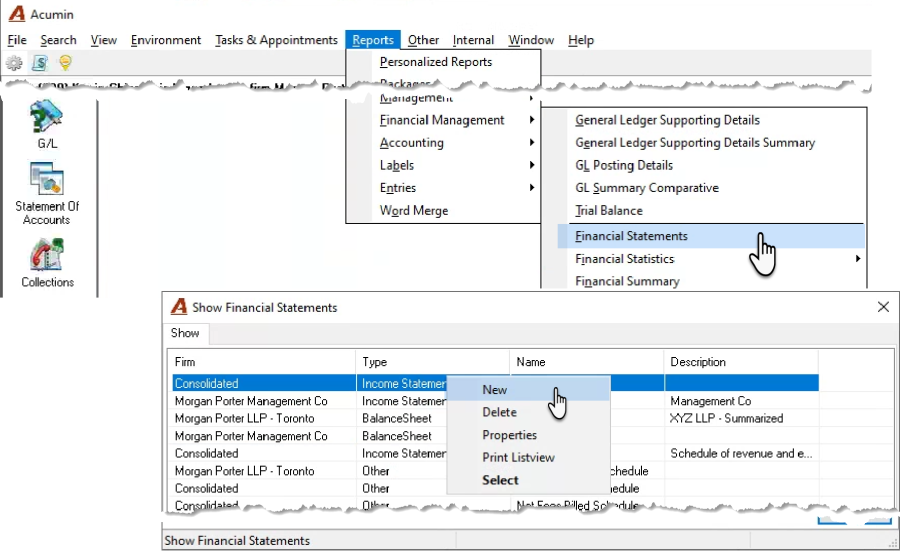
From the main menu select Reports – Financial Management – Financial Statements to launch the "Show Financial Statements" List view. Right-click to select NEW and launch a new "Financial Statement Properties" form.
Creation
-
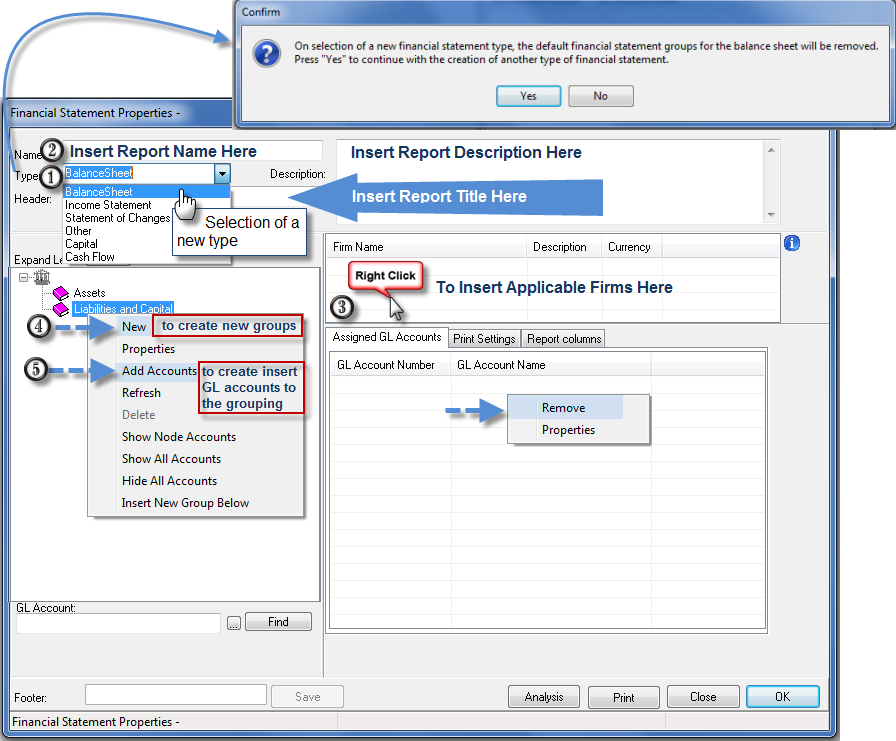
Select the type of statement to be created. The form will launch with the balance sheet as the default. Expand the drop-down selection list to make a different selection and respond to the information message that follows.
-
Name the report, add a Report Description and Insert a Report Header (title). The report name and description will display on the "Show Financial Statements" list view. The report header and the report name will print on the report's title bar. Press OK to accept and save the statement before adding new financial statement groups.
-
Insert the applicable firms (profit centers) to consolidate on final print. Right-click to add the firms (profit centers or offices) to which this statement will apply.
-
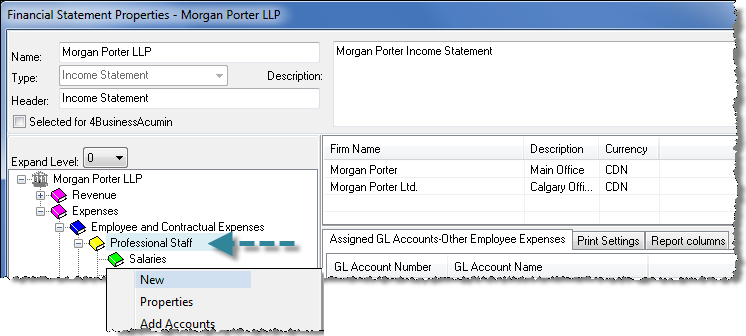
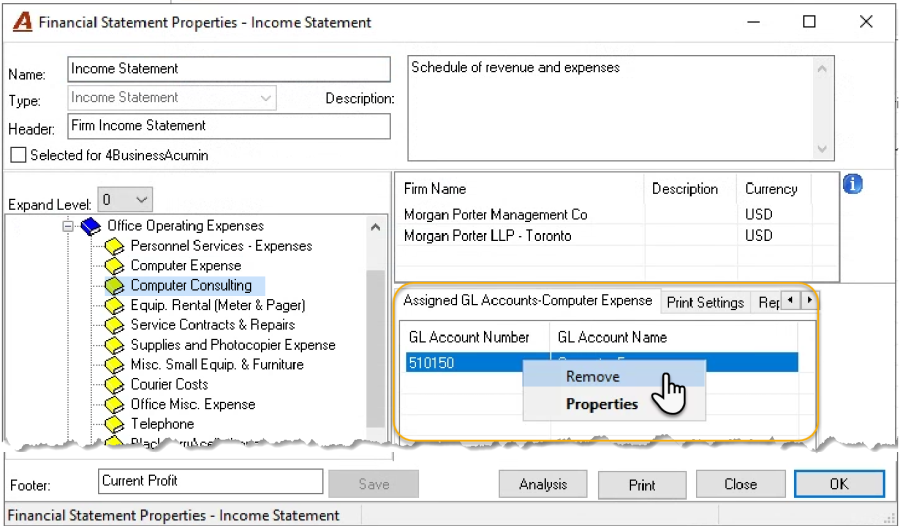
Create new financial statement groups: Right-click to access the contextual menu and select NEW to create new financial statement groups. To create a new sub-level, highlight the level which will include it and right click to select new. In the example that follows the user highlighted the third level – Professional Staff to create a new fourth sub-level labeled "Other Employee Expenses". It will be created after the sub-level labeled "Salaries". Once the level is created it cannot be moved to a different position, therefore make sure that you create them in the right order.
-
-
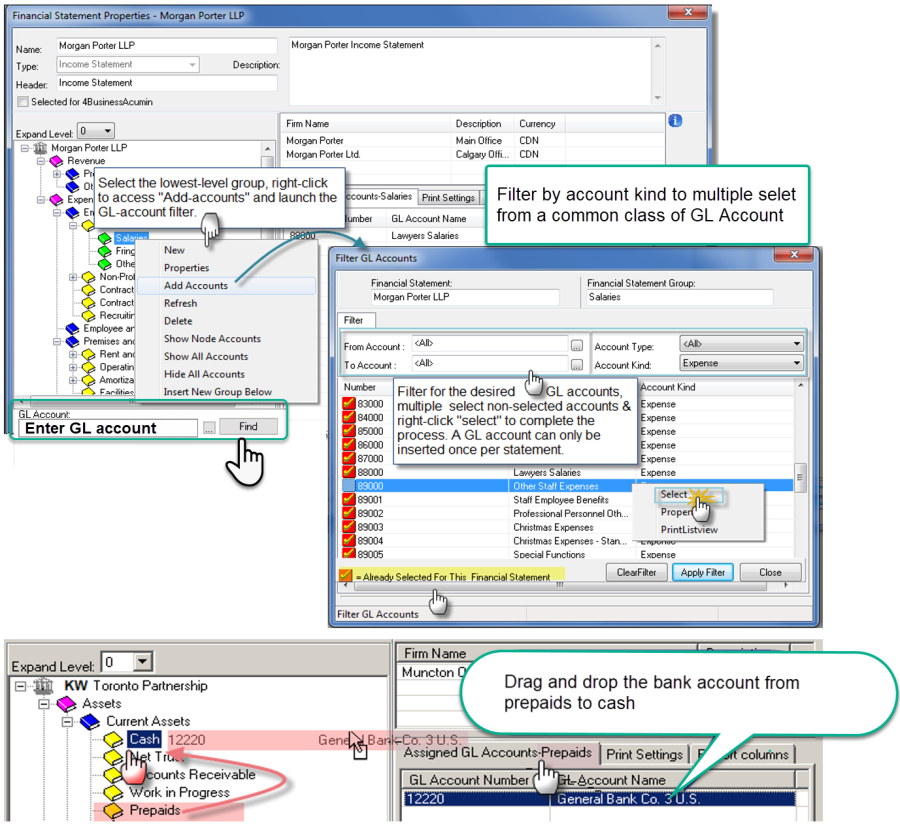
Add GL-accounts to the Lowest-level Node of the Group: Highlight the lowest level of any group, right-click to access the contextual menu and select "Add Accounts" to assign parent GL accounts. All sub-accounts will follow the parent's assignment to the group. Financial statement can report to lowest sub-account level for maximum granularity.
-
Drag the GL Account and Drop it into Another Group: Click on the GL-account found on the "Assigned GL Accounts - …" sub-tab and right-click to select "Remove" drag it to the lowest node of another group.
-
Remove Accounts Added in Error: Select the affected GL-account on the "Assigned GL Accounts - …" sub-tab and right-click to select "Remove"
Group Properties
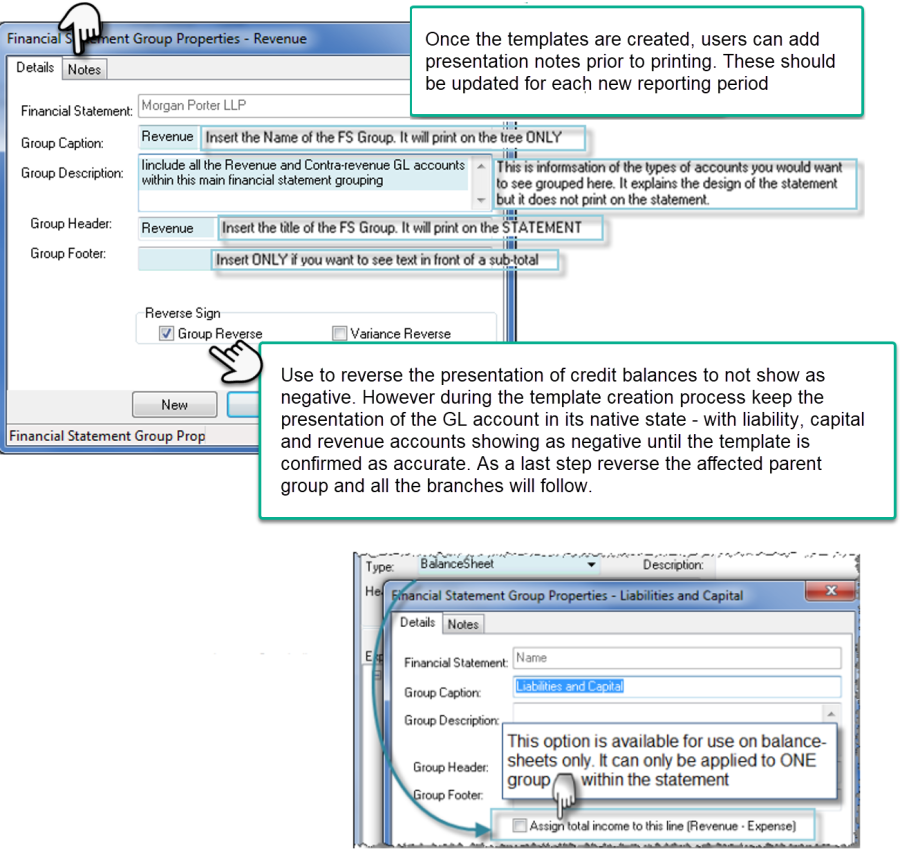
Caption: The content that shows on the tree
Description: Include the intended use case for the group
Header: The content that shows on the report
Footer: The content that shows to the left of subtotals on the report. Often left blank for a cleaner look.
During the process of creating a new statement keep the GL account presentation in its natural state; where liabilities, capital and revenue accounts display with negative values. Only once the user is sure that the statements are complete and working as expected, should they consider reversing the sign of these parent groups for final presentation
Multiple GL Account Assignments
Filter for all GL accounts of the same "Kind" for example "assets". Multiple select them all (or as many as needed) and assign them all to one of your financial statement lines (groups). Then use drag and drop functionality to move them to the correct financial statement group or line. This process will be faster than adding them one at the time.
Use the GL Account filter option (bottom left) to find onto which statement grouping the GL account was assigned to.
Special to the Balance Sheet
Whereas the financial statement type "Income statement" and "Other" only allows a single assignment of a main GL Account per financial statement format, the financial statement type "Balance Sheet" allows the inclusion of a GL account to a maximum of two financial statement groupings (nodes). In this case, the inclusion of the same GL account within two different nodes within the statement is limited so that the latter is only included once in the asset section and once in the liability-equity section. The intended use case is to show certain GL balances as an asset or liability-equity, depending on if they are carrying a debit balance (shown in the asset section) or a credit balance (shown in liability-equity section) without any user intervention.
Master Accounts Conversion Implications
System generated GL operations resulting from the posting of accounting objects are applied to "Master GL Accounts" or "Control Accounts" creating a permanent association between GL operation and its corresponding accounting object.
From a conversion perspective, these master accounts will start with a zero-balance as at the first day of the go-live phase. Ending balances for corresponding GL account counterparts of the source application will be retained as of final-cut-off to maintain a clear audit-trail between conversion source balances and conversion destination transactions moving forward.
From a template perspective, include converted control GL accounts within the same financial statement grouping as the new master account in Acumin for meaningful current year results and comparatives to prior year.
Incomplete Statements
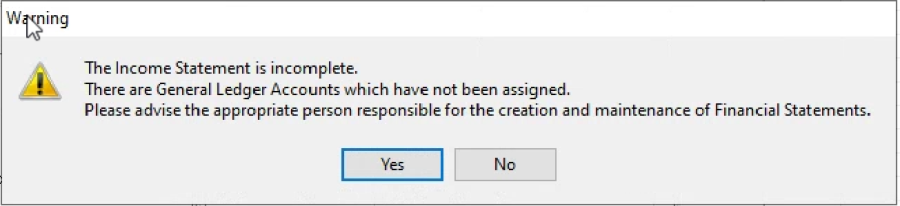
When a generates a standard financial statement (balance sheet or income statement), the system can confirm the exclusion of an account type that would typically need to be included. It indicates that a GL account has been recently modified to include one or more firms (or offices) not previously considered or a new GL account has been added to the firm's chart of accounts. This information will also be included in the report to make sure the information remains qualified.