.png)
Entry Report Options
Use Case
Report a member’s time filtered by status and/or date type and/or posted or unposted time for a specific period
Process
Press on the “Hours Worked” icon to launch the “Hours Worked Dashboard”. To change the working member, navigate to the “Month” tab.
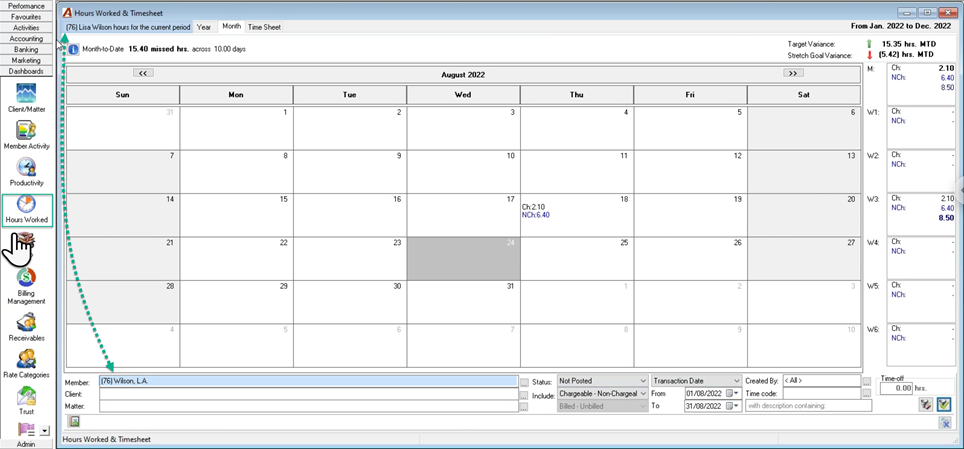
Modify the filter based on requirements.
Status:
Change the default from “Posted” to “Not Posted”, “Deleted” etc. to meet the requirements
Include:
This drop-down box provides filter options based on chargeability
Date Type:
Change the default from “Transaction Date” to creation date or deletion date to meet the requirements
Date Range:
The data range is limited to the month therefore leave as is if the output needed is for a longer period
Press on apply filter to set the parameters needed for the report
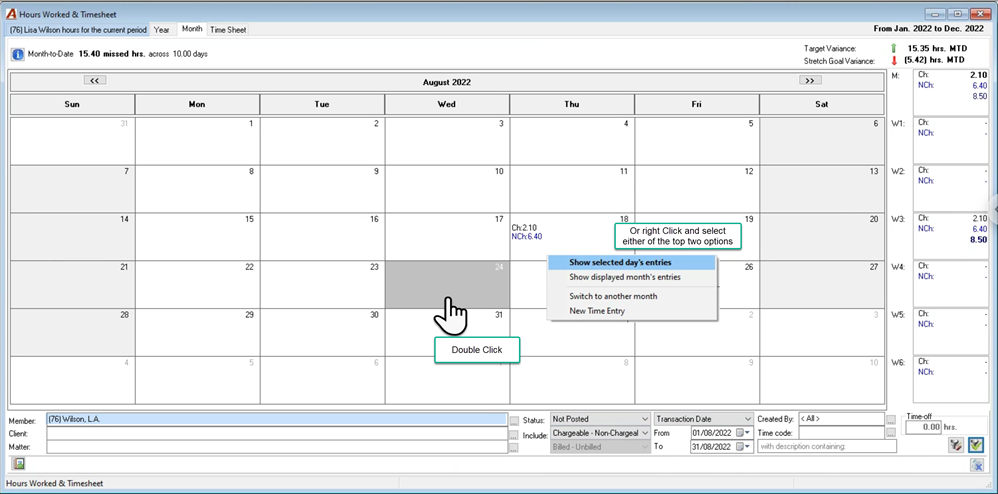
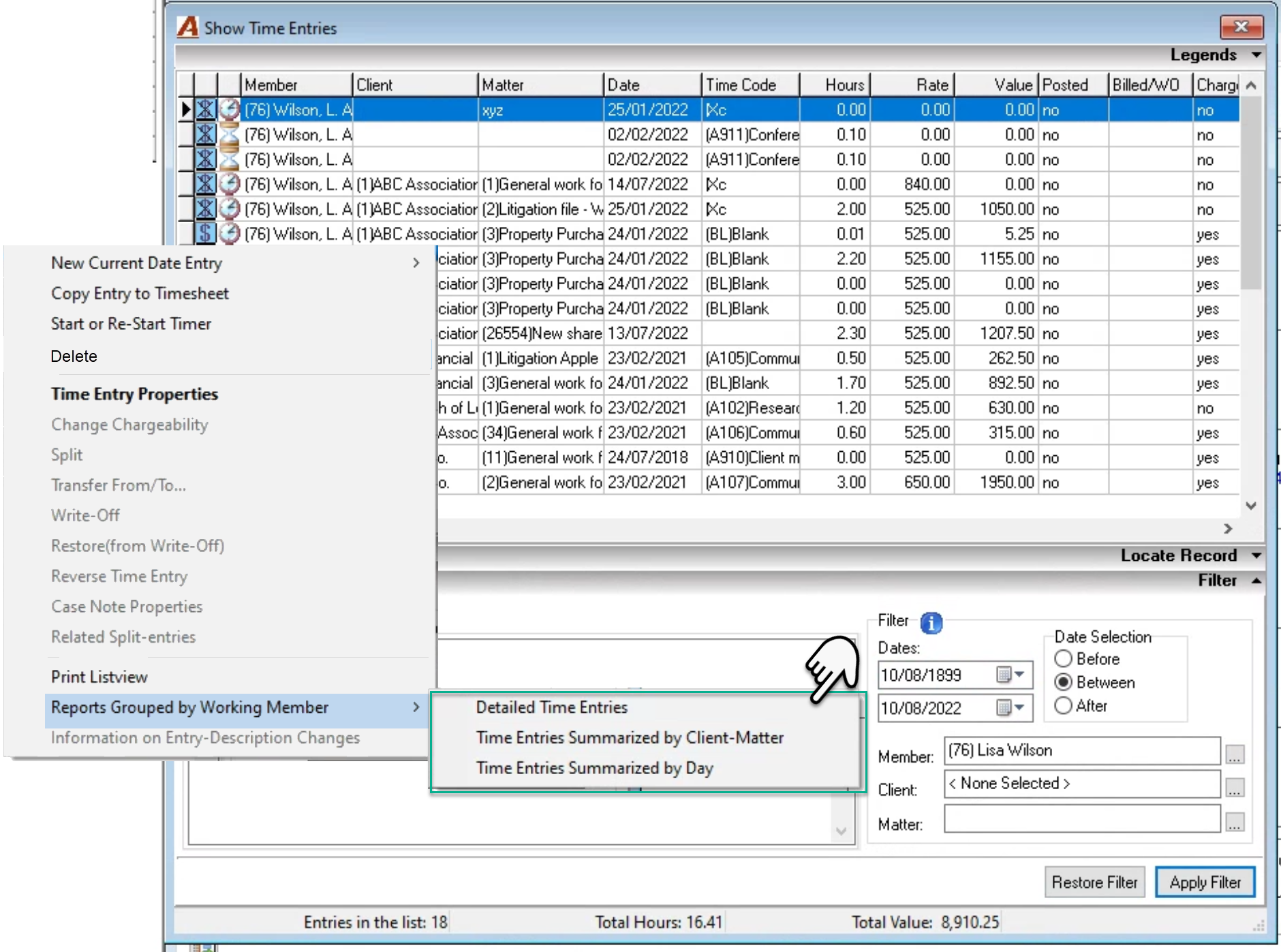
Double click on any day or right-click and select either of the top two options to navigate to the “Show Time Entries” form to expand the filter and report on the results.
Override the date range and “Apply Filter” to expand your period. For example, if looking to report all unposted time a user may want to override the from date year to 1899.
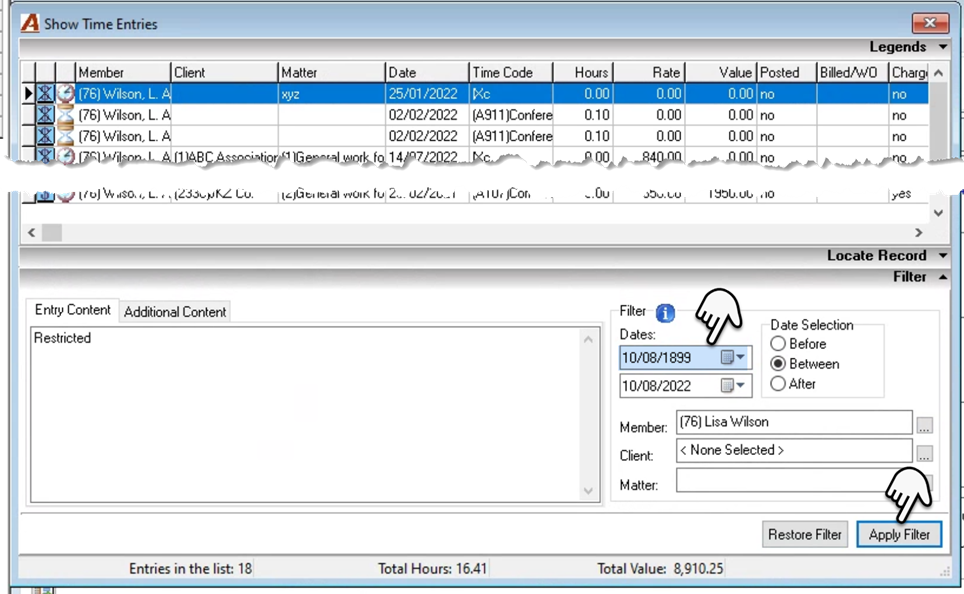
To report on the filtered entries right click and select “Reports Grouped by Working Member” to choose the best reporting option for the situation.
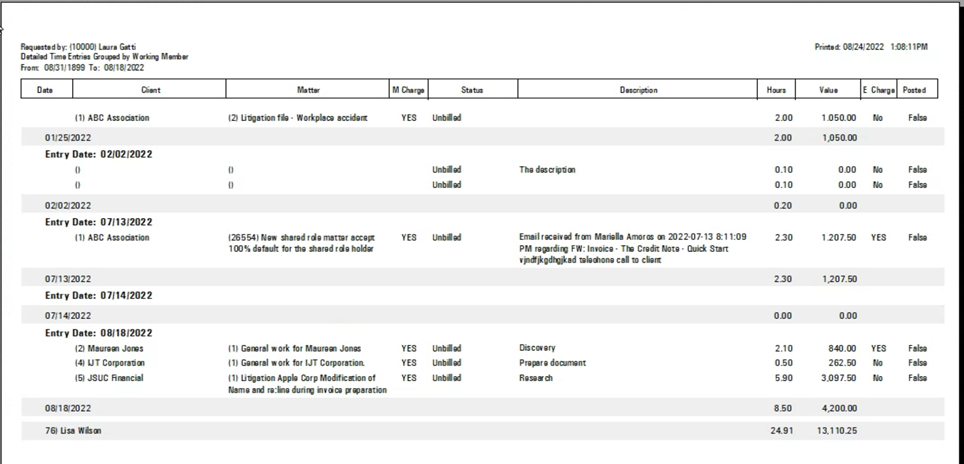
Example for the “Detailed Time Entries” report
First Page:
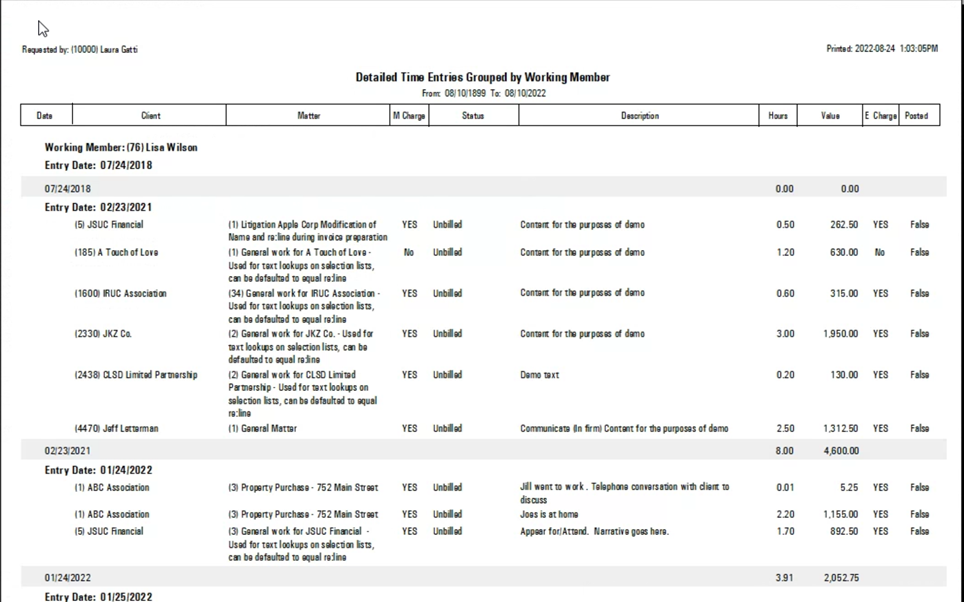
Last Page: