.png)
Overview
Acumin provides authorized users with the ability to generate customized lists by executing SQL queries directly within the system. These queries are typically provided by Dexco and are designed to extract data that may not be readily available through existing reports in the standard reporting section. Once executed, the results can be exported to Microsoft Excel for further analysis or sharing.
Security Requirements
To run SQL queries in Acumin:
-
The user must have administrative rights.
-
SQL queries are manually entered—not selected from a list—so access to the SQL command should be carefully managed.
-
Dissemination of the SQL command should be limited to authorized users only, particularly those who are permitted to access the resulting data.
Before You Begin
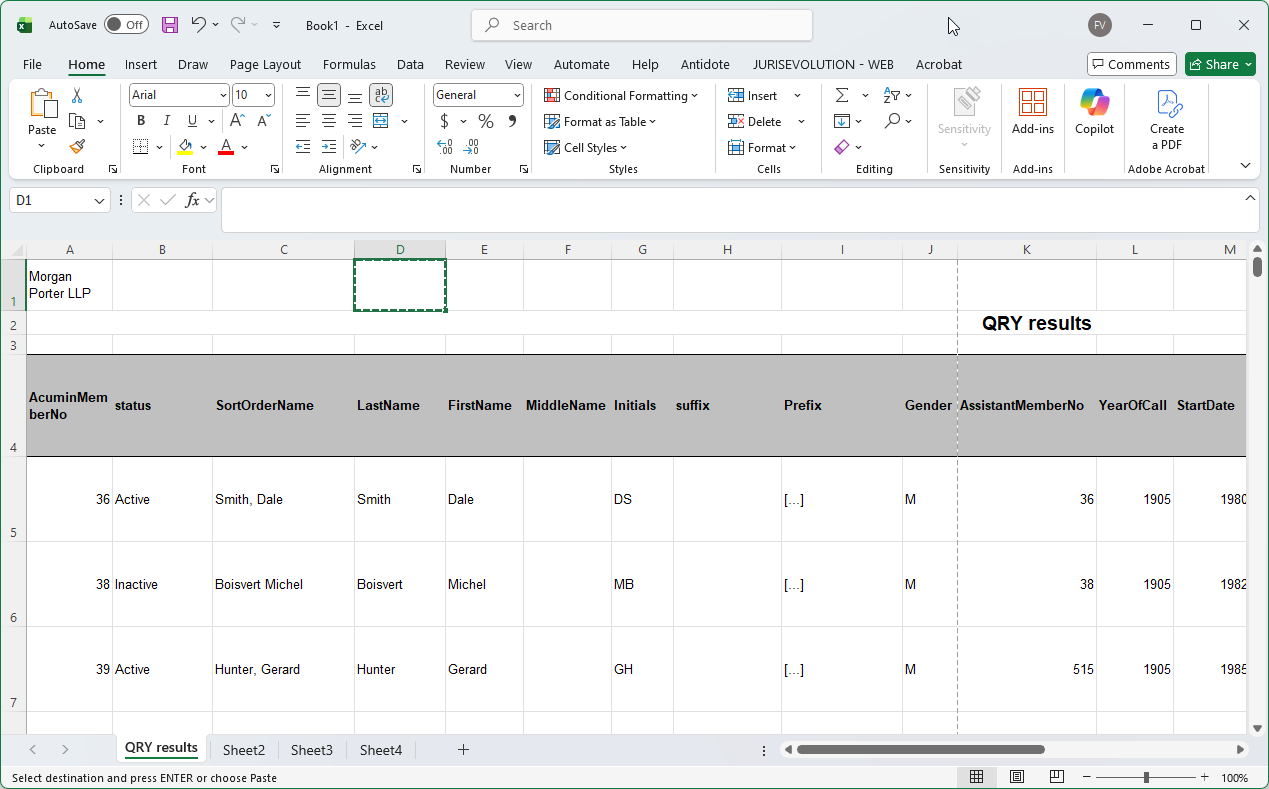
To export query results to Excel, ensure that the "Print ListView through Excel" option is enabled under the Other menu. If this is not already set as your default, you can configure it in your user preferences.
See: User Default - Print List View to Excel
Steps to Execute a SQL Query
-
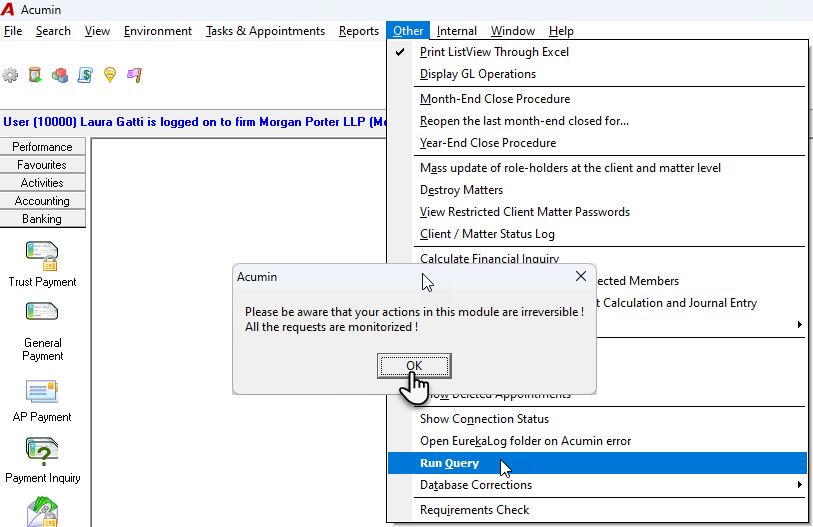
Access the Query Tool
From the main menu, go to:
Other → Run Query
This opens the "Execute SQL Query" form. -
Acknowledge Security Message
A warning message will appear, notifying you that this feature allows data extraction via custom SQL.
Since this is a read-only operation, click OK to proceed.
-
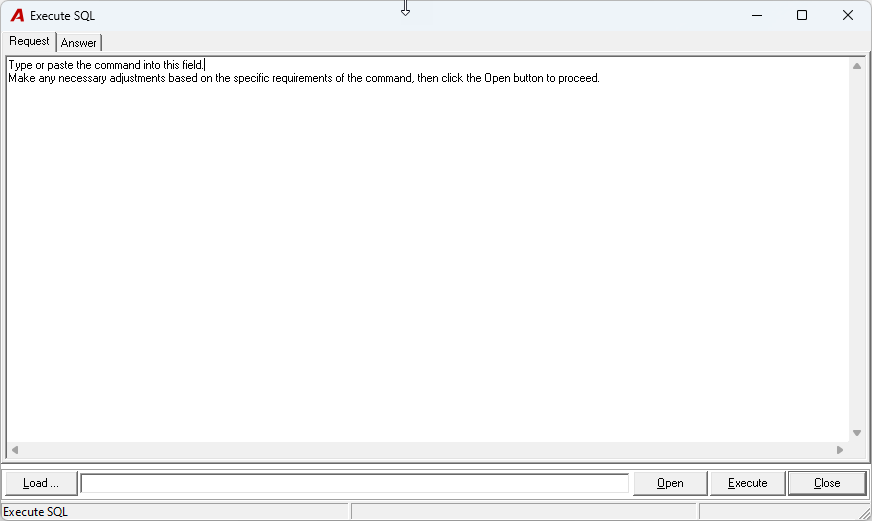
Enter the SQL Command
In the Request tab, type or paste the SQL command provided by Dexco.
Review and make any necessary adjustments based on your specific requirements. -
Execute the Query
Click the Open button to run the query.
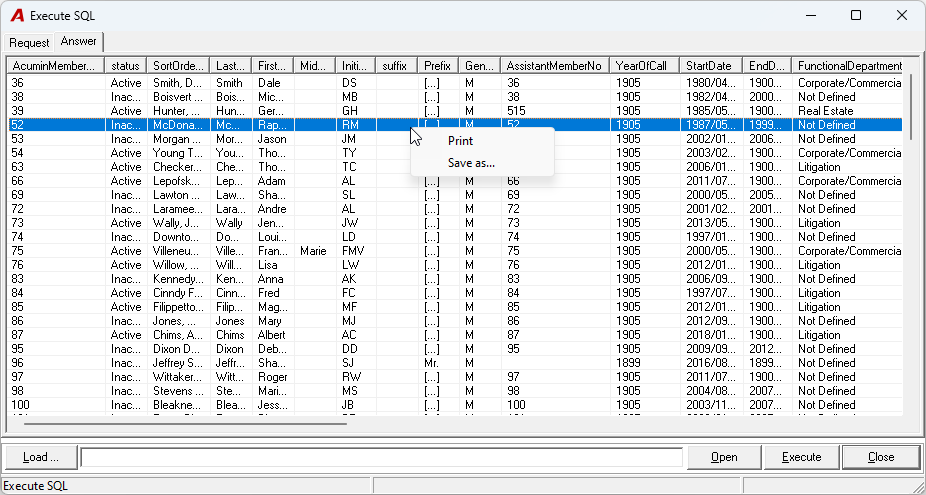
The results will be displayed automatically in the Answer tab.
-
Export to Excel
-
Right-click anywhere in the results area to open the contextual menu.
-
Select Print to export the data in Excel format.
-
Close the Form
Once finished, click Close to exit the query window.