.png)
Add a New GL Account to a Financial Statement or Schedules
Purpose
The purpose of this document is to provide the user with a pathway to add new GL accounts
Highlights
Users may want to create a new lowest level financial statement grouping line for the new GL Account instead of using an existing one depending on the degree of reporting granularity needed for the affected statement or schedule;
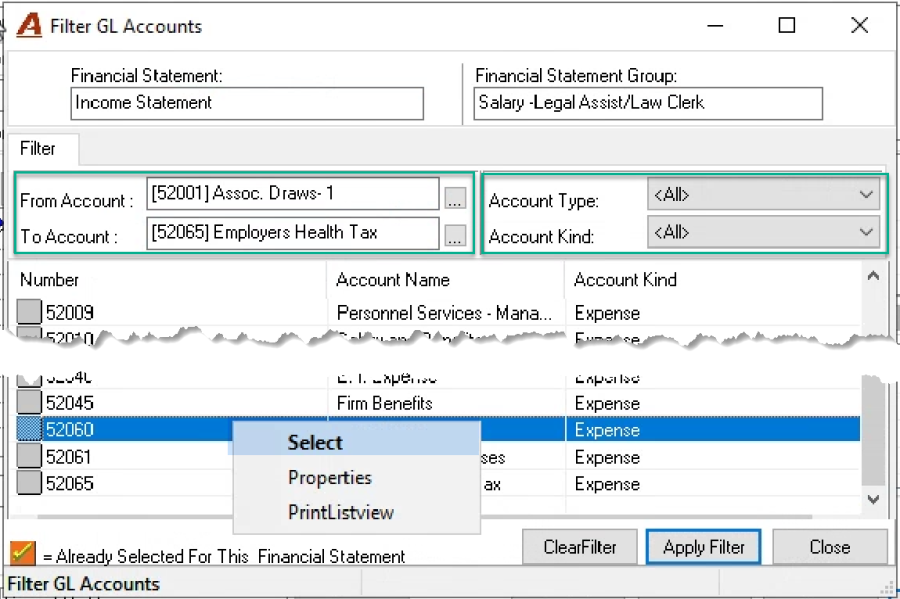
GL accounts already selected are identified in the filter results with a yellow check-mark over an orange background icon, whereas unselected GL accounts are displayed with a plain, square and gray icon;
Make the required changes to all financial statements and schedules affected. Non-standard schedules (other than income statements or balance sheet) do not provide a warning if there are any unassigned GL Accounts to be considered.
Adding to a Financial Template
Changes to a GL account's firm availability and / or new additions to the firm's chart of accounts can result in modifications to applicable financial statements and /or special schedules for the GL operations attributed to the affected GL Accounts to be appropriately reported on affected reports.
Access
From the main menu select "Reports – Financial Management – Financial Statements". Right click or double click on the financial template to be modified to gain access to the properties form.
Financial Statements Properties Form
Context
The addition of a GL account to the chart of accounts or accounts change in firm availability will trigger a requirement to map the GL account affected to the relevant financial templates.
Getting Started
-
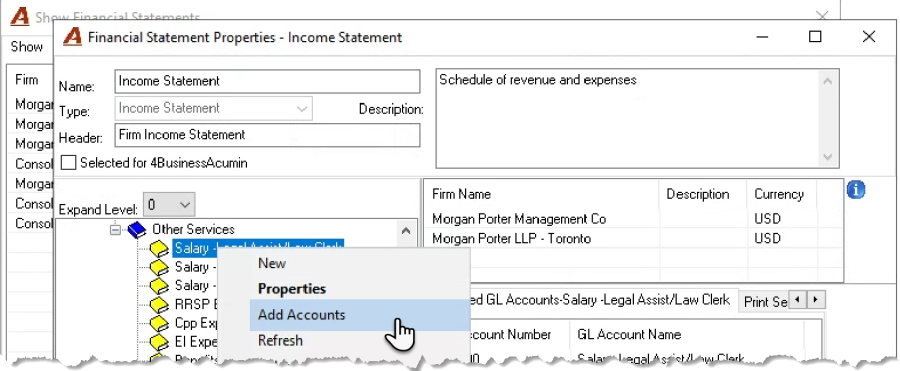
Expand the tree view for the affected financial template to gain visibility of all the nodes;
-
Select the appropriate lowest level group on which to assign the affected GL account;
-
Right-click and select Add Account from the contextual menu to launch the GL Account filter.
-
Once on the "Filter GL Accounts" form, press on the ellipsis button to the right of the from account to filter for the GL Account, by GL account number or name, or enter a range of accounts or filter by account type or kind. Double click on the otherwise unselected GL account or right-click to select from the contextual menu.
-
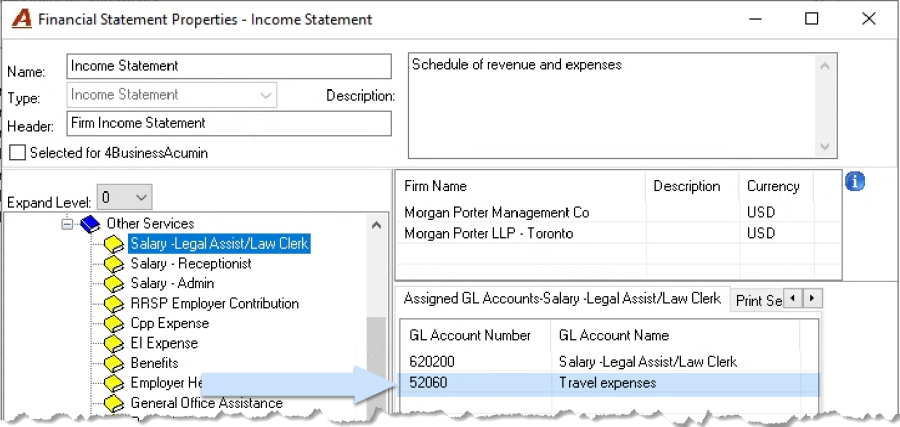
The GL Account lists as the last item on the assigned GL accounts tab for the node
Balance Sheet Option
Whereas the financial statement type "Income statement" and "Other" only allows a single assignment of a main GL Account per financial statement format, the financial statement type "Balance Sheet" allows the inclusion of a GL account to a maximum of two financial statement groupings (nodes). In this case, the inclusion of the same GL account within two different nodes within the statement is limited so that the latter is only included once in the asset section and once in the liability-equity section. The intended use case is to show certain GL balances as an asset or liability-equity, depending on if they are carrying a debit balance (shown in the asset section) or a credit balance (shown in liability-equity section) without any user intervention.
Re-assign Selected GL Accounts
It may be more efficient to assign GL-account to a scarcely populated financial statement grouping and then re-assign the insertions to their appropriate statement or schedule groups using drag and drop functionality.
Mapping of GL Accounts to Financial Templates Review
Users can evaluate existing mapping decisions using the "Analysis" report – bottom of the filter form. This trial balance like report groups GL accounts into the financial template's groupings. It includes current month information as well as year to date.