.png)
Access
Report Menu
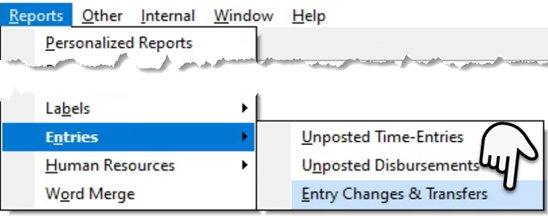
Select the “Entry Changes & Transfers” option found in the “Reports – Entries” sub-menu to launch the filter form. This option is desirable when the search is not matter specific.
Client Matter Dashboard
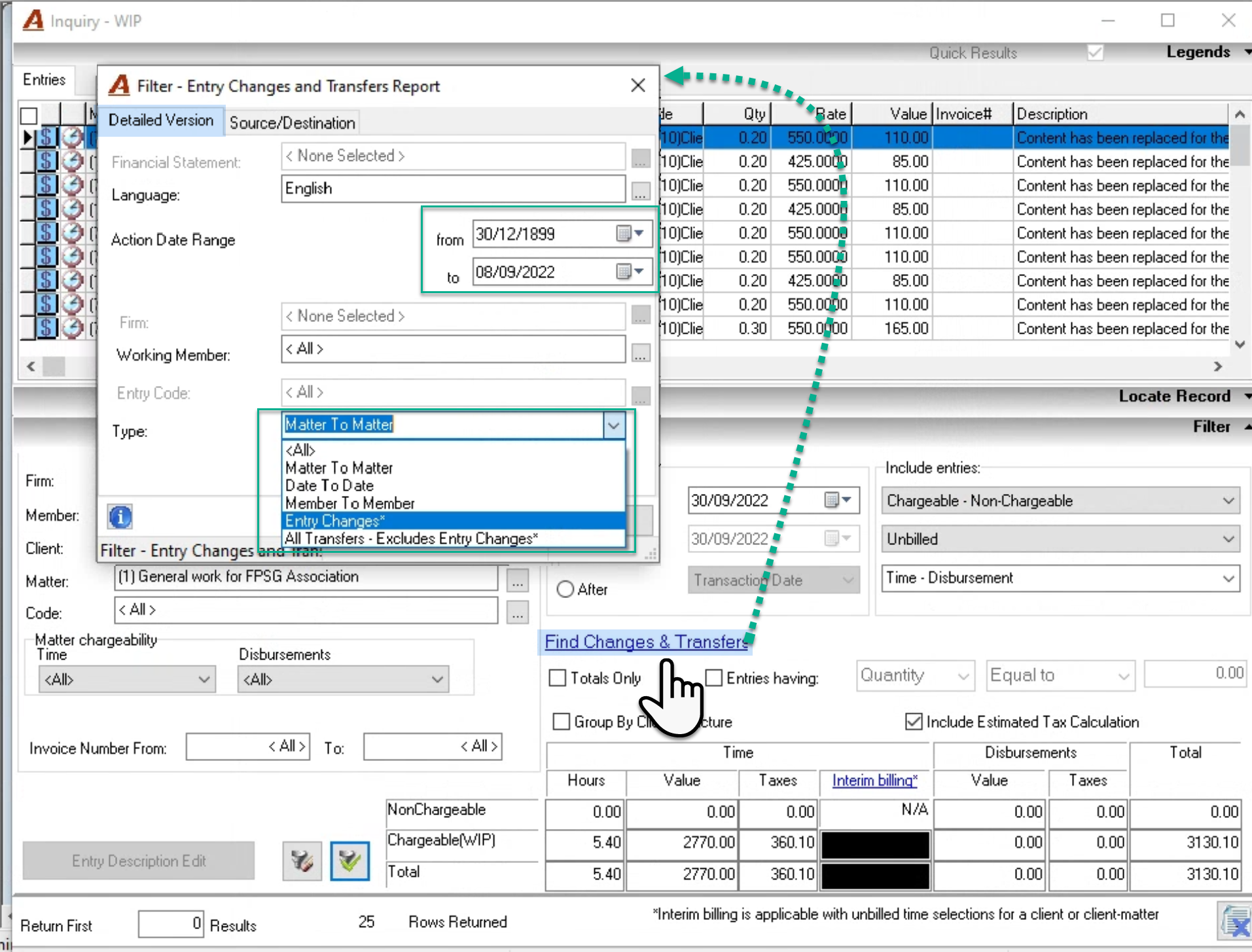
If the transferred-to (destination) matter or the transferred-from (source) matter are known, or if the search is matter specific, launch the client-matter dashboard, enter the the matter and press on the WIP button to launch the pre-filtered WIP results for the affected matter. Press on the “Find Changes and Transfers” hyperlink to launch the report filter form.
Detailed Version Tab Filter Options
Date Range: If you know when the transfer or change was executed, modify the default date range.
Working Member: If you know the member that completed the change or the transfer, modify the default <<All>>.
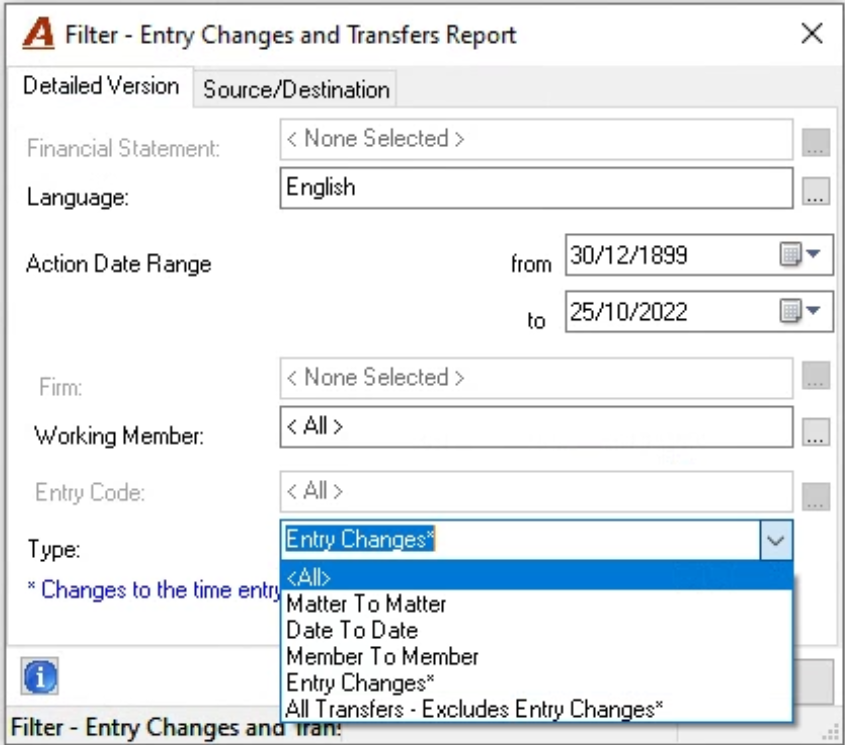
Type: The drop-down box allows the user to filter for individual actions Use <<All>> - the default type when the filter is launched from the report – entries sub-menu – to capture all changes and transfers. When launched from the client-matter dashboard’s WIP results the default is “Matter to Matter”.
Source Destination Filter Tab
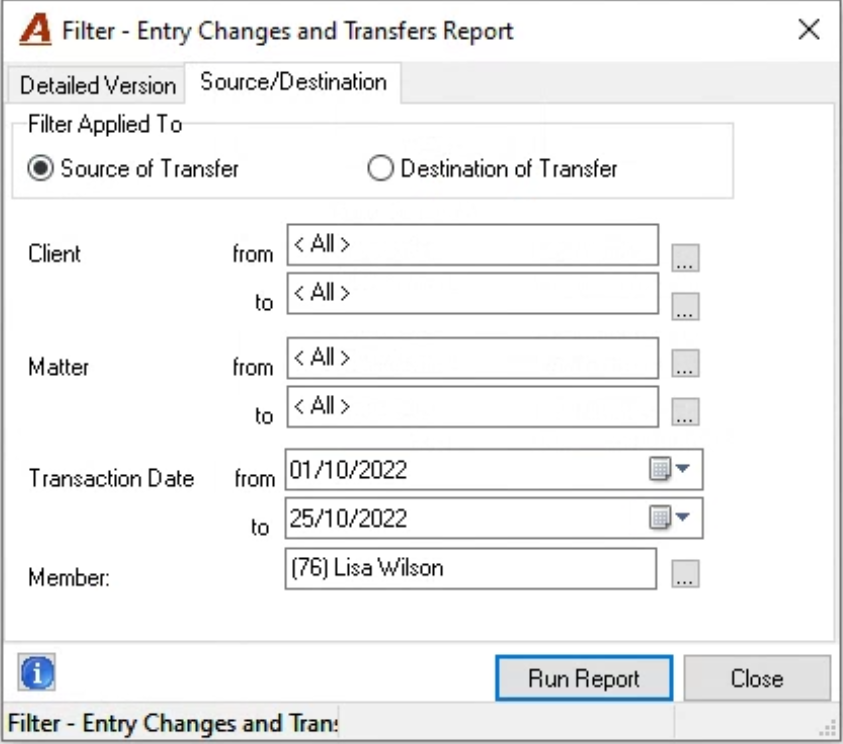
Filter applied to: The default position is on “Source of Transfer”. As the source or destination can be a matter or a member, consider the position of this radio button in context of what you know. For example, if you are looking for changes made to a timekeeper’s time entries, then you would select the radio button ““Source of Transfer” combined with the timekeeper in the member field, however if you need to identify from where some entries came from you would select the radio button “Destination of Transfer” combined with the matter on which the entries list.
Transaction Date: The default is open ended to the current date as future dated entries cannot be posted. Modify the transaction date in context of use case.
Member: Defaults to “All”. This is the member associated to the entry record – the timekeeper for the time entry or the member connected to the disbursement entry.
Report
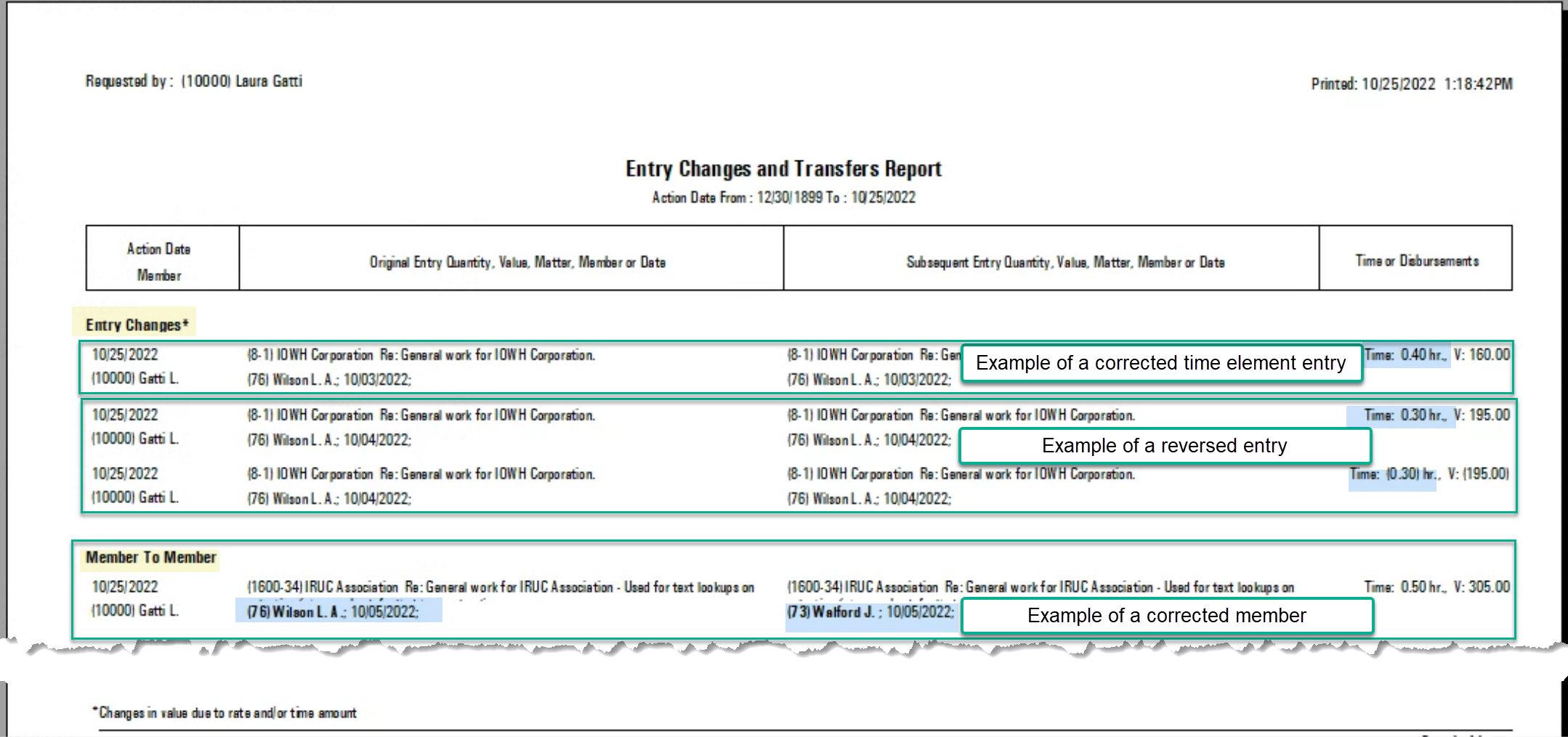
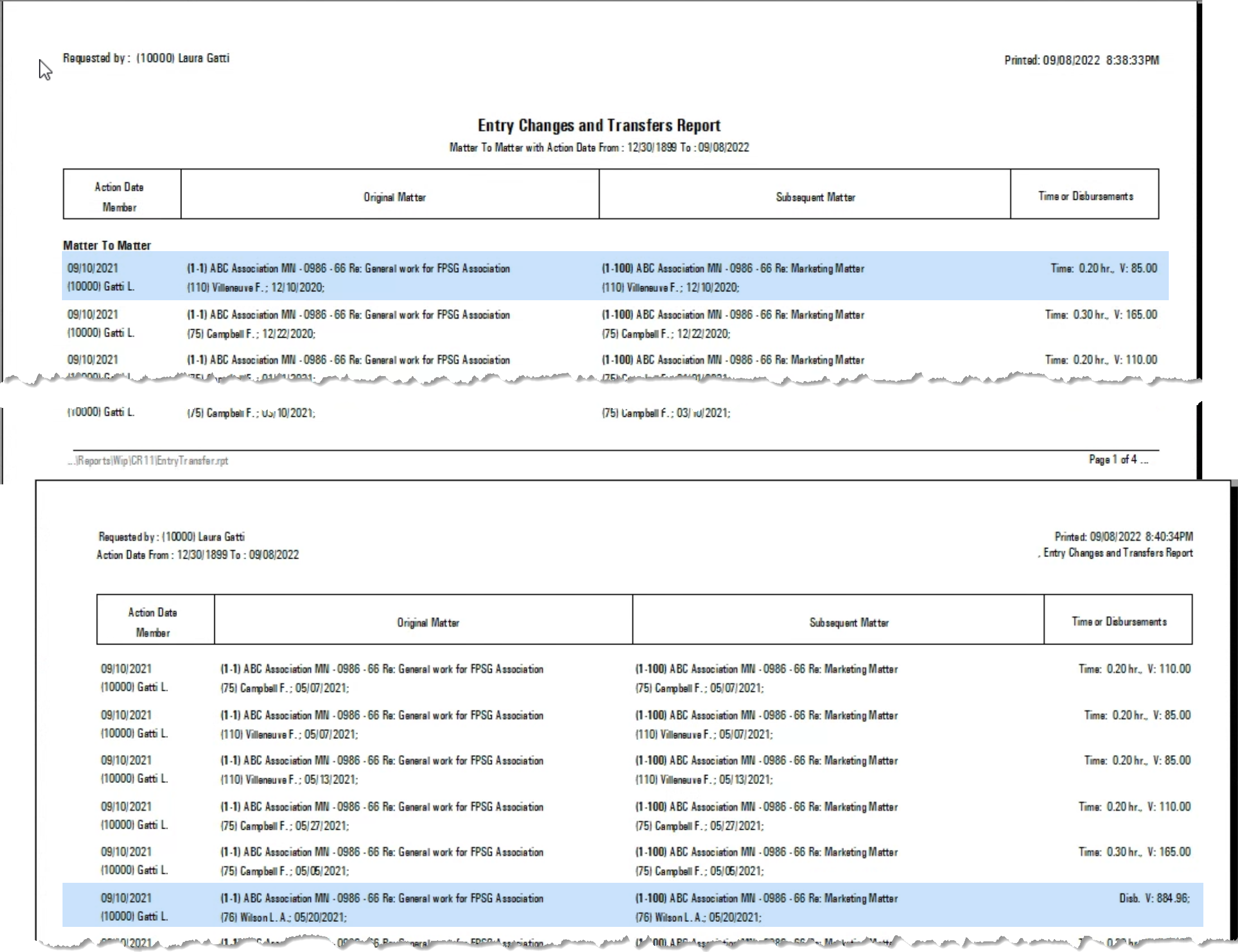
Once the filter is completed with known information, press on Run Report. Depending on filter options selected, the affected time and disbursements entries will list showing when the action took place and by whom. Each record will also include the source matter in the original column, the destination matter in the subsequent matter column as well as the time in hours and value or the disbursement value in the time or disbursement column.
Entry Properties
It is also possible to have access to the transfer or change history of an entry from within the properties of the entry affected.
Launch the entry properties form any of its access points – WIP inquiry, Show Time Entries, etc., and navigate to the “Other” tab.
Press on the transfer and change history icon – bottom right – to list the transfers and changes affecting the entry. Use the column headers to identify the change or transfer reading form the bottom up. The newest position lists at the top.
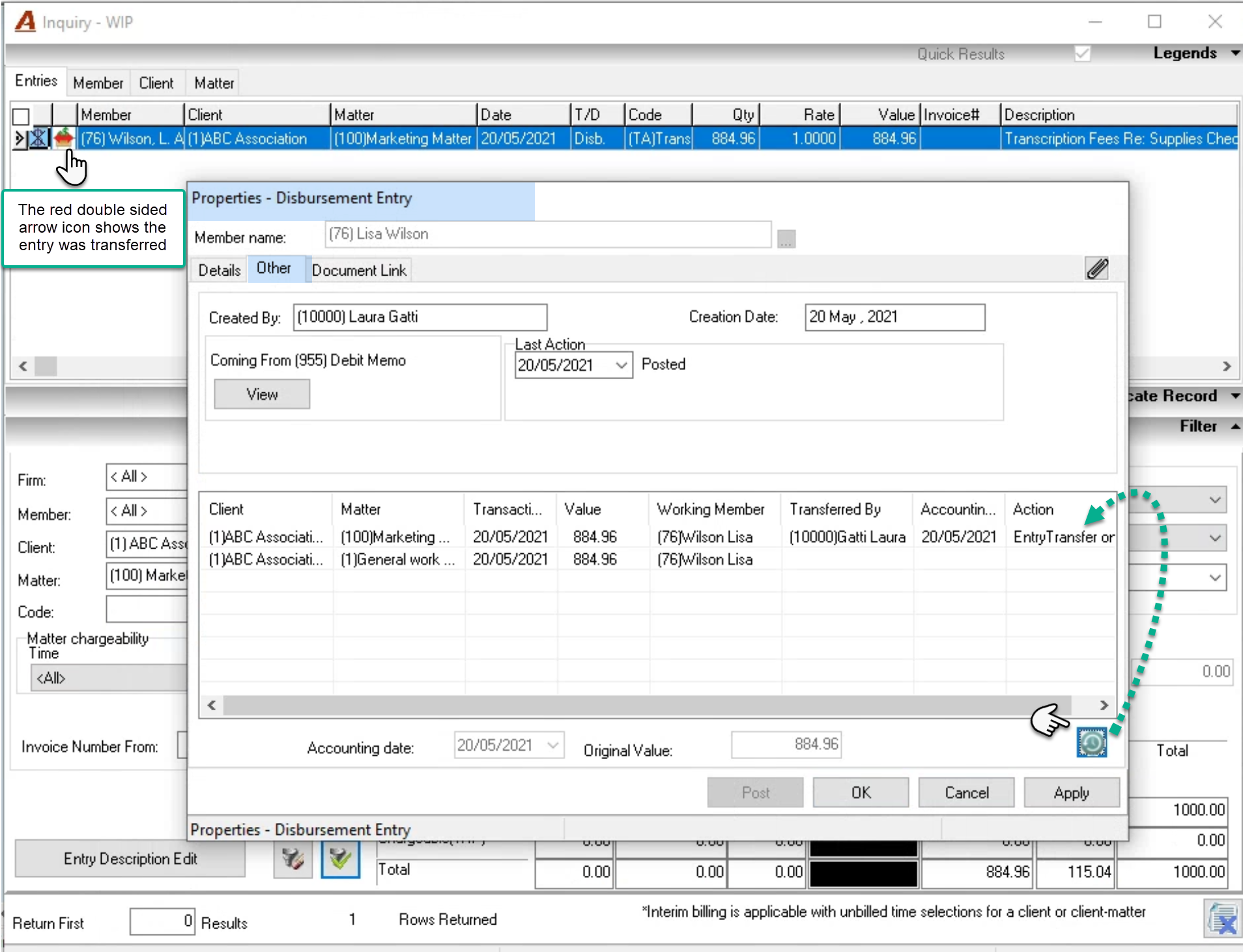
In this case the entry was originally posted to client 1 matter 1 and then transferred to client 1 matter 100.