.png)
Introduction
Creating a new person profile within Acumin—whether as a Client (Cl), Vendor (Vd), Member (Mb), or Basic Person (BP)—requires completing a Person Search to ensure database accuracy and avoid duplicate records. This built-in mechanism safeguards the integrity of the system by verifying whether the person already exists in the database. The process automatically triggers the Person Search tool before the user can access the corresponding wizard to create a new profile.
Search results will display existing profiles categorized as Clients (Cl), Vendors (Vd), Members (Mb), or Basic Persons (BP), along with their associated relationships. If one of the search results matches the person being created, the user is encouraged to select the existing profile and proceed accordingly. This minimizes redundancy and promotes efficient record management.
Exception for Members
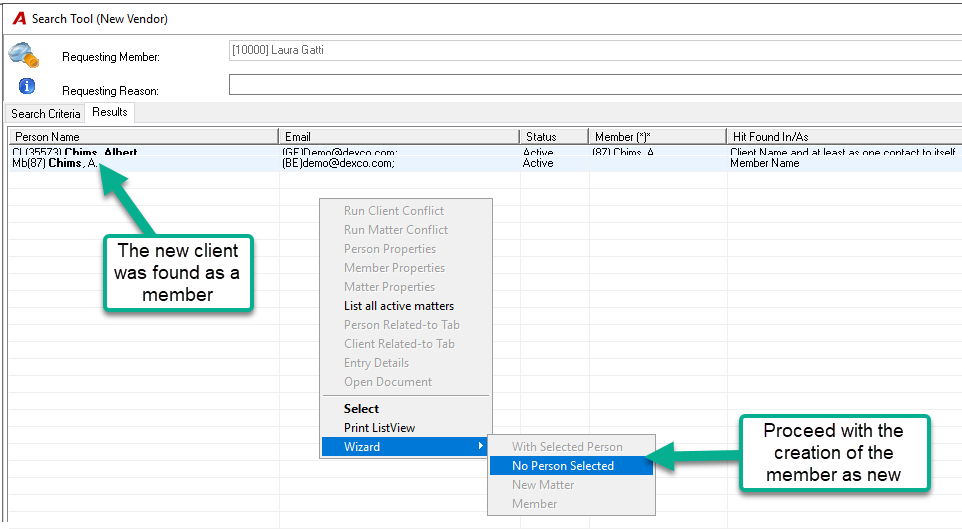
The process for creating a Member (Mb) differs from other profiles due to its specific role within the application. Unlike Clients or Vendors, Members are designed to have their own distinct profiles, even if they overlap with an existing Client or Vendor. In cases where a Member also serves as a Client (Cl) or Vendor (Vd), it is recommended that separate profiles be maintained for each role to ensure proper functionality and reporting within the system.
Process Overview
Person Search and Profile Creation
-
Person Search:
-
Before creating a new profile, users must perform a Person Search. This helps identify if the person already exists as a Client, Vendor, Member, or Basic Person.
-
If a match is found:
-
Select the appropriate existing profile to avoid duplication.
-
-
If no match is found:
-
Proceed with creating a new profile using the respective wizard.
-
-
-
Exception for Members:
-
During Member creation, users cannot select an existing Client or Vendor profile. A new Member profile must be created independently of any existing records for the same person.
-
-
Relationship Visibility for Duplicates:
-
When duplicates are intentionally created (e.g., a Member who is also a Client or Vendor), it is critical to establish explicit relationships between profiles. This ensures visibility across the system and supports conflict assessment processes.
-
Managing Members with Multiple Roles
1. Members Who Become Clients or Vendors
When an existing Member also needs to serve as a Client or Vendor:
-
Profile Duplication:
-
Create a new Client or Vendor profile with shared common details from the Member’s profile.
-
-
Relationship Setup:
-
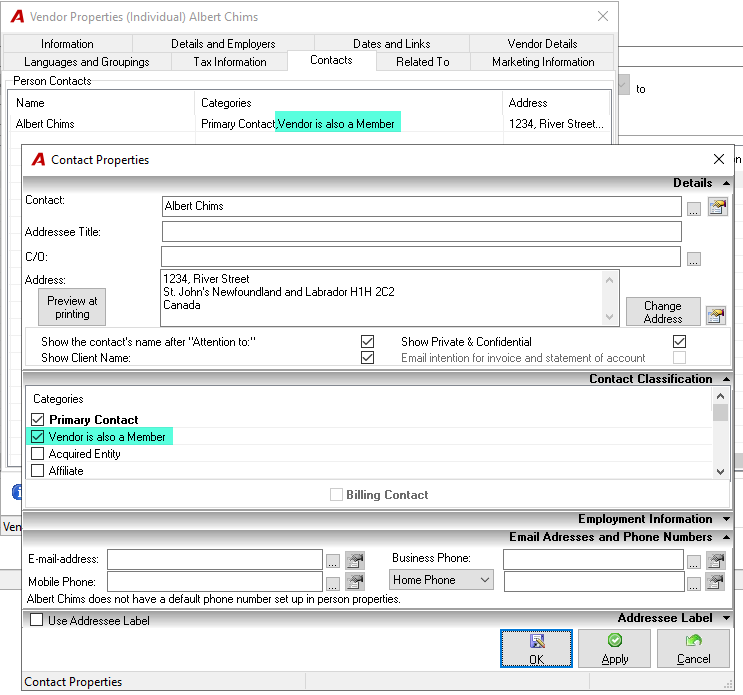
In the Client/Vendor properties, add a relationship labeled:
-
"Member is also a Client" or "Member is also a Vendor."
-
-
-
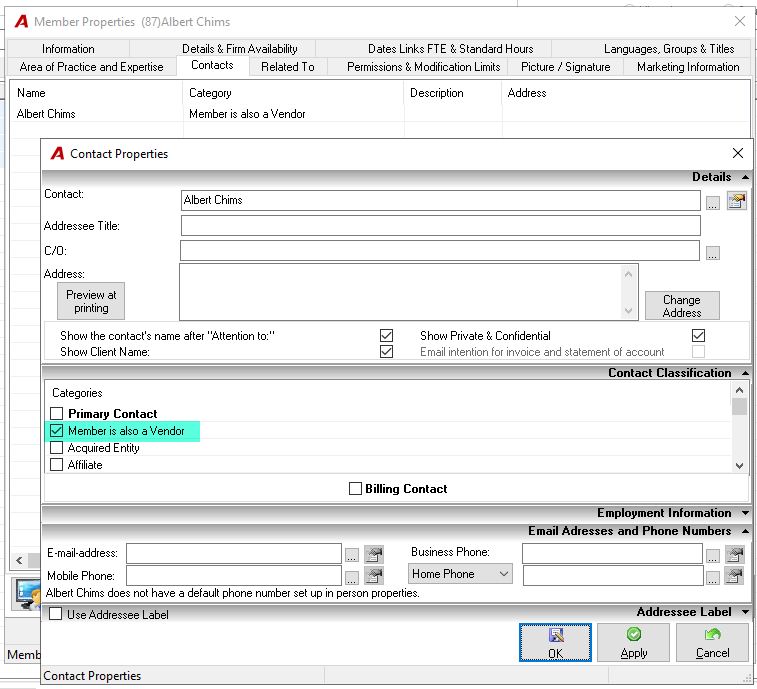
In the Member properties, add a relationship labeled:
-
"Client is also a Member" or "Vendor is also a Member."
-
-
Note: If these relationship categories do not exist in your system, configure them prior to implementation.
2. Clients or Vendors Who Become Members
When an existing Client or Vendor also needs to become a Member:
-
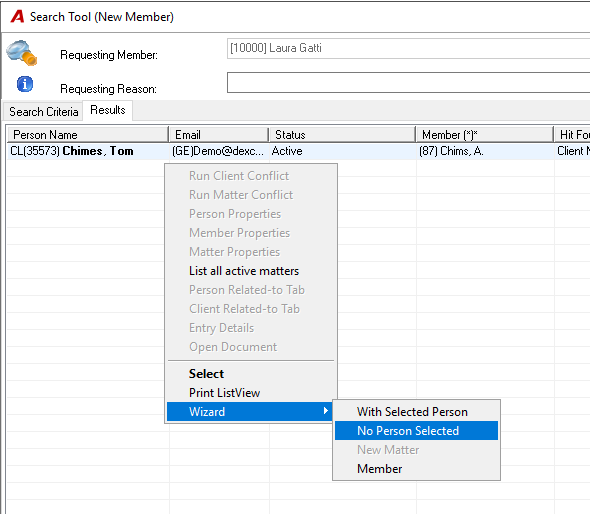
Profile Duplication:
-
Create a new Member profile with shared common details from the Client’s or Vendor’s profile.
-
-
Relationship Setup:
-
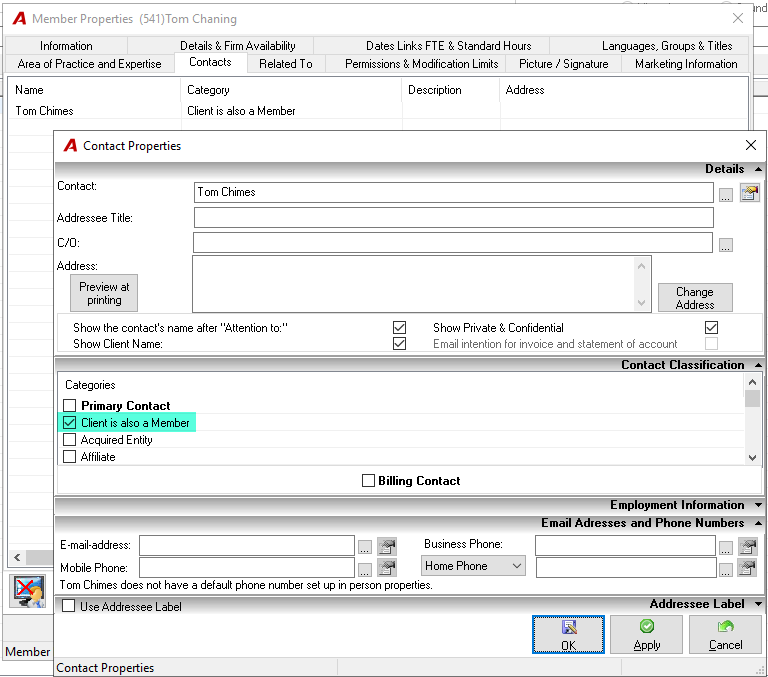
In the Member properties, add a relationship labeled:
-
"Client is also a Member" or "Vendor is also a Member."
-
-
-
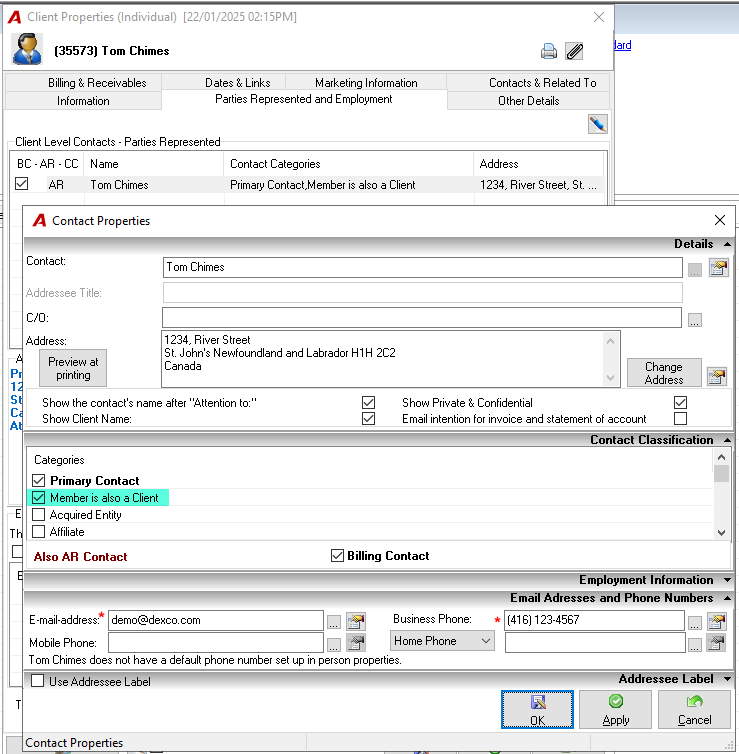
In the Client/Vendor properties, add a relationship labeled:
-
"Member is also a Client" or "Member is also a Vendor."
-
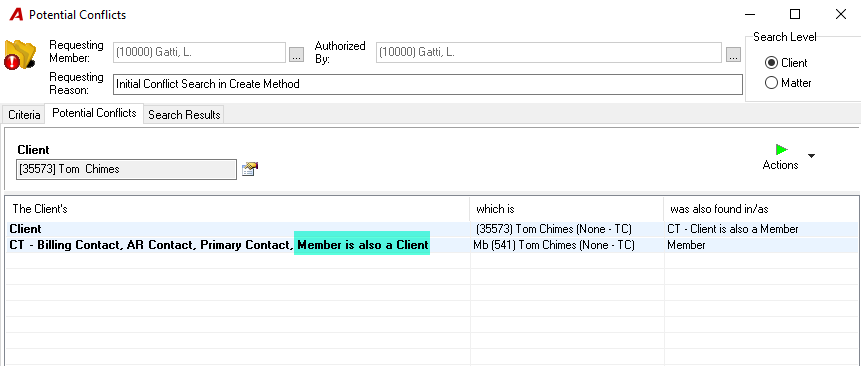
By defining these explicit relationships, users can ensure clarity and consistency across records, particularly during conflict assessments.
Managing Basic Persons and Contacts
1. Basic Persons Who Become Members
When an existing Basic Person transitions into a Member role:
-
No Duplication:
-
Select the existing Basic Person profile during Member creation.
-
-
The system will automatically update all previous relationships to reflect that this individual is now classified as a Member. No duplicate profile will be created.
2. Members Who Become Contacts
When an existing Member becomes a contact related to another entity (e.g., Client, Matter, Vendor):
-
No Duplication:
-
Select the Member directly as a contact within the relevant entity’s profile.
-
-
The system natively supports this functionality without requiring duplicate profiles.
Impact on Potential Conflict Results
Conflict Assessment Process
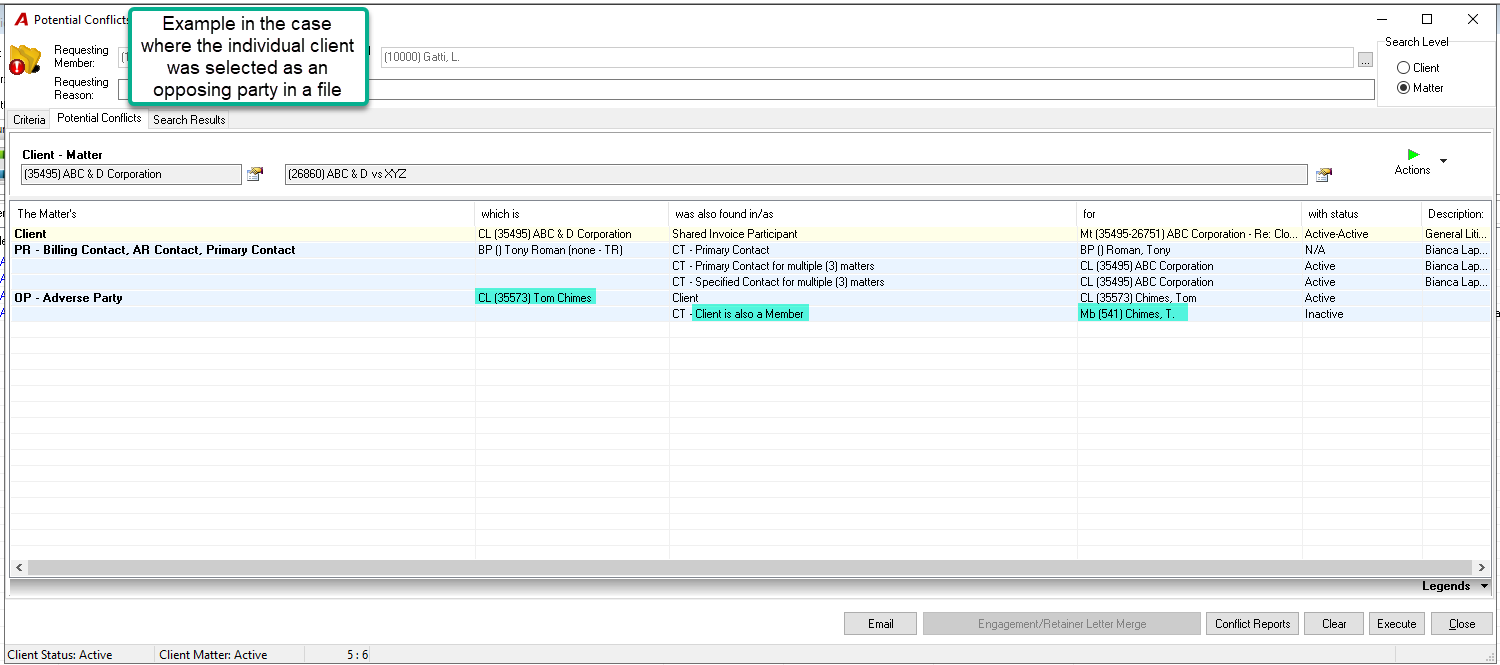
Whenever a new matter is created or an existing one is reactivated (from closed, rejected, or released statuses), Acumin automatically triggers a conflict assessment process. This process evaluates potential conflicts involving individuals associated with the matter who hold other roles in the database.
-
Duplicate Profiles:
-
In cases where a Member is also recorded as a Client or Vendor via duplicate profiles, these are treated as separate "system persons."
-
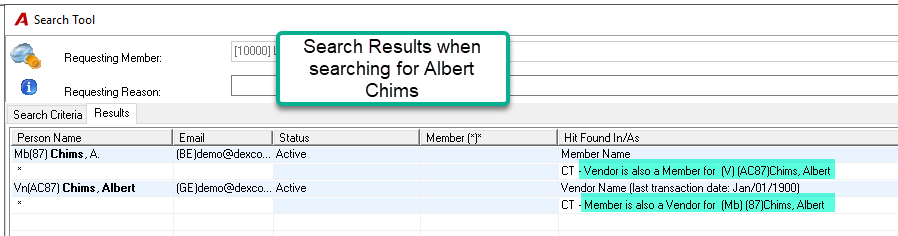
Visibility into such overlaps requires explicit relationships (e.g., "Member is also a Client" or "Vendor is also a Member") to be defined in their respective profiles.
-
-
Native Relationships:
-
Relationships established naturally within the system (e.g., selecting a Member as a contact for a Matter) are automatically reflected in conflict results and do not require additional configuration.
-