.png)
Overview
The BC Law Society has updated its rules regarding the Trust Administration Fee (TAF). These changes affect when and how TAF must be applied to client matters.
Key Regulatory Changes:
-
The previous exemption for fees and retainers has been removed.
-
A threshold amount now determines when TAF applies.
-
Only trust deposits and transfers made on or after January 1, 2026, are considered in the calculation of the Aggregate Trust Amount (ATA) total.
Acumin Support for TAF Automation (version 2.5.A31.3819 and up)
Acumin can automatically generate a TAF disbursement when the Aggregate Trust Amount (ATA) on a matter reaches the required threshold. This automation requires a sublicence and specific system configuration.
Note: If your firm does not have the required sublicence, TAF disbursements must be created manually using the ATA information shown in the Matter Properties. For prior versions, please see the linked documentation:
How It Works
When properly configured and the appropriate sublicence is enabled:
-
The user creates a trust deposit or transfer on a matter dated on/after January 1st, 2026.
-
Acumin tracks the aggregate trust amount (ATA) for that matter.
-
When the aggregate trust amount equals or exceeds the configured threshold:
-
Acumin checks first in the matter properties if a TAF posting date has already been saved in the field.
-
If not, Acumin automatically creates a disbursement using the designated TAF disbursement code.
-
The disbursement is posted to the matter and recorded with the appropriate fee.
-
Aggregate Trust Amount (ATA) Calculation Rules:
-
Only trust deposit and trust transfer transactions posted on or after January 1, 2026, are included in the Aggregate Trust Amount (ATA) calculation. Any transactions made before that date, set as retainer or not, will not be considered.
-
Retainer and non-retainer transactions are treated equally in the ATA calculation.
-
The ATA calculation includes all transactions across all trust bank accounts for a matter, regardless of the currencies.
-
The aggregate trust amount includes all qualifying deposits and transfers, regardless of matter status (open, closed, etc.) or if a TAF disbursement was already posted or the matter is exempted from TAF.
-
Overpayment transferred to trust on a matter for a firm having the “Overpayment transfers to Trust” option implemented, it will be included in the ATA calculation.
-
The ATA calculation exclude cancelled trust deposits and excluded trust transfers (see section below)
TAF application rules:
-
The TAF disbursement is created automatically by the system when the ATA reaches the limit set by the firm, and if the Trust Administration Fee (TAF) posting date field is empty.
-
The TAF disbursement is only applied once per matter.
-
When a TAF disbursement is created and posted by the system, the Trust Administration Fee (TAF) posting date field is updated. The system relies on this field to trigger the creation or not of the TAF.
Important: Creating a TAF disbursement manually will not automatically update the Trust Administration Fee (TAF) posting date field, which may result in a duplication of the TAF disbursement.
System Requirements
To enable automatic TAF calculation and disbursement:
-
In Implementation Settings, the “Use Trust Administration Fee (TAF)” option should be enabled.
-
The sublicence: Aggregate Trust Amount Calculation Limit for Trust Administration Fee (TAF) should be internally enabled.
Note that only Dexco can set those options.
Configuration Steps
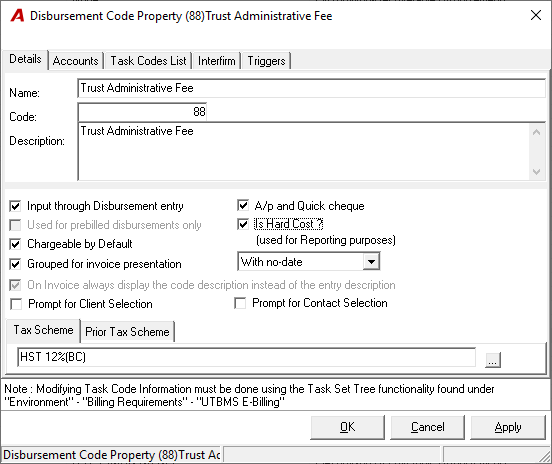
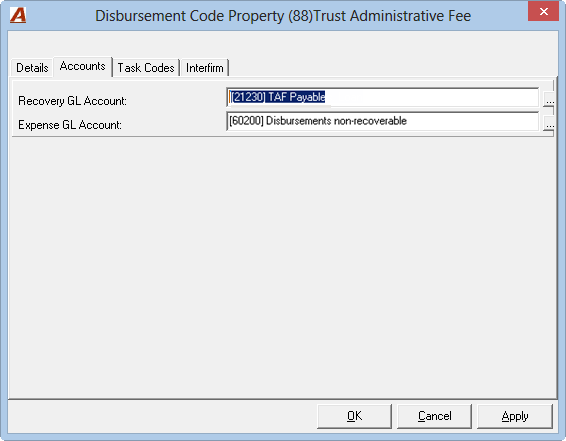
Step 1: Create a Disbursement Code
-
Set up a dedicated disbursement code for Trust Administration Fees.
-
For more detailed information, refer to: Disbursements - Code Properties and Rates
-
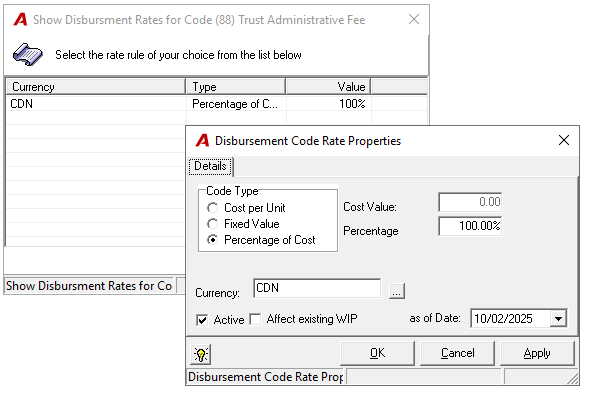
Recommended rate type: Percentage of Cost (or as required by your firm’s policy).
Step 2: Configure Firm Properties
-
Go to Firm Properties → Details tab.
-
Enable Use TAF.
-
Enter the threshold amount required by BC Law Society in Trigger Amount (must be greater than zero).
-
Assign the TAF disbursement code you created.
These settings must be applied to all firms in your environment that need to comply with the BC Law Society’s TAF rules.
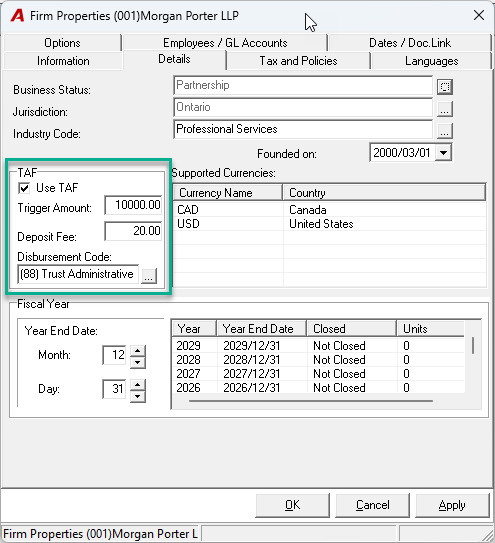
Important Note: In the example above, TAF disbursement #88 will be automatically created as soon as the Aggregate Trust Amount (ATA) reaches the trigger amount of $10,000.00. Please note that this is only an example — it is not the official required trigger amount, and this threshold may change over time.
The firm is responsible for verifying and confirming the correct trigger amount as required by the BC Law Society.
If you want the TAF disbursement to be created only when the ATA exceeds $10,000.00 — rather than when it reaches exactly $10,000.00 — you will need to enter $10,000.01 as the trigger amount.
TAF Disbursement Process
Each time a trust deposit or transfer is posted:
-
Acumin recalculates the aggregate trust amount (ATA) on the matter.
-
If the amount meets or exceeds the threshold:
-
A TAF disbursement is automatically posted using the configured code.
-
The posting date is recorded in Matter Properties under the TAF Posting Date field.
-
Example Scenario
-
Deposit 1: $5,000 marked as Retainer (on/after Jan 1, 2026)
-
Deposit 2: $6,000 not marked as Retainer (on/after Jan 1, 2026)
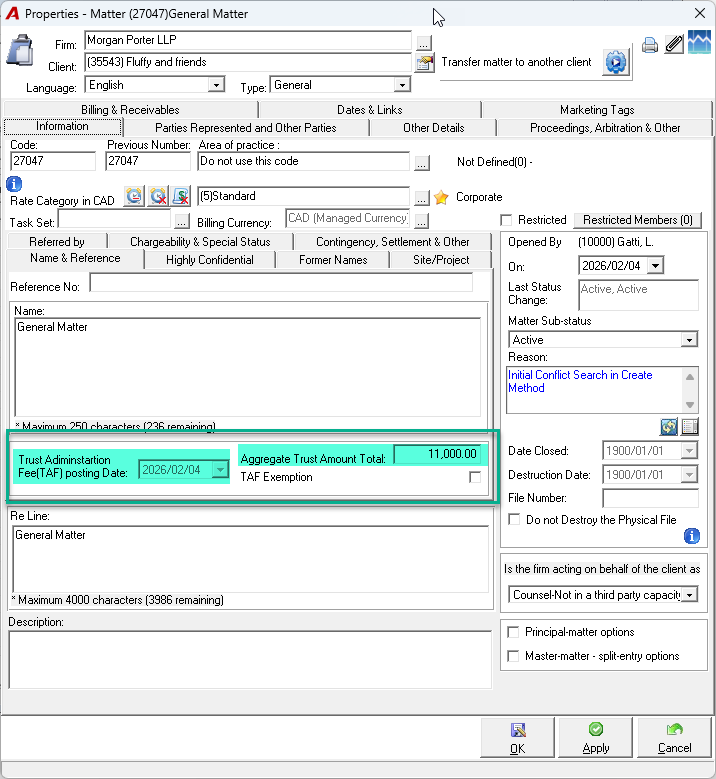
Once both deposits are posted, the aggregate trust amount becomes $11,000. If your firm’s threshold is $10,000:
-
Acumin automatically posts a TAF disbursement.
-
The TAF Posting Date field in Matter Properties is updated.
-
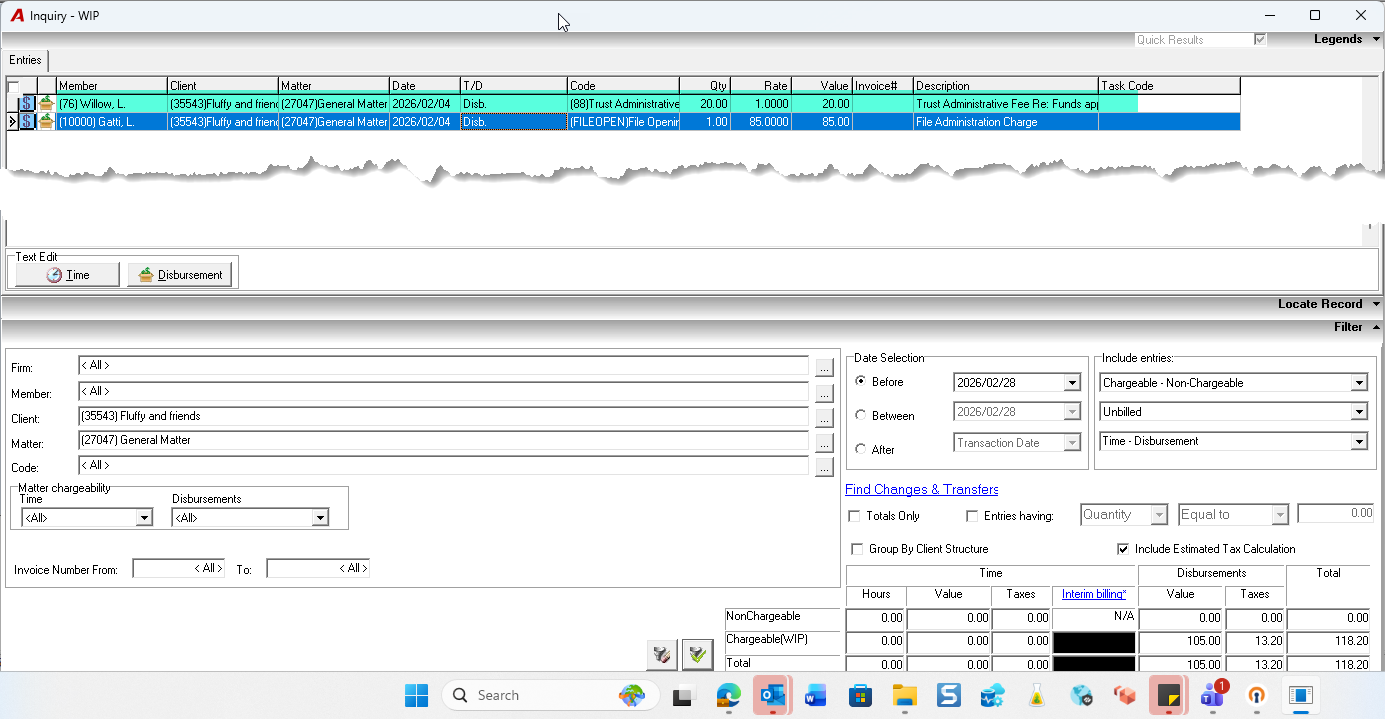
WIP Inquiry reflects the new disbursement.
-
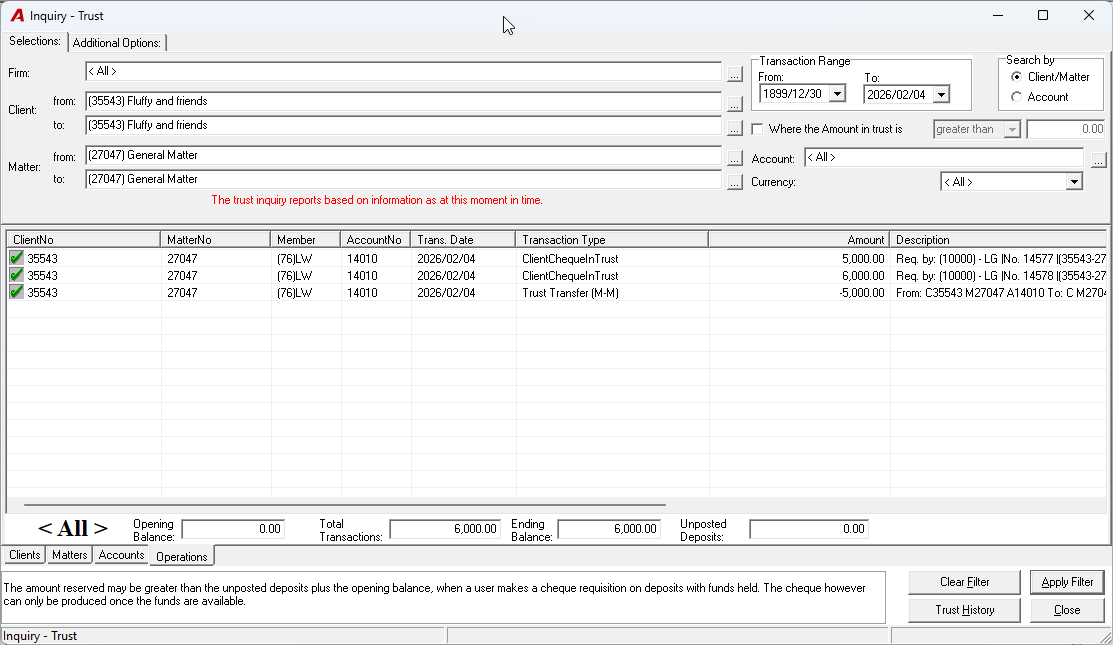
Trust Inquiry may show a lower balance due to other transactions, but this does not affect the cumulative total used for TAF calculation.
Exemptions
To exempt a matter from automatic TAF posting:
-
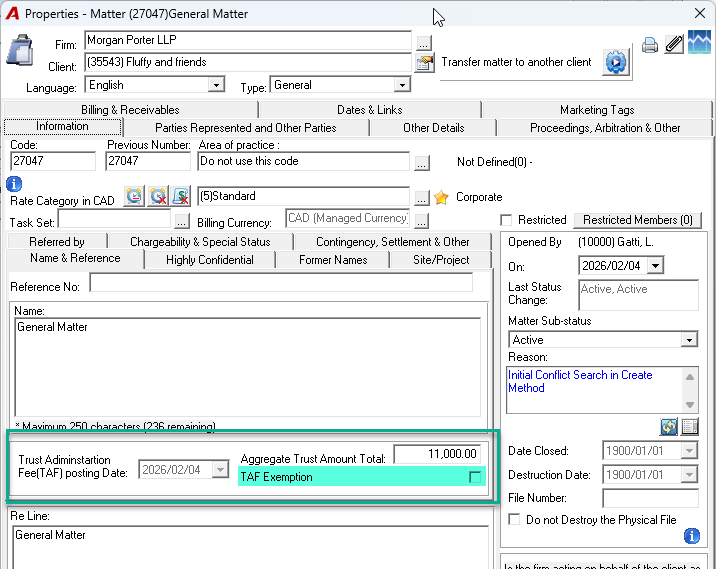
Enable the TAF Exemption checkbox in Matter Properties.
Note:
-
Exemption does not affect the ongoing tracking of aggregate trust amount.
-
If exemption is later removed, a qualifying deposit or transfer will trigger an automatic TAF disbursement if the threshold has been met.
Special Considerations:
a) Overpayment Transfers
If an overpayment is transferred to trust on a matter, it will be included in the aggregate trust amount total for TAF purposes.
-
For firms that have implemented overpayment transfers to trust:
-
If an overpayment is transferred to trust on a matter, the overpayment amount will be included in the Aggregate Trust Amount total.
-
b) Correcting the Aggregate Trust Amount
Amount coming from a trust deposit: Cancel the trust deposit. The amount will be removed automatically from the ATA calculation.
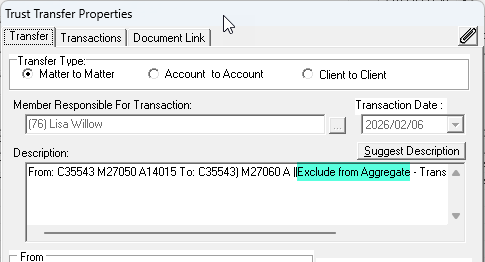
Amount coming from the trust transfer: Because we cannot “cancel” a trust transfer - we simply transfer the money back to the source, we have implemented a text to insert in the description of the initial trust transfer to remove it from the ATA calculation.
Insert the text manually: “Exclude from aggregate” in the Trust Transfer Description field of the initial transfer, after the suggested description and 2 pipes. The font is not considered.
See below:
c) Correcting the TAF Posting Date field.
If a TAF disbursement code was automatically created in error and the TAF Posting Date field has been populated, the TAF disbursement can be written off or transferred. However, the date recorded in the TAF Posting Date field cannot be removed. Since this field is populated, the system will not automatically create another TAF disbursement for that matter.
The only way to correct this is through a database update. Please submit your request to Dexco.
Generating the TAF Report
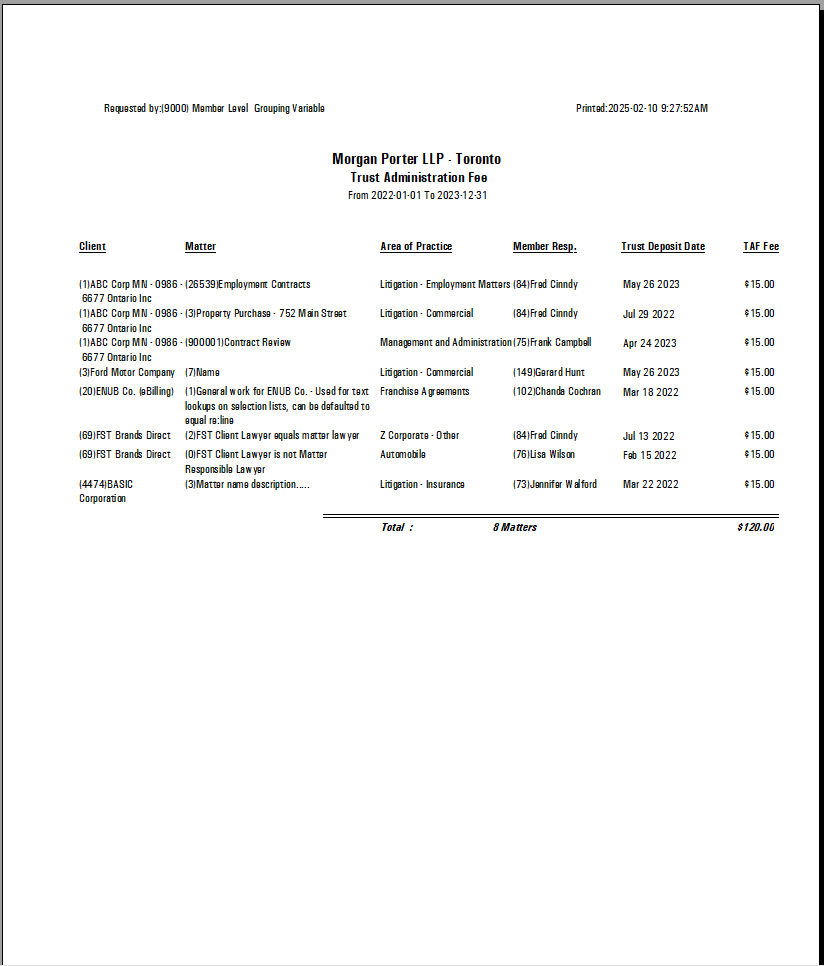
To generate a report of Trust Administration Fees:
-
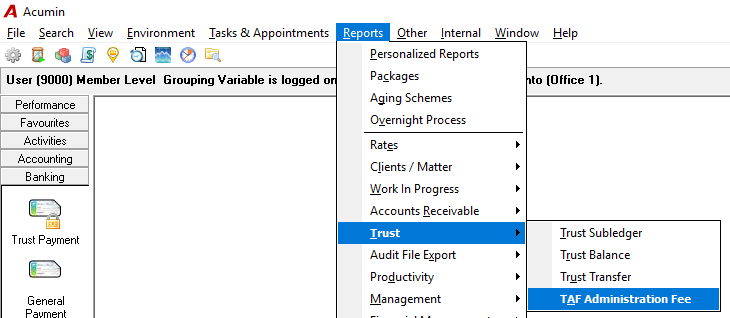
Navigate to Reports → Trust → TAF Administration Fee.
-
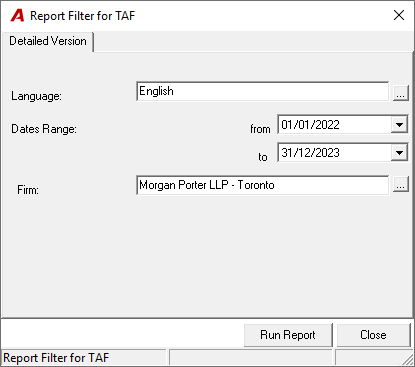
Apply filters:
-
Date range
-
Firm
-
-
Click Run Report.