.png)
Member Budget
Access
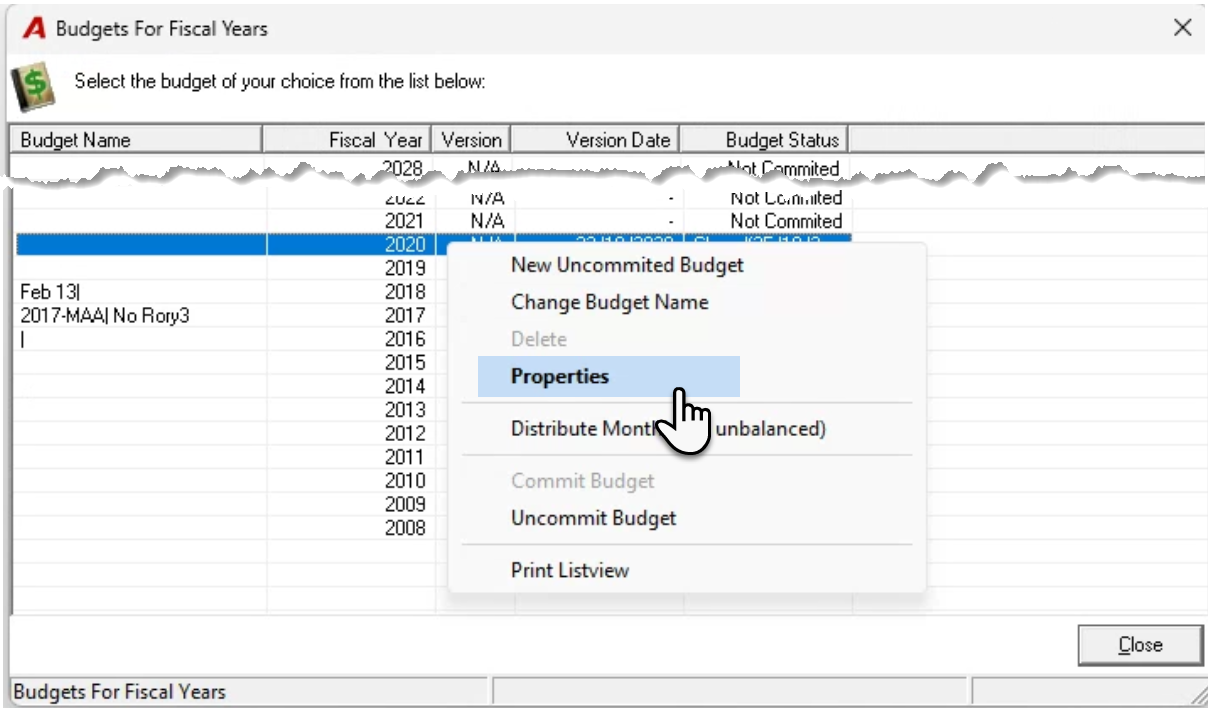
Press on the “Member Budget” icon found within the "Accounting" section of the task bar, highlight the fiscal year, and right click to select “New Uncommitted Budget” create a new one, or “Properties” to access an existing one.
Basic Principles
The budget is created for a complete fiscal year applicable to the working member. Zero values will be displayed for members where a final budget field is not entered and distributed within the corresponding reports.
The member budget planner form follows a right to left logic. The previous fiscal years' results are displayed to the right with the oldest fiscal year in the most-right position. The annualized, proposed, and final budget figures are presented to the left of its historical counterparts.
The content of the Final column represents the annual budget amounts presented on reports that include this measure.
Uncommitted budgets remain subject to change. Only once the budget is internally accepted, it should be committed to make relevant measures available.
New budgets are only possible for fiscal years without a committed budget.
Several versions of a member budget for a given fiscal year can be created and maintained as long as all versions remain uncommitted. Future budgets cannot be committed until those for previous years are.
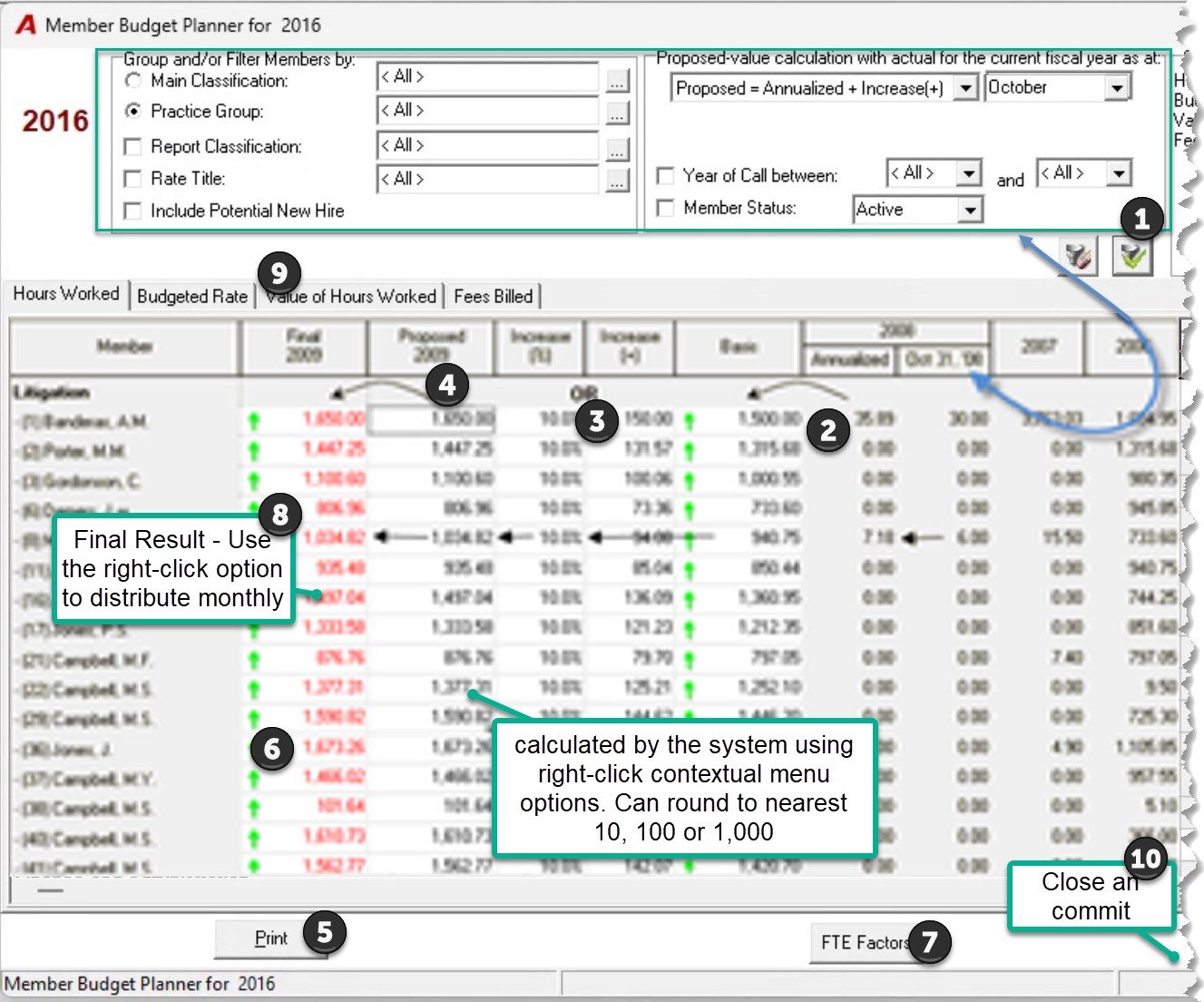
10-Steps to Completing the Member Budget:
Select and apply filter option: Once the user selects the desired filter options, on "Apply Filter" the measures for the current fiscal year and prior years will be displayed, providing a starting point for the new member budget.
Insert the Basis for the current year: To calculate extrapolated actual results for the current fiscal based on a best-date year-to-date actual data content.
Increase the "calculated" Annualized data: Apply any of the formula-based options (value or percentage) to auto-calculate a start point based on annualized actual results.
Modify the calculated proposed member budget: Override proposed values as needed.
Print the member budget for review by other members participating in the budgeting process: Distribute the printed output as needed. Recipients can write down the final member budget value on the report output.
Insert the Final Member Budget: Manually or use the make final = to proposed right click contextual menu option.
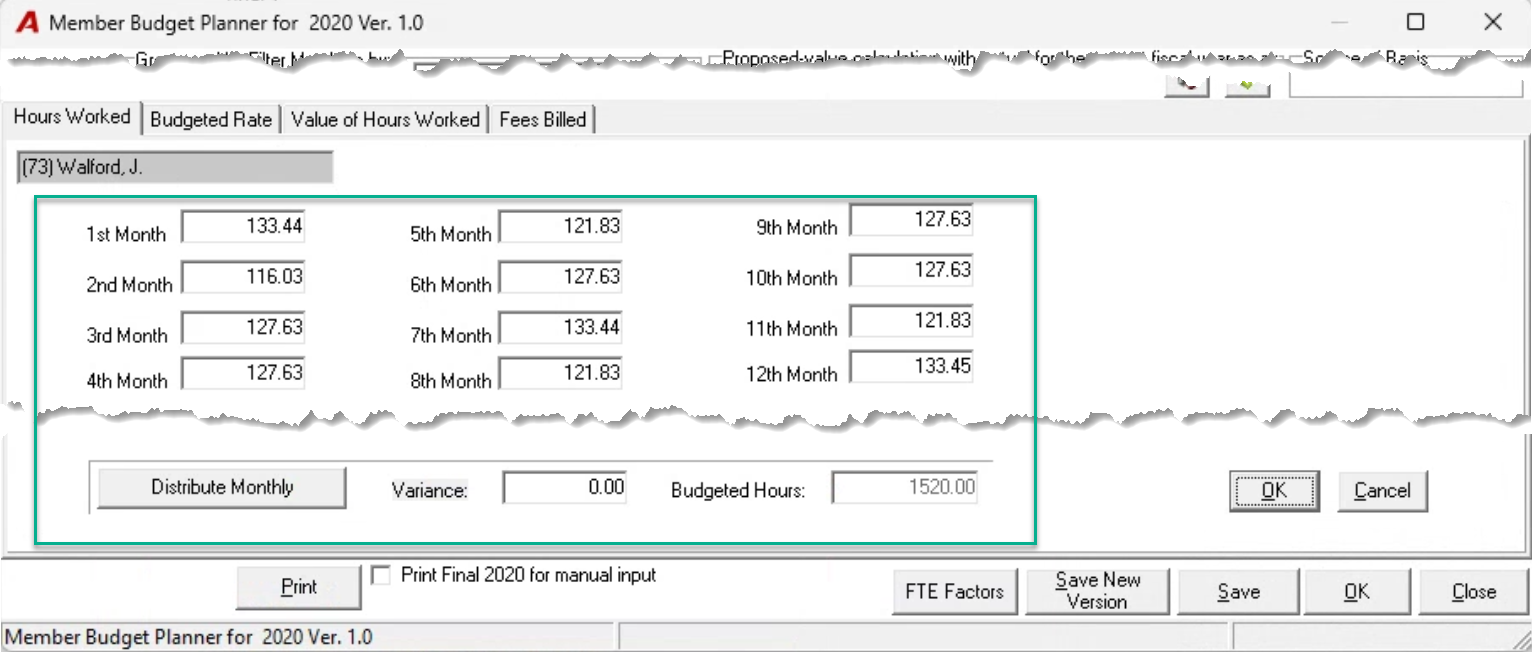
Right click to distribute the Member Budget across the 12-months for the fiscal year. .
Consider using FTE factors for each department.
Once the hours’ worked budget is complete follow the same process for the Rate, Value, Fees billed and Fees Collected.
Commit the budget.
Process
Press on the “Member Budget” icon found within the "Accounting" section of the task bar, highlight the fiscal year, and right click to select “New Uncommitted Budget” to create a new one, or “Properties” to access an existing one.
Filter Options
Member Groups: Use member groups - main classification, reporting classification, practice-group; and/or member status to facilitate the budget creation process. Working with one group at the time – for example practice group – makes it easier to exclude members that do not need budgets.
Cut-off Month: The default is set to equal the current month. The cut-off month determines the cut-off for the year-to-date actual results for the current fiscal year. The year-to-date actual amounts form the basis for the annualized results for the same fiscal year. Most firms select a closed month as the cut-off-month, as they typically have a complete data set (no missing time)
Press on "Apply filter" to recalculate annualized values based on the cut-off month for the member group selected.
Results
Previous years: Actual results for the last five (5) fiscal years will list within the last five columns. Actual results cannot be modified; they are presented to provide the user with the evolution of the member related measures relevant to budgeting process.
Current year: Current year measures are shown year-to-date as at the cut-off month selected, as well as annualized using as at the cut-off month year-to-date results as the start point. The number of working days used in the calculation takes into consideration the non-working days set within the Holiday-module found within the Environment menu.
New Members: New members are automatically be added to the budget planner form.
Sort Options: The right-click contextual menu allows users to sort by Member Name, Member Code or Year of Call. In addition, the grouped results can sort in ascending

or descending order

based on column header selection. You can sort ascending

or by descending

.
Calculation Aids
Right-click on a grouping header to launch the contextual menu pre-set to "ONLY FOR SELECTED…". If this setting is ON, it will be visible. Users executing the options available on the right-click contextual menu with this setting ON, will trigger the functional result to only those members included in the affected group.
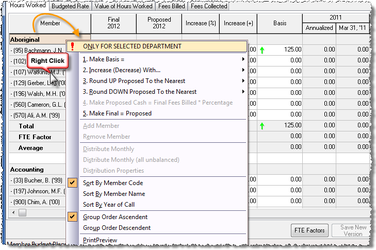
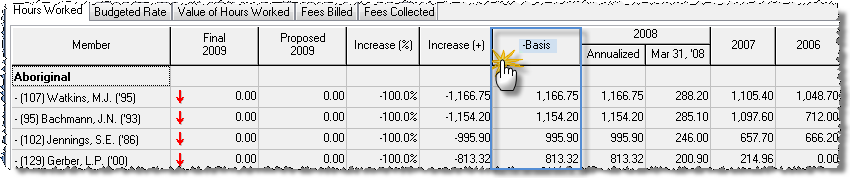
Make Basis = Annualized: to have the "Basis" amounts equal to the year-to-date extrapolated (annualized) amounts. Once calculated the user can override the basis amount for any member. The green arrows indicate that the "Basis" amount displayed is higher than its annualized start point. Red arrows indicate that the amounts are lower.
Increase (Decrease) with…Percent (%) or Value ($): Increase the proposed amount by a percentage or fixed amount from the basis for an individual member, a group and/or all members. Depending on selection the user will be prompted with one of the two forms that follow.
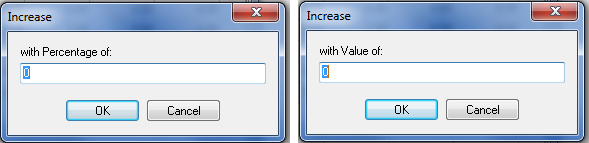
It is possible to directly insert an amount in the proposed column, without using the automatic calculation. In that case, the system will automatically populate the Increase % and + column, based on the difference between the Basis and the Proposed.
Once you have determined which method to use to increase the basis (% or +), select it at the top of the form. This way, if the value of the Proposed is manually changed, then the system would know which column to refer to for the new calculation of the Proposed, % or $.

Round UP Proposed to the nearest: the user will be prompted to select the nearest 10, 100 or 1000.
Round DOWN Proposed to the nearest: the user will be prompted to select the nearest 10, 100 or 1000.
Review of Proposed Values
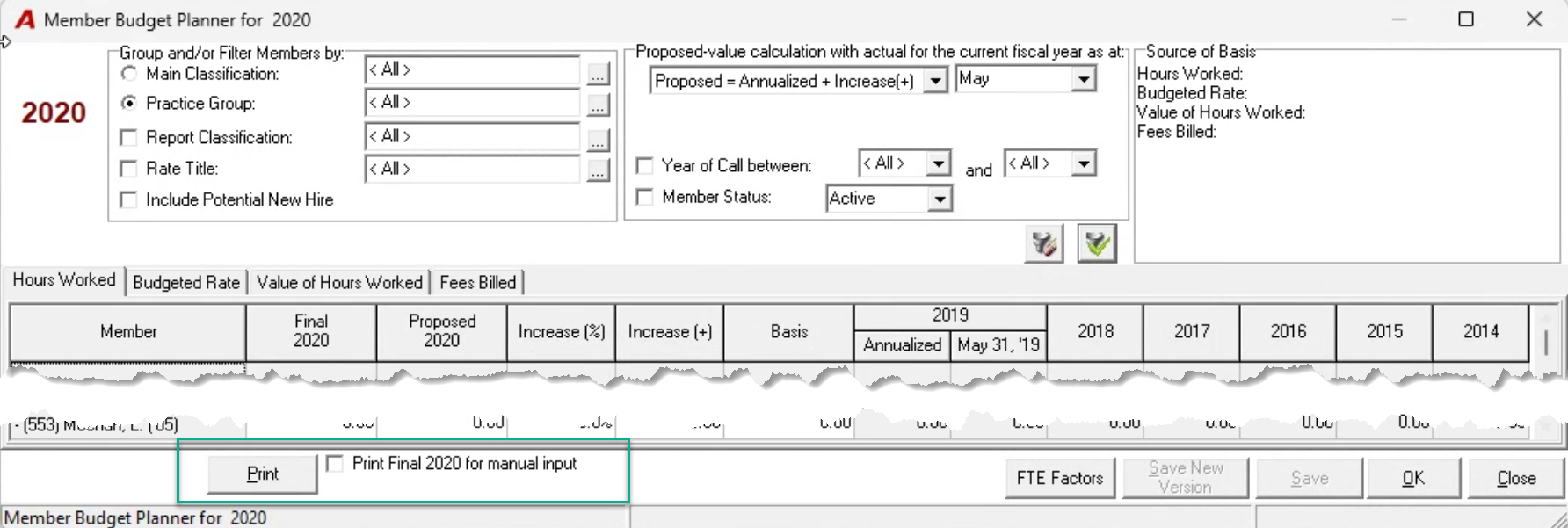
Print the proposed budget for consideration and review by relevant participants.
Checkmark the "Print Final … for Manual Input" checkbox and press print to obtain the proposed member budget with blanks for the participant to propose amended final values at the same time as they complete their review.
Inserting and Distributing the Final Values
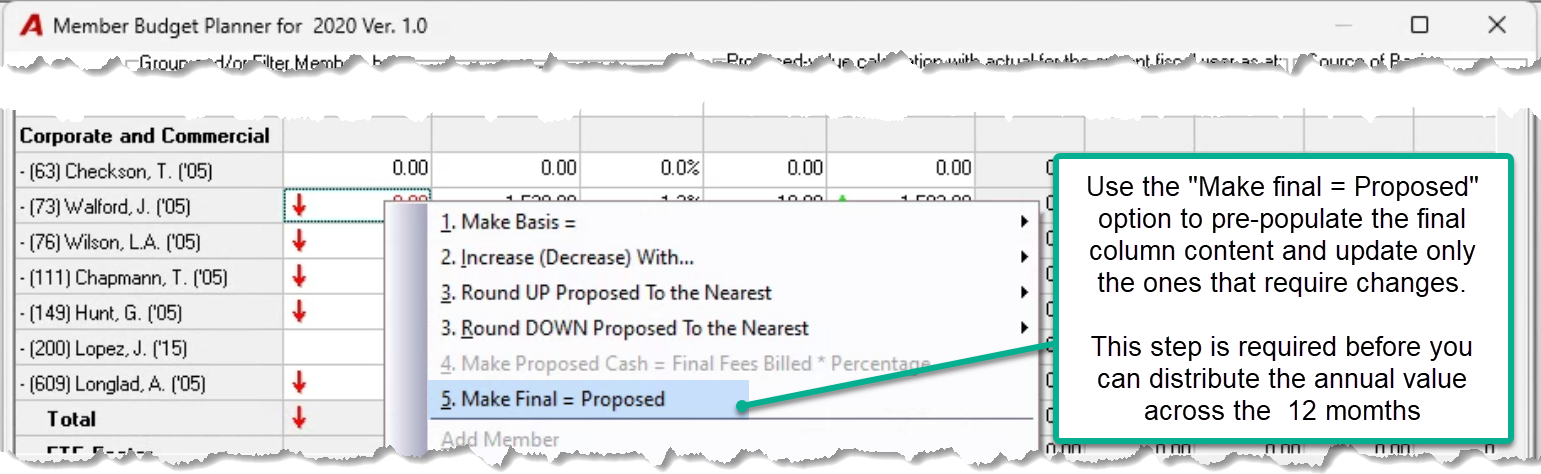
Apply the "Make Final = Proposed" right-click contextual menu option to update the final column with proposed values. The user can then manually override "Final" values for specific members.
The green arrows indicate that the Final amount is higher than the basis. Red arrows indicate that the amounts are lower.
Final amounts in red indicate that the budget has not yet been distributed across the months.
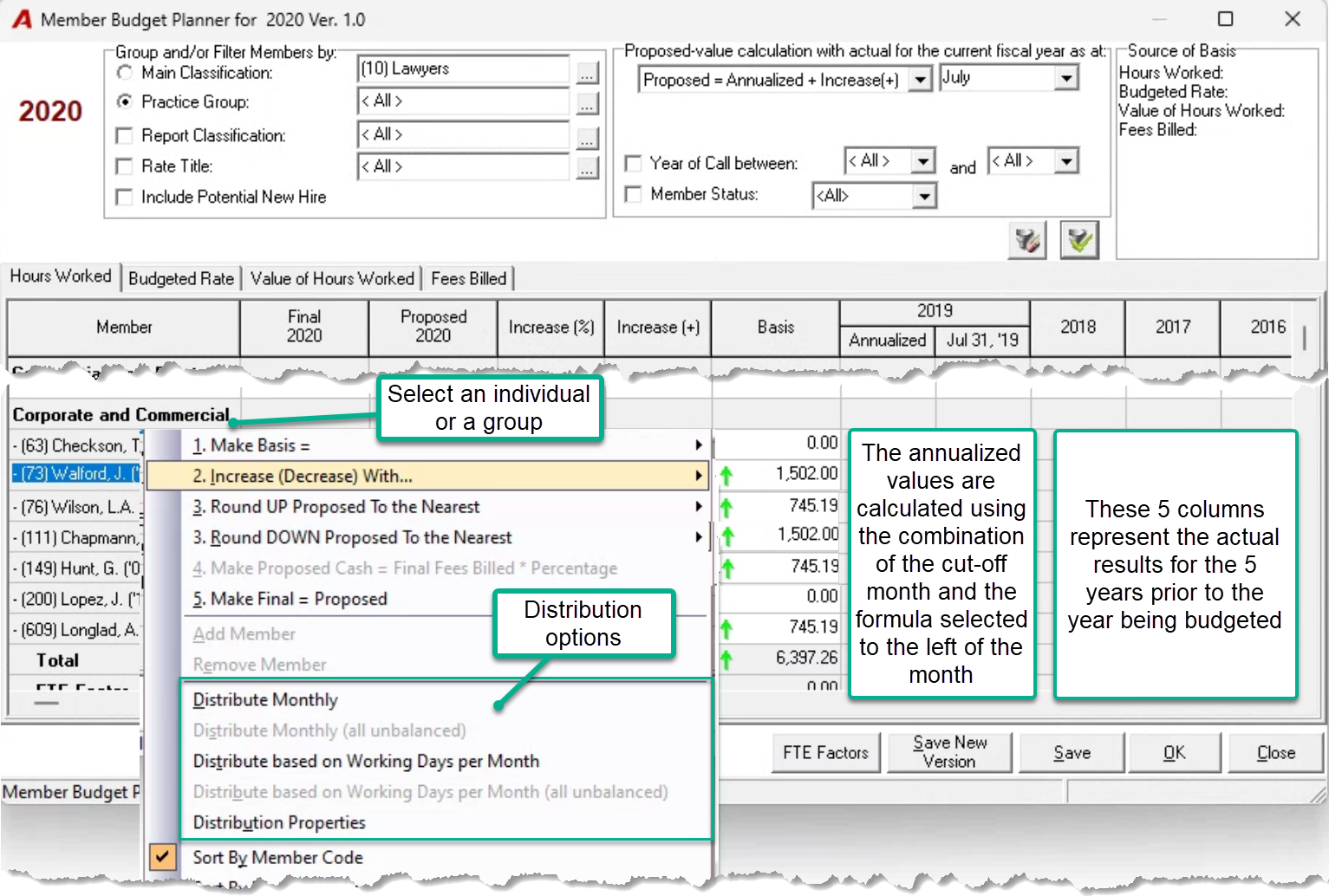
Right-hand click and select Distribute Monthly (Unbalanced) from the contextual menu to distribute ALL undistributed member budgets equally across the 12-months of the fiscal year or Distribute Monthly based on Working Days per Month (Unbalanced) to base the distribution on the number or working days per Acumin holiday schedule.
Right-hand click and select Distribute Monthly from the contextual menu to distribute the annual budget evenly across 12 months or Distribute Monthly based on Working Days per Month to base the distribution on the number or working days per Acumin holiday schedule. In this case the distribution is limited to the selected member .
Right-hand click and select Distribution Properties to manually distribute the annual budget or override calculated distributions.
Use the difference shown in the Variance field on the bottom of the distribution properties form to balance the annual budget. If the variance is not zero on OK, the final budget will be shown in red.
FTE Factors (optional)
Users can incorporate FTE factors to calculate practice group averages as they reflect the expected average number of timekeepers for a particular practice group in consideration of part-time work, sabbaticals etc.
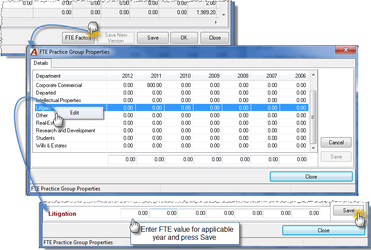
To change (or add) FTE factors, press on "FTE Factors" at the bottom of the form to launch the FTE Practice Group Properties form. Highlight the desired practice group, right-click and select "Edit" to enable the fields for the practice group (bottom of the form). Insert the desired FTE values and click on Save:
Complete THE RATE, Value of Hours, Fees Billed and Cash Received Budgets
In addition to the hours worked budget, users can complete a member budget for Budgeted Rate, Value of Hours Worked, Fees Billed and/or Fees Collected. The functionality is the same for all tabs.

Budgeted Rate
The Budgeted Rate tab includes the same functionality as the Hours Worked Tab.
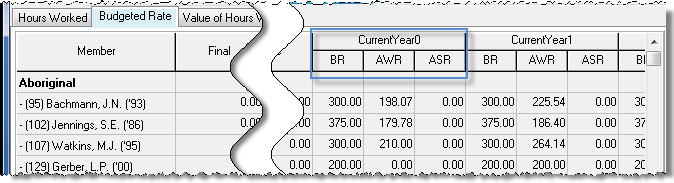
BR is the Base Rate for the member;
AWR is the Actual Working Rate of the member – calculated across all matters regardless if they are specially rated or not; and
ASR is the Actual Special Rate. This is a future use measure therefore it is currently pre-set at 0.00.
Start by setting the "Basis" to equal the Base Rate or the Actual Working Rate.
Value of Hours Worked
The Value of Hours Worked tab includes the same functionality as the Hours Worked Tab.
This tab contains the numbers of hours worked (first tab of the member budget planner form) multiplied by the budgeted rate.
The AVW is the Actual Value of hours worked.
AVWBR is the Value of Hours Worked calculated using the Base Rate
SRV % the difference between the actual value of hour worked and the hours worked calculated using the base rate expressed as a percentage of the value worked calculated using the base rate.
Start by setting the "Basis" to equal the "annualized" value, the actual value worked (AVW) or the actual value worked at base rate (AVWBR).
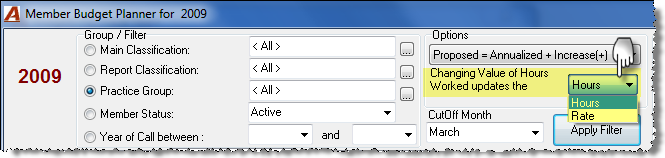
Changing Value of Hours Worked updated the: As the value of hours worked is the result of hours worked and rate, changes completed on the "Value of Hours Worked" tab will update the hours tab (default) or the rate tab (option).
Fees Billed
The Fees Billed tab includes the same functionality as the Hours Worked Tab.
This tab contains the net fees billed by working member. Net fees billed refer to fees billed net of write-ups, write-downs, discounts, invoice cancellations and credit notes.
Start by setting the "Basis" to equal the "annualized" fees billed or the "Final Value of Hours Worked".
Fees Collected
If available (Acumin System Setting – Other Tab configuration decision), the Fees Collected tab includes the same functionality as the Hours Worked Tab.
This tab contains the net receipts applied to fees billed by working member. Net receipts refer to receipts net of AR Write-offs and cancellations.
Users can calculate a proposed value for Cash Receipt equal to a ratio from the Annualized Final of the Member (Value) tab. Insert a percentage in the corresponding cell of the upper portion of the fees collected tab and right-click to select "Make Proposed Cash = Value * Percentage"

Other Options
New Version: To create a new version of an existing budget, select "Save New Version" at the bottom of the form and insert the new version name when prompted with the name form.
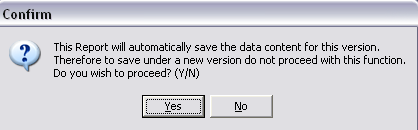
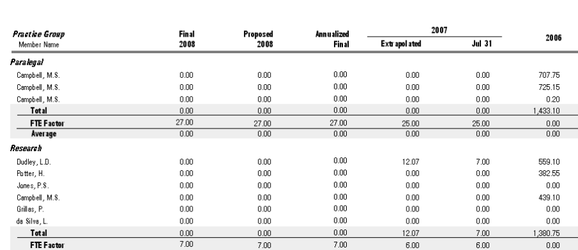
Printing the Budget: To print without the lines for manual input, press on the print button without check-marking the "Print Final…with manual input" checkbox. Please note that each tab must be printed separately. It is recommended to save the content before printing.
Committing the Budget
Once the budget is accepted (all final values are entered and distributed) the budget can be committed. From the fiscal year list-view right-click contextual menu the user can commit one version of the member budget for the year.
Member budget measures are presented on the member activity dashboard, selected member activity reports and hours worked reports like "Hours Worked, Billed, WO by Month by Matter", "Hours Worked – Chargeability Analysis", and "Annual Hours Worked – Multiple Periods". Remember that since the budget is entered firm-wide, the firm grouping option should be disabled in the report filter to see the budget information in those reports.