.png)
To change the name of a member in Acumin, an authorized user must access the member’s properties form.
Access Member Properties
-
Active Members:
-
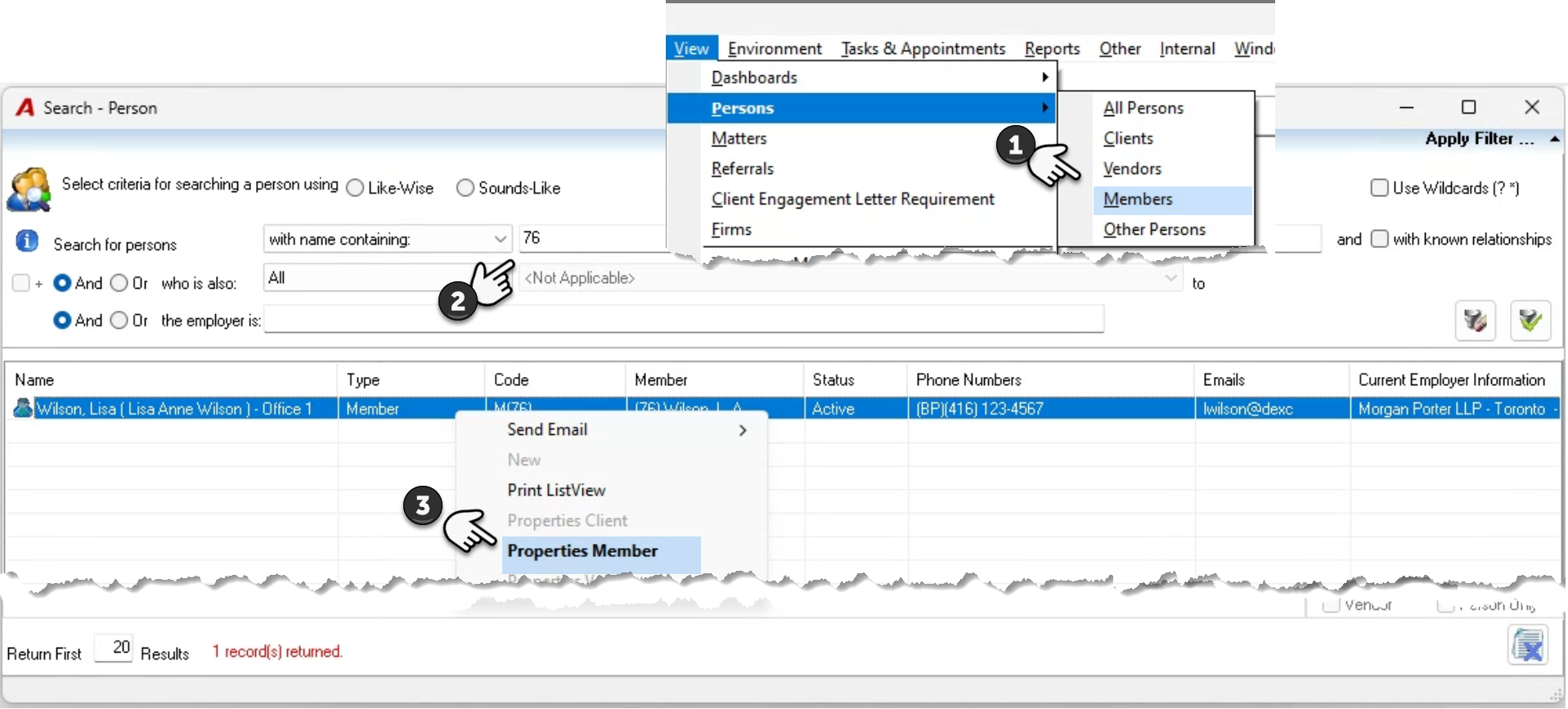
From the View - Person Properties sub-menu, select Members to launch the Search Person tool.
-
Search for and find the member.
-
Highlight the member record, right-click, and select Properties from the contextual menu.
-
-
Inactive Members:
-
Launch the Search Person tool for members from within the Acumin User list-view (triggered from the Admin section of the task bar).
-
Update Member Information
-
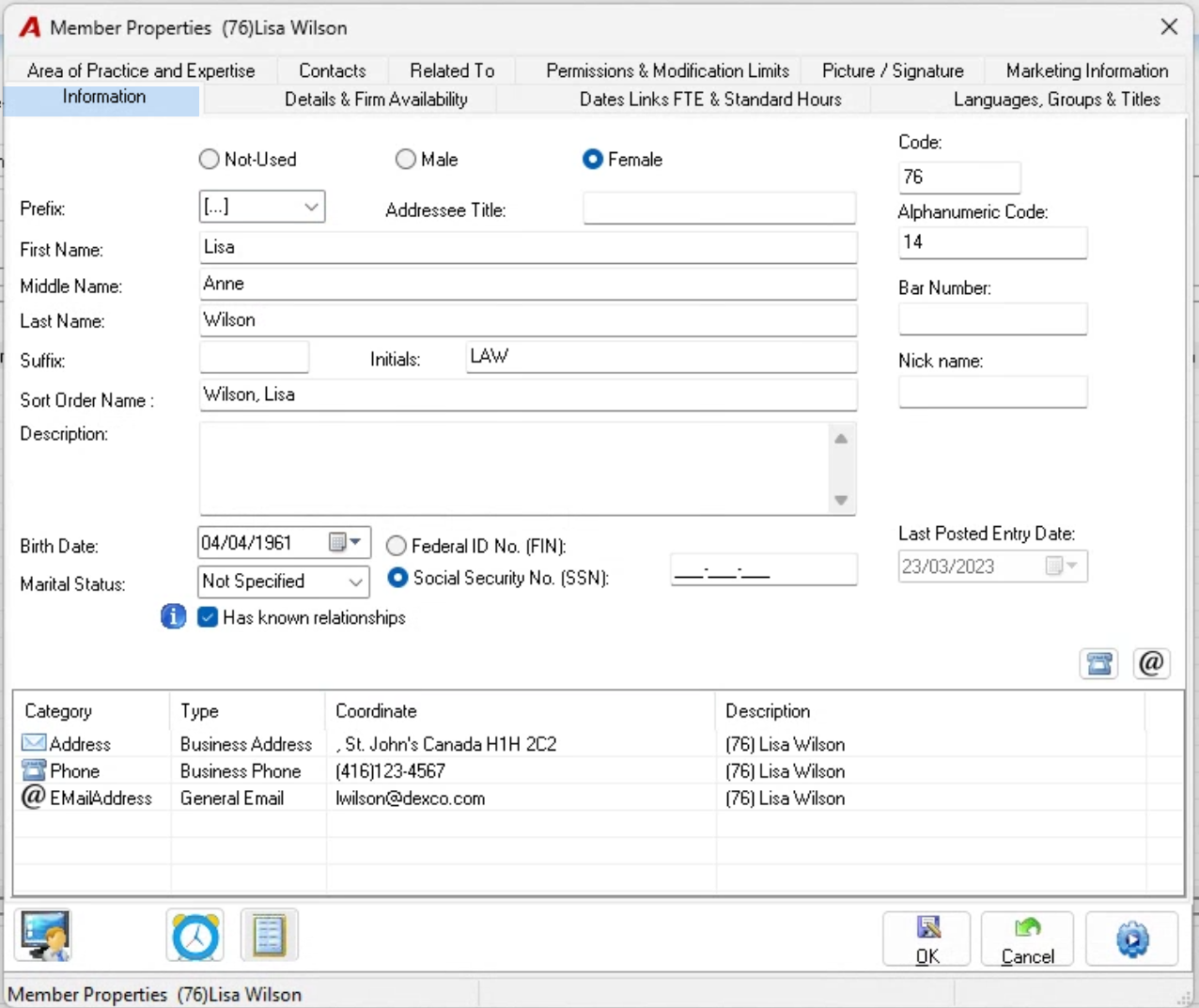
Change Name: Update the name fields on the Information tab.
-
Preserve Prior Name (Best Practice): To preserve the previous name for future reference and conflict assessments, add the previous name to the Description field preceded by
Former Name:(e.g.,Former Name: Alyssa Young). -
Update Coordinates: If their contact info changed alongside the name (such as email address), highlight the coordinate in the coordinates section and select Properties to modify it.
Update Signature / Picture
-
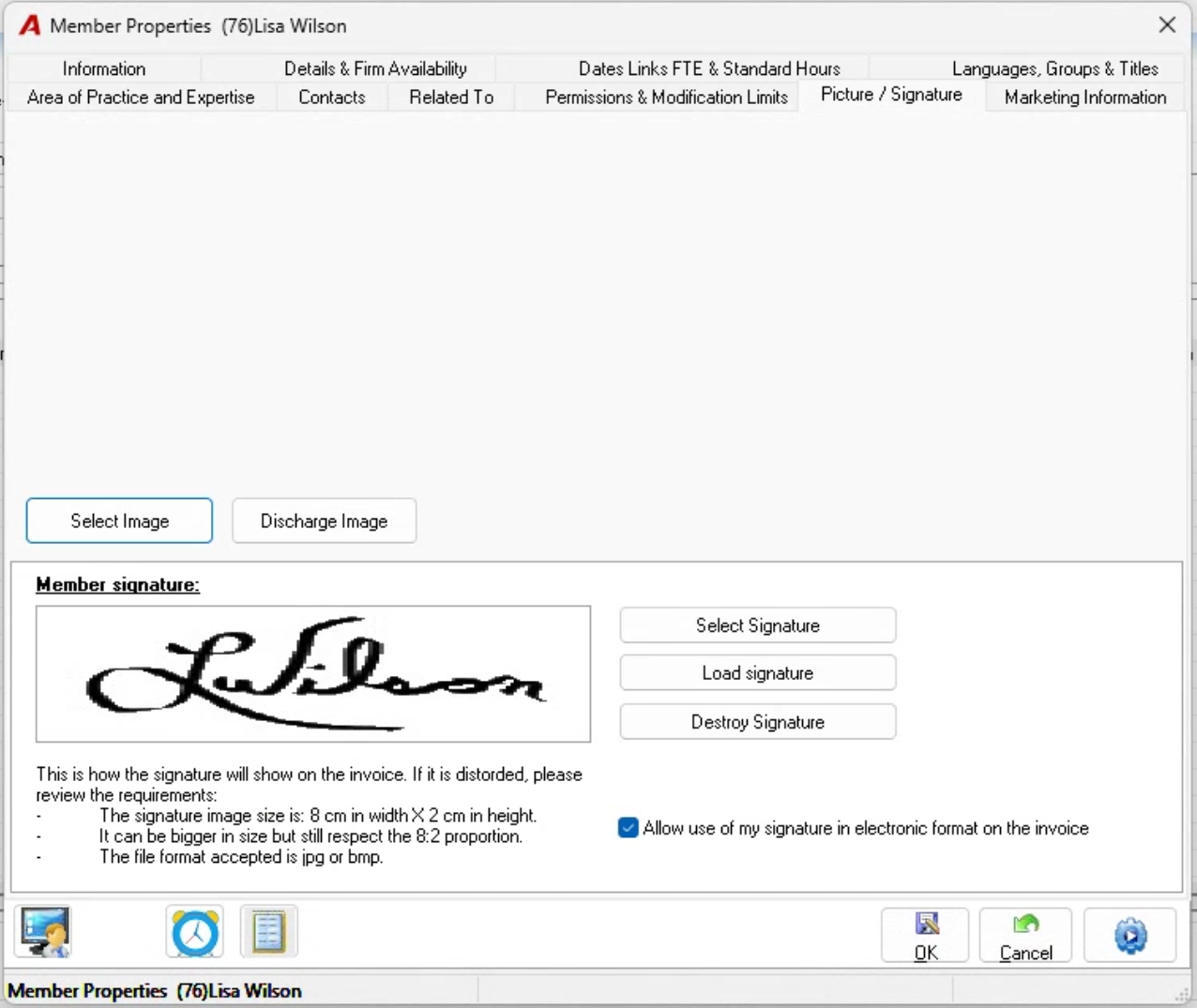
Go to the Picture / Signature tab.
-
Delete/destroy the old signature and upload the new signature to ensure consistency across generated documents and invoices.
Important Things to Note
-
Global Impact: Name changes do not use effective dates. Once changed, the new name is immediately reflected anywhere the member's unique identifier (
Pid) is used (e.g., past and future time entries, payment requests, invoice signatories, search results, and reports). -
User Profile vs. Member: If the member also has an Acumin user account for logging in, their user login credentials and Active Directory associations are managed separately under Admin > Acumin Users.