.png)
When attempting to modify the User Name field in the Acumin User Properties form, you may encounter the following error message:
“Window Active Directory User Name is already assigned to the Acumin user …”
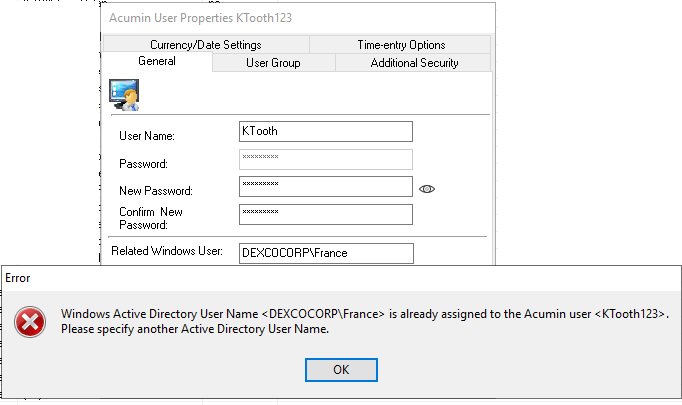
This message indicates that the Active Directory (AD) user name is already associated with another Acumin user and prevents changes to the User Name field.
To resolve this issue and proceed with modifying the User Name, please follow the steps below:
Step-by-Step Instructions:
-
Open the Acumin User Properties form.
-
Locate the Related Window User field.
-
Select the content (i.e., the AD User Name) in the Related Window User field.
-
Right-click on the selected content and choose Cut.
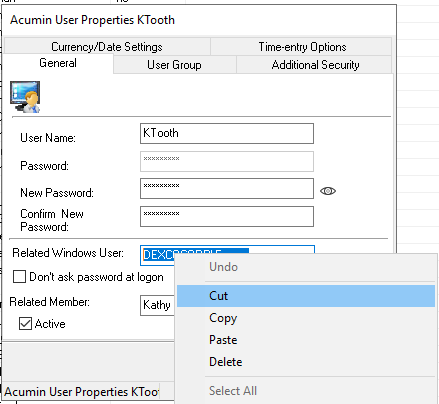
Note: This action will temporarily remove the AD user association, allowing you to modify the User Name.
-
Click OK to save the change.
Optional: Paste the cut content into a temporary location (e.g., Notepad) to avoid losing it.
-
Reopen the Acumin User Properties form.
-
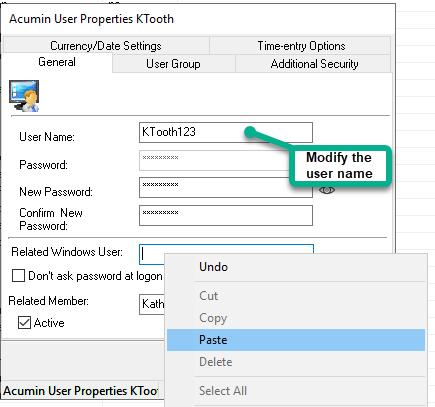
Modify the User Name field as needed.
-
After completing your modifications, return to the Related Window User field.
-
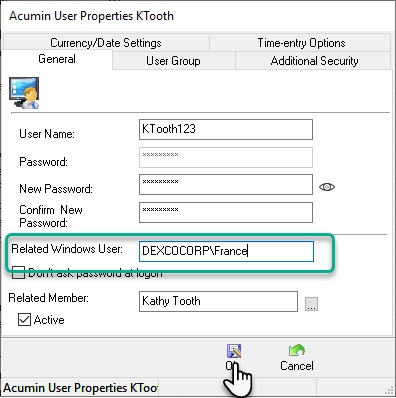
Right-click in the field and choose Paste to restore the previously cut AD user name.
-
Click OK to save all changes.
Important Notes:
-
Always ensure that you restore the correct AD user name to avoid breaking any user associations.
-
This workaround allows you to bypass the system validation temporarily by disassociating the AD user before making your changes.
If you continue to experience issues or are unsure about any step, please contact your system administrator or support team.