.png)
Overview
Acumin includes a journal entry upload module, which enables organizations to upload prepared journal entries in one of three electronic forms, Excel, a "Comma delimited" file format (saved as a CSV file) or from a "Flat File" (.TXT) where each record within the file is the same fixed length and each field defined begins and ends in the same positions within all records in that file. Upload templates are built based on the specifications of the entry source file.
Introduction
-
The data file(s) containing journal entry transactions for upload into Acumin must have a specific name or file extension.
-
Each file must include its corresponding template or "Upload Properties" form, which contains the attributes necessary for the upload engine to read and record the information in the Acumin database.
Setting up the upload templates
Access to the Journal Entry Upload Template Form
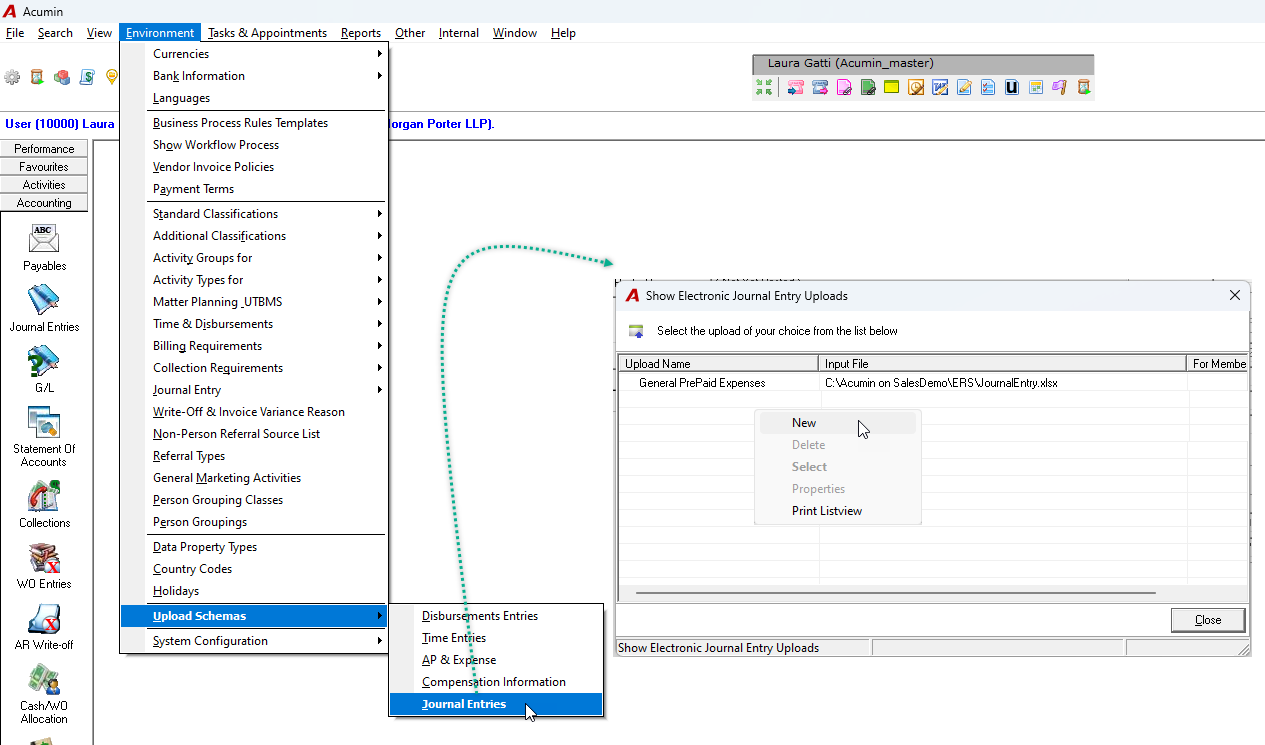
To access the journal Entries Template, go to Environment – Upload Schemas - Journal Entries.
In the Show Electronic Journal Entry Uploads form, to create a new Journal Entries Upload template, right-click and select the New option
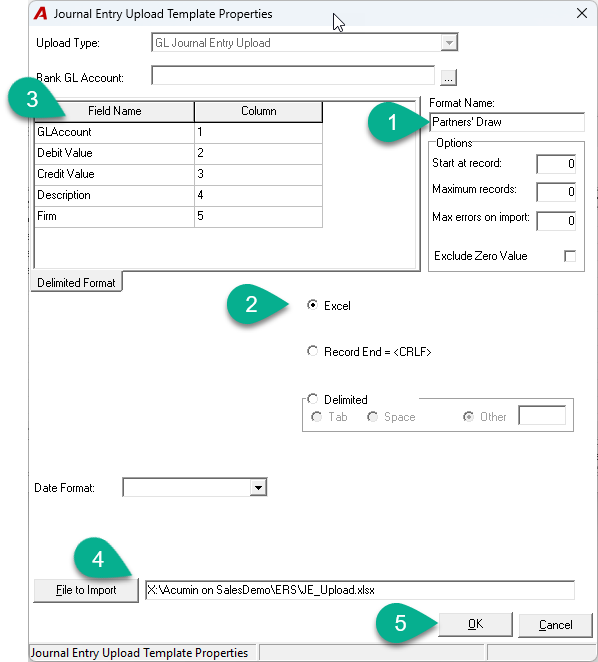
Complete the steps in the form shown below
-
Name your template
-
Click the radial button "Excel" or “Record End” or “Delinited” depending on the type of file to upload.
-
Select your data fields in the correct order they appear in the input file
-
Complete the location (input path including file name and extension) where the file is located
-
Click "OK" to save the template
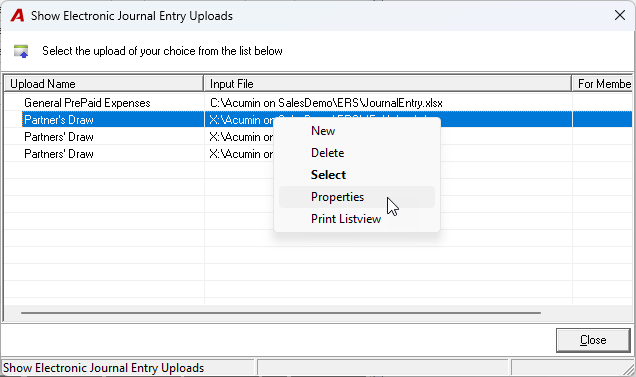
You will now see it as a possible template selection as shown below.
Modify it by using <right-click> on the template and select "Properties".
Examples of templates per type of file
Journal Entry Upload Template Properties example set for Excel
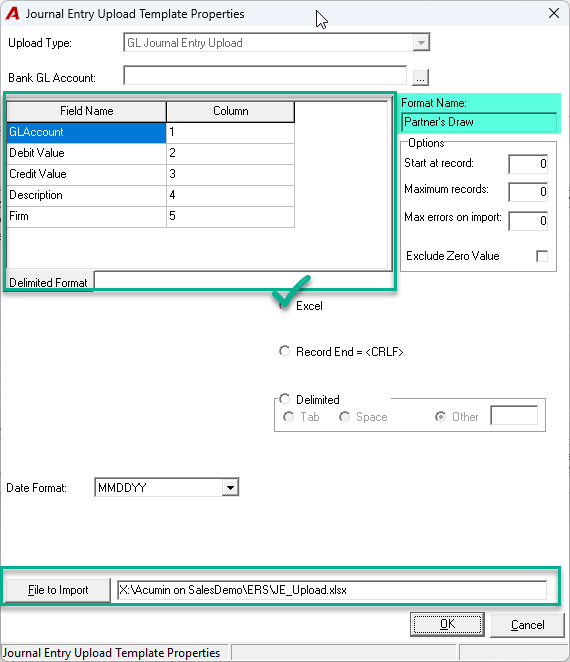
Generate and save the Excel upload document from Excel.

Journal Entry Upload Template Properties example set for a Flat File or Txt File
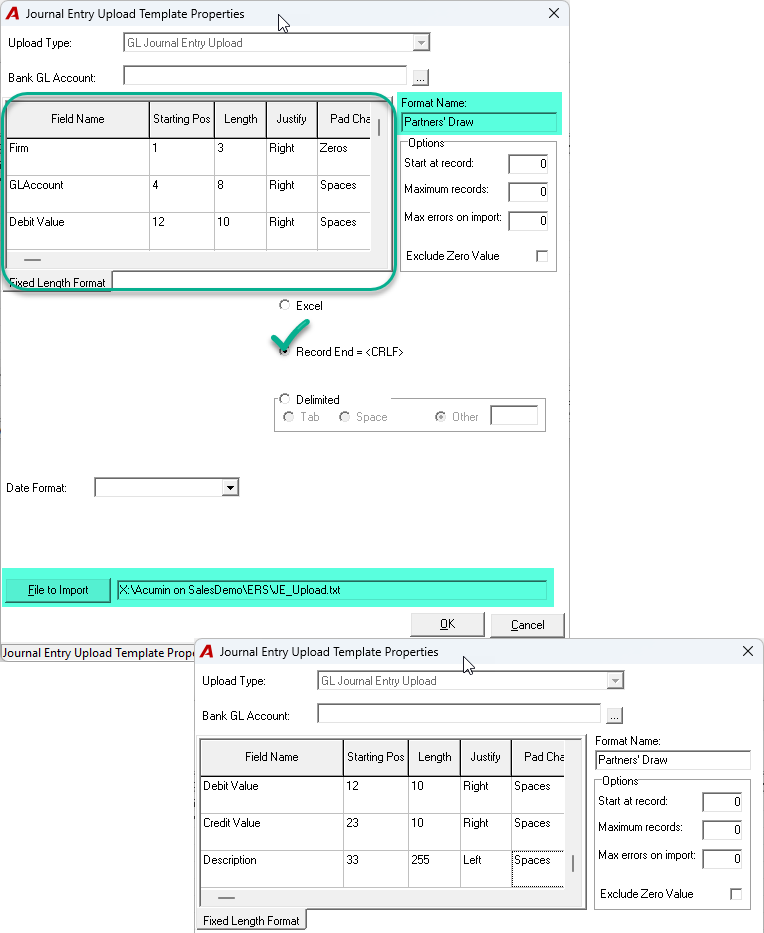
The "Flat File" or .TXT file example appears as follows when viewed in Notepad:

Journal Entry Upload Template Properties example set for a Delimited File
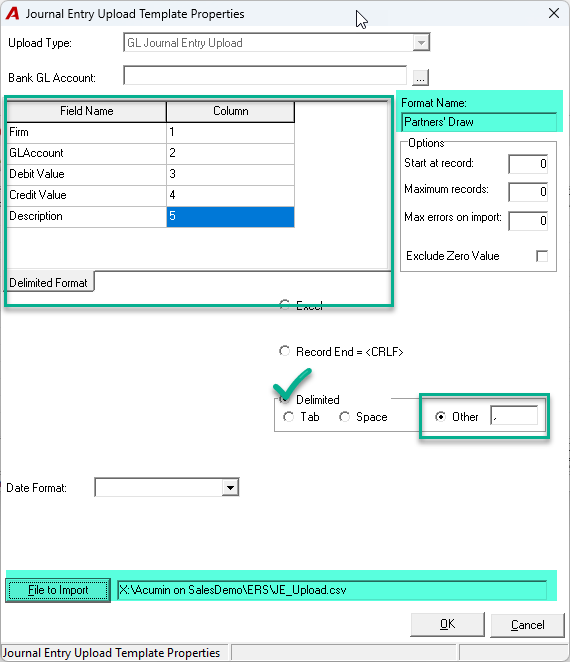
Generate and save this delimited File type from Excel as a true comma-delimited file.

How to Upload Electronic Journal Entries
Follow the steps below (Steps 1 through 4) to upload a journal entry:
-
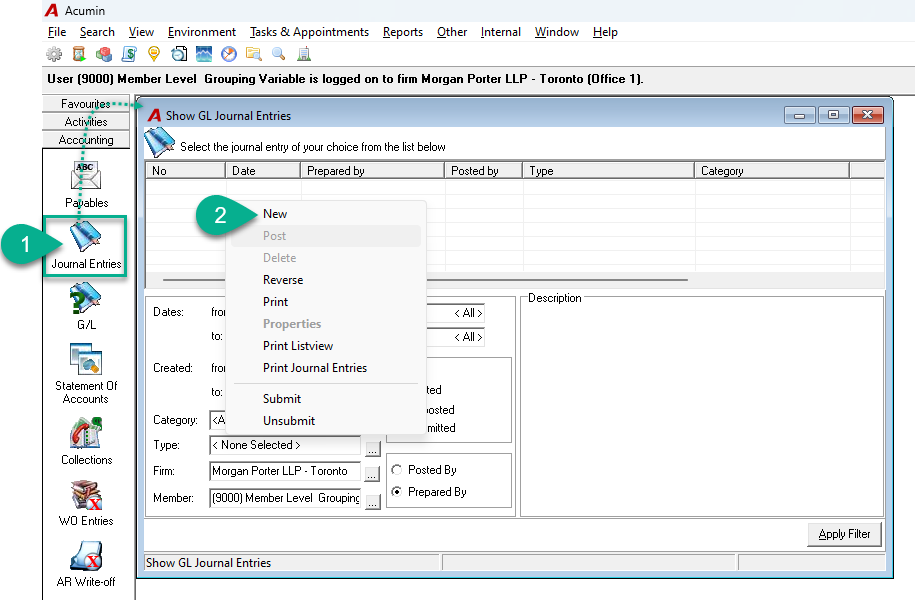
Navigate to the Journal Entry Form:
From the "Accounting" section of the taskbar, click on the Journal Entry icon to open the journal form. -
Create a New Journal Entry:
In the "Show Journal Entries" screen, right-click anywhere on the list and select "New" to create a new journal entry.
-
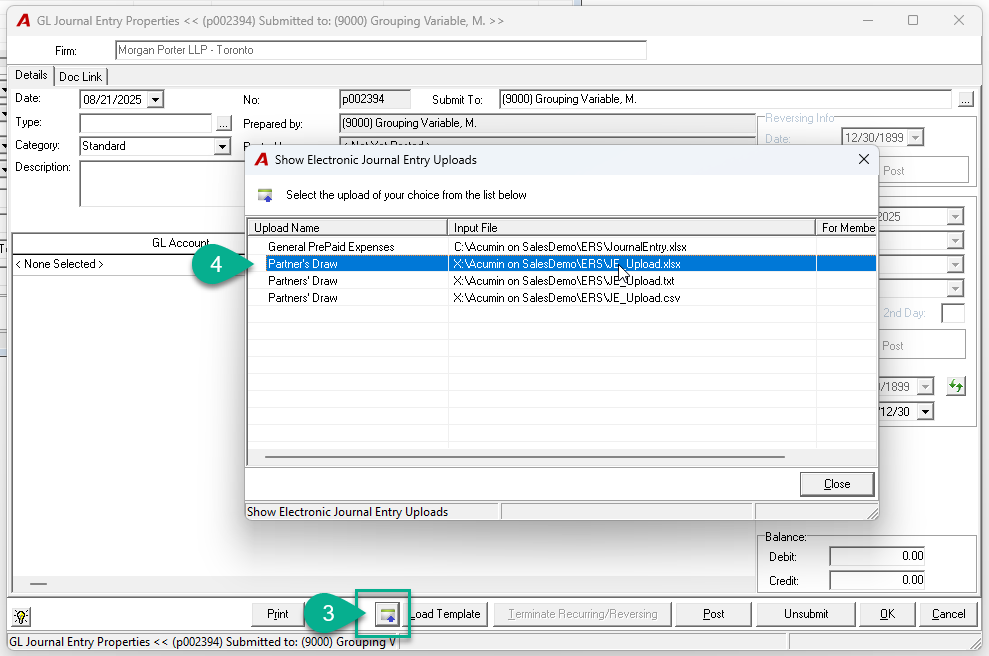
Upload the Journal Entry File:
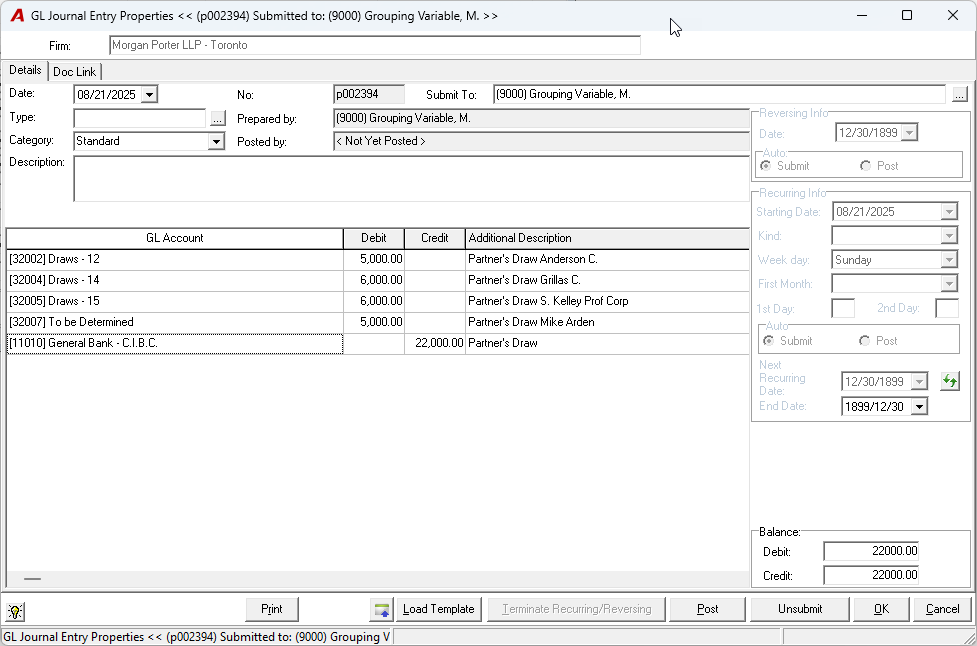
In the "Journal Entry Properties" window, click on the Upload button to browse and double click on the journal entry file you wish to import.
-
Save or Post the Journal Entry:
Once all entries are loaded into the Journal Entry Properties window, you can choose to Post, Print, or click OK to save the journal entry.
Manually delete the file after uploading it. Acumin does not delete files automatically. This prevents multiple uploads of the same file.