.png)
Purpose
The Lawyer-Assistant Relationship feature in Acumin allows firms to formally link assistants to the lawyers they support. Once established, this relationship streamlines day-to-day workflows by:
-
Giving assistants visibility into their assigned lawyers' reports, time entries, and work-in-progress (WIP) — without requiring third-party access or sharing login credentials.
-
Automatically populating default fields (such as the "submit-to" function on timesheets) with the main assistant, reducing manual data entry for lawyers.
-
Improving accountability by ensuring each user operates under their own credentials.
Prerequisites
Before setting up a Lawyer-Assistant relationship, ensure the following:
-
The Assistant-Professional Relationship functionality is enabled in your Acumin environment.
-
Both the lawyer and the assistant have active member profiles in the system.
-
You have administrator-level access to Member Properties.
What This Feature Affects
Once a relationship is established, it impacts the following areas of Acumin.
Notes & Case Management
-
Case Management Notes — Assistants can view their assigned lawyers' Case Notes (including delegated notes) without third-party access. With restricted access, they can still view all notes for a client/matter regardless of author, but cannot filter for notes belonging to unassigned lawyers. The assigned lawyer is the default author when creating new notes.
-
AR Notes — Same behavior as Case Management Notes for AR-specific notes.
-
WIP Notes — Same behavior as Case Management Notes for WIP-specific notes.
Time Entry & Activity
-
Time Entry — The assigned lawyer is set as the default working member on the assistant's timesheet. Assistants are not restricted from entering time for other lawyers. For lawyers, the submit-to function is automatically populated with their main assistant.
-
My Activity — Assistants can filter for their assigned lawyers' time without third-party access. With restricted access, they cannot view time for unassigned lawyers.
-
Hours Worked – Monthly View — Assistants can view their assigned lawyers' time entry calendar. With restricted access, filtering is limited to assigned lawyers only.
Consider this when allowing multiple assistants per lawyer or vice versa, as timesheet options are affected wherever the relationship is applied.
WIP & Dashboards
-
Electronic WIP List (To Bill Tab) — Assistants can view and manage their assigned lawyers' e-WIP list without third-party access.
-
WIP Dashboard — Assistants can view their assigned lawyers' WIP. With restricted access, they cannot filter for unassigned lawyers.
-
Member Activity Dashboard — Assistants can view their assigned lawyers' dashboard by default. Access is further controlled through special permissions at the user group level.
Reports & Documents
-
Report Packages and Personalized Reports — Based on assigned permissions, assistants can view their lawyers' report packages and personalized reports.
-
Document Generation (Word Merge) — Templates may be affected by the relationship (e.g., a bank letter may display the assistant as the contact linked to the signatory lawyer).
Firms using document generation or custom invoicing should review templates before establishing relationships.
Setting Up a Lawyer-Assistant Relationship
Establishing the Relationship
-
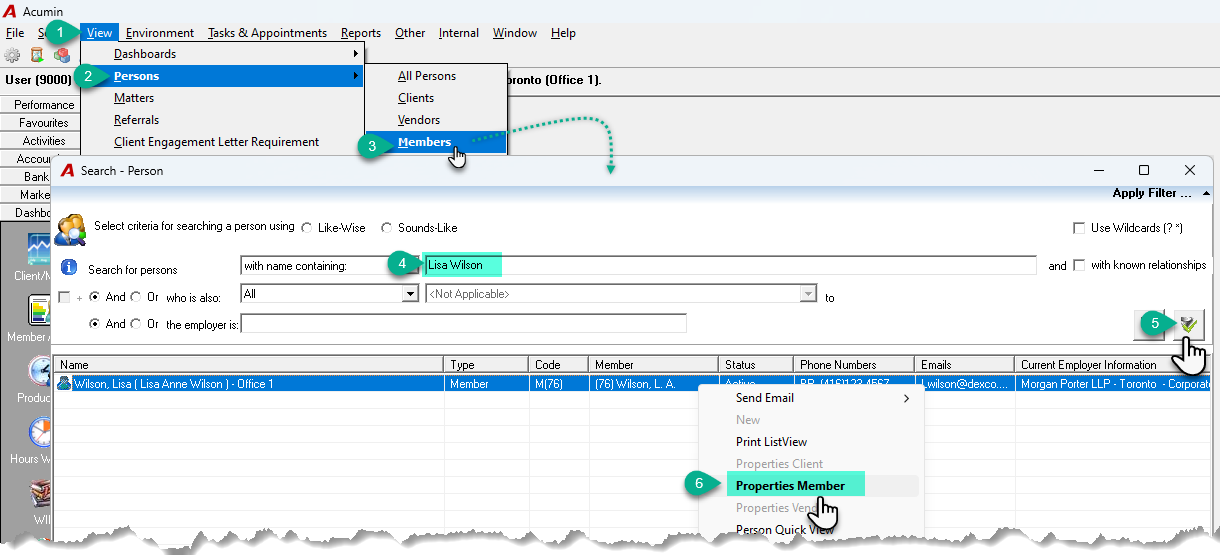
Navigate to View → Person Properties → Members to open the Search Person form.
-
Enter the code or name of the lawyer, then press Enter or click Find.
-
Double-click the desired member, or right-click and select Properties to open Member Properties.
-
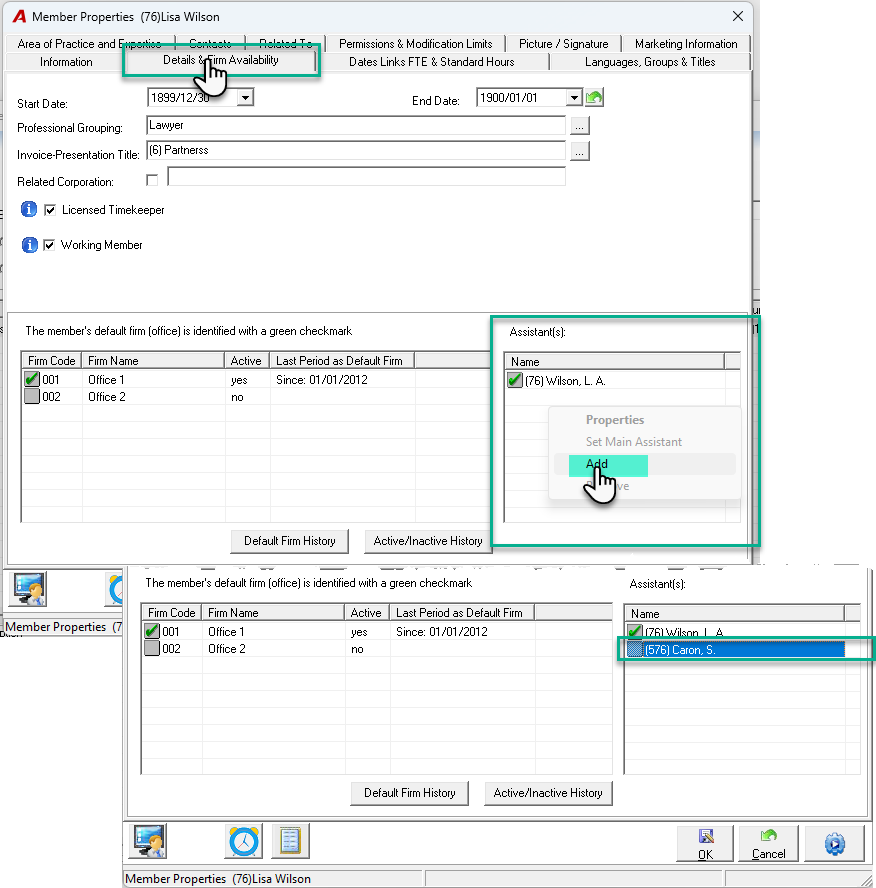
Open the Details & Firm Availability tab, in the Assistants grid, right-click and select Add. The Search Person form will open.
-
Enter the code or name of the assistant, then press Enter or click Find.
-
Double-click the person to assign them as the lawyer's assistant.
Assigning a Main Assistant
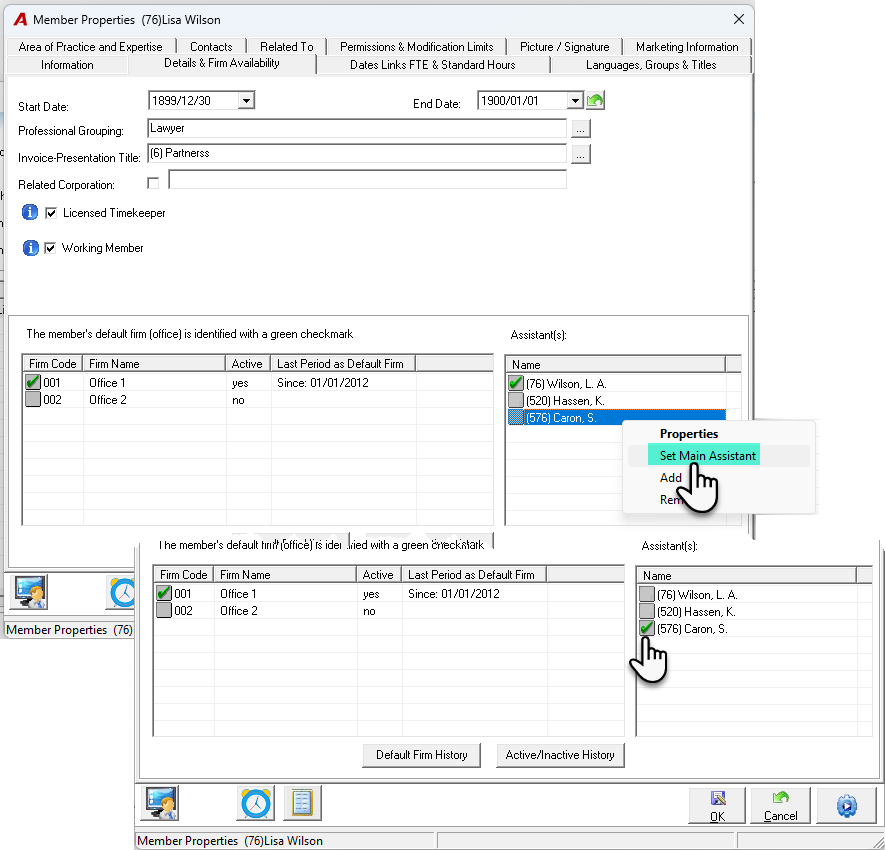
If a lawyer has more than one assistant, you must designate one as the Main Assistant. This is critical if your firm uses the Billing Management Tool, since billing requests are routed to the main assistant. The main assistant also becomes the default for the "submit-to" function.
-
Open the lawyer's properties form, in the Assistants grid, right-click the desired person and select "Set Main Assistant".
-
A green checkmark ✅ will appear next to the main assistant's name, confirming the assignment.
Overriding Default Assignments
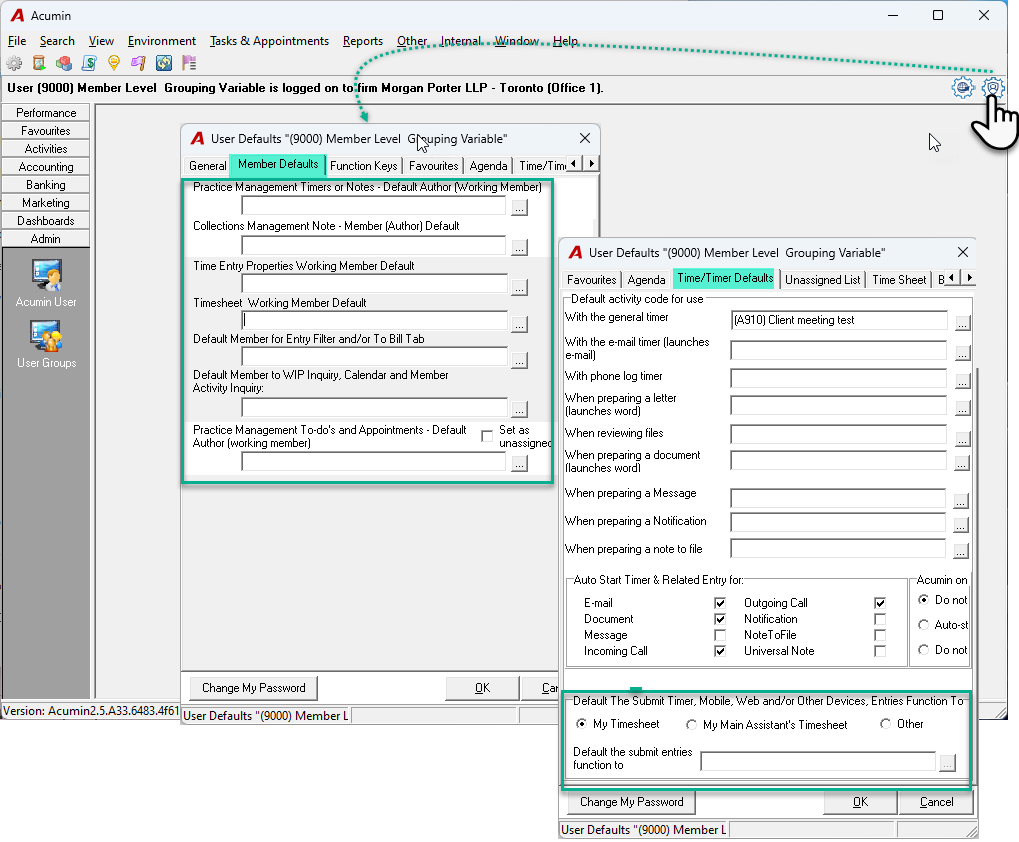
If a lawyer or assistant wants someone other than the main assistant as the default for certain functions (e.g., submit-to), they can configure this in User Defaults.
-
Double-click the icon on the right-hand side of the main form to open User Defaults.
-
Update the relevant fields in the Member Defaults and Time/Timer Defaults tabs as needed.
Note: For users with restricted access, only persons who are part of an established Lawyer-Assistant relationship will be available for selection.