.png)
General Overview
When your organization needs to change the bank institution tied to a GL account, there are different methods depending on account type, regulatory requirements, and firm policy.
1. General Bank Accounts
A. Create a New General Bank Account
If you need to maintain both the old and new general bank accounts:
-
Create a new General Bank Account.
-
Refer to the appropriate documentation for detailed creation steps: Setting-Up a New General or Trust GL Bank Account
-
-
Set the new defaulted bank account if necessary
-
Refer to the appropriate documentation: How do we set defaulted bank accounts (general and trust)
-
B. Update Existing General Bank Account with New Bank Details
If the intent is to keep the existing GL account but reflect new banking details:
Steps:
-
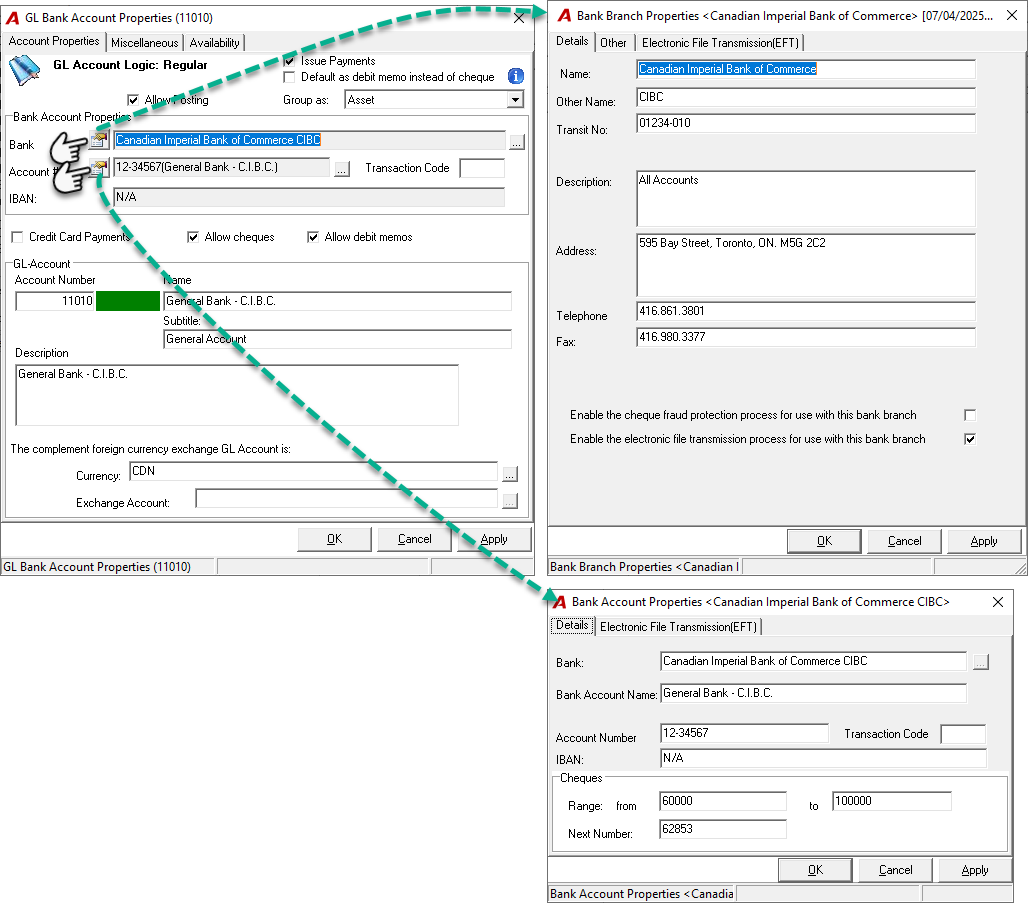
Open the GL account properties of the relevant general bank account.
-
In the Bank field:
-
Select the Bank Branch properties icon;
-
Modify the Bank Branch information with the new information, i.e. Name, Transit number and Address.
-
Important: This change will affect ALL Bank account and GL bank account linked to this bank branch.
-
In the Account # field:
-
Select the Account # Properties icon; (eg 12354-5858)
-
Modify the Account # information with the new information. e.i. Bank Account Name, Account Number and the cheque number range and next number, if necessary.
-
Note: When printing cheques, the MICR line is generated using:
-
The transit number from bank properties
-
The account number from GL account properties
-
In the Name field:
-
Change the name of the GL account if necessary
-
For more information, refer to the appropriate documentation:
-
Setting Up Bank Branches for General or Trust Bank GL Accounts
-
Setting Up Bank Accounts for General or Trust Bank GL Accounts
This option is recommended if you want to maintain a single GL account while managing outstanding cheques and reconciling between two bank statements (old and new) until all old cheques are cleared.
2. Trust Bank Accounts
Changing trust bank accounts requires a physical fund transfer between banks and must comply with law society regulations and internal firm policies.
A. Option 1: Transfer Without Reflecting in Matter’s Trust History
If an audit trail of the transfer is not required:
-
Physically transfer funds between institutions.
-
Retain supporting documentation of trust balances per matter as of the transfer date.
-
In Acumin:
-
Modify the GL account properties of affected trust accounts:
-
Update bank institution
-
Update account number
-
Enter a new cheque number range (optional)
-
-
Note: This method will not reflect the transfer in the matter’s trust history.
B. Option 2: Transfer With Required Trust History Audit Trail
If an audit trail must be maintained:
-
Physically transfer funds by cheque.
-
For each trust GL account:
-
Prepare at least one cheque with funds allocated by matter in the Distribution tab.
-
Limit: 50 rows per cheque (recommended).
-
-
-
Deposit each cheque into a new trust GL account reflecting the new bank.
-
Ensure that each deposit matches matter-for-matter with its respective cheque.
Trust History Reporting Options:
-
If a new trust GL account is created: History will appear in two separate sections (old vs. new).
-
If only bank information is updated in the same GL account: History appears in one section under the updated trust GL.
3. Investment Accounts
Investment redemptions typically default to the original general trust GL account they were created from.
To allow redemptions into a different trust GL account:
-
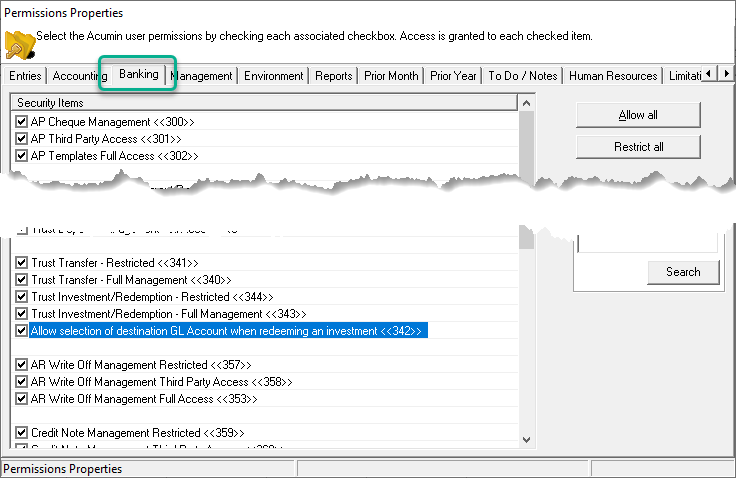
Enable Security Option #342 located under the Banking tab for authorized users or user groups.
Without this security option, users will be restricted to redeeming investments into the original GL account only.
🔁 The redemption process executes a transfer back into the general trust bank account from which the funds were originally drawn.
4. Reporting Considerations
-
You cannot link old and new bank accounts directly to consolidate balances within Acumin.
-
However, within financial statement reports, you can create a group (e.g., Blue Book) that includes both old and new GL accounts to view a combined total.
Recommendation: Test Before Implementation
Before applying any changes in your production environment:
-
Ask your IT department to restore your AcuminTraining database from your current production database.
-
Use AcuminTraining to rehearse various scenarios and validate both methodology and results.
-
Proceed with changes in your production database only after successful testing.