.png)
Highlights
The system administrator position is used to manage security profiles. The setting includes some security options which are also individually managed as permissions in the security panel.
The administrator setting must be considered separate than the security granted through membership in a security group.
Security options associated to the administrator profile if found are removed so that administrator rights are kept separate than the security granted through security group membership.
From a best practice perspective, firms where the person responsible for security also has other functions, create two users and two members.
-
The first user is set as administrator, associated to a member names “System Administrator” and with no membership in a security user group.
-
The second user is associated to the native member properties of the individual and set to have membership in a security group with the functionality needed for he or she to complete their operational tasks.
In short, the respective users and members are for the same individual, which allows them to keep the two use-cases separate.
Also considered best practice, the admin user and the operational user are associated to the same member. The difference is that if there is a member named system administrator usually the primary administrator and the back-up use the same login to perform admin functions when needed. If there is no separate system administrator member, then each log in as administrator with their own administrator login.
Alternatively, if only one user is created, we recommend that he or she be assigned to a membership in a user group in context of his or her responsibility center, limiting the security to ensure operational work is not executed without internal controls. In this case, security for not often used options can be taken and removed on an as need basis.
User Properties Set-Up and Task Bar Visibility
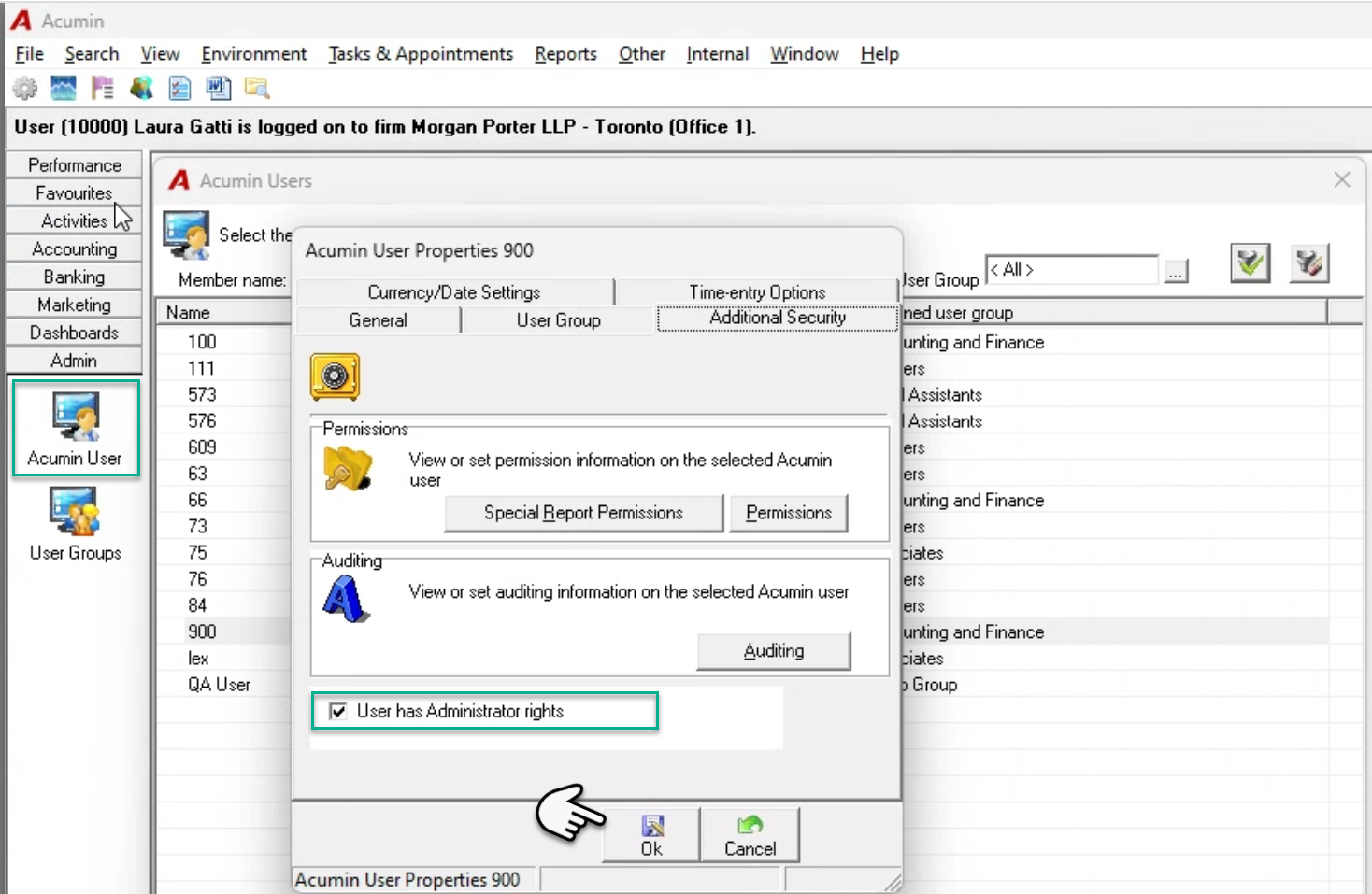
To grant administrator rights to a user, the person must have administrator rights. From the admin section of the task bar, press on the “Users” button to launch the “Acumin Users “ form.
Filter for the member associated to the user profile that will receive administrator rights. Highlight the member and right click to access the user’s properties. Press on the “Additional Security” tab and checkmark the administrator checkbox option.
Navigate to “User Group” tab and confirm the security group membership for the user. Press OK to accept and exit.
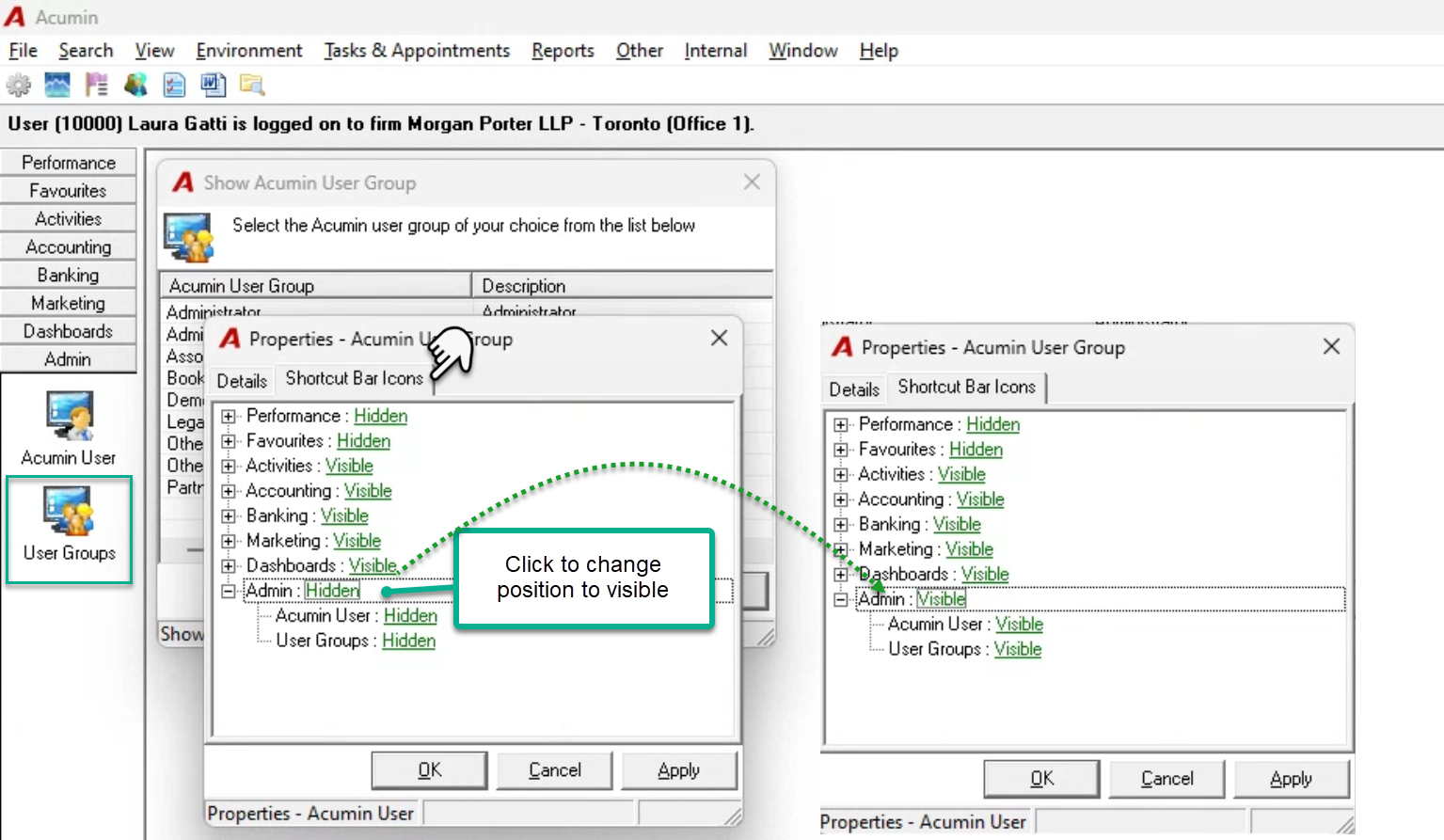
Press on the “User Group” button, highlight the security group of the user and right-click to select properties.
Navigate to the shortcut tab and set the admin task bar section – all buttons – as visible.
The user granted administrator rights must log out and re-logging for the rights and visibility of the task bar to take effect.
Security Permission - How to grant a permission to a specific user
User Security Membership - Permissions and Special Report Permissions for Member Activity