.png)
Member & User – Activation & Deactivation
Activate or deactivate a member
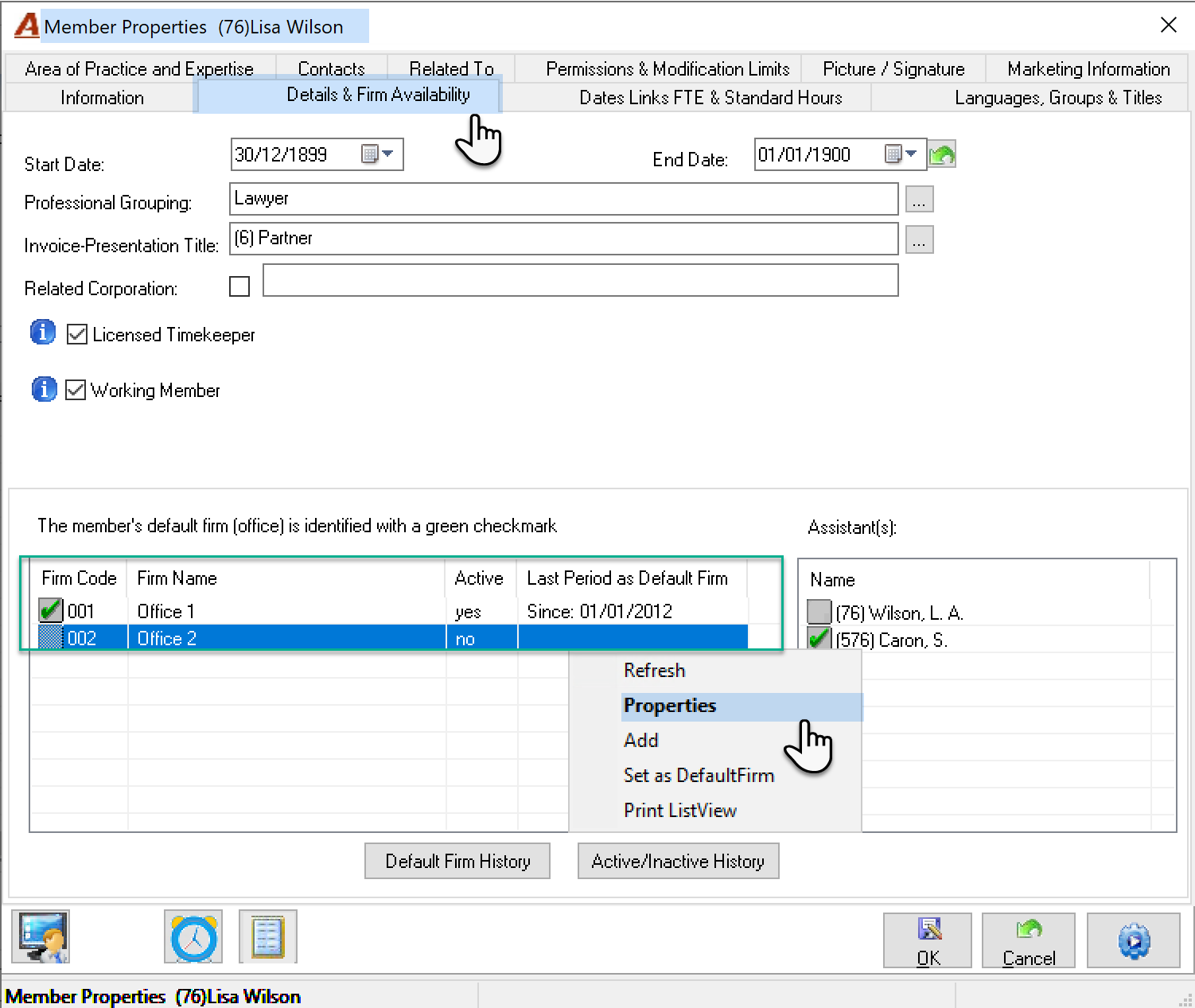
Access the member’s properties form and navigate to the Details and Employers tab. Right click on the firm where the activation status will be changed and select Properties.
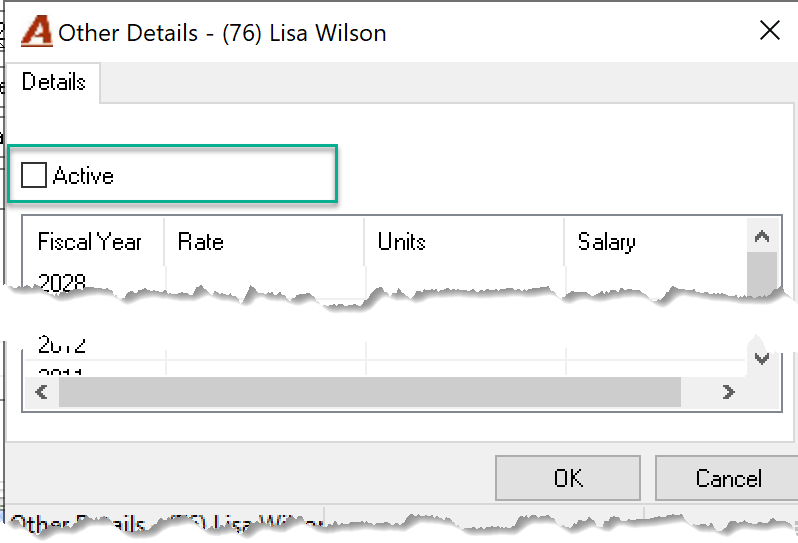
Once on the properties form checkmark or uncheck the Active checkbox.
Points to consider
All members must be active in the main firm (firm 001). Activation in all other firms is optional.
For a member to be considered fully deactivated, he or she must not be active in any firm. Full deactivation will prevent the search and selection of the member in time and disbursement entries, as well as allow him or her to be team or shareable role holder unless the option ”Allow the selection of inactive members into Teams roled and Ownership” is enabled in the Environment – System Settings – Other tab.
Deactivated Members
Fully deactivated members will be included as filter options for reports; therefore, it is considered best practice that these members be reassigned to a reporting and a main classification that reflects that they are no longer with the firm. These changes can be completed within the Languages, Groupings & Titles tab.
Temporarily Deactivated Member
To increase reporting opportunities, many firms create a reporting classification in which to reclassify professionals that have temporarily left the firm during the fiscal year – for example “Temporary Leave Timekeepers”. These deactivated members are then reactivated and moved to their relevant reporting classification on their return.
These steps facilitate reporting options and prevent the incorrect use of the member’s code for data entry. For example, incorrectly selecting a member that is absent to complete a time entry.
Permanently Deactivated Member
Initial and Final Reporting Classification Use Case
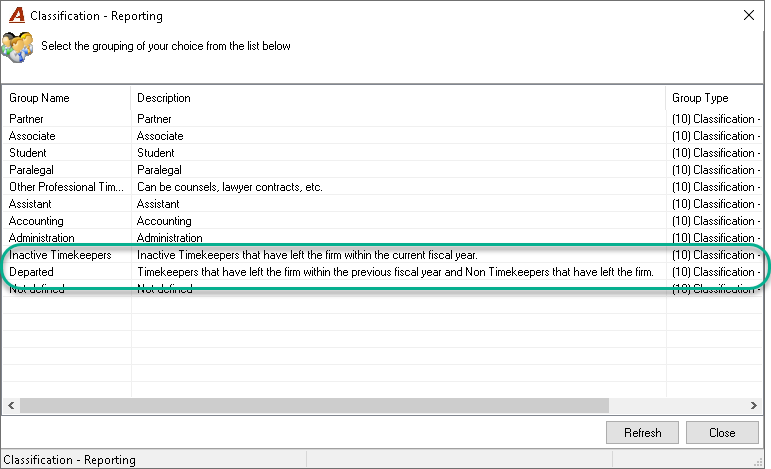
To increase reporting opportunities, many firms create a reporting classification in which to reclassify professionals that have left the firm during the fiscal year – for example “Inactive Timekeepers”. These inactive members are them moved to a permanent reporting classification – for example “Departed Timekeepers”
This type of classification facilitates reporting options.
Rate Management
It is best practice to expire all members’ rate found within the time-rate structure for fully deactivated members. This includes rates found within affected rate categories, special client and/or matter member rates. Use the different rate reports to get the list. (Note that in version 2.0, the authorized user can expire them all at once when deactivating the member)
Once the member properties have been modified, the authorized user will need to proceed to deactivate or delete the Acumin user.
Activate or Deactivate a User
Unlike member properties which cannot be deleted, the user profile of a member can be either deleted or deactivated.
Temporarily Deactivated User
In addition to reclassifying a member that is temporarily absent, their user properties should also be deactivated. This step prevents misuse of a user profile for an otherwise temporarily absent member.
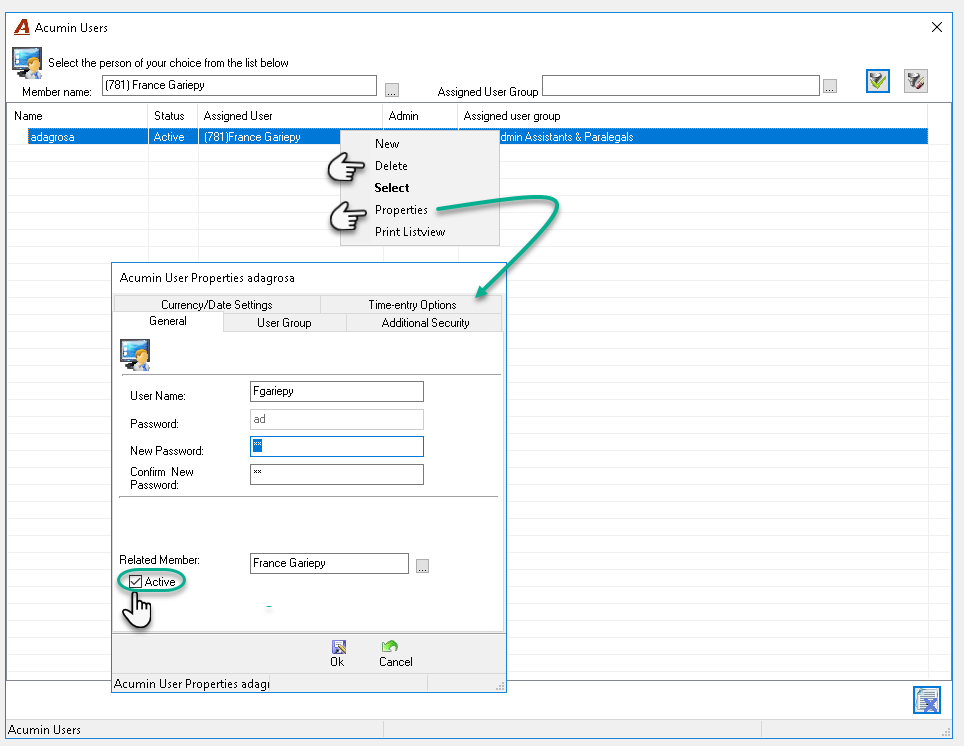
To deactivate a user, access his or her user properties form and uncheck the active checkbox.
Permanently Deactivated User
If a user is permanently gone from the organization, there is no purpose in retaining their user profile therefore we recommend that the latter be deleted instead of simply being deactivated. To delete a user, deactivate the user profile first by accessing his or her user properties form and unchecking the active checkbox. Then exit, highlight the record and right-click to select “Delete”.
RELATED DOCUMENT: