.png)
Spell Checker issue
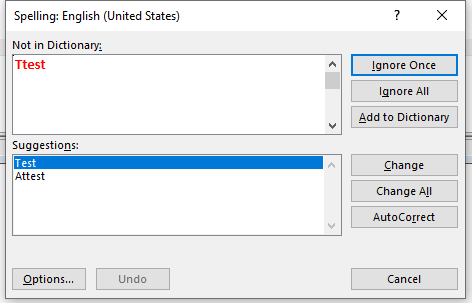
Reported Issue: When running the Spell Checker functionality through Acumin the ‘Not in dictionary’ area is greyed out and not editable.
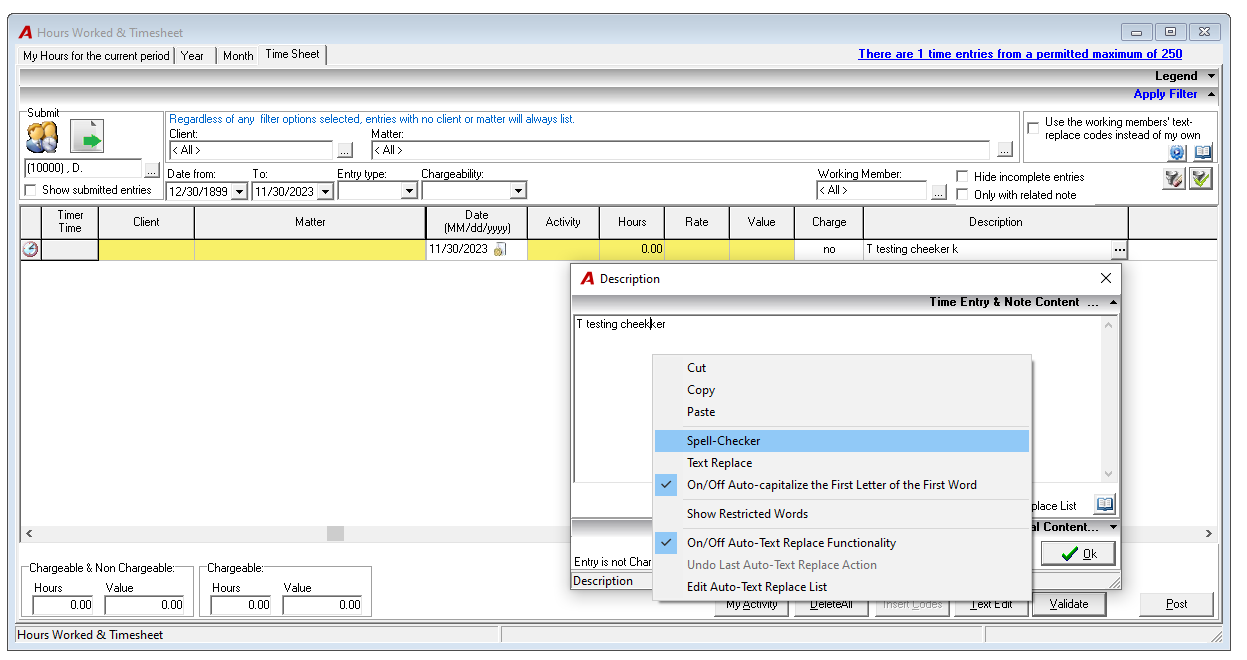
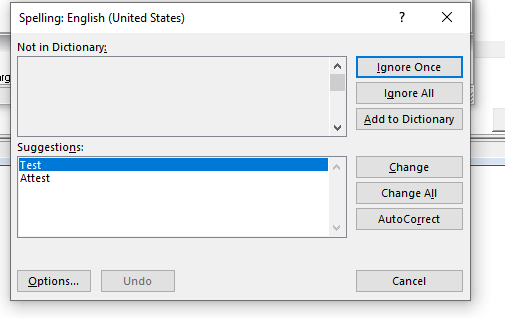
Current Workaround: This is an issue with the Microsoft Spell Checker that has been confirmed within some environments. The current workaround is to re-initialize the Spell Checker functionality as follows:
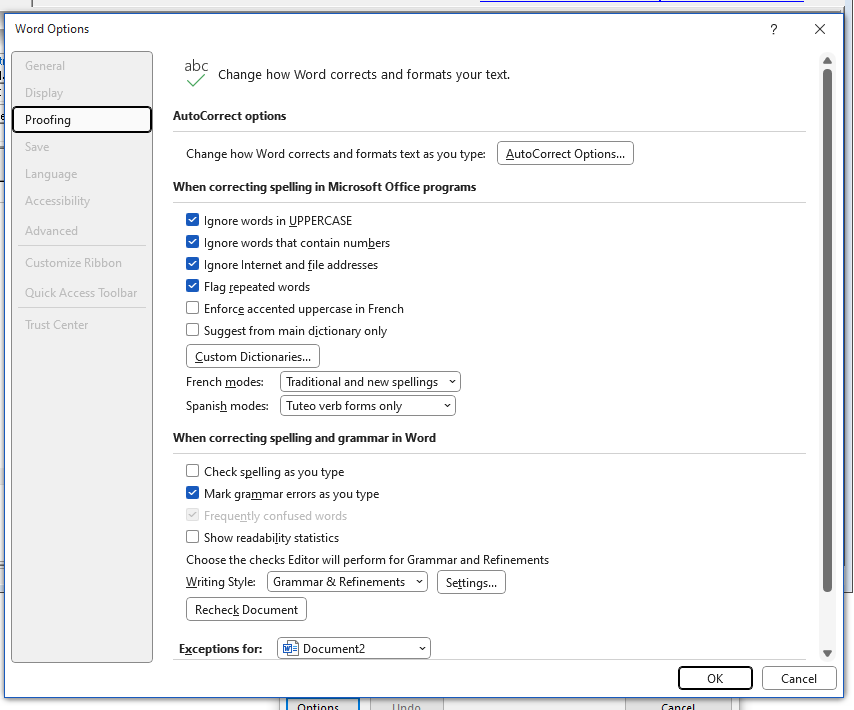
Once the Spell Checker has been launched, the user must select “Options” in the lower left corner. This will open the Word Options form. Clicking OK to close the form without making any changes, will bring the user back to the Spell Checker, which will now behave as expected.
This step must be repeated anytime the Spell Checker is launched.
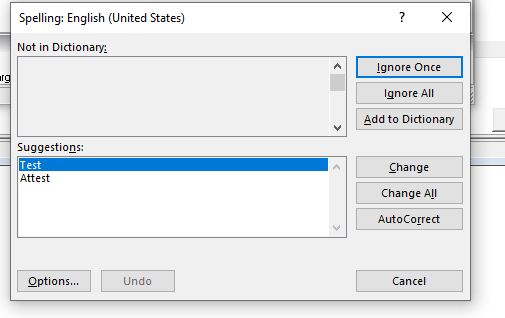
We have uploaded a video demonstrating these steps:
https://screenrec.com/share/Of0wBsdFPD
Please Note: We understand that this is an inconvenience, however it is temporary and are presently working with Microsoft, who have acknowledged this behavior in other applications, to rectify this situation as soon as possible…
https://learn.microsoft.com/en-us/officeupdates/current-channel