.png)
Overview
Acumin provides an aging tool that allows users to define custom aging schemes. Aging schemes determine how outstanding balances are grouped into time-based periods (e.g., 0–30 days, 31–60 days, 61–90 days) for reporting purposes. These schemes are used in reports such as the Aged Accounts Receivable Report, giving firms flexibility in how they analyze outstanding fees, disbursements, and taxes.
Creating a New Aging Scheme
-
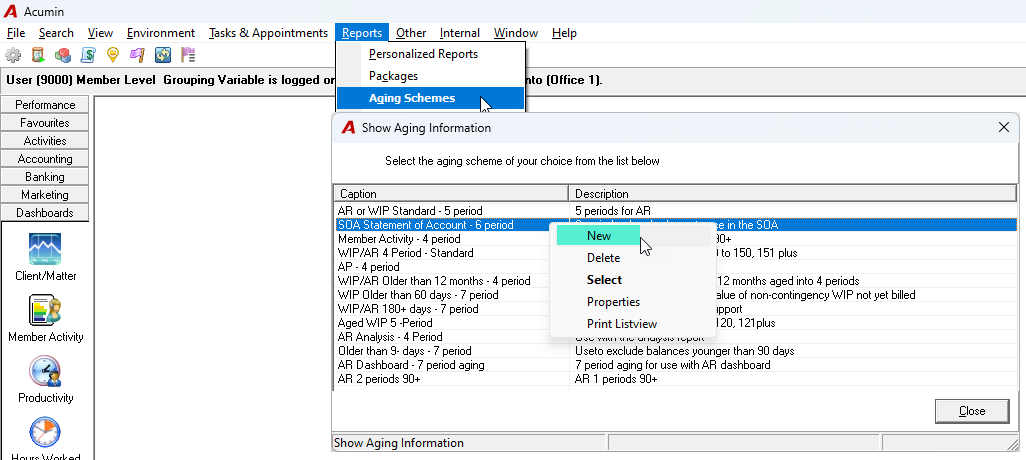
From the Reports menu, select Aging Information. The Show Aging Information form opens, displaying any existing aging schemes.
-
Right-click anywhere in the list and select New.
Naming Convention
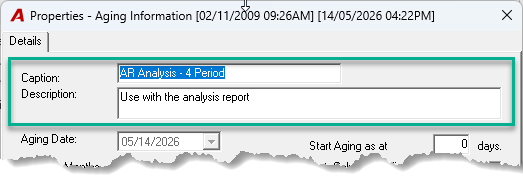
Enter a Caption and a Description for the new aging scheme:
-
Caption — A short, meaningful name for the scheme (e.g., "Standard 4-Period" or "Monthly 7-Bucket"). Choose a name that makes the scheme easy to identify and reuse.
-
Description — A more detailed explanation of the scheme's purpose (e.g., "Standard quarterly aging for AR reporting"). Both the caption and the description are displayed on the Show Aging Information selection list, which is accessible from relevant reports.
Aging Date
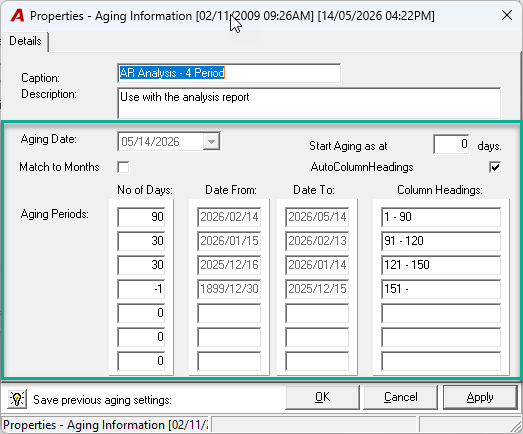
The Aging Date displayed on the form is for reference only — it does not affect the aging scheme itself. It provides a sample reference point so you can preview how the aging periods will calculate relative to a given date.
Note: When running a report, the aging scheme always calculates periods relative to the Aging Date (i.e., the "as at" date) selected in that specific report, not the date shown on this form.
Aging Information Properties
1. Start Aging
Use this field to set the number of days from which aging should begin. Any entries that fall within the period before this value will not appear in the aging breakdown.
Example: If Start Aging is set to 180, entries between 0 and 180 days old will be excluded from the aging periods. Only entries older than 180 days will be distributed into the defined buckets.
Tips: Leave this field set to 0 for standard aging that includes all outstanding balances.
2. Match to Months
Enable this option only if you want the aging periods to align with calendar months rather than fixed day intervals. When enabled, the first aging period corresponds to the current calendar month, the second to the previous month, and so on.
This option is typically not used in standard aging configurations.
3. Aging Periods (Buckets)
Aging periods define the time-based buckets into which outstanding balances are grouped. Each bucket holds a number of days representing the upper boundary of that period.
-
The aging scheme supports a maximum of seven buckets, but not all buckets need to be filled. You can create a scheme with as few as two buckets.
-
Typical bucket values: 30, 60, 90, 180, and 365 days.
-
The last active bucket must be set to −1. This acts as a catch-all for any remaining balances that exceed the previous bucket's range.
-
Any unused buckets after the −1 entry should be left empty.
Example — A 4-bucket aging scheme:
|
Bucket |
Value |
Period covered |
|---|---|---|
|
1 |
30 |
0–30 days |
|
2 |
60 |
31–60 days |
|
3 |
90 |
61–90 days |
|
4 |
−1 |
Over 90 days |
When the Aged Accounts Receivable Report is run with a 4-period aging scheme, the last three columns in the report provide a breakdown of Fees, Disbursements, and Taxes for balances in the final bucket.
4. Auto Column Headings
When enabled, Acumin automatically generates column headings for the aging report based on the aging date selected at report runtime. This ensures the column headers always reflect the correct date ranges.
Recommendation: Leave this option enabled (ON). If disabled, you will need to manually update the column headers each time you run a report with a different aging date to ensure they accurately reflect the date ranges.