.png)
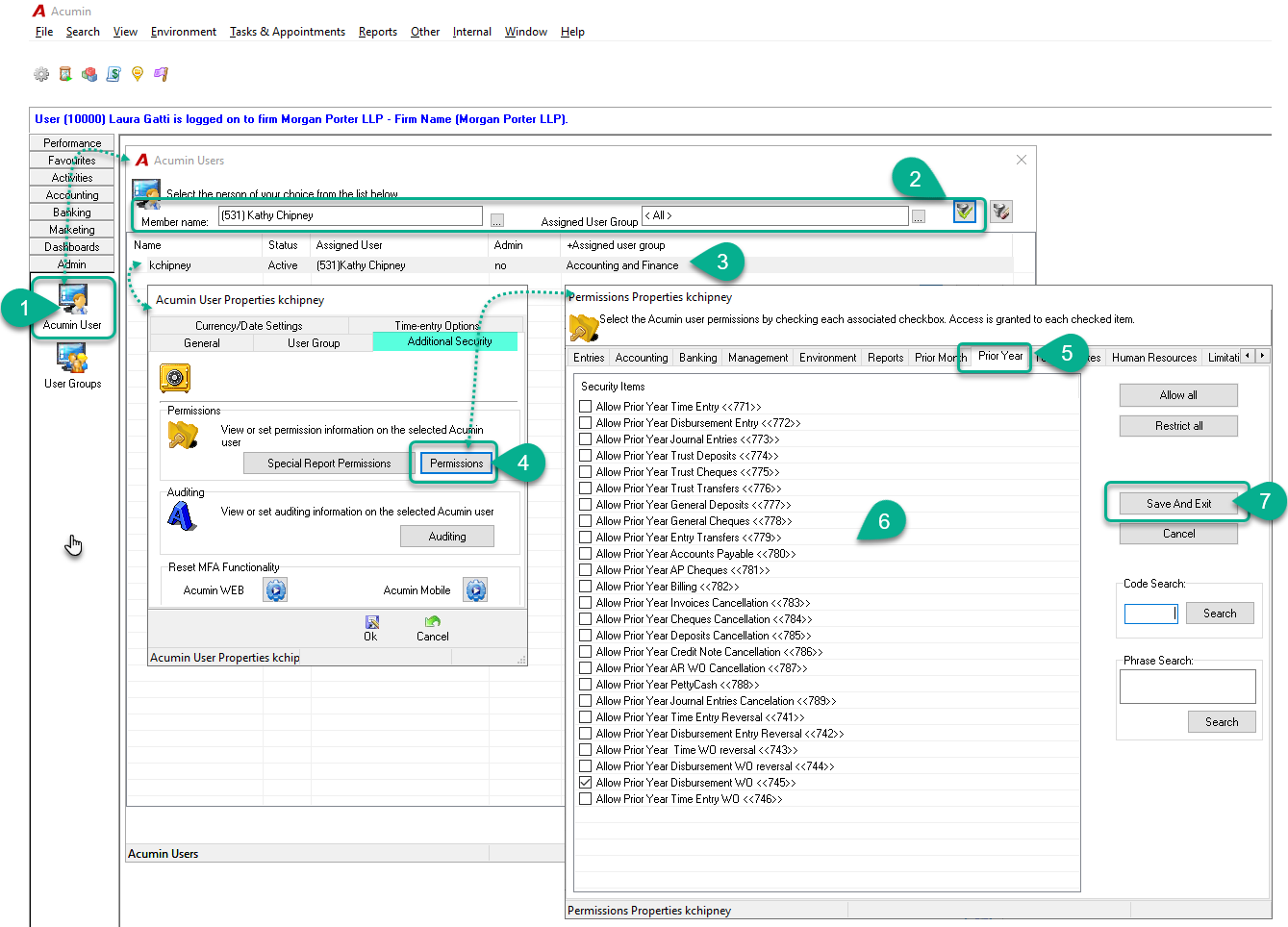
You can assign specific permissions to an individual user. Below is an example of how to grant Prior Year Permission to the user "kchipney," associated with member #531 Kathy Chipney:
Steps:
-
Navigate to the Admin Sidebar and click on the Acumin User icon.
-
Search for the member's name in the search bar and press Apply.
-
Select the member from the list and double-click to open their User Profile.
-
In the Acumin User Properties form, go to the Additional Security section and click the Permission button.
-
In the Permission Properties form, navigate to the Prior Year tab.
-
Check the specific permissions you want to grant for this member.
-
Click Save and Exit to apply the changes.
Note:
For the new permissions to take effect, all users in the affected group must log out of the system and log back in.
How to grant permission to a user groups (affecting all users within the group)
Security permission - User Administrator Rights
User Security Membership - Permissions and Special Report Permissions for Member Activity