.png)
During the member creation process, the system will automatically prompt you to create a new user. However, you can also create users independently—either for a single member or multiple users associated with the same member but assigned to different User Security Groups.
For example, if a user requires Admin rights, we recommend creating two separate Acumin user profiles:
-
One with their standard security group (e.g., "Accounting")
-
Another with Admin rights
Important : You must have Admin rights to create new user profiles.
Instructions: Creating a New User Profile
1. Access the User Creation Form
-
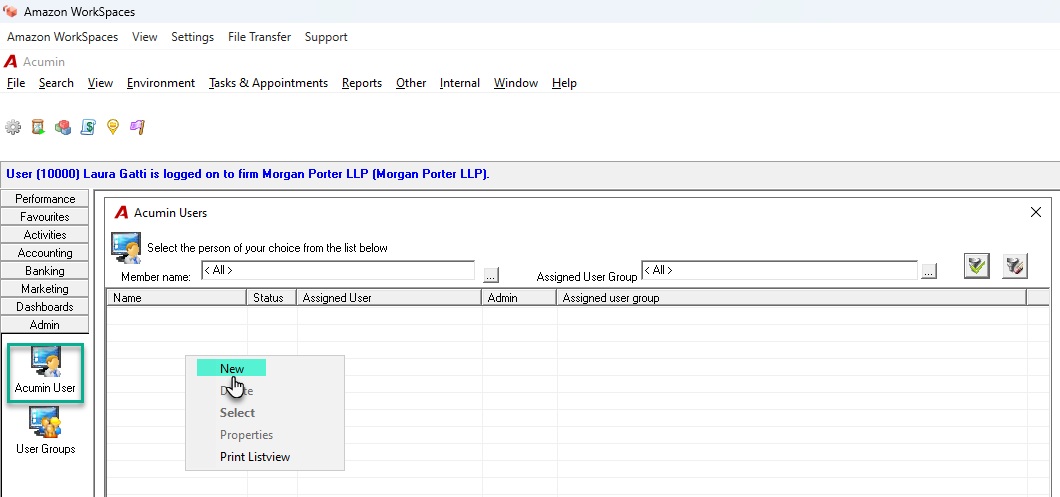
Navigate to the Admin section.
-
Click the Acumin Users button.
2. Create a New User
-
In the Acumin Users form, right-click and select New.
-
Complete the General Tab
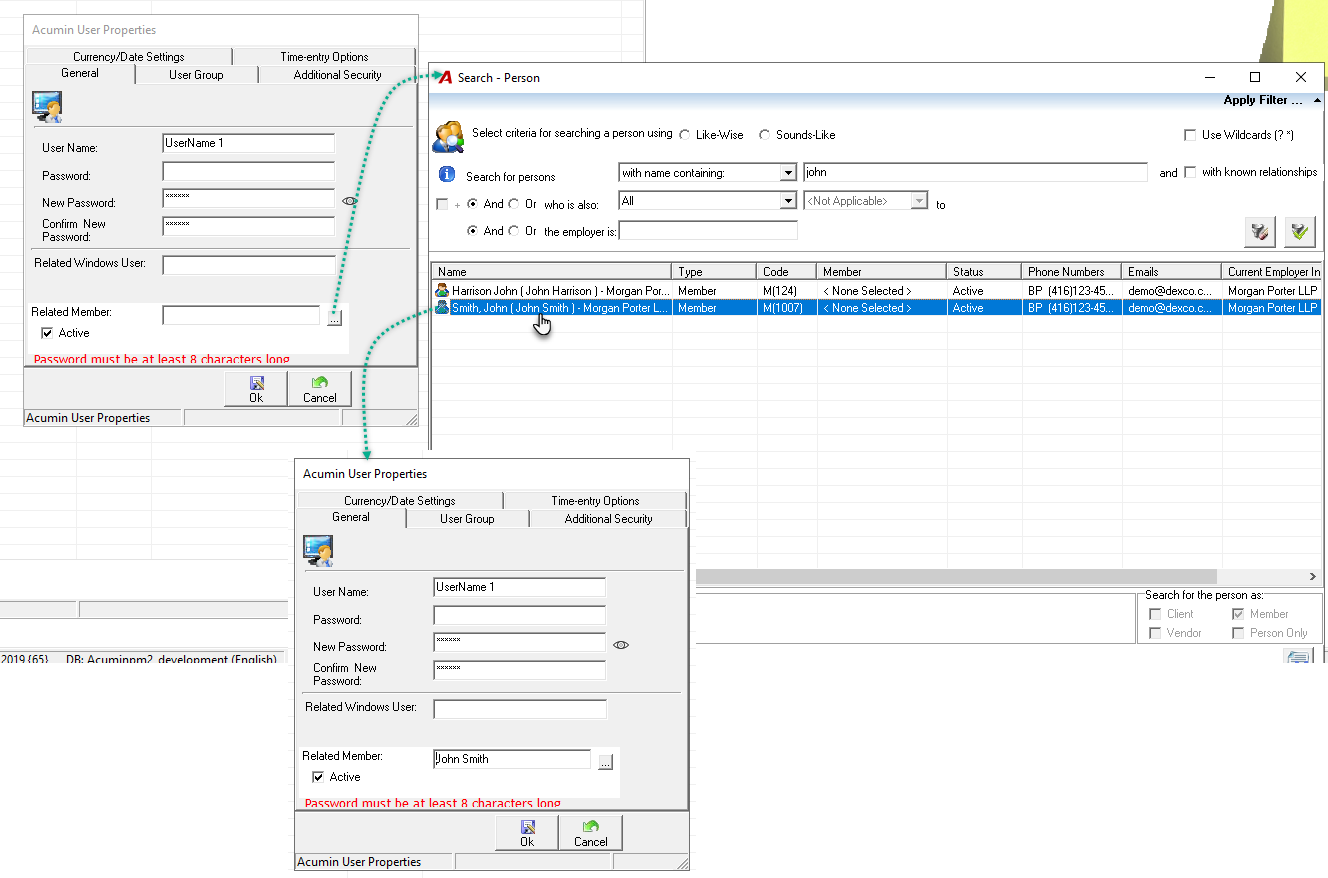
In the Acumin User Properties form, fill in the following fields under the General sub-tab:
-
User Name: Enter the username that will be used to log in to Acumin.
-
Password: Enter a password with a minimum of 8 characters, including both uppercase and lowercase letters.
-
Related Windows User:
-
If your organization uses Active Directory, enter the corresponding Windows username.
-
A password is not required in this case.
-
Ensure the Acumin user is linked to the appropriate Windows user account.
-
-
Related Member: Search for and select the member associated with this user profile.
-
Active: Check this box to activate the user profile.
-
Assign User Group
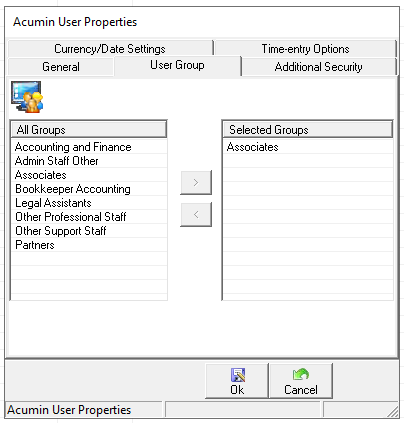
Go to the User Group sub-tab:
-
Select the appropriate user group from the left-hand list.
-
Click the arrow to move it into the Selected Groups section.
Each user group has its own set of permissions.
-
Configure Additional Security (Optional)
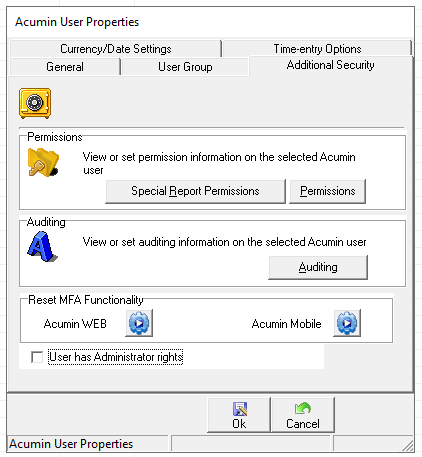
Use the Additional Security sub-tab if you need to assign permissions beyond those granted by the selected User Group.
-
For more information, refer to:
Security Permission – How to Grant a Permission to a Specific User
Important Notes
-
All users must be linked to an Acumin member.
Similar to member properties, a user can be either:-
Active: Has access to Acumin based on their security profile.
-
Inactive: No access to Acumin.
-
-
Members cannot be deleted, as they may be associated with historical data. Users, however, can be deleted if needed.
-
Leave the following tabs unchanged unless instructed otherwise:
-
Currency/Date Settings
-
Time Upload
-
These settings are pre-configured based on your organization’s implementation requirements.
RELATED DOCUMENTATION