.png)
User Default Panel
Access
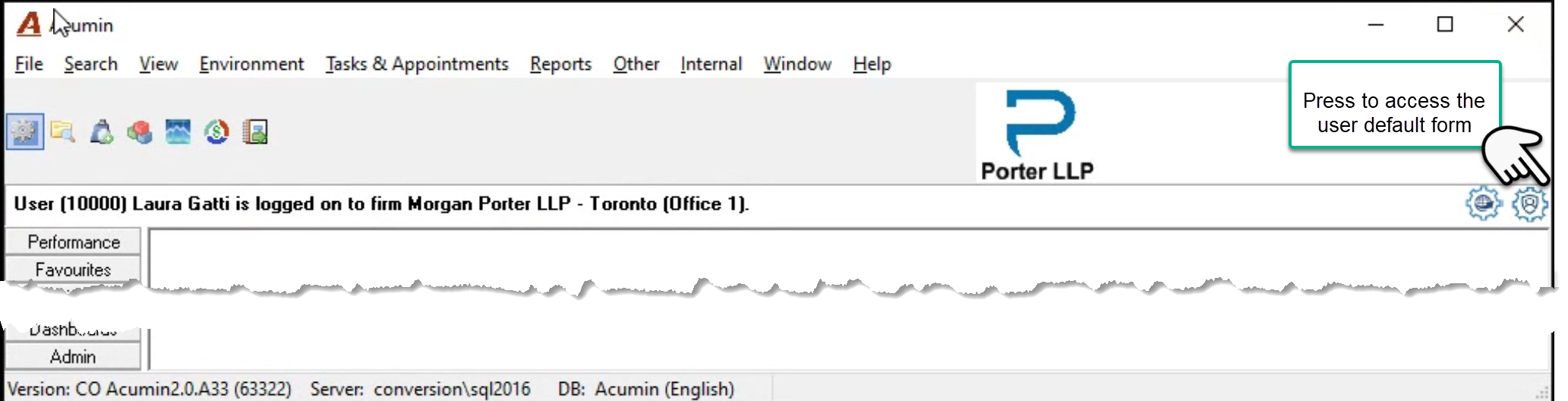
Close all the open forms and press on the right most icon to launch the user default form
General Tab
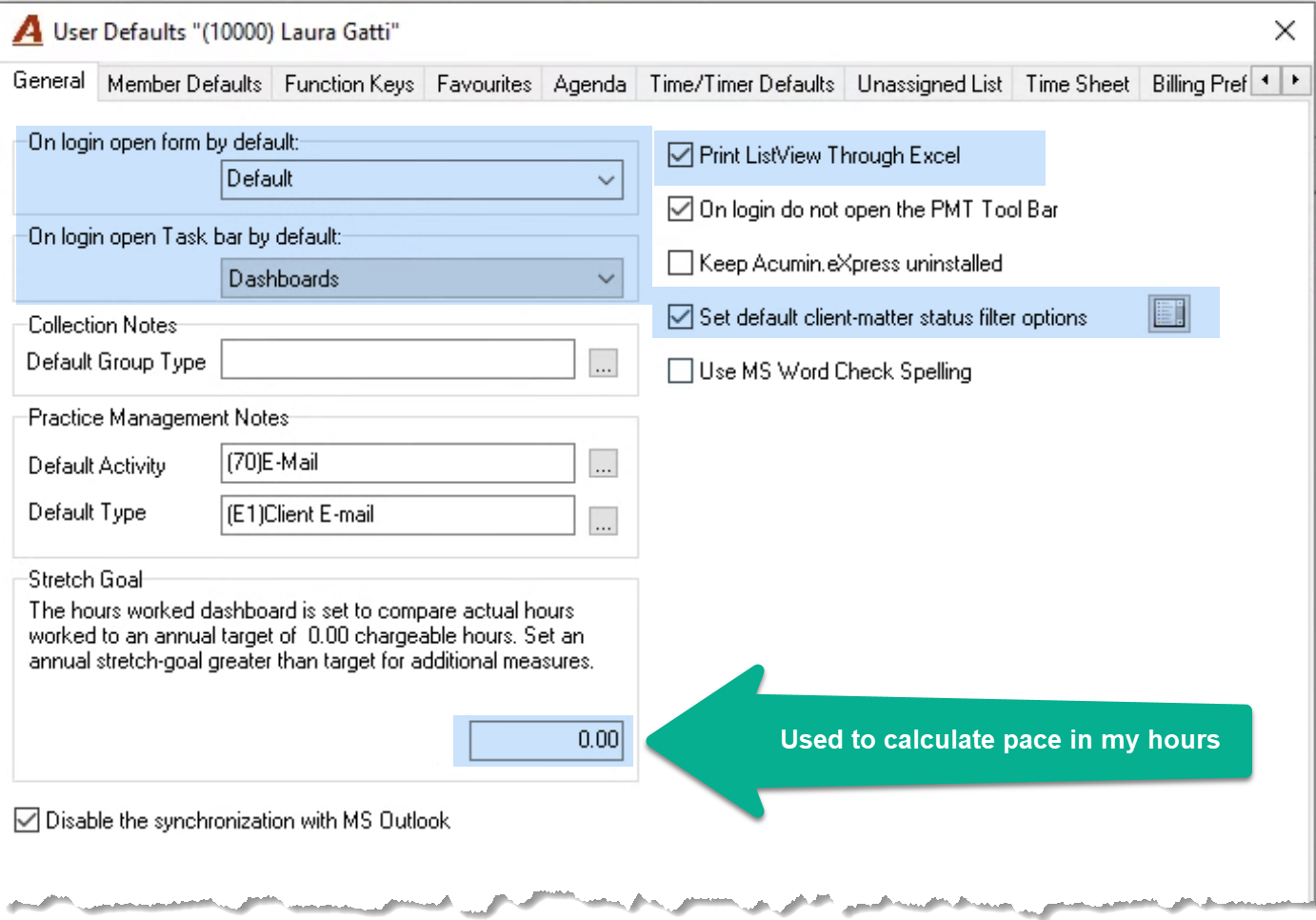
The most often used options are highlighted in blue. Many timekeepers change the default login form to “Hours Worked” dashboards.
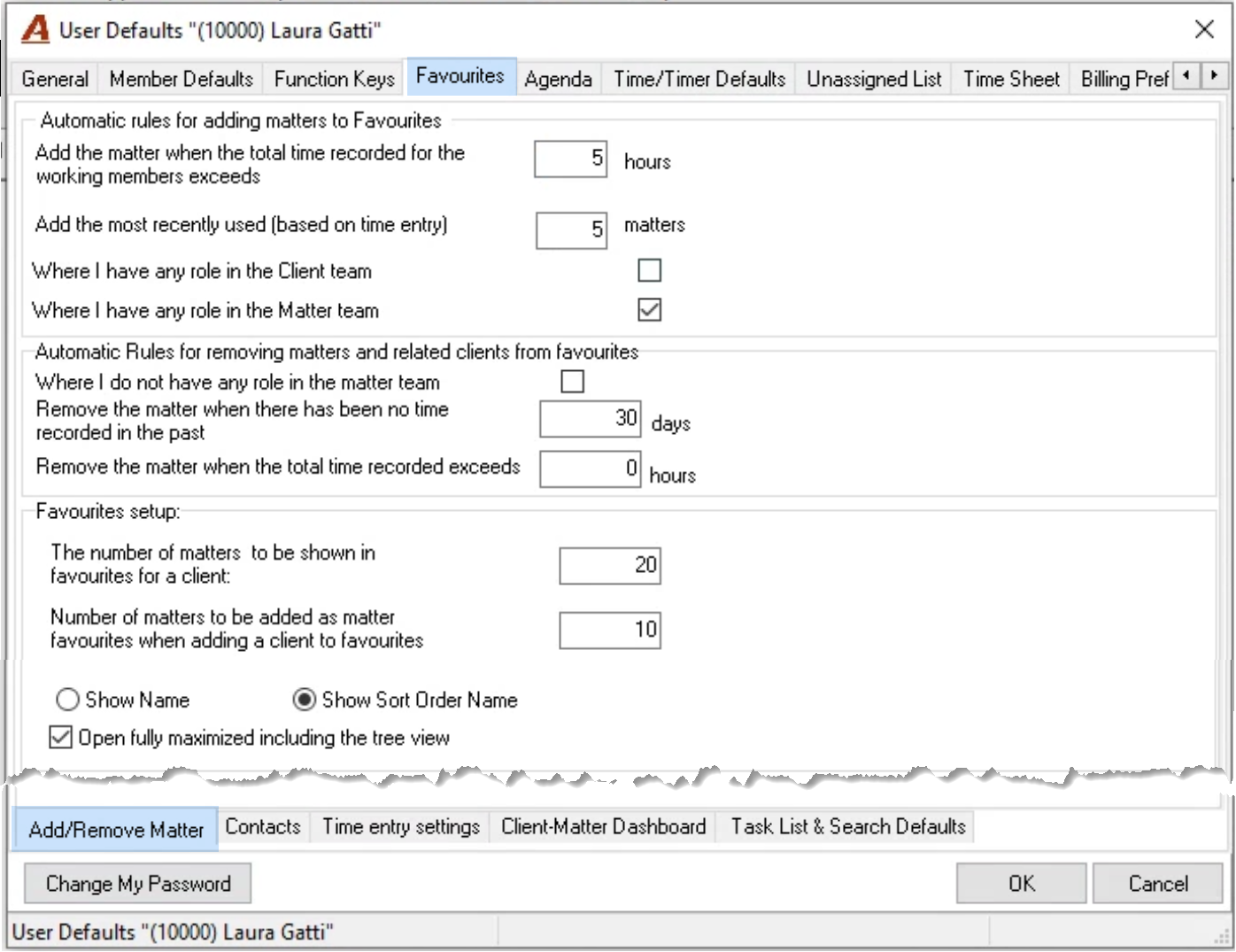
Favourite Tab – Add/Remove Matter Sub-Tab
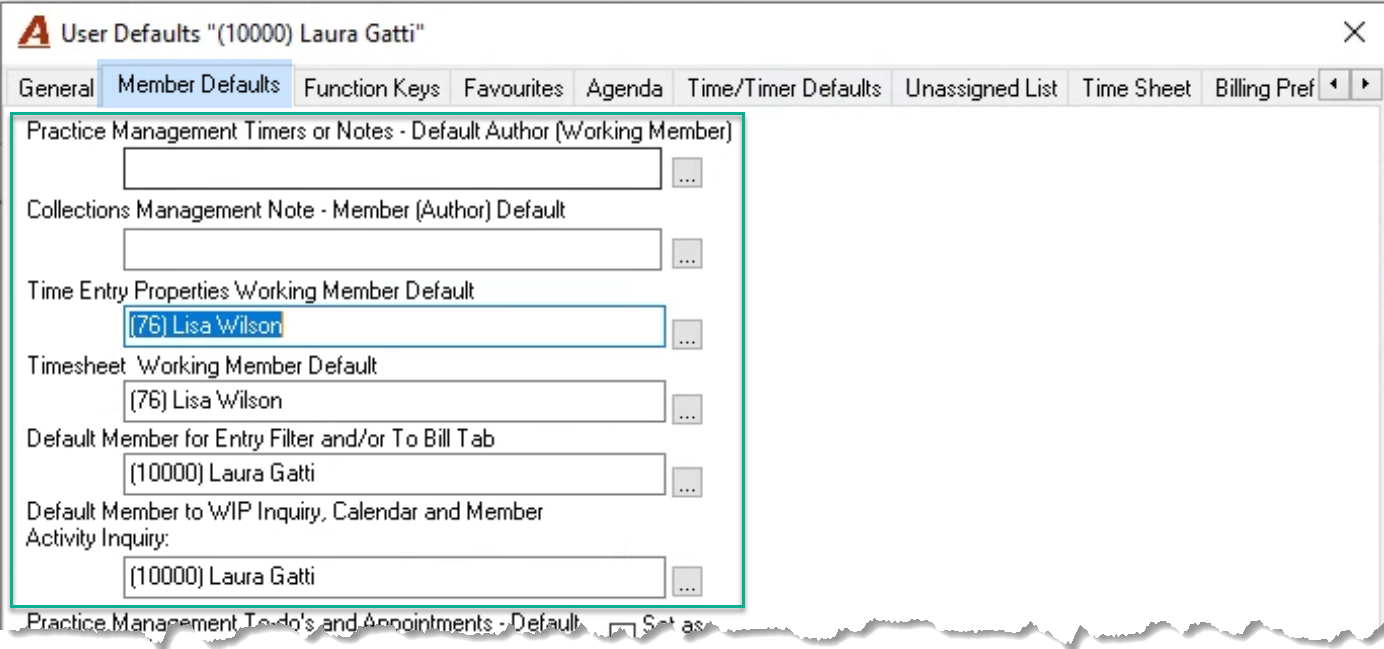
Modify the default presentation options for your client and matter favourite forms, and/or modify the default add/remove from favourites options to better manage your favourite foirm content.
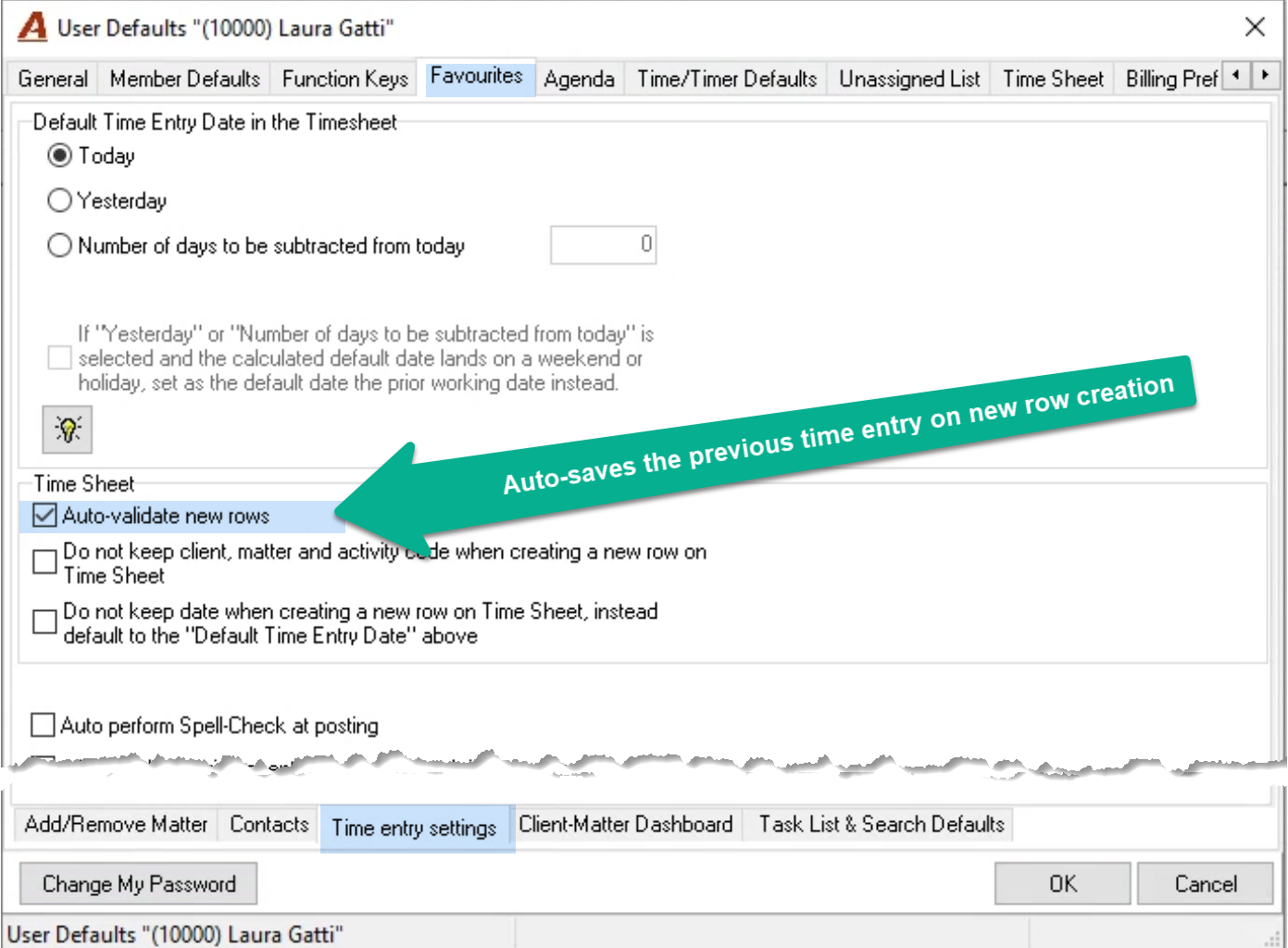
Favourite Tab – Time Entry Settings Sub-Tab
This tab includes options to personalize your timesheet beyond the number of columns shown (option available in timesheet) and their position (timesheet tab in user default).
Favourite Tab – Client-Matter Dashboard Sub-Tab
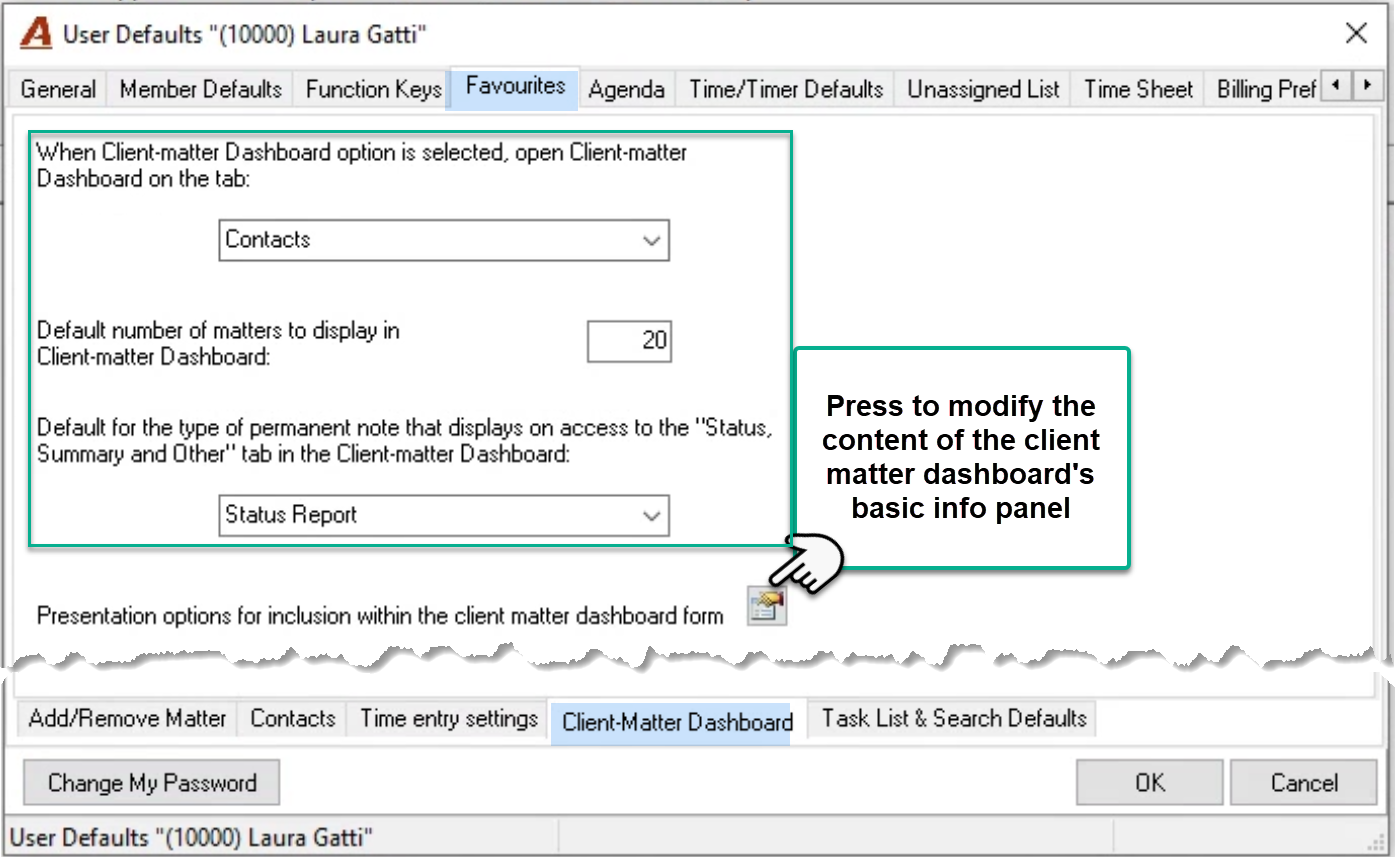
Used the options presented to personalize the landing position.
The first field refers to the tab where you want to land on when you launch the client-matter dashboard. Select your most often use-case.
The second field refers to the default number of matters you want to display on the “Matters” subtab, when you only select the client. The higher the value the longer the wait.
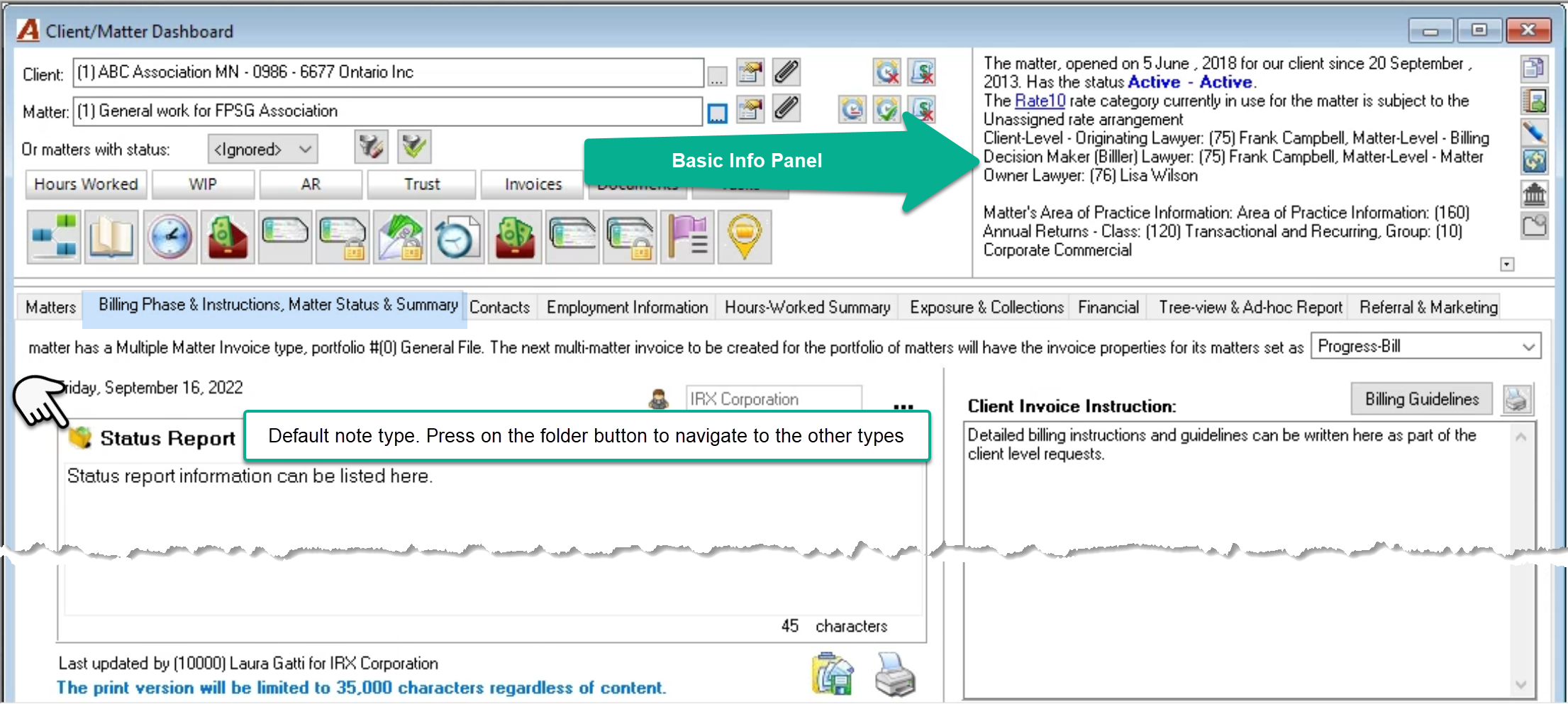
As there are three permanent notes available, the third field refers to landing on the permanent note type that you refer-to most when you press on the “Billing Phase and Instructions, Matter Status & Summary” tab.
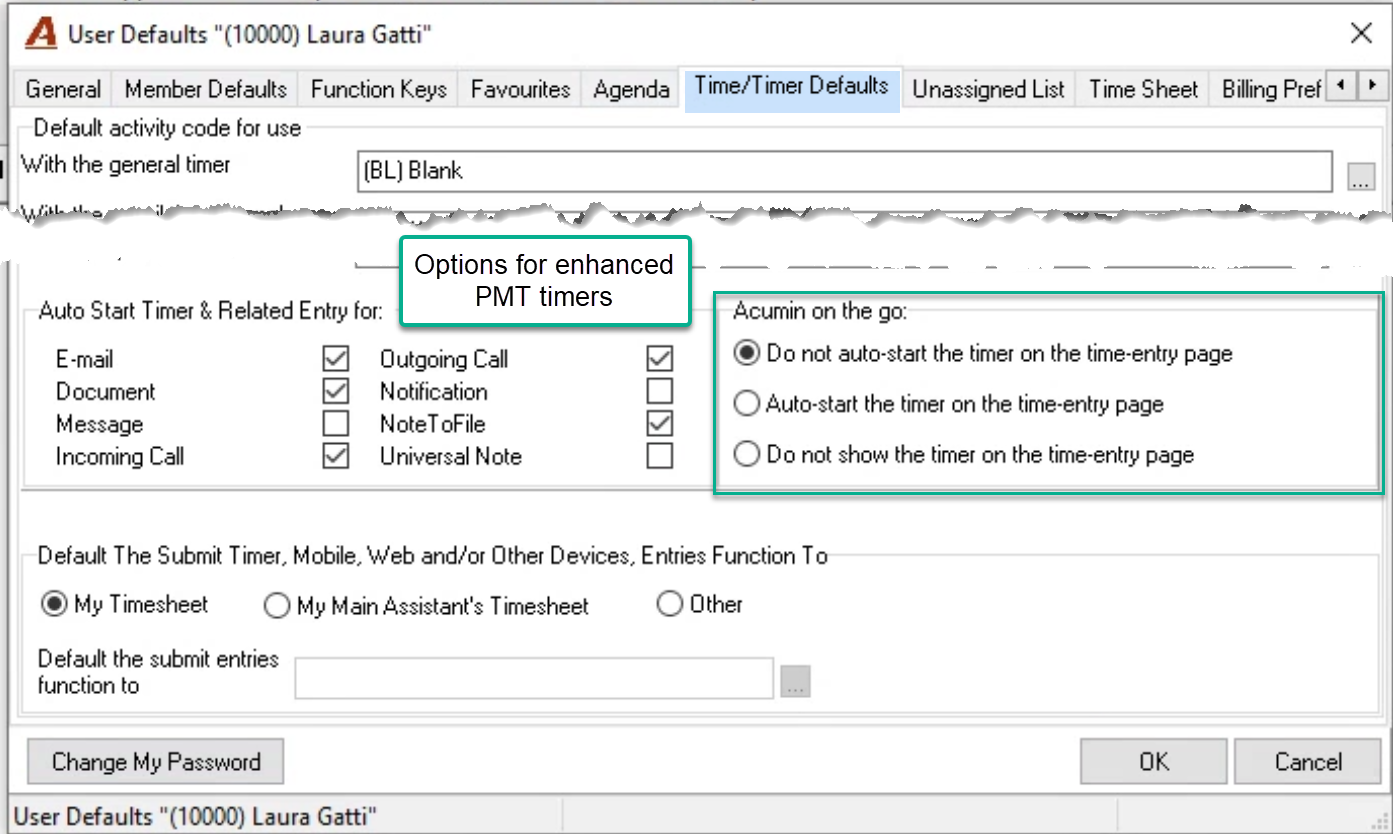
Time/Timer Defaults Tab
Set a general use time activity code as a default when using timers to not have to select one.
Set default timer options for Acumin on the go (Acumin.mobile) – future functionality for Acumin.web subscriptions
Set a default to submit-to recipient for editing and posting time entries.
Timesheet Tab
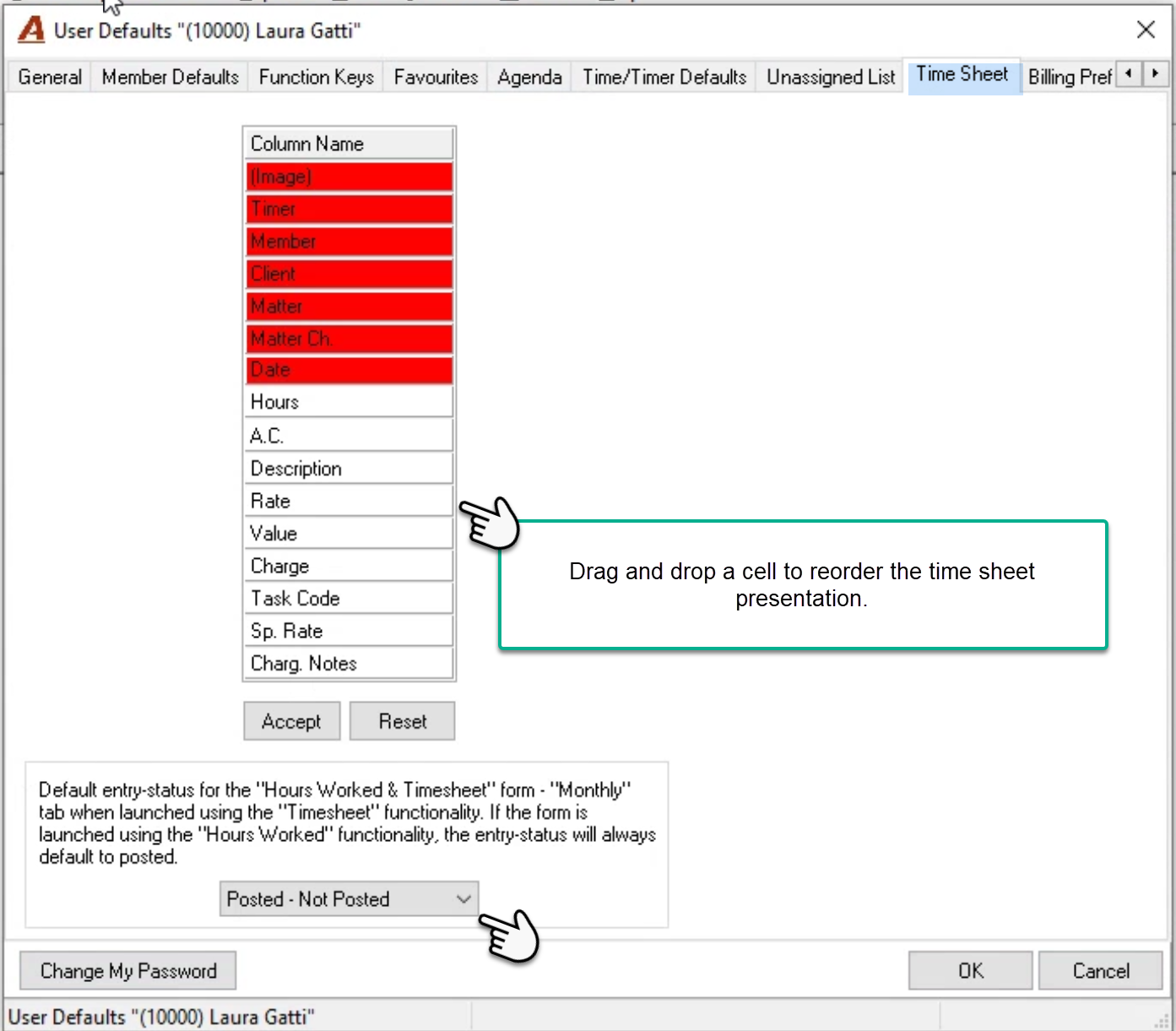
Press on a white cell and drag it to a new position to change its presentation order on the timesheet to better reflect how you want to enter time on the timesheet. The red cells cannot be reordered. Reordering the cells does not prevent the user from hiding an unnecessary column on the timesheet – right click option on the timesheet column header.
If the description is in last position, it can present separately for each timesheet record at the bottom of the timesheet.
Select a time entry status default to reflect the most often used filter scenario when you access the filter in the month tab to left of the timesheet, when launched from the timesheet icon in the activities section of the task bar. The default presentations in this case are different than when the same form is launched from the hours Worked Dashboard.