.png)
Overview
Subject to licensing, Acumin supports the concept of interfirm operability. This means that the organization licensed for inter-firm business logic will be able to generate accounting object in one firm and include within the object accounting transactions belonging to another firm. In other words, an authorized user can create a payable voucher (accounting object) in Firm A and charge the GL Account or matter in Firm B.
Creating an Inter-firm GL Account
In this example, we will be implementing inter-firm logic between Calgary (003) and Vancouver (004)
-
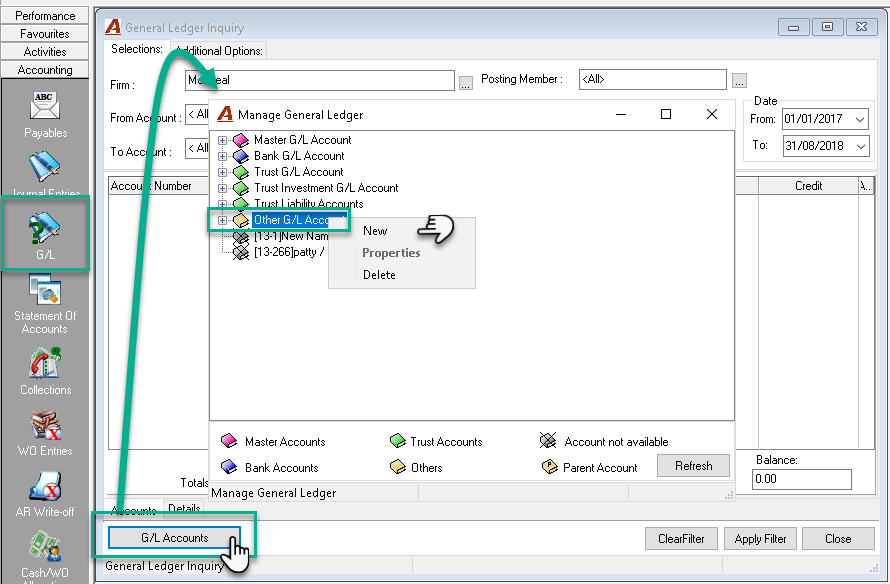
To create an interfirm account, access the Accounting – G/L module;
-
In the General Ledger Inquiry window, click on the "G/L Accounts" button;
-
Within the Manage General Ledger window, select the "Other G/L Account" section and open the right-click contextual menu;
-
Select "New" - the interfirm account must be a new one.
-
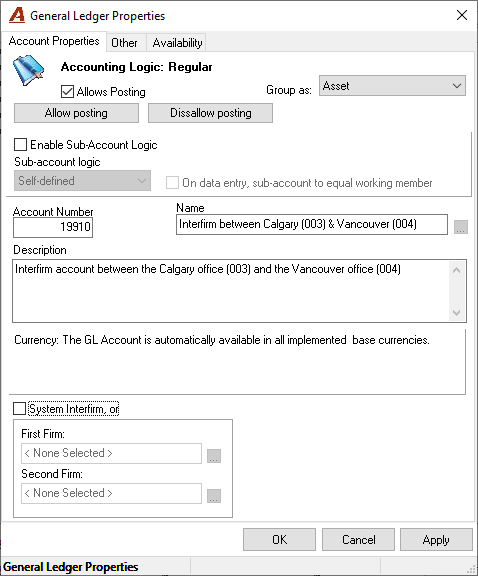
Within the General Ledger Properties window, complete the following fields:
-
Select the account kind as Asset;
-
Enter the account number and name that will be displayed on the trial balance;
-
If the firm already has interfirm accounts, consider using a GL number within same sequence.
-
Enter a GL description explaining the purpose of the account.
-
Don't click yet on the "System Interfirm, or" option.
-
-
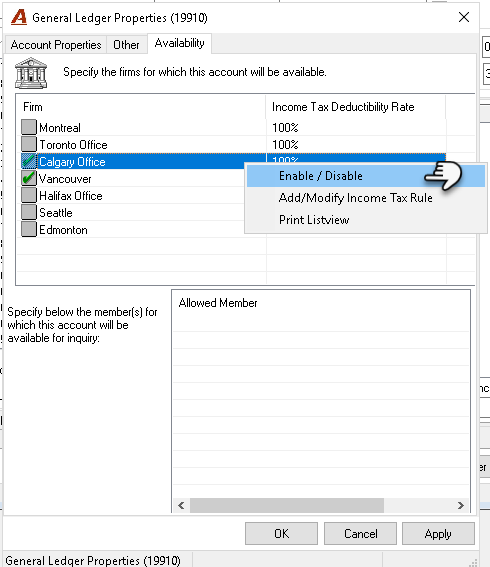
Click on the Availability Tab to set the firm's availability for the two firms for which the interfirm logic will be implemented. In our example we will be inputting Calgary (003) and Vancouver (004)
-
Select a firm, open the right-click contextual menu and select the "Enable/Disable" option. Please note only two firms should be selected.
-
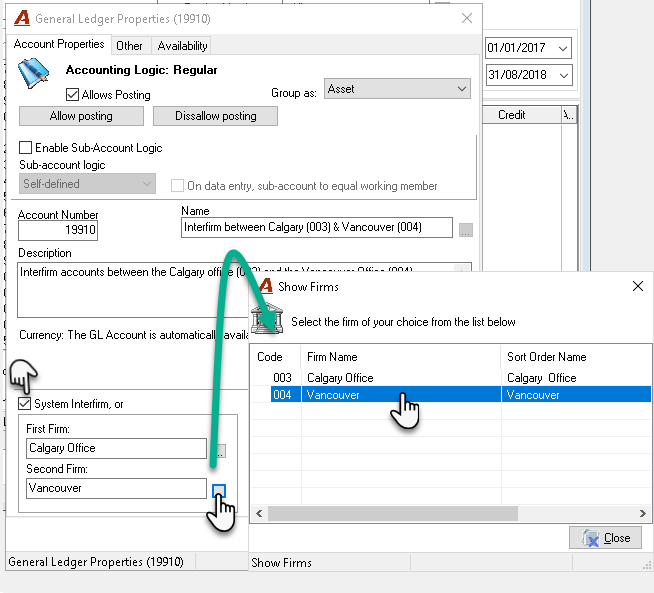
Click on the Account Properties tab to complete the interfirm section;
-
Enable the "System Interfirm, or" option;
-
Click on the ellipsis button to select the two firms (Calgary – 003 and Vancouver – 004);
-
Click OK to save the new account.
-
Environment Setup
-
To setup the interfirm functionality, go to Environment – System Configuration – System Settings;
-
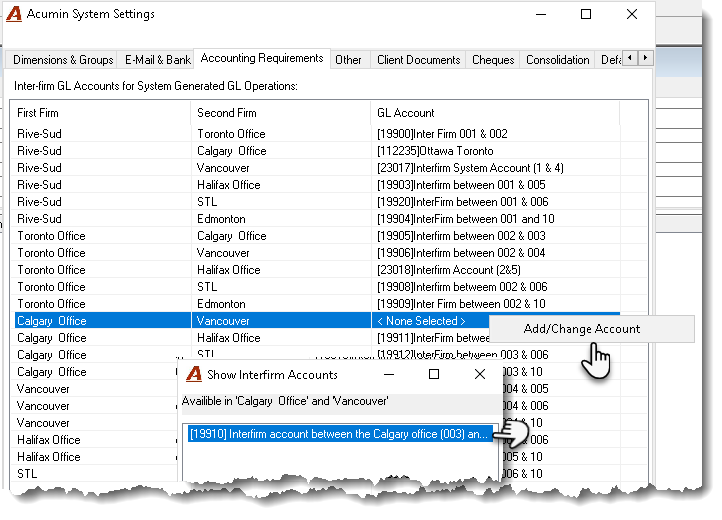
Within Acumin System Settings, select the Accounting Requirements tab;
-
Locate the appropriate firm combination;
-
Open the right-click contextual menu and select "Add/Change Account" option.
-
In the Show Interfirm Accounts window, double-click the newly created interfirm account;
-
-
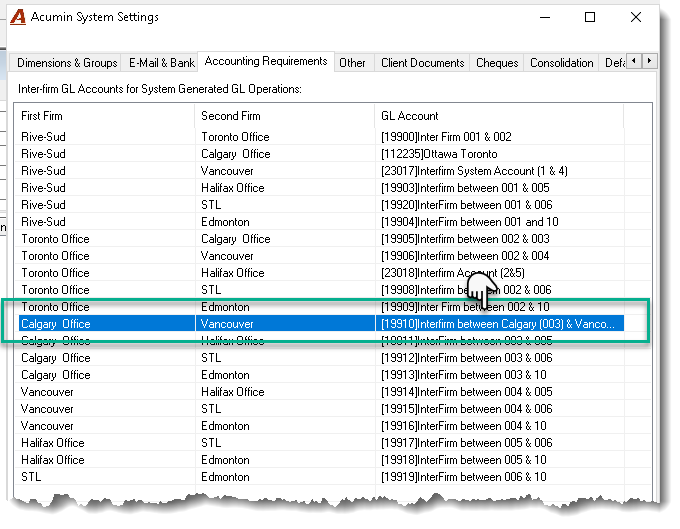
The intefirm account with then appear for the firm combination.
Licensing and Security
To be able to user the interfirm functionality, the firm needs to have the license "Multi_OfficeOrFirm" enabled. Please contact Support@dexco.com for more information.